How to Set Up Google Family Link on Your Child’s Android Phone

Can you manage an Android phone from your own phone, even if yours is an iPhone? Yes. Google Family Link, Google’s free parental controls, lets you set daily limits, approve apps, filter websites and lock the phone at bedtime from the Family Link app or a web browser. Newer Android phones also have parental controls built into Settings.
It changed a lot in 2025 and 2026. School time arrived on phones, Android 17 added parental controls directly in Settings, and Google now requires a parent’s approval before anyone under 18 can stop supervision. Older tutorials miss most of this.
The right route depends on your child’s age, so start there. After that come the settings themselves, what your child sees and the gaps that let rules slip.
The short version
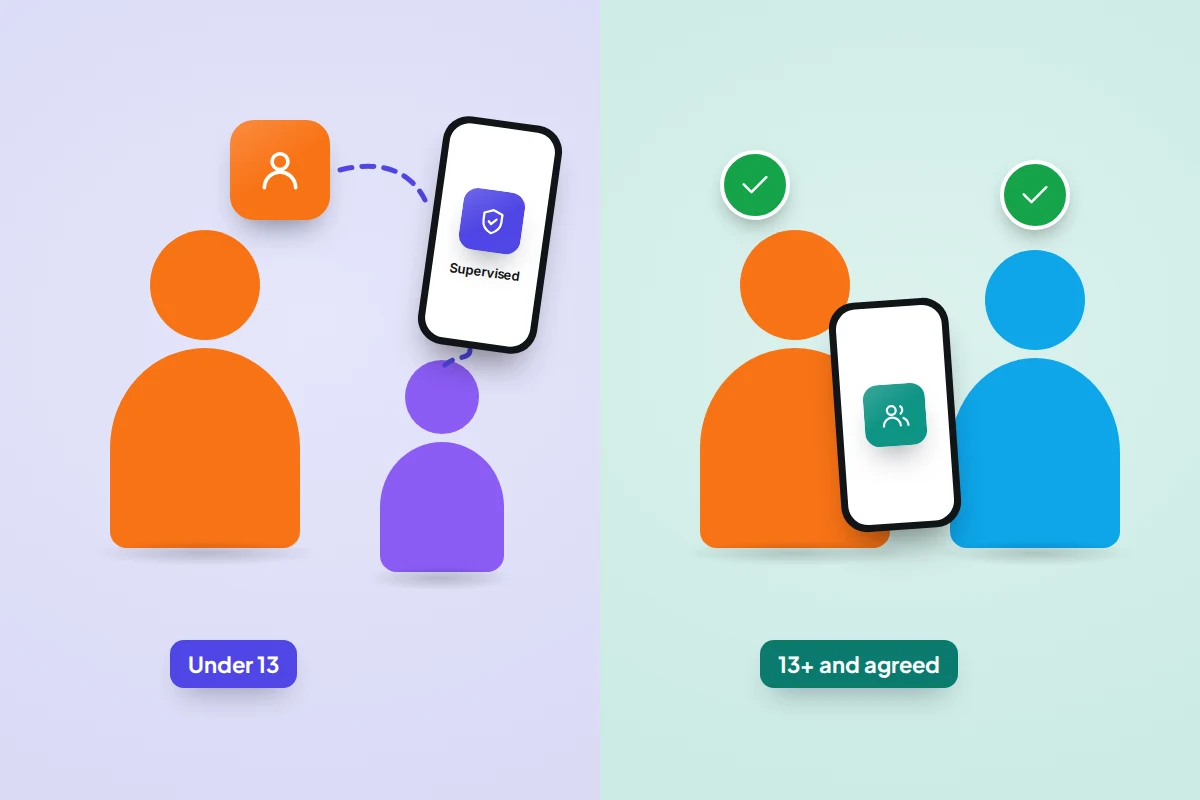
- Under 13 (or the age in your country), you create and supervise your child’s Google Account. A teen’s existing account can be supervised only if they agree.
- Setup starts on your child’s phone and is managed from the Family Link app or familylink.google.com.
- Screen time has three parts: a daily limit, Downtime at night and School time during lessons.
- Chrome filters and SafeSearch don’t cover other browsers or search engines, so block the apps you don’t want.
- Family Link can’t read messages or show the screen, and it can’t supervise an iPhone.
Three ways in: the app, the web and Android settings
The Family Link app, for Android phones and iPhones, is still the main way to manage a supervised child. Its Screen time tab holds limits and schedules; its Controls tab holds content filters, Google Play and privacy settings. familylink.google.com does almost everything the app does, from any browser.
Parental controls in Settings are newer. On a phone running Android 17, Settings → Parental controls offers a daily limit, Downtime, app limits, app blocking, web and app store filters, all protected by a PIN of at least four digits on the phone itself. It suits a younger child’s tablet or a family where one adult sets things up in person, though a child under the age of consent still needs a parent-managed Google Account. Every change needs the device in your hand and the PIN; when that becomes a nuisance, the same menu offers a direct switch to Family Link.
For a child’s own phone, Family Link is the better fit: you can answer requests from anywhere, and School time, purchase approvals and location are only there.
Under 13, or a teen who agrees
A child under 13
Children under 13 (the age varies by country) can only have a Google Account created and supervised by a parent. You can create one in the Family Link app with Add child, or while setting up a new phone by choosing For my child. You’ll be asked to give consent; one option is a card check, which places a temporary authorisation but doesn’t charge you.
A teenager with an existing account
For a teen who already has a Google Account, supervision is added with their consent, with the teen and their phone next to you. Parents of teens supervised this way can manage apps, screen time, location, SafeSearch and Chrome filters, but can’t see their searches, Chrome history or YouTube watch history.
When a supervised child turns 13, Google emails both of you about their options. Supervision doesn’t end at 13: anyone under 18 needs a parent’s approval to stop it, and you’ll both be notified if it ends. Talk it through before that birthday email arrives.
Setting it up, phone by phone
Have both phones charged and on Wi-Fi. Menu names vary by phone maker and Android version.
- On your phone: install Family Link and sign in with your own Google Account.
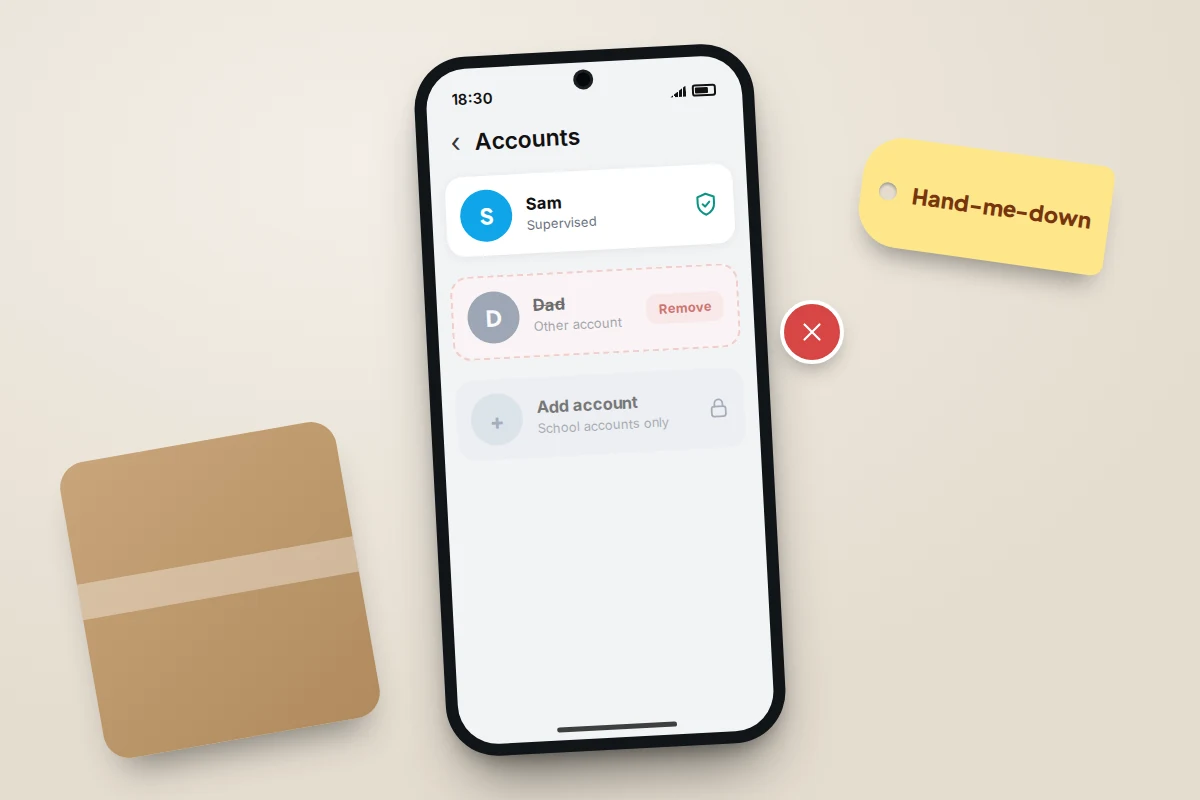
- On your child’s phone: remove any other Google account, such as yours on a hand-me-down phone. A second account would let apps be downloaded without your approval. Once supervised, the only other account a child can add is a Google Workspace for Education school account.
- For a new phone, sign in with the child’s account during setup. For a phone already in use, go to Settings → Google → All services → Parental controls, tap Let’s do this and choose the account.
- Confirm you’re the parent by signing in with your own account on the child’s phone.
- Choose starting settings on the child’s phone, then fine-tune them in the Family Link app.
If this is a first phone, our guide to setting up a child’s first phone covers the non-Google side: SIM, PIN, emergency contacts and house rules.
Daily limits, Downtime and School time
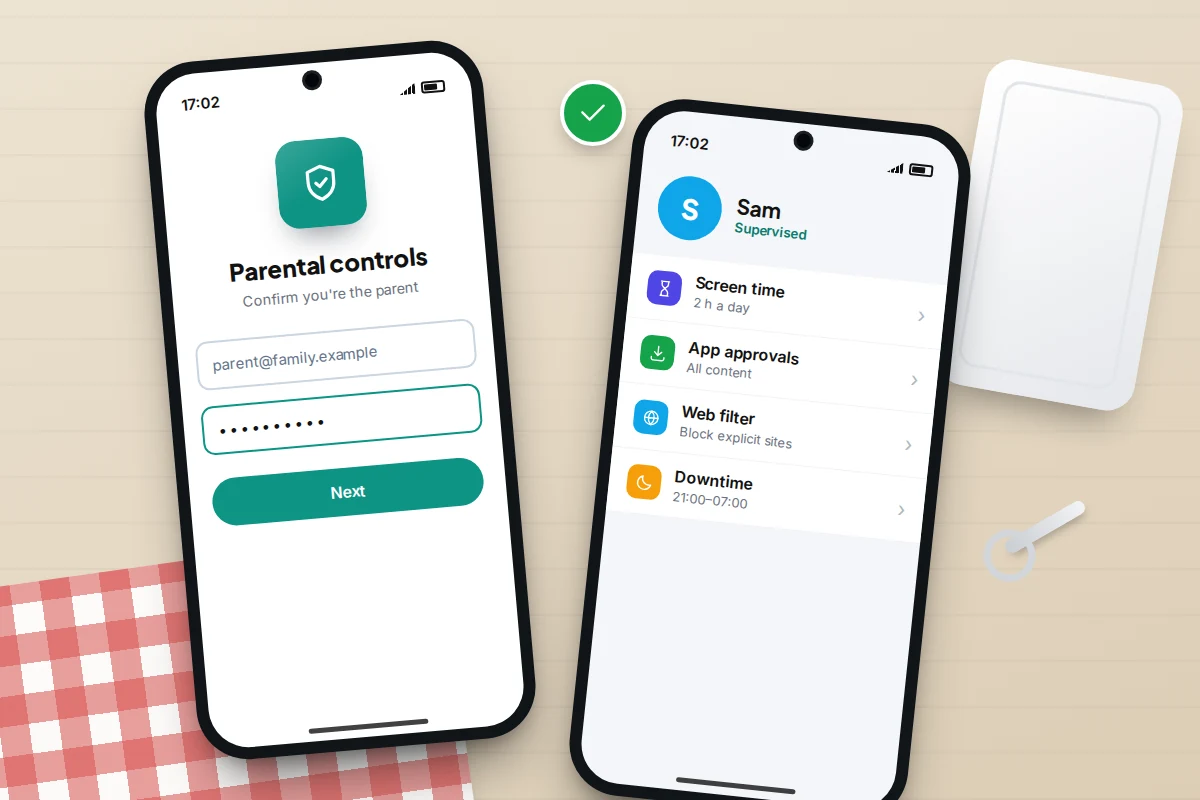
All three live under Family Link → [child] → Screen time.
- Daily limit: tap Time limits, turn on Daily limit and set hours for each day. The limit applies to each Android device and Chromebook separately: two hours means two hours on each.
- Downtime: under Schedules, turn on Downtime for the overnight hours. Tap Tonight to shift it for one evening only.
- School time: also under Schedules. It silences notifications and limits the phone to apps you choose during lessons. Add a Break if other apps should work at lunch.
- App limits: under Time limits → App limits, give one app its own daily time, block it, or mark it Unlimited time so it keeps working after the limit. System apps can’t be limited.
Why three controls rather than one? A daily limit alone lets a child spend the whole allowance at midnight, and Downtime alone doesn’t stop six hours of games on a Saturday. Together they set both how much and when. School time is lighter than a lock: calls and texts still work, and so do the apps you pick, such as a calculator or a bus timetable.
During Downtime your child can still answer calls and dial emergency numbers; ring the phone once to check it behaves as you expect. For texts, mark the messaging app as Unlimited. Extra time is given from your side: tap Bonus time under the device name, or Lock and Unlock to act straight away. If the phone is offline, the parent access code in your Family Link app unlocks it.
Apps and Google Play
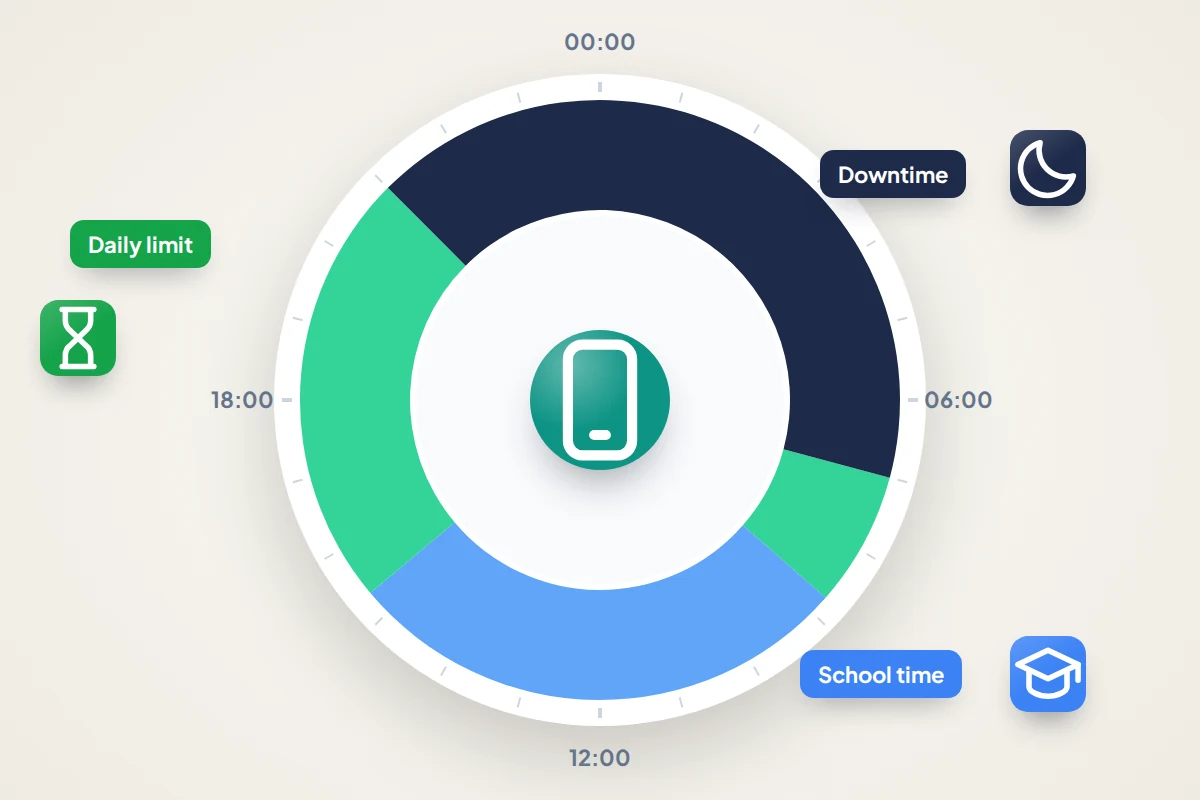
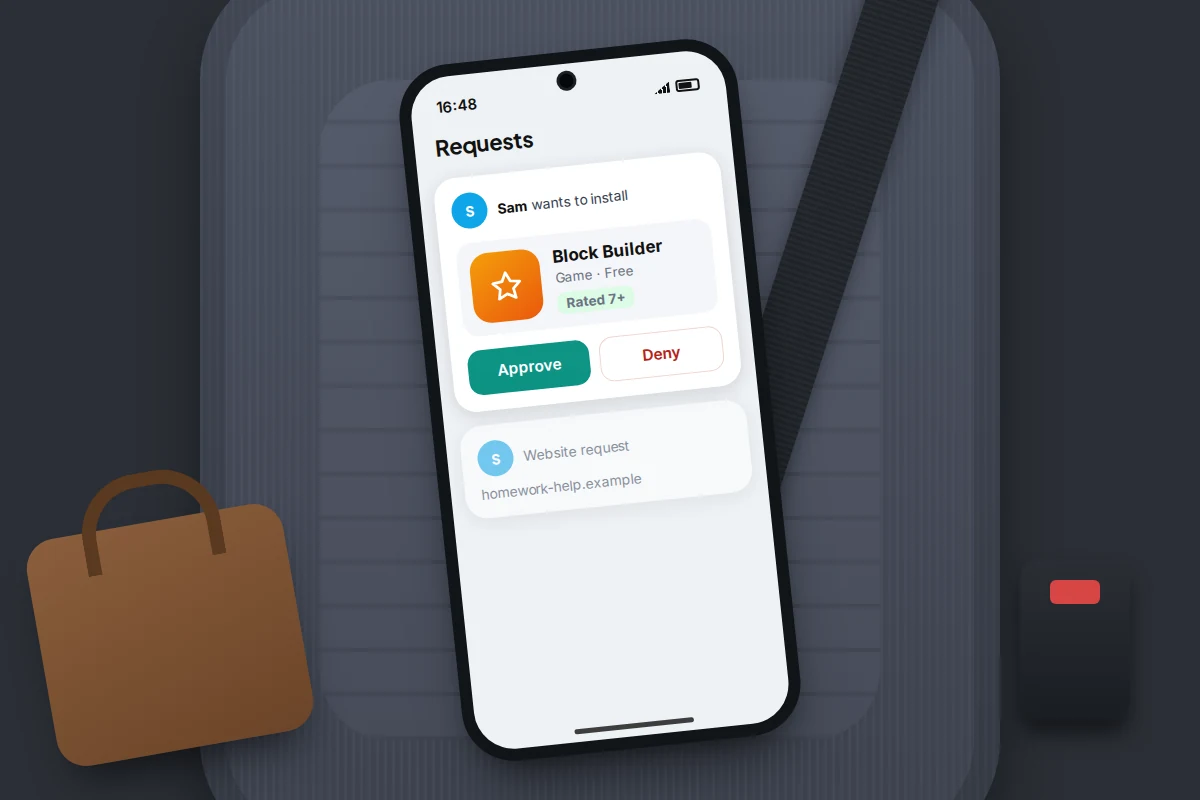
Under Controls → Google Play you set two things. Require approval for decides whether your child needs your approval for all content, paid content only or in-app purchases only. Content ratings set the highest rating allowed for apps and games, films and TV; in the UK and Europe these are PEGI ratings.
When your child wants an app, they can choose Ask in a message, which sends a notification to your phone, or ask you in person, where you enter your password on their phone. Two limits matter. Ratings don’t remove apps installed before you set them. And they only cover Google Play, not other app stores such as a phone maker’s own.
Chrome, Search and YouTube, and where they stop
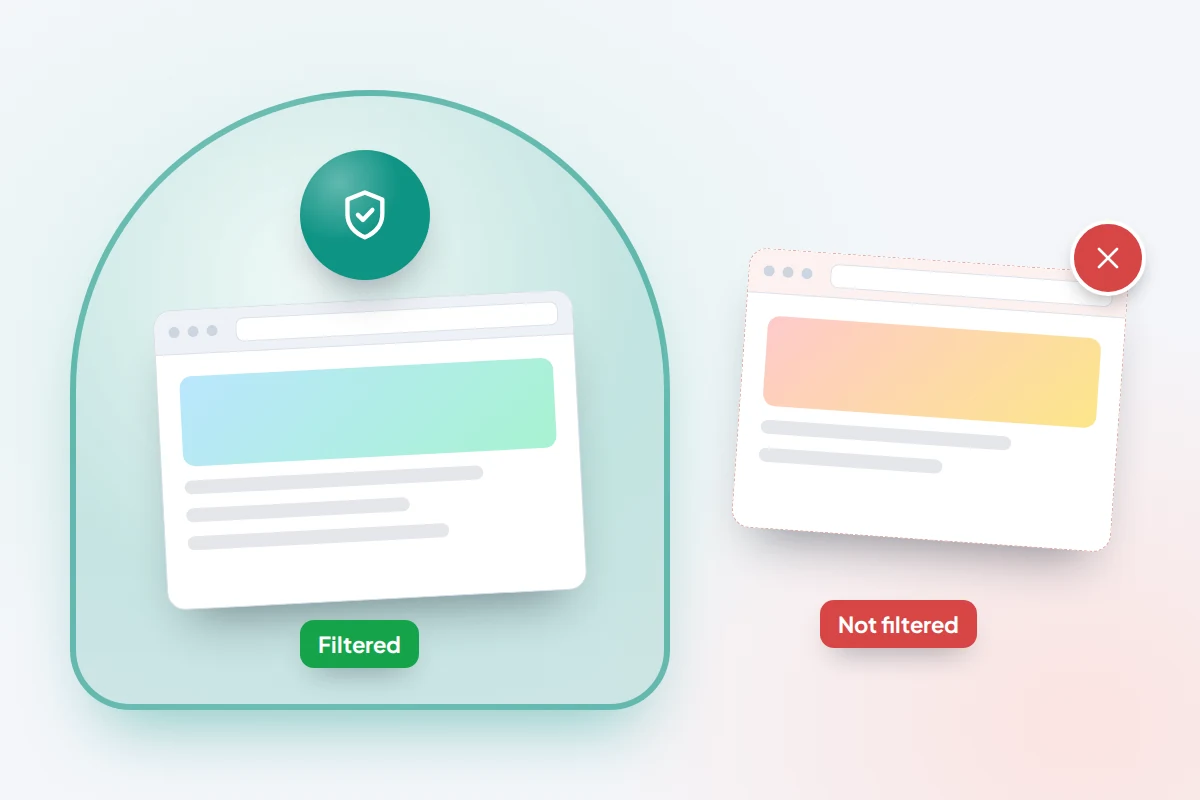
Chrome: under Controls → Google Chrome and Web choose Allow all sites, Try to block explicit sites or Only allow approved sites, and add sites to allow or block. Incognito is switched off. Google says plainly that no filter is perfect.
Search: SafeSearch is on and locked by default for supervised children, and only a parent can change it under Controls → Google Search. It applies to Google Search while your child is signed in, not to other search engines.
YouTube: for under-13s, choose between YouTube Kids, a separate app, and a supervised experience on YouTube with three content levels, which you manage in Family Link. Our parent’s guide to YouTube covers the choice in more detail.
Gemini: Google’s help says a parent must turn on Gemini for a child under 13, and you’re emailed when they first use it. It isn’t available on supervised accounts in the UK, the EEA or Switzerland.
Location, locking and contacts
To share location, open Location → Set up location in Family Link, choose your child and tap Turn on. The phone must be on and online, and arrival or leaving alerts need a family place and Location Accuracy switched on. Agree openly when you’ll look and why; an agreed message at key moments often works better than a map, as our guide to check-ins instead of constant tracking explains.
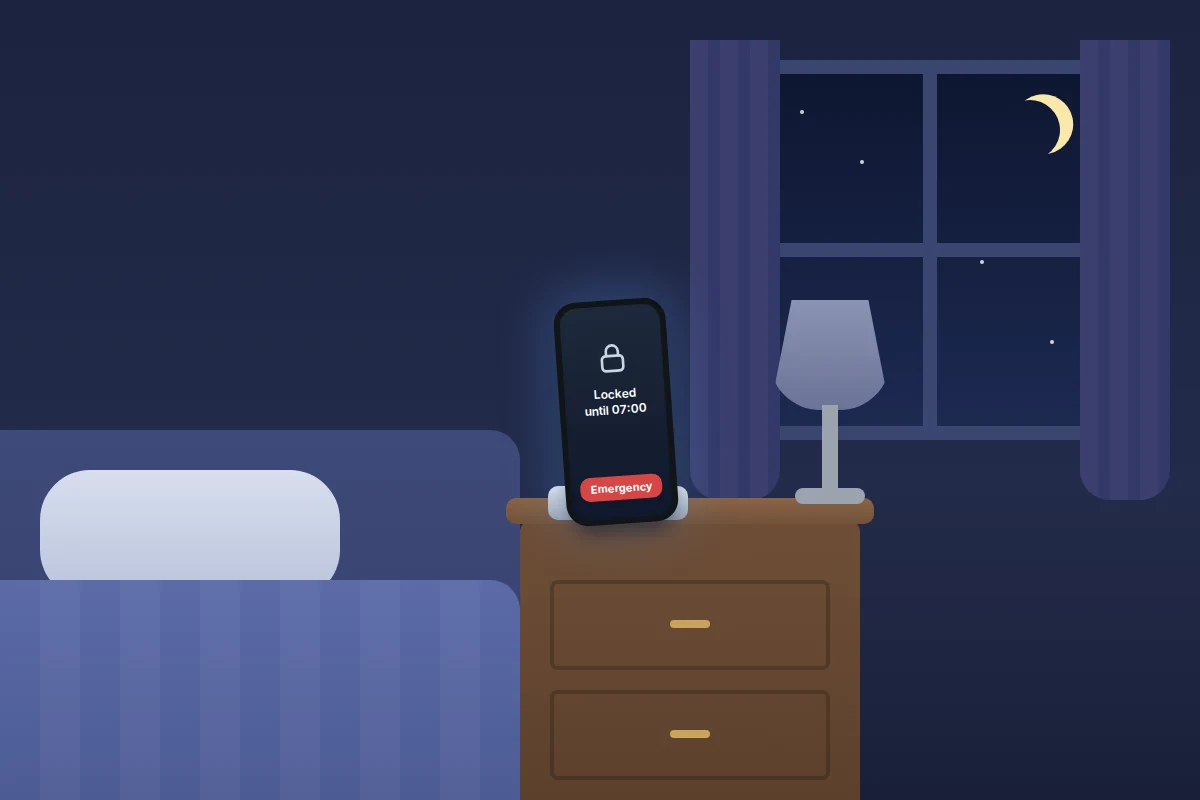
A locked phone shows no notifications and runs only Unlimited apps, but your child can still answer calls and tap Emergency. On Android 14 and later, Controls → Contacts, calls & text lets you approve who your child can call and text in Google’s Phone and Messages apps; they can request new numbers, and emergency services always work. It doesn’t cover WhatsApp or other messaging apps.
What your child sees, and how to talk about it
Family Link isn’t hidden. Your child gets a notification when screen time is first set up and another shortly before the phone locks. Blocked sites and new app downloads offer a way to ask you. They can check their own limits under Settings → Digital Wellbeing & parental controls or Settings → Google → Parental controls. And turning 13 brings an email to them as well as you.
Say what it is and what it isn’t:
“This sets how long the phone works each day and checks new apps with me first. It doesn’t let me read your messages or see your screen. If something’s blocked that you need, ask in a message and I’ll answer the same day. We’ll loosen it as you get older.”
Then keep the promise: answer requests quickly, and review the settings together every few months.
What Family Link can and can’t do
| Task | Can Family Link do it? | Worth knowing |
|---|---|---|
| Daily limit, Downtime, School time | Yes | On Android devices and Chromebooks |
| Approve downloads and purchases | Yes | Google Play only |
| Block or limit individual apps | Yes | Some system apps can’t be limited |
| Filter websites | Partly | In Chrome only |
| Lock SafeSearch on | Yes | Google Search, while signed in |
| Show the phone’s location | Yes | Phone must be on and online |
| Approve contacts | Partly | Android 14 or later, Google’s Phone and Messages apps only |
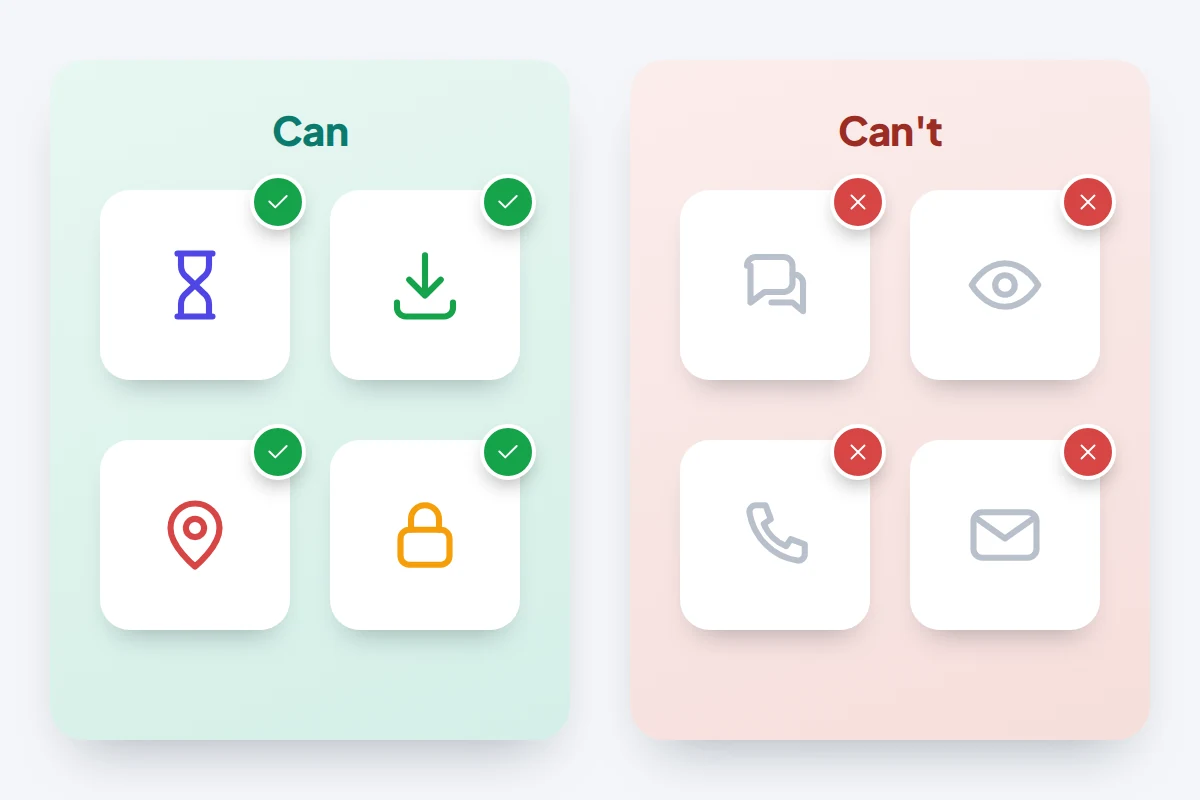
| Read messages or emails, view the screen | No | By design |
| Show browsing or YouTube watch history | No | Parents of teens can’t see searches either |
| Supervise an iPhone or iPad | No | Only the parent’s app runs on iPhone |
| Stop a teen ending supervision | Yes, until 18 | Your approval is needed |
When settings don’t stick
- A second Google account or profile. Settings apply only to the child’s account, and not to other user profiles on the device. Remove other accounts and don’t add extra profiles.
- Other browsers and app stores. Browsers such as Firefox or Samsung Internet aren’t covered by Chrome filters, and a phone maker’s app store, such as Galaxy Store, sits outside Google Play approvals. Block them under App limits; a few pre-installed apps can’t be blocked, so check each one.
- Changes seem to be ignored. App blocks take about five minutes and need the phone online. Check the child is signed in on that device and profile. Changing the clock isn’t a loophole: it can’t be changed while screen time limits are on.
Frequently asked questions
Can I use Family Link if I have an iPhone?
Yes. The parent’s Family Link app runs on iPhone, and the website works in any browser. Your child’s phone must be Android; an iPhone needs Apple’s Screen Time instead.
Does my child know Family Link is on?
Yes. They’re notified when limits are set and before the phone locks, and their settings show that the account is supervised.
Can my 13-year-old turn Family Link off?
Not on their own. Google says children under 18 need a parent’s approval to stop supervision, and both of you are notified if it stops.
Can another parent help manage it?
Yes. A second parent in your Google family group can manage the same settings, and Family Link can notify you when they change something, such as a location setting.
How do I unlock the phone if it’s offline?
Use the parent access code shown in your Family Link app. It works on your child’s Android phone or Chromebook without an internet connection.
Sources and further reading
- Google For Families Help: Get started with Family Link
- Google For Families Help: Add and manage supervision on a current Google Account
- Google For Families Help: How Google Accounts work when children turn 13
- Google For Families Help: Set a schedule on your child’s device
- Google For Families Help: Chrome and your child’s Google Account
- Android Help: Set up parental controls on an Android device
- Google blog: New expanded Android parental controls to support families around the world (June 2026)
- Google Family Link: frequently asked questions
Looking for a tool to go with this? TheTruthSpy is a free parental control app for Android that stays visible on the child's phone. If it fits your family, see what the app does.
Related guides
How to Set Up Screen Time on Your Child’s iPhone
Set up Screen Time for your child from your own iPhone: iOS 27 schedules and allowances, contacts, web filters, what…
How to Share Your Location With Family on iPhone and Android
Share your location with family on iPhone and Android: Find My, Google Maps, WhatsApp and more, what works across both,…
How to Set Up Check-Ins Instead of Constant Tracking
A calmer alternative to watching a live map: how to agree check-ins with teenagers, older parents or friends, what to…
Parental controls your child can see
Location, screen time limits, a web filter and alerts from notifications — free, and visible on your child's phone. Pair a phone in about ten minutes.
Android · Free to set up · Visible on your child's phone