How to Set Up Screen Time on Your Child’s iPhone

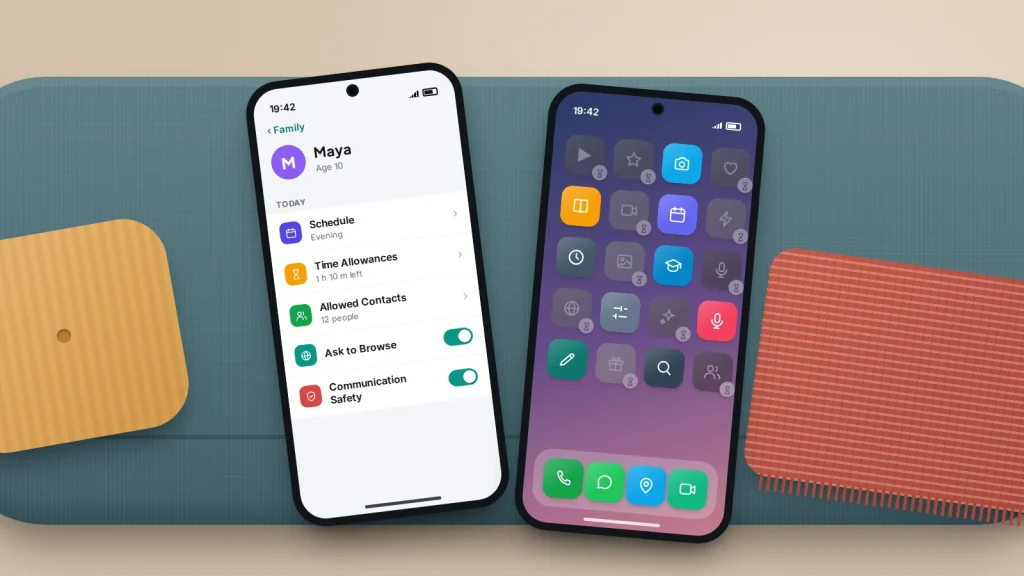
The new iPhone is still in its box, and you would like the rules in place before the first group chat arrives. Apple’s Screen Time already does most of what parents need: it limits time by type of app, filters websites, controls who can message your child and asks you before anything is bought. It is free, it is built in, and your child can see that it is switched on.
The catch is that Apple rebuilt these controls in iOS 27, released on 14 September 2026. Screen Time Schedules take over from Downtime, Time Allowances from App Limits, and Allowed Contacts from Communication Limits. Most help pages and videos still show the old screens.
Below: the setup from your own iPhone, what your child sees, a starting point for each age, and the gaps that catch parents out.
The short version
- Set Screen Time up from your own iPhone through Family Sharing, so the passcode is never typed on your child’s phone.
- In iOS 27, go to Settings → Family → [child’s name]. Every device in the family group needs version 27 for the new controls.
- Schedules decide when apps are available; Time Allowances decide how long; Always Allowed apps ignore both.
- Your child can ask for more time, a website, an app or a new contact, and the request arrives on your phone.
- Start stricter with younger children and loosen one setting at a time, telling them what changed and why.
Set it up from your phone, not your child’s
There are two ways to use Screen Time for a child. The better one is through Family Sharing: your child has their own Apple Account in your family group, and you manage everything from your own iPhone. Apple says the child’s Screen Time passcode must be set on the parent’s device, which has three benefits: your child never watches you type it, requests reach you wherever you are, and you can change a setting without taking their phone away.
The fallback, for a child outside your family group, is to switch Screen Time on in their phone and lock it with a passcode. Every change then needs the phone in your hand, and the passcode is typed in front of the person it is meant to keep out.
Create a Child Account
Children under 13 need an Apple Account created by a parent (the age varies by country). Enter the correct birthday, because Apple switches on protections automatically by age.
- On your iPhone, open Settings → Family.
- Tap Add Member, then Create Child Account, then Continue.
- Enter your child’s name and birthday and follow the instructions. You may be asked to confirm you are an adult.
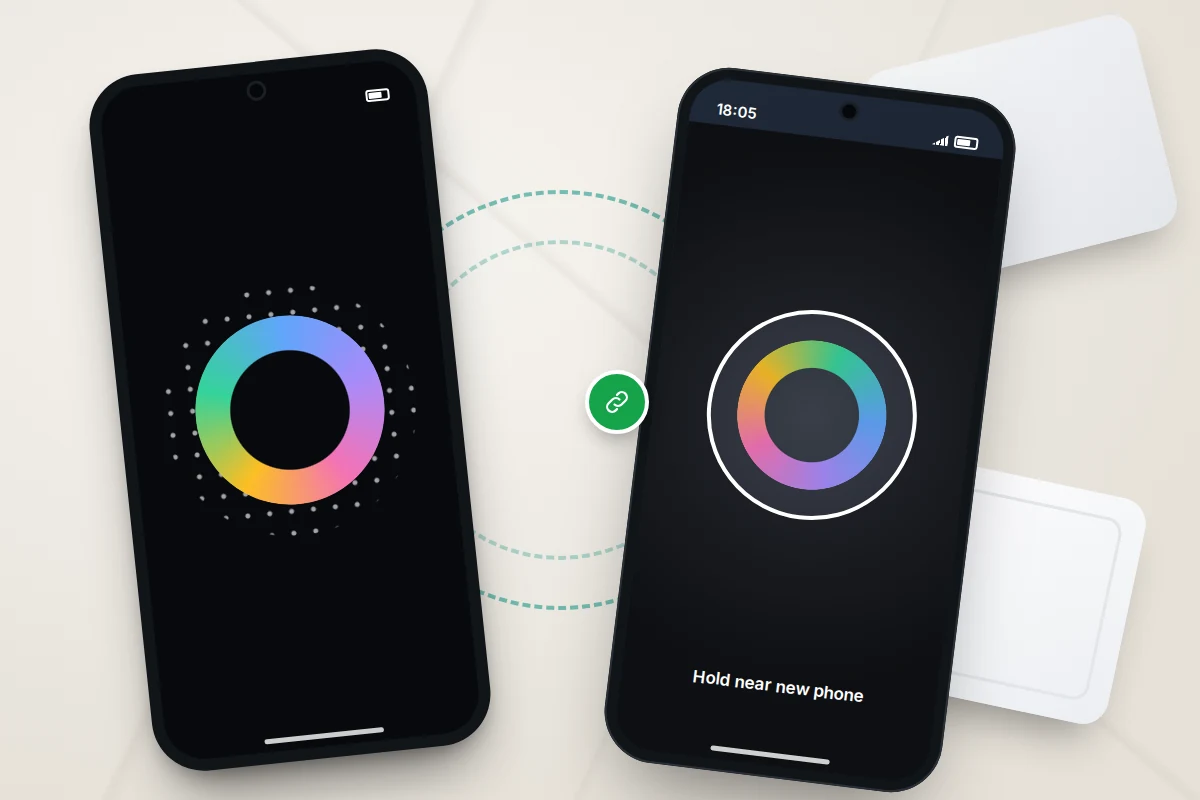
When you switch on the child’s new iPhone, hold your own phone next to it. Quick Start lists the children in your family group, or offers Create New Child Account, and then asks which apps your child starts with: just the essentials, a wider curated set or your own choice. Anything else can be requested later through Ask to Buy.
A teenager who already has an Apple Account can be invited to the family group instead. They have to accept, which makes the conversation part of the setup rather than an afterthought.
What changed in iOS 27, and older devices
The new controls need every device in your Family Sharing group, including yours, a partner’s and any iPad or Mac, to be running version 27 of iOS, iPadOS, macOS, watchOS or visionOS. iOS 27 runs on the same iPhones as iOS 26: the iPhone 11 and later, and the second-generation iPhone SE and later. A device that can’t update keeps working with the iOS 26 settings. To see which devices are holding you back, open Settings → Family → View Family Devices. Once everything is updated, Settings → Family → Get Started lets you transfer your existing controls or start again.
| iOS 27 name | Closest iOS 26 setting | What it does |
|---|---|---|
| Screen Time Schedules | Downtime | Which apps are available at which times of day |
| Time Allowances | App Limits | Daily time for app categories such as Games or Social Media |
| Allowed Contacts | Communication Limits | Who your child can call, message and FaceTime |
| Always Allowed | Always Allowed | Apps and people available whatever the time |
| Apps & Websites, Content & Privacy Restrictions | Content & Privacy Restrictions | Web filter, age ratings, purchases and device settings |
On iOS 26, you’ll find the older controls under Settings → Screen Time: tap your child’s name under Family. Turn on Block at Downtime and Block at End of Limit, or the limits are only reminders.
The iOS 27 setup, screen by screen
Open Settings → Family → [child’s name] and tap Get Started. Apple walks you through seven steps:
- Websites. Choose Approved Websites Only, Ask to Browse (your child requests each new site in Safari), Limit Adult Websites or unrestricted. Ask to Browse is on by default under 13; Limit Adult Websites is on by default under 18.
- Content ratings. Set the highest age rating for apps, films, TV, books and music.
- Contacts. Decide whether new contacts need your approval, and keep Communication Safety on.
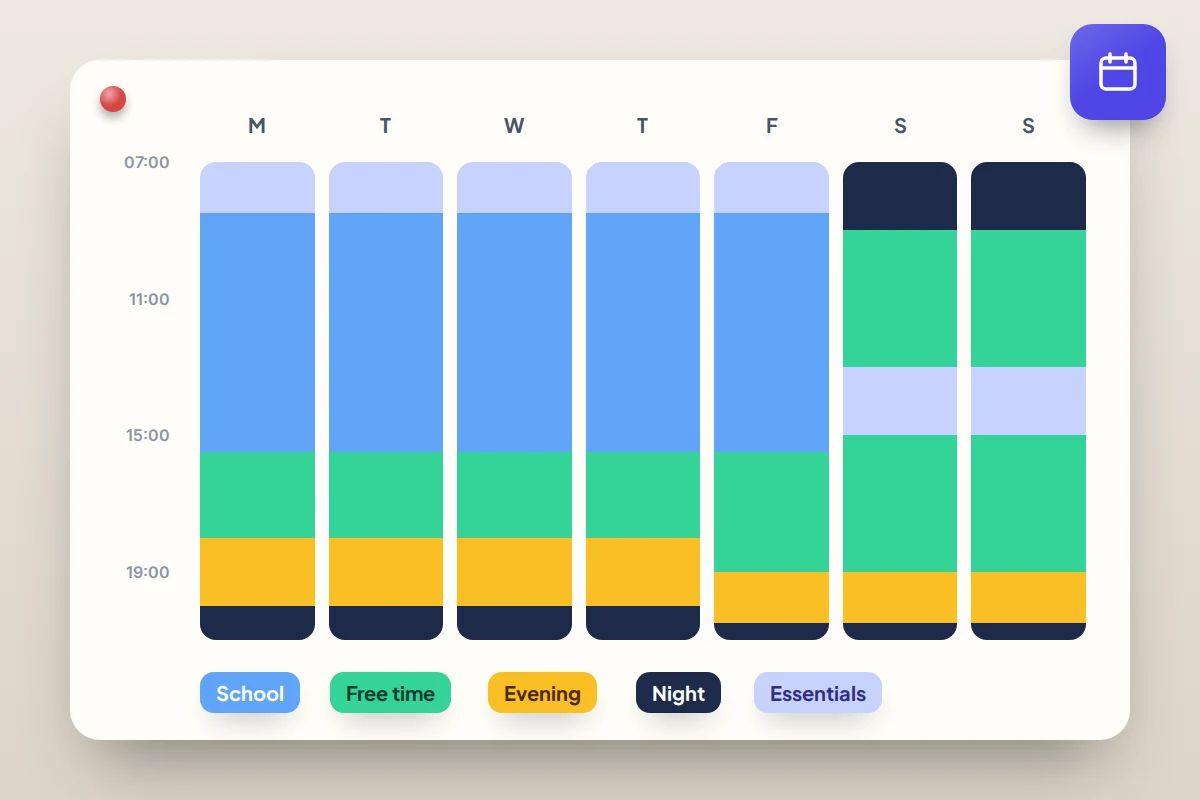
- Device hours. Set Available From and Available Until times, separately for weekdays and weekends. This is what replaces Downtime.
- School hours. Turn on Pause During School Hours to hold back Entertainment, Games and Social Media apps while other apps stay open.
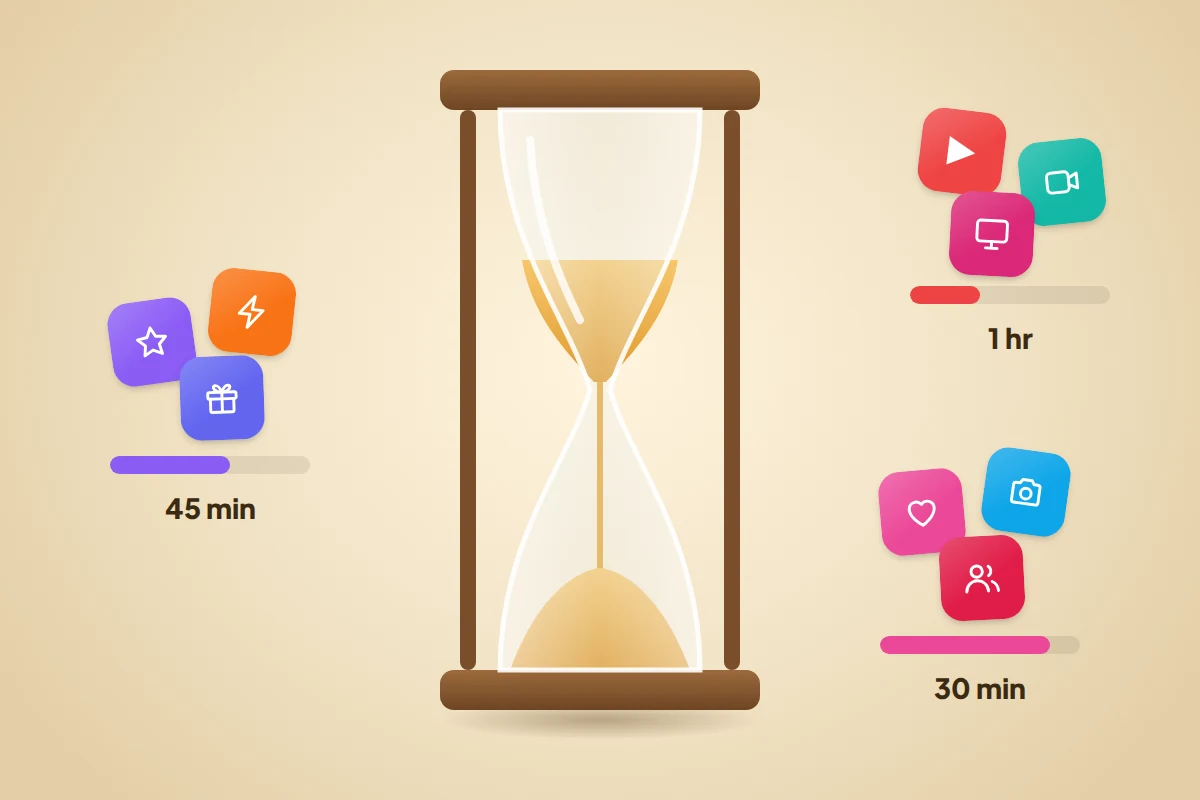
- Time Allowances. Set daily time for Entertainment, Games and Social Media. Apple suggests amounts based on your child’s age.
- Passcode. Create a four-digit Screen Time passcode. Avoid birthdays, phone numbers and patterns like 1234, and set up passcode recovery with your Apple Account.
Schedules, allowances and Always Allowed
A Screen Time Schedule is the shape of the day; Time Allowances are the budget within it. A schedule might offer only messaging and music before school, pause games during lessons, open most apps after school and close everything at night. Custom schedules cover holidays or early finishes.
Time Allowances work on categories rather than individual apps, which matters: a child who hits a limit on one video app can’t simply switch to another in the same category. You can create your own categories and move apps between them, and when you approve a new app through Ask to Buy you can put it in a category straight away.
Always Allowed apps and people stay available even when everything else is paused. By default that’s FaceTime, Maps, Phone and Messages, so your child can always reach you. Change it under Settings → Family → [child’s name] → Always Allowed.
For the moment itself, the child’s page in Settings → Family has quick controls: Pause Device Use blocks most apps and notifications until you turn it off, useful for dinner; Allow Unlimited Time opens things up for a day out, without the time counting against the allowance.
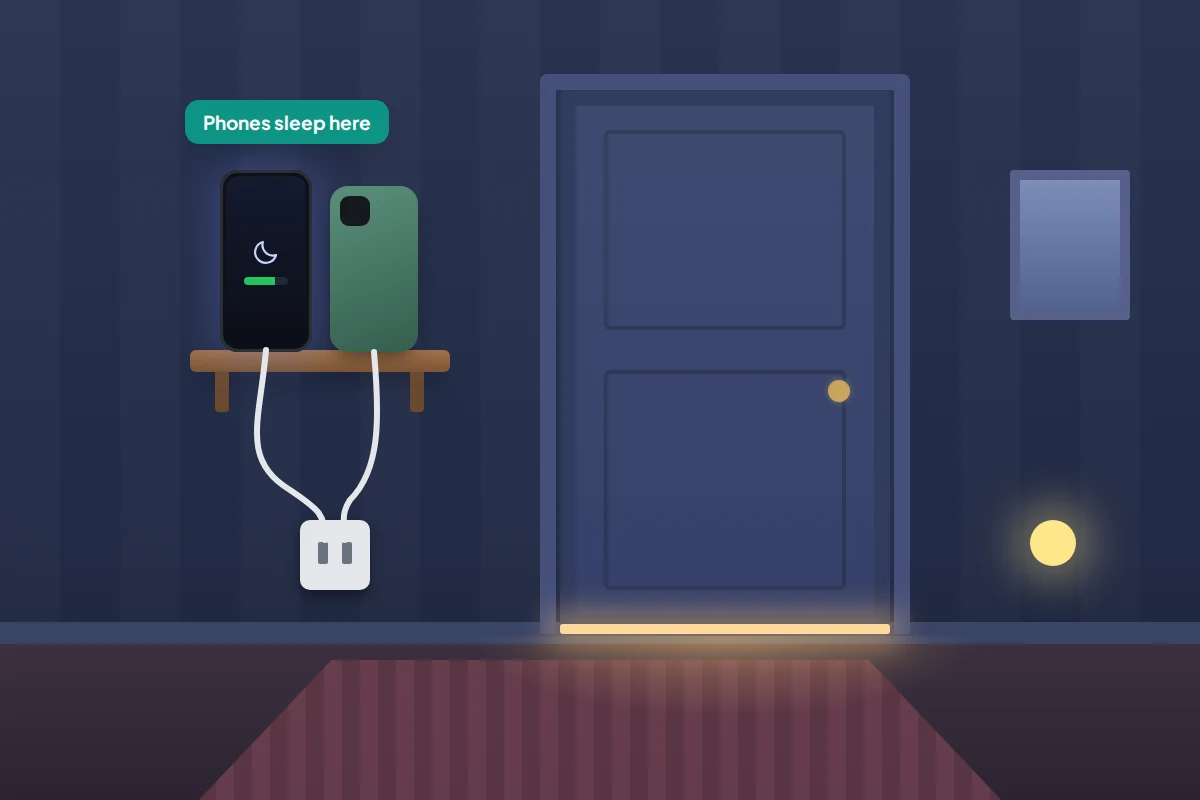
Settings work best when they back up a household habit. If phones charge outside bedrooms, a night schedule simply matches what already happens; our guide to screen-free zones at home covers setting those habits up.
Who they can talk to
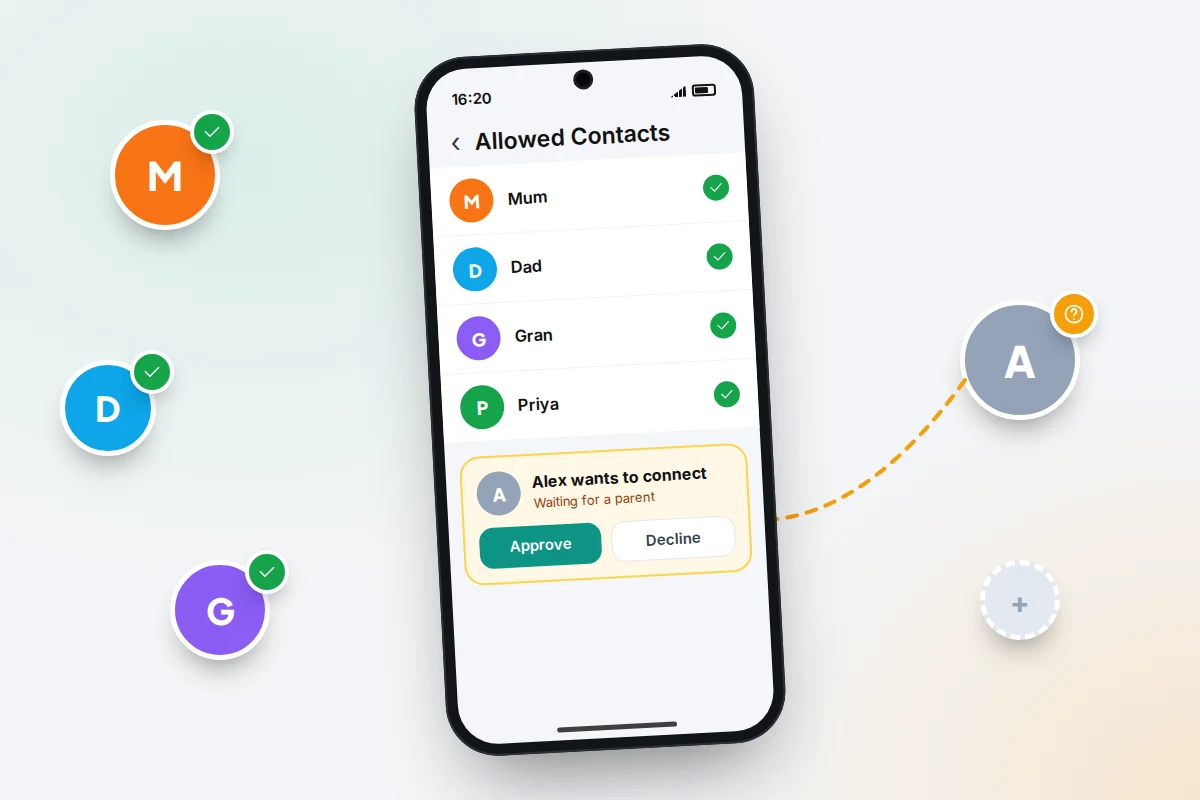
Allowed Contacts
Messages and FaceTime are Always Allowed by default, so time limits alone never control who your child talks to. That is the job of Allowed Contacts (Communication Limits on iOS 26).
- On your child’s iPhone, make sure Contacts is turned on in iCloud.
- On your phone, go to Settings → Family → [child’s name] → Allowed Contacts and turn on Manage [child’s name] Contacts. Your child has to accept this request on their phone.
- Turn off Allow Contact Editing. Your child can then ask to add a new contact, and you approve it from a notification or the child’s settings.
- Choose who can get through during scheduled time and when the device is paused.
Allowed Contacts covers Phone, Messages and FaceTime only. Other developers’ apps can send friend or chat requests to you through the same system, but only if they have adopted it, so check each messaging or gaming app your child uses.
Communication Safety
Communication Safety is on by default for under-18s. It blurs photos and videos that appear to contain nudity and, from iOS 27, gore or violence, in Messages, AirDrop and live FaceTime calls. Your child sees a warning with ways to get help before choosing whether to view. Apple says no messages or media are shared with it. Find it under Settings → Family → [child’s name] → Communication Safety.
Apps, websites, music and purchases
- Ask to Buy is on by default under 13 and can be used up to 18. Each download or purchase, free apps included, becomes a request you approve or decline.
- App age ratings changed with iOS 26 to 4+, 9+, 13+, 16+ and 18+, replacing 12+ and 17+. Set the app ceiling under Apps & Websites → Restrictions; ratings for films, TV, books and music are under Content & Privacy Restrictions.
- Websites are filtered in Safari. Add specific sites to the allowed or blocked lists under Apps & Websites.
- Age Range for Apps lets apps learn your child’s age band, never their birthday, so they can adjust what they show. Choose Always, Ask First or Don’t Share under Apple Account & Password → Age Range for Apps on the child’s page.
What your child sees, and how to talk about it
Screen Time is visible by design. Outside a schedule, most app icons are greyed out with an hourglass. When an allowance runs out, the app shows a screen saying so, with an option to ask for more time. A blocked website offers to send you a request. Explain it before the phone is handed over, not after the first locked app.
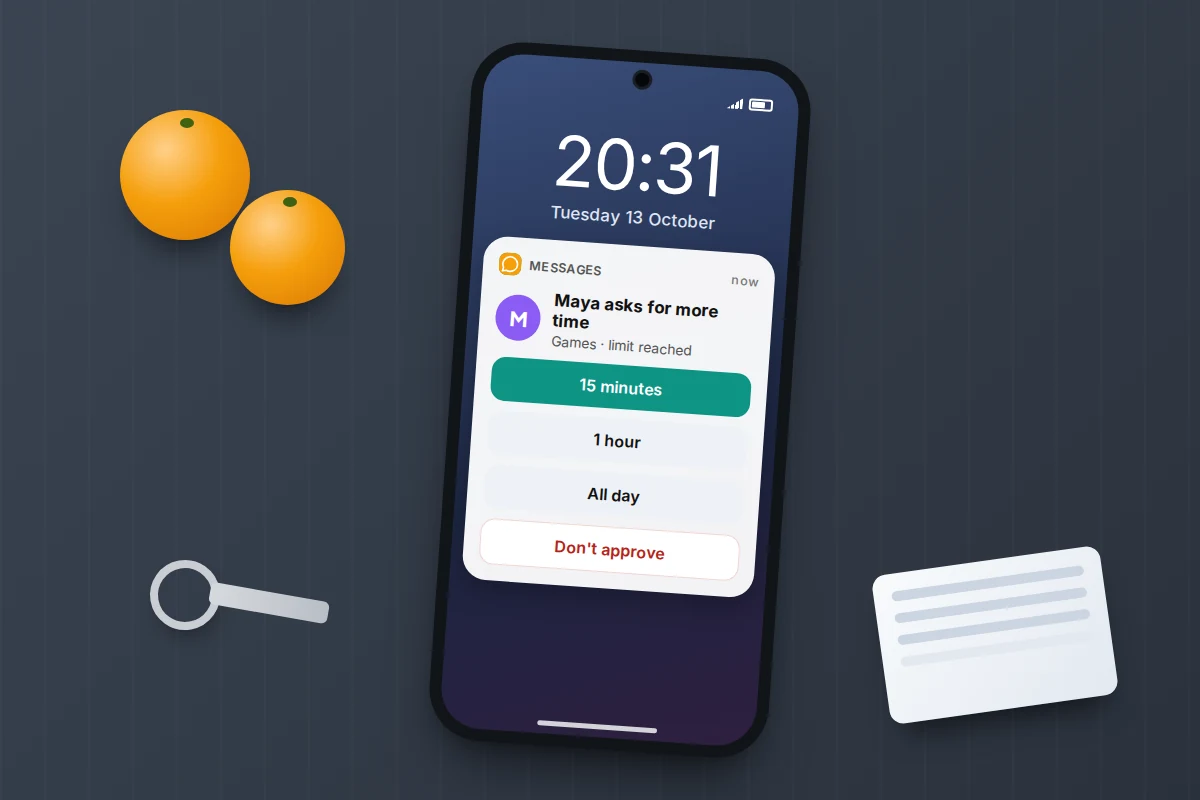
Requests arrive in your Messages. For time, you can approve 15 minutes, an hour or the rest of the day. You can also approve in person on their phone with your passcode.
Words that tend to land better than “because I said so”:
“These settings start from what Apple suggests for your age. You’ll always be able to call and message us. If something’s blocked that you need for school, send a request and I’ll look at it that day. We’ll check the settings together every few months, and as things go well, they’ll loosen.”
Look at the weekly summary together sometimes, rather than using it as evidence. It shows average daily use, most-used apps, pickups and notifications, but it does not show messages, photos or what was typed.
A starting point by age
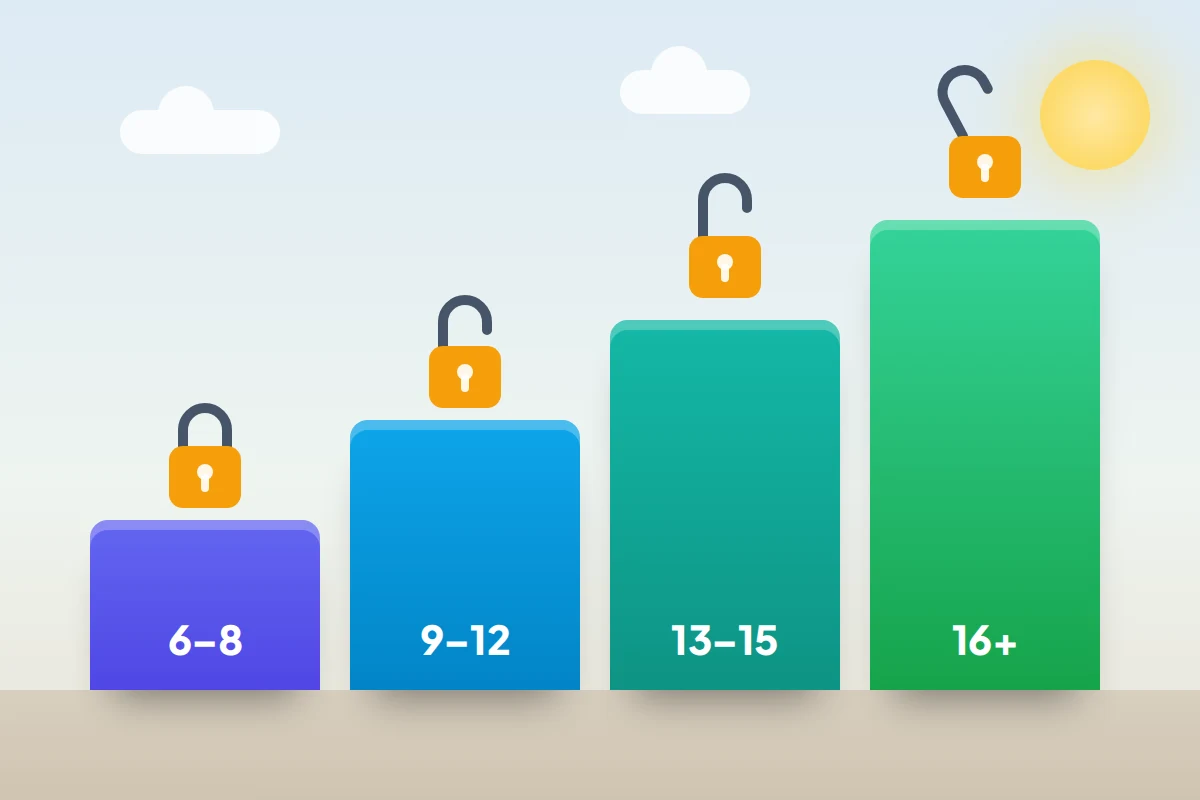
These are suggestions to adjust, not rules. A mature 10-year-old and an anxious 14-year-old may need the opposite of their age row. Our guide to screen time by age covers the wider question of how much.
| Age | Websites and apps | Time | Contacts and buying | Loosen next |
|---|---|---|---|---|
| 6–8 | Approved Websites Only; apps 4+; a small starter set of apps | A short after-school window; nothing at night; no Social Media allowance | Approved contacts only; Ask to Buy for everything | Add websites they request often; a longer weekend window |
| 9–12 | Ask to Browse; apps 9+ | Pause During School Hours; off an hour before bed; modest Games and Entertainment allowances | New contacts need approval; Ask to Buy on | Switch to Limit Adult Websites; combine Games and Entertainment into one shared allowance |
| 13–15 | Limit Adult Websites; apps 13+ | Night schedule with the phone charging outside the bedroom; allowances reviewed each term | Contact editing on; Communication Safety on; Ask to Buy on | Remove allowances that are no longer needed; a later weekend cut-off |
| 16+ | Limit Adult Websites; apps 16+ | Night schedule only, agreed together | Ask to Buy optional, with an agreed budget | Plan a handover of settings before 18 |
Gaps that catch parents out
- The passcode is known. If your child has seen it, change it from your phone. Apple lets you see when it was last used.
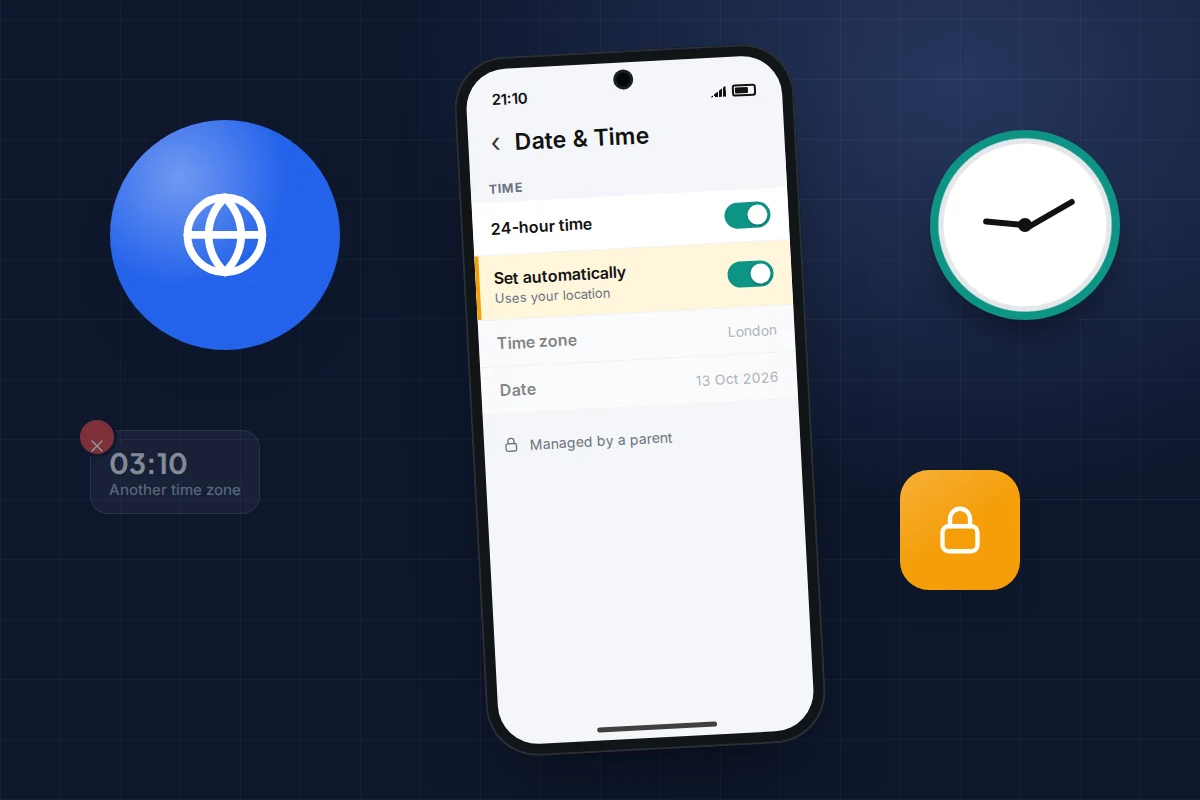
- Changing the time zone or date. On the child’s phone, turn on Set Automatically in Settings → General → Date & Time, then under Content & Privacy Restrictions → Allow Changes to Settings stop changes to Location Services, so the automatic time zone can’t be switched off.
- Always Allowed apps ignore schedules and allowances. A video app on that list runs all night. Keep it to calls, messages, maps and anything medical.
- Settings don’t sync. Update every family device, check each is signed in with the right Apple Account, and restart. On iOS 26, check Share Across Devices is on in the child’s Screen Time settings.
- Other browsers. Ask to Browse works in Safari, and other browser apps may not offer the same requests. Leave them out, block them or give them a strict allowance.
Frequently asked questions
Can I manage Screen Time if my child has an Android phone?
No. Screen Time only manages Apple devices. For an Android phone, use Google’s controls instead; see how to set up Google Family Link.
Can a teenager switch Screen Time off?
Not while it is set up through Family Sharing. Settings can’t be changed without the Screen Time passcode, and Apple says a child with parental Screen Time needs the organiser’s permission to leave the family group. They will still be able to see that the controls are there.
Does Screen Time let me read my child’s messages?
No. It shows how long apps were used, pickups and notifications, and it controls who they can contact. It does not show the content of messages, photos or searches.
My family still has an older iPad. Do I have to wait to use the new controls?
Yes, for the new controls. Apple requires every device in the family group to run version 27. Until then, the iOS 26 settings keep working on every device, so your child is not left unprotected while you wait.
Sources and further reading
- Apple Support: Use Screen Time to manage your child’s iPhone or iPad
- Apple Support: Set up parental controls to manage your child’s iPhone or iPad
- Apple Support: Create an Apple Account for your child
- Apple Devices for Kids and Families: Set up parental controls for version 27
- Apple Devices for Kids and Families: Update your family devices for new parental controls
- Apple Devices for Kids and Families: Approve your child’s purchases, downloads and requests
- Apple Support: Family Sharing and parental controls overview for kids and teens
- Apple Newsroom: Apple expands tools to help parents protect kids and teens online (June 2025)
Looking for a tool to go with this? TheTruthSpy is a free parental control app for Android that stays visible on the child's phone. If it fits your family, see the Screen time & limits feature.
Related guides
How to Set Up Google Family Link on Your Child’s Android Phone
Set up Google Family Link on your child's Android phone: under-13 and teen accounts, time limits, School time, app approvals,…
How to Share Your Location With Family on iPhone and Android
Share your location with family on iPhone and Android: Find My, Google Maps, WhatsApp and more, what works across both,…
How to Set Up Check-Ins Instead of Constant Tracking
A calmer alternative to watching a live map: how to agree check-ins with teenagers, older parents or friends, what to…
Parental controls your child can see
Location, screen time limits, a web filter and alerts from notifications — free, and visible on your child's phone. Pair a phone in about ten minutes.
Android · Free to set up · Visible on your child's phone