The Parent Control Panel: Your Web Dashboard
Everything the app shows you on your phone, opened in a browser tab on a screen big enough to read comfortably. This is the complete tour of the online dashboard — how to sign in, what sits on every screen, how to view your child's Android device remotely, and which controls reach the phone in seconds. No second account, nothing to install, and nothing on this page that your child cannot also see.
One screen that answers the three questions you open it for.
Where are they, how long have they been on the phone, and is there anything I need to deal with. The control panel opens on those three and keeps everything else one click away. Nothing is buried, and nothing important hides behind a menu.
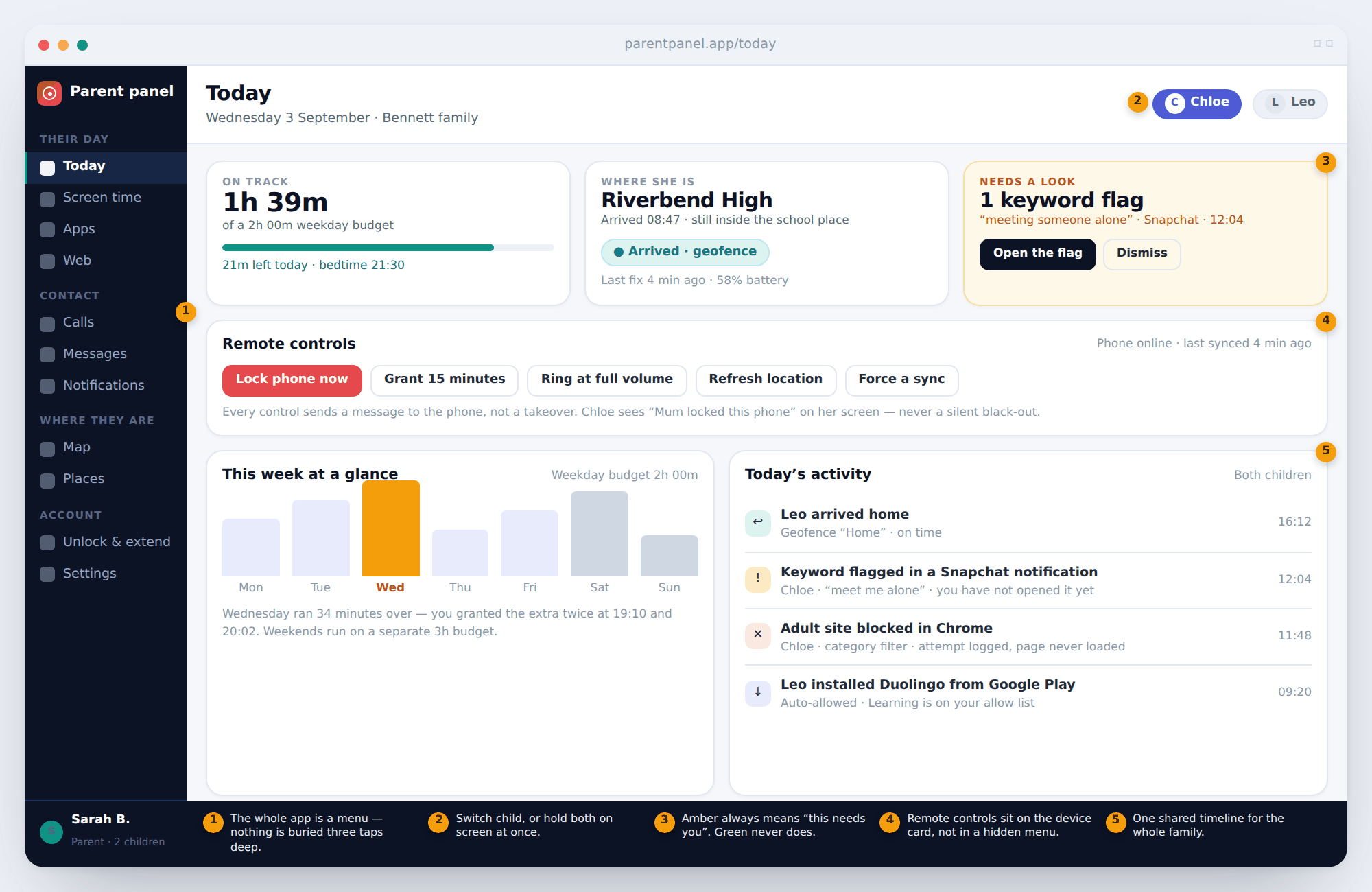
The layout is deliberately boring, because a dashboard you have to learn is a dashboard you stop opening. Three cards across the top: a screen-time total, a location, and whatever is waiting for you. Under them, the remote controls. Under those, the week and the day.
Colour means one thing only. Green is “nothing needed from you”. Amber is “this needs you”. Red only ever appears on something that was blocked or refused. There is no fourth state and no badge that means “maybe”. If the panel is entirely green, you can close the tab.
The left menu is the whole product. Their day holds the four screens you will open most — today, screen time, apps, web. Contact holds calls, messages and notification alerts. Where they are holds the map and saved places. Account holds settings and the tasks that keep the app free. Twelve screens in total, and you can see all twelve without scrolling.
The same account you already have, on a bigger screen.
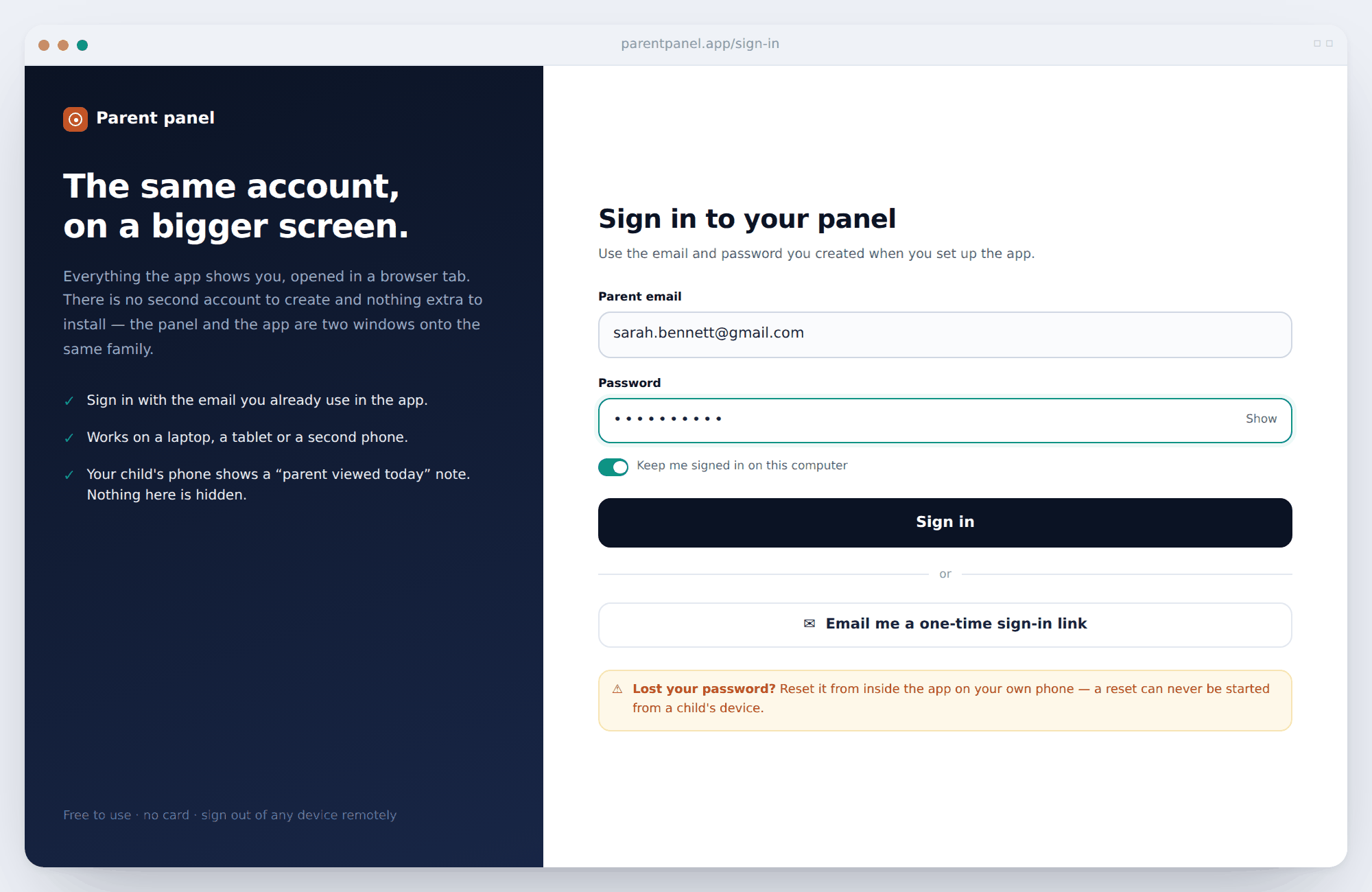
There is no separate web registration. Open the panel in any browser, type the email and password you created when you first set up the app, and you are looking at the same family. The app and the dashboard are two windows onto one account, not two products that sync.
It works on a laptop, a tablet, a work machine or a second phone. Your child's device does not need to be nearby, awake, or doing anything in particular — you are reading what it has already sent.
- One account, two windows. A change you make here appears in the app immediately, and the other way round.
- A one-time sign-in link if you would rather not type a password on a shared computer.
- Password resets start in the app on your own phone, so nobody holding a child's device can begin one.
- Your child's phone shows that you signed in. Not what you looked at — just that a parent opened the panel today.
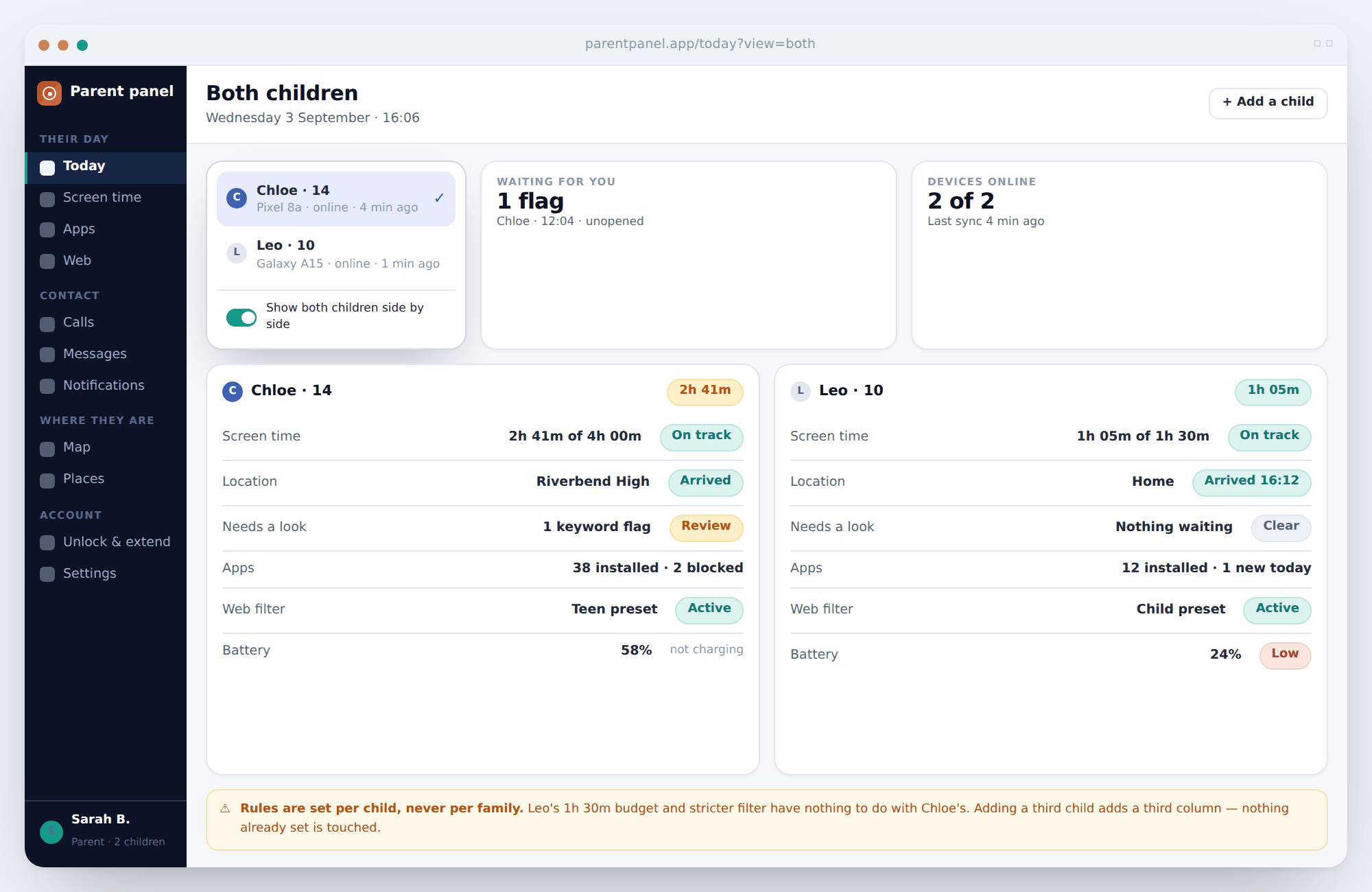
Switch between children, or hold both on screen at once.
The switcher at the top right is the only thing in the panel that changes what everything else shows. Pick a child and every screen follows. Turn on both children side by side and the dashboard splits into columns, which is the view most families with two phones end up living in.
The important thing to understand is that rules are stored per child, never per family. Leo's 1h 30m budget and stricter web filter have nothing to do with Chloe's 4h and teen preset. Adding a third child adds a third column and touches nothing you already set.
Each column is a summary, not a report. Screen time against the budget, where the phone is, whether anything is waiting, how many apps are installed and how many are blocked, the filter preset, and the battery. Everything on it is a link into the full screen behind it.
View and control the Android device remotely — without taking it over.
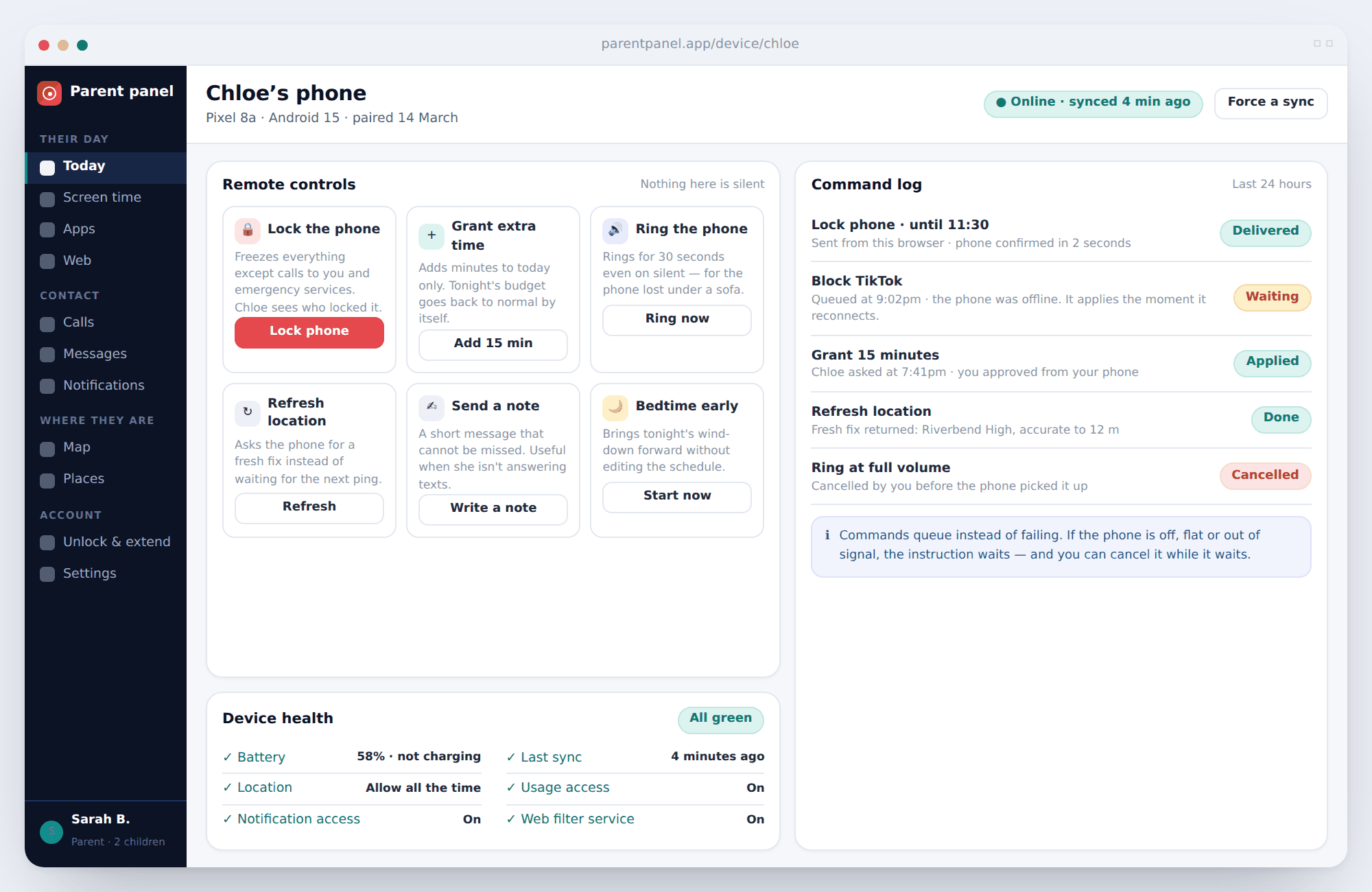
This is the part people mean when they say “remote control”, and it is worth being precise about what it is. The panel does not take over your child's phone. It sends a short instruction that the phone receives and acts on, and every one of those instructions is visible on their screen when it lands.
Six controls sit on the device page: lock the phone, grant extra minutes, ring at full volume even on silent, force a fresh location fix, send a note that cannot be missed, and start tonight's bedtime early.
Commands queue rather than fail. If the phone is off, flat or out of signal, the instruction waits and applies the moment it reconnects. You can cancel it while it waits. The command log shows every instruction sent in the last 24 hours, who sent it, and whether it was delivered, queued, applied or cancelled — which matters most in a house with two parents both holding the panel.
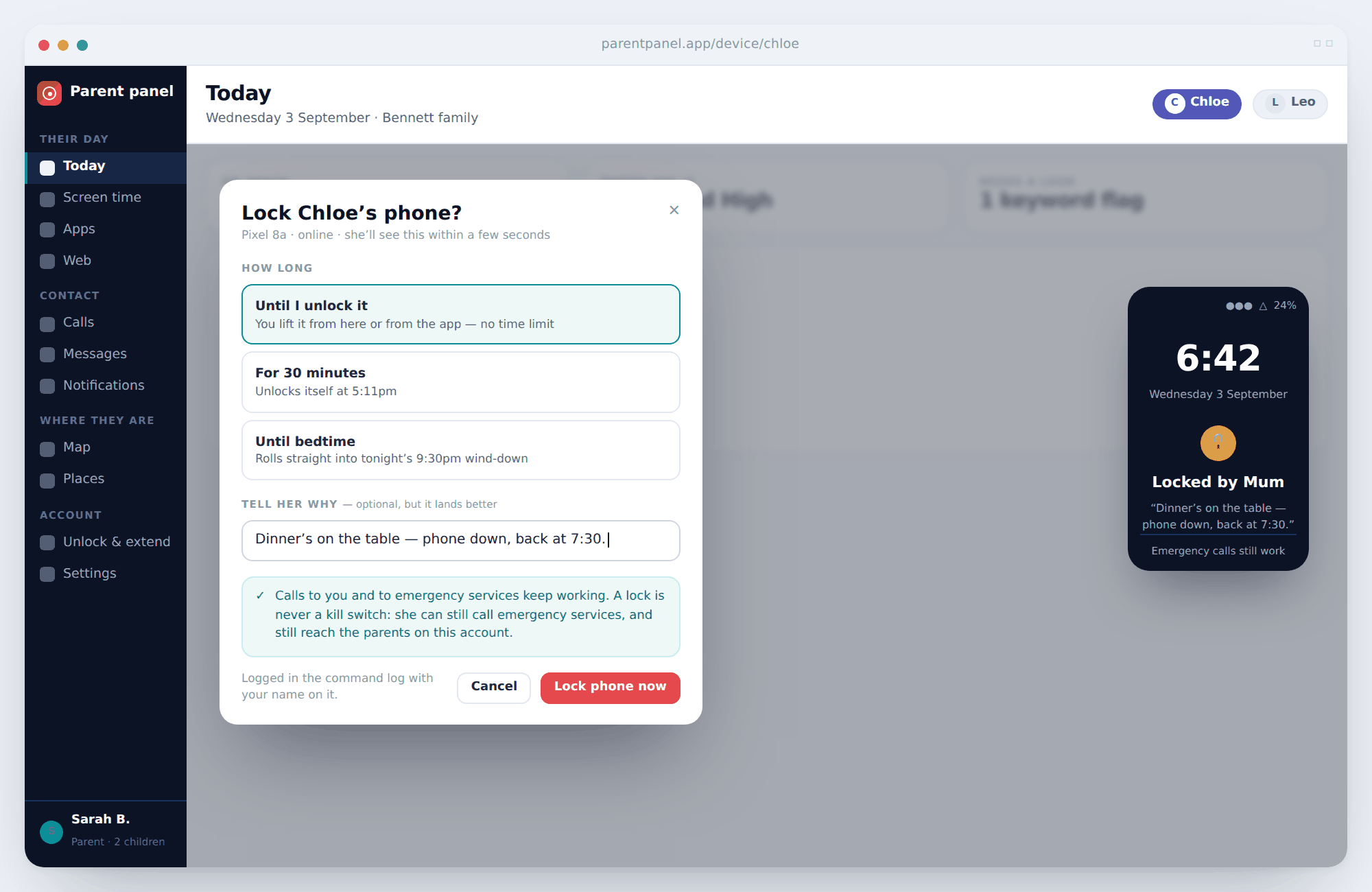
Locking a phone, and what your child sees when you do.
Locking is the control parents reach for most and worry about most, so it is built to be unmistakable rather than clever. Choose how long — until you lift it, for thirty minutes, or straight into tonight's bedtime — and add a line explaining why.
That line is the part that works. “Dinner's on the table, phone down, back at 7:30” lands very differently from a phone that simply stops responding. A lock with no reason reads as a punishment; a lock with a sentence reads as a parent.
- Calls to you and to emergency services keep working. A lock is never a kill switch.
- Your name is on it. The child's lock screen says which parent locked the phone.
- It is in the command log, so the other parent can see it was you and when.
- Unlocking is one click from the panel or the app.
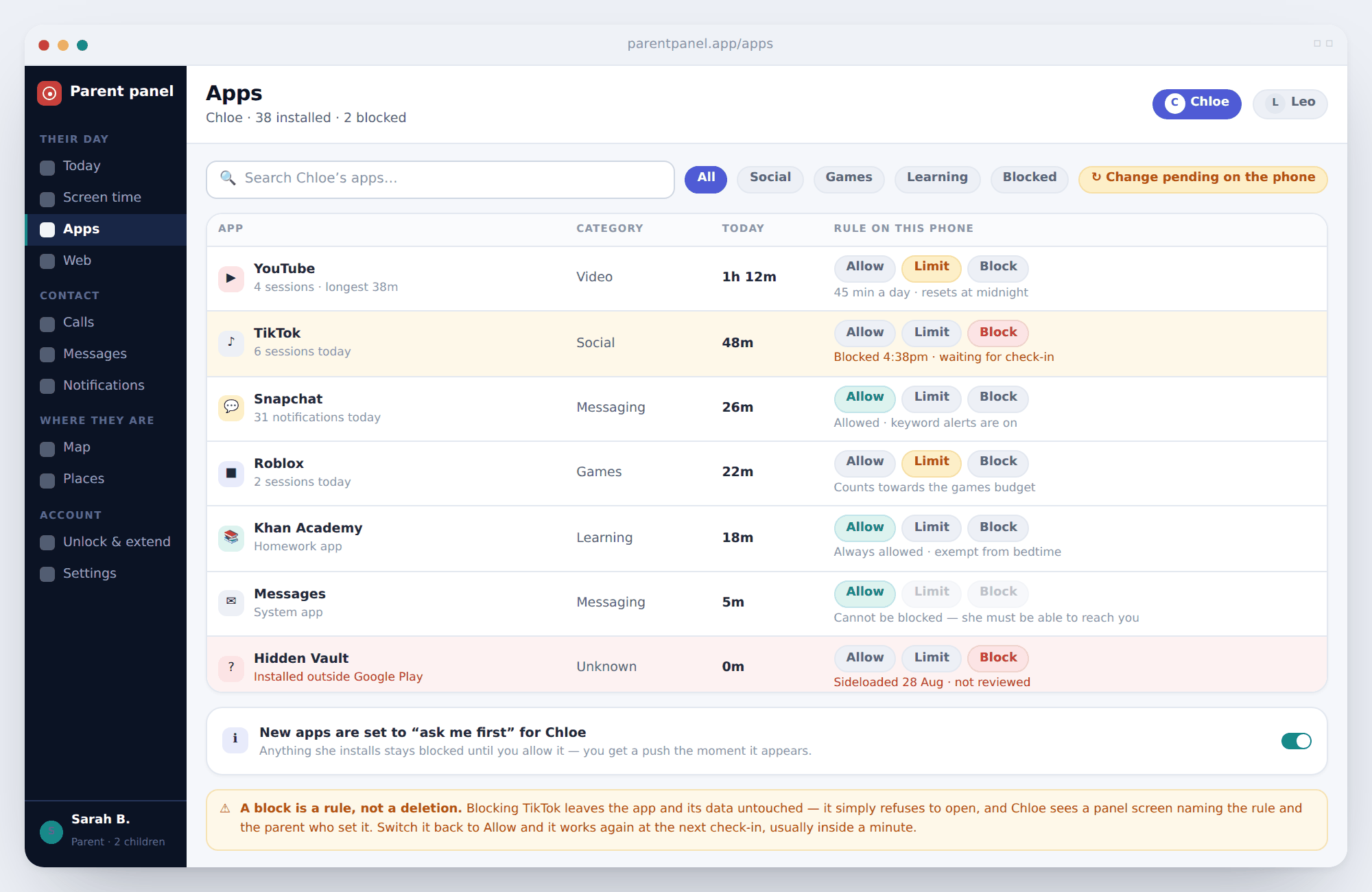
Every app gets one of three states, and you can change it from here.
The Apps screen is a list of everything installed, with usage today and a three-way switch on each row: allow, limit, or block. Limit is the one most families end up using — a game does not have to be forbidden to stop being a problem, it just has to have an end.
Two rows behave differently on purpose. Messages and the dialler cannot be blocked, because your child must always be able to reach you. And anything installed from outside Google Play is flagged in red whatever its name is, because how an app arrived tells you more than what it calls itself.
Set new apps to ask me first and nothing your child installs will open until you allow it. You get a push the moment it appears, with the app name and where it came from.
A block is a rule, not a deletion. The app and its data stay untouched; it simply refuses to open, and shows a screen naming the rule and the parent who set it. Switch it back and it works again at the next check-in, usually inside a minute.
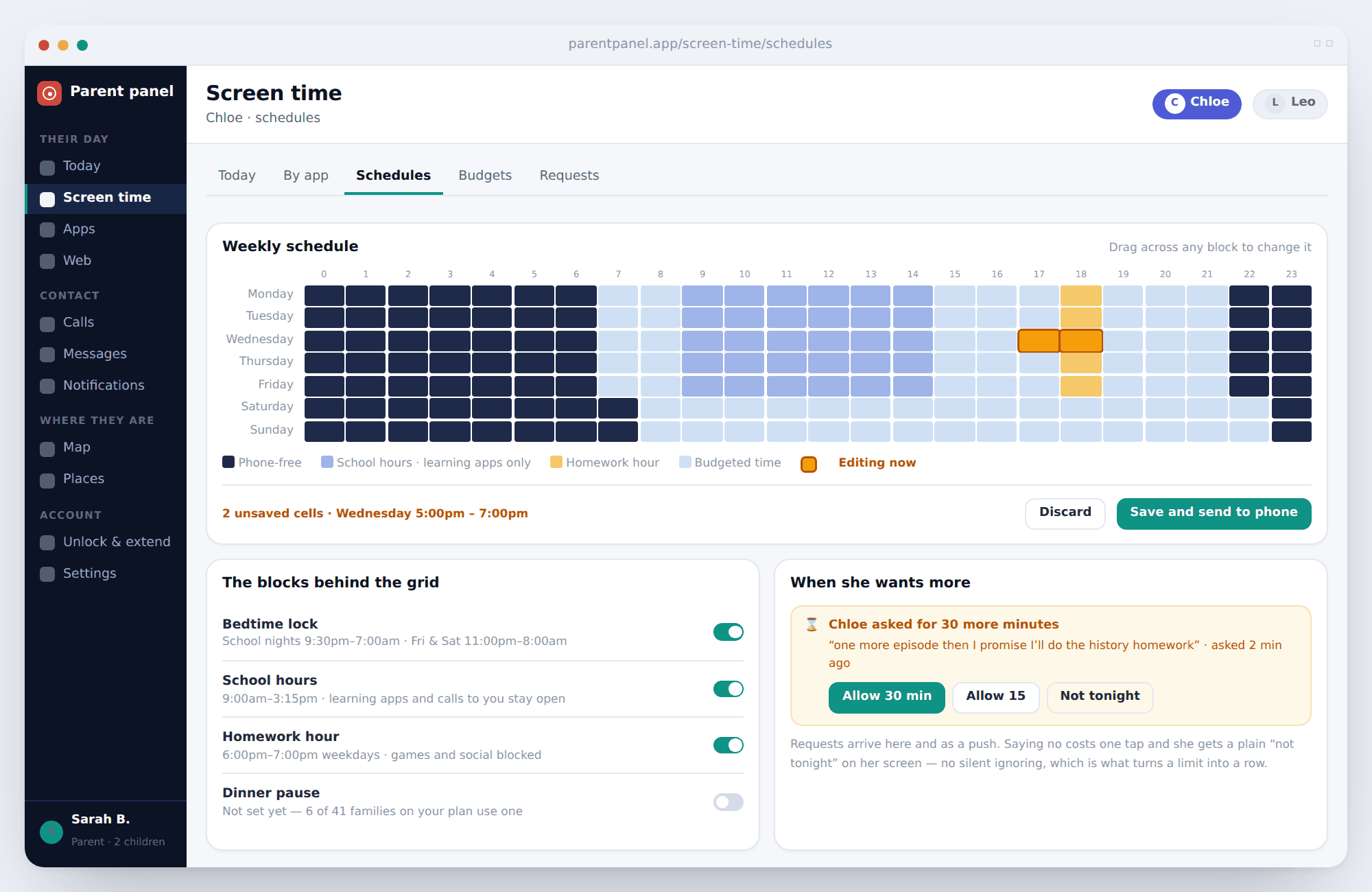
Draw the week on a grid instead of filling in forms.
Screen-time schedules are a seven-by-twenty-four grid. Drag across the hours you want phone-free and they turn dark. Drag across school hours and only learning apps and calls to you survive. Nothing saves until you click save and send to phone, so you can rearrange a week without the phone reacting to every drag.
The blocks behind the grid are named and switchable: bedtime lock, school hours, homework hour, dinner pause. Turning one off does not lose its hours — they come back exactly as you drew them.
Requests land on the same screen. When your child runs out and asks for more, you see the ask, their note, and three buttons: allow thirty, allow fifteen, not tonight. Saying no takes one tap and they get a plain answer on their screen rather than silence — which is the difference between a limit and a row.
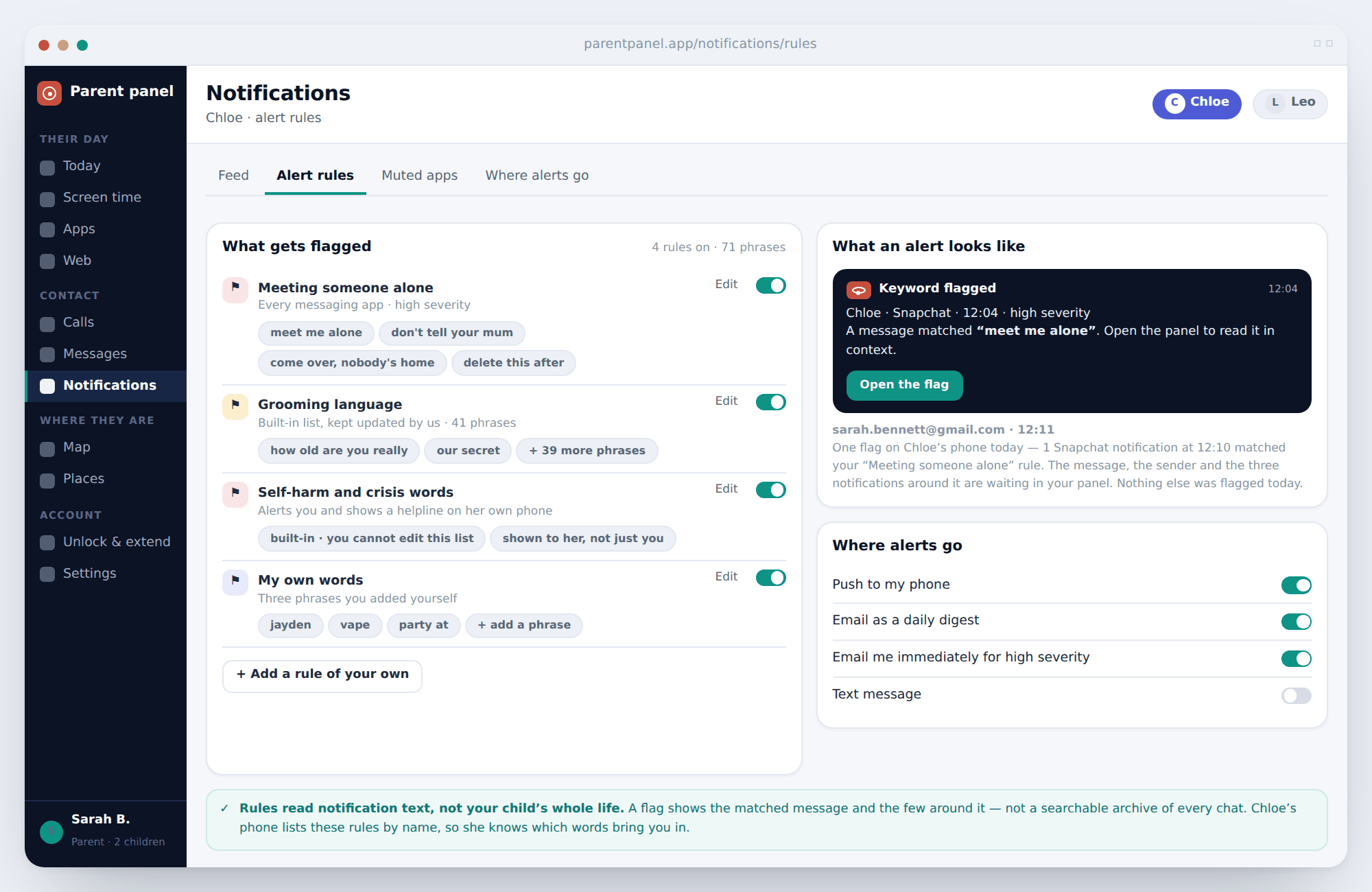
Decide which words bring you in, and where the alert goes.
Keyword rules are how you avoid reading everything. You choose the phrases that would make you want to look, and the thousands that would not scroll past unread. Rules are grouped rather than dumped in one long list: meeting someone alone, grooming language, crisis words, and whatever you add yourself.
Two of those groups are built in and kept current by us. The crisis-words rule is the one exception to everything else on this page — you cannot edit it, and when it matches, your child sees a helpline on their own phone at the same moment you get the alert.
Alerts can go to a push, a daily email digest, an immediate email for high severity, or all three. A flag shows the matched message and the few notifications around it for context — not a searchable archive of every chat. And your child's phone lists these rules by name, so they know which words bring you in.
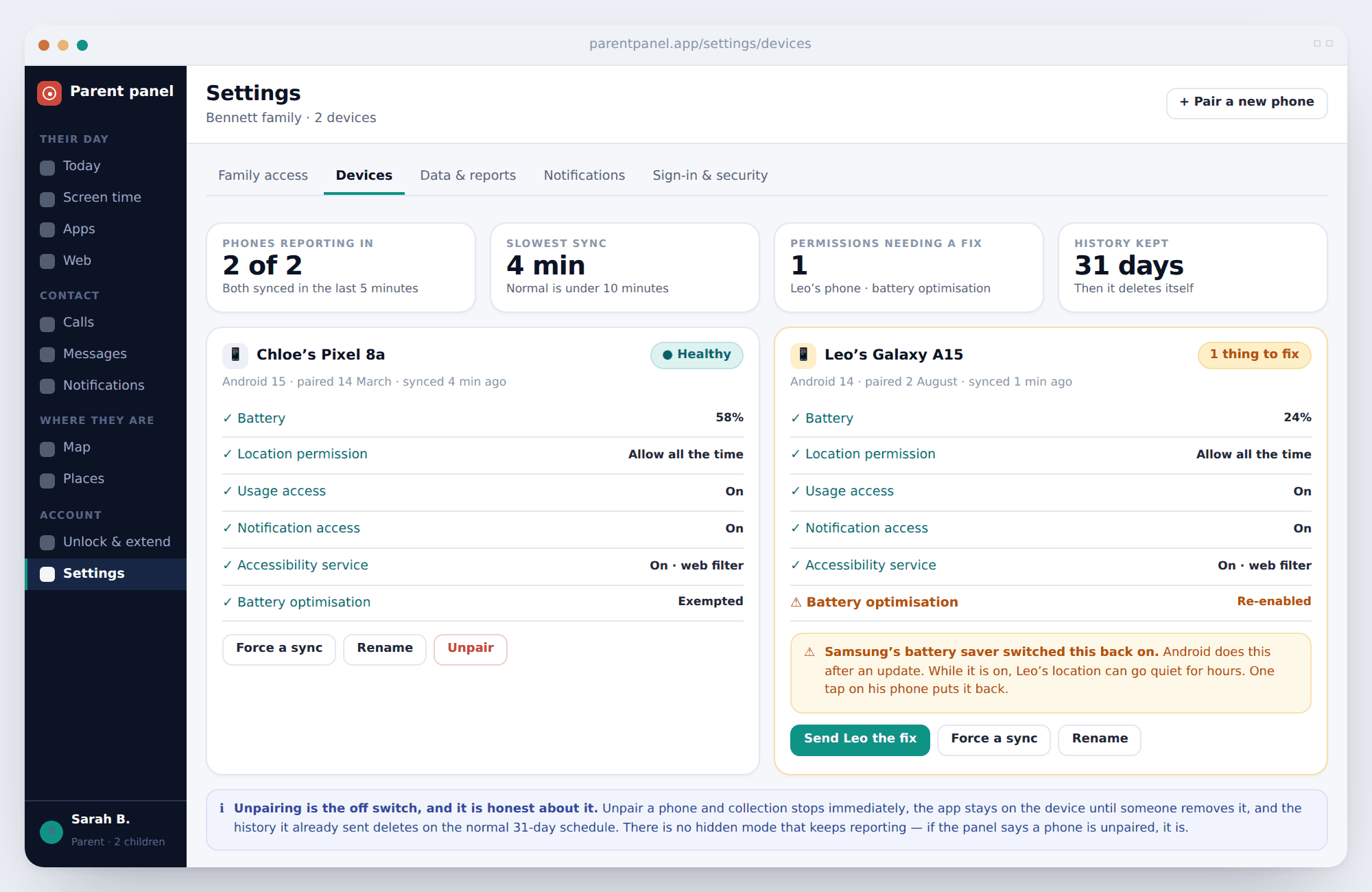
The screen that tells you why the map went quiet.
Every parental control app has the same failure: a permission gets switched off, the phone stops reporting, and nobody notices for a fortnight. The Devices screen exists so that never happens silently.
Each paired phone gets a health card — battery, last sync, and every permission the app depends on with a plain tick or a warning. When something needs fixing, the card says what changed and what it costs you. “Samsung's battery saver switched this back on after an update. While it is on, Leo's location can go quiet for hours.” One tap sends your child the fix as a notification with the steps on it.
Unpairing lives on the same card and does exactly what it says. Unpair a phone and collection stops immediately, the app stays on the device until someone removes it, and the history already sent deletes on the normal thirty-one-day schedule. There is no quiet mode that keeps reporting.
Two parents, a grandparent, and a panel your child can open too.
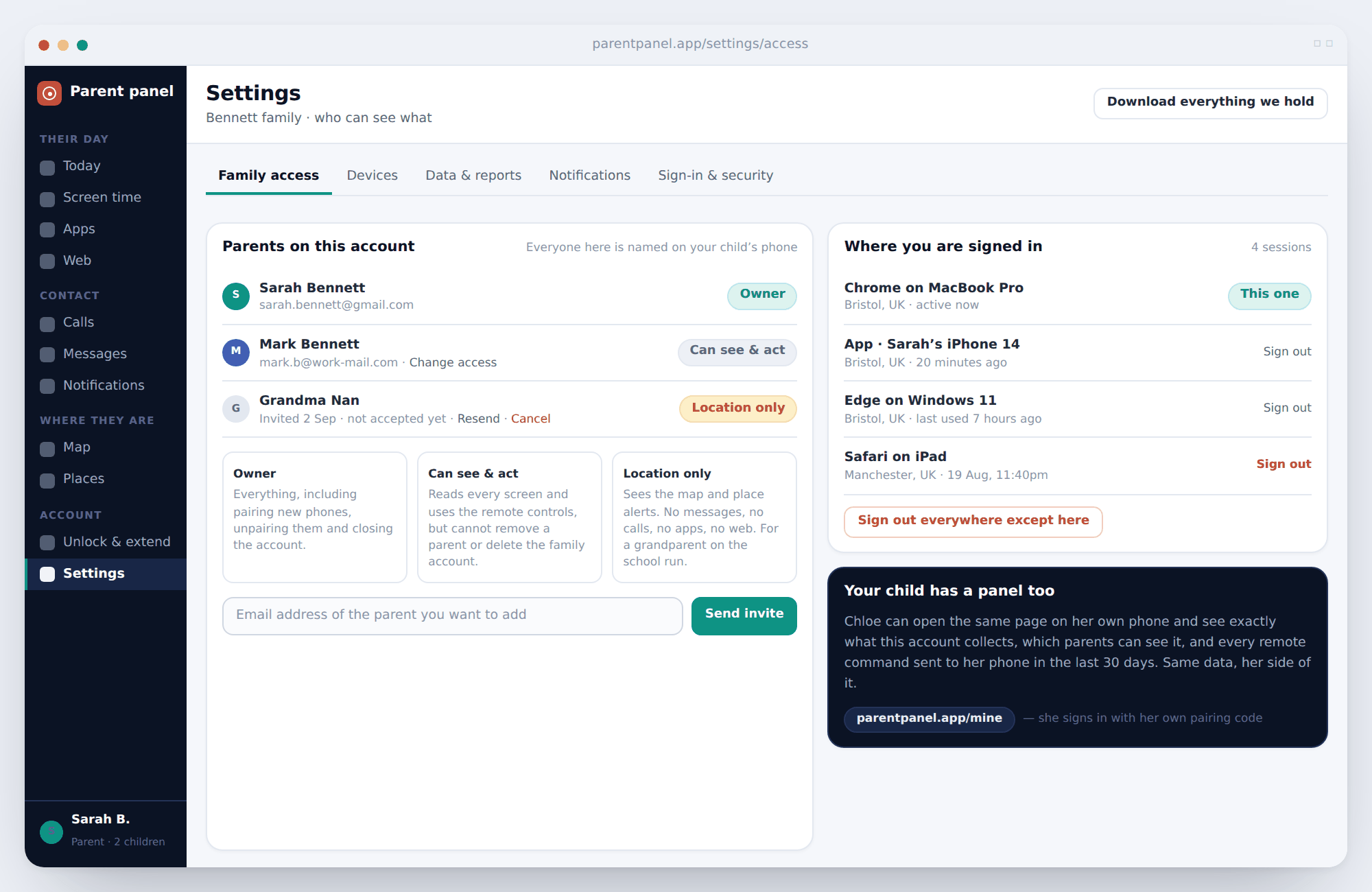
Invite another adult by email and give them one of three levels. Owner can do everything including pairing and unpairing phones. Can see and act reads every screen and uses the remote controls but cannot remove a parent or close the account. Location only sees the map and place alerts and nothing else — built for the grandparent who does the school run and has no business reading anyone's messages.
Everyone you add is named on your child's phone. There is no way to give an adult quiet access to a child's device through this account, and that is not an oversight.
The sessions list shows every browser and app currently signed in, with a location and a last-used time, and a sign-out button on each. If an old tablet is still holding a session, this is where you end it.
Your child has a version of this page. They can open it on their own phone and see exactly what is collected, which parents can see it, and every remote command sent to their phone in the last thirty days. Same data, their side of it.
Using the control panel, answered.
Do I need a separate account for the web dashboard?
No. The parent panel and the app share one account. Sign in with the email and password you created during setup and you are looking at the same family, the same children and the same settings.
Can I use the control panel on an iPhone or a Mac?
Yes. The panel is a web page, so it runs in any modern browser on any device. Only the monitored child’s phone has to be Android.
Can I view my child’s Android device remotely from the panel?
You can view everything the phone has already reported — location, screen time, apps, web history, call and message logs and notification alerts — and you can send commands to it. There is no live screen mirroring, and no way to see the phone as it is being used at that second.
How quickly does a command reach the phone?
Usually within seconds when the phone is online. If it is off, flat or out of signal, the command queues and applies at the next check-in, and you can cancel it while it waits.
Does my child know when I open the panel?
Their phone shows that a parent viewed the panel today. It does not show which screens you opened or how long you spent. The app also lists everything being collected, permanently.
Can both parents use the panel at the same time?
Yes. Invite the second parent from Family access. Every command is stamped with the name of whoever sent it, so the command log settles any “did you lock her phone?” question in one look.
What if I forget my password?
Start the reset from inside the app on your own phone. A reset can never be started from a child’s device, which is the point.
Is the control panel free?
Yes. The panel, the app, GPS tracking, screen time limits, web filtering and alerts are free on Android with no card and no subscription.
The screens above each have a page of their own that goes further into what is collected and where the limits sit. Start with screen time schedules if the grid is what you will use most, or keyword alerts on social apps if the alert rules are why you are here; the feature overview lists the rest.
If you have not paired a phone yet, the download and setup guide takes about ten minutes. The free parental control pricing explains why the panel costs nothing, and the parental control FAQ covers the questions parents ask before installing.
Open the parent panel free.
Create a free account, pair your child's Android phone in about ten minutes, and the dashboard fills in by the evening. No card, no subscription.
Android · Free to set up · Visible on your child's phone