The Complete Guide to Child Phone Monitoring (iPhone and Android)
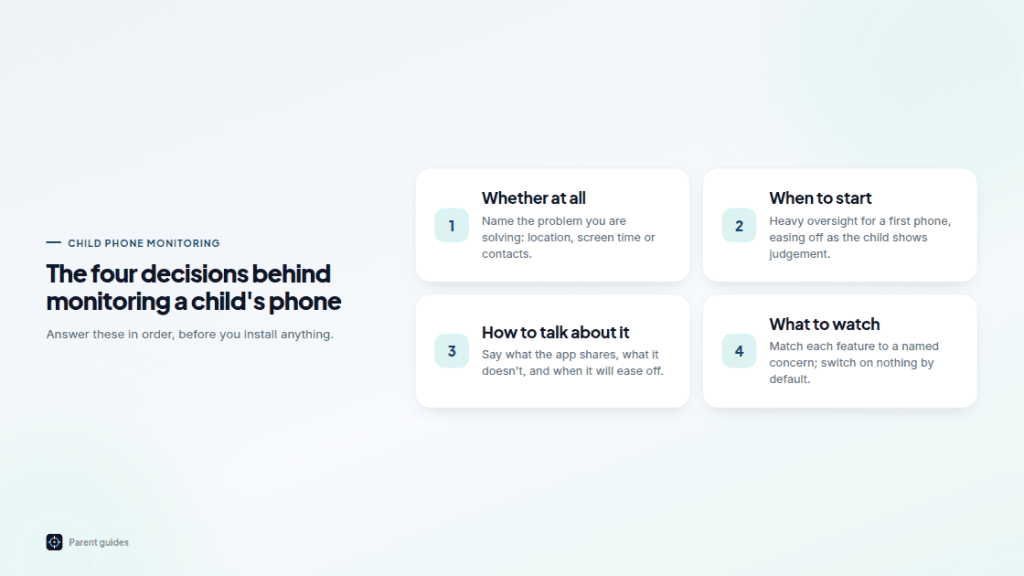
Handing a child their first phone is one of those parenting moments that feels bigger than it looks. You want them connected, reachable, and able to find their way home, but you also know the device in their pocket opens onto the whole internet. This guide walks through the real decisions behind child phone monitoring: whether to do it at all, when, how to talk about it honestly, and what actually helps rather than what merely watches.
Should you monitor your child’s phone at all?
Start with the honest question, because not every family needs the same answer. Monitoring is a tool, not a verdict on your parenting. Some children are cautious by nature and rarely stray; others are impulsive, curious, or easily led, and a bit of visibility helps everyone breathe.
Think about what problem you are actually trying to solve. “I want to know she got to football” is a location question. “He’s up until 2am on his phone” is a screen-time question. “I don’t know who’s messaging her” is a contact question. Naming the concern keeps you from installing a sprawling surveillance kit when what you needed was a way to see whether the bus dropped them at the right stop.
There is also a cost to over-monitoring. Children who feel watched at every keystroke tend to get better at hiding, not more open. The goal is not total information. It is a reasonable window, agreed out loud, that shrinks as trust grows.
At what age should you monitor a child’s phone?
There is no universal number, but age bands help. The right question is less “how old are they” and more “what can they handle without a safety net yet.”
- Ages 8-10: A first phone or watch is usually about reachability. Heavy oversight is appropriate here: known contacts only, tight app choices, and location so you know where they are.
- Ages 11-13: The transition years. Group chats, YouTube, and the first social apps arrive. Keep location and screen-time limits, but start explaining your reasoning so the rules feel earned rather than imposed.
- Ages 14-16: Push toward autonomy. Many families drop message monitoring entirely here and keep only location sharing and broad screen-time boundaries, ideally mutual.
- Ages 17+: Most monitoring should have wound down to what an adult would accept, like sharing live location with family.
Whatever age you start, say out loud when it will ease off. “We’ll check messages while you’re settling into this new school, then stop at the summer” gives a child something monitoring rarely offers: an end date.
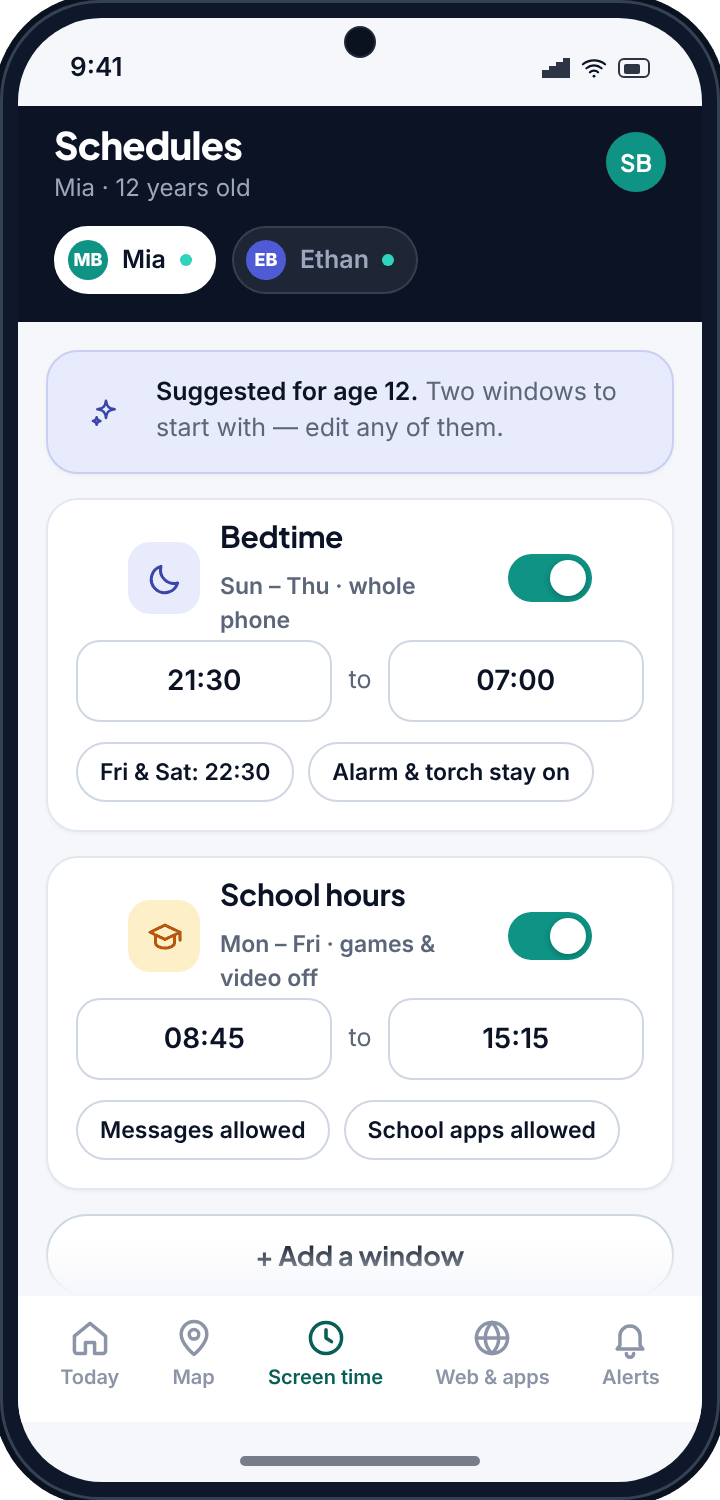
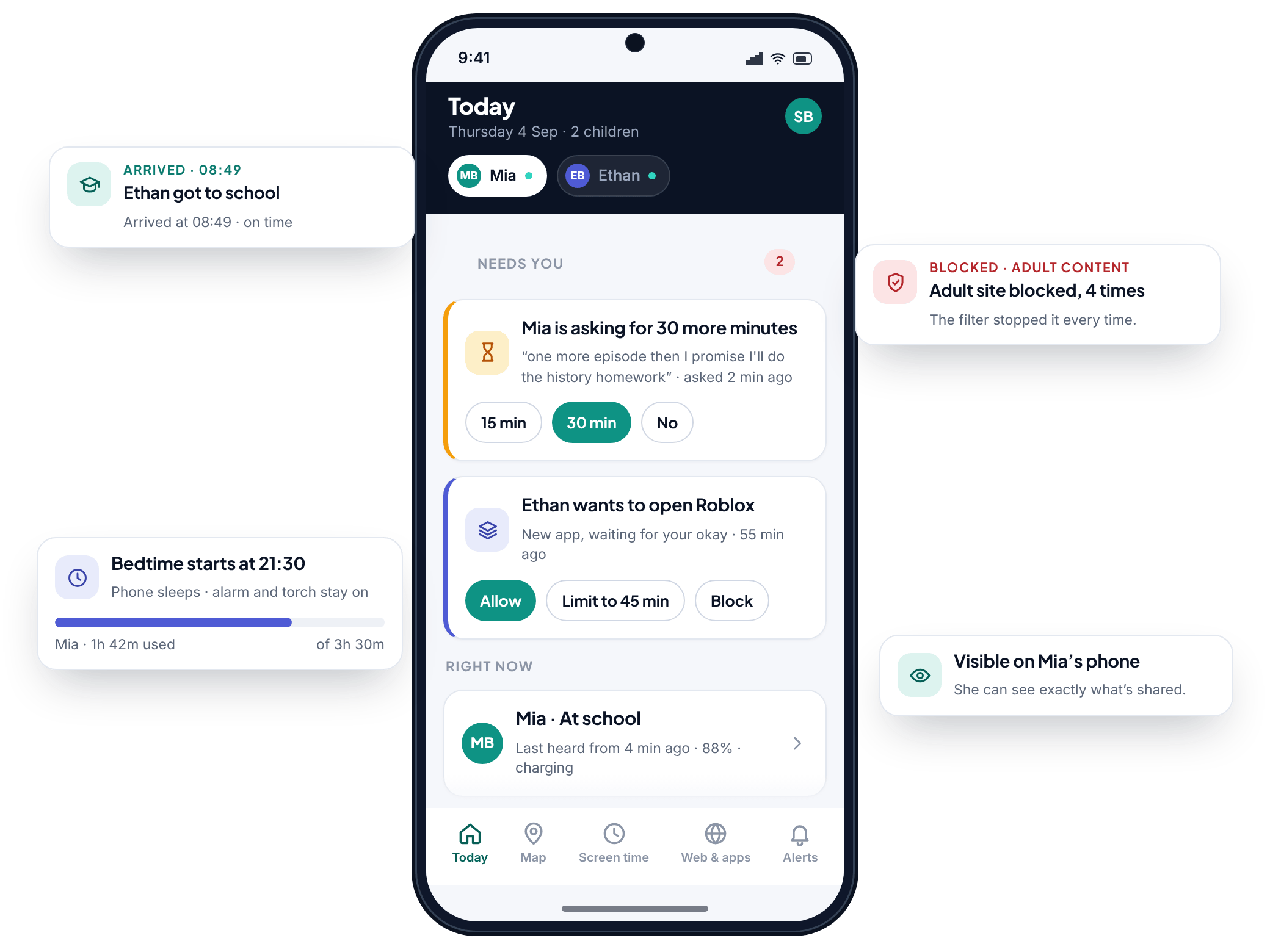
TheTruthSpy is free to set up and visible on your child’s phone.
Monitoring vs spying: the line that matters
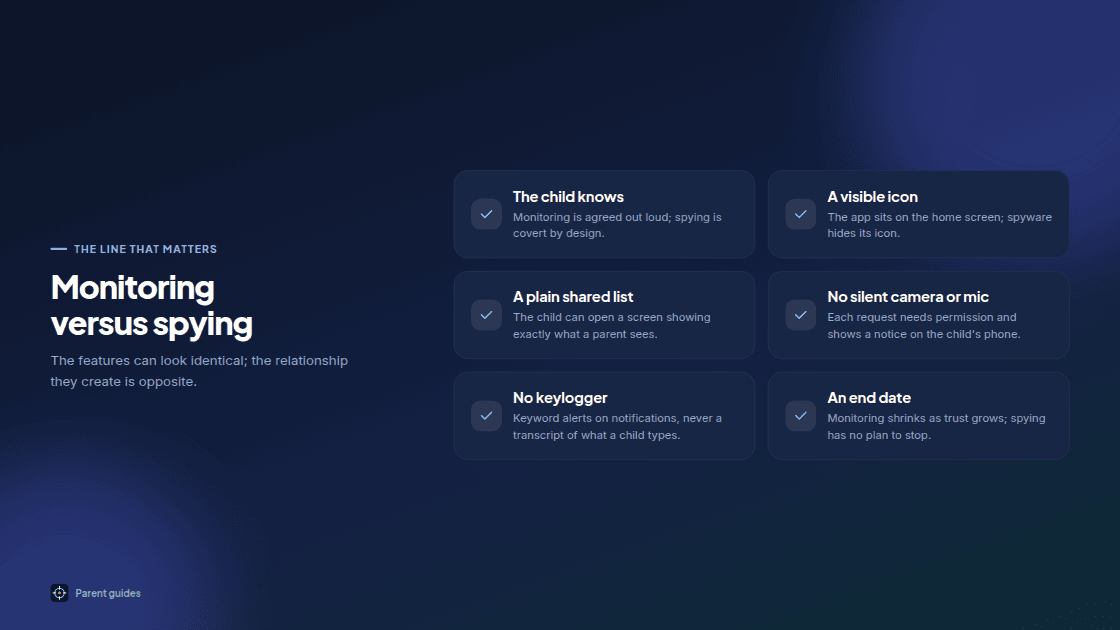
This is the distinction that shapes everything else, so be precise about it. Monitoring vs spying is not about which features you use. It is about whether your child knows.
Monitoring is done in the open. The child knows the app is there, knows roughly what it shares, and can raise an objection. Spying is covert by design: hidden icons, silent recording, secret logs. The features can look identical on a spec sheet, but the relationship they create is opposite.
The moment a child discovers they were watched in secret, the lesson they learn is not “be safer online.” It is “I can’t trust my parents, and I need to get better at hiding.”
This is the principle TheTruthSpy is built around; see why we build it to be visible. The app appears as an ordinary icon on the child’s phone. It never runs a silent camera or microphone, and it has no covert keylogger; if you are curious about why we deliberately left that last one out, we explain our stance on why we don’t ship a hidden keylogger. A child can open a plain-language “what’s shared” screen and see exactly what a parent can and cannot view. Covert stalkerware promises to catch a child unaware. Transparent monitoring aims for the opposite: a shared understanding that nobody has to sneak around.
How to tell your child you’re monitoring their phone
The conversation is more important than the software. A monitored phone that arrived with a proper talk works. A monitored phone discovered by accident does lasting damage.
Keep it short and specific. Try something like: “This app lets me see your location and set screen-time limits while you get used to having a phone. It doesn’t read your DMs. You can see everything it shares, and if you think a limit is unfair, tell me and we’ll talk about it.” That last sentence matters more than any feature.
Make it a two-way deal
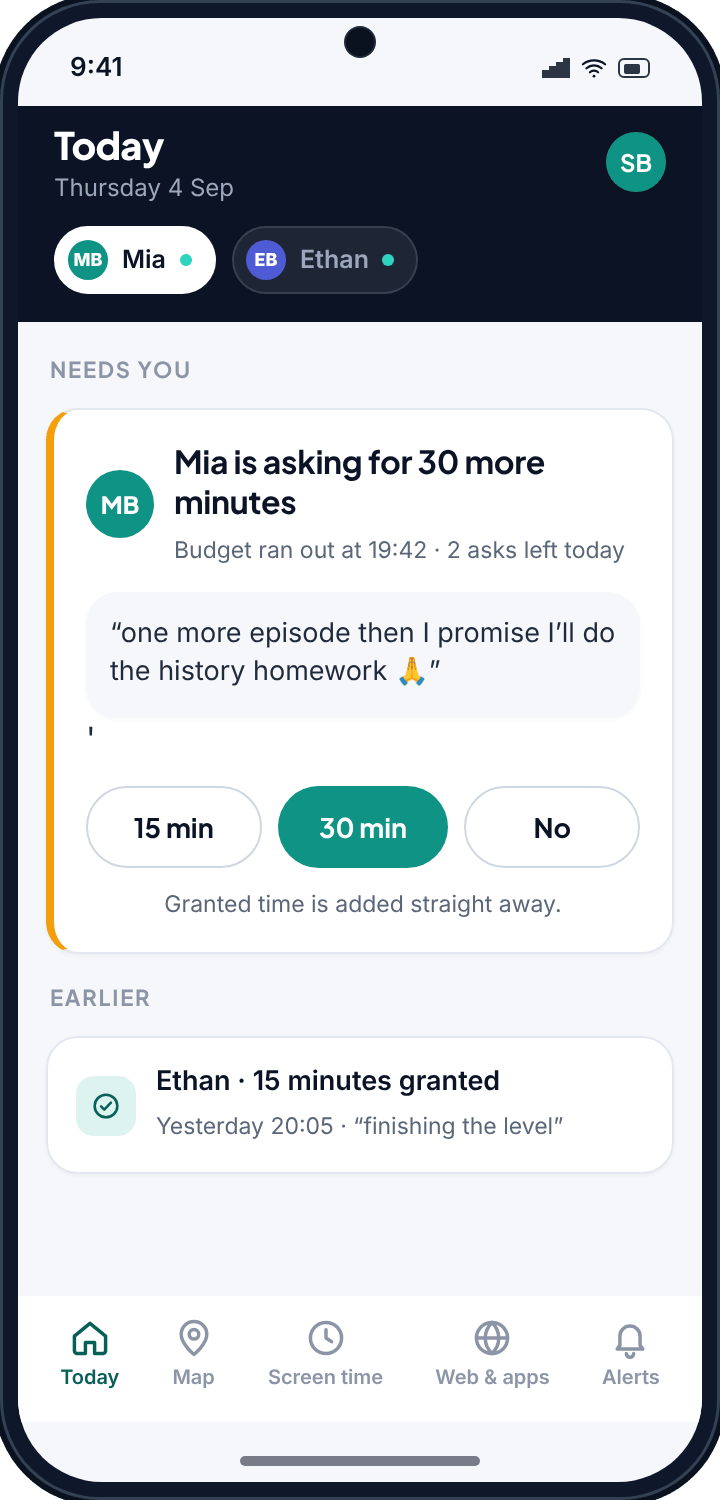
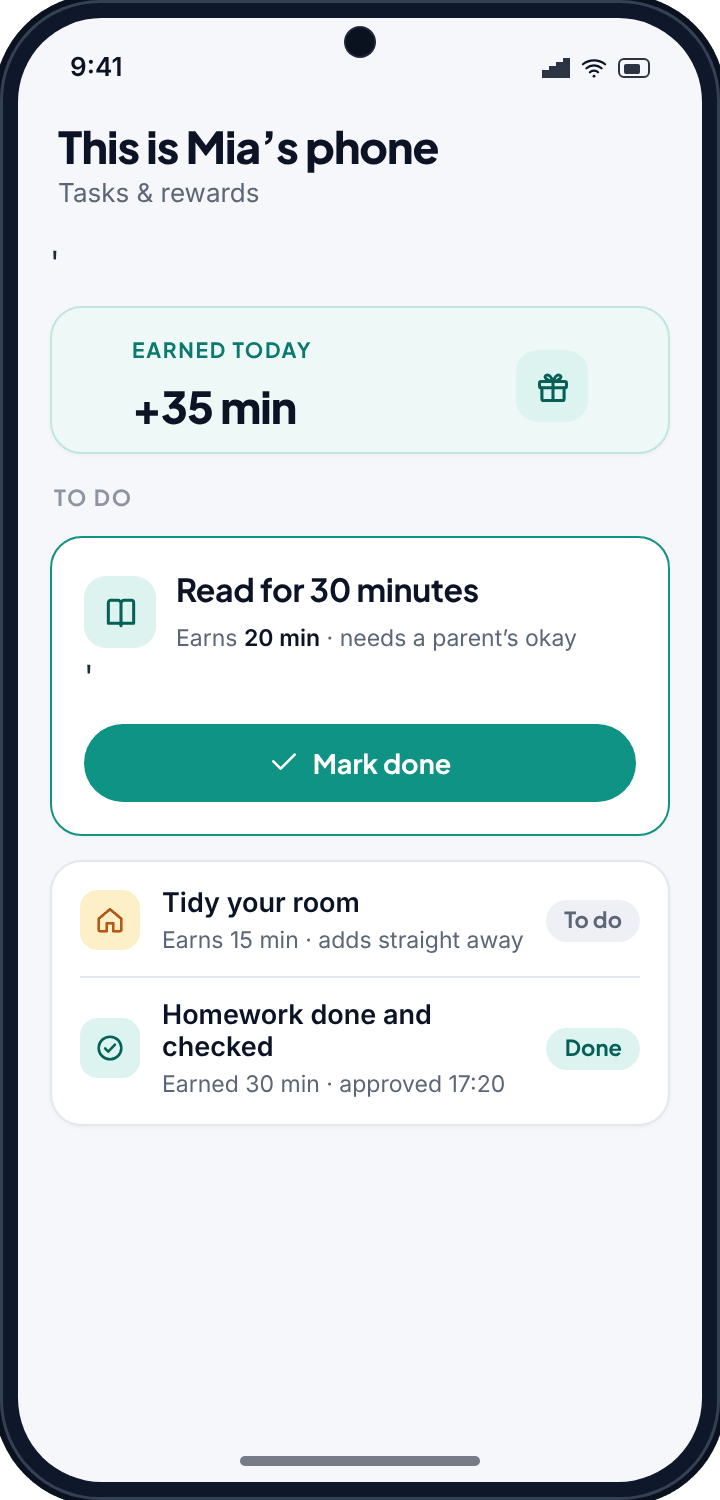
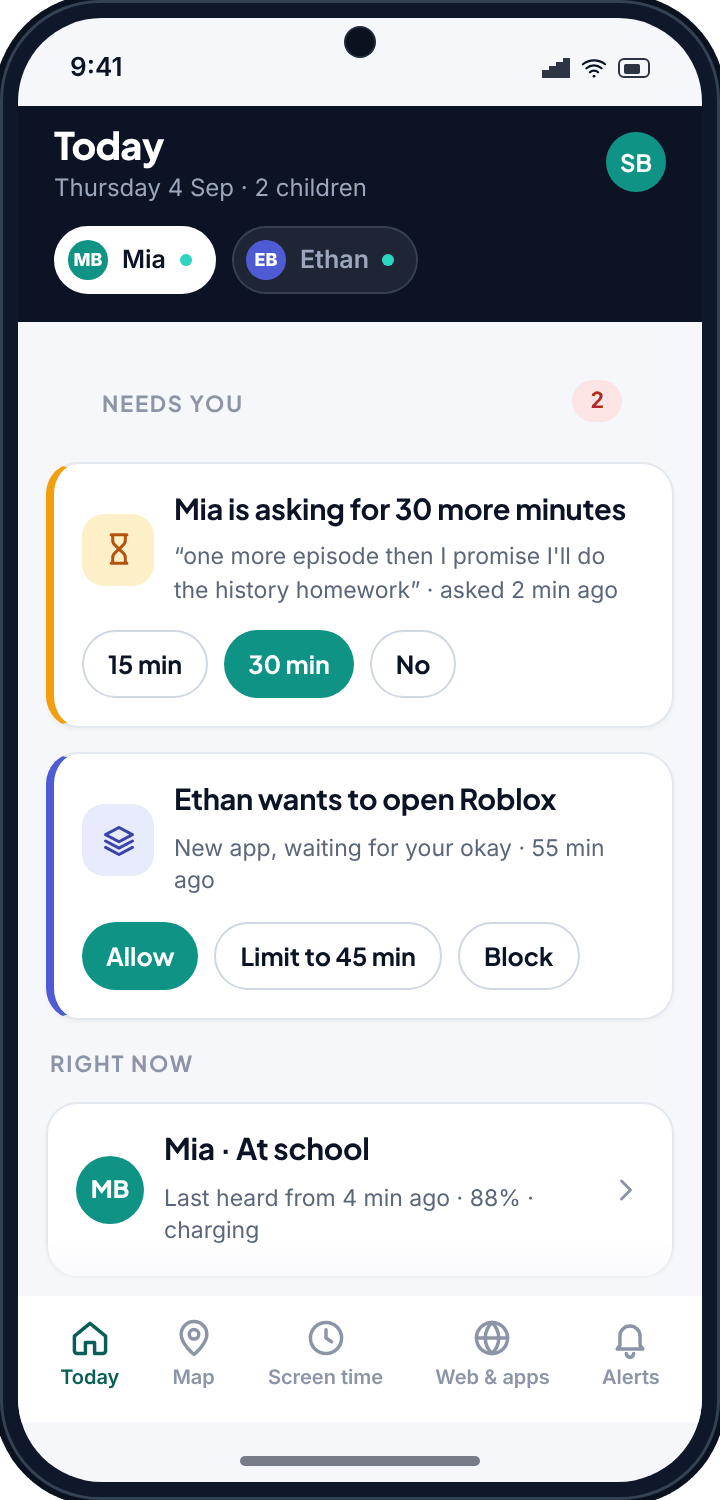
Consent is not a signature; it is a conversation you keep having. Let the child ask questions. Agree what happens if they break a rule and what happens as they keep to it. In TheTruthSpy, when a child hits a screen-time limit, they can request more with a single tap, and the request lands with you rather than triggering a silent lockout. That small design choice turns a wall into a doorbell, and it gives kids a reason to engage with the system rather than resent it.
What to actually monitor
Once you have decided to monitor, resist the urge to switch everything on. Match the feature to the concern you named earlier. Here is what each area is actually good for.
Location
Location is the feature most families use most and argue about least, because its purpose is obvious. Knowing your child reached school or a friend’s house removes a specific worry without reading a single private word. Tools like live location and geofencing can send an alert when they arrive at or leave a set place, so you are not refreshing a map every ten minutes.
Screen time
The point of screen-time tools is rhythm, not restriction for its own sake. Bedtime cut-offs, homework windows, and a cap on the one app that swallows whole evenings do more good than a blanket daily limit. Setting up healthy screen-time limits and app schedules works best when a child has a fast way to negotiate, which is exactly why the tap-to-ask-for-more flow exists. TheTruthSpy applies no limit at all until a parent sets one, so nothing is throttled by default.
Web filtering
Younger children stumble onto content they did not go looking for, and that is what category-based web filtering is for. Filtering is most useful in the 8-12 band and should loosen as a child matures. It is a guardrail, not a substitute for talking about what they might see.
Calls and messages
This is the most sensitive area, so treat it with the most restraint. Younger children with a new phone may warrant a look at who is calling and texting; teenagers almost never do. If you do use it, say so plainly. TheTruthSpy handles this through call visibility and text-message visibility, and because of how the app platforms work, these deeper features live in a direct-download build rather than the standard Play Store one (more on that below).
Apps and social media
Knowing which apps a child has installed catches the classic move of quietly adding a platform they are too young for. Keeping an eye on social apps and messaging platforms is less about reading conversations and more about knowing the landscape they are living in, so your conversations stay relevant.
Keyword alerts
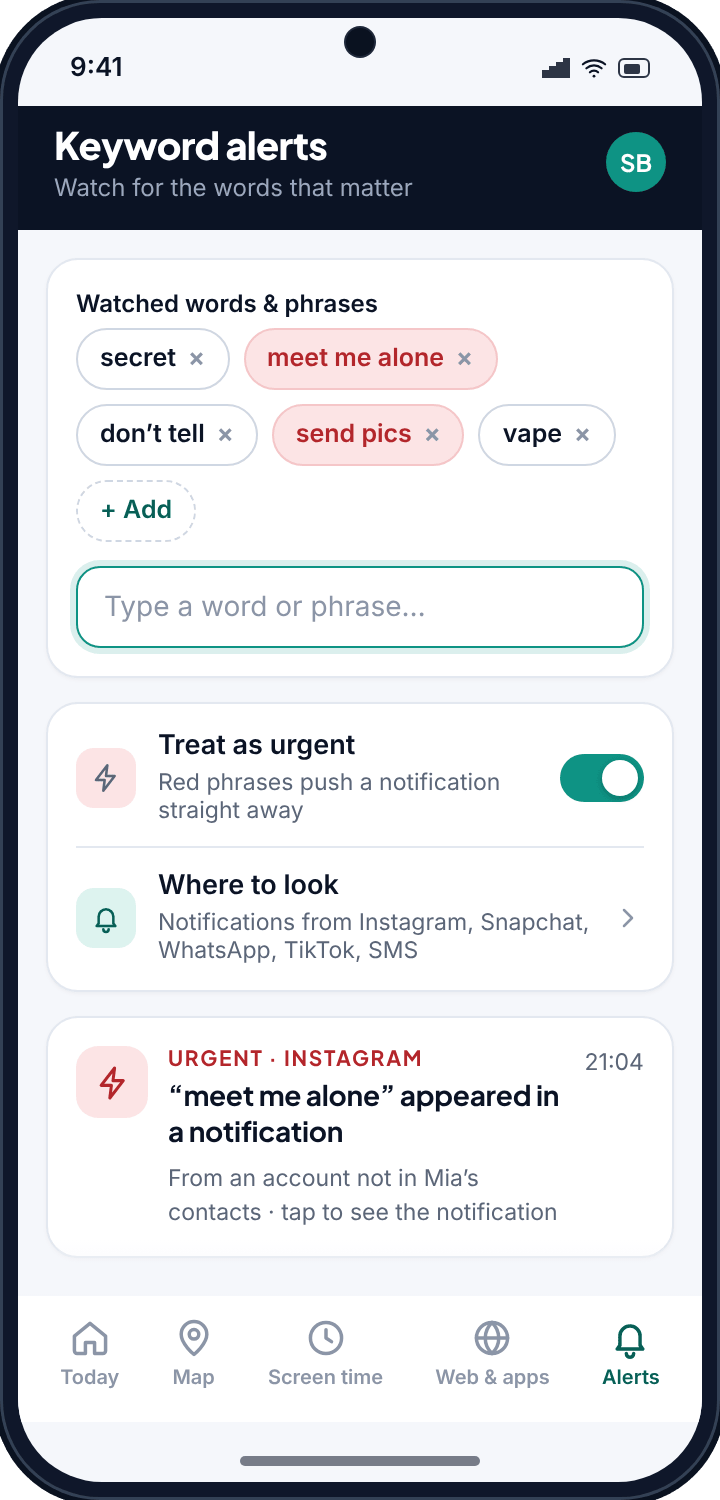
Instead of reading everything, you can watch for the few things that actually signal trouble. TheTruthSpy can flag when specific words appear in notifications, so you get a nudge about the word “secret” or a phrase like “meet me alone” without scrolling through a week of ordinary chatter. It is a smoke alarm, not a wiretap: quiet until something warrants a look. Because it works on notifications, it cannot see inside chats in apps like WhatsApp or Snapchat; it sees only what those apps choose to show as a notification.
iPhone vs Android: the realities
What you can monitor depends heavily on the phone, and this trips up a lot of parents. Both Apple and Google build capable free tools into their systems, and for many families those are the right starting point.
On iPhone, Screen Time covers app limits, downtime, content restrictions, and location through Find My. On Android, Family Link does much the same. These built-in tools are free, deeply integrated, and honest by default, since the child can see them. Their limits show up when you need visibility into calls and messages, which the built-in tools do not offer.
That is where a dedicated parental monitoring app comes in, and where an important TheTruthSpy fact matters: the monitored phone must be Android. The parent panel runs in any web browser on any device, so you can check in from an iPhone, a laptop, or a work computer, but the child’s phone itself needs to be Android for the deeper features to function. If your child uses an iPhone, the built-in Screen Time is your main lever.
| Consideration | Built-in tools (Screen Time / Family Link) | Dedicated app (TheTruthSpy) |
|---|---|---|
| Cost | Free | Free to set up, no limits until you set them |
| Location and geofencing | Yes | Yes, with arrival/leave alerts |
| Screen-time limits | Yes | Yes, with tap-to-request-more |
| Calls and messages | No | Yes (direct-download build) |
| Keyword alerts | No | Yes, on notifications |
| Works on iPhone (child’s phone) | Yes (Apple only) | No, child’s phone must be Android |
| Parent views from | Own device | Any web browser |
A sensible approach for many families is to lean on the built-in tools first and add a dedicated app only when a specific need, usually call and message visibility for a younger child, isn’t covered.
How to set up monitoring
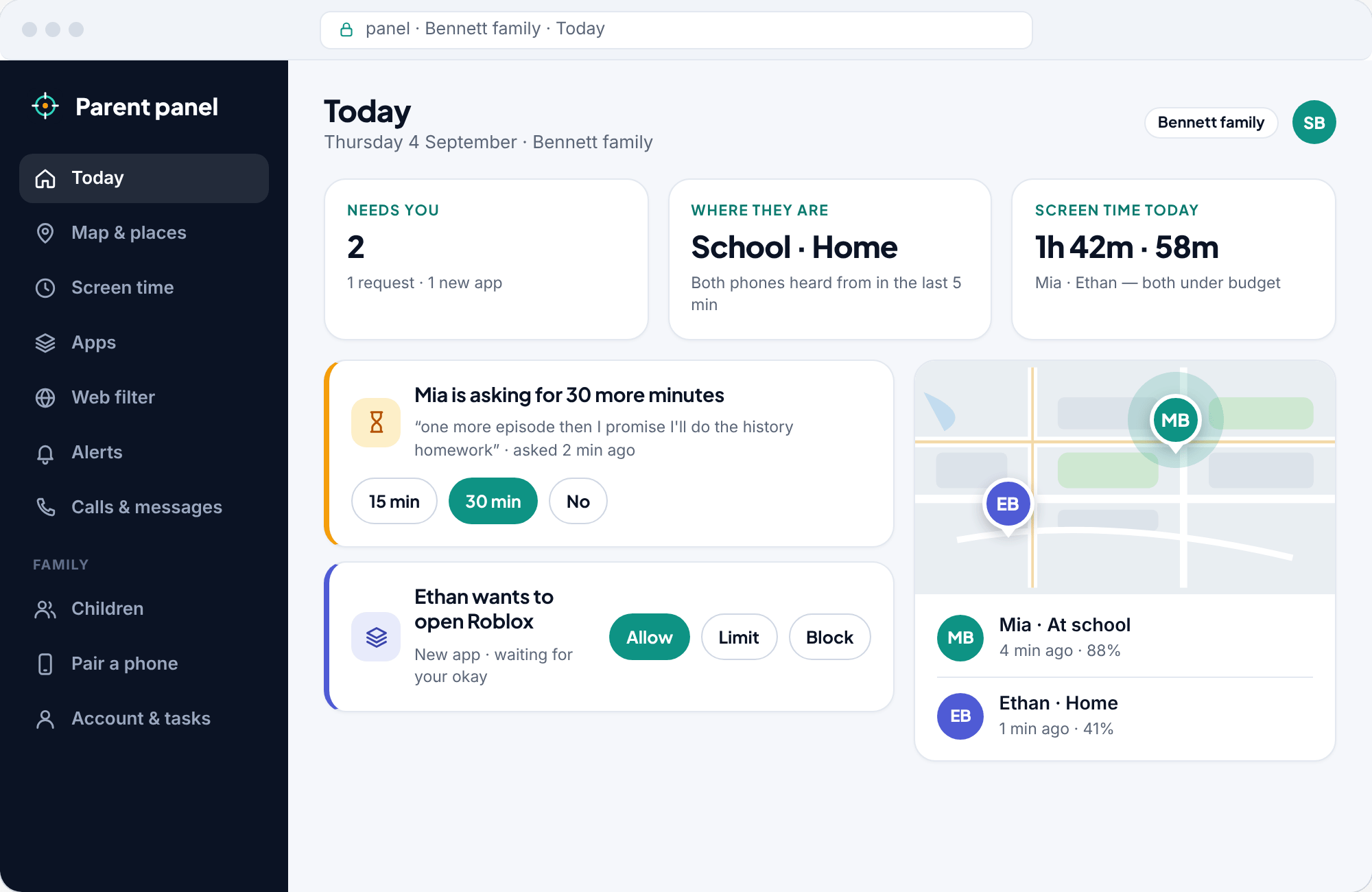
The mechanics are simpler than the conversation. With TheTruthSpy the setup is designed to take about ten minutes, and it starts with the talk, not the install.
- Have the conversation first. Agree what you’ll monitor and why, together with the child.
- Choose your build. There are two: the Play Store version, and a direct-download version that adds call and message visibility. Pick based on what you actually agreed to monitor. You can set it up in about ten minutes from either.
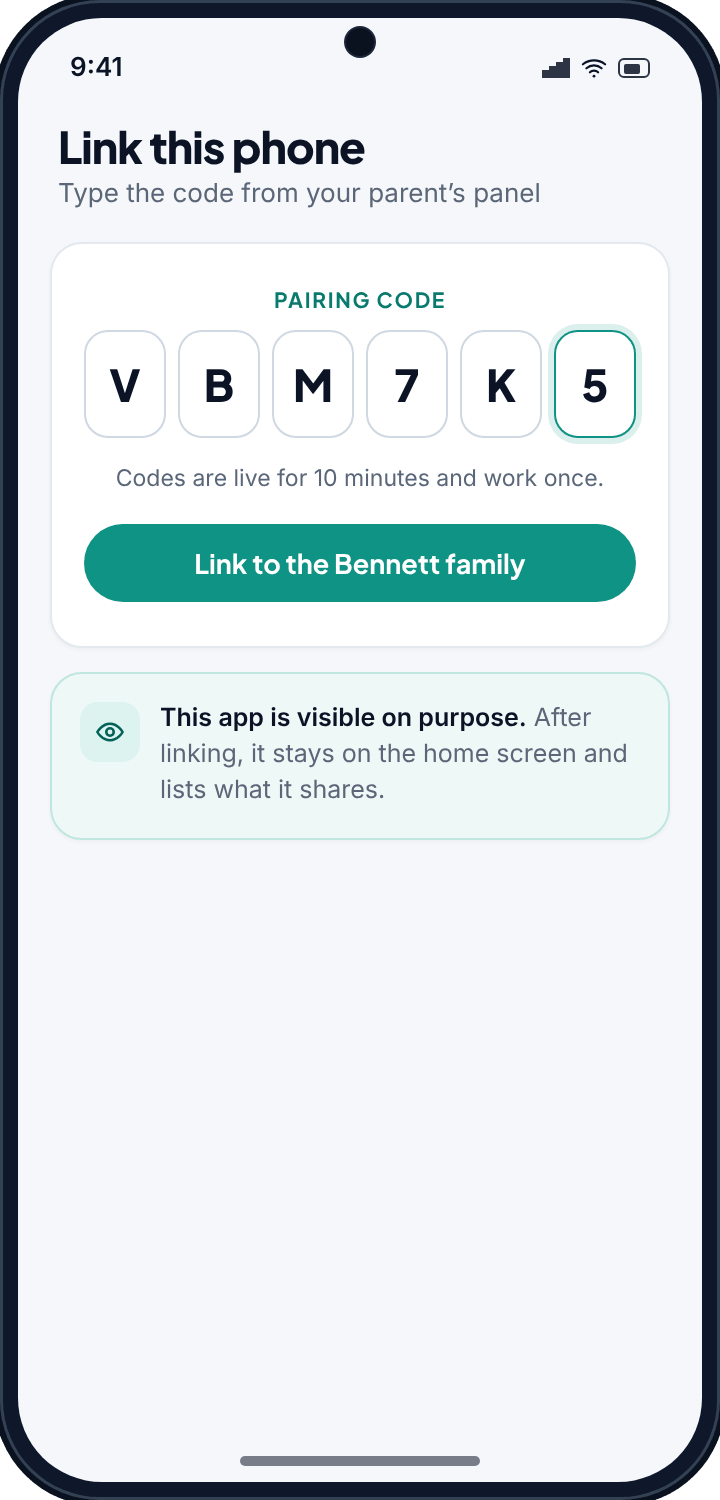
- Pair the phones. Add the child in your panel to get a six-character pairing code, install the app on the child’s Android phone, and type the code in. Then grant the permissions together.
- Show the child the “what’s shared” screen. Let them see it with their own eyes. This is the step that keeps everything honest.
- Set only the limits you discussed. Remember nothing is capped until you set it, so start light.
- Sign in and check. Open your browser and sign in to your panel to confirm everything reads correctly.
If you want a fuller tour of what each feature does before you begin, the TheTruthSpy overview lays it out plainly.
The two builds, briefly
Because app-store policies limit how much access an app can have to calls and messages, TheTruthSpy offers a Play Store build that stays within those rules and a direct-download build that goes further. Neither is covert. Both show a visible icon and the same “what’s shared” screen. The only difference is depth, and you choose it deliberately.
Keeping trust over time
Monitoring that never changes stops being protection and starts being a habit. The healthiest setups shrink on a schedule.
Review the arrangement every few months, and out loud. Ask your child what feels fair now. When they consistently keep to bedtime cut-offs, drop the cut-off. When they’ve shown good judgement about who they talk to, stop looking at contacts. Each thing you switch off is a small, tangible reward for growing up, and children notice.
Use routine tasks and check-ins rather than surprise inspections. Setting gentle, recurring reminders and shared tasks keeps the relationship collaborative instead of adversarial. The aim across the whole arc is to work yourself out of a job, so that by the time your child is heading toward adulthood, the phone is fully theirs and the trust is real. Done this way, monitoring earns the one thing every parent actually wants from it: peace of mind, arrived at honestly rather than by watching in secret.
A short word on what monitoring can’t do
No app replaces a parent. Software can tell you where a phone is and flag a worrying word, but it cannot tell you how your child is feeling or why they went quiet last Tuesday. The families who get the most from monitoring treat it as one input among many, alongside dinner-table conversations, knowing their child’s friends, and staying curious without prying. Think of the tools as a seatbelt: worth having, easy to forget about, and never a reason to stop paying attention to the road.
Frequently asked questions
Is child phone monitoring legal?
In most places, a parent or guardian can monitor the device of a minor child they are responsible for, especially when the child knows about it. Laws vary by country and region, and the rules tighten as a child approaches adulthood, so transparent monitoring, where the child is aware, keeps you on the safest footing both legally and relationally.
Will my child know TheTruthSpy is installed?
Yes, and that is the point. TheTruthSpy shows a visible icon and a plain-language screen listing exactly what is shared. It never hides itself, never runs a silent camera or microphone, and includes no covert keylogger. It is built for monitoring in the open, not spying.
Does the child need an Android phone?
The monitored phone must be Android for TheTruthSpy’s features to work. The parent panel runs in any web browser, so you can check in from an iPhone, laptop, or any computer. If your child uses an iPhone, Apple’s built-in Screen Time is your main option.
How much does it cost?
TheTruthSpy is free to set up. There is no limit applied to the child’s phone until a parent chooses to set one, so nothing is restricted by default and you only add boundaries you have actually decided on.
What’s the difference between the two builds?
The Play Store build follows standard app-store rules. The direct-download build adds call and message visibility, which the stores restrict. Both are equally transparent to the child; the only difference is how deep the visibility goes, and you choose based on what you and your child have agreed to monitor.
What are keyword alerts, and do they read everything?
Keyword alerts watch notifications for specific words or phrases you choose, such as “secret” or “meet me alone,” and nudge you only when one appears. They are not a running transcript of your child’s conversations. The idea is to surface the rare moment worth a closer look while leaving ordinary, everyday chatter private.
Related guides
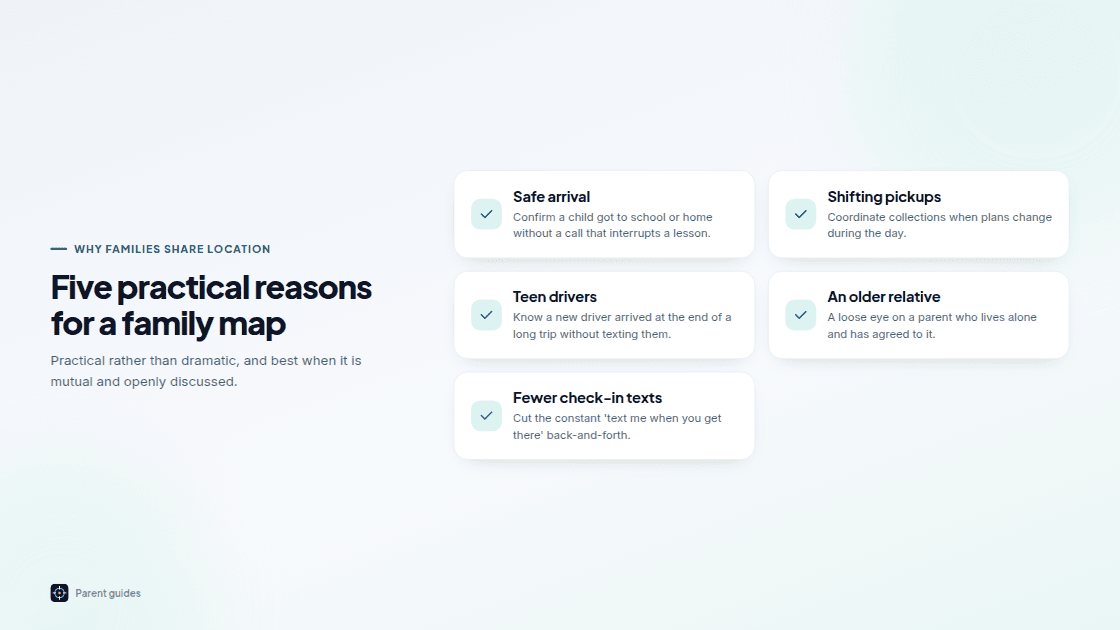
GPS Tracking for Families
Live location, geofencing and the honest limits of phone GPS.
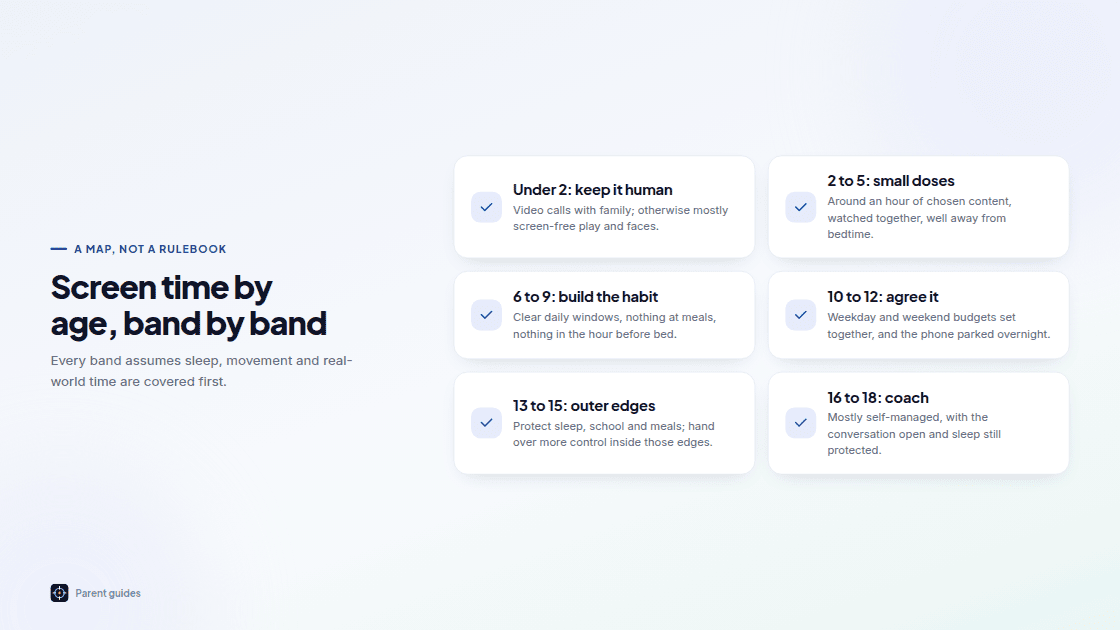
Screen Time by Age
Healthy limits from toddler to teen, without the nightly fight.
All TheTruthSpy features
Location, screen time, filtering and alerts — see the whole toolkit.
Try TheTruthSpy free
Parental monitoring for Android that your child can see. Pair a phone in about ten minutes.
Android · Free to set up · Visible on your child's phone