Viber Tracker Detection: Linked Desktops, Notification Readers and the Privacy Defaults to Fix
 By TheTruthSpy Editor · Founder and editorPublished October 7, 2026Updated October 12, 202614 min read
Viber encrypts chats end to end, like WhatsApp, and like WhatsApp its real exposure has nothing to do with the encryption. It is the convenience built around it. Viber was early to multi-device: a desktop app for Windows and Mac, an iPad app, an Android tablet app, all of them mirrors of the phone, all of them activated with a single scan of a QR code. Those mirrors are the first place to look when someone asks how their Viber messages are being read, and they are the first thing this guide covers.
After the mirrors, the guide works through what Viber’s own privacy features do and do not protect, the notification-reading apps that every “Viber monitoring” product is built on, and the handful of default settings that leave a Viber account, especially a child’s, open to the whole world. Each section ends with how to detect the problem and how to fix it. Taken together it is a quarter of an hour.
The desktop and tablet mirrors
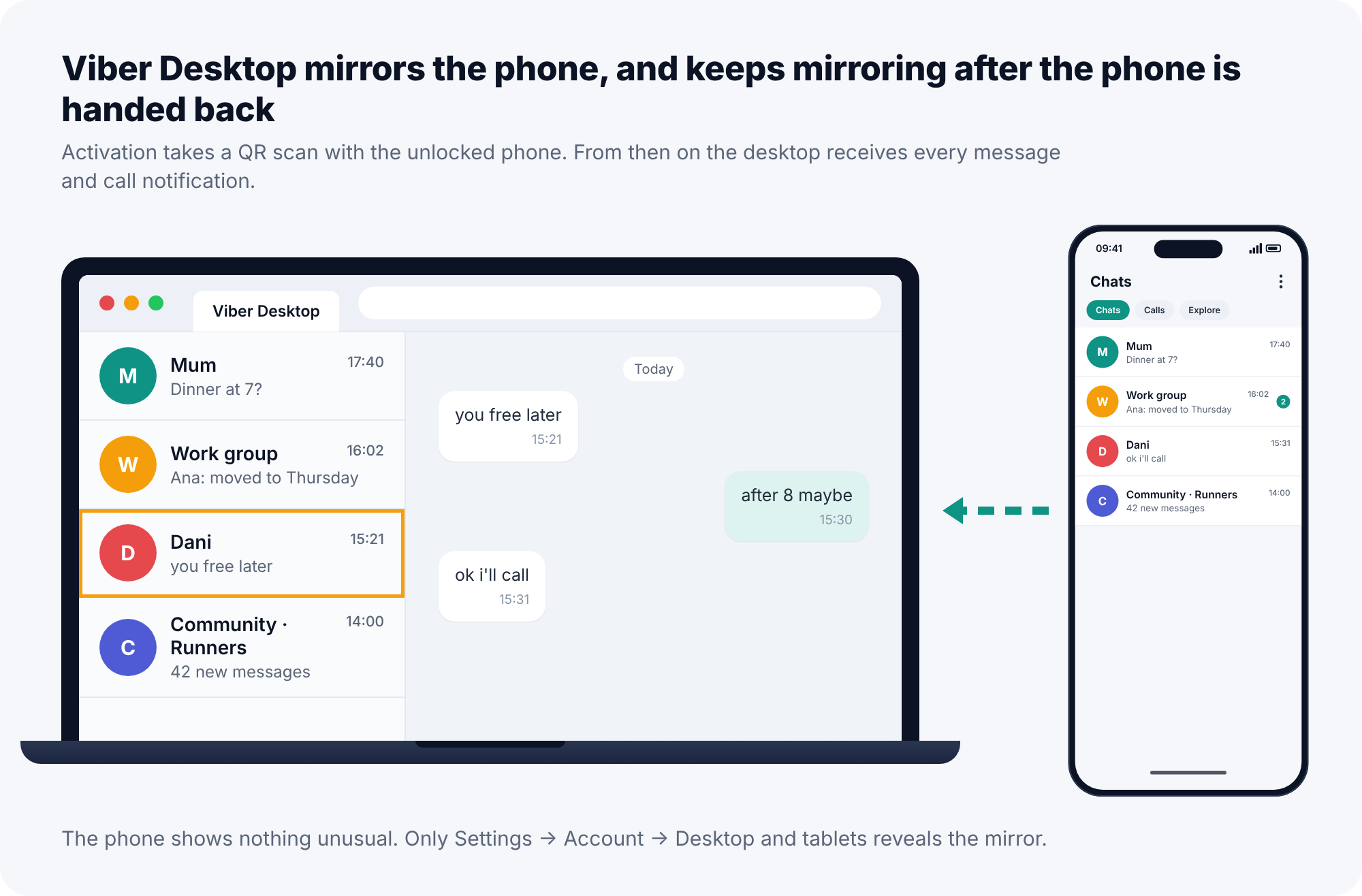
Viber Desktop and the tablet apps activate by scanning a QR code with the phone. Once activated, the secondary device receives every new message and every call notification, can send messages as you, and, if the person who activated it chose the option, syncs the chat history from the phone as well. Activation needs the phone unlocked for about ten seconds. After that the phone can be in another room, another building, or switched off, and the desktop keeps receiving.
That is the whole mechanism of the most common Viber tracker, and it involves no spyware. Someone who borrowed the phone to “check something” six months ago may still have a Viber window open on their laptop, reading along. From the phone’s point of view nothing unusual is happening. You activated a companion device; it is being a companion device.
How to detect a linked device
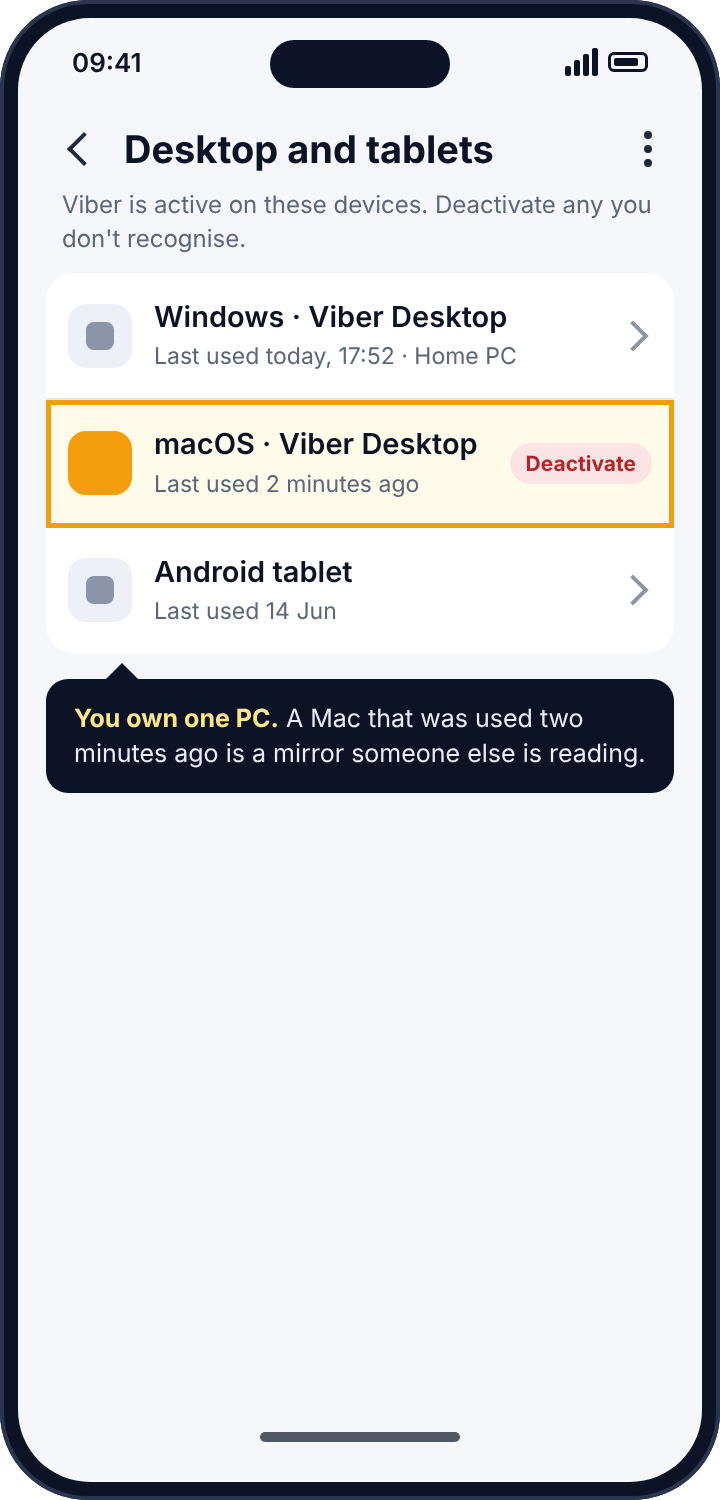
Open Viber on the phone, tap More (the three lines or dots at the bottom), then Settings, then Account, then Desktop and tablets. Viber lists every activated secondary device with its type and when it was last used. If you have a laptop you use Viber on, it will be there, and you will recognise it. Anything else should not be. A desktop entry that was “last used 2 minutes ago” when you have not touched a computer today tells you not only that a mirror exists but that someone is reading right now.
How to remove it
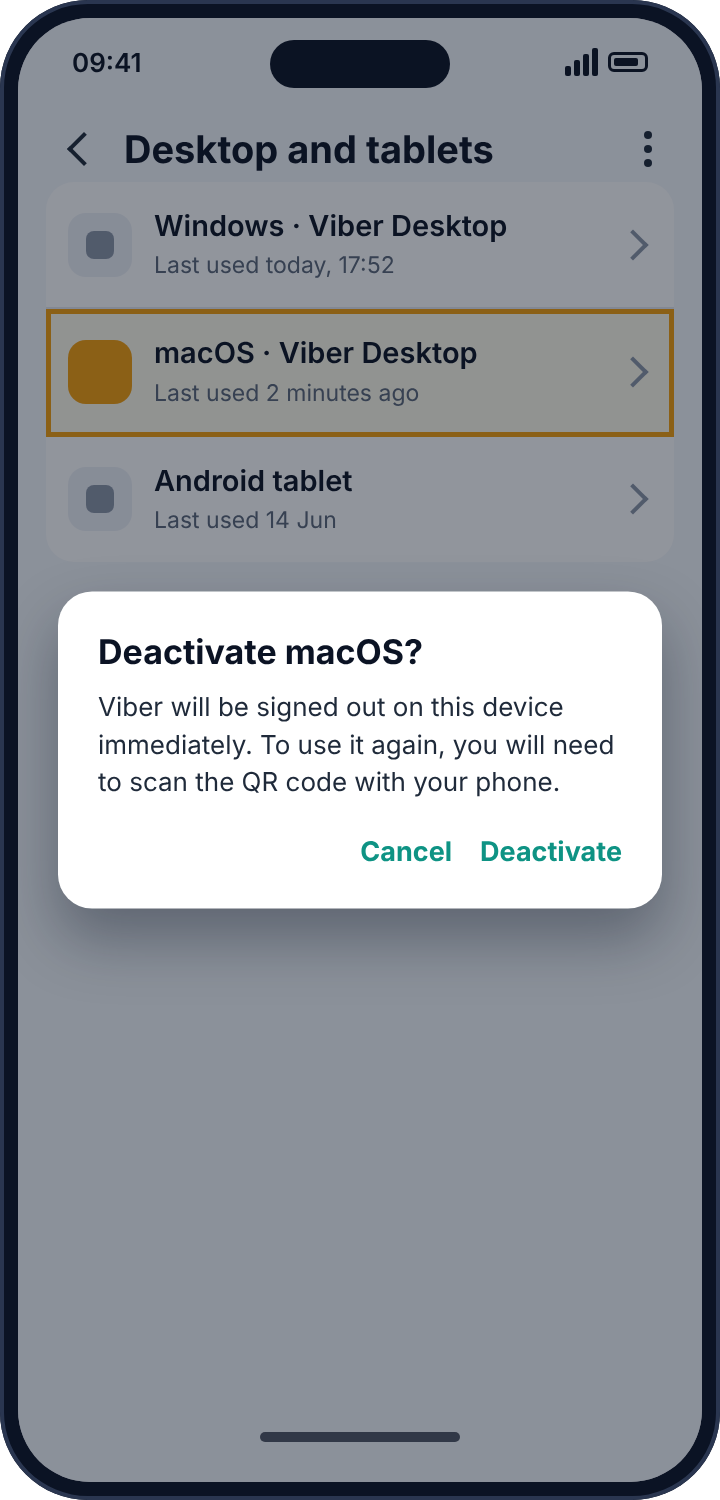
Tap the device and choose Deactivate. The desktop or tablet app on the other end is signed out immediately and cannot come back without scanning a code from your phone again. Then change the phone’s lock screen code, because whoever activated that device had it. Viber offers no two-factor authentication for the account as such; the account is tied to the phone number and the SIM, so the lock screen is the lock.
Hidden chats, secret chats, and what they actually protect
Viber offers three privacy features that people routinely confuse, and it is worth knowing what each defends against, because none of them defends against a linked device.
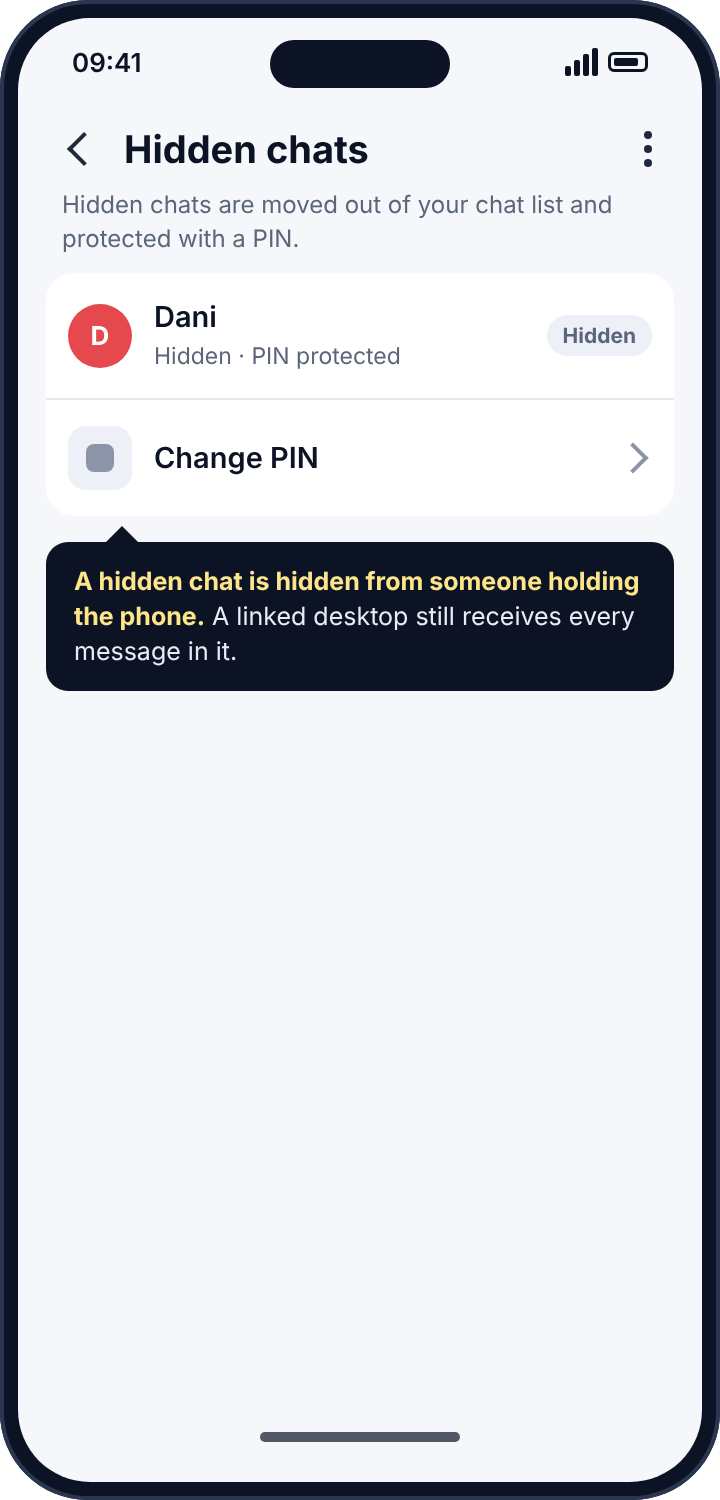
Hidden chats move a conversation out of the main list behind a four-digit PIN. They stop someone who picks up your phone from seeing that the chat exists. They do nothing about a desktop mirror, which receives every message in a hidden chat exactly as it receives any other. Secret chats add a self-destruct timer and block screenshots on Android. They stop the recipient keeping the message. They do not stop a notification reader seeing the preview when the message arrives, because the preview is posted by your phone before any timer starts. Disappearing messages in ordinary chats work the same way as the secret-chat timer and have the same limits.
If you suspect you are being watched, these features are a distraction. Deal with the mirrors and the notification readers first. The PIN features are for keeping chats from someone who picks up the handset, which is a different problem, and a smaller one.
Notification-reading apps on the phone
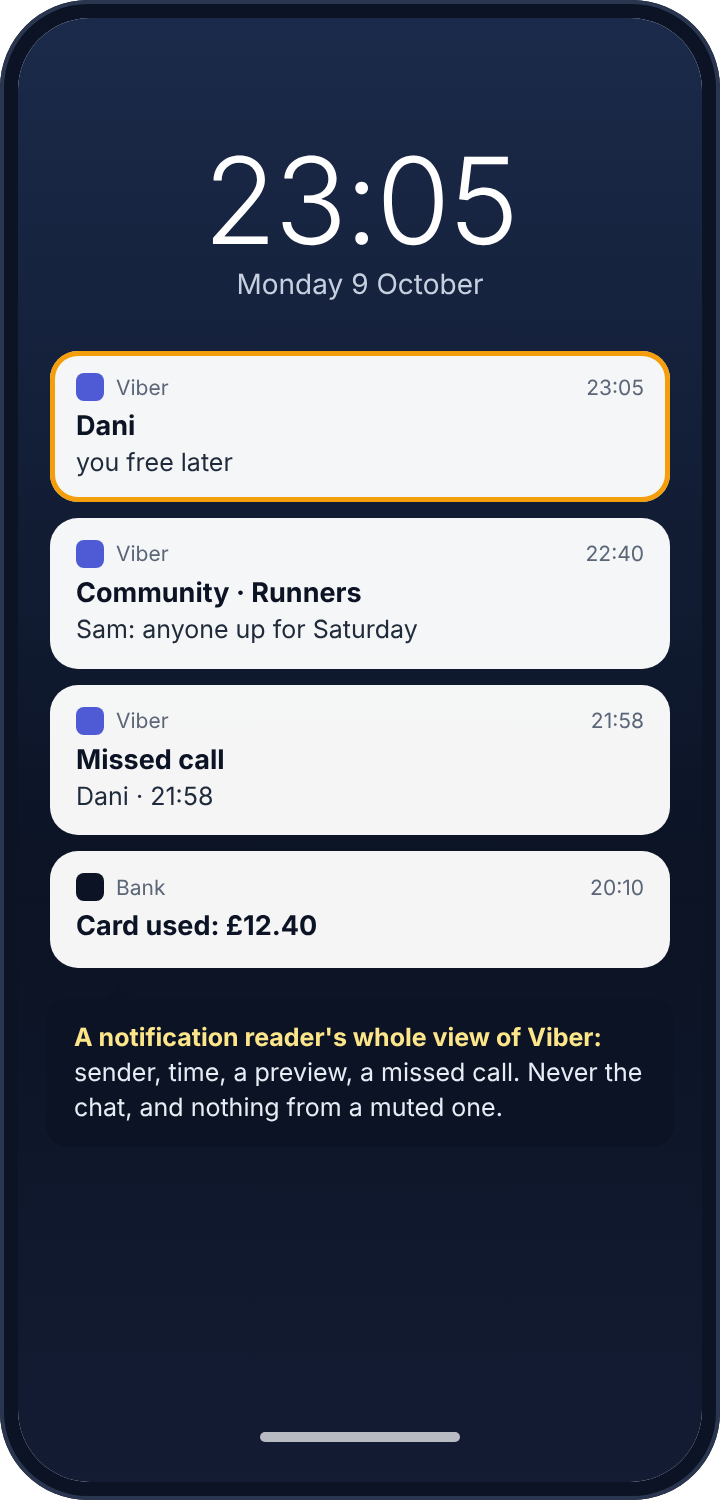
Android lets an app ask for a permission called notification access, which is what a smartwatch app uses to show your messages on your wrist. Any app with that permission reads every notification Viber posts: the sender’s name, the time, the preview line if previews are on, and missed-call notices. This is how parental control apps “monitor Viber”, and it is how stalkerware does too. The difference between those two is whether the app is honest about being on the phone, not what it reads. And what it reads is limited: it does not see the chat, it cannot scroll back, it sees nothing from a muted conversation, and it sees nothing from a chat that was open on screen when the message arrived.
How to detect a notification reader
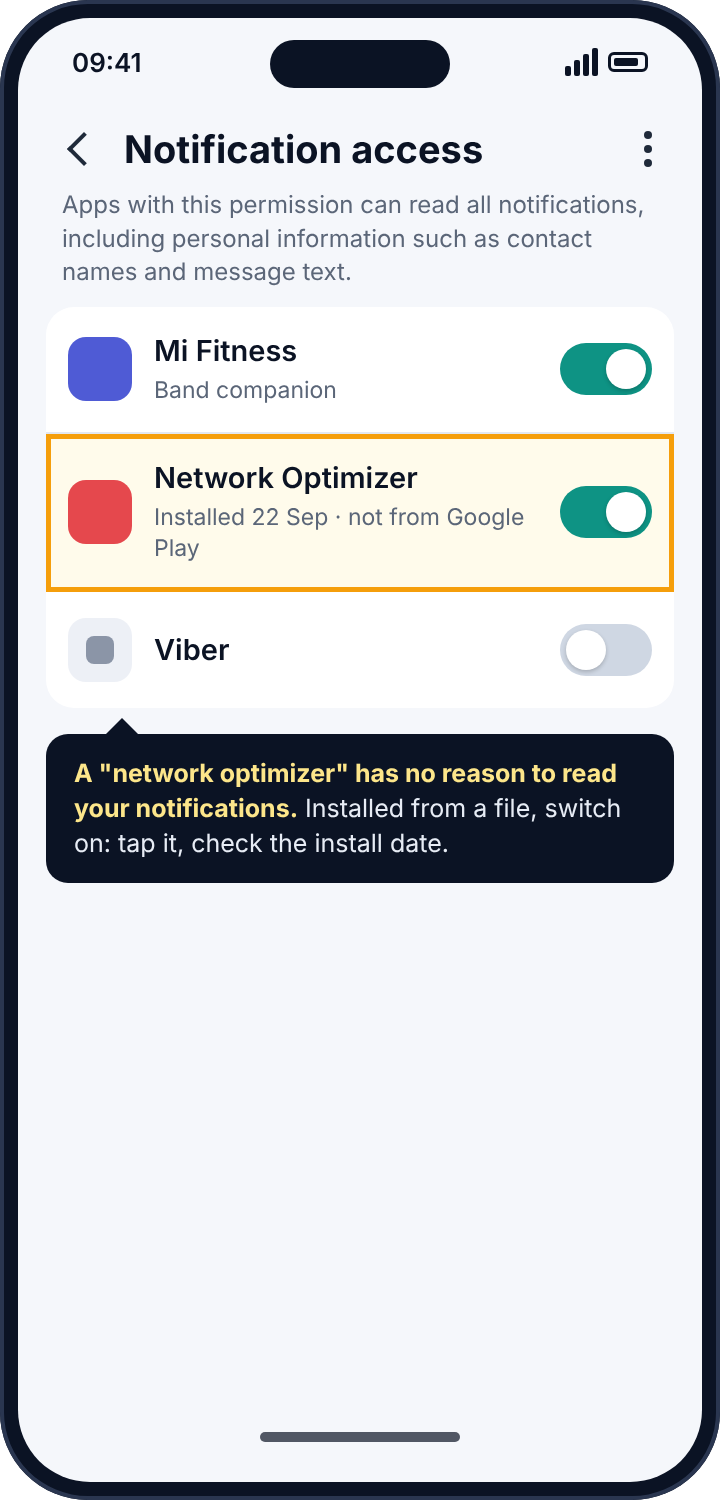
Open the phone’s Settings and search for “notification access”. The screen lists every app with the permission. A fitness band, a car, a launcher: fine. Anything you cannot name the purpose of, tap through to App info and look at the install date and whether it came from the Play Store. Stalkerware is almost always installed from a downloaded file, because Google Play will not carry it, and it gives itself a name that sounds like a utility: “Network Optimizer”, “Battery Saver Pro”, “System Tools”. A network optimiser has no reason to read your notifications. That mismatch, between what an app claims to be and what it has asked for, is the tell.
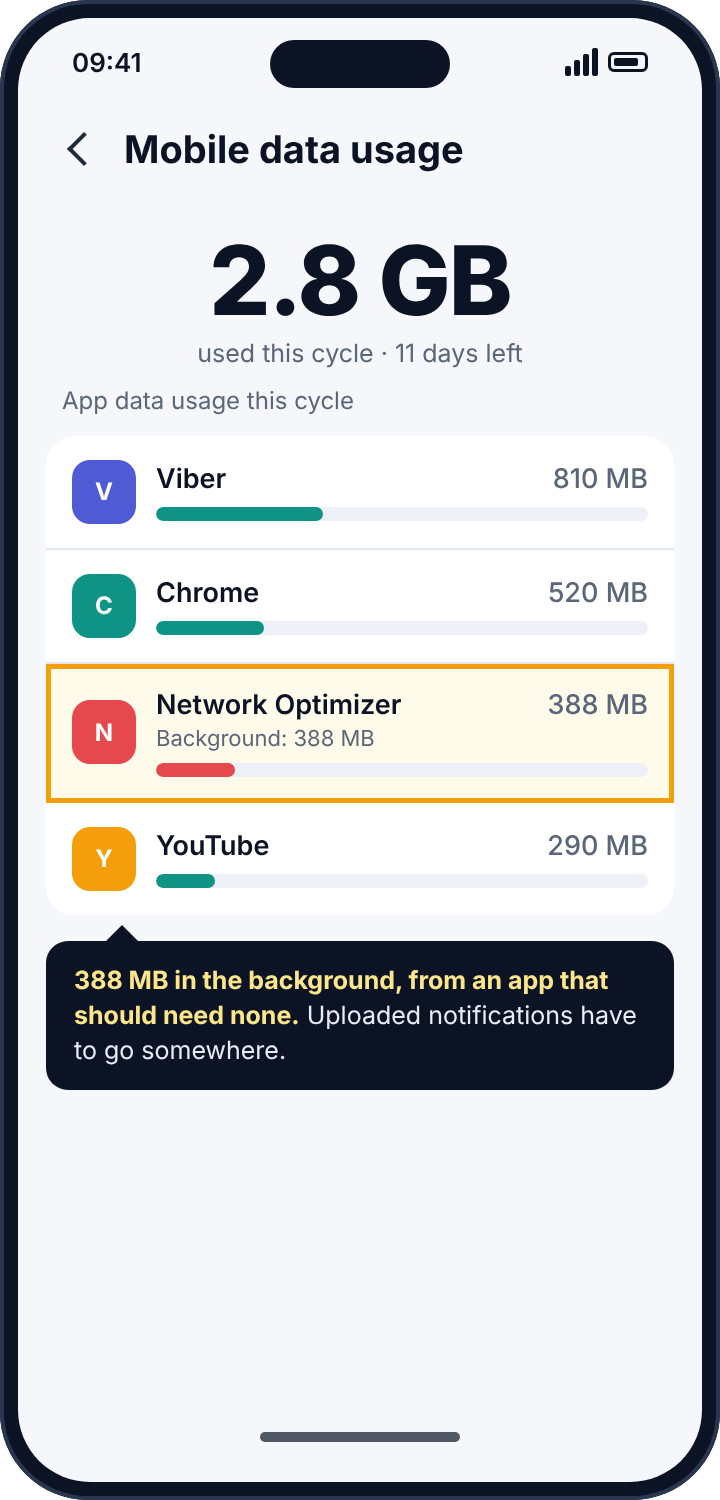
A second, softer sign lives in the data usage screen. Settings, Network, Data usage, and look for an app you do not recognise using a noticeable amount of mobile data in the background. Reading notifications is cheap; uploading them to someone’s dashboard all day is not.
How to remove it
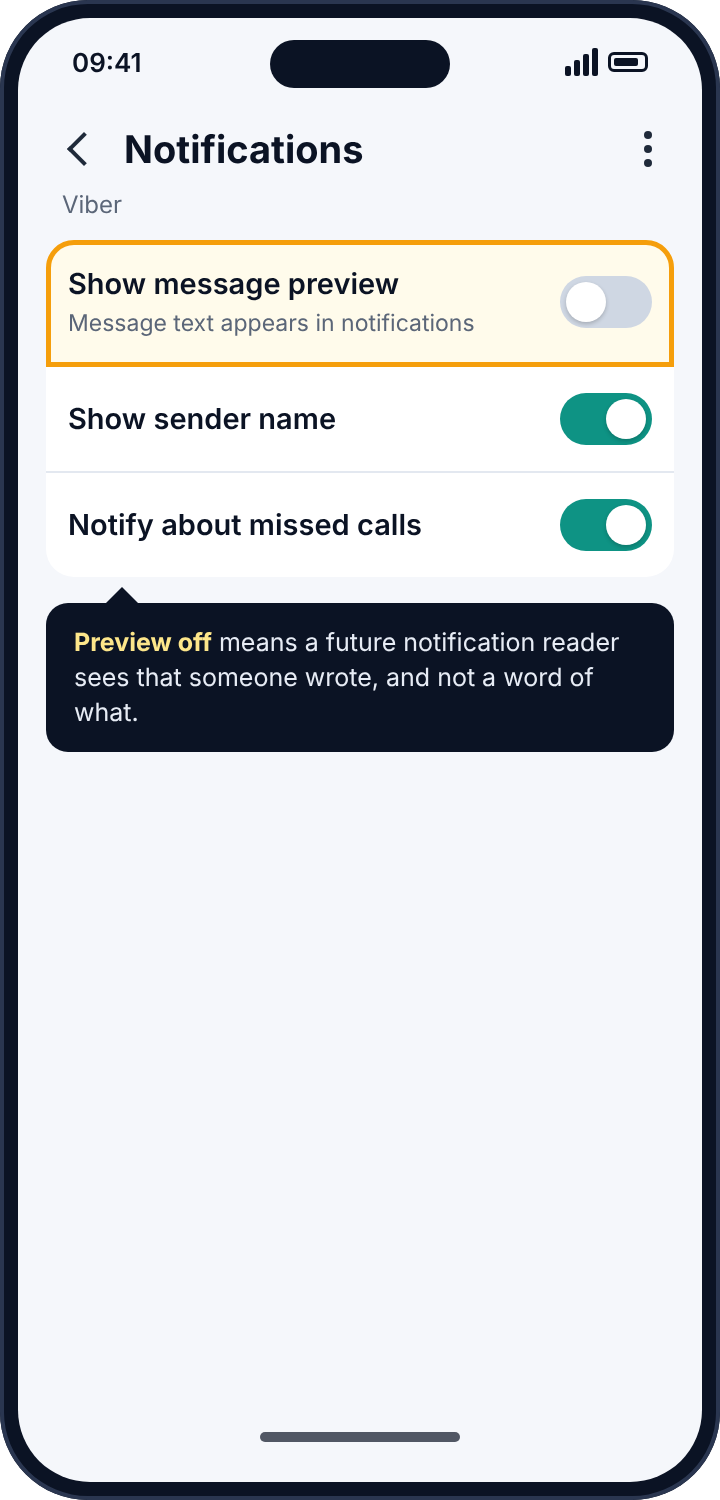
Switch the toggle off on the Notification access screen, then uninstall the app from Settings, Apps. If the uninstall button is greyed out, deactivate the app first under Settings, Security, Device admin apps, and try again. Run a Play Protect scan (Play Store, profile picture, Play Protect, Scan). Then, in Viber, open Settings, Notifications, and turn “Show message preview” off, so that any future app with this permission sees only that a message arrived and not a word of it.
Online status and “seen”
By default Viber shows everyone, including people who are not in your contacts, whether you are online at this moment, and shows senders when you have seen their message. The online indicator is the raw material for logging services that chart when a number is active, which gives away sleep and work patterns to anyone who has the number and the patience. Nothing is installed on your phone for this and there is nothing to detect. The only defence is to stop broadcasting.
Open Settings, Privacy, and switch off “Share online status” and “Send seen status”. Both changes are mutual: you also stop seeing other people’s status, which Viber enforces so that nobody can hide and watch at the same time.
The defaults that face the whole world
This is the section that matters most for a child’s account, and it has nothing to do with trackers in the technical sense. A Viber user who has your number can see, by default, that you have Viber installed, your profile photo, and your name. By default anyone who has your number can add you to a group, and Viber Communities can hold thousands of members, so a child who is added to one is a username in a room full of strangers. By default friend suggestions are on, which surfaces the child’s account to people whose contact lists happen to contain the number.
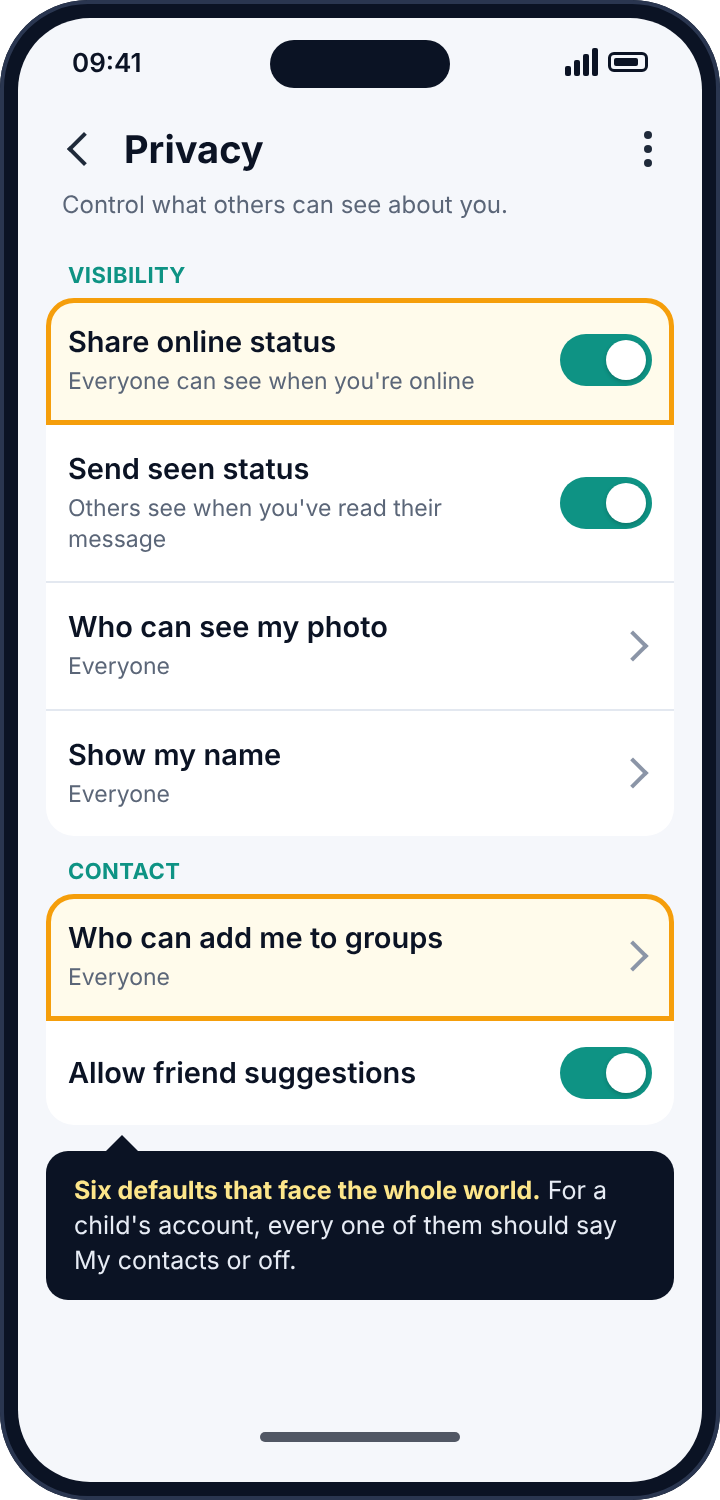
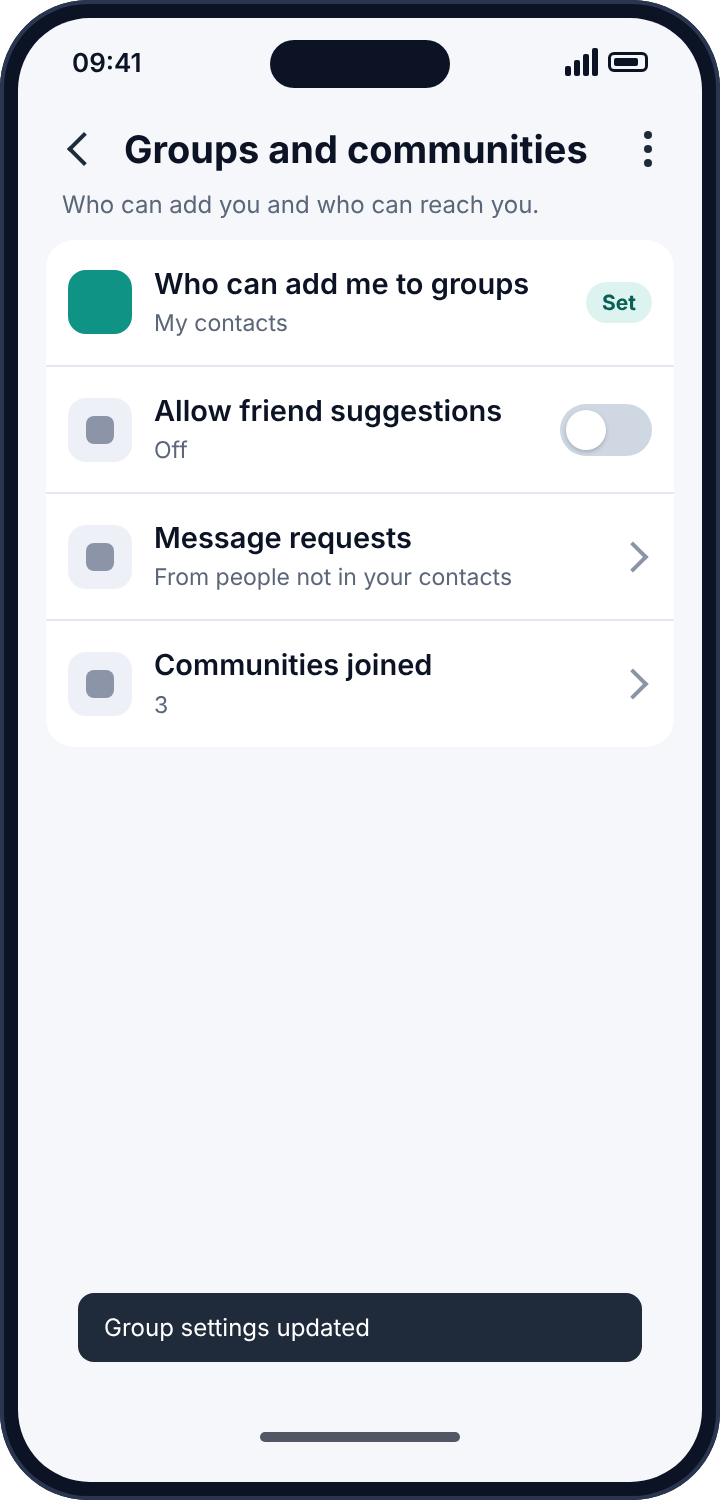
None of that is tracking, but it is the information a stranger uses to start, and it is where a worried parent’s attention should go before it goes anywhere near monitoring software. Settings, Privacy: “Who can add me to groups” to My contacts; “Allow friend suggestions” off; “Who can see my photo” and “Show my name” to My contacts. A stranger who cannot add your child to a group cannot start the conversation that a tracker would later be looking for.
Viber on a tablet, and the family tablet problem
Viber’s tablet apps are activated the same way as the desktop app, by scanning a QR code with the phone, and they are the version of the mirror that families run into by accident. A parent sets up Viber on a shared iPad so that the children can video-call a grandparent, scans the code with their own phone, and from that day the iPad shows the parent’s conversations to anyone who picks it up. Nothing malicious happened, and the exposure is the same as if someone had activated a mirror on purpose. The Desktop and tablets list shows the iPad like any other device, and the fix is the same: deactivate it, and if the children need Viber on the tablet, give the tablet an account of its own.
Calls, Viber Out and what the mirror can do with them
A detail that surprises people is that a desktop mirror can answer calls. Viber Desktop receives the call notification at the same time as the phone, and whoever is at the desktop can pick up. In practice that means a mirror is not just a reader but a participant, and a call that was answered “before you could get to it” is a sign in itself. Viber Out, which calls ordinary phone numbers for a fee, works from the desktop as well, so a mirror can place calls from your account and spend your credit; a balance that falls faster than your use explains is another sign. Both are closed by deactivating the device.
Communities: the thousand-member room
Viber Communities deserve a paragraph because they are where the “stranger” problem on Viber lives. A community can hold tens of thousands of members, is often public, and by default any member can see the member list and message other members privately. A child who is added to a community by someone who has their number, which the default settings allow, has been placed in a room full of strangers with a direct line to each of them. The fix is in the settings already described: “Who can add me to groups” set to My contacts stops the adding, and the community’s own settings let a member hide their number from the list. For a child’s account, leaving every community they did not deliberately join is the sensible default, and the Communities joined entry under Groups and communities shows which ones those are.
A pass through a child’s Viber settings, top to bottom
Since most of what protects a child on Viber is settings rather than software, here is the pass in the order the menus present it, so that it can be done in one sitting with the child watching. Settings, Privacy: online status off, seen status off, “Who can see my photo” and “Show my name” to My contacts, “Who can add me to groups” to My contacts, friend suggestions off. Settings, Notifications: message preview off, so that a glance at the lock screen in a classroom shows a sender and not a sentence. Settings, Account, Desktop and tablets: empty, unless the family has deliberately put Viber on a shared device, in which case that device gets an account of its own. Then, outside Settings, the groups and communities list, with the child leaving anything they did not choose. The whole pass takes under ten minutes, and the conversation it produces, about who can reach them and why that matters, is the part that lasts.
Reading the symptoms
If someone knew both sides of a conversation, think mirror: a linked desktop sees your replies, a notification reader never does. If someone knew what an incoming message said but not what you answered, think notification reader. If someone knew you were online at a particular hour, think status logging, which leaves no trace on the phone. If a stranger has been messaging a child, or the child has appeared in a community they never joined on purpose, think defaults, and fix them before you look for anything cleverer. And if an app you do not recognise is using data in the background, look at notification access.
Where parental monitoring apps fit in
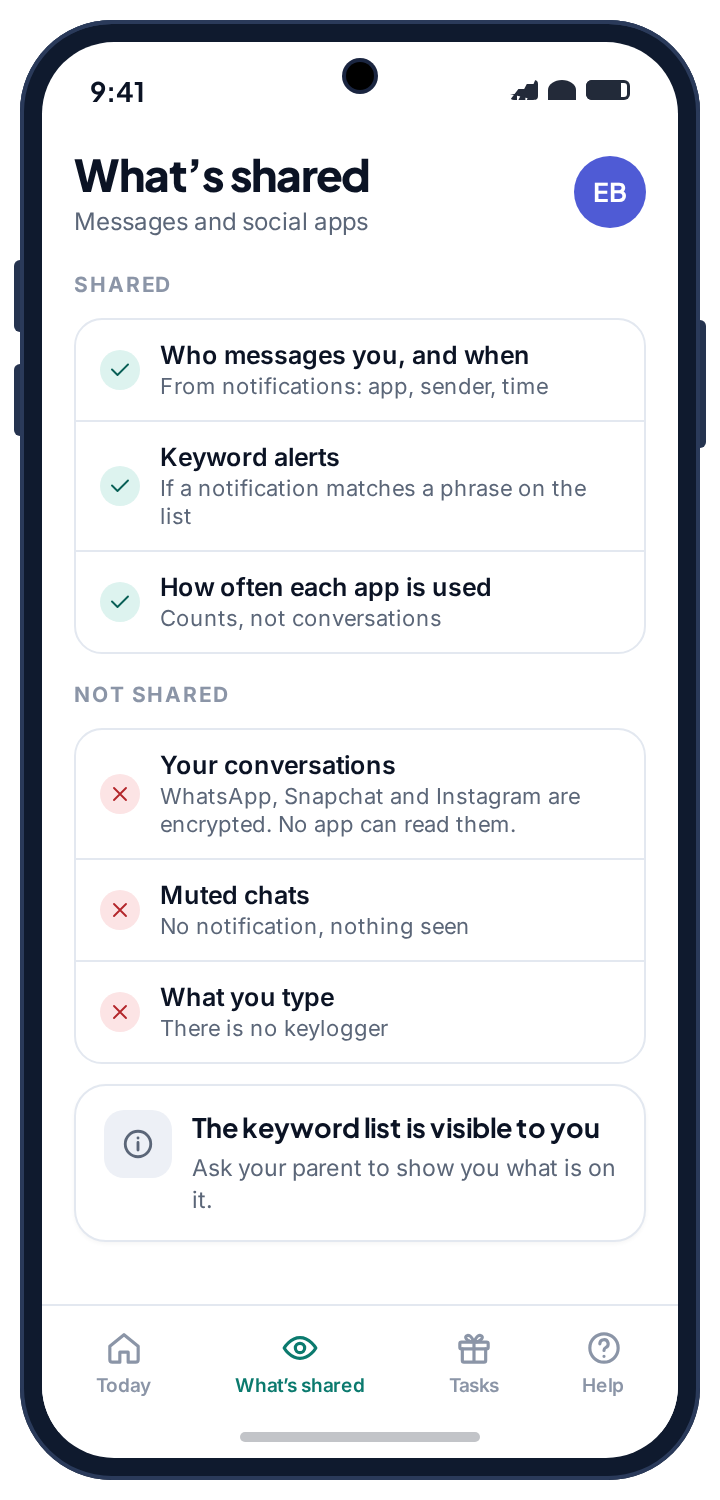
Parents will have recognised the notification route as the mechanism behind every parental control app that claims to monitor Viber. It is worth being plain about what that gives you. No parental app reads a child’s Viber chats; the chats are encrypted and the app does not get inside them. What notification-based alerts honestly provide is who is messaging, when, how often, whether a sender is new to the phone, which communities are posting at midnight, and whether an incoming preview matched a word you asked to be told about. For most families that is the useful part. A pattern needs noticing; a transcript needs reading.
The line between a monitoring tool and a spy tool is not the permission, which is identical, but whether the child knows. Our own alerts run from that permission, and the reason we are comfortable describing them here is that they sit in the app drawer under their own name, list what they read on the child’s own phone, and show the child when a parent has looked. The social alerts page shows what a parent sees from Viber’s notifications, with the limits spelled out, and the screen time page covers the setting that solves most late-night Viber problems without reading anything: a bedtime after which the phone goes quiet.
If the person behind it is someone close to you
Deactivating a mirror and removing an app will tell the person who set them up that you know. If that person is a partner, an ex or a family member and you have any doubt about how they will react, keep the record first: screenshot the Desktop and tablets list and the notification-access list. Then talk to a domestic abuse service with technology-safety advisers before you change anything; the Coalition Against Stalkerware keeps a list of such services by country. When you do act, do it all in one sitting.
What Viber’s own security notices look like
Viber is quieter than Instagram or Facebook about account events, but it is not silent, and knowing what its notices look like helps you take them seriously when they arrive. When a desktop or tablet is activated, the phone shows a brief in-app notice that a new device has been linked, which is easy to dismiss and easy to miss if the person activating it is holding the phone. When the account is registered on a new phone, which requires the SIM, the old phone is deactivated and shows a message saying so. There is no email, because Viber accounts do not require one. So the practical alarm for Viber is a habit rather than a notification: the Desktop and tablets list, opened once a month, and any time the phone has been out of your hands for longer than a moment. It takes ten seconds, and it is the only check that catches the most common Viber tracker there is.
Frequently asked questions
Can someone read my Viber messages from their computer?
Only if their computer was activated as a desktop device with your phone. The Desktop and tablets list shows every such device, and Deactivate removes it.
Does Viber tell me when a desktop is activated?
Activation happens from your own phone, so Viber treats it as your action. The Desktop and tablets screen is the record. Check it.
Can a tracker read my hidden chats?
A desktop mirror receives hidden chats like any other. A notification reader sees their previews if previews are on. The PIN only stops someone looking at the phone itself.
Can someone see my Viber calls?
Calls are encrypted end to end. A notification reader sees “Missed call” and the caller’s name, and nothing of the call. A desktop mirror receives call notifications and can answer calls, which is worth knowing.
Is there two-factor authentication for Viber?
Not in the usual sense. The account is bound to the phone number and verified by SMS, so the SIM and the phone’s lock screen are the account’s security. Guard both.
Will a factory reset remove a Viber tracker?
It removes any app on the phone. It does not deactivate a desktop mirror, which lives on the other machine, and it does not change privacy settings, which live in the account. Do those by hand.
The fifteen-minute version
Open Viber’s Desktop and tablets list and deactivate anything that is not yours. Change the phone’s lock screen code. Search the phone’s settings for notification access and remove any app you cannot account for. Turn message previews off. In Privacy, switch off online and seen status, restrict groups and friend suggestions to contacts, and make the photo and name visible to contacts only. Viber’s encryption was never the problem. The laptop in the next room was.
Related guides
Android Keylogger Detection: The Two Settings Lists Where One Has to Hide, and How to Remove It
Android keylogger guide: a phone keylogger is an accessibility service or a keyboard. Where each hides, the symptoms, removal steps,…
Call Tracker Detection: Call Logs, Call Forwarding and Call Recording, and How to Stop Each One
Call tracker guide: how call logs, call forwarding and call recording work on Android, the screens and dial codes that…
Who Can See Your Phone Contacts? Shared Accounts, Sync and the Apps That Upload Your Address Book
Who can see your phone contacts: shared Google accounts, forgotten sync, and apps that upload your address book. Where to…
Parental controls your child can see
Location, screen time limits, a web filter and alerts from notifications — free, and visible on your child's phone. Pair a phone in about ten minutes.
Android · Free to set up · Visible on your child's phone