Android Keylogger Detection: The Two Settings Lists Where One Has to Hide, and How to Remove It
 By TheTruthSpy Editor · Founder and editorPublished October 10, 2026Updated October 12, 202614 min read
A keylogger records what is typed. On a desktop computer that means a program sitting between the keyboard and the operating system, and there is a long, murky history of them. On an Android phone there is no such place to sit. Apps are walled off from each other, and no app gets to watch another app’s input as a matter of course. So an Android keylogger has to be one of two ordinary things that Android allows for legitimate reasons: an accessibility service, which is permitted to observe what happens on screen so that it can help people who cannot see or touch it, or a keyboard, which by definition receives every keystroke because producing them is its job. Everything sold as an “Android keylogger”, legitimate or not, is one of those two.
That makes finding one more tractable than people expect. There are two lists in Settings, and a keylogger has to be on one of them. This guide walks through both lists and what to look for, then the symptoms that make the search worth doing, then removal, then what to do after removal, which is the step most people skip. It ends with the iPhone question, because the answer there is different and worth knowing.
The first hiding place: accessibility services
Android’s accessibility framework exists so that software can help people use a phone they cannot fully see or fully touch. A screen reader needs to know what is on the screen and what is being typed into a field, so that it can read it aloud. A switch-access tool needs to perform taps on the user’s behalf. To make those things possible, Android lets an app register as an accessibility service and, once the user switches it on, observe the content of the screen, the text entered into fields, and the actions taken. That is a great deal of power, and Android says so plainly in the dialog it shows when the service is enabled.
A handful of ordinary apps use the framework for things that are not strictly accessibility: password managers for autofill, automation tools, some screen-translation apps. And so does every stalkerware product with a “keylogger” feature, because once an app is an accessibility service it can note the text of every field the user types into, in every app, and send it on. The service has to be switched on by hand, in Settings, past a warning. That is why these apps are installed by someone with the phone in their hands, and why they give themselves names that make the warning look routine: “System Update Service”, “Device Health”, “Android Core”, “Sync”.
How to detect an accessibility keylogger
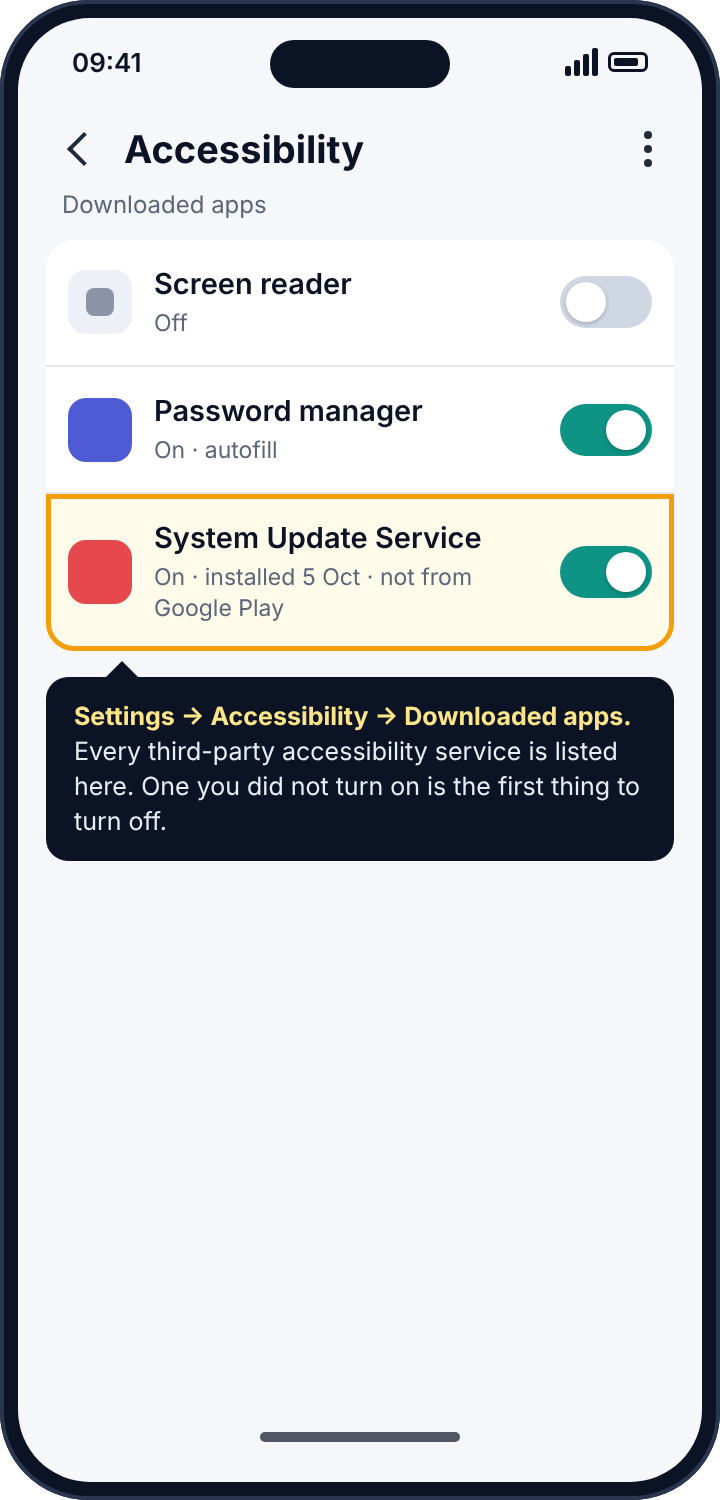
Open Settings, Accessibility. Scroll past the built-in features to the section headed Installed apps, Downloaded apps or Downloaded services; the wording varies by manufacturer, but it is always there and always near the bottom. Every third-party accessibility service on the phone is listed with an on/off state. On most phones this list is empty, or has a single entry you recognise, such as your password manager. Anything switched on that you did not knowingly enable is the first suspect, and a system-sounding name makes it the only suspect, because Android’s own components do not appear here. Tap the entry: Android shows which app owns the service, and from there App info shows the install date and whether the app has a Play Store listing. A service installed from a downloaded file on a day someone else had the phone, with a name that imitates the system, is the complete description of a keylogger.
How to remove it
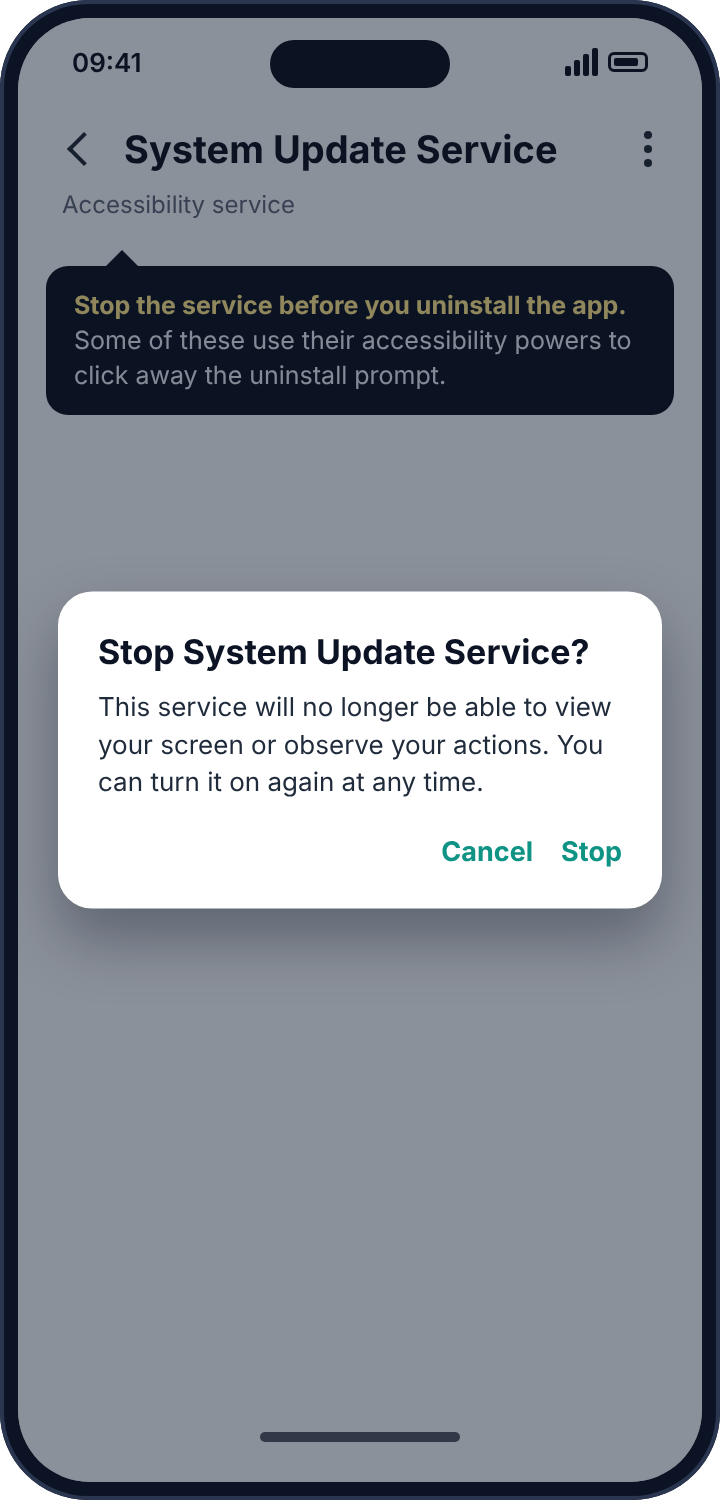
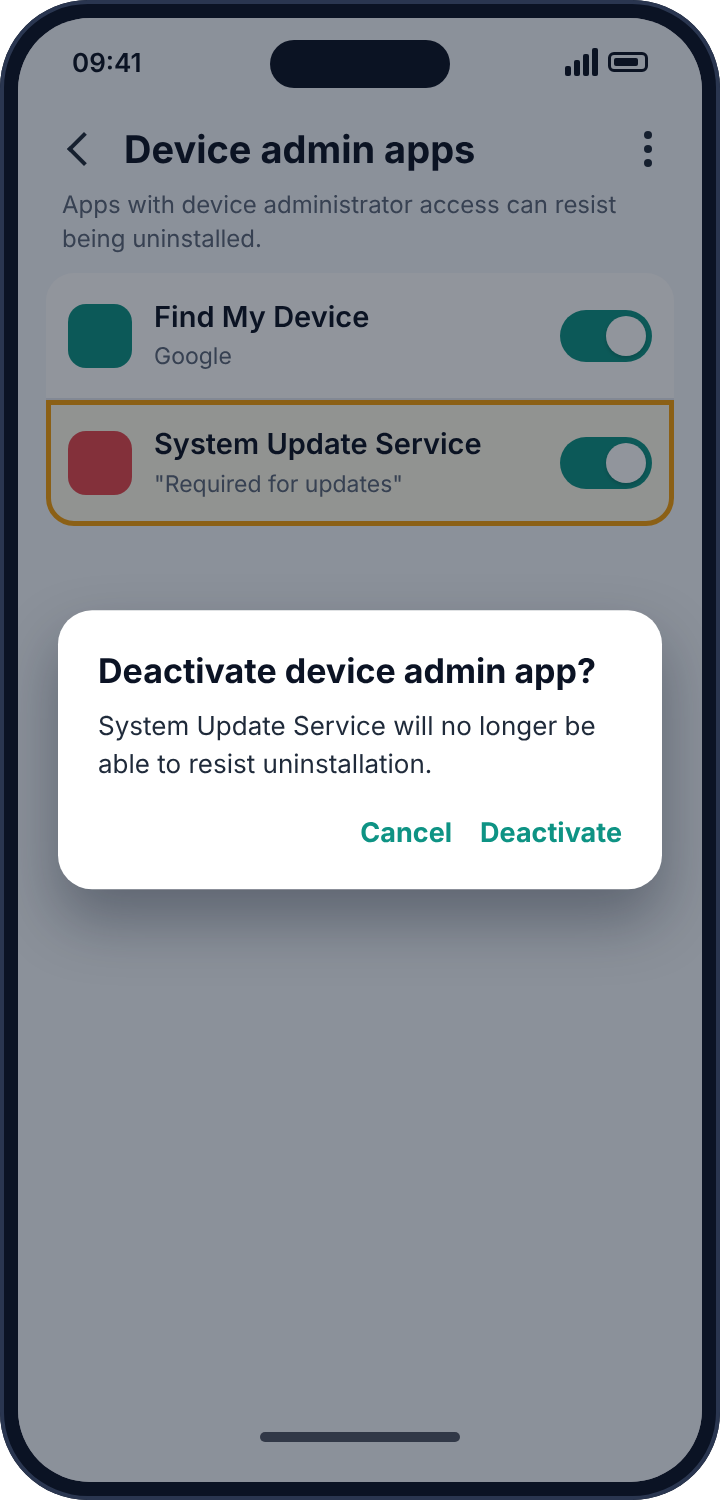
Switch the service off first, before anything else. Some stalkerware uses its accessibility powers to dismiss the uninstall prompt as soon as it appears, and disabling the service removes that ability. Then go to Settings, Apps, find the app, and tap Uninstall. If the button is greyed out, the app has registered as a device administrator: Settings, Security, Device admin apps, deactivate it, then uninstall. If the app does not appear in the apps list at all, it has hidden its icon from the launcher only; “Show system” or “All apps” in the list’s menu will still show it.
The second hiding place: the keyboard
Every character typed on an Android phone goes through the active keyboard app, which Android calls an input method. Gboard, Samsung Keyboard and SwiftKey are the usual ones, and they are trusted precisely because so many people use them. A third-party keyboard can be installed from the Play Store or from a downloaded file, and once it is set as the active keyboard it receives everything typed, including passwords, unless the app being typed into has marked the field as a password field and the keyboard chooses to honour that. A well-behaved keyboard does. A keyboard built to log does not.
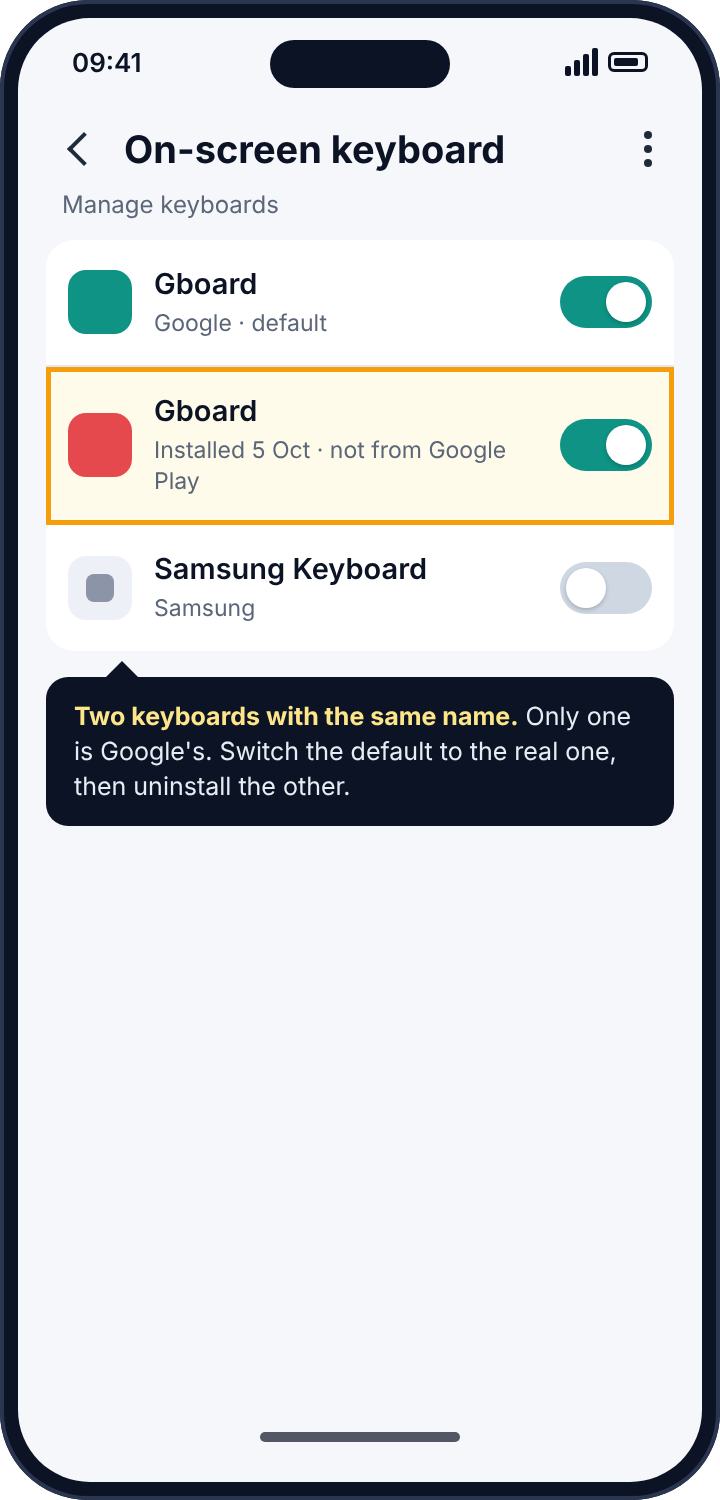
A keylogger keyboard is rarer than an accessibility keylogger, because it has to look and behave like a real keyboard or the user notices within a day. But it exists, and the version that works best is a clone: a keyboard installed from a file, named and styled to match the phone’s real keyboard, so that the user sees “Gboard” in the switcher and thinks nothing of it.
How to detect a keylogger keyboard
Settings, System, Languages and input, On-screen keyboard (on Samsung phones, Settings, General management, Keyboard list and default). The current keyboard is named at the top, and Manage keyboards lists every keyboard installed on the phone. You should recognise the active one as the one you chose, and the list should not contain anything you did not install. The classic sign is a duplicate: two entries with the same name and slightly different icons, one from the Play Store and one from a file. Tap each and look at its App info; the clone has an install date and no Play Store page.
How to remove it
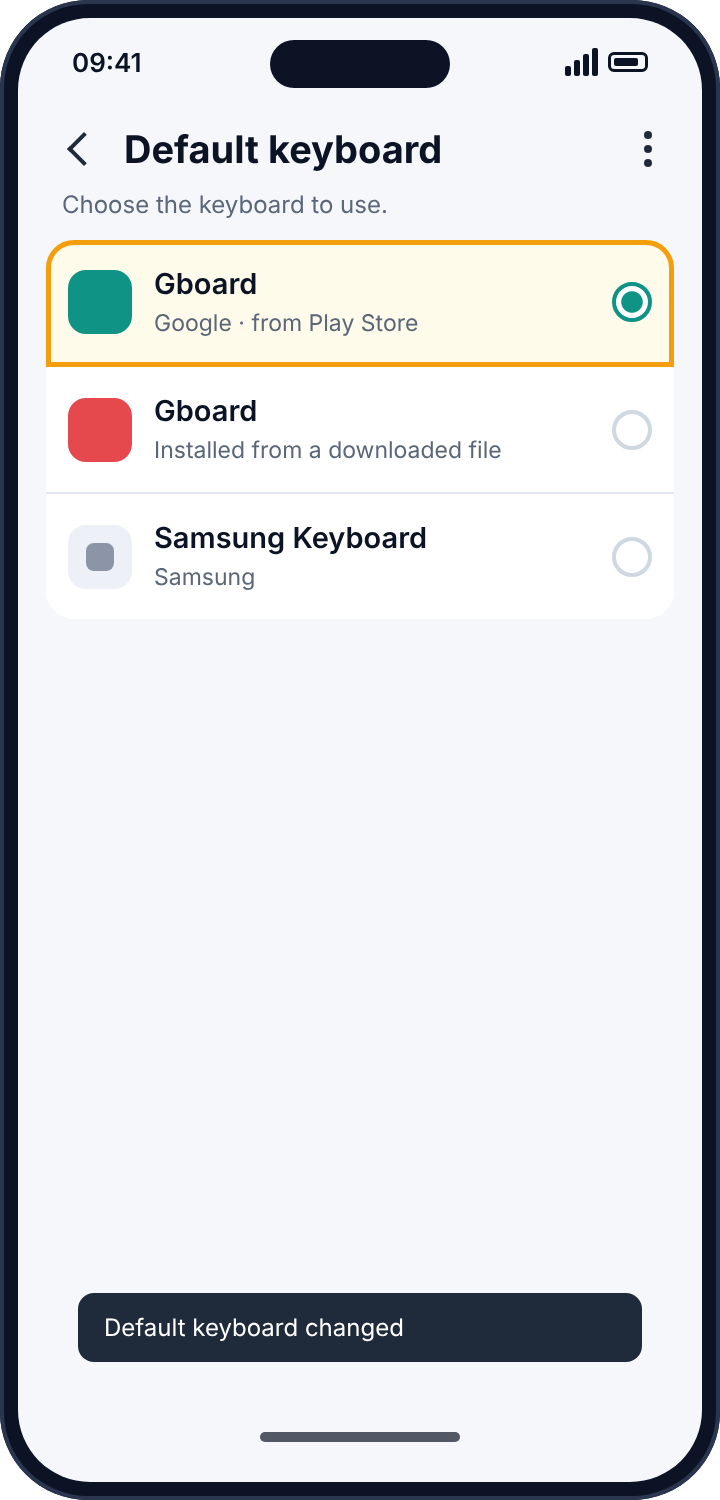
Switch the default keyboard to the one you trust first, so that the clone stops receiving input immediately. Then uninstall it from Settings, Apps, deactivating it under Device admin apps first if the uninstall is blocked.
Symptoms that make the search worth doing
Most people start looking for a keylogger because someone knew something they had only ever typed: a password, a message that was drafted and deleted, a search. That is the strongest sign there is, and it outweighs every technical sign below. Still, the technical signs are useful, because they point at the right list.
Battery is the first. Settings, Battery, Battery usage: an app you do not recognise using a noticeable share of the day’s charge, with most of it listed as background activity, is an app doing a job you did not give it. Mobile data is the second, under Settings, Network, Data usage: what is logged has to be uploaded. A phone that runs warm or sluggish while idle is a weaker third. Then there are two settings that tell you not what is happening but how it arrived. Play Protect, under the Play Store’s menu, may have been switched off, because stalkerware installers often turn it off to avoid being flagged; and “Install unknown apps”, under Settings, Apps, Special app access, may have been granted to a browser or file manager on a date you can place, because that is the permission that let the downloaded file be installed.
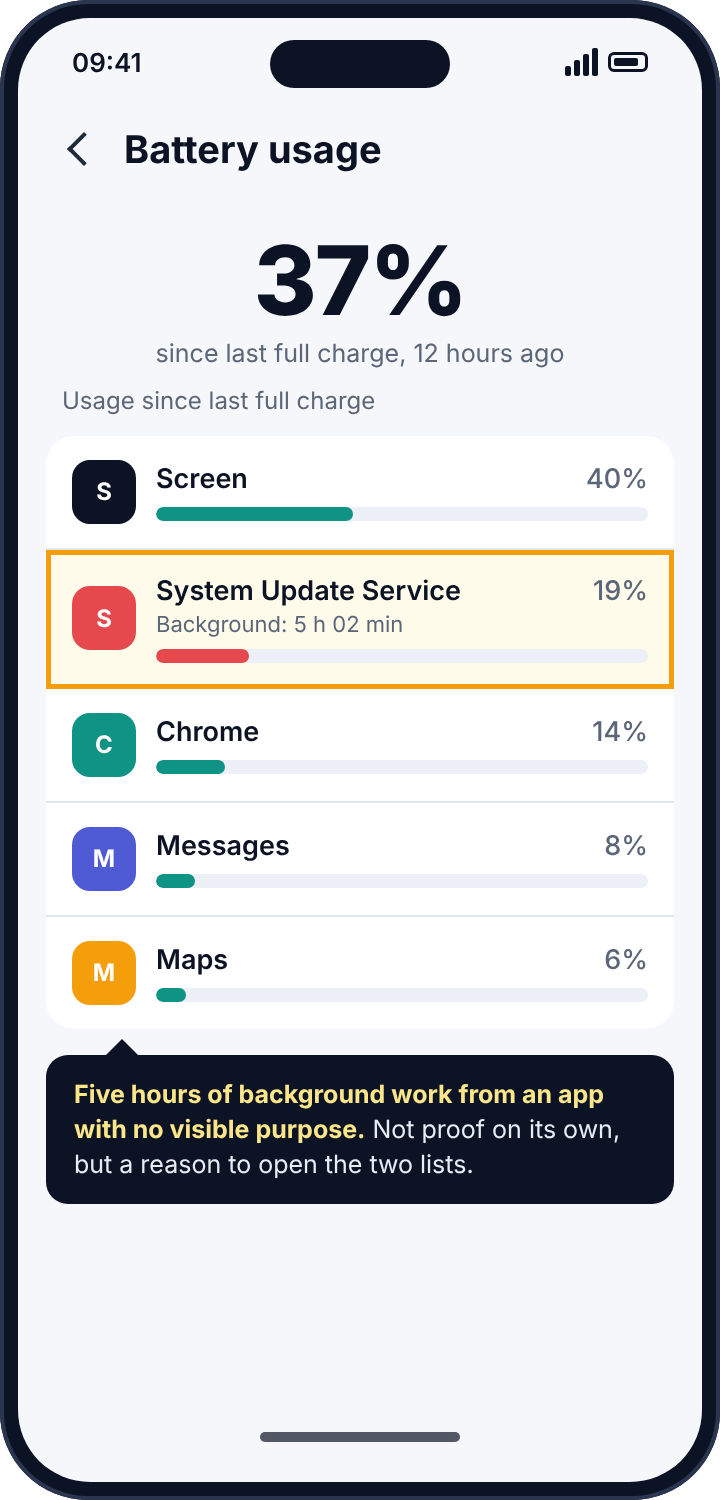
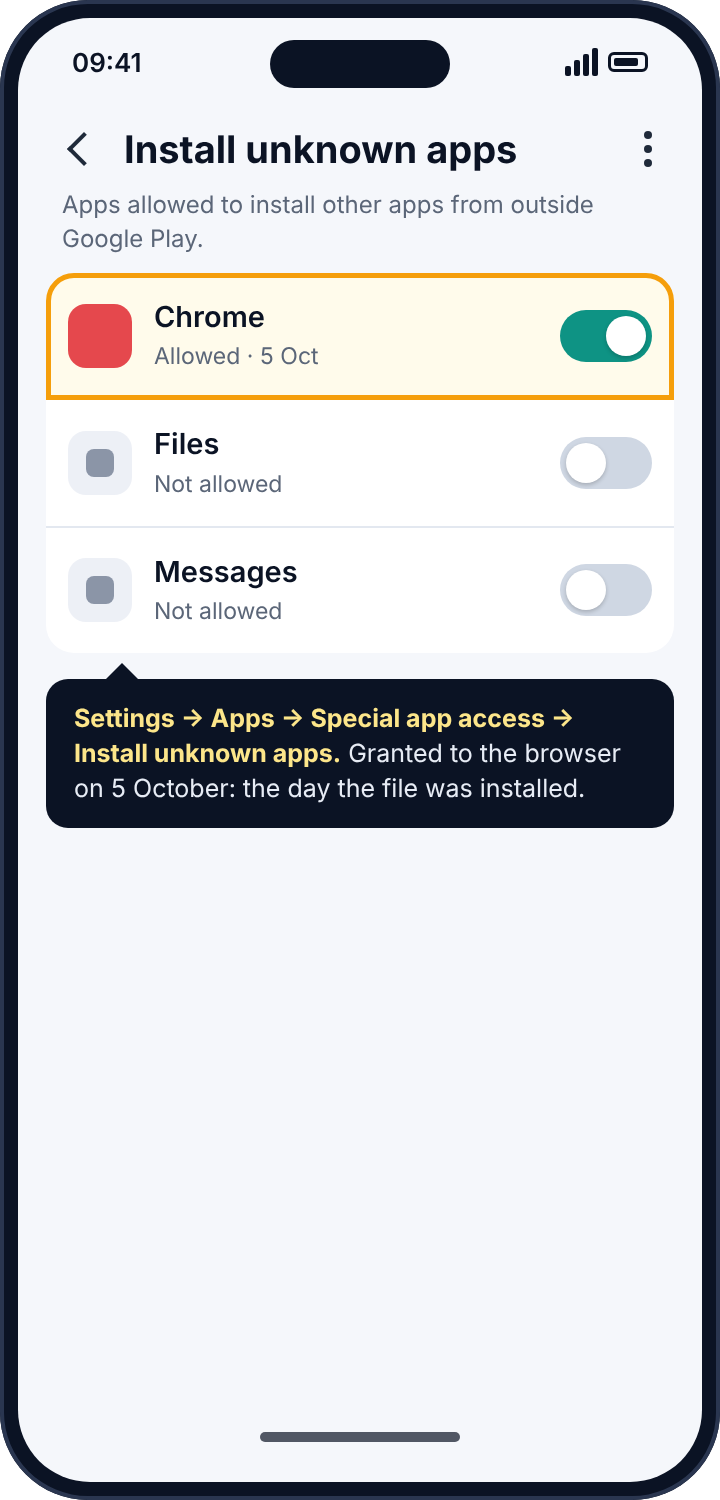
None of these proves anything alone. The two lists are the proof, and the signs above simply tell you which day to look at when you get there.
Why the install date is the most useful fact on the phone
Every screen in this guide ends up at the same field: the install date in App info. It is worth saying why. A keylogger cannot install itself, and it cannot switch on its own accessibility service or make itself the default keyboard. Those steps are taken by a person holding the phone, past a warning that Android displays on purpose. So the install date is not just a technicality; it is the day someone had the unlocked phone for long enough to do all of that, and most people can place that day. The “Install unknown apps” permission on the browser or file manager usually carries the same date, because it was granted minutes earlier to let the downloaded file install. Two timestamps that agree are about as close to a signature as a phone provides.
The same date tells you what to do afterwards. Everything typed since it is the set of things to consider known, which decides which passwords to change first. If the date is recent, the damage is a few days of typing; if it is months ago, treat every account used on the phone as exposed. Either way, the removal is the quick part. The date is what makes the rest of the job finite.
What a keylogger cannot do, and what it still can
It helps to be precise, because the fear of a keylogger is usually larger than the thing itself. An accessibility keylogger notes what is typed and what is shown on screen. It does not read what arrives in an encrypted app unless the message is displayed while the service is watching; it sees your side of a conversation far more reliably than the other side. It cannot see inside a password field in a well-made app, because Android hides the characters from accessibility services when the field is marked correctly, and most banking and email apps mark it correctly. It cannot survive a factory reset. It cannot install itself; someone enabled it, in Settings, past a warning.
What it can do is still enough. One typed password gives away the account behind it, and an evening of typed messages is a transcript of your side of every conversation. A keyboard clone sees less than an accessibility service in some ways, because it sees only typing and not the screen, and more in others, because it sees every character before any app has a chance to hide it. Either one is reason to treat everything typed on the phone since its install date as known.
Removal, in the right order
The order matters more here than for most spyware, because a keylogger’s own powers can be turned against the removal. Disable the accessibility service or switch the keyboard default first, so that the app loses the ability to interfere. Deactivate it under Device admin apps if it is there, so that the uninstall button works. Then uninstall. Then run Play Protect (Play Store, profile picture, Play Protect, Scan) and let it check the rest of the phone, because a phone that had one sideloaded app on it may have had two.
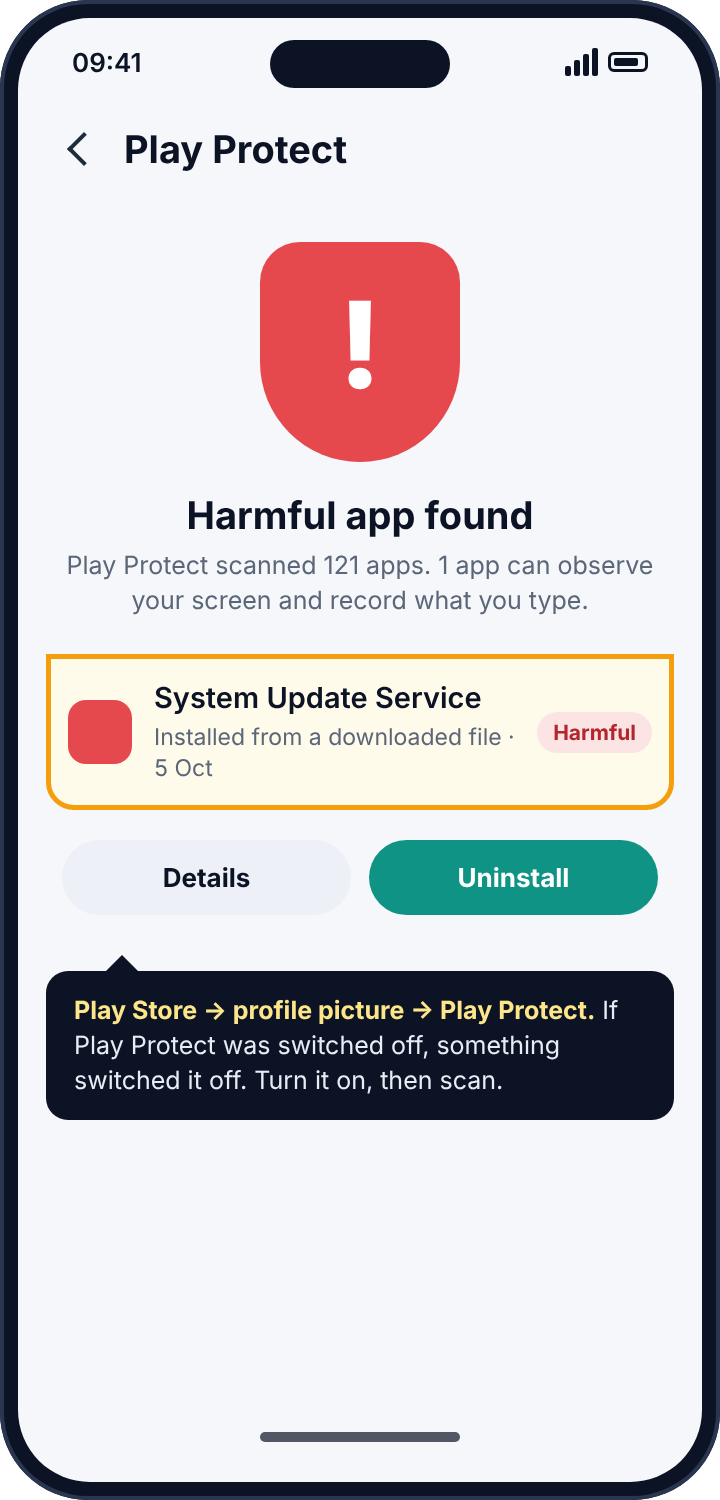
Then switch off “Install unknown apps” for every app that has it, so that the same route cannot be used again without someone changing that setting and leaving a date behind.
After removal: the step people skip
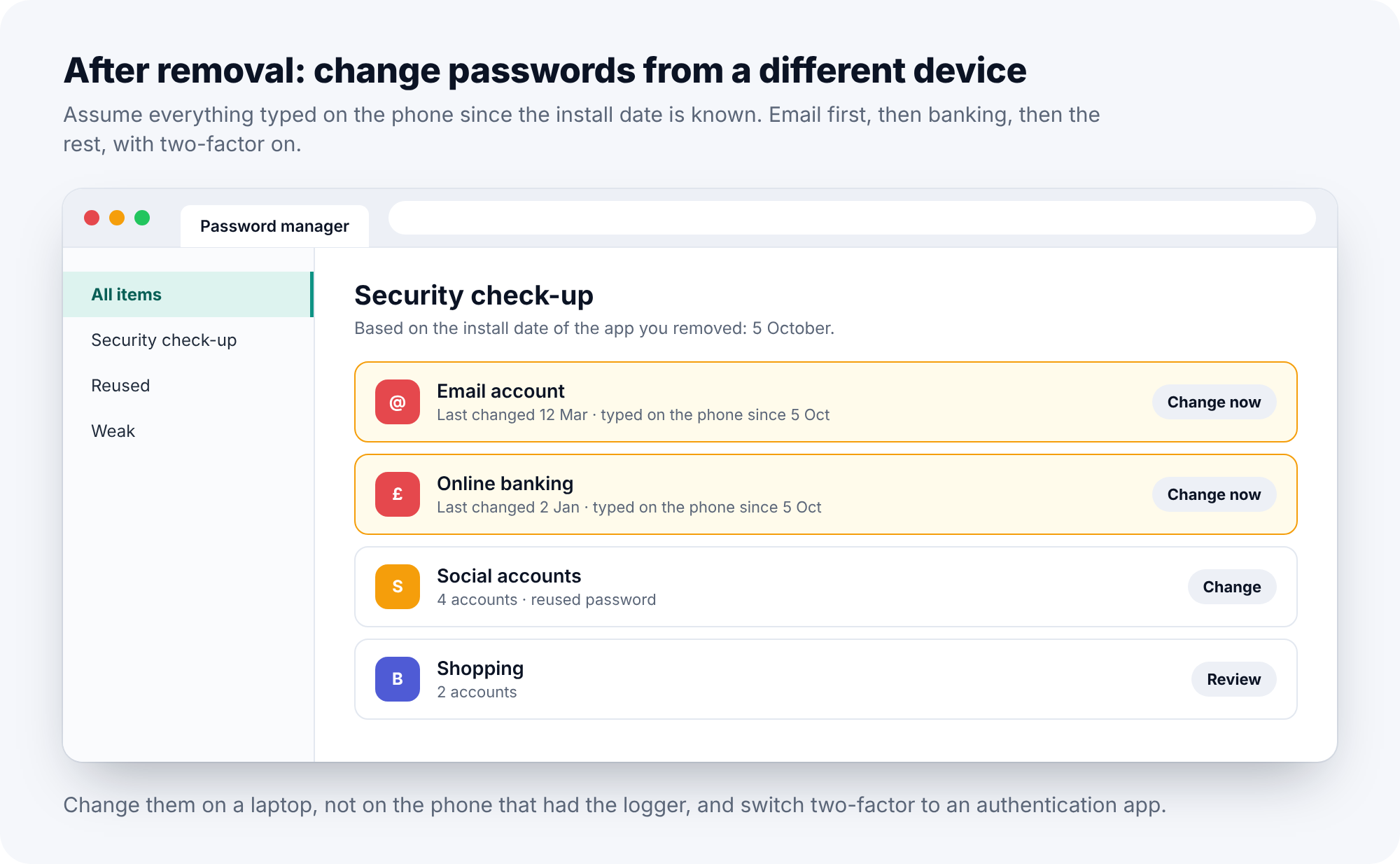
If you found and removed a keylogger, the removal is the smaller half of the job. Assume that everything typed on the phone since the install date is known to whoever installed it. That means passwords. Change the email password first, from a different device, because the email account is how every other account is reset; then banking; then everything else, starting with anything that shares a password with something important. Do the changing on a laptop, not on the phone that had the logger, in case something is still there. Turn on two-factor authentication wherever it is offered, using an authentication app rather than SMS, and consider a factory reset of the phone anyway, after backing up photos, because a reset is the only way to be certain.
The iPhone question
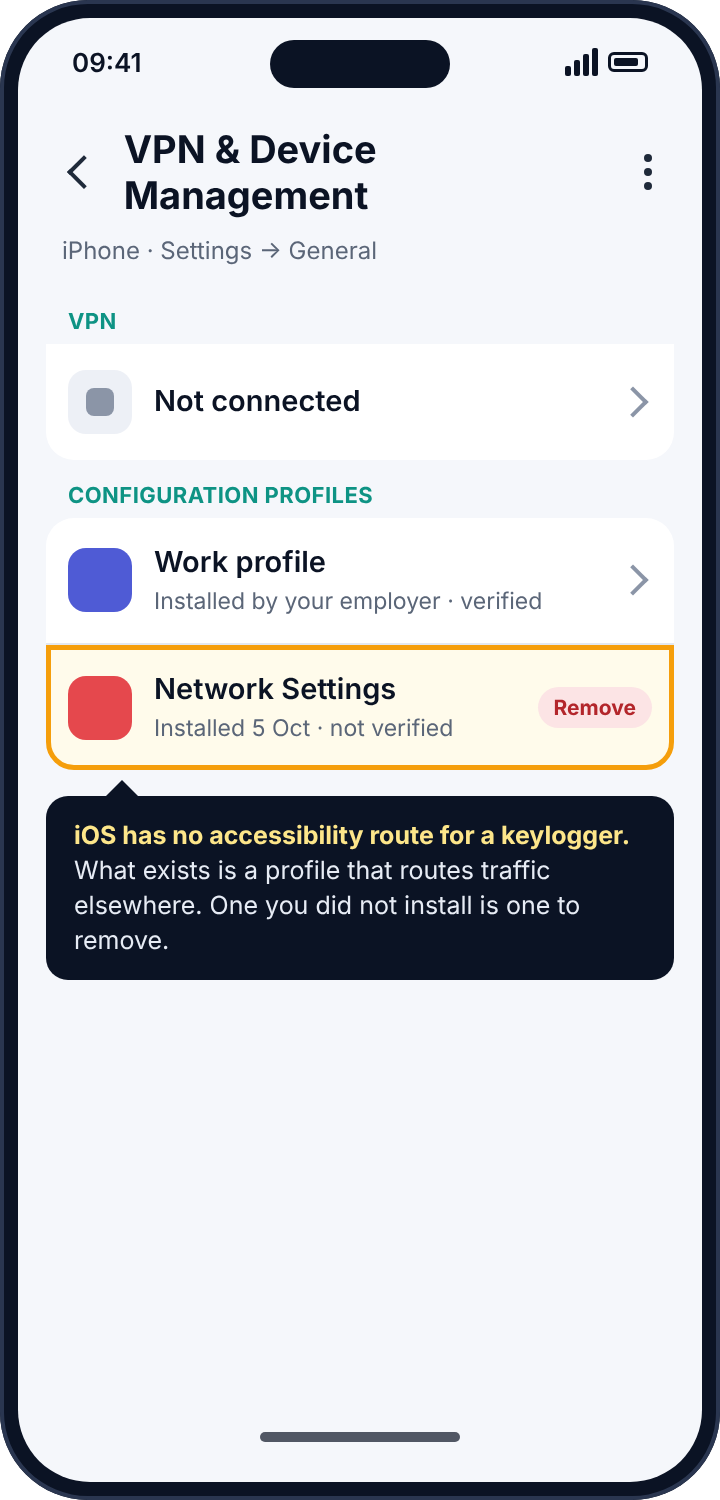
iOS does not have an equivalent of the accessibility route. Apps cannot observe other apps’ screens or input, and third-party keyboards are sandboxed unless the user grants them “full access”, a setting iOS warns about in plain language. A keylogger on an unjailbroken iPhone is not a realistic thing to look for. What exists instead are configuration profiles, installed by a workplace or by someone who had the phone, which can route the phone’s traffic through a server of their choosing. Check Settings, General, VPN and Device Management, and remove any profile you did not knowingly install or that is not from your employer. A jailbroken iPhone can run anything at all, but jailbreaking is not something that happens by accident, and a current iPhone resists it.
Parents, and the honest version
Some parental control products advertise a keylogger, and it is worth being clear about what that is before deciding whether you want one. It captures a child’s passwords, their private notes, the messages they typed and deleted before sending, and, because it logs everything typed into every app, far more about the child’s friends than about the child. Google Play does not permit it, which is why such products are installed from outside the store. It is the single most invasive thing software on a phone can do, and it collects mostly things that belong to other people.
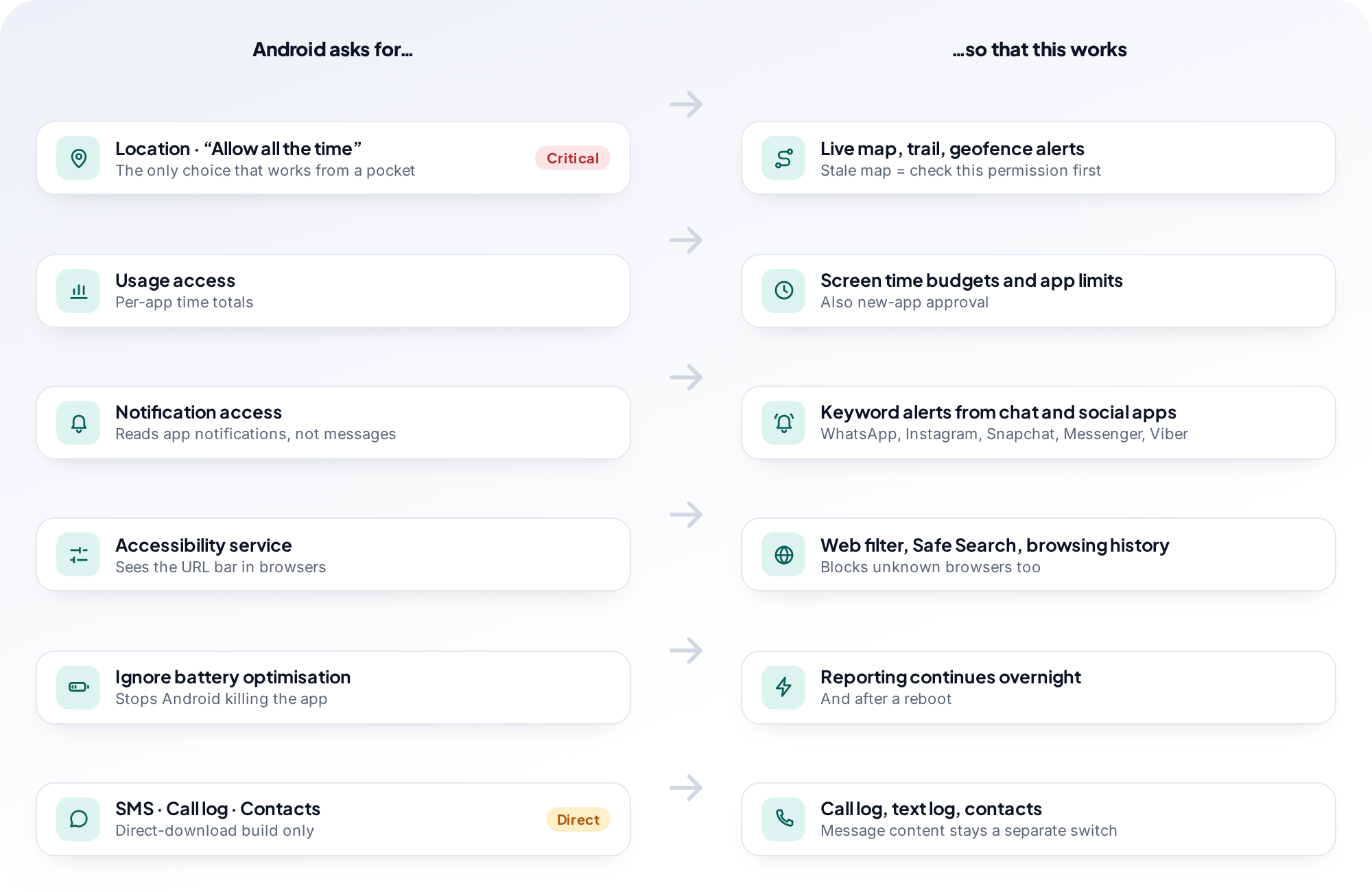
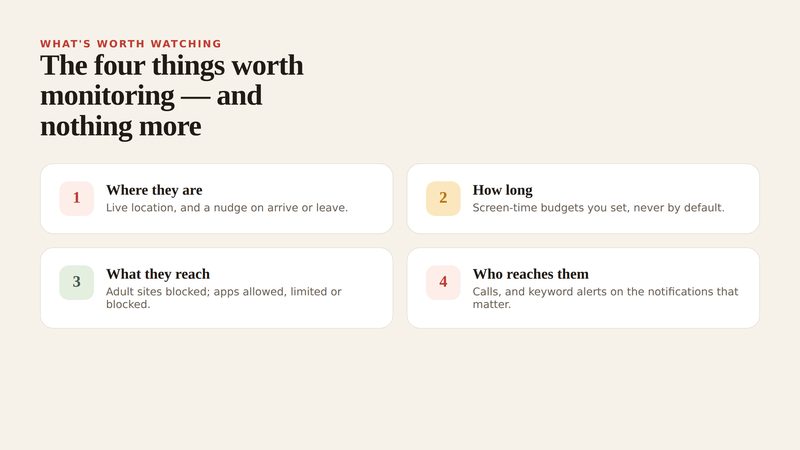
A parent who wants to know whether a worrying phrase is turning up in a child’s conversations can get that from notification keyword alerts, in the open, with the child aware of it. That is not a weaker keylogger; it is a different kind of act. We built our own app without one, and the child’s phone says “what you type: never shared” on the screen that lists what the app collects. The social alerts page explains how keyword matching on notifications works and where its limits are, and the web filter page explains why the one accessibility permission our app does use is scoped to the address bar of approved browsers and nothing else, which is the question any parent should ask of any app that requests that permission.
If someone close to you installed it
Disabling the service and uninstalling the app will tell the person who installed it that you know, often the same day, because their feed stops. If that person is a partner, an ex or a family member and you have any concern about how they will react, photograph the accessibility and keyboard lists as evidence first, with the install dates visible, and talk to a domestic abuse service with technology-safety advisers before you remove anything. The Coalition Against Stalkerware keeps a list of such services by country. When you do act, do all of it in one sitting, from the service to the passwords.
Frequently asked questions
Can a keylogger be installed on my phone remotely?
Not on Android as it ships. Both routes need someone to install an app and switch on a service or keyboard, past a warning, with the phone in their hands. A link in a message can start the download, but the enabling step is still manual.
Can a keylogger see my passwords?
An accessibility service cannot see a properly marked password field. A cloned keyboard can see everything typed. Treat every password typed since the install date as known either way.
Does antivirus find Android keyloggers?
Play Protect recognises most known stalkerware families, and reputable security apps recognise more. Neither replaces reading the two lists, which is quicker and catches the ones nobody has catalogued yet.
Can a keylogger read my WhatsApp or Signal messages?
It can note what you type into them, and what is on screen while the service watches. It cannot decrypt anything, and it does not see the other side of a conversation unless it is displayed while the logger is observing.
Will a factory reset remove a keylogger?
Yes, along with everything else on the phone. Back up photos first. A reset does not change passwords that were already captured; do those from another device.
Is there a keylogger for iPhone?
Not on an unjailbroken iPhone. Check configuration profiles under VPN and Device Management, and whether any third-party keyboard has “full access”.
The ten-minute version
Settings, Accessibility, Downloaded apps: switch off anything you did not knowingly enable, then uninstall its app. Settings, Languages and input, On-screen keyboard: your chosen keyboard active and nothing else installed. Settings, Security, Device admin apps: deactivate anything you do not recognise, then uninstall it. Play Store, Play Protect: on, and run a scan. Settings, Apps, Special app access, Install unknown apps: off for everything. Then change passwords from another device, email first, turn on two-factor, and consider a reset. There is no magic in a phone keylogger. It is a line in one of two lists, and the lists are a minute away.
Related guides
Call Tracker Detection: Call Logs, Call Forwarding and Call Recording, and How to Stop Each One
Call tracker guide: how call logs, call forwarding and call recording work on Android, the screens and dial codes that…
Who Can See Your Phone Contacts? Shared Accounts, Sync and the Apps That Upload Your Address Book
Who can see your phone contacts: shared Google accounts, forgotten sync, and apps that upload your address book. Where to…
SMS Tracker Detection: How to Find One on the Phone, at the Network or in a Paired Web Client, and Remove It
SMS tracker guide: how texts get read by an app, a forwarding rule or a paired web client, the screens…
Parental controls your child can see
Location, screen time limits, a web filter and alerts from notifications — free, and visible on your child's phone. Pair a phone in about ten minutes.
Android · Free to set up · Visible on your child's phone