Nothing is blocked until you say so
Here is the part most screen-time apps bury: when you pair a child's phone with TheTruthSpy, nothing gets blocked. No limit, no bedtime cut-off, no locked apps. The phone works exactly as it did before. TheTruthSpy starts by watching and reporting, and it waits for you.
Blocking is opt-in. A brand-new child in your panel has an open budget until you decide otherwise. That is a deliberate choice. We would rather you look at a week of real usage first, then set a limit that fits your actual family, than hand you a locked-down phone and a frustrated child on day one.
This matters for a reason beyond principle. A limit you pick after seeing real numbers is a limit that sticks. A limit you guess at on day one, before you know whether your child spends their evening on a homework app or a game, usually turns out wrong within a week — and a wrong limit gets fought over and then abandoned. Watching first is not us being soft. It is the shortest route to a rule that lasts.
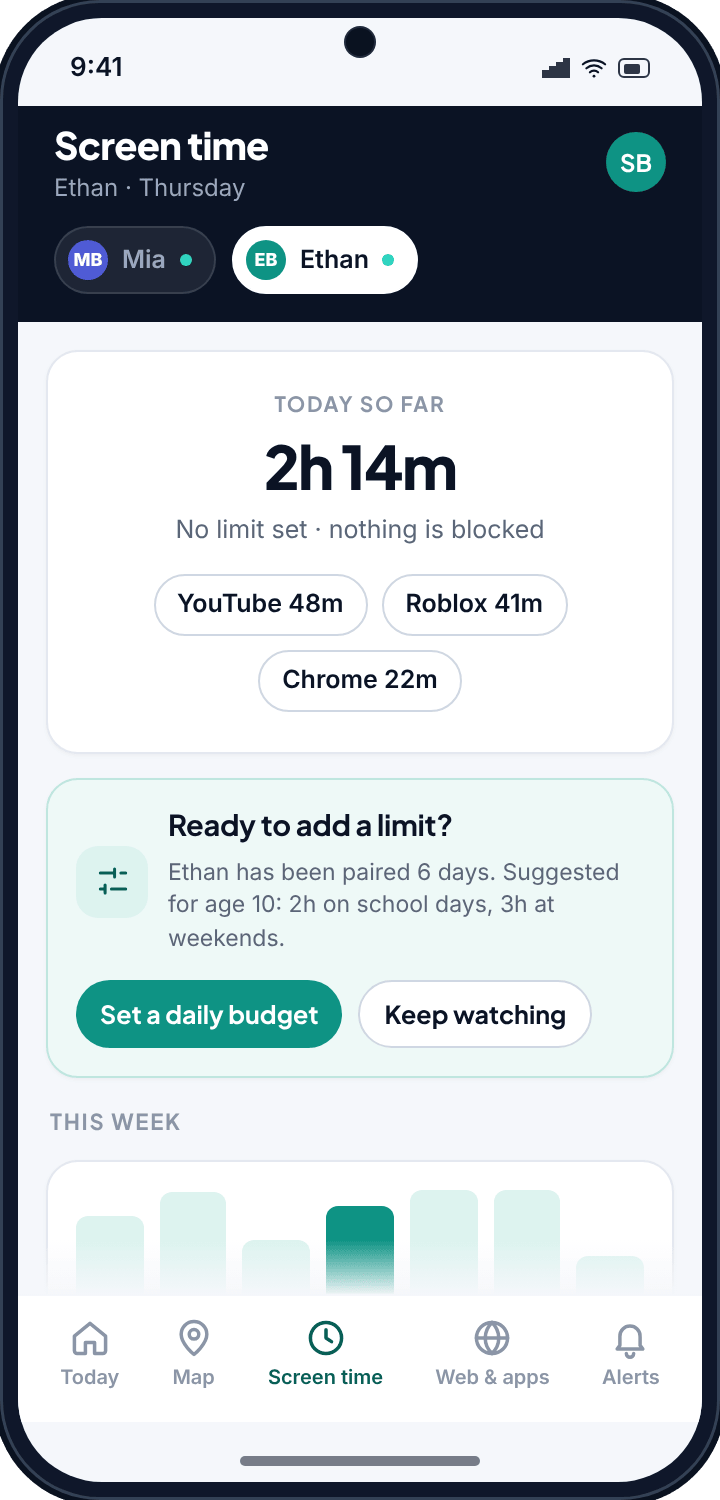
Daily budgets, different on weekdays and weekends
Most families do not run on one flat number. A Tuesday with homework is not a Saturday morning. So the daily budget is set per weekday, and each day can hold its own figure: three and a half hours Monday to Friday, something longer at the weekend, or whatever shape matches your house.
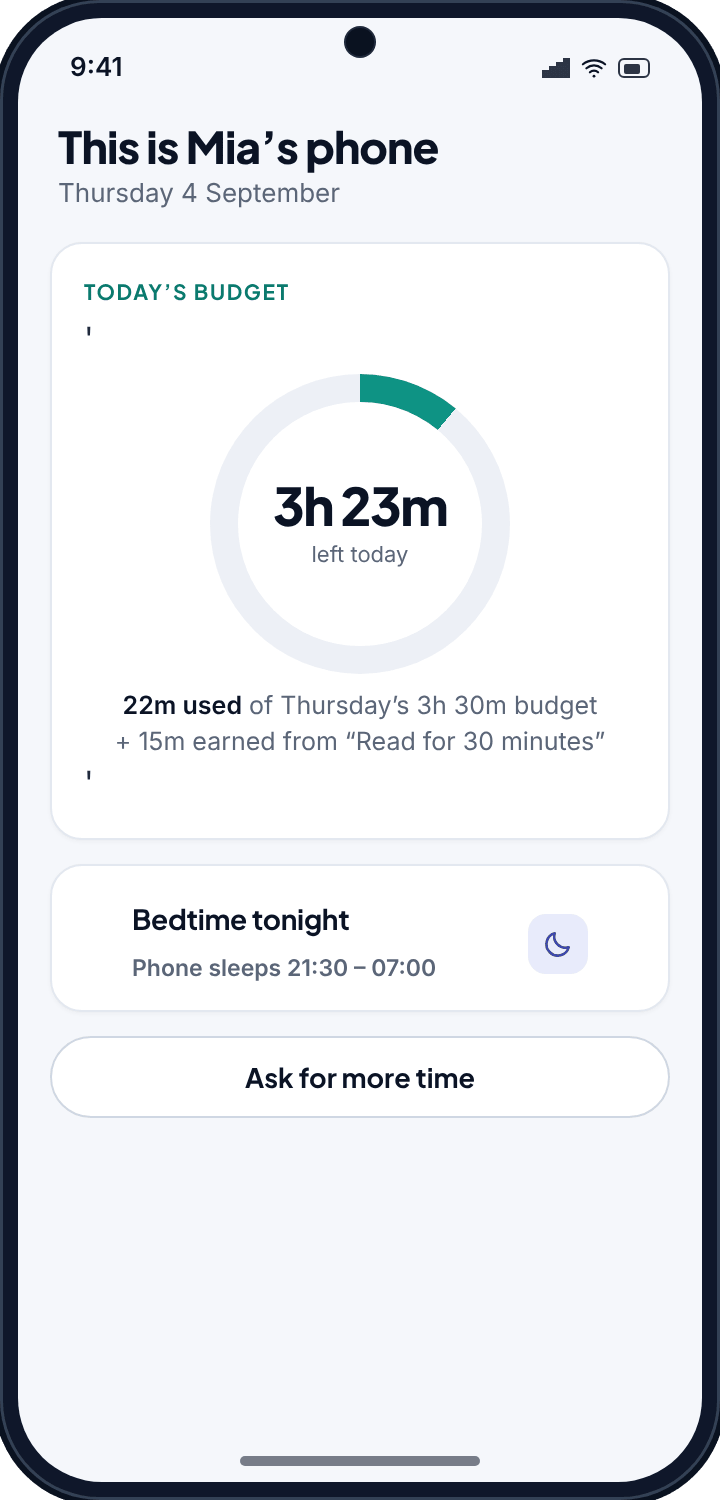
On the child's phone, today's budget shows as a ring that fills as the day goes on. Tap it and the number is plain: 3h 23m left · 22m used of Thursday's 3h 30m budget. The child sees the same figure you do. There is no hidden meter counting down in secret. When the ring is nearly full, they know it, and they can plan the last stretch of the day themselves instead of being surprised by a black screen.
The budget resets at midnight in your family's timezone, not on a server somewhere else. Travel across a timezone for the holidays and the reset follows the family, so the cap never quietly shifts by a few hours while you try to work out why.
Setting the number is quick. Pick a day, type or drag the figure, and repeat for the days you want to treat differently. Days you leave alone stay open. There is no rule that every day needs a cap, so if only school nights need reining in, cap only those and let the weekend run free. TheTruthSpy keeps logging the untouched days too, which is useful when you are deciding whether a day needs a limit at all.
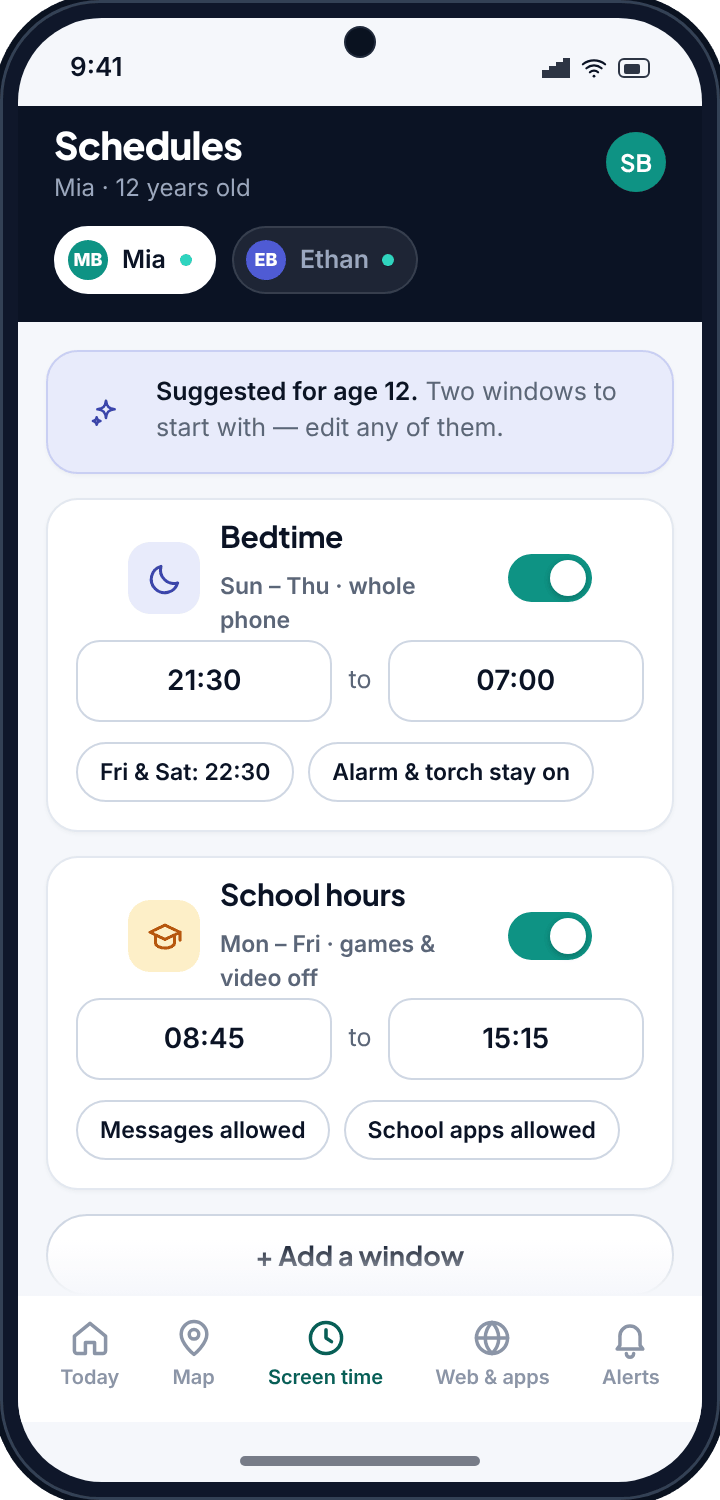
Bedtime and school-hours schedules
A budget covers how much. A schedule covers when. These are the two halves of a decent screen-time app, and they work independently, so you can use one without the other.
Two windows do most of the heavy lifting for families:
- Bedtime. The phone, or a chosen set of apps, switches off through the night. No games at 1am, no group chat lighting up the room.
- School hours. A weekday window that keeps games and video off during lessons while messaging and school tools stay reachable.
You do not have to design these from a blank page. TheTruthSpy suggests sensible windows based on the child's age, because a seven-year-old and a fifteen-year-old need very different nights. The suggestions are a starting point and every one is editable. Shift bedtime later on a Friday, carve out an exception for a school trip, or drop a window you do not need. Leaving the alarm and the torch working through bedtime is a normal setting, not a workaround.
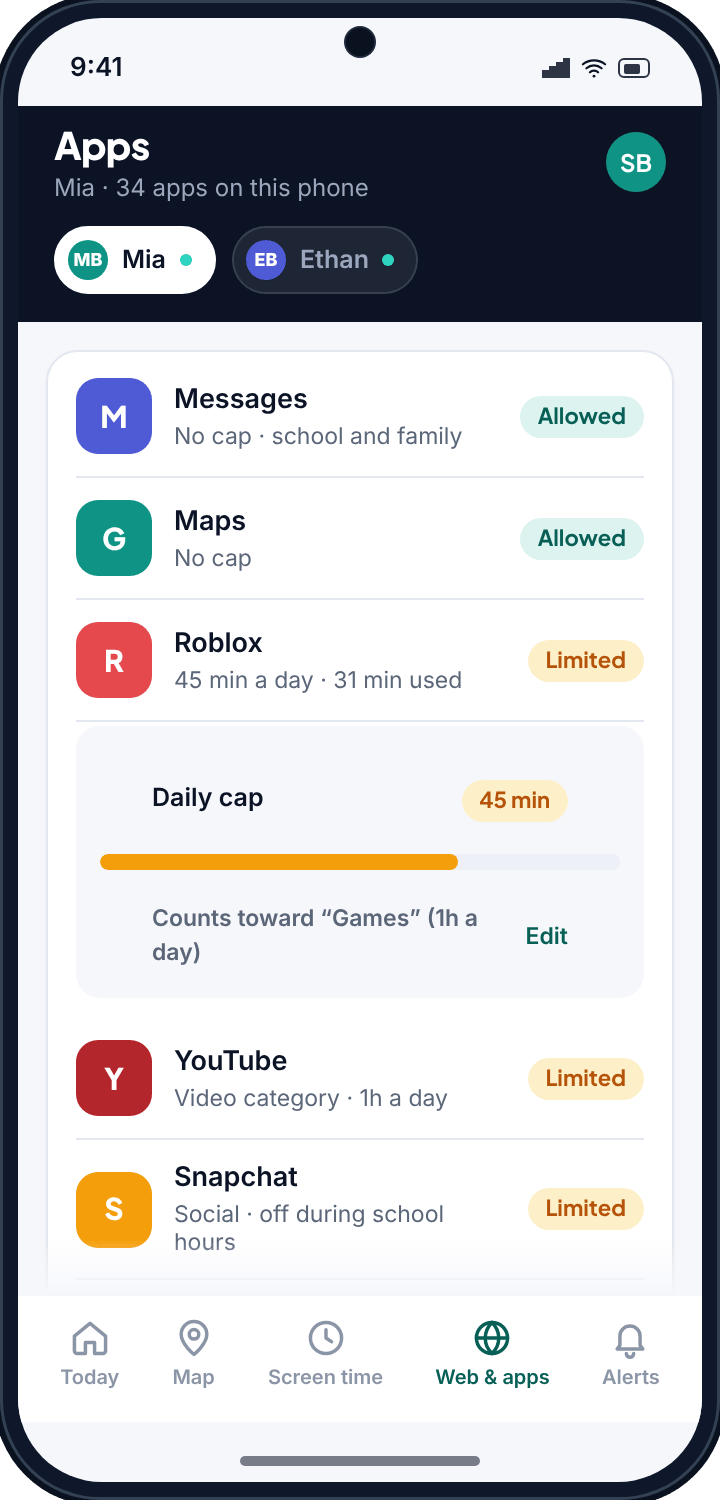
Per-app and per-category limits
Screen time is not one thing. An hour spent reading for school and an hour on an endless video feed are not the same hour, and a blunt total treats them as if they were. TheTruthSpy lets you go finer.
Every app sits in one of three states, and you decide which:
- Allowed — no cap, and it does not count against a category limit. Good for the dialler, maps, a school portal.
- Limited — runs against a daily cap, its own or a shared one for its category.
- Blocked — not available on the phone at all.
Cap games at 45 minutes a day and video at an hour, and leave messaging and school apps untouched. That is the pattern most parents reach for: rein in the things that stretch on forever, keep the tools they need for the day open. App limits sit on top of the daily budget rather than replacing it, so a game can run out of its own time well before the overall day does.
Categories also save you from playing whack-a-mole. Cap “games” and a new game your child installs next week falls under the same limit automatically. Move an app between Allowed, Limited and Blocked whenever you like; the change reaches the phone within moments and the child sees the new state, not a silent switch.
“Ask for more” instead of a standoff
A hard limit with no give turns every evening into a negotiation with a wall. So when a child hits the limit, the block screen does not just say no. It offers a button: ask for more time.
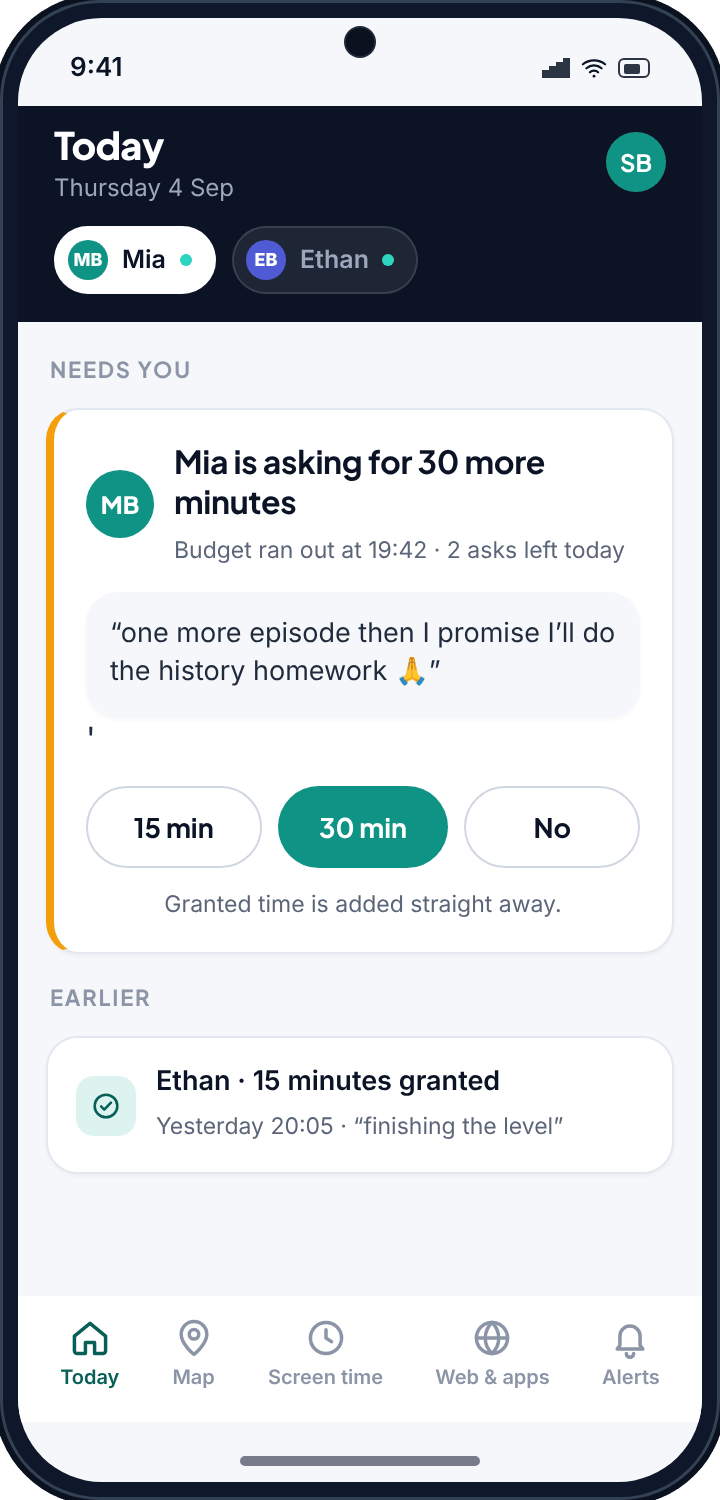
The request lands with you. You see who is asking, how much they want, and the short note they typed to make their case. From the panel it reads like a real message from a real child: Mia is asking for 30 more minutes — “one more episode then I promise I'll do the history homework.”
You tap one of three buttons: 15 min, 30 min or No. Granted time applies straight away. If you are busy or the answer is already clear, No is a single tap and the block stays.
There is a daily cap on how many times a child can ask, so the feature cannot turn into a stream of pop-ups wearing you down. They get a set number of asks a day and learn to spend them on the requests that matter. It keeps the whole thing civil: they get a fair way to make a case, you keep the final call, and neither side is stuck shouting through a locked phone.
Earned time, not just spent time
Limits pull in one direction. It helps to have something pulling the other way. With tasks and rewards, a child can earn extra minutes by finishing things you set: chores, homework, a reading target, whatever you agree on.
You lay out the tasks and what each is worth. They complete one, it comes to you, and the minutes are added to the day once you confirm — or straight away for the low-stakes chores you would rather not check. Screen time stops being only a set of brakes and becomes something a child can work with. Empty the dishwasher, earn twenty minutes.
None of it is automatic and none of it is compulsory. If earned time does not suit your family, leave it off and the budgets and schedules run on their own.
Visible by design, Android, free to start
TheTruthSpy does not hide from the child. The app on their phone shows the limit, the time left, and which apps are capped. If there is a bedtime window, they can see when it lands. Limiting a child's screen time in secret tends to blow up the moment it is discovered, and it teaches the wrong lesson besides. We would rather the rules be in the open where everyone can point at the same number.
A few practical notes. TheTruthSpy runs on Android phones and tablets. Setup is a pairing code — install the child app, type the code from your panel, done. Every daily cap resets on your family's clock. And because everything is opt-in, you can dial the whole thing back down to plain monitoring whenever you want, without uninstalling anything.
Common questions
Does TheTruthSpy block anything as soon as I install it?
No. A newly paired child starts with no limit and nothing blocked. The phone behaves exactly as before until you set a budget, a schedule, or a per-app rule.
Can I set different limits for weekdays and weekends?
Yes. The daily budget is set per weekday, so each day can carry its own figure — for example 3h 30m Monday to Friday and something longer on Saturday and Sunday. Bedtime and school-hours windows also run only on the days you choose.
What happens when my child hits the limit?
They see a block screen with an “ask for more” button. Their request comes to you with the amount and a short note, and you tap 15 min, 30 min or No. Granted time applies immediately. A daily cap on requests stops it becoming a flood.
Can I limit games and video but leave school apps alone?
Yes. Every app is Allowed, Limited or Blocked, and you can cap a single app or a whole category. Limit games and video while messaging and school tools stay Allowed.
What still works during bedtime?
Whatever you choose. The default bedtime window keeps the alarm clock, torch and emergency calling available and switches everything else off. You can add any app to the always-allowed list.