How to Fix a Phone That Keeps Freezing or Restarting

The screen stops responding halfway through a message. Or the phone goes black, shows its logo and starts up again while it sits on the table. Once is annoying; several times a day makes a phone hard to trust.
Most freezes and random restarts have a software cause you can fix yourself in a few minutes: a nearly full phone, one badly behaved app, or an update that has not finished. A smaller number come from heat, a worn battery or a hardware fault, and those need a different response.
The fixes below run from quickest to most drastic, with the ones that erase nothing first; stop when the problem does. On Android, menu names vary by phone maker and version, so use the search bar in Settings if a path does not match.
The short version
- A force restart unfreezes most phones and does not delete anything. The button combination differs on iPhone, Pixel and Samsung.
- Check storage first: Google says phones can start having issues with less than 10% free.
- If one app is the trouble, update it, then offload and reinstall it (iPhone) or clear its cache (Android).
- Sudden shutdowns with charge left usually point to a worn battery; a phone stuck restarting on its logo needs recovery mode.
- Reset settings before you consider erasing the phone, and only factory reset after checking your backup works.
Unfreeze it now: the force restart
A force restart cuts power to the software and starts it fresh, clearing whatever has hung. It is different from a normal restart, which needs a working screen. Samsung notes that a forced restart does not erase any information from the phone.
- iPhone 8 and later (including iPhone SE 2nd generation and later): press and quickly release volume up, press and quickly release volume down, then press and hold the side button until the Apple logo appears. Apple says this can take longer than 10 seconds, so keep holding.
- Google Pixel: press and hold the Power button for about 30 seconds, until the phone restarts.
- Samsung Galaxy: press and hold the Side key and Volume down together for more than 7 seconds, and let go when the phone vibrates and the logo appears.
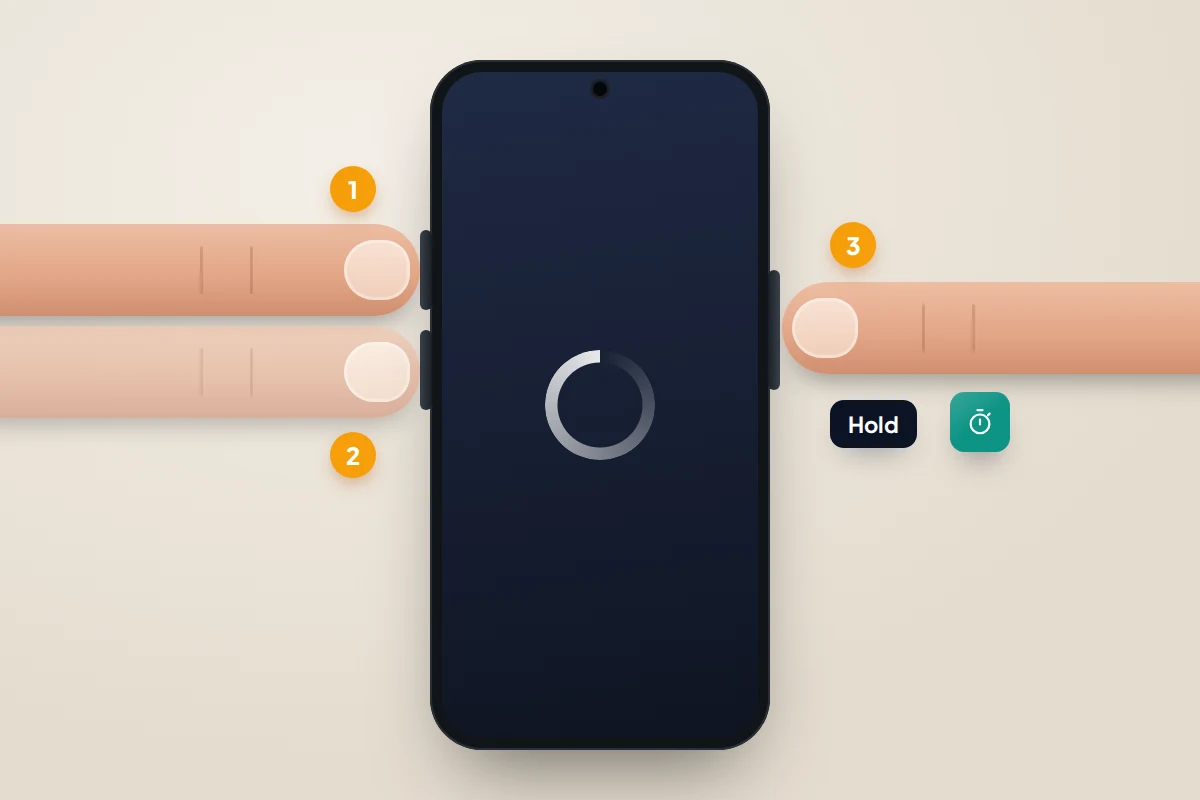
If the screen stays black, charge the phone for an hour with a charger you know works, then try again, as Apple suggests. A phone that has run completely flat can look frozen when it is simply empty.
Match the symptom to the likely cause
Find the row closest to what you are seeing and start with its first fix.
| Symptom | Most likely cause | First fix |
|---|---|---|
| Screen frozen, no response to touch | A temporary software hang | Force restart |
| Freezes or closes in one app only | A bug in that app, or an old version | Update the app; clear its cache or offload and reinstall |
| Slow and freezing everywhere, storage warning | Storage nearly full | Free space until at least 10% is available |
| Restarts on its own, even when idle | A misbehaving app or a system bug | Install updates; test in safe mode on Android |
| Problems began straight after an update | Background work after the update, or a bug | Wait a day or two, update apps, install the next fix |
| One restart overnight while charging | An automatic update installing | Nothing; this is normal |
| Freezes or shuts down when hot | Overheating protection | Cool it down and find the cause |
| Switches off with 20–30% battery left, or in the cold | A worn battery | Check battery health; replace the battery |
| Stuck on the logo, restarting over and over | Damaged or incomplete system software | Recovery mode |
| Still freezing or restarting after a factory reset | Probably a hardware fault | Repair |
The ladder: from one minute to one hour
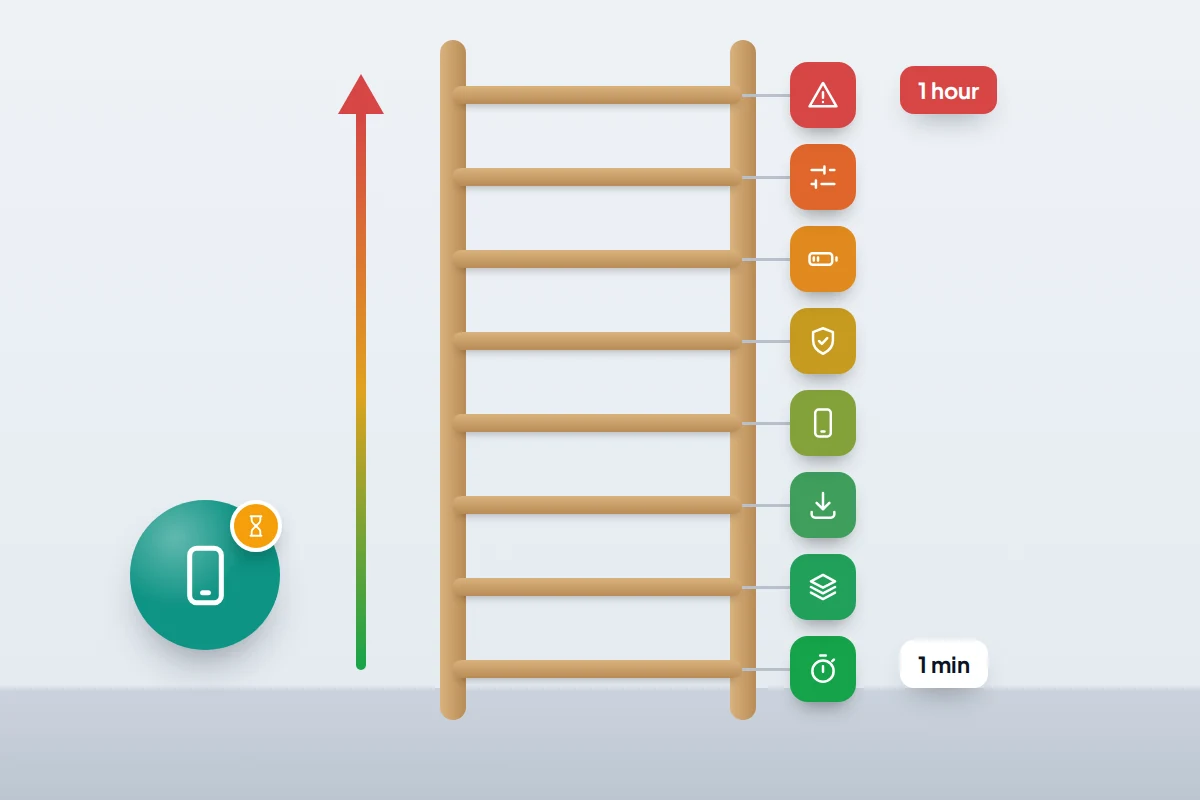
If nothing in the table stands out, climb this ladder in order. Each rung takes longer or disrupts more than the last, so you never erase a phone that needed only a restart.
- 1 minute: force restart, as above.
- 2 minutes: check storage. Anything under 10% free is worth fixing first.
- 5 minutes: install updates for the system and your apps.
- 5 minutes: deal with the suspect app, if the problem centres on one.
- 10 minutes: safe mode test on Android, to rule downloaded apps in or out.
- 10 minutes: check heat and battery health.
- 15 minutes: reset settings, which leaves your photos, messages and apps in place.
- About an hour: back up, then recovery mode or a factory reset.
Low storage: the most overlooked cause
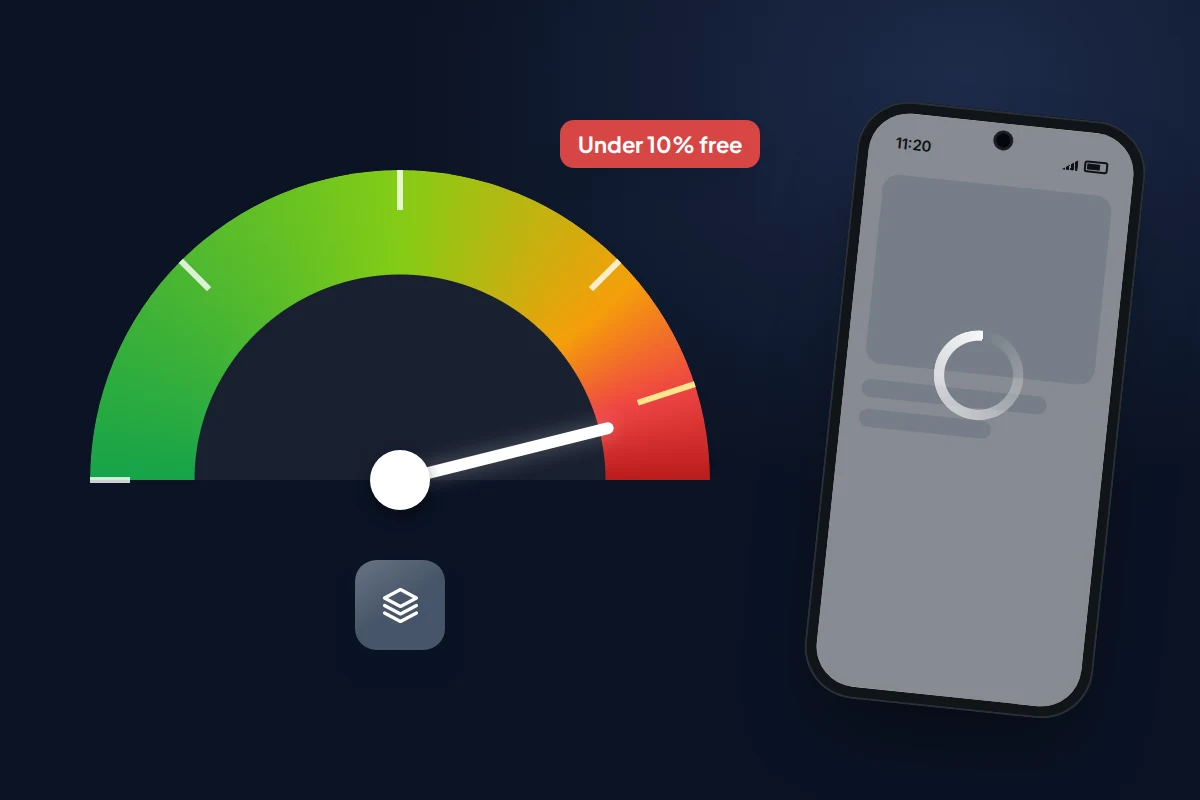
Phones use free storage as working space for updates, caches and temporary files. When it runs out, apps stall and the whole phone can freeze while it tries to make room. Google’s Android help says phones can start having issues when less than 10% of storage is free.
Check Settings → General → iPhone Storage, or Settings → Storage on most Android phones (Settings → Device care → Storage on Samsung). If you are under 10%, our guide to freeing up phone storage safely shows what to delete first without losing anything important.
When one app is the problem
If the freezing happens in one app, or started just after you installed one, deal with that app before anything else.
iPhone
- Close the app: swipe up from the bottom of the screen and pause to open the App Switcher, then swipe the app up and away.
- Open the App Store, tap your profile picture and install any updates.
- If it still freezes, go to Settings → General → iPhone Storage, tap the app and choose Offload App. This removes the app but keeps its documents and data. Tap Reinstall App on the same screen to download a fresh copy.
- As a last step, Delete App and reinstall it from the App Store. This removes its data unless the app stores it in your account online, so check first.
Android
- Go to Settings → Apps → See all apps, tap the app and tap Force stop.
- Update it in the Play Store.
- Back in the app’s settings, tap Storage & cache → Clear cache. The cache is temporary and rebuilds itself.
- If that fails, Clear storage resets the app as if newly installed, erasing anything it saved on the phone, so only do this for an app you can set up again.
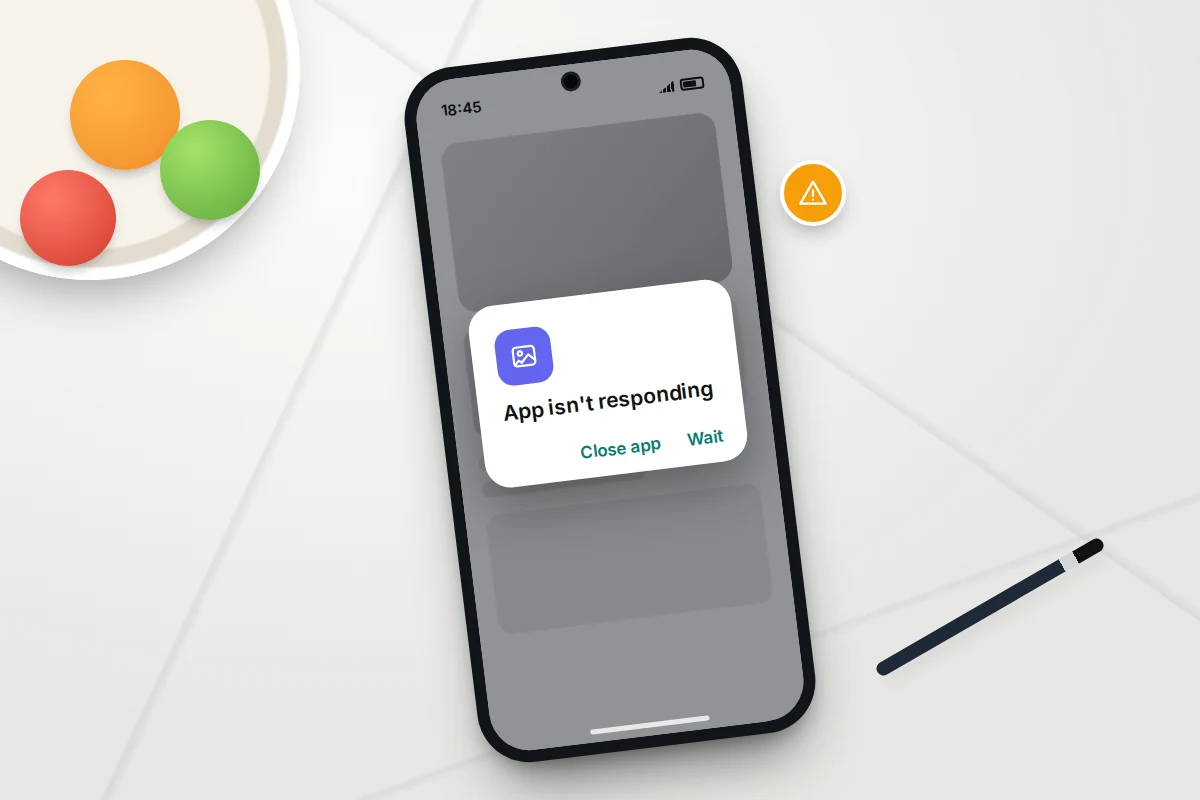
Is a downloaded app causing wider problems?
When the whole phone freezes or restarts but no single app is obvious, Android’s safe mode helps. It starts the phone with only its built-in apps. If the problems stop in safe mode, something you installed is responsible; if they continue, look at the system, the battery or the hardware instead.
On a Pixel, open the power menu (press Power and Volume up together on Pixel 6 and later), touch and hold Power off or Restart, then tap OK. On a Samsung, touch and hold Power off in the power menu, then tap Safe mode. Other makers vary. Once you know a downloaded app is to blame, Google advises restarting normally and uninstalling recently added apps one at a time, restarting after each, until the problem stops. Start with anything that promised to “boost”, “clean” or “cool” your phone.
iPhone has no equivalent of safe mode for apps. Updating or offloading your most recently installed apps, one at a time, is the nearest substitute.
Updates: missing, pending or just installed
Install any waiting system update; many fix exactly these bugs.
- iPhone: Settings → General → Software Update.
- Pixel: Settings → System → Software update.
- Samsung: Settings → Software update → Download and install.
Two things catch people out. First, phones set to update automatically usually install overnight while charging, so a single restart during the night is normal. Second, after a major update the phone reorganises and re-indexes files in the background for a while, often a day or two, and can feel slow or warm meanwhile.
If a problem starts after an update and does not settle within a few days, you generally cannot roll back; the fix usually arrives in the next small update.
Heat and a worn battery
Heat. Phones deliberately slow down or shut down to protect themselves when too hot. If freezes happen while gaming, navigating in a sunny car or charging under a pillow, heat is the likely cause. Our guide to why phones overheat and how to cool one safely covers what to do.
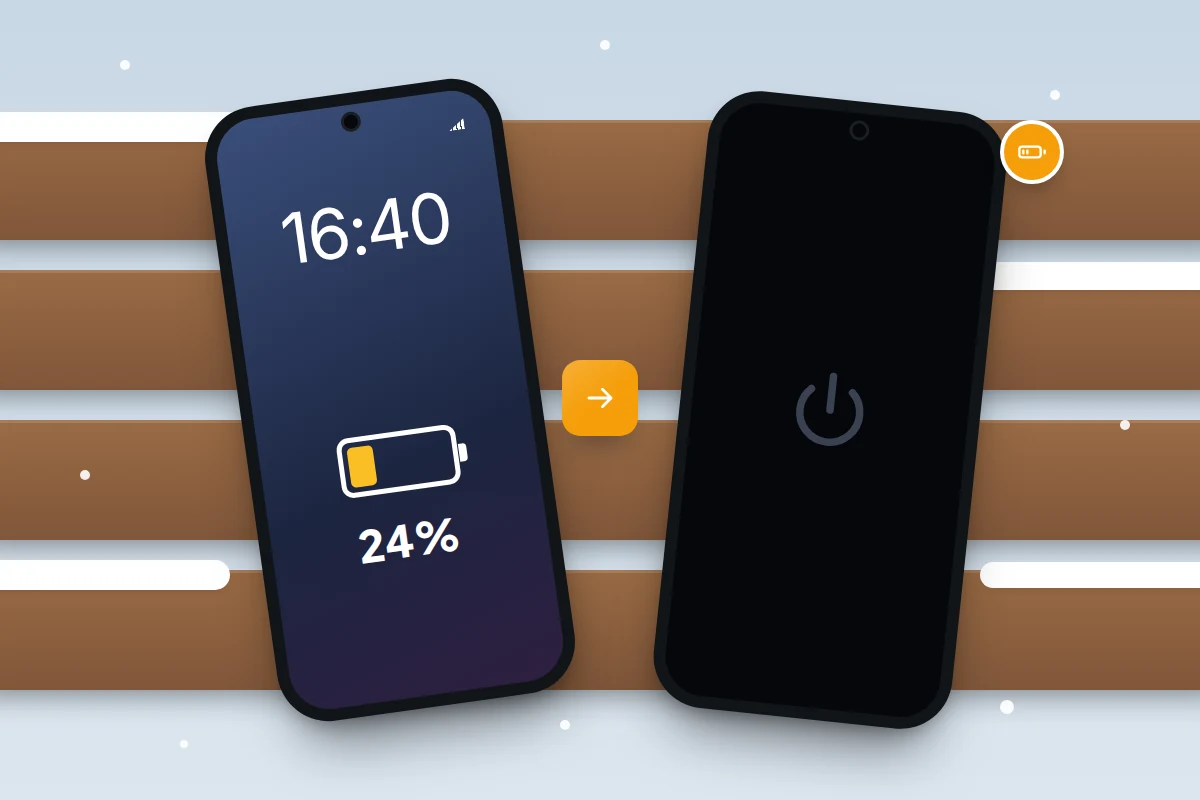
A worn battery. As a battery ages it struggles to deliver sudden bursts of power. When it cannot, the phone may switch itself off even though the battery shows 20% or 30%. Apple says unexpected shutdowns are more likely with a low charge, an older battery or colder temperatures.
- iPhone: go to Settings → Battery → Battery Health (Battery Health & Charging on iPhone 14 and earlier) and read Peak Performance Capability. A message about an unexpected shutdown and performance management means the phone is slowing itself to avoid more; “significantly degraded” means the battery needs replacing.
- Pixel: Settings → Battery → Battery health; only newer models show a capacity estimate.
- Samsung: run the battery check in the Samsung Members app’s diagnostics.
Apple lets you switch performance management off on that screen, but it switches back on after the next unexpected shutdown. A new battery is the real fix.
Stuck on the logo: boot loops and recovery mode
In a boot loop the phone shows its logo, restarts and shows it again, never reaching the lock screen. The system software is usually damaged or incomplete, often after an interrupted update. A force restart sometimes breaks the loop; if not, recovery tools can reinstall the software.
iPhone
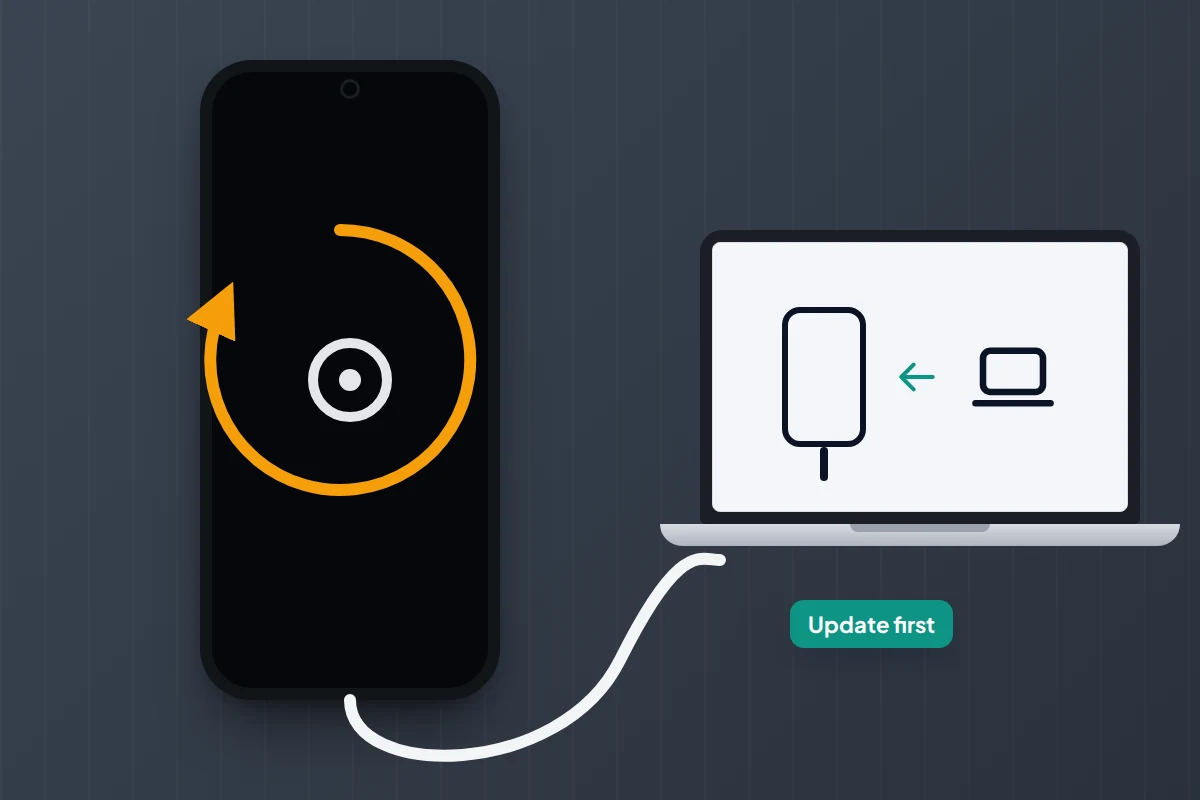
- Connect the iPhone to a Mac (open Finder) or a Windows PC (open the Apple Devices app) with a cable.
- Press and quickly release volume up, then volume down, then press and hold the side button. Keep holding past the Apple logo until the “connect to computer” screen appears.
- On the computer, choose Update first. It reinstalls iOS and is designed to leave your data alone. Only choose Restore if updating fails: Apple says restore erases all your data.
If the download takes more than 15 minutes the iPhone may leave recovery mode; let the download finish and repeat step 2.
Android
- Pixel 4a and later: connect the phone to a computer with a USB cable and open Google’s Pixel Update and Software Repair tool (pixelrepair.withgoogle.com) in a browser. Its on-screen steps can reinstall the latest software without a factory reset. The tool also offers a reset; do not choose that until the update has failed. If the phone will not respond, holding Volume down and Power for up to 30 seconds (Pixel 6 and later) opens Fastboot mode.
- Samsung: if the phone lands on an Android Recovery screen, use the volume keys to highlight Reboot system now and press the Side key. Getting into recovery deliberately uses different keys on different models, so check Samsung’s support page for yours.
On any Android phone, the recovery menu also offers Wipe data/factory reset. That erases the phone completely, so treat it as the last rung, not the first.
Reset settings before you erase anything
A settings reset puts system settings back to their defaults without deleting your photos, messages or apps. It can clear a corrupted setting that no restart touches.
- iPhone: Settings → General → Transfer or Reset iPhone → Reset → Reset All Settings. Apple says network settings, the keyboard dictionary, location and privacy settings and Apple Pay cards are removed or reset, but no data or media are deleted.
- Samsung: Settings → General management → Reset → Reset all settings. Samsung says this keeps your accounts and personal data.
- Pixel: there is no single “reset all settings”. Settings → System → Reset options offers narrower resets, such as Wi-Fi and Bluetooth, mobile network settings and app preferences.
Factory reset: only after a backup you have checked
A factory reset erases everything and reinstalls a clean system. It fixes almost any software cause, but it is the one step you cannot undo. Before you start, check that your backup actually works, and make sure you know your Apple Account or Google account password; you will need it to set the phone up again.
- iPhone: Settings → General → Transfer or Reset iPhone → Erase All Content and Settings.
- Pixel: Settings → System → Reset options → Erase all data (factory reset).
- Samsung: Settings → General management → Reset → Factory data reset.
If you can, set the phone up as new and use it for a day before restoring your backup (restoring later means erasing it again). If the problem only returns once your apps are back, an app is the cause; if it freezes even when fresh, suspect hardware.
When it is the hardware
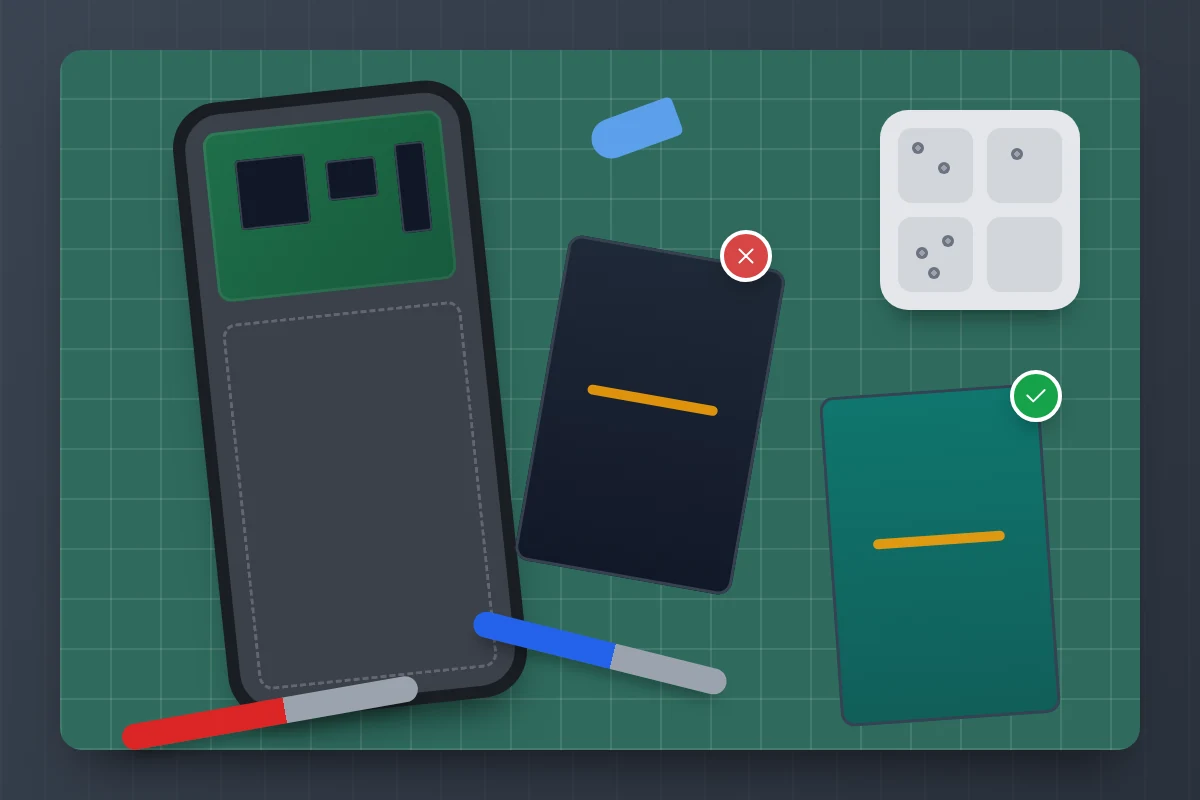
Hardware is the likely cause if the phone keeps freezing or restarting after a factory reset, or since it was dropped or got wet. A swollen battery, a lifting screen, or restarts when you press on the case are further signs; stop using a phone with a swollen battery and have it looked at promptly.
Before booking a repair, remove any case or external battery pack, which Google notes can interfere with buttons and sensors. Then contact the manufacturer or an authorised repairer, especially if the phone is under warranty; they can run diagnostics to pin down a faulty battery or board.
Frequently asked questions
Does a force restart delete anything?
No. It closes everything that was open, so an unsaved draft in an app may be lost, but your photos, messages and settings stay where they are.
Is it normal for a phone to restart on its own?
Once overnight while charging, usually yes: that is an automatic update. Repeated restarts during the day are not; work through the ladder above.
Can a virus make my phone freeze?
It is possible but uncommon; storage, apps, updates and battery wear explain far more freezes. Ads outside apps or apps you did not install are the signs worth checking.
Sources and further reading
- Apple Support: Restart an unresponsive iPhone
- Apple Support: If you can’t update or restore your iPhone
- Apple Support: iPhone battery and performance
- Apple iPhone User Guide: Reset iPhone settings to their defaults
- Android Help: Fix an Android device that freezes or won’t respond
- Pixel Phone Help: Fix a Pixel phone that’s restarting or crashing
- Pixel Phone Help: Factory reset your Pixel phone, including the Pixel Update and Software Repair tool
- Samsung UK: What to do if your Galaxy phone won’t power on properly
Looking for a tool to go with this? TheTruthSpy is a free parental control app for Android that stays visible on the child's phone. If it fits your family, see what the app does.
Related guides
What to Do If Your Phone Gets Wet
Dropped your phone in water? What to do in the first five minutes, hour and day, what IP68 really means,…
Phone Not Charging? How to Find the Cause and Fix It
A ten-minute elimination test for a phone that won't charge: cable, adapter, port, software and battery, plus what liquid, heat…
Why Is My Phone Overheating? Causes and Fixes
Warm, hot or dangerous? Why phones heat up when charging, gaming or in the sun, how to cool one safely,…
Parental controls your child can see
Location, screen time limits, a web filter and alerts from notifications — free, and visible on your child's phone. Pair a phone in about ten minutes.
Android · Free to set up · Visible on your child's phone