How to Check Which Apps Can See Your Location

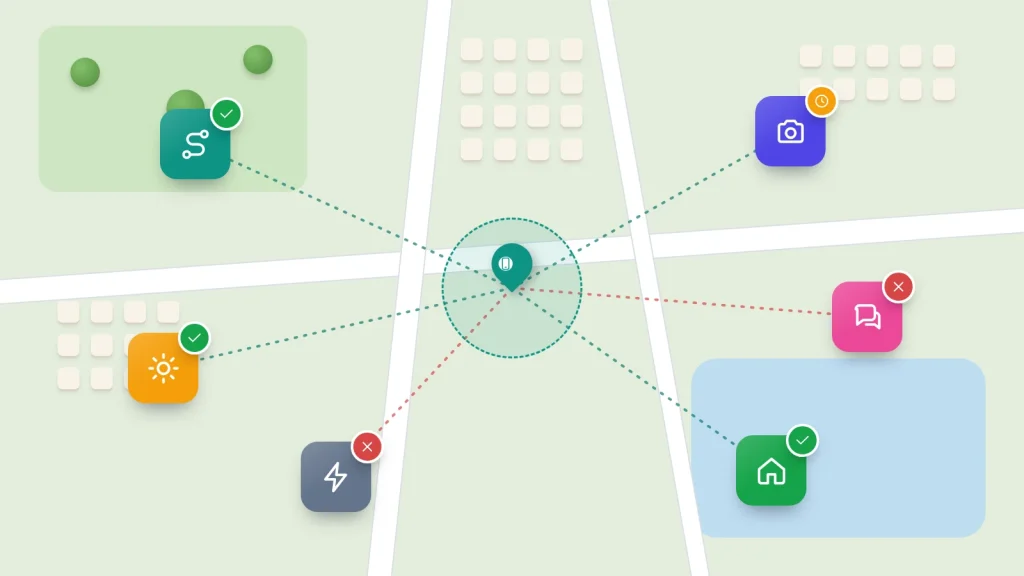
Every app that has ever asked for your location got an answer, usually a single tap made in a hurry while the app was opening. That answer still stands today unless you have gone back and changed it, and on a phone you have had for a couple of years the list of apps with access is often longer than you would guess.
Both Android and iPhone keep one list showing every app with location access and what level it has, and a second screen showing which apps actually used it recently. Going through them takes about ten minutes. After that come the places your location leaks out without an app asking: Wi-Fi scanning, photo metadata, your location history and the people you share with.
The short version
- Android: Settings → Location → App location permissions. iPhone: Settings → Privacy & Security → Location Services.
- “Allow all the time” or “Always” is the one to question. Very few apps need your location when you are not using them.
- Turn off precise location for apps that only need your town, such as weather or shopping apps.
- Photos can carry the exact spot they were taken. Remove it before sharing publicly, or stop the camera saving it.
- Location shared with people (family maps, Find My, Google Maps sharing) is a separate list. Check it too.
Where to see which apps have your location
Menu names below are from recent versions of Android and iOS. Android phones in particular vary by maker, so if a name does not match exactly, search for “location” in the Settings app instead.
On Android
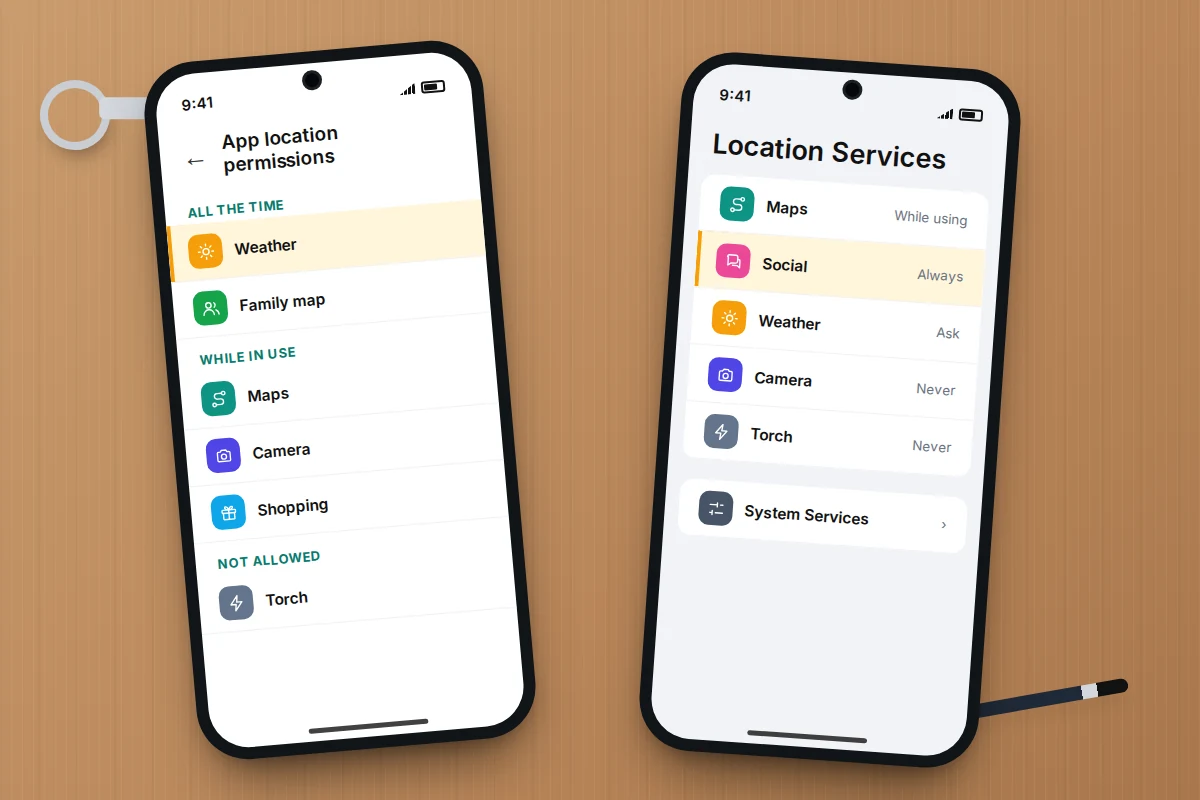
- Open Settings → Location → App location permissions.
- Apps are grouped under headings such as Allowed all the time, Allowed only while in use, Ask every time or allow when I share and Not allowed.
- Tap any app to change its setting, and to switch Use precise location on or off.
To see which apps actually used your location recently, rather than which are allowed to, open the Privacy dashboard. On many phones it is at Settings → Security & privacy → Privacy → Privacy dashboard; on some it sits directly under Security & privacy or inside Privacy controls. It shows location, camera and microphone use over the past 24 hours, and on recent Pixel phones the past 7 days. Samsung and other makers have their own versions with slightly different names.
On iPhone
- Open Settings → Privacy & Security → Location Services.
- Each app is listed with its current setting: Never, Ask Next Time Or When I Share, While Using the App or Always.
- Tap an app to change it, and to switch Precise Location on or off.
For recent activity, Settings → Privacy & Security → App Privacy Report shows which apps accessed your location over the last 7 days, once the report is turned on.
What each permission level actually allows
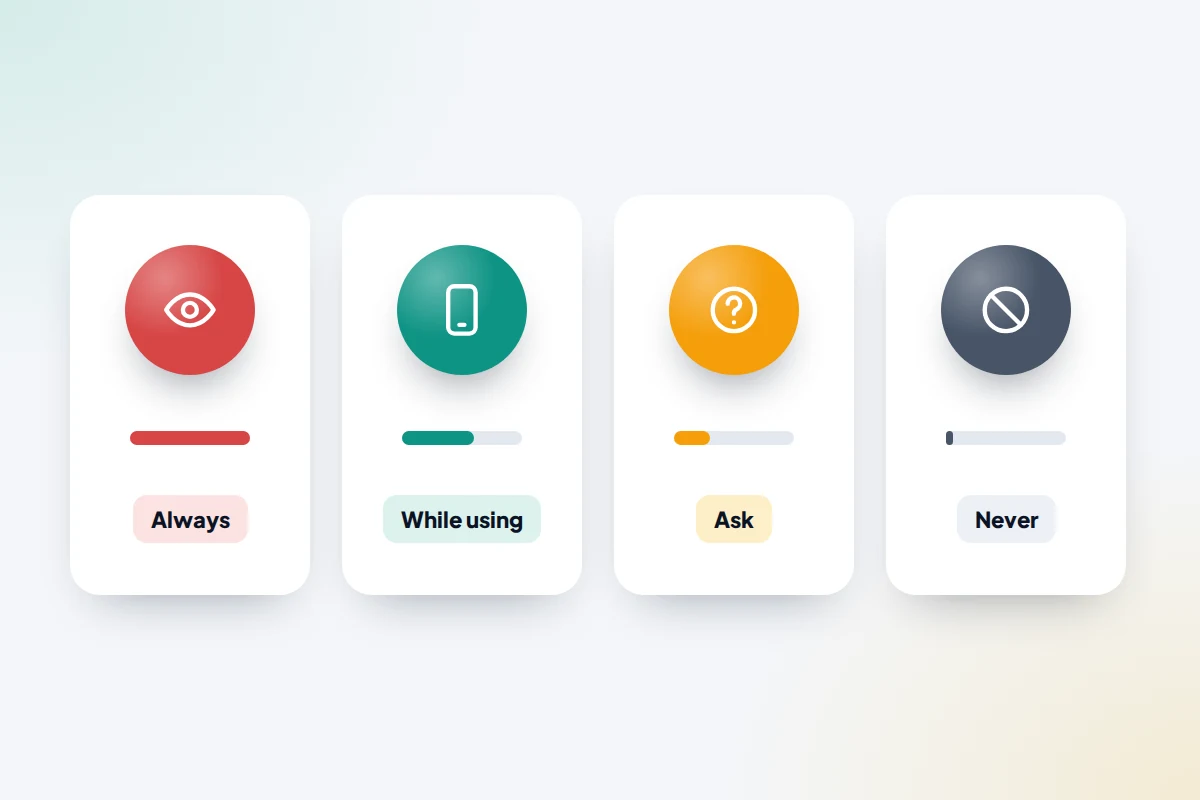
The wording differs between Android and iPhone, but the four levels match up.
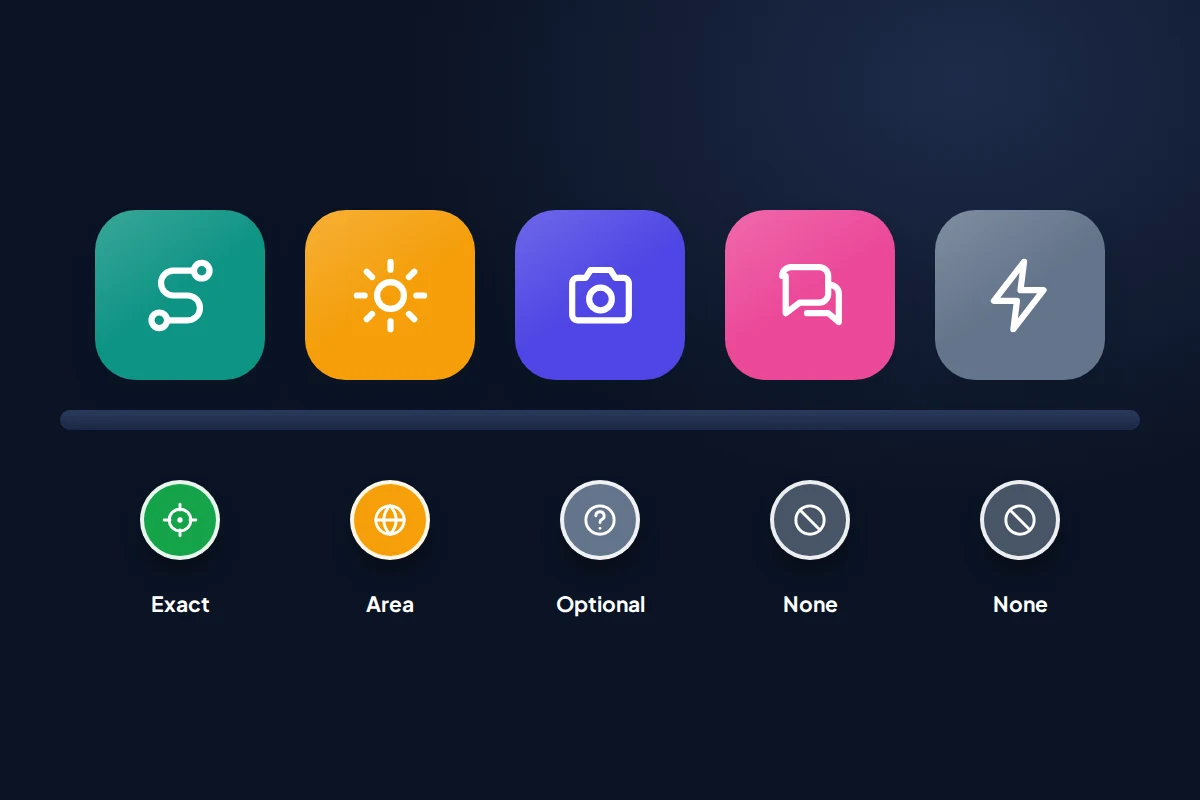
- Allow all the time (Android) or Always (iPhone): the app can get your location whenever it likes, including when it is closed and you are not looking at it.
- Allow only while using the app or While Using the App: only when the app, or one of its features, is on screen or visibly running, such as a navigation session.
- Ask every time or allow when I share or Ask Next Time Or When I Share: the app has to ask again next time, though it can get your location at the moment you choose to share it, for example by tapping a location button. Good for apps you use rarely.
- Don’t allow or Never: the app cannot read your phone’s location at all.
Since Android 10, apps have to ask separately for background location, and from Android 11 you can only grant “all the time” in Settings rather than from a pop-up. That makes background access a considered choice rather than a reflex tap.
Precise or approximate
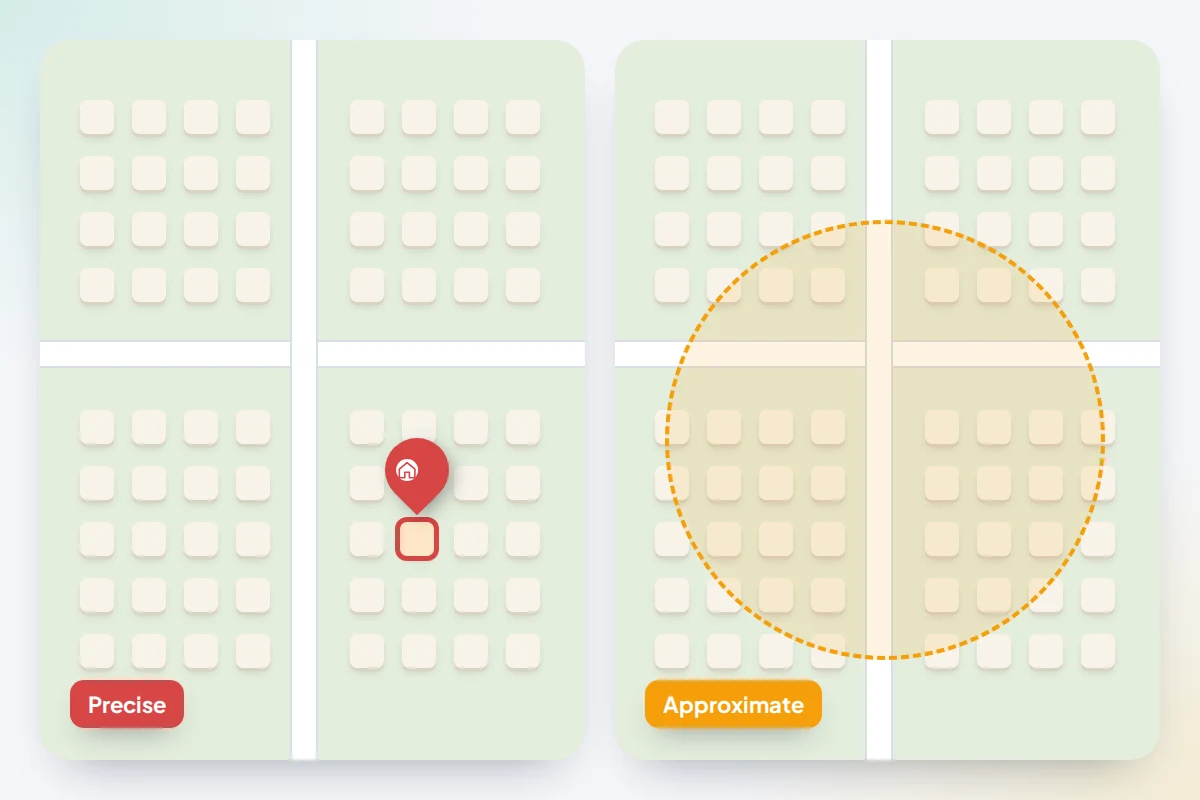
Separately from when an app can see you, you can choose how exactly. With precise location off, Android gives the app an area of about 3 square kilometres. iPhone also gives a broader area, though Apple does not publish its size. That is enough to show local weather, nearby shops or the right currency, and not enough to show which house you live in.
Turning precise off is the most useful change for most people, because it lets an app keep working while seeing much less. Keep it on only for apps that need your exact spot: maps, taxis, food delivery to your door, and anything that finds a lost device.
Which apps need which level
A useful test is to ask what the app does for you in the moment, and whether it would work if you typed a town name instead. If it would, it does not need precise location. If it does nothing useful when closed, it does not need “all the time”.
| Type of app | Sensible level | Precise? | Why |
|---|---|---|---|
| Maps and navigation | While using | Yes | Turn-by-turn directions need your exact position, but only during a trip. |
| Taxi and ride apps | While using | Yes | The driver needs your pickup point. Nothing after the ride. |
| Weather | While using or Ask | No | Your town is enough. A home-screen widget may ask for more; setting a fixed city avoids that. |
| Food delivery and shopping | While using or Never | No | You can type your address. Approximate is fine for “near me” searches. |
| Camera | While using or Never | Your choice | Only needed if you want photos tagged with where they were taken. |
| Social media | Never or Ask | No | Location tags and “nearby” features are optional. Add a place by hand when you want one. |
| Fitness and run tracking | While using | Yes | A recorded run normally counts as “in use”. Check the app’s help if tracking stops. |
| Banking | Never, or While using if asked | No | Some banks use location as a fraud check; the app will explain if it matters. |
| Torch, calculator, games, wallpapers | Never | No | None of these do anything with your location. |
| Family location or find-my-device | All the time | Yes | Their whole job is to work when the app is closed, so only keep ones you have agreed to use. |
| Home automations (lights on when you arrive) | All the time | Usually | Only if you use arrival or leaving rules. Otherwise, while using. |
If an app stops working properly after a change, you will usually see a prompt asking for more access. You can grant it again in seconds, so there is little risk in starting strict.
Background location reminders
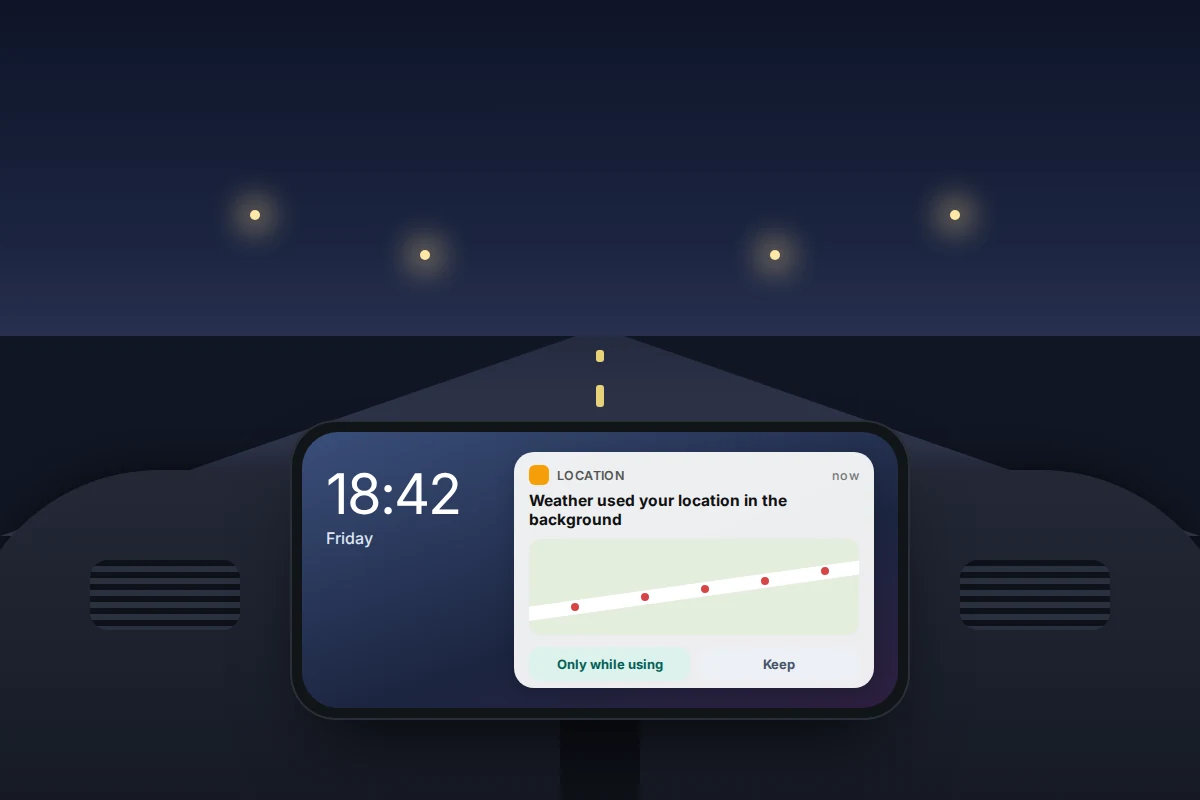
Both systems nudge you when an app uses its “all the time” access. On Android, when an app first uses background location after you allowed it, a notification reminds you that it can see your location all the time, with a shortcut to change it. On iPhone, a pop-up appears from time to time saying an app has been using your location in the background, showing a small map of where it recorded you, with a button to change it to Only While Using.
Do not dismiss these on autopilot. They are the moment to ask whether that app does anything for you when closed.
Android also removes permissions from apps you have not opened for a few months. You can check this per app under Settings → Apps → the app → an option such as Manage app if unused or Remove permissions if app is unused. Leave it on unless an app needs to run quietly for long periods.
Settings that locate you without an app asking
Wi-Fi and Bluetooth scanning on Android
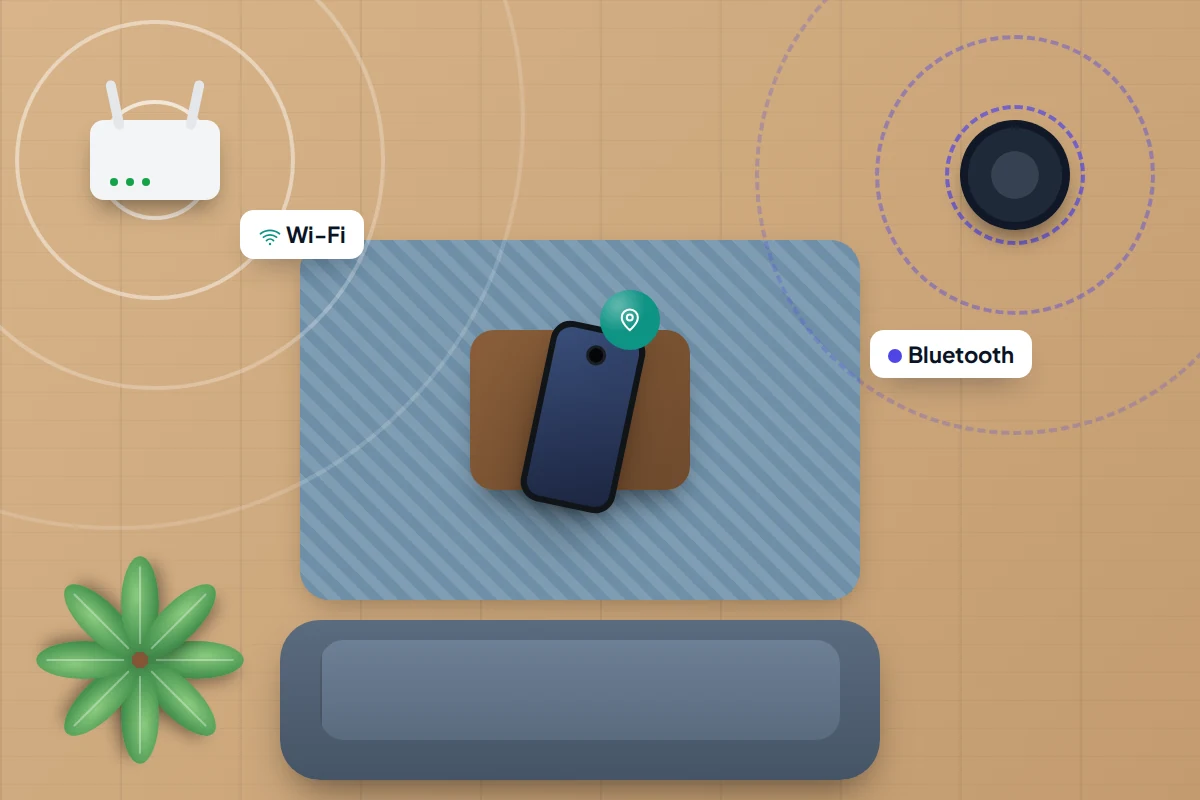
Android can look for nearby Wi-Fi networks and Bluetooth devices even when Wi-Fi and Bluetooth are switched off, to improve location accuracy. You will find both switches under Settings → Location → Location services → Wi-Fi scanning and Bluetooth scanning. Turning them off does not stop apps you have allowed from using location; it just means your phone stops scanning while you think the radios are off. Location may be a little slower to lock on indoors as a result.
System Services on iPhone
At the bottom of Settings → Privacy & Security → Location Services is System Services, which covers things the iPhone itself does with your location. The one most people want to review is Significant Locations & Routes (Significant Locations on older versions), which learns places you visit often to make suggestions. You can view and clear that history there. Clear it rather than switching it off if you use Stolen Device Protection, which needs it on to recognise familiar places. Leave emergency-related services and Find My on.
Emergency calls can still send your location to the emergency services even with location permissions restricted, through separate systems. Tightening app permissions does not interfere with that.
The location hidden in your photos
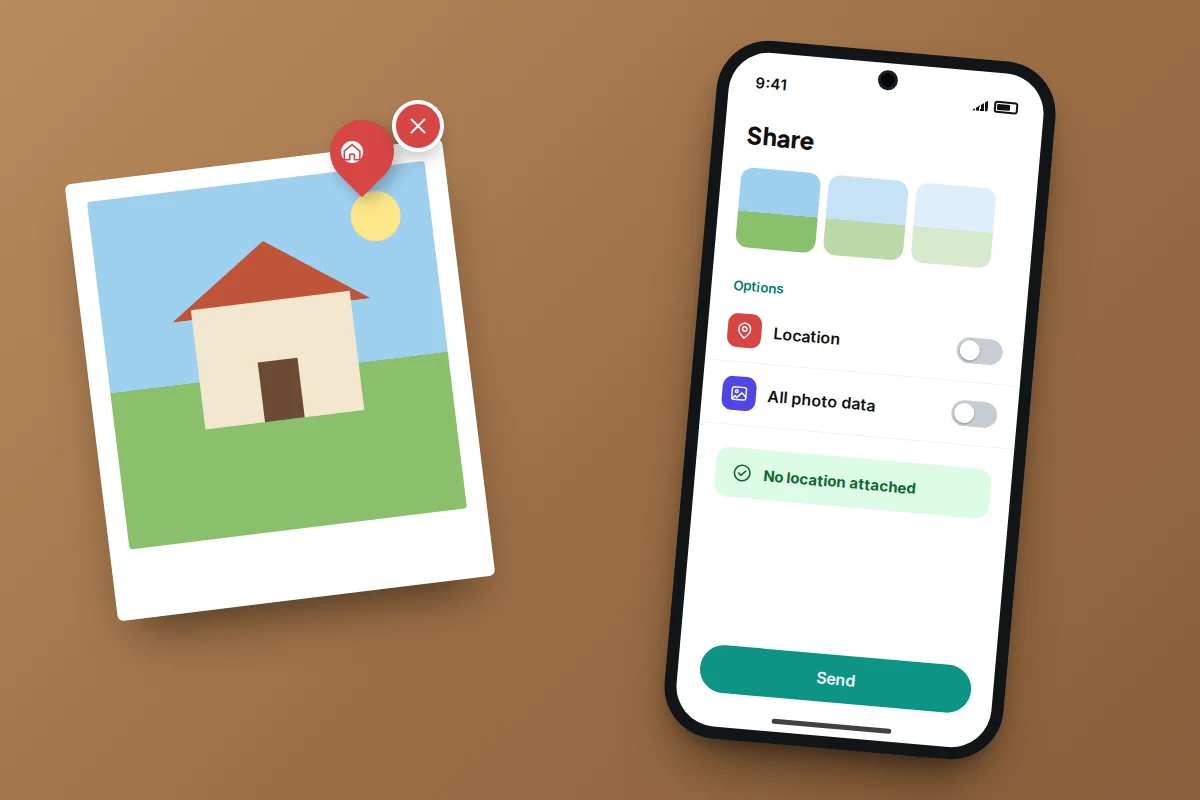
If your camera is allowed to record location, every photo stores the latitude and longitude where it was taken. Share the original file and anyone who opens its details can see where you were, which matters most for photos taken at home and posted publicly.
On iPhone
- To share without location: select the photo, tap the Share button, tap Options at the top and turn off Location. “Location Not Included” appears above Options.
- To remove it from a photo: open it, tap More (…) → Adjust Info → Adjust Location → No Location. The wording varies slightly between iOS versions.
- To stop saving it: Settings → Privacy & Security → Location Services → Camera → Never.
On Android
- To stop saving it: set the camera app’s location permission to Don’t allow, or turn off the location tag option in the camera’s own settings.
- On Samsung phones, select photos in Gallery, tap Share and tick Remove location data before choosing where to send them.
- In Google Photos, you can only remove locations that were estimated or added by hand, not those saved by the camera, and Google notes that edits there do not change a file you download and send elsewhere. In shared albums, you can turn off Share photo locations.
Many social networks strip location data when you upload, but not every app or messaging service does, so it is safer not to rely on it.
Your location history
Google’s Timeline (formerly Location History) is off by default. If you turned it on, it is now stored on your phone rather than in your Google Account, with an optional encrypted backup to Google’s servers. In Google Maps, tap your profile picture → Your Timeline, then the More menu → Location & privacy settings. From there you can turn it off, delete a range of dates or everything, and set auto-delete for entries older than 3, 18 or 36 months; single days and visits can be removed from the Timeline itself.
Two consequences of living on the device: anyone who can unlock your phone can open it, so a screen lock is part of protecting it; and deletions on one phone do not carry across to another, so clear each device that has Timeline on.
People who can see your location
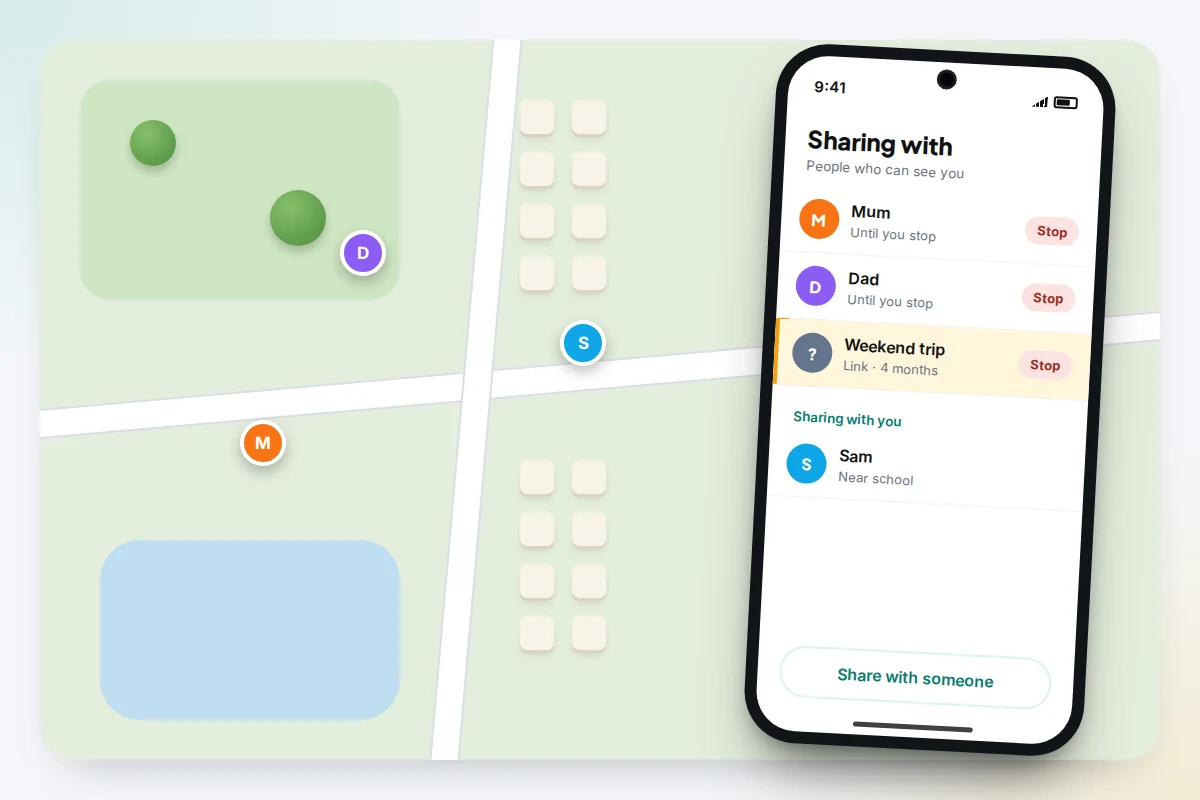
App permissions control software. Location shared with people is a separate list, and it is easy to forget a share you set up for one trip.
- Google location sharing (Android and Google Maps): Settings → Location → Location services → Google Location Sharing, or the Find Hub app’s list of people. Stopping a share there stops it for Google Maps too.
- Find My (iPhone): open the Find My app → People. Tap a name → Stop Sharing My Location.
- Safety Check (iPhone): Settings → Privacy & Security → Safety Check lists everyone you share location and other information with, and lets you stop sharing in one place.
- Messaging and social apps: live location in chat apps and friend maps in social apps have their own settings inside each app.
Family location sharing works best when everyone knows it is on and has agreed to it. Going through this list together from time to time keeps it that way.
If something still looks wrong
- An app you do not recognise has location access. Tap it to see its full name, then check it under Settings → Apps. If you did not install it and it cannot be removed normally, read how to tell if a phone has spyware before doing anything else.
- An app keeps asking again. Choose Ask every time or Never and let it ask. If it refuses to work without precise, all-the-time access and it is not a navigation or family app, consider an alternative.
- The privacy dashboard shows constant location use. Check whether that app has “all the time” access and whether it is a family, fitness or smart-home app that you set up on purpose.
- You are also worried about the microphone. The same privacy screens show microphone use; there is a fuller explanation in whether your phone is listening to you.
Frequently asked questions
Should I just turn location off completely?
You can, but maps, taxis, find-my-device and weather will stop working properly. Most people get better results by leaving location on and cutting individual apps back to “while using” or “never”.
Can an app with “Never” still work out where I am?
Roughly, yes. It can guess your area from your IP address, from an address or postcode you type in, or from location data in photos you upload to it. It cannot read your phone’s GPS or precise location.
How often should I check?
A quick look every few months, and whenever a background reminder appears, is enough. Newly installed apps are the ones most likely to have been given more than they need.
Does removing location from a photo remove it from copies already shared?
No. Changes apply to the copy on your phone and to future shares. Anyone who already has the original file keeps whatever location it contained.
Sources and further reading
- Android Help: Manage location permissions for apps
- Android Help: Manage your device’s location settings
- Apple Support: Turn Location Services and GPS on or off
- Apple Personal Safety User Guide: Manage location metadata in Photos
- Google Maps Help: Manage your Google Maps Timeline
- Samsung Support: Removing location data from photos in Gallery
- Google Photos Help: Understand, find and edit your photos’ locations
- Android Help: Find your friends and family with Find Hub
Using a monitoring app for this? TheTruthSpy is a free parental control app for Android that stays visible on the child's phone. If it fits your family, see the Location & geofencing feature.
Related guides
How to Recover a Hacked WhatsApp Account
Get a hijacked WhatsApp account back by re-registering your number, deal with a PIN the attacker set, warn your contacts…
How to Turn On Two-Factor Authentication Everywhere
A one-evening plan to turn on two-factor authentication, starting with email: which method to pick, where the settings are, and…
How to Stop Spam Calls
Stop spam calls by layering defences: iPhone and Android call screening, your network's free filter, Do Not Call or TPS,…
Free parental control app for Android
GPS tracking, screen time limits, web filtering, SMS and call monitoring — visible on your child's phone. Pair a phone in about ten minutes.
Android · Free to set up · Visible on your child's phone