Set up TheTruthSpy in ten minutes
The whole setup from a blank browser tab to a phone that reports: account, child, pairing code, permissions and the first check.
Setup takes about ten minutes and has two halves: a few minutes in your browser, then five or so on your child’s phone with your child next to you. You don’t need a card, and there is no confirmation email to wait for.
What you need
- Your child’s Android phone, running Android 8.0 or later.
- Your own email address and a password you will remember.
- About ten minutes together. Do the phone part with your child, not behind their back.
In your browser
- Open the parent panel and choose Create account. Type your email and a password twice, and tick the box confirming you will only monitor a child you are responsible for, and that they will know.
- Choose Add a child. Give their name, birthday and a colour for their pin on the map. The birthday only sets sensible starting rules for their age; you can change all of them later.
- Choose Pair a phone. The panel shows a six-character code. It works once and stays live for ten minutes.

On your child’s phone
- Install the app from Google Play, or install the direct build from this site if you want call and text logs. Which build should I choose?
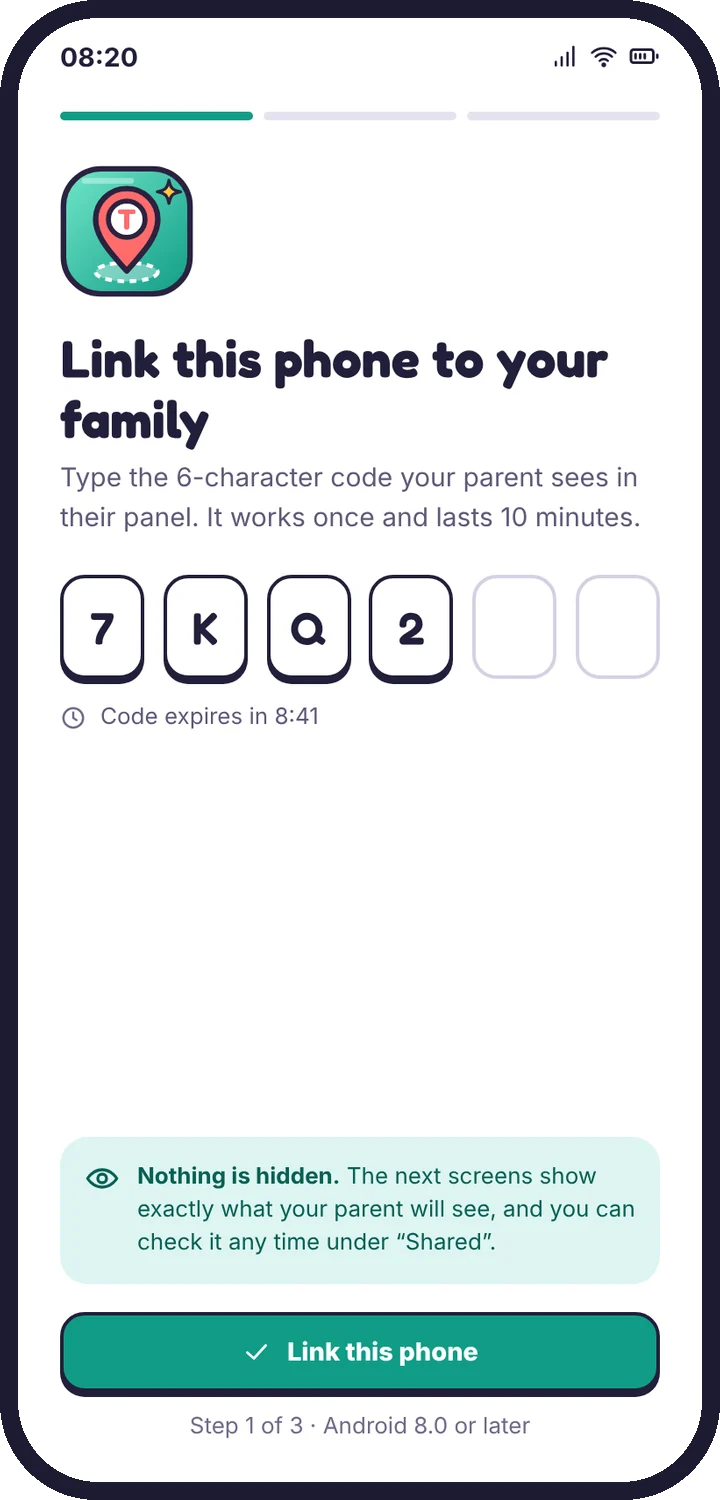
- Open it, type the six characters and tap Link this phone. The app shows your family name so you know the code went to the right place.
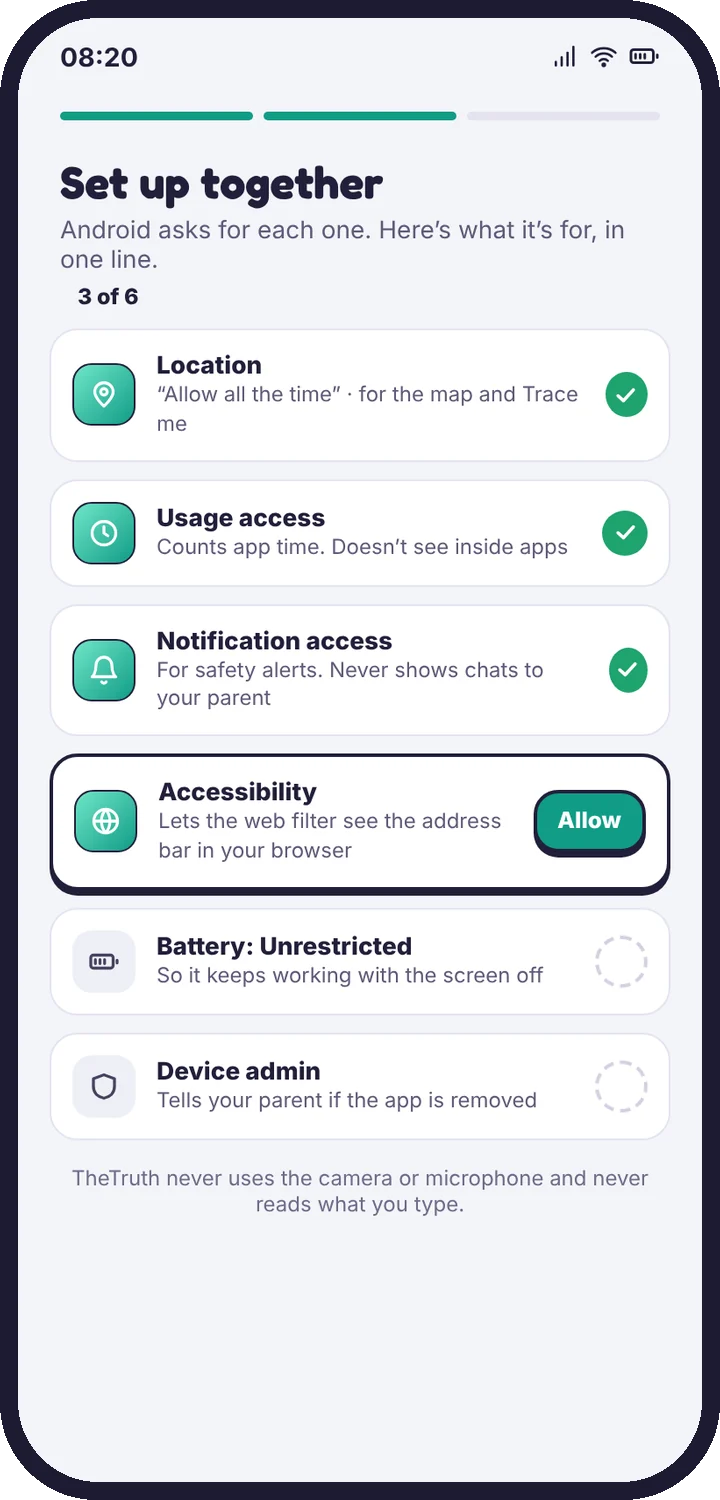
- Work through the permission checklist together. The app explains each permission in one sentence before Android asks. For location, choose Allow all the time. What each permission does
- Open What’s shared on the phone and read it with your child.
Check it worked
Back in your browser, open Device health. Within a minute you should see a last-seen time, a battery level and a green tick next to every permission. Amber or red means one setting needs changing; the card tells you which and can send the fix to the phone.
If the code expires before you type it, make a new one. Nothing is lost.
Tell us which step you reached and what you see on screen. Screenshots help.