Add a child and pair their phone
How children, phones and pairing codes fit together, and how to add a second phone or a tablet later.
Every child in your family has their own profile with their own rules. A profile can have more than one device: Ethan’s phone and Ethan’s tablet share his budget, schedules and filter.
Add a child
- In the panel, open Family & sharing and choose Add a child.
- Type their name and birthday and pick a colour. The colour is used for their pin on the map and their column on the dashboard.
- Review the suggested starting rules. A 9-year-old starts with a stricter filter and an earlier bedtime than a 15-year-old. Nothing is switched on until a phone is paired.
Pair a phone
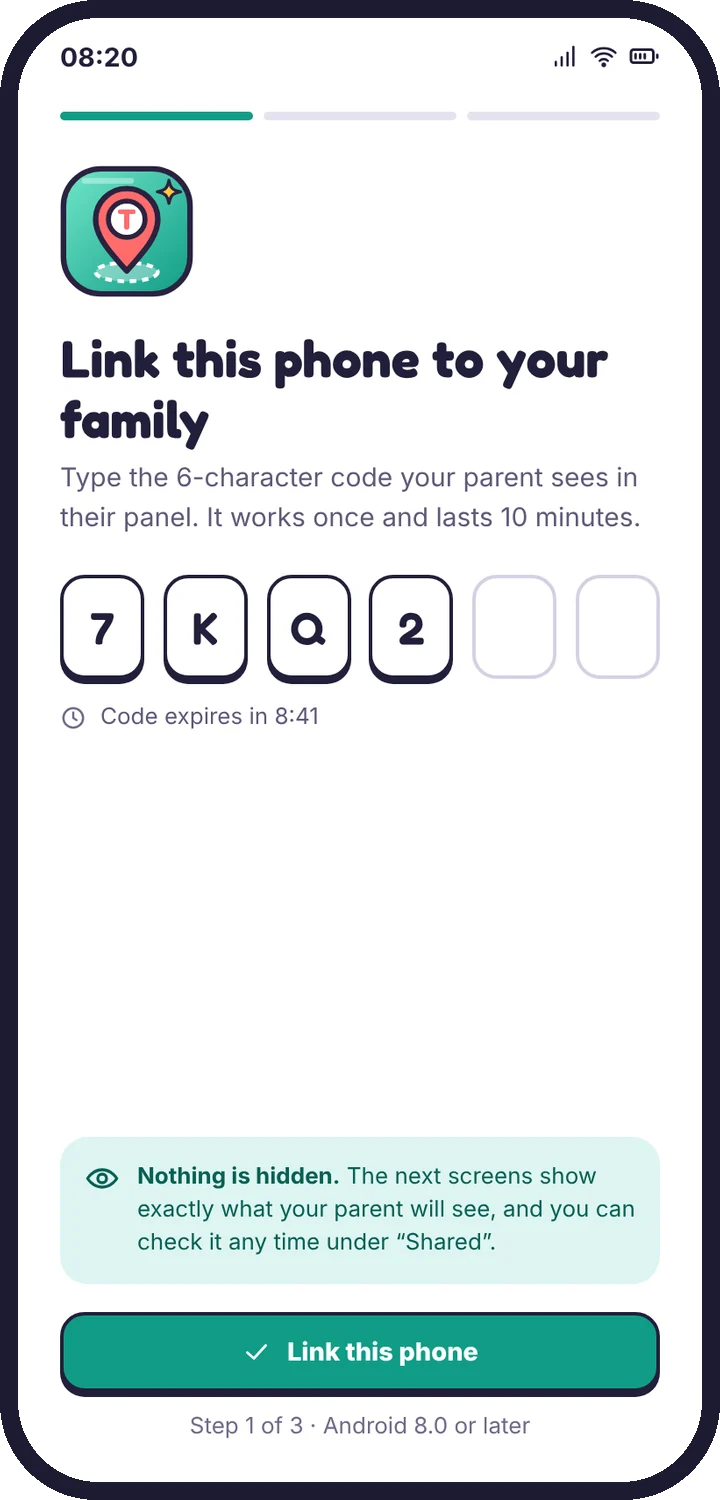
- On the child’s profile choose Pair a phone. A six-character code appears.
- On the phone, open the app and type the code within ten minutes, then tap Link this phone.
- Confirm the family name shown on the phone, then grant the permissions together.
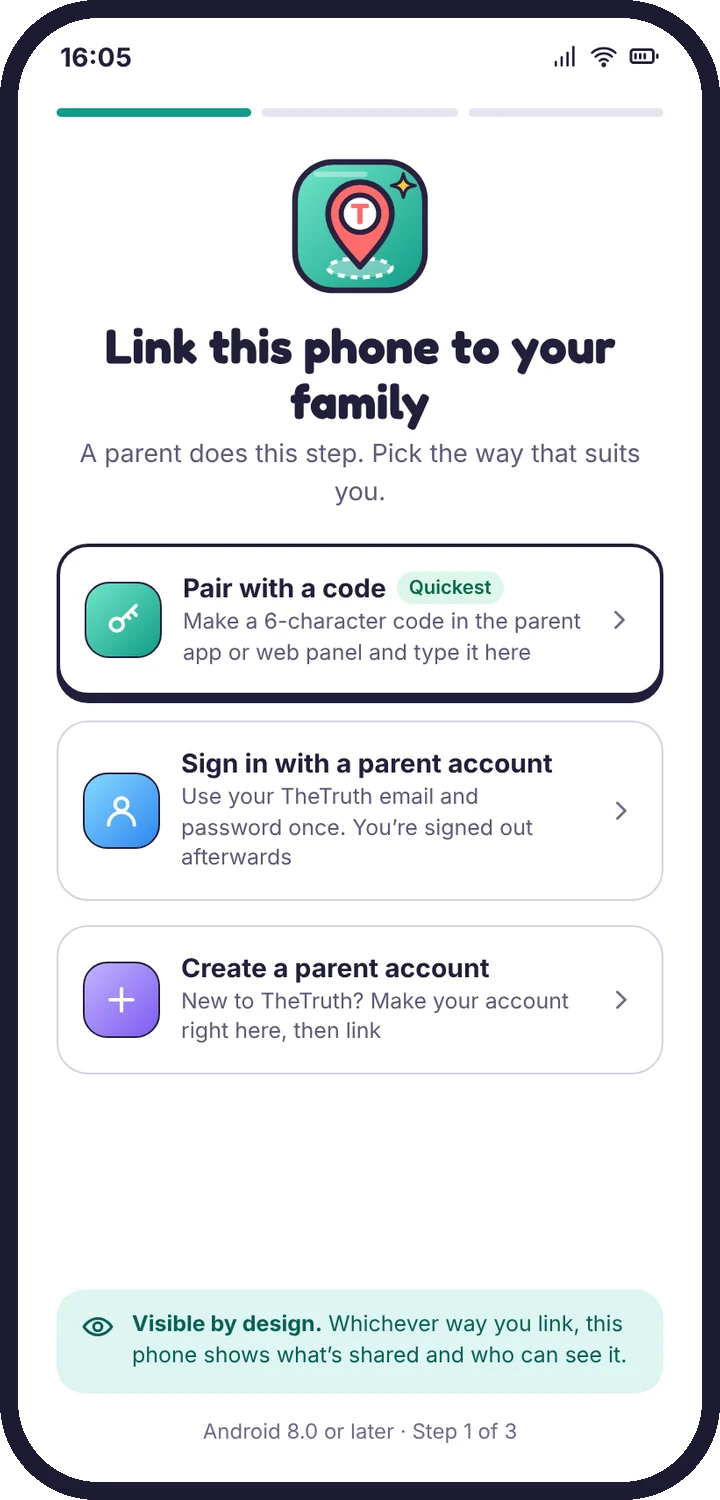
Three ways to link a phone
On your child’s phone, the app asks how you want to link it:
- Pair with a code (quickest): make a code in the parent app or web panel and type it on their phone.
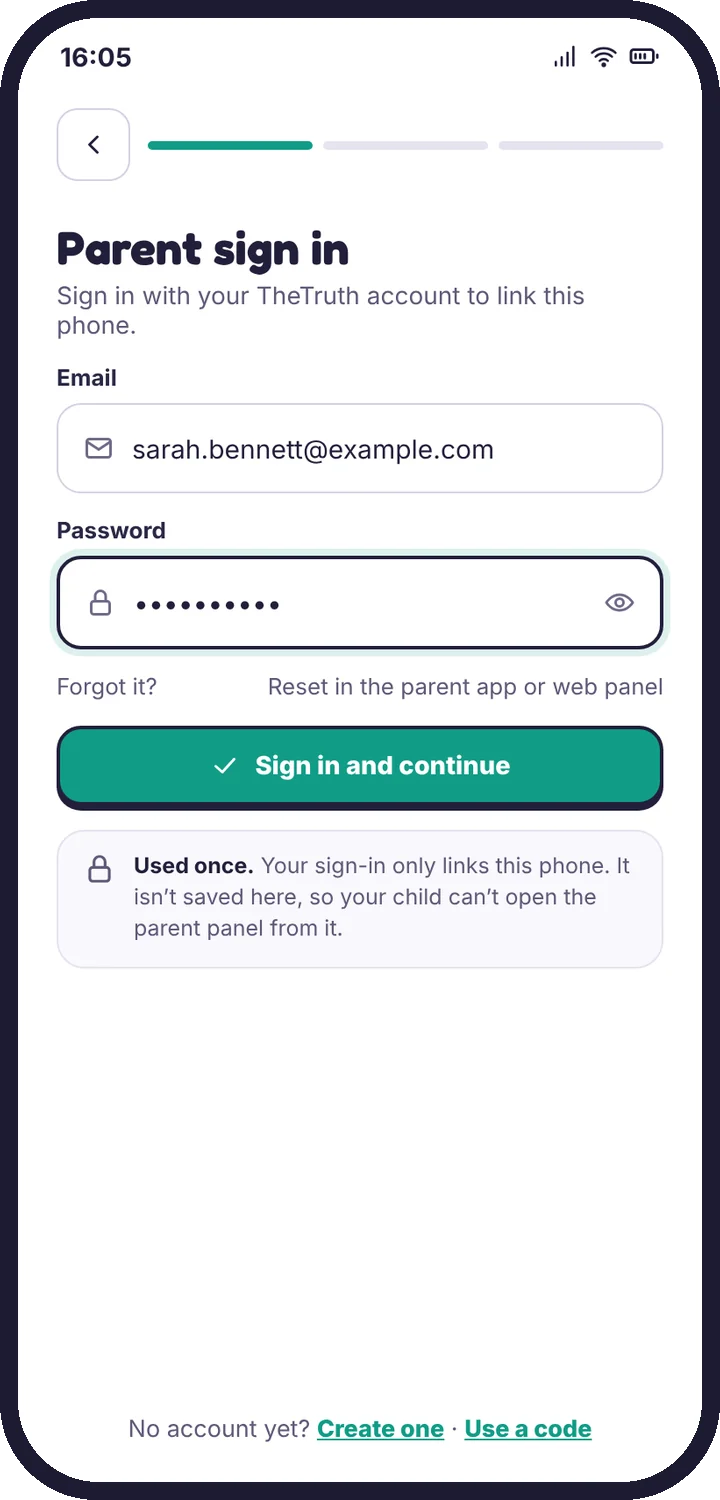
- Sign in with a parent account: type your TheTruth email and password on their phone, then choose which child uses it. Your sign-in is used once to link the phone and isn’t kept on it, so your child can’t open the parent panel from it.
- Create a parent account: new to TheTruth? Create your account right on their phone, add your child, and the phone is linked in the same step.
Whichever you choose, the phone shows “Linked to the Bennett family”, who linked it, and that the parent sign-in was removed.
Add a second device
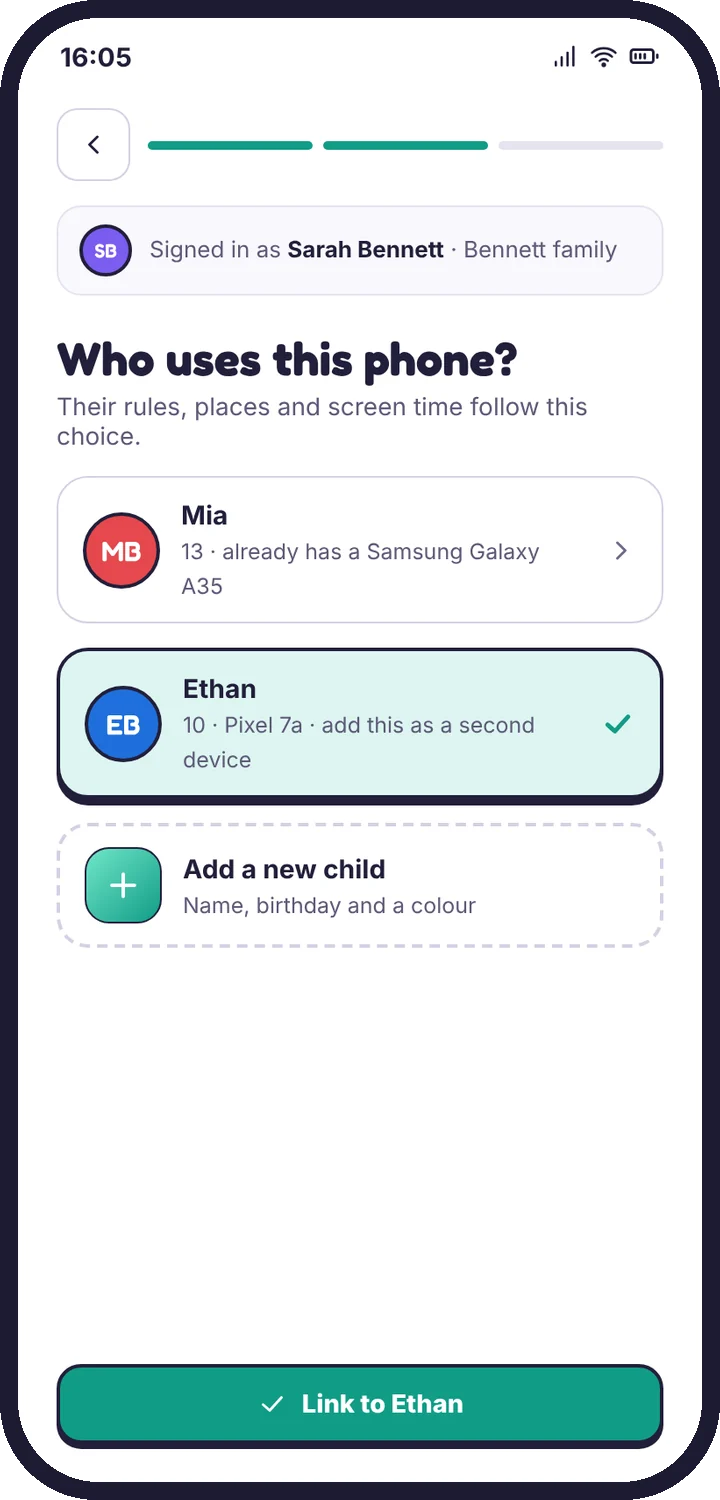
Pair the tablet with a new code from the same child’s profile. Screen time is counted across both devices, so two hours means two hours in total, not two hours each.
Common pairing questions
- The code says expired. Codes last ten minutes. Make a new one.
- The code says already used. Each code works once. Make a new one.
- The wrong family name appears. Tap Not my family and check you are signed in to the right account in the panel.
If pairing still fails, see Pairing code doesn’t work.
Tell us which step you reached and what you see on screen. Screenshots help.