Limit, block or approve apps
Set each app to allowed, limited or blocked, use category limits, and add a note your child sees.
Open Apps to see every app on your child’s phone, how long it was used today, and its state.
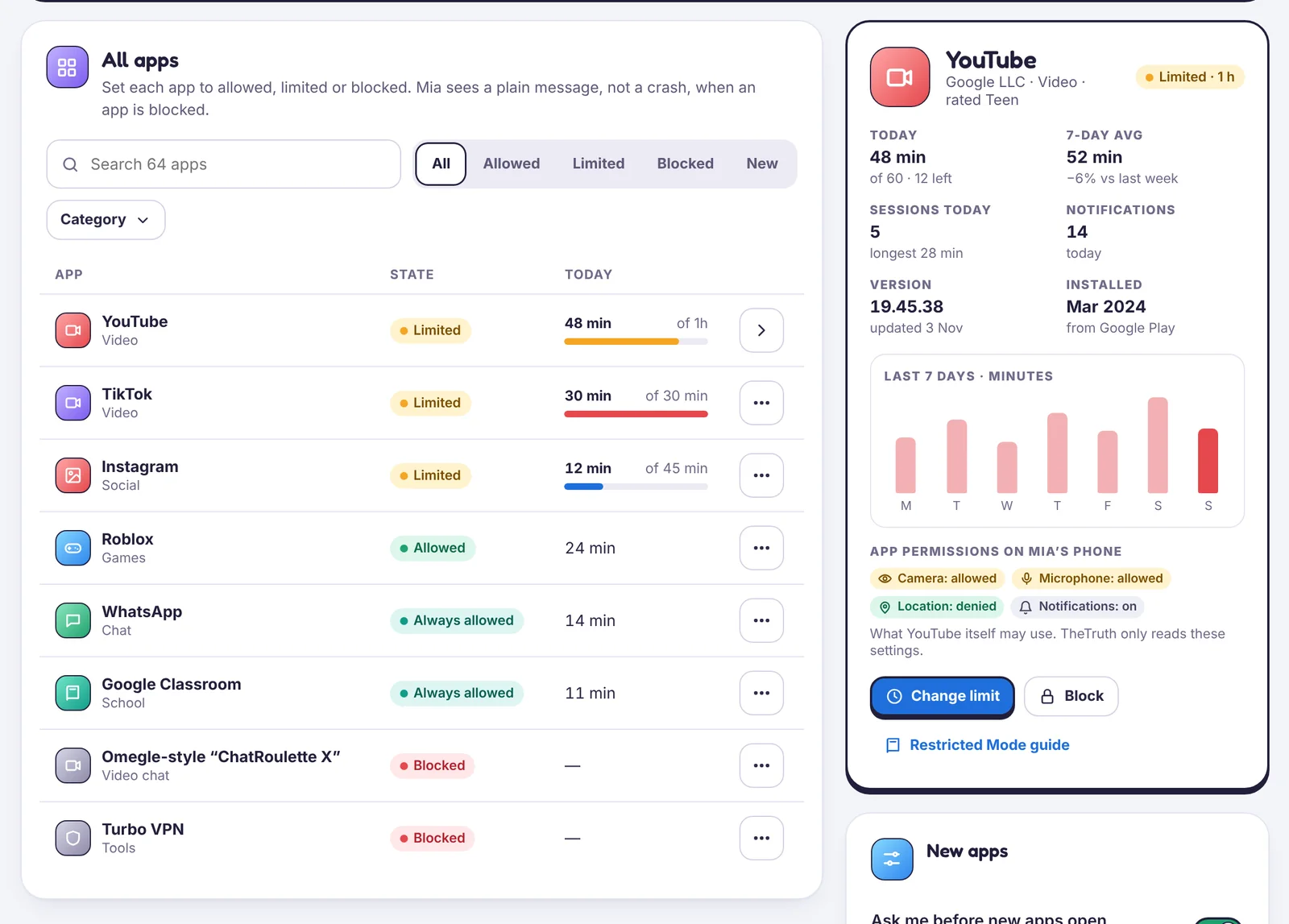
The three states
- Allowed: counts towards the daily budget, no extra limit.
- Limited: has its own daily limit, for example YouTube 1 hour.
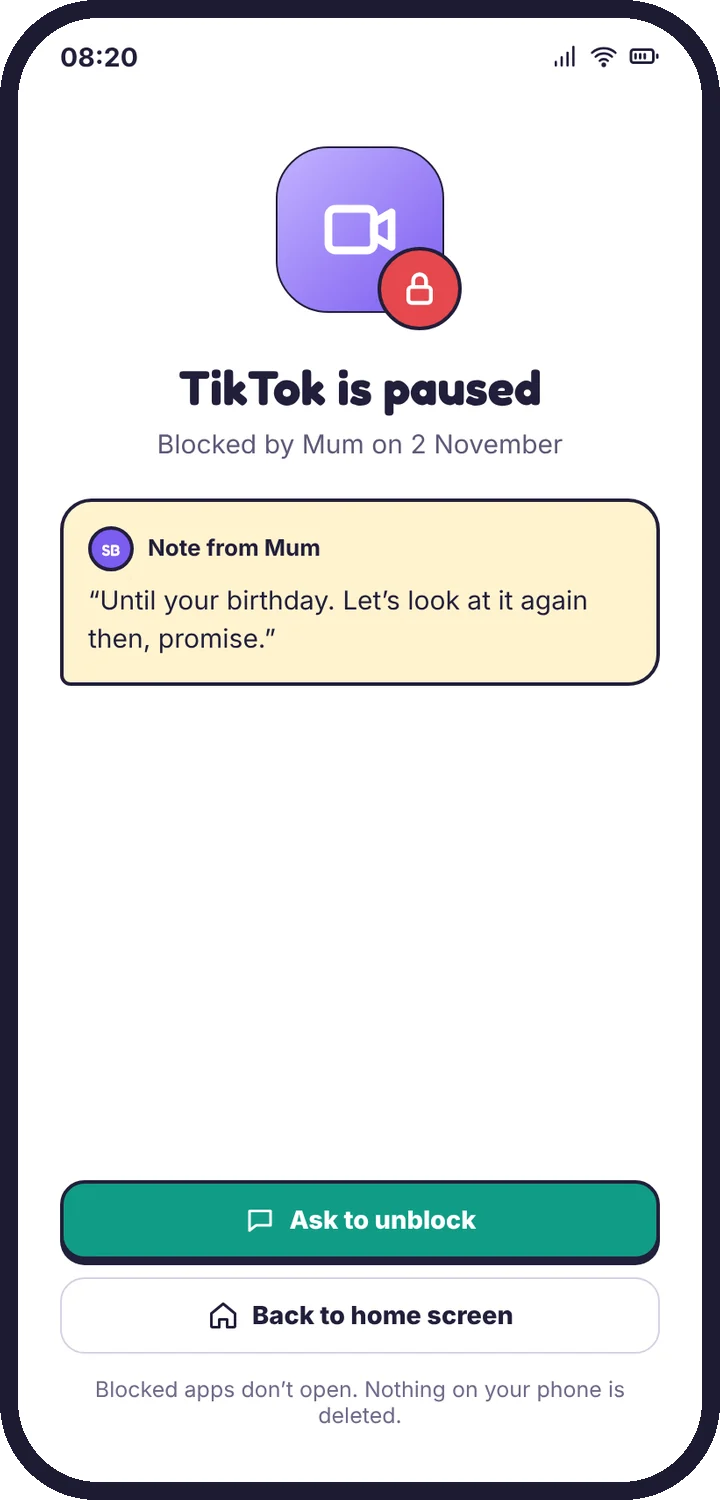
- Blocked: won’t open at all. Your child sees a plain message, not a crash.
Category limits
In Screen time → Category limits you can set one limit for a whole kind of app, such as 45 minutes of games. It covers every game, including ones installed later.

Add a reason
When you block or limit an app, add a short note: “Until your birthday” or “Weekends only for now”. Your child sees it next to the app, and it tends to land much better than a block with no reason.
What TheTruthSpy can see in an app
Only how long it was open. TheTruthSpy doesn’t see what happens inside apps.
If limits aren’t sticking, see App limits or blocks aren’t working.
Approve new apps before they open
Turn on approvals
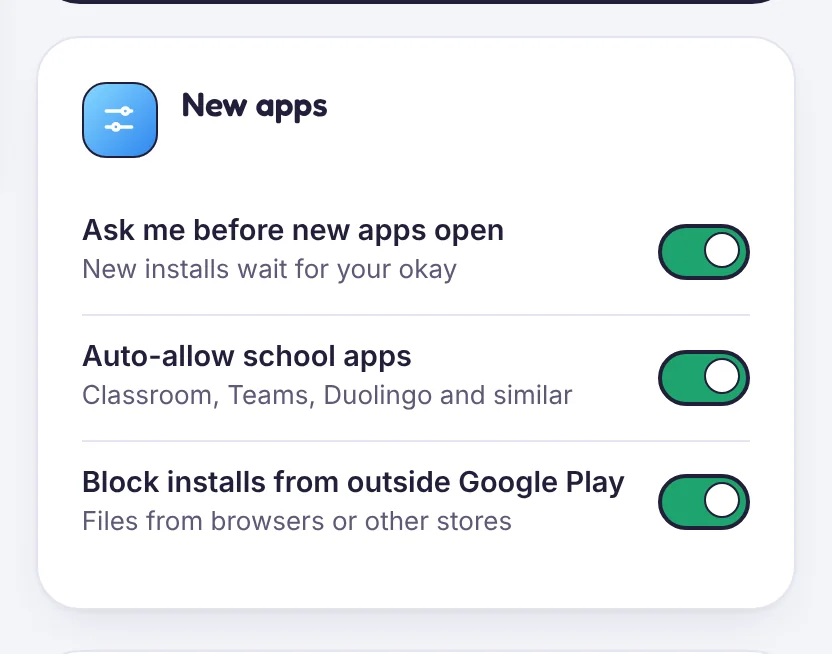
In Apps → New apps, switch on Ask me before new apps open. From then on, a newly installed app stays closed and you get a request.
Answer a request
The request shows the app, its category and age rating, and any notes worth knowing (for example, “chat with strangers is on by default”). Choose:
- Allow
- Allow with a daily limit
- Block
Your child sees your answer straight away.
Useful settings
- Auto-allow school apps: Google Classroom, Teams, Duolingo and similar open without waiting.
- Block installs from outside Google Play: stops apps installed from browser downloads or other stores, a common way around limits.
Apps installed from outside Google Play are listed separately so you can review them.
Tell us which step you reached and what you see on screen. Screenshots help.