How to Test That Your Backup Works

Most people switch on their phone’s backup once, see a reassuring tick, and never think about it again. The first time they check whether it actually works is the day the phone is lost, broken or replaced. That is the worst moment to discover the last backup was eight months ago, or that the photos were never in it.
Checking takes a few minutes and no technical knowledge, on an iPhone or an Android phone. One of the checks needs a computer; the rest happen on the phone itself.
You will learn how to find the date of your last successful backup, what phone backups include and quietly leave out, how to spot-check a backup from a web browser, and how to build a simple routine so you never have to wonder.
The short version
- Check the date of your last successful backup now. If it is more than a few days old, find out why.
- Phone backups do not cover everything: WhatsApp chats, some authenticator apps and downloaded films or music need their own arrangements.
- Photos are usually protected by photo sync (iCloud Photos or Google Photos), not by the main device backup, so check that setting separately.
- A five-minute spot-check from a computer proves your photos and contacts are really in the cloud.
- Keep a second copy of irreplaceable photos somewhere else, and repeat the checks every three months.
Why a backup can quietly stop working
Backups rarely fail loudly. More often they stop in the background and nobody notices. The common reasons are:
- Storage is full. Apple gives 5 GB of free iCloud storage and Google gives 15 GB shared across Gmail, Drive and Photos. Once that fills up, new backups stop.
- The conditions are never met. Automatic backups run when the phone is locked or idle, charging and on Wi-Fi. Samsung’s help pages, for example, say Google backup runs after about two hours idle and charging on Wi-Fi. If you never charge on Wi-Fi, it may never run.
- It was switched off. A new phone, a reset or a software update can leave backup off without you noticing.
- Old backups expire. Google says that if you do not use a device for 57 days, its backed-up data (apart from photos and videos) is deleted. Apple keeps iCloud backups for 180 days after you turn iCloud Backup off for a device.
Check the date of your last successful backup
iPhone
- Connect to Wi-Fi.
- Open Settings → [your name] → iCloud → iCloud Backup.
- Make sure the backup switch is on. Under Back Up Now, you will see the date and time of the last successful backup.
- If it is not recent, tap Back Up Now and stay on Wi-Fi until it finishes.
Android
- On most Android phones, open Settings → Google → All services, then under Backup and restore tap Backup. Google calls this Google backup or Backup by Google One depending on version.
- On a Samsung Galaxy, you can also reach it through Settings → Accounts and backup → Back up data under Google Drive. Samsung Cloud is a separate backup found under your Samsung account.
- Check that backup is on and look at the status and Backup details, which show what is included and when it last ran. Exact wording varies by phone maker and Android version.
- Tap Back up now if it is out of date.
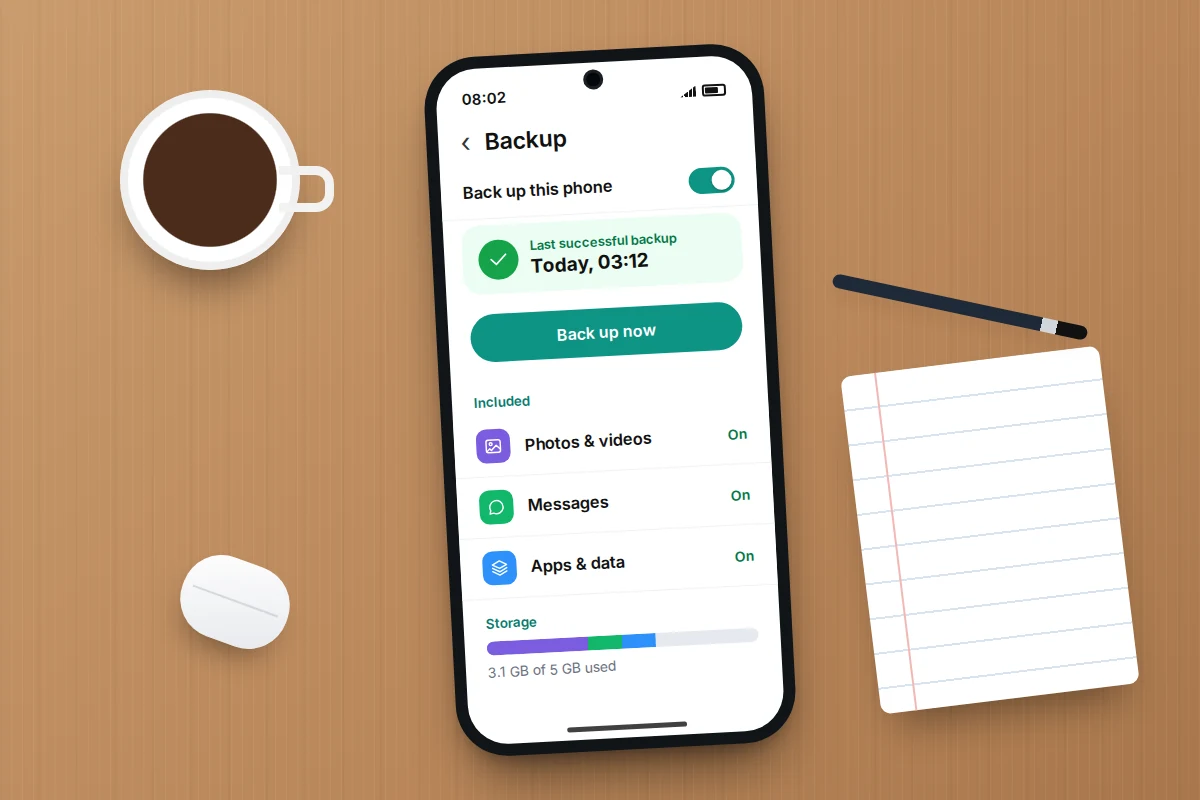
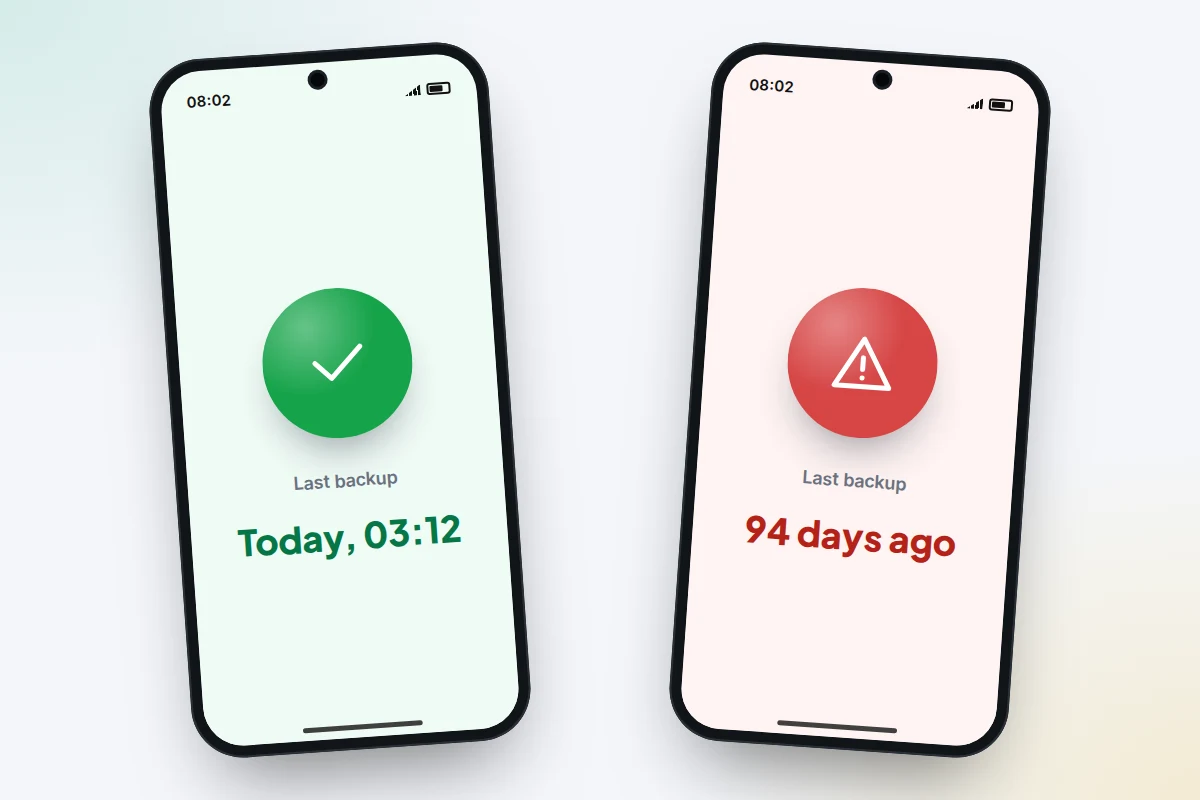
A date from last night means your automatic backups are working. A date from weeks or months ago means something is stopping them, usually storage or the charging and Wi-Fi conditions above.
What your phone backup does and doesn’t include
The phrase “my phone is backed up” hides a lot of detail. Both Apple and Google split your data between the device backup itself and services that sync separately. That is fine, as long as each piece is actually switched on.
| Data | iPhone (iCloud Backup) | Android (Google backup) |
|---|---|---|
| Device settings and app data | Included | Included for most apps |
| Text messages | Included, unless Messages in iCloud is on (then synced separately) | SMS and MMS included; RCS chats in Google Messages are also backed up |
| Contacts and calendars | Synced through iCloud, not in the backup itself | Contacts included; stored in your Google account |
| Photos and videos | Included only if iCloud Photos is off; otherwise synced by iCloud Photos | Handled by Google Photos backup, which has its own switch |
| WhatsApp chats | Separate WhatsApp backup to iCloud | Separate WhatsApp backup to your Google account |
| Authenticator codes | Depends on the app | Depends on the app |
| Downloaded films, music, podcasts | Not kept; download again | Not kept; download again |
| Free storage | 5 GB | 15 GB, shared with Gmail and Drive |
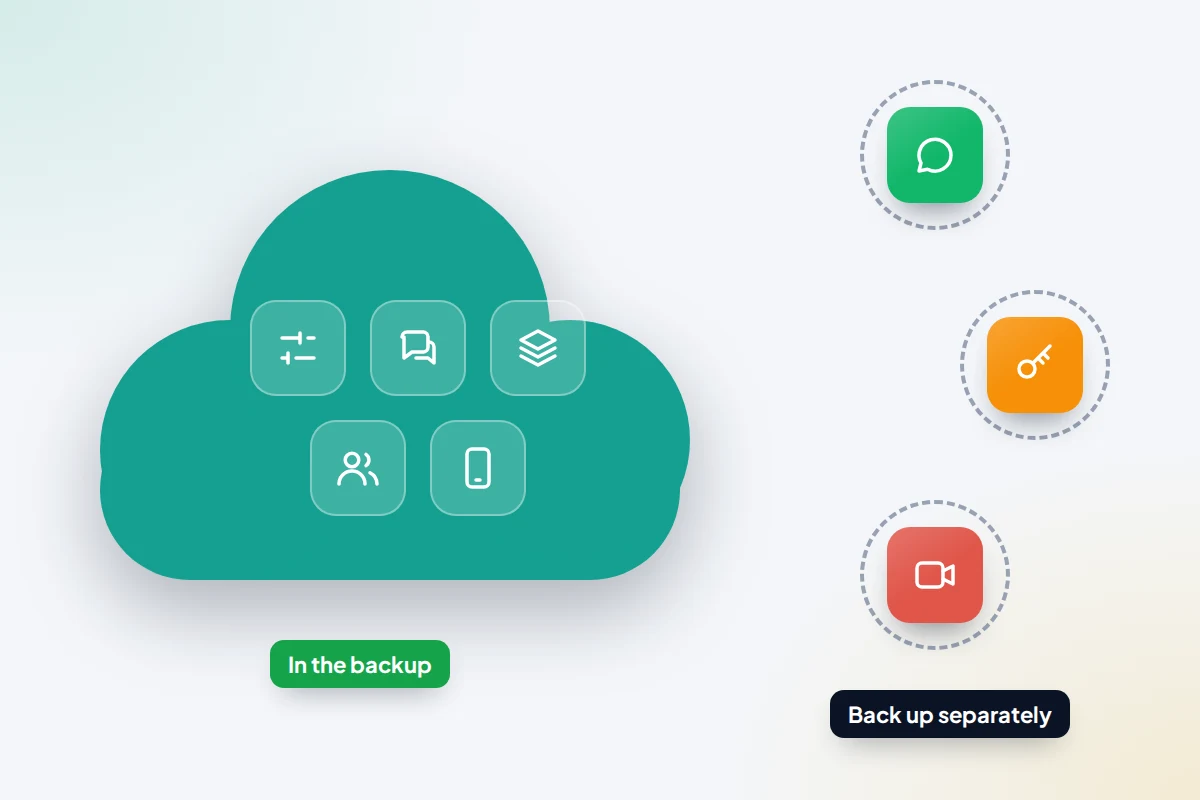
The things that need their own backup
WhatsApp and other messaging apps
WhatsApp keeps its own backup, separate from the phone backup. In WhatsApp, go to Settings → Chats → Chat backup, check the date of the last backup and set a frequency. It saves to iCloud on iPhone and to your Google account on Android, and you can protect it with end-to-end encryption. If you turn that on, store the password or key safely, because without it the backup cannot be restored. Other messaging apps vary; some secure messengers deliberately avoid the phone’s cloud backup, so check each app’s own settings.
Authenticator apps
If you use an app that shows six-digit sign-in codes, find out whether it backs them up. Some keep codes only on the phone, so a lost phone means losing access to those accounts. Google Authenticator can sync codes to your Google account, and several other authenticator apps offer their own backup option. Whichever you use, save the recovery codes each important account gave you when you set up two-step verification, and keep them somewhere safe away from the phone.
Photos
Photos are what most people care about most, and they depend on photo sync settings rather than the main backup. On iPhone, check Settings → [your name] → iCloud → Photos and make sure Sync this iPhone is on. In Google Photos, tap your profile picture, then Photos settings → Backup; the app should say Backup complete when it is up to date.
Downloaded media and local files
Films, music and podcasts downloaded for offline use are not backed up; you simply download them again. Files saved only inside one app, such as voice recordings or documents in a scanning app, may or may not be included, so check any app that holds something you would miss.
The five-minute spot-check from a computer
Seeing your data on another device is the most reassuring test you can do without resetting anything. You need a computer and your account password.
- In a browser, sign in to icloud.com (iPhone) or photos.google.com (Android).
- Open Photos and find a picture you took in the last few days. If it is there, photo sync is working.
- Download that photo to the computer and open it. Try a short video too, to make sure it plays.
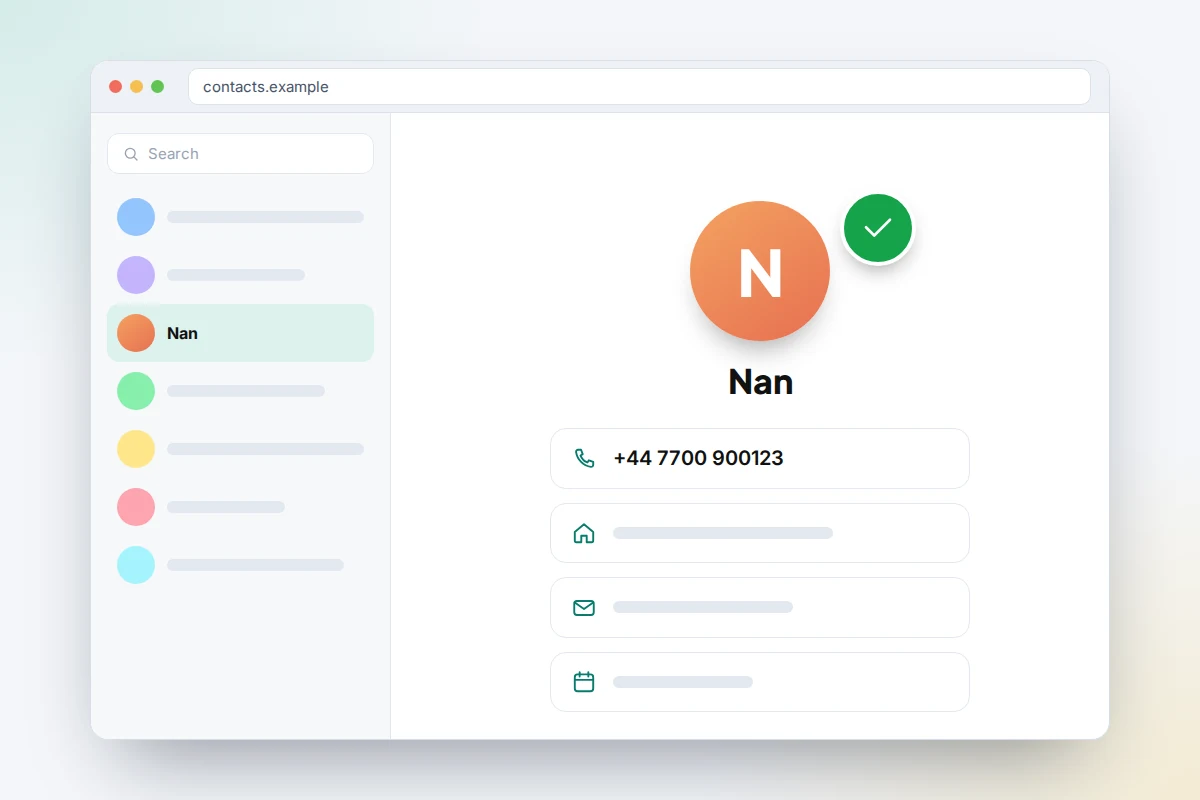
- Go to Contacts, at icloud.com or contacts.google.com. Search for someone you added recently and check their number is complete.
- If you use WhatsApp or an authenticator app, open its settings on the phone and note the last backup date.
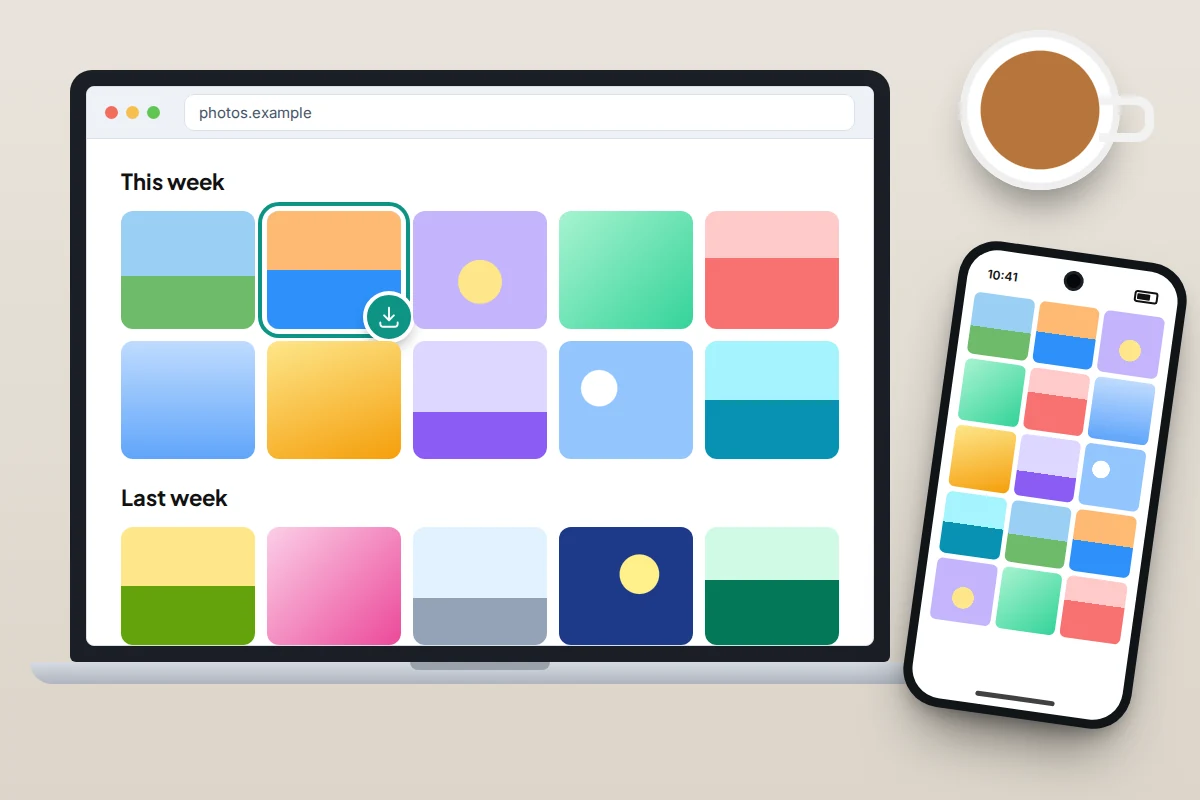
If a recent photo or contact is missing, the problem is usually that sync is turned off, storage is full, or you are signed in to a different account on the phone than on the computer.
A full restore test, for the committed
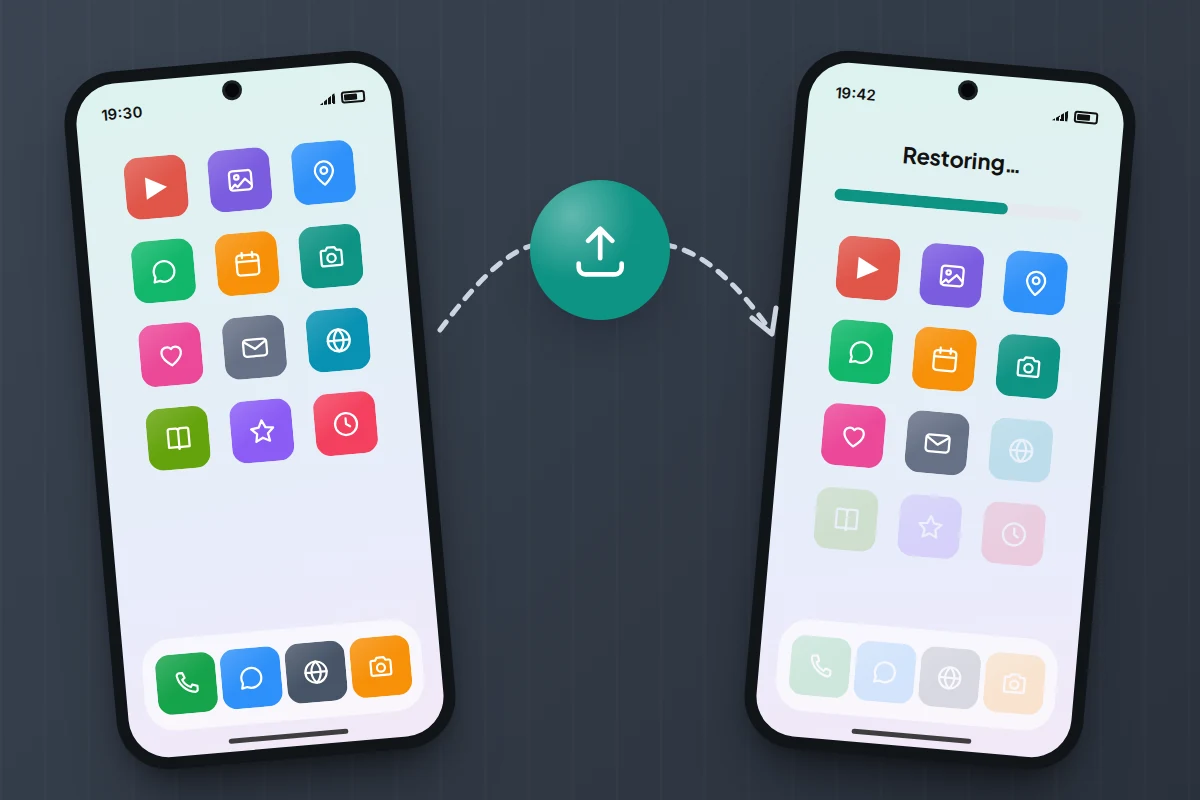
The only complete proof is restoring a backup onto a phone and seeing everything come back. This is worth doing if you have a spare phone, or when you are about to upgrade anyway. Do not erase your only phone just to test a backup.
iPhone
- Take a fresh backup on your main phone with Back Up Now.
- On the spare iPhone, if it has already been set up, erase it with Settings → General → Transfer or Reset iPhone → Erase All Content and Settings.
- During setup, on the Transfer Your Apps & Data screen, choose From iCloud Backup, sign in and pick the latest backup. The spare phone may need a software update first.
Android
- Take a fresh backup with Back up now.
- Reset the spare phone, or start with one that is not yet set up.
- During setup, when offered to copy apps and data, choose to restore from a cloud backup rather than from another phone, sign in to the same Google account and choose the latest backup. Wording varies by phone maker.
Once it finishes, check your messages, contacts, photos, a few important apps and WhatsApp. Then remove your account from the spare phone, or erase it again, so your data is not left on it.
Keep a second copy of irreplaceable photos
A cloud backup protects you from losing the phone. It does not protect you from losing access to the account, deleting photos by mistake and having the deletion sync everywhere, or a service changing its terms. For photos you could never retake, a second copy is worth the small effort.
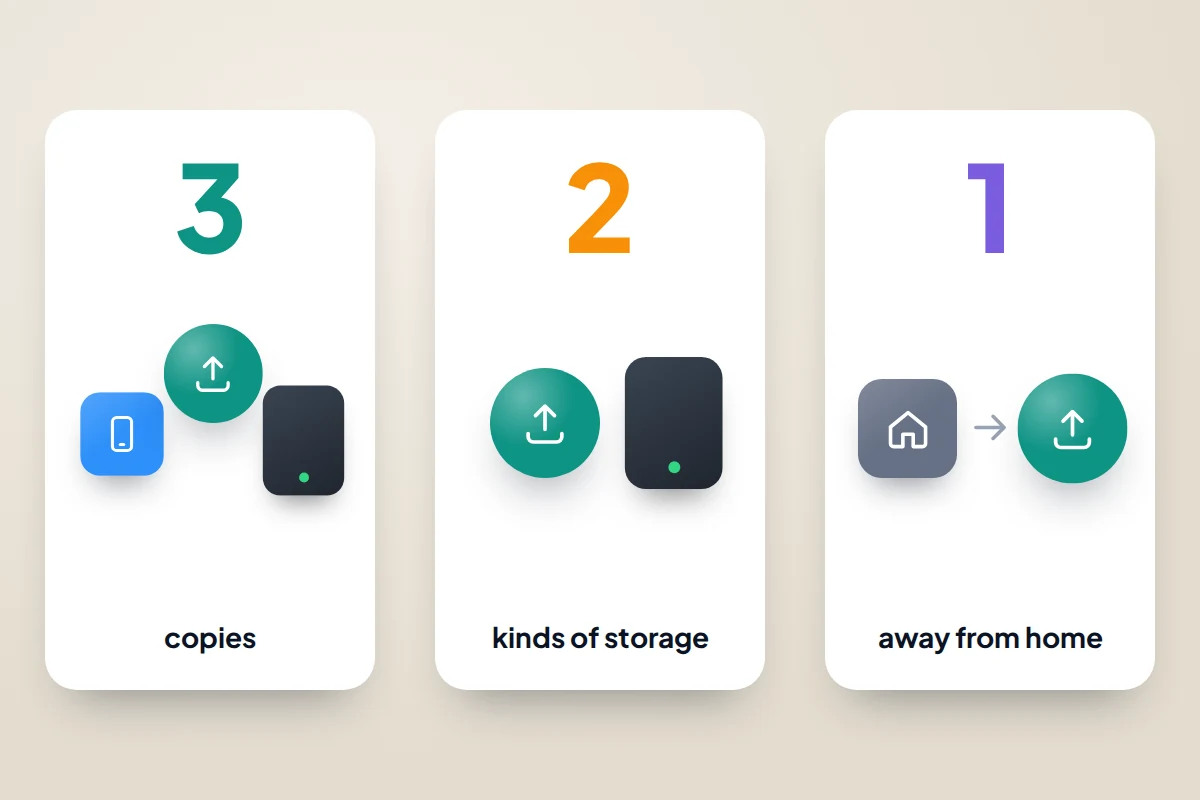
The usual rule of thumb is 3-2-1:
- 3 copies of anything that matters: the original on your phone plus two backups.
- 2 different types of storage, for example a cloud service and an external drive.
- 1 copy away from home, which a cloud service usually covers.
For most households that simply means: photos sync to iCloud or Google Photos, and a few times a year you copy them to an external drive or a computer. The UK’s National Cyber Security Centre suggests keeping irreplaceable things such as family photos both in the cloud and on removable media, and disconnecting the drive when you are not using it.
A quarterly routine and quick test checklist
Checks only help if they happen. Put a reminder in your calendar every three months, perhaps when the clocks change and at the start of each school term, and run through this list. It takes about ten minutes.
| Check | How | It passes if |
|---|---|---|
| Last phone backup | iCloud Backup or Google Backup screen | Date is within the last few days |
| Storage space | iCloud or Google account storage page | Not full or close to full |
| Photo sync | Open photos in a browser | A photo from this week is there and downloads |
| Contacts | Open contacts in a browser | A recently added contact appears |
| Settings → Chats → Chat backup | Recent date; encryption key or password stored safely | |
| Sign-in codes | Authenticator app settings, recovery codes | Codes back up, or recovery codes are stored safely |
| Second copy of photos | External drive or computer | Updated this quarter |
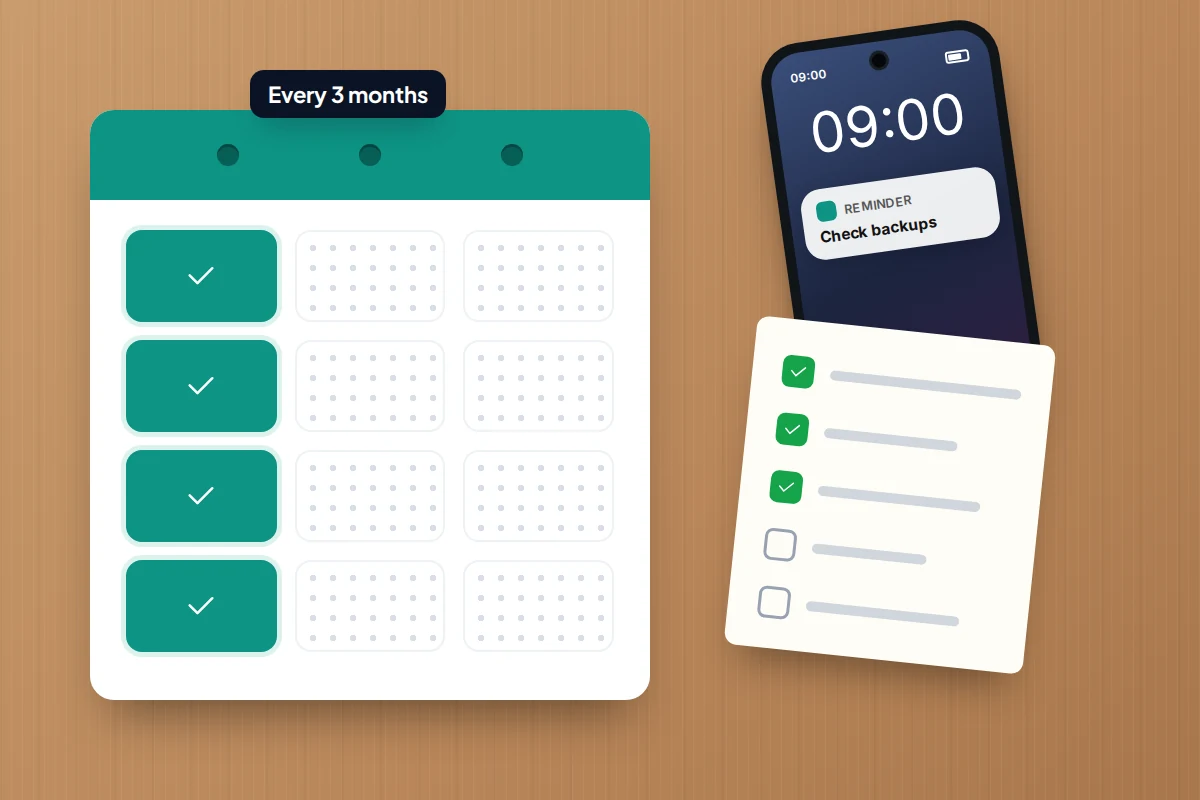
While you are in your account settings, it is also a good moment to make sure you could locate the phone if it goes missing, since a working backup and a way to find the phone solve different problems.
What if your backup isn’t working
- Not enough storage. Delete old device backups you no longer need, clear large files, or buy more space. On Android, WhatsApp backups count towards your Google storage.
- Backup never runs. Leave the phone charging on Wi-Fi overnight and check the next morning. Make sure Low Power Mode or battery saver is not always on.
- Wrong account. Check that the phone, WhatsApp and the browser are all signed in to the same Apple or Google account.
- Stuck or failing backups. Restart the phone, install system updates and try Back Up Now again. If it still fails, contact Apple or your phone maker’s support.
Frequently asked questions
How often does my phone back up on its own?
Automatic backups run when the phone is locked or idle, charging and connected to Wi-Fi, which for most people means overnight. If your phone rarely meets all three conditions, it may go days or weeks without a backup.
Do I need to pay for more storage?
Not always. Many people fit within the free allowance once photos are counted separately. If you use iCloud Photos or Google Photos, photos usually use most of the space, and a modest paid plan is often needed.
Is a backup the same as syncing?
No. Syncing keeps the same data on your phone and in the cloud, so deleting something on one deletes it everywhere. A backup is a snapshot you can go back to. Having both, plus a separate copy of photos, gives the best protection.
Can I restore just one thing from a phone backup?
Not from the full device backup; it restores as a whole during setup. Synced items such as photos and contacts can be viewed and downloaded individually in a browser, which is why the spot-check above is so useful.
What happens to my backup when I get a new phone?
You restore it during setup. After that, check the new phone’s backup settings are on, because the old phone’s backup will eventually expire once it is no longer used.
Sources and further reading
- Apple Support: How to back up your iPhone with iCloud
- Apple Support: What does iCloud back up?
- Apple Support: Restore your iPhone from a backup
- Android Help: Back up or restore data on your Android device
- Google One Help: Back up your Android device
- Google Photos Help: Back up photos and videos
- WhatsApp Help Centre: How to back up your chat history
- National Cyber Security Centre: Always back up your most important data
Using a monitoring app for this? TheTruthSpy is a free parental control app for Android that stays visible on the child's phone. If it fits your family, see what the app does.
Related guides
Why Is My Phone Battery Draining So Fast?
Find out why your phone battery drains fast: read the battery usage screen on Android or iPhone, fix the usual…
Recording Phone Calls on Android: Built-In Options and the Law
How to record a phone call on Android with the Google Phone app or Samsung's built-in recorder, why the option…
Searching Old Texts: Finding Any Message in Your SMS History
How to search your text message history in Google Messages, Samsung Messages and iPhone Messages: search filters, searching inside one…
Free parental control app for Android
GPS tracking, screen time limits, web filtering, SMS and call monitoring — visible on your child's phone. Pair a phone in about ten minutes.
Android · Free to set up · Visible on your child's phone