The map isn’t updating
Fix a stale location: check Device health, the location permission, battery settings, and whether the phone is online.
If the map shows an old time, work through these checks in order. Most cases are solved by the first two.

1. Open Device health
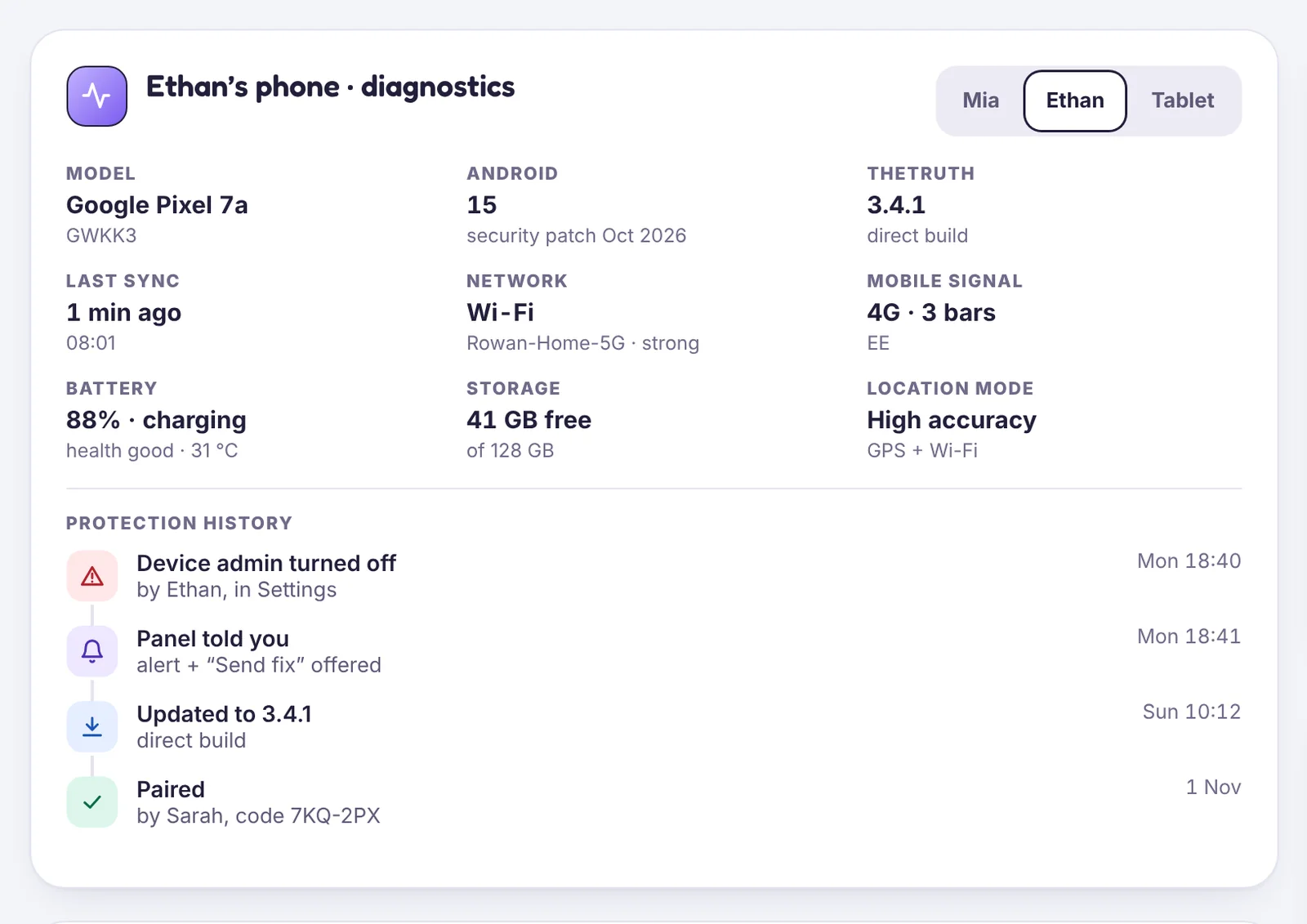
In the panel, open Device health and look at your child’s phone card:
- Last seen shows when the phone last reported. A few minutes is normal outside a Live Trace.
- Any amber or red permission is the likely cause. Tap Send fix to phone.
2. Check location is “Allow all the time”
On the phone: Settings → Apps → TheTruthSpy → Permissions → Location. If it says Allow only while using the app, the map stops when the app is closed. Choose Allow all the time. Also check Use precise location is on.
3. Check battery settings
Set Settings → Apps → TheTruthSpy → Battery to Unrestricted. Some phone makers have extra battery savers; see The phone stops reporting overnight.
4. Is the phone online and is location on?
Location needs the phone’s location switch on (pull down the quick settings) and some connection, Wi-Fi or mobile data, to send updates. In airplane mode or with no signal, points are saved and sent when it reconnects.
5. Ask for a fresh location
Use Locate now from the remote controls. If the phone is online, a new point arrives within about a minute.
Updates are less frequent when the phone is still, to save battery. During a Live Trace they come every couple of seconds.
Tell us which step you reached and what you see on screen. Screenshots help.