Chores and earned screen time
Set chores worth extra minutes, approve them with a tap, and the minutes land on top of the day’s budget.
Chores turn “no, you can’t have more time” into “yes, once your room is done”.
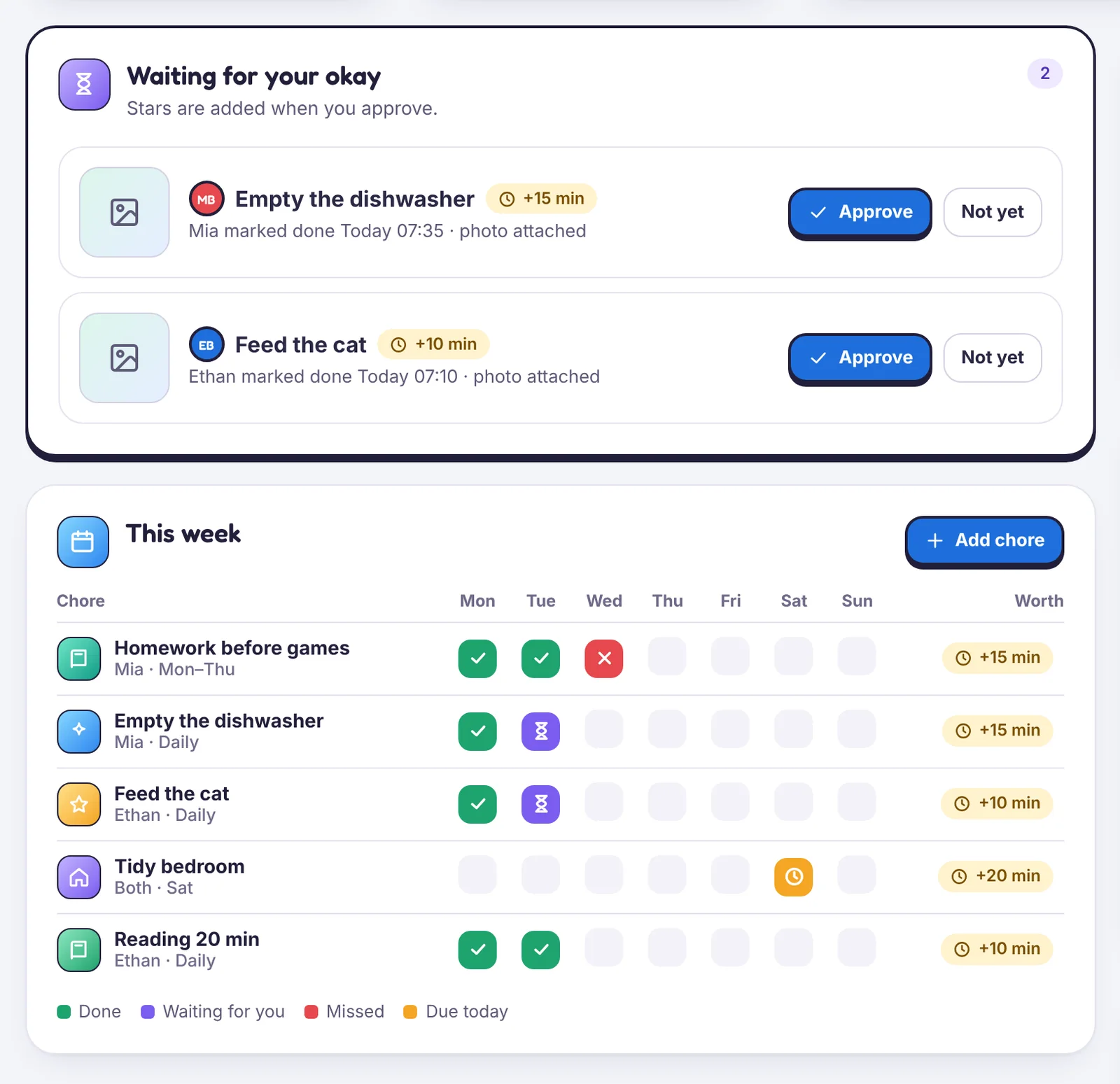
Create a chore
- Open Chores & rewards → Add chore.
- Name it, pick who it is for and how often it repeats.
- Set how many minutes it is worth, for example 15 minutes for emptying the dishwasher.
- Choose whether it needs your okay, and whether a photo is asked for.
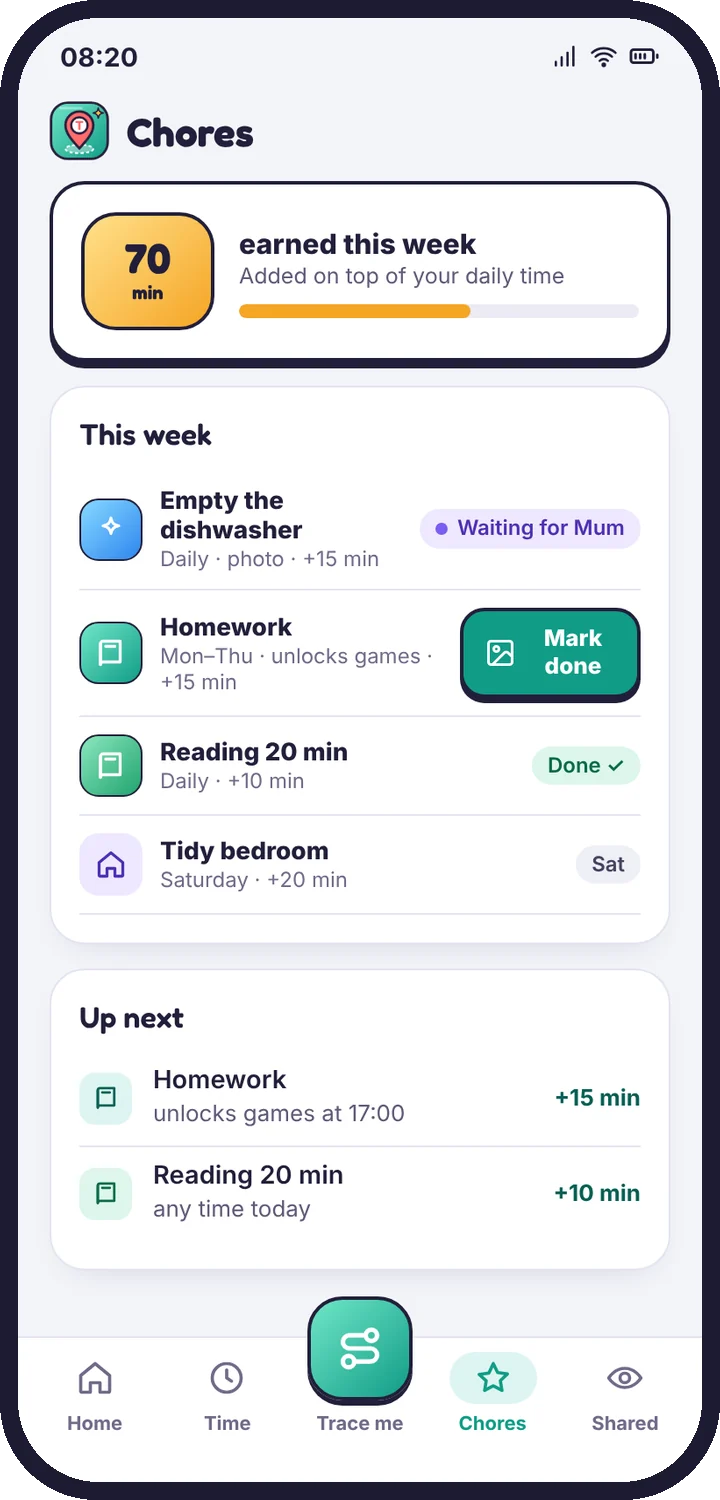
Approve
When your child marks a chore done, it waits for you with the photo attached, in Requests in the parent app and under Needs you in the panel. Tap Approve and the minutes are added straight away, or Not yet with a note. Low-stakes chores can be set to add their minutes automatically.
How earned minutes work
- They stack on top of the day’s budget rather than replacing it.
- They are used the same day and don’t roll over.
- Skipping a chore never takes time away.
- Your child sees each chore, what it is worth and what they have earned this week on their Chores screen.
Unlock apps with homework
Link the Homework first schedule to a homework chore. Games and video open as soon as you approve it.
Still stuck?
Contact support
Tell us which step you reached and what you see on screen. Screenshots help.