Allow or block a site, and lock Safe Search on
Add sites to your always-allow or always-block lists, and answer a request to open a blocked page.
Always allow
Add school and homework sites to Always allow so they open whatever the level. Example: the school’s website or a coding course.
Always block
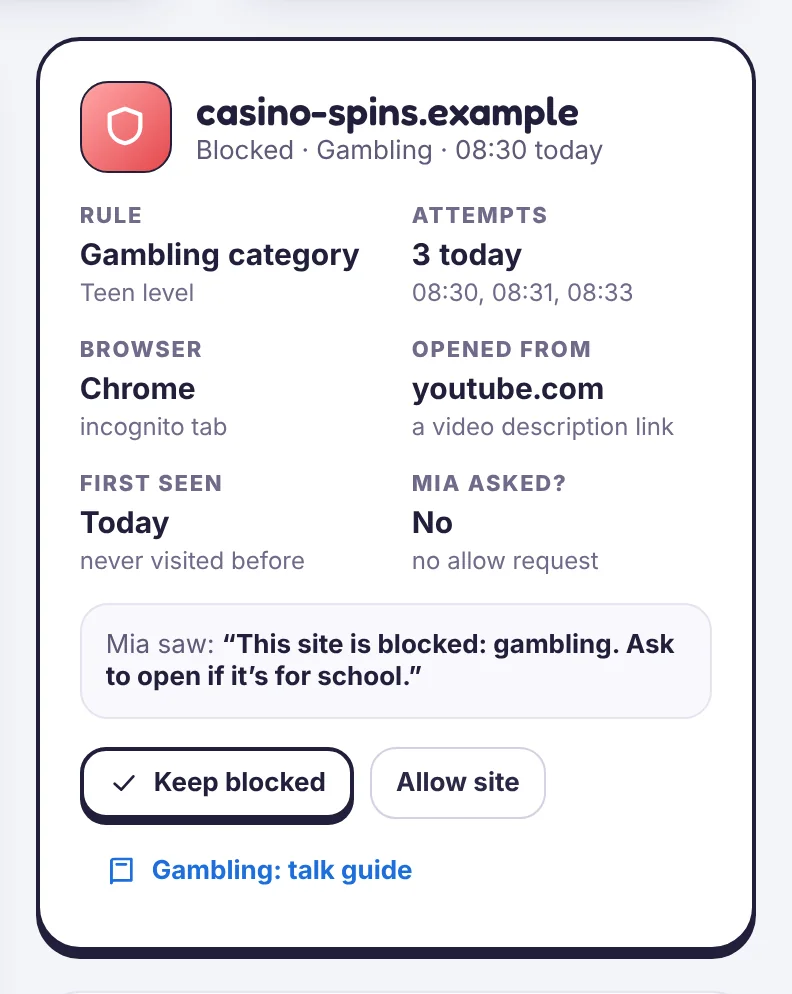
Add any site to Always block to close it even if its category is allowed.
Requests from your child
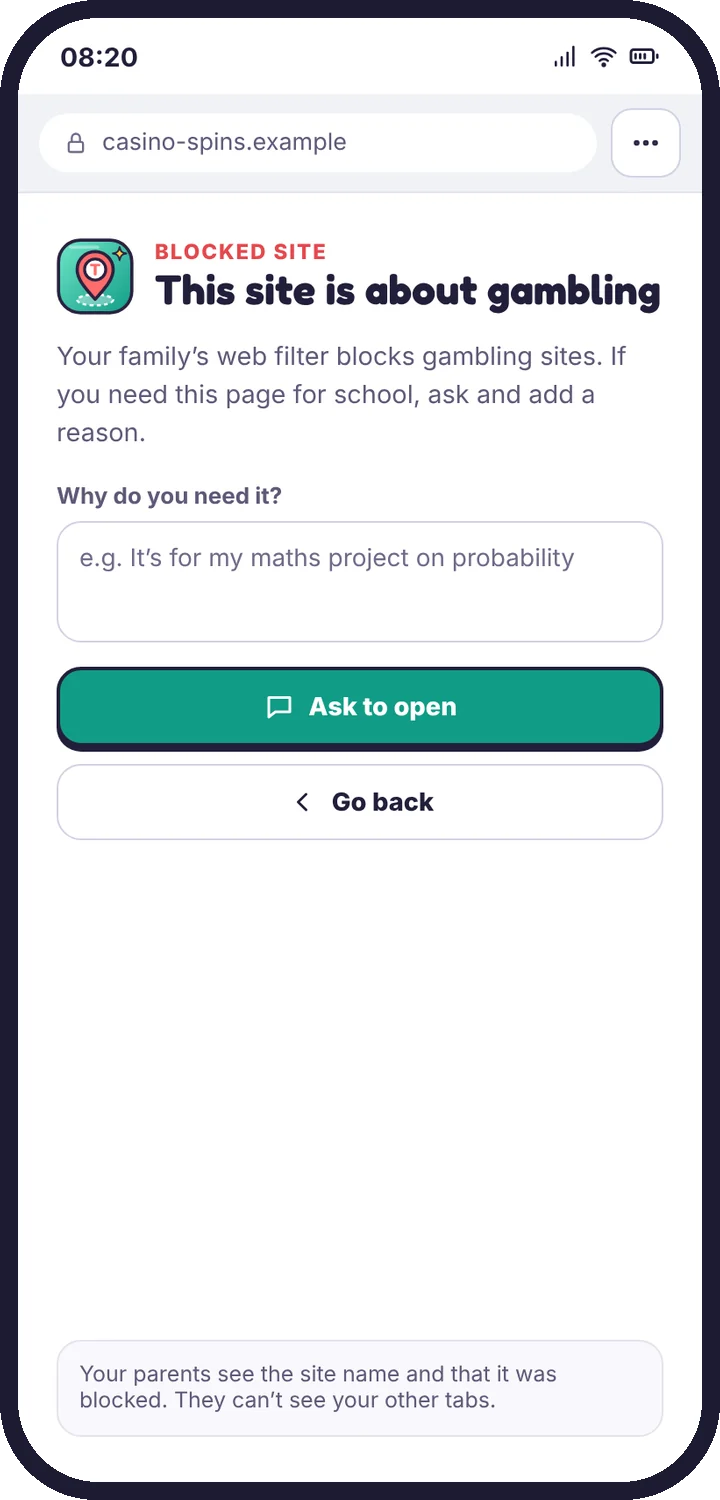
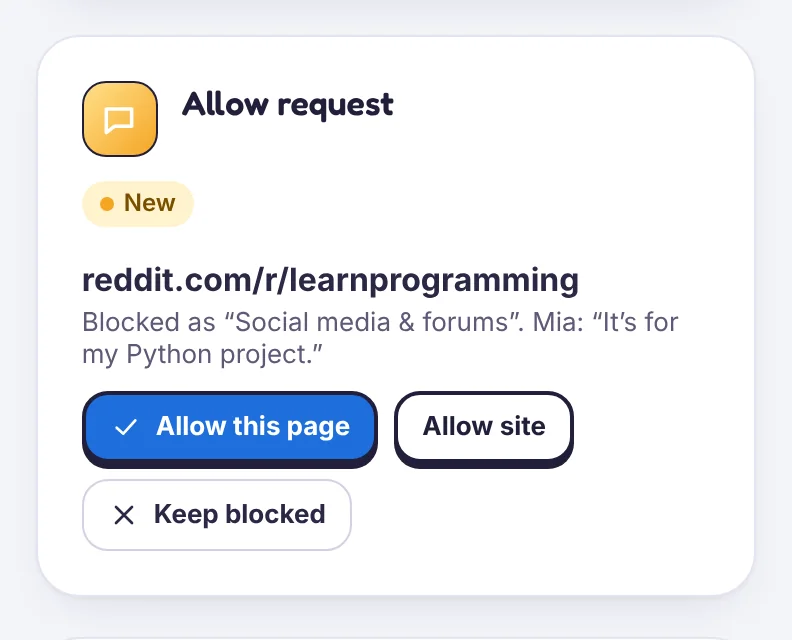
When a page is blocked, your child can tap Ask to open and add a reason. You can:
- Allow this page only
- Allow the whole site
- Keep it blocked
They see your answer straight away. Approved pages are added to your lists, where you can remove them later.
Safe Search and YouTube Restricted Mode
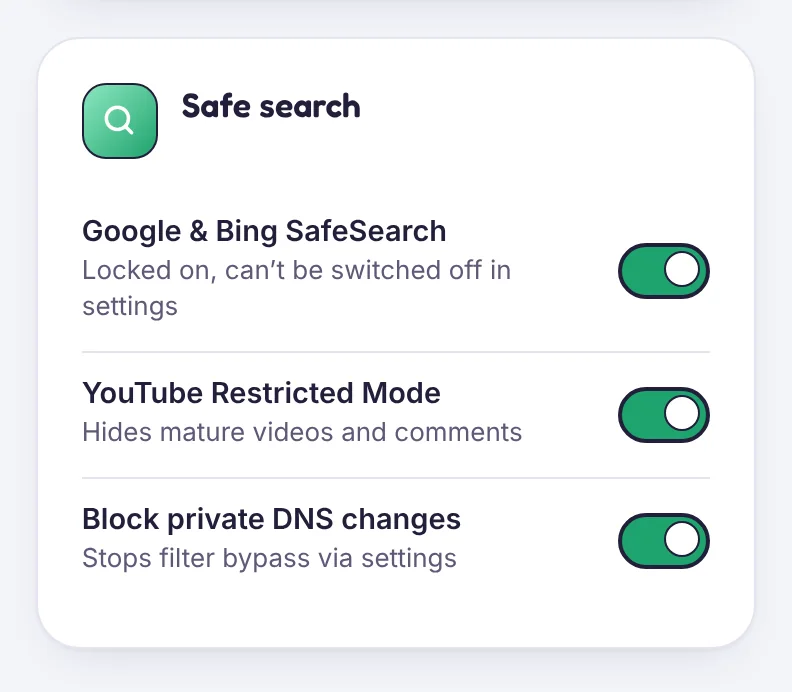
With the web filter on, TheTruthSpy can lock search engines into their safest setting.
- Google and Bing SafeSearch: locked on. Switching it off in the search settings has no effect.
- YouTube Restricted Mode: hides videos marked as mature and turns off comments, in the YouTube app and on youtube.com.
- Block private DNS changes: stops a common trick for getting around filters through Android settings.
Limits worth knowing
No filter is perfect. Restricted Mode relies on YouTube’s own labels, and some unsuitable videos aren’t labelled. For younger children, the YouTube Kids app is a better fit.
Tell us which step you reached and what you see on screen. Screenshots help.