Location Sharing on Android: Google Maps, Find Hub and Family Link
 By TheTruthSpy Editor · Founder and editorPublished September 18, 2026Updated September 21, 20269 min read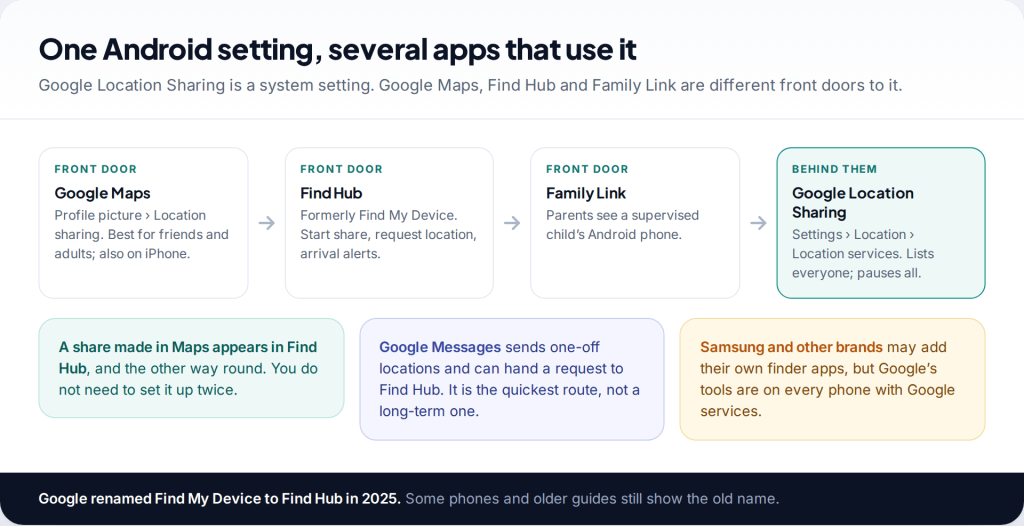
Location sharing on Android is not three separate systems, even though it can look that way. Google Maps, Find Hub and Family Link all sit on one system setting, Google Location Sharing. Share from Maps or Find Hub for friends and adults, use Family Link for a supervised child, and manage or pause everything from Settings › Location › Location services.
How location sharing on Android fits together
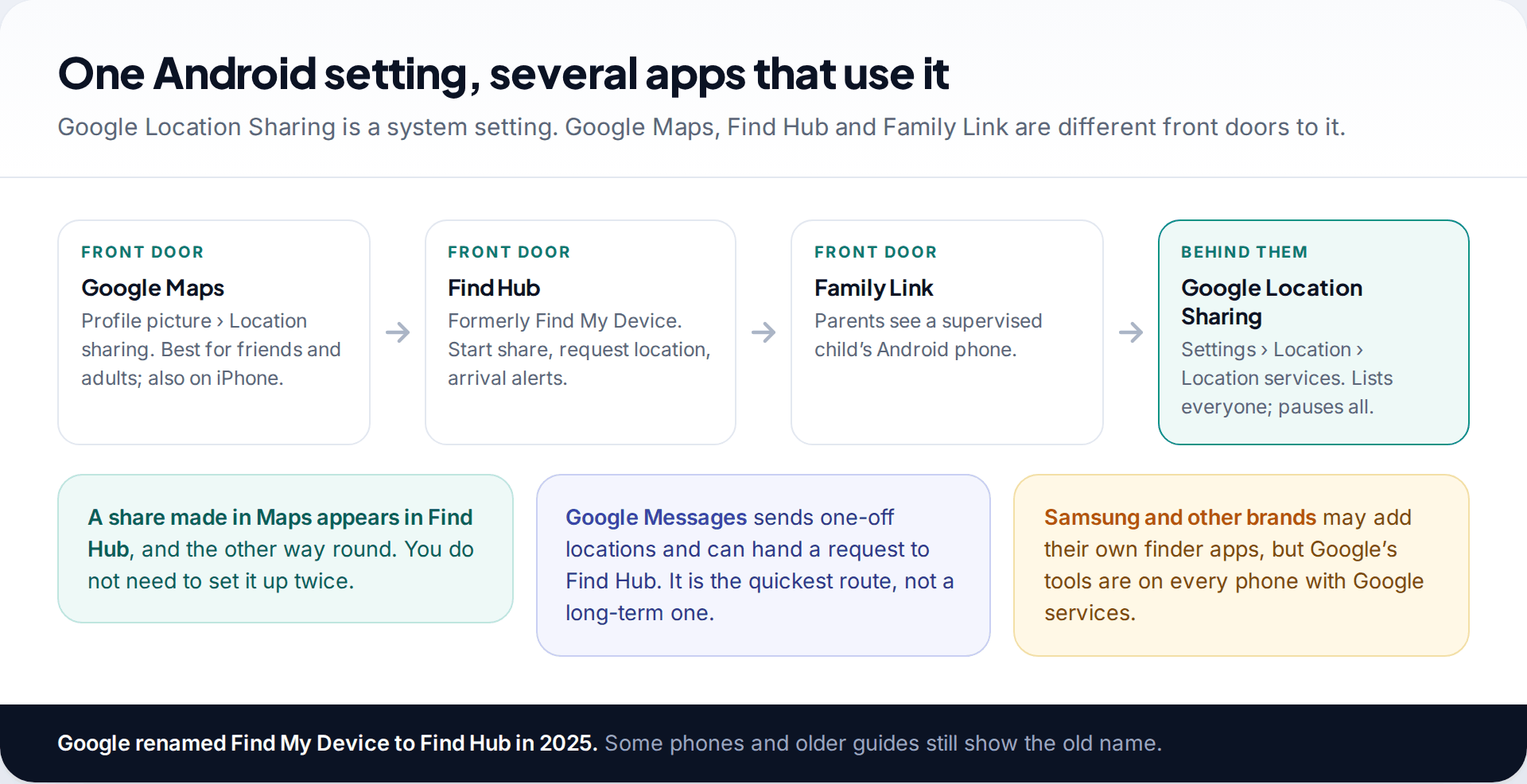
A common assumption is that Android location sharing depends on which app you open. It doesn’t. Google’s help describes Google Location Sharing as a device setting that shares your real-time location through Google apps such as Maps and Find Hub. Start a share in one and it appears in the other. Family Link uses the same foundations for parents of supervised children.
Which app you use is mostly a matter of habit. Google Maps is the natural choice for friends, partners and anyone on an iPhone, because Maps runs on both platforms. Find Hub, which Google renamed from Find My Device in 2025, puts people and devices in one place and adds a request option. Family Link is for parents. Google Messages covers quick one-off locations.
Before you start: permissions and settings
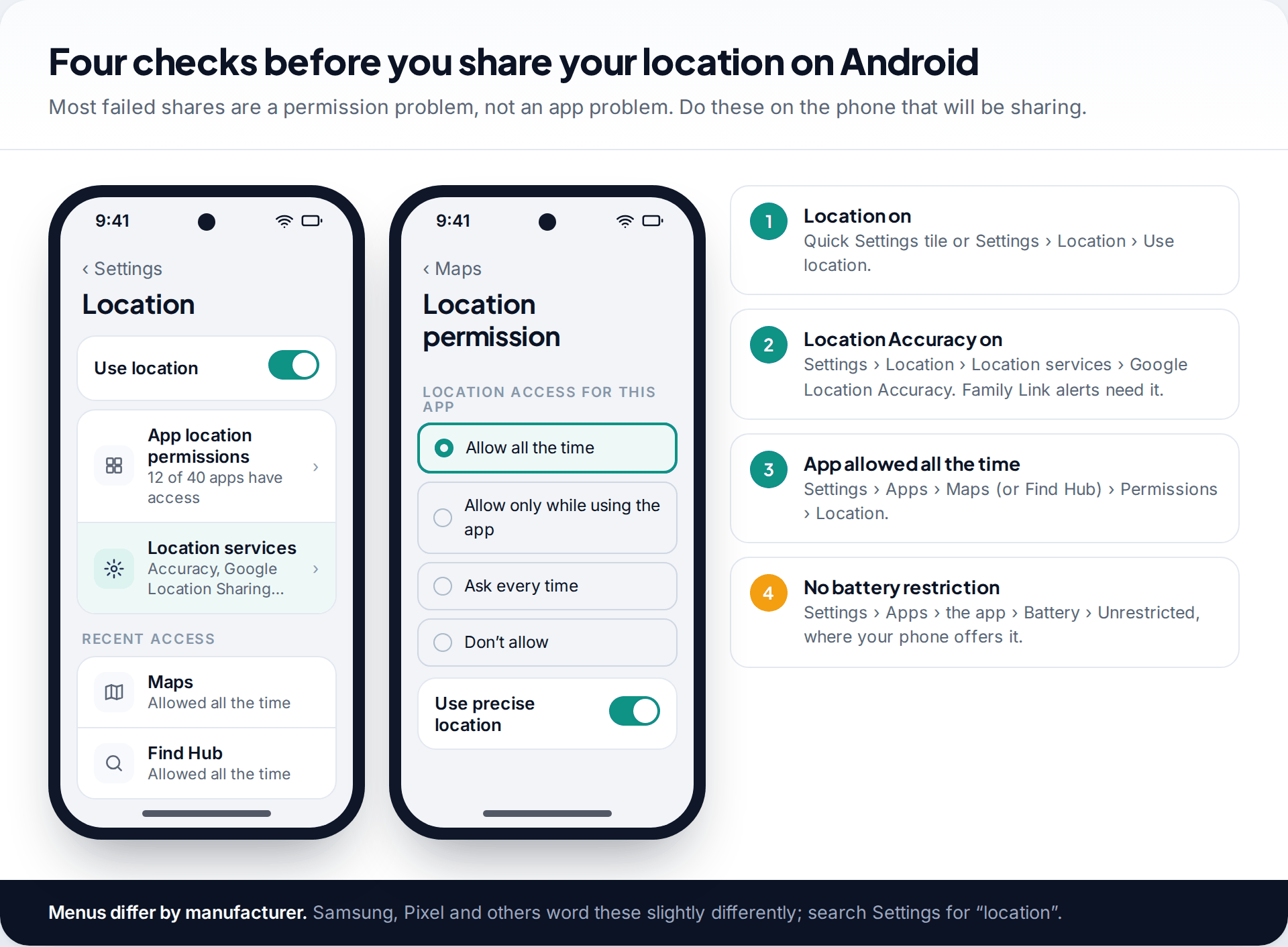
Four settings decide whether a share works reliably. Check them on the phone that will be sharing, not the one viewing:
- Location is on. Settings › Location › Use location, or the Location tile in Quick Settings.
- Google Location Accuracy is on. It uses Wi-Fi and mobile networks alongside GPS. Family Link switches off location alerts without it.
- The app is allowed location all the time. In the app’s permissions, choose Allow all the time and keep Use precise location on. “Only while using the app” stops updates when the app is closed.
- Battery optimisation isn’t restricting it. Many phones put background apps to sleep. Set Maps or Find Hub to unrestricted where your phone offers the option.
Android manufacturers word these menus differently, so if a label doesn’t match, search the Settings app for “location” or “battery”.
Sharing from Google Maps
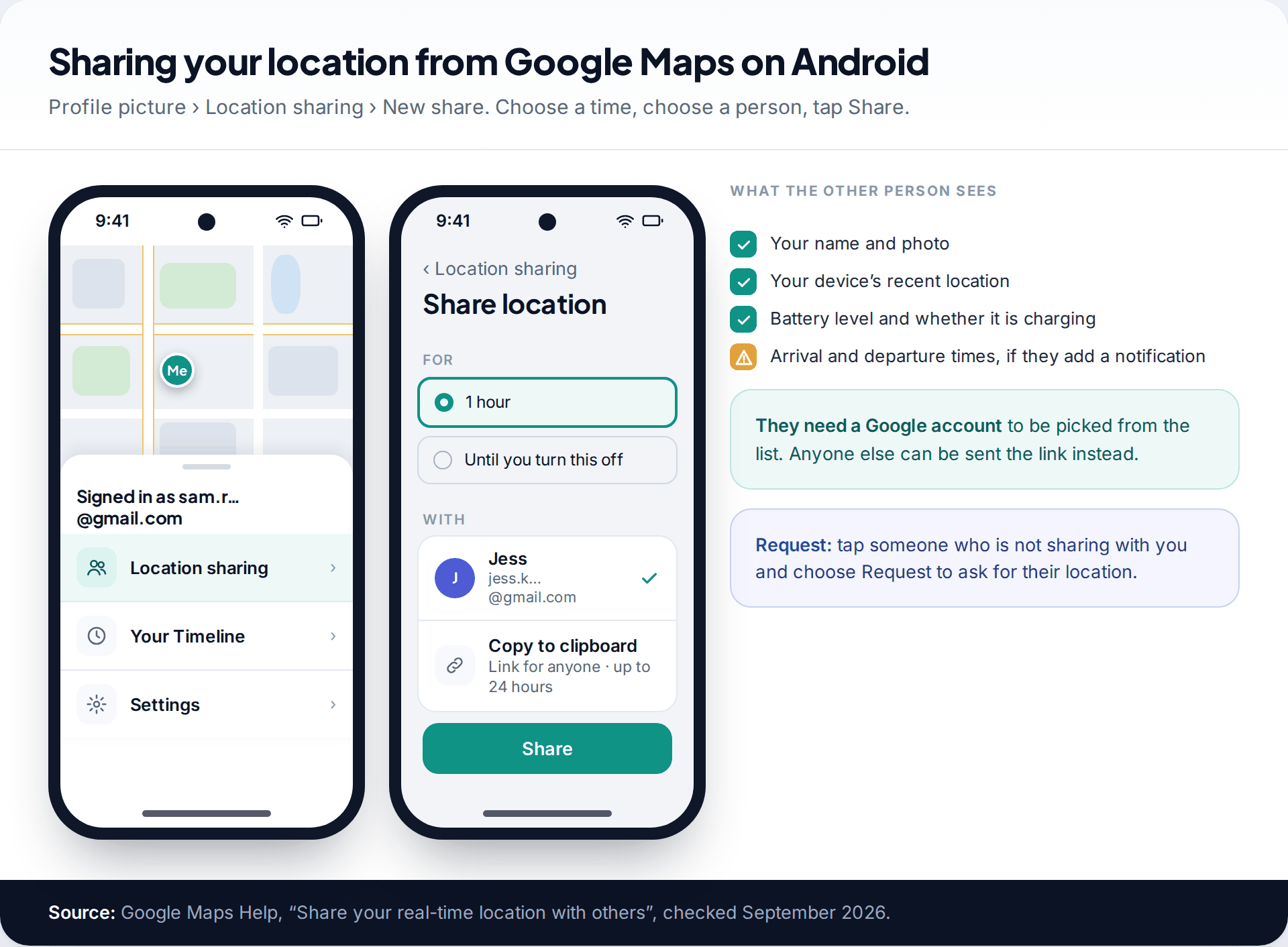
- Open Google Maps and tap your profile picture.
- Tap Location sharing, then New share.
- Choose how long: a set time, or Until you turn this off.
- Pick a person. They need a Google account. For anyone else, tap Copy to clipboard and send the link, which works for up to 24 hours.
- Tap Share.
According to Google’s help, people you share with see your name and photo, your device’s recent location, its battery level and whether it is charging. If they add a location-sharing notification, they also get your arrival and departure times for a place. To ask someone for their location instead, tap their name and choose Request. Google notes that sharing may be unavailable for younger users, in some countries and on some work or school accounts.
Sharing and requesting from Find Hub
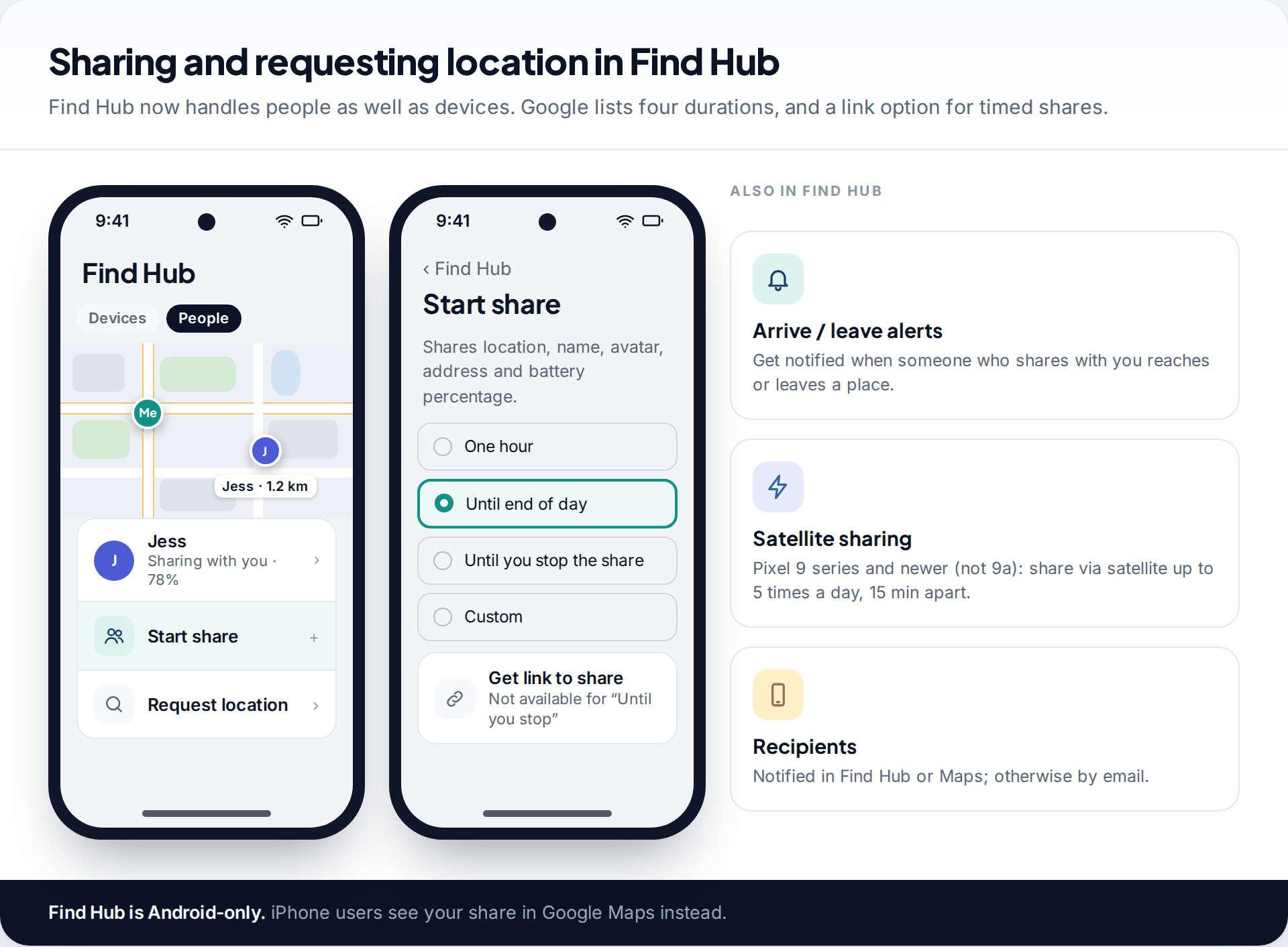
In Find Hub, tap Start share. Google’s help lists what is shared: your location, name, avatar, address and battery percentage. The durations are one hour, until end of day (11:59pm your time), until you stop the share, or a custom length. Pick someone from the suggested list and tap Create share, or tap Get link to share to send it through another app. Links are only available for timed shares, not “until you stop”.
Recipients who have Find Hub or Google Maps installed get a notification. Otherwise they get an email. Once someone shares with you, you can set notifications for when they arrive at or leave a place.
Recent Pixels add something no other option has. Google’s help says the Pixel 9 series and newer (except the 9a) can share location via satellite with people you already share with, up to five times in 24 hours with at least 15 minutes between shares, where the feature and carrier support it. It is meant for places without mobile signal, and needs a clear view of the sky.
Find Hub also finds lost phones, tablets and trackers. Our complete Find Hub walkthrough covers that side.
Sending a one-off location from Google Messages
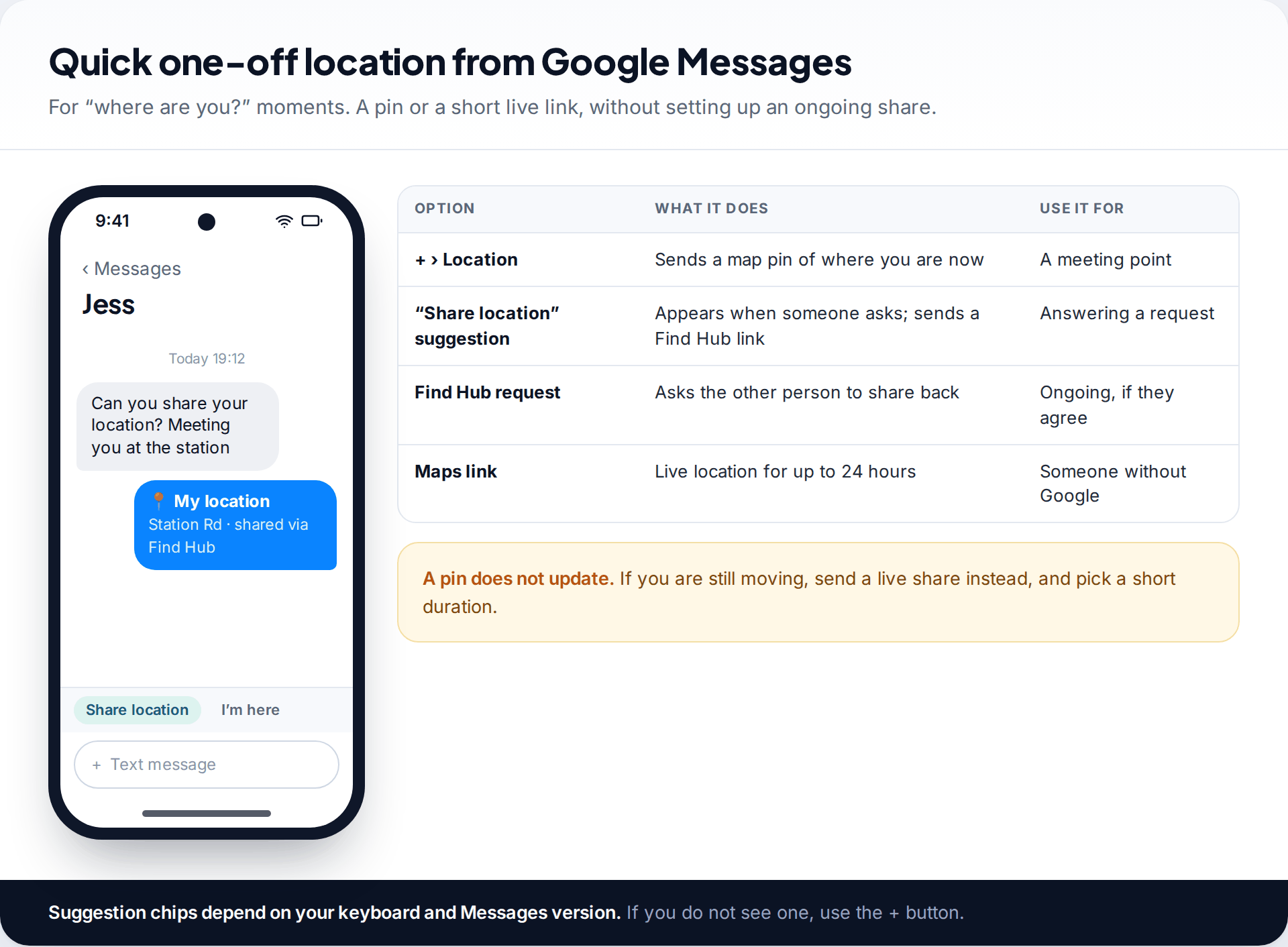
Not every situation needs an ongoing share. In Google Messages, tap the + button next to the text box and choose Location to send a map of where you are now. Android’s own guide also describes a Share Location suggestion that can appear when someone asks for your location, which sends a Find Hub link.
A pin shows a single point and does not update. If you’re walking to meet someone, a one-hour share from Maps or Find Hub is more useful, and it ends by itself.
Family Link: location for a child’s Android phone
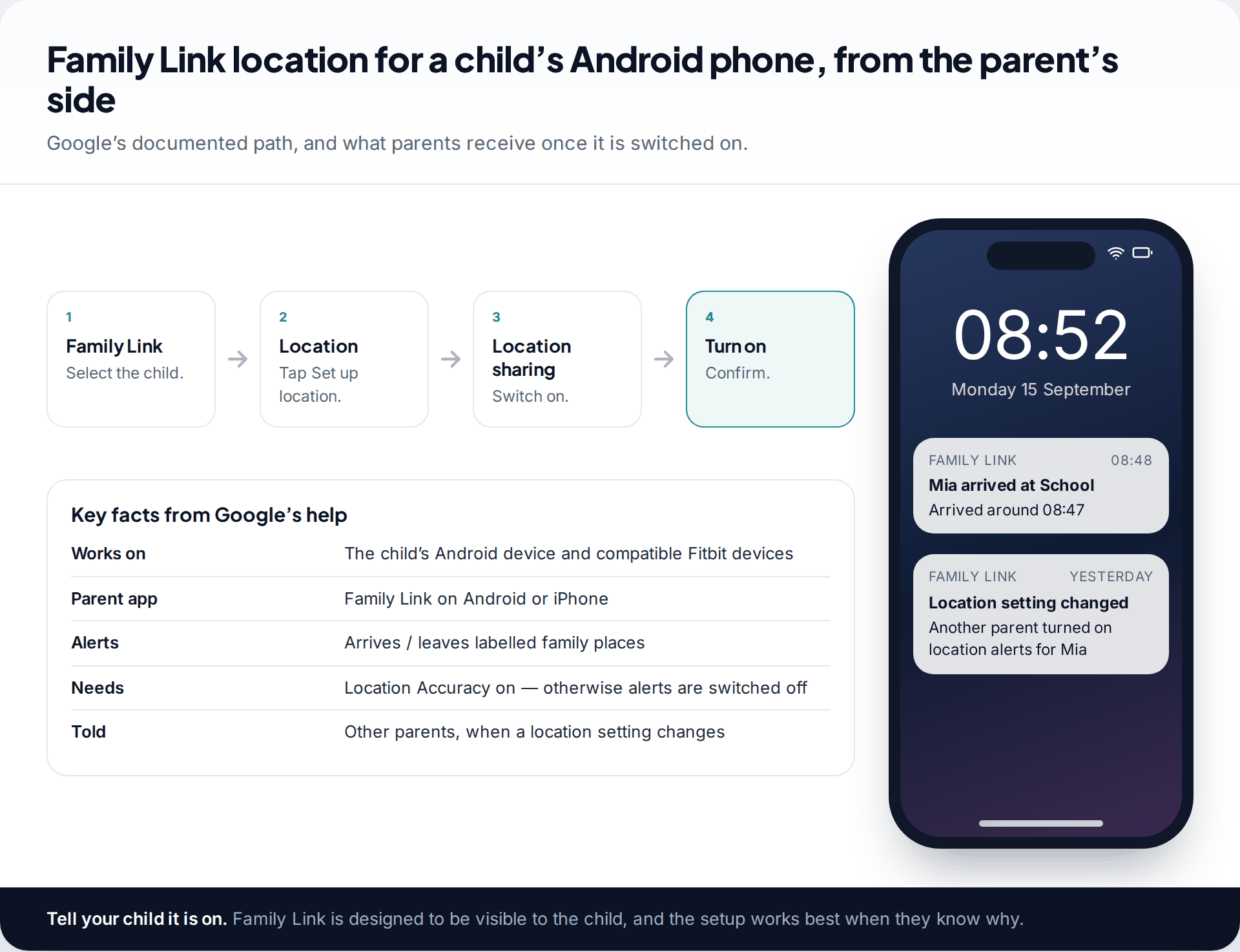
For a child with a supervised Google account, Google’s help gives the path: open Family Link, choose the child, tap Location › Set up location, switch on Location sharing and tap Turn on. The parent app runs on Android and on iPhone. The child’s device must be Android, or a compatible Fitbit device.
Family Link can also alert you when the child arrives at or leaves a labelled family place, such as home or school. Two details from Google’s help matter here. Location alerts stop if Location Accuracy is switched off on the child’s phone. And if two parents manage the account, the other parent gets a notification when one changes a location setting. Setting up a whole household that mixes Android and iPhone takes a bit more planning, which our guide to location sharing for the whole family walks through.
Tell your child it is on. Family Link is built to be visible to the child. Setting it up openly, and explaining why, makes it far more likely they will keep the phone charged and location switched on.
Pausing and stopping location sharing on Android
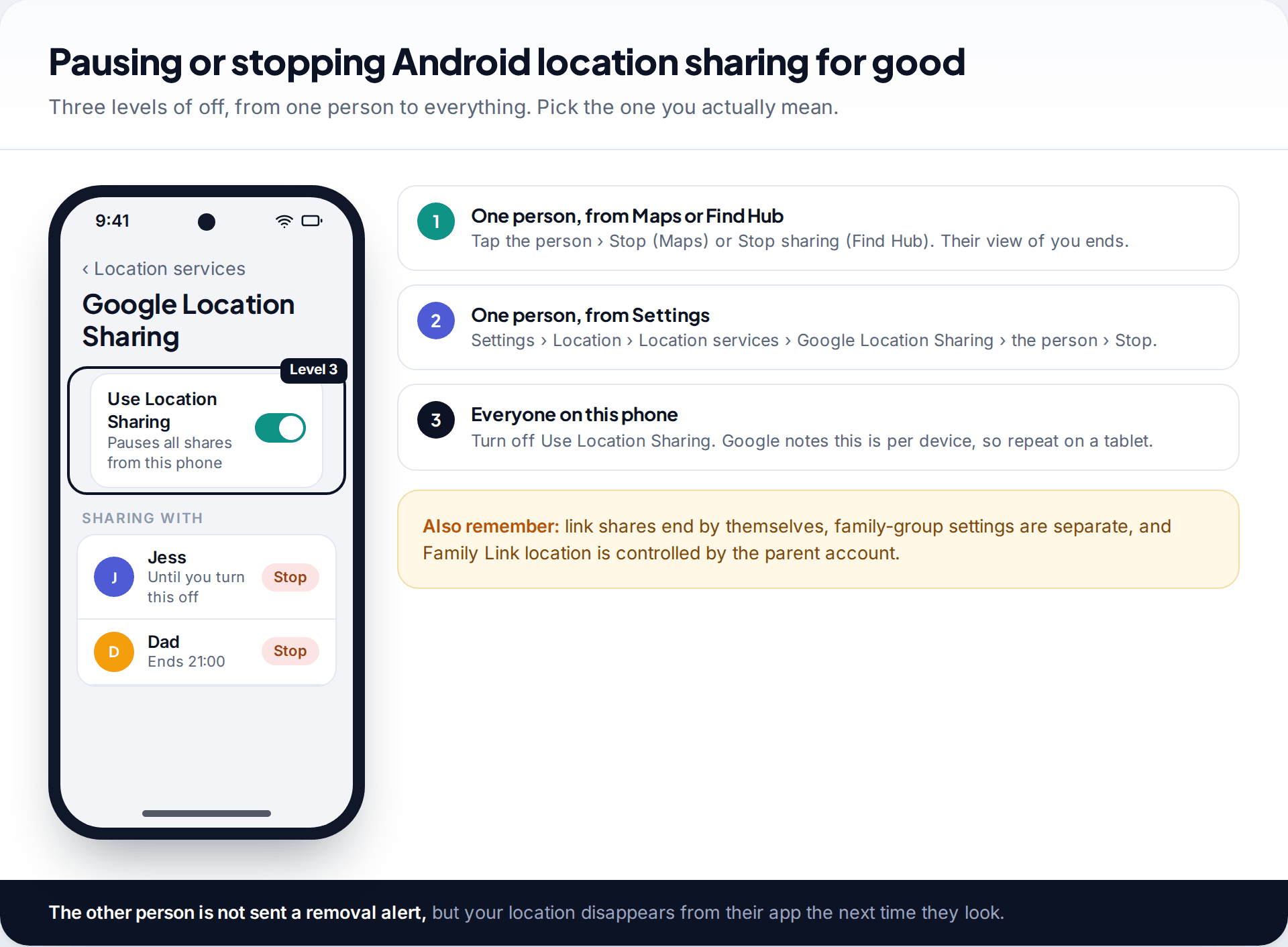
You can end sharing at three levels:
- One person, from the app. In Google Maps, tap the person and choose Stop. In Find Hub, tap the person, choose Stop sharing and confirm.
- One person, from Settings. Settings › Location › Location services › Google Location Sharing lists everyone you share with, with a Stop button next to each.
- Everyone, on this phone. On the same screen, turn off Use Location Sharing. Google notes this setting is per device and per account, so repeat it on any other device signed in with the same account.
The other person isn’t sent a removal alert, but your location will be missing the next time they open the app. Family group settings and Family Link are controlled separately, so check those if you are leaving a family group.
Fixing a location that stops updating
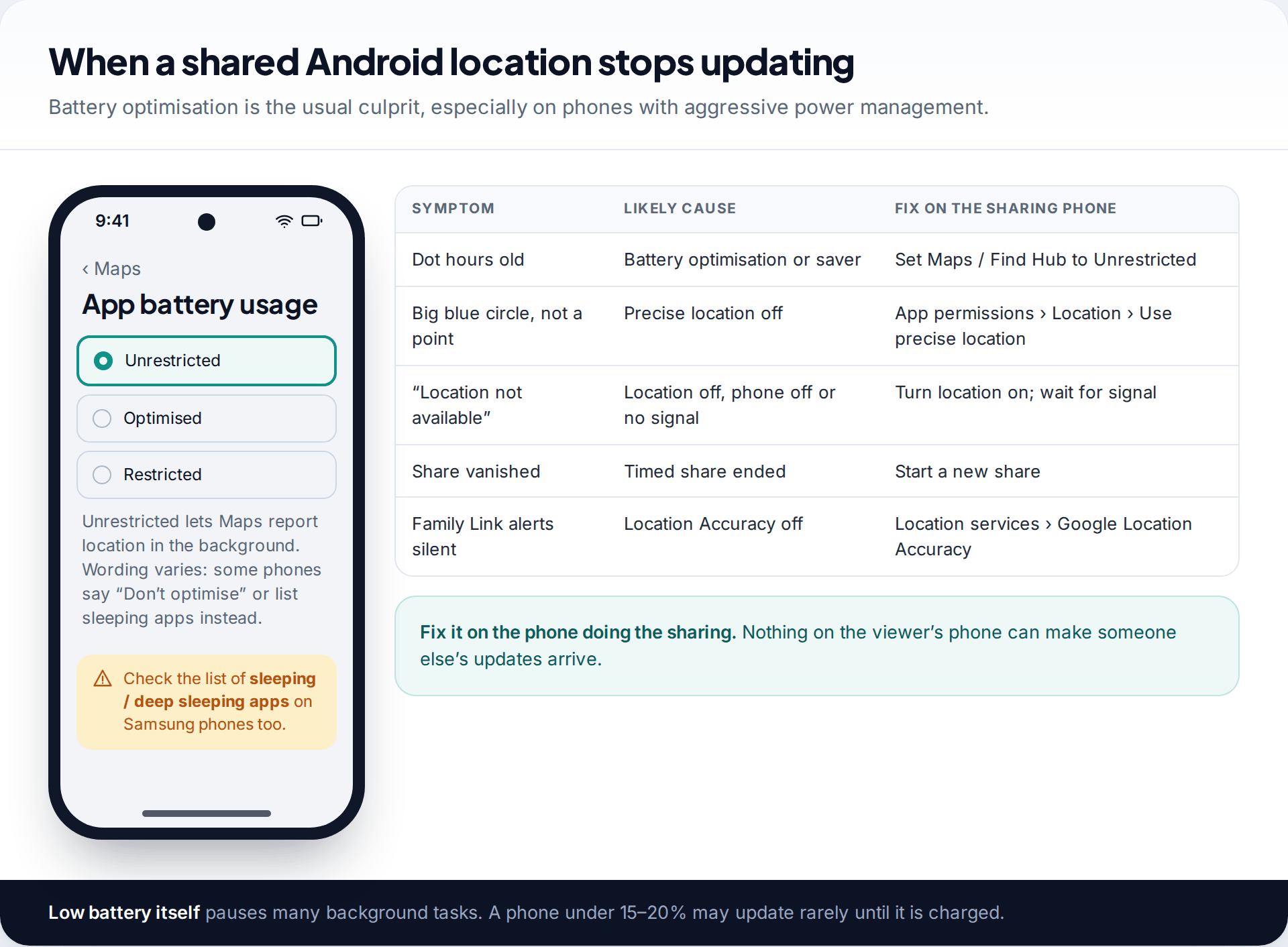
When a shared location freezes or looks wrong, the cause is nearly always on the phone doing the sharing. Battery optimisation is the most common culprit. Some manufacturers put apps they consider inactive to sleep, which stops background location updates. Set Maps or Find Hub to unrestricted battery use, and on Samsung phones check the list of sleeping apps as well.
A large blue circle instead of a point usually means precise location is off for that app. “Location not available” usually means the phone is off, has no signal or has location switched off. A share that simply vanished was probably timed and has ended. Keep in mind that indoors and underground, any phone’s position is less accurate, so a location a street away is normal rather than a fault.
What Android location sharing can’t do: show where a phone is while it’s switched off (the last known location stays put), share with someone who never accepted, or give reliable positions without signal, except via satellite on supported Pixels.
Which Android option suits which situation
Because the apps share one setting, the choice comes down to who you are sharing with and for how long. This is how the options line up:
| Situation | Best option | Why |
|---|---|---|
| Meeting a friend this evening | Google Maps or Find Hub, one hour | Ends by itself; friend can be on iPhone (Maps) |
| Someone without a Google account | Google Maps link | Works in a browser for up to 24 hours |
| Partner or adult family, day to day | Maps or Find Hub, until you turn it off | Arrival alerts available; review it now and then |
| A child with a supervised account | Family Link | Parent controls; labelled places and alerts |
| “Where exactly are you?” once | Google Messages location pin | No ongoing share to forget |
| Hiking beyond mobile signal | Find Hub or Maps, with satellite on a supported Pixel | Limited satellite updates to existing shares |
A weekend walking trip with patchy signal
Chris is walking a coastal path for two days on a Pixel 9 and wants his sister to know roughly where he is. Before leaving, he opens Find Hub and starts a custom share for two days with her, sets Find Hub and Maps to unrestricted battery use, and packs a power bank. When he loses mobile signal on a headland, he points the phone at open sky and sends a satellite location update, keeping to the daily limit.
How this page was put together
Paths, durations and limits were checked in September 2026 against Google’s help pages: Google Maps “Share your real-time location with others”, “Manage your Location Sharing settings” for Android, Find Hub’s “Find your friends and family”, satellite location sharing, and Family Link’s location and notification pages, plus Android’s own guide to sharing location. Menus vary by manufacturer and Android version.
We did not run our own battery or accuracy measurements. For how we choose sources and handle corrections, see the standards behind our guides.
Common questions
How do I share my location on an Android phone?
Open Google Maps, tap your profile picture › Location sharing › New share, choose a duration and a person, and tap Share. Find Hub’s Start share does the same thing.
Can I share my location from Android with an iPhone?
Yes. Share from Google Maps. The iPhone user sees you in Google Maps on their phone, as long as they have a Google account, or you can send them a link that lasts up to 24 hours.
What is the difference between Find Hub and Google Maps location sharing?
They use the same Google Location Sharing setting, so shares appear in both. Find Hub also locates devices and trackers and, on recent Pixels, can share via satellite. Maps works on iPhone too.
Does location sharing work when the phone is off?
No. The last known location stays visible, but it won’t update until the phone is on and connected again.
Why can’t I share my location on Android?
Common reasons are location switched off, the app not allowed location access, an account that is too young or managed by work or school, or a country where Google doesn’t offer location sharing.
Does location sharing need Google Maps Timeline turned on?
No. Google’s help says Location Sharing works even when Timeline is off. Timeline is a separate, private record of places you have been, and people you share with do not see it. They see your recent location while the share is running.
How do I see who I’m sharing my location with?
Go to Settings › Location › Location services › Google Location Sharing. The list shows everyone you share with on that device, whichever app you started the share in.
Looking for a tool to go with this? TheTruthSpy is a free parental control app for Android that stays visible on the child's phone. If it fits your family, see the Location & geofencing feature.
Related guides
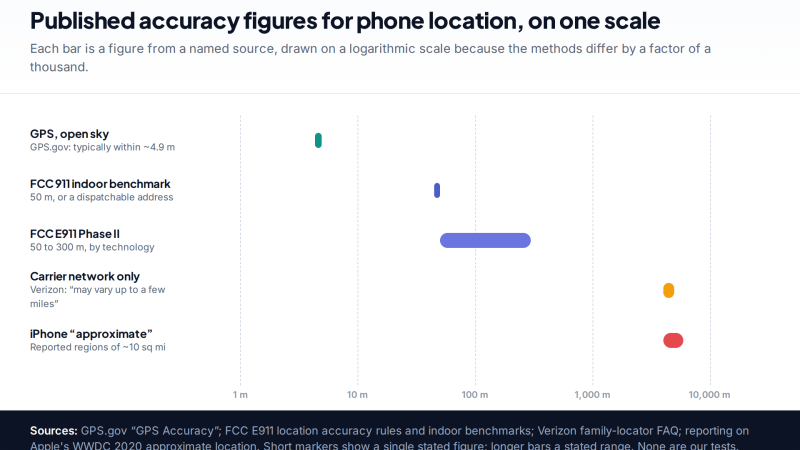
How Accurate Is Phone Location Tracking? GPS, Wi-Fi and Cell Compared
Phone location accuracy runs from a few metres with GPS under open sky to miles when only the mobile network…
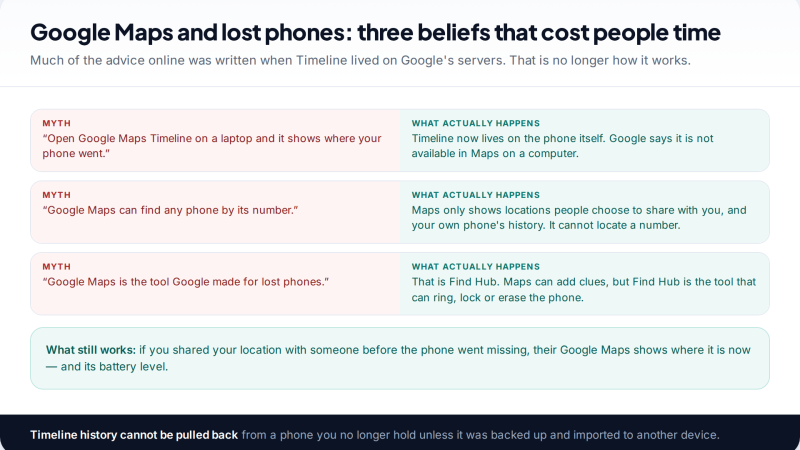
Using Google Maps Timeline to Find a Lost Phone
Can Google Maps find a lost phone? Only in two cases: someone you share your location with can see it,…
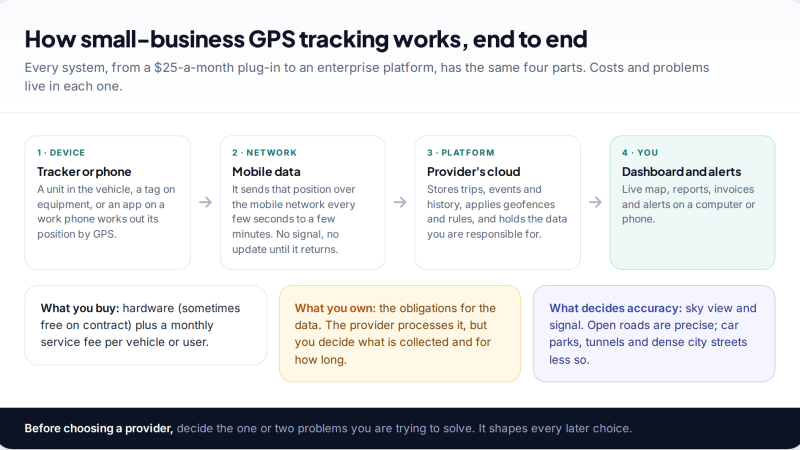
GPS Tracking for Small Business: A Starter Guide
A plain starter guide to GPS tracking for a small business: vehicle trackers versus phone apps, what a small fleet…
Parental controls your child can see
Location, screen time limits, a web filter and alerts from notifications — free, and visible on your child's phone. Pair a phone in about ten minutes.
Android · Free to set up · Visible on your child's phone