Download the Parental Control App for Android
Install the free TheTruthSpy parental control app on your child's Android phone in about ten minutes. You need two things: a parent account you create in this browser, and a few minutes with your child's phone in hand to install the app, type a six-character pairing code and grant the permissions together. This page shows every screen along the way.
Android 8.0 or later on the child's phone. Free to set up. No card, and no confirmation email to wait for.
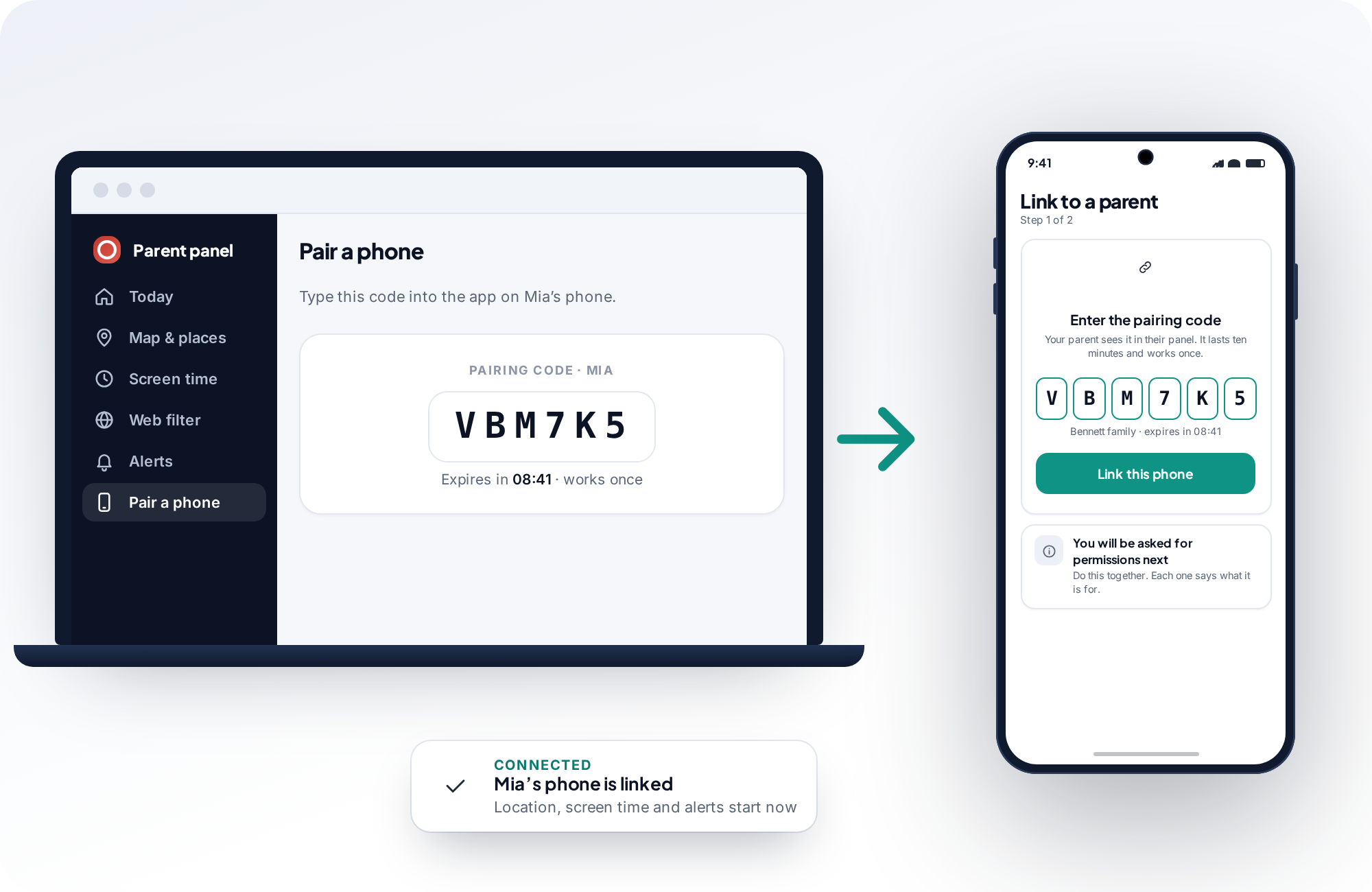
What you need, and what you do not.
Setup is short, but it goes better with the right things in the room. Here is the checklist we would run through with a friend before they started.
A free parent account
Created first, on this site, in any browser. There is nothing to install on your own phone or laptop, and you can sign in from an iPhone even though the monitored phone must be Android. Two parents can share one family; invite the second from your panel later.
Your child's Android phone, with your child
For about five minutes, to install the app, type the code and grant the permissions one at a time while you explain what each one is for. Android 8.0 or later, about 40 MB of free storage, and a Wi-Fi or mobile connection.
| Requirement | Detail | Why it matters |
|---|---|---|
| Android version | 8.0 (Oreo) or later on the child's phone | Older versions do not offer the background location and usage-access controls the app depends on. |
| Storage | About 40 MB free | The app is small, and it keeps very little on the phone; totals and locations are sent to your panel rather than stored locally. |
| Time | Roughly 10 minutes end to end | Two or three in your browser, five or so on the phone, and a minute to confirm the first report arrives. |
| Google account on the phone | Needed to install from Google Play | A phone with no Play Store can install the same app directly from this site instead; see the note under the steps. |
| Your device | Anything with a browser | The parent panel is a web page. Laptop, work PC, iPhone or the child's own tablet all work. |
| Your child | Present, ideally | The permissions are granted on their phone and the app is visible from day one. Doing it together is the point. |
From a blank browser tab to a connected phone, in six steps.
Steps 1 to 3 happen in your browser. Steps 4 and 5 happen on your child's phone. Step 6 is a thirty-second check back in the panel that everything is reporting. Each step shows the screen you will see.
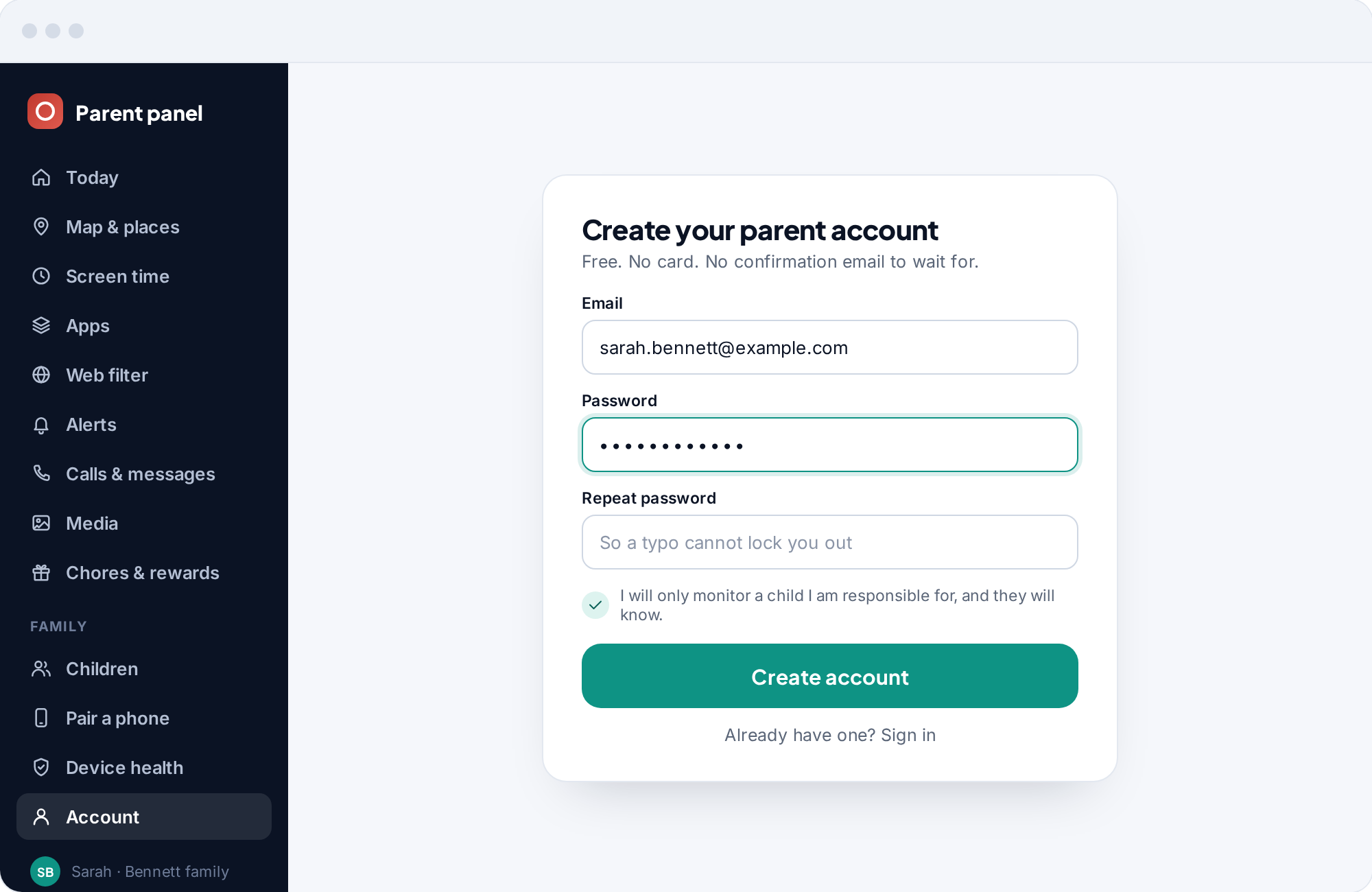
Create your parent account
Sign up with an email address and a password, then repeat the password so a typo cannot lock you out. You land straight in your panel; there is no confirmation email to wait for and no card to enter. Your email is how you sign in and where alerts go if you turn email alerts on later.
The one box you must tick says that you will only monitor a child you are responsible for, and that they will know. We ask because it is the basis of everything else on this page. Monitoring a partner, an employee or another adult without their knowledge is not what this app is for, and in most places it is not legal either.
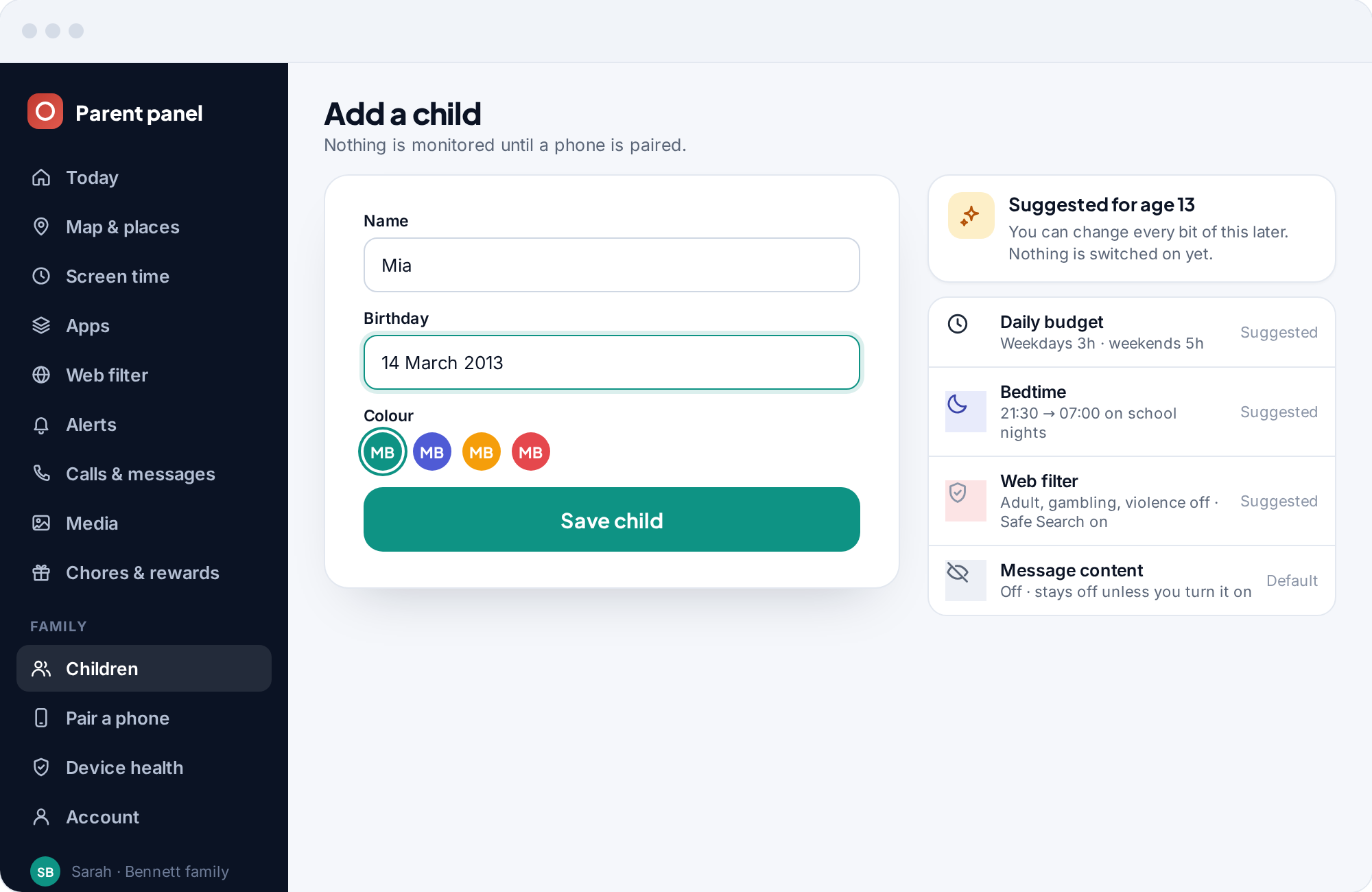
Add your child
Give their name, their birthday and a colour for their pin on the map. The birthday only sets sensible starting points for their age, such as a suggested daily budget, a bedtime and which web categories to block, and you can change every bit of it later. Nothing is monitored yet and nothing is switched on; these are suggestions waiting for a phone.
Add one child now and more whenever you like. Each child gets their own pairing code, their own settings and their own pin, and a phone can only ever belong to one child in one family.
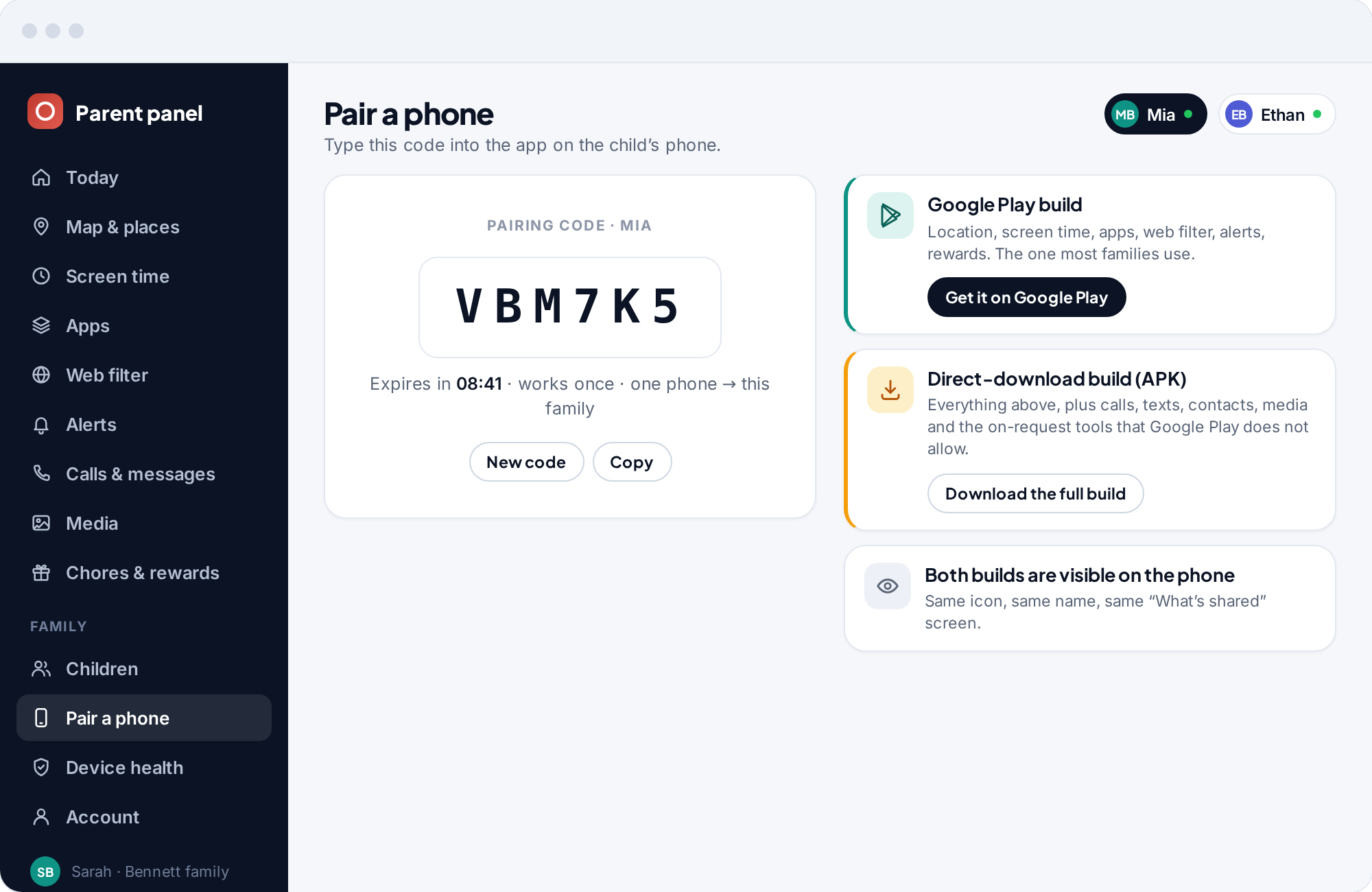
Generate a pairing code
Open Pair a phone and your panel produces a six-character code that is live for ten minutes and works once. Say whose phone this is now, so that monitoring starts the moment the code is accepted, or leave that blank and confirm afterwards. If the code expires before you have typed it, make a new one; nothing is lost.
The same screen shows the Google Play link for the child's phone and a QR code that opens it, so you do not have to type a store search on a small screen with a child watching the clock.
Install the app and type the code
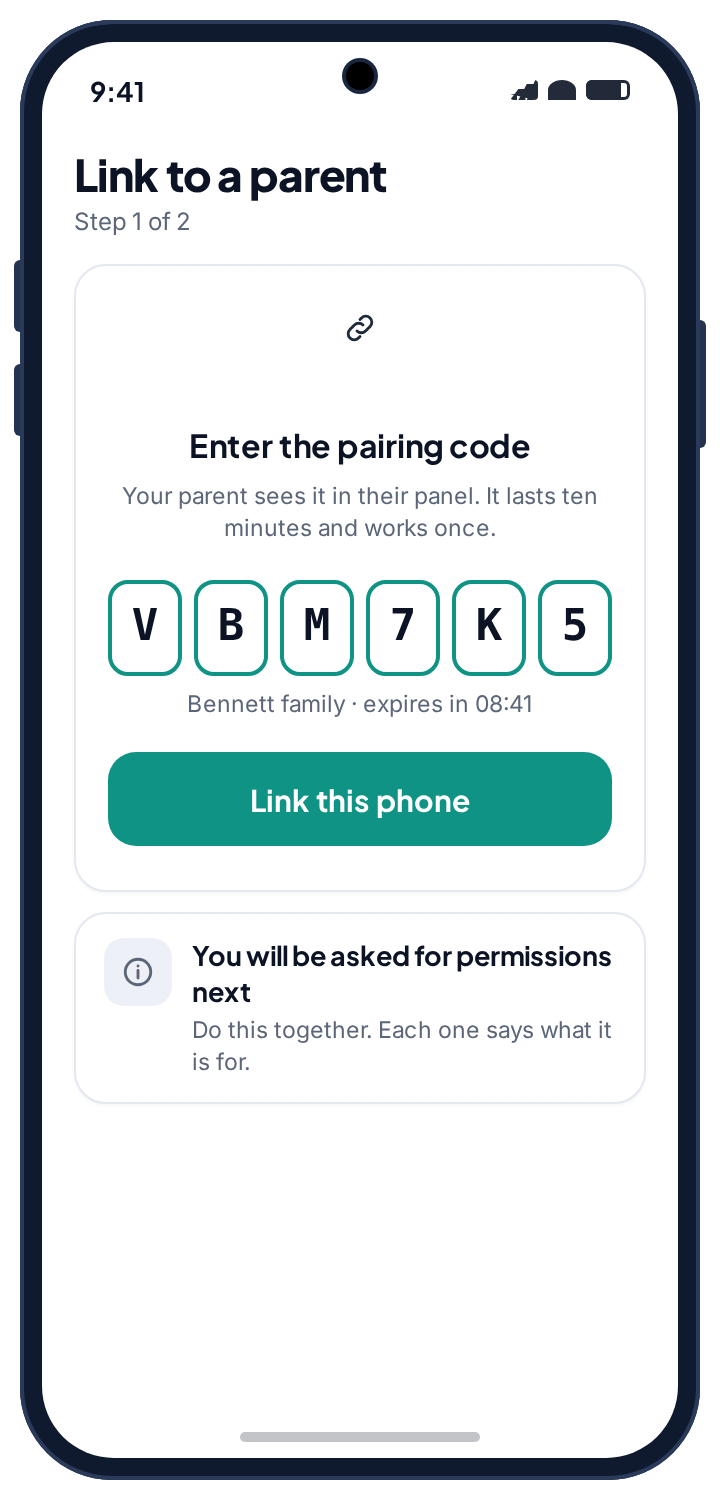
On your child's phone, get the app from Google Play. Open it, type the six characters, and tap Link this phone. The app confirms the family name so you know the code went to the right place.
It installs under its own name and icon, like any other app, and the first screen it shows the child is the list of what it will share once the permissions are granted. There is one version of the app; if the phone has no Play Store, the same app can be installed directly from this site, as described further down.
Grant the permissions, in the open
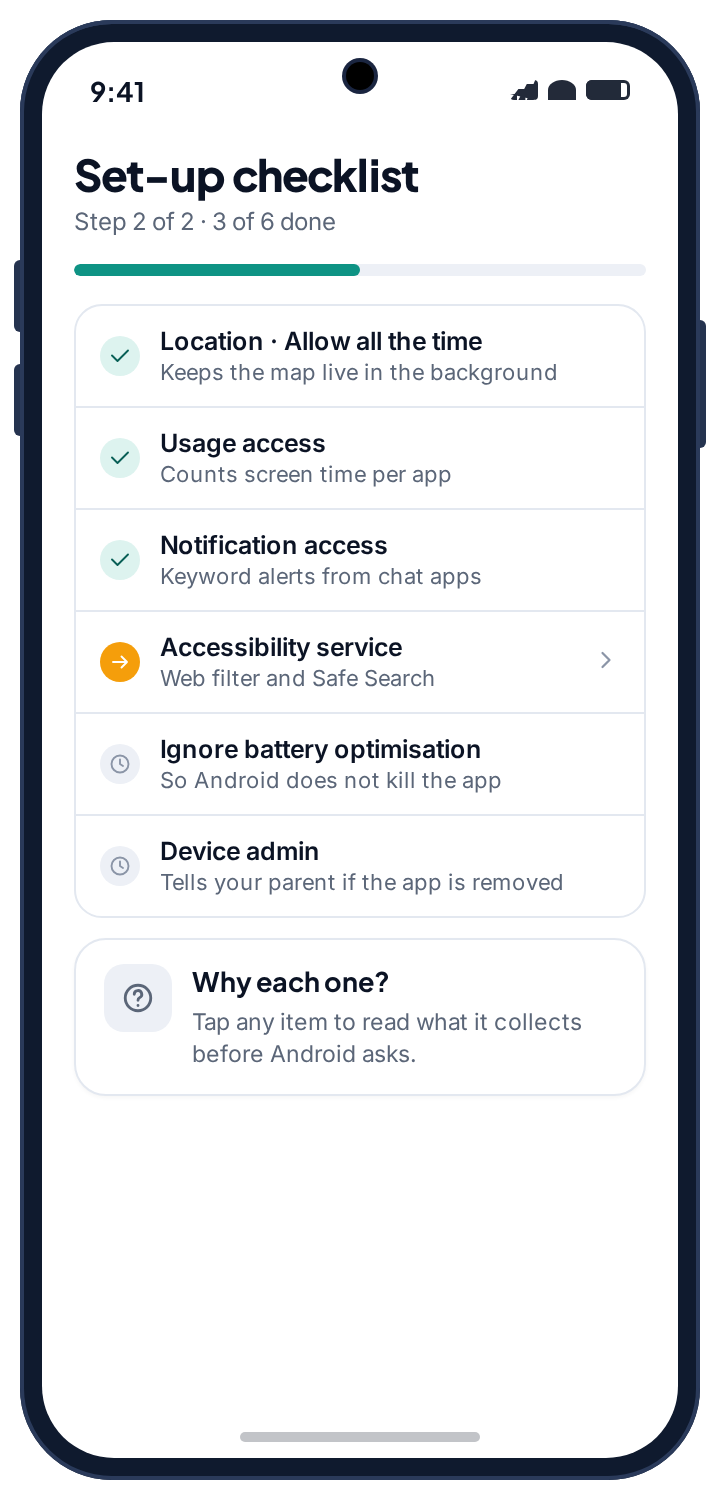
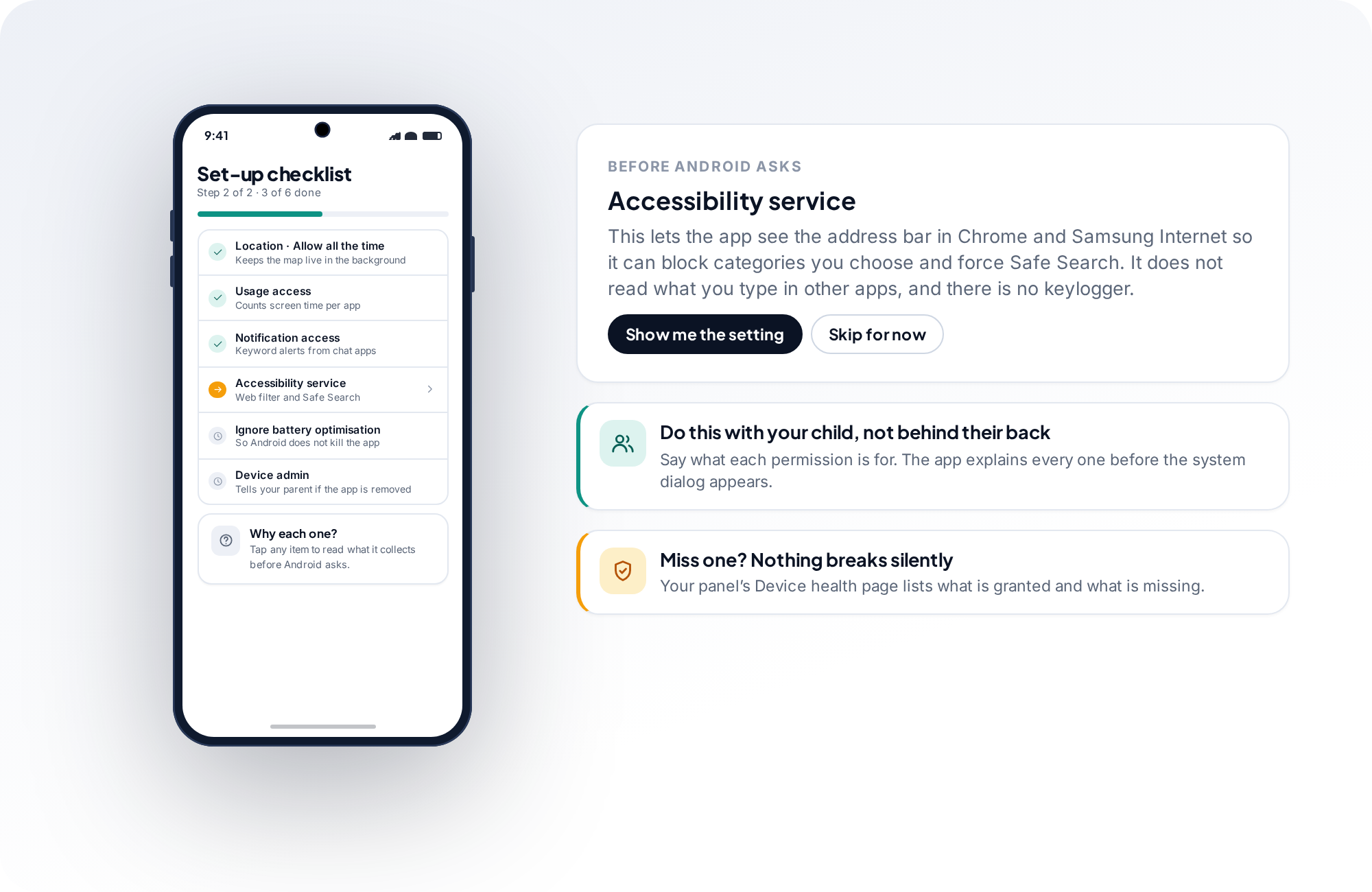
Android asks for the things the app uses, one at a time: location, usage access, notification access, the accessibility service, an exemption from battery optimisation, and device admin so your panel is told if the app is removed. The app explains each one in a sentence before the system dialog appears, and the checklist shows what is done and what is left.
Do this with your child, not behind their back. Say what each permission is for. The one that matters most is location, where the only answer that keeps the map working is “Allow all the time”; the section below explains why. When you are done, the phone reports to your panel and the app stays on their home screen, listing exactly what it shares.
- Order does not matter. Skip one and come back to it; the checklist waits.
- Miss one and nothing breaks silently. The panel's Device health page lists what is missing.
- They can read the list too. The same checklist is on their phone, in plain language.
Check that the phone is reporting
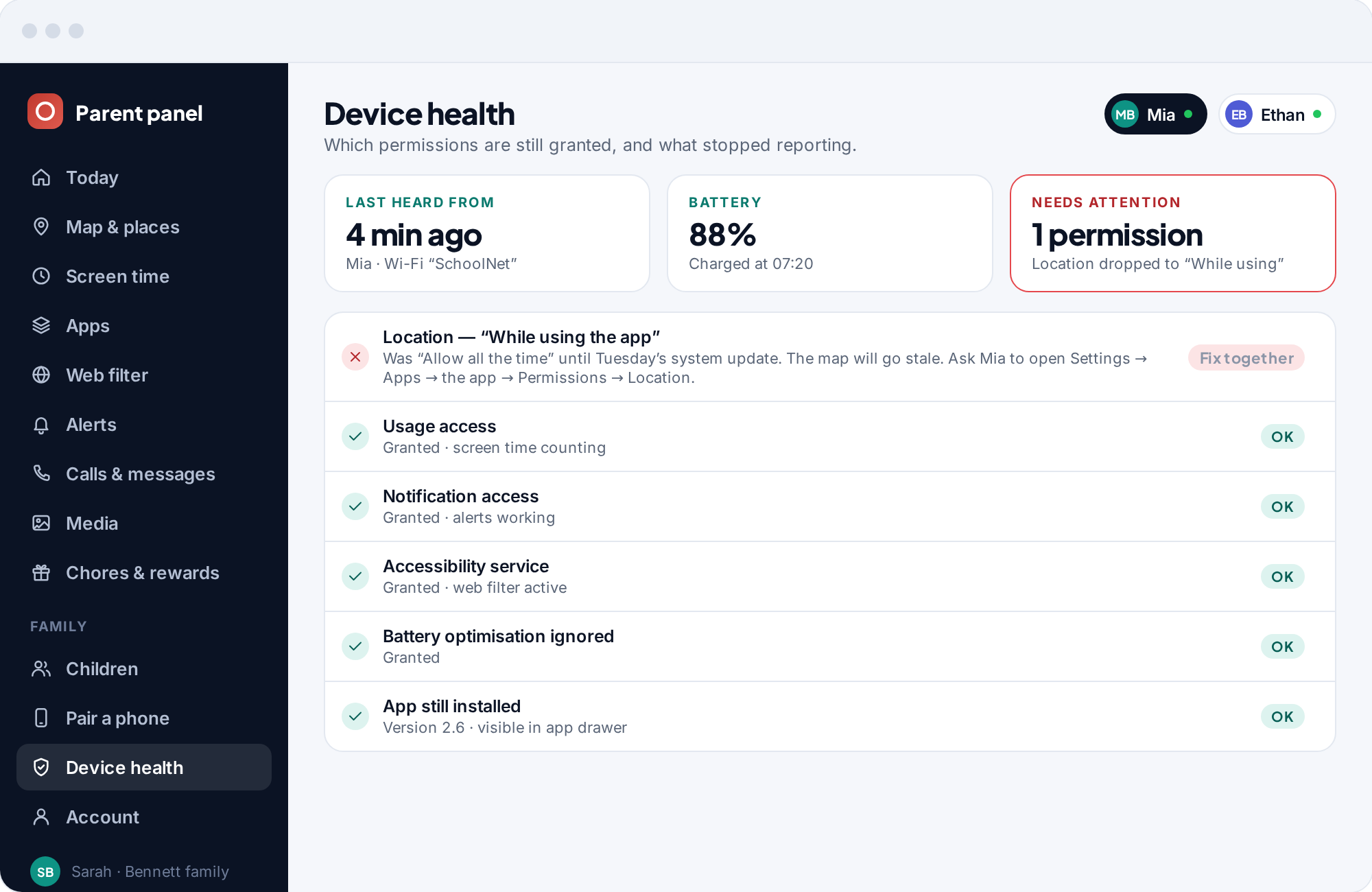
Open Device health in your panel. Within a minute you should see a last-heard-from time, a battery level, and a green tick against every permission. If one is amber or red, the page says which setting to change and how to get there on the phone. That is the whole check, and it is the page to come back to any time the map looks stale later.
From here the free features switch on by themselves. The map starts plotting, screen time starts counting without blocking anything, the web filter waits for you to pick a first category, and alerts begin as soon as a notification matches your list. The parent panel guide walks through every screen you will use from now on.
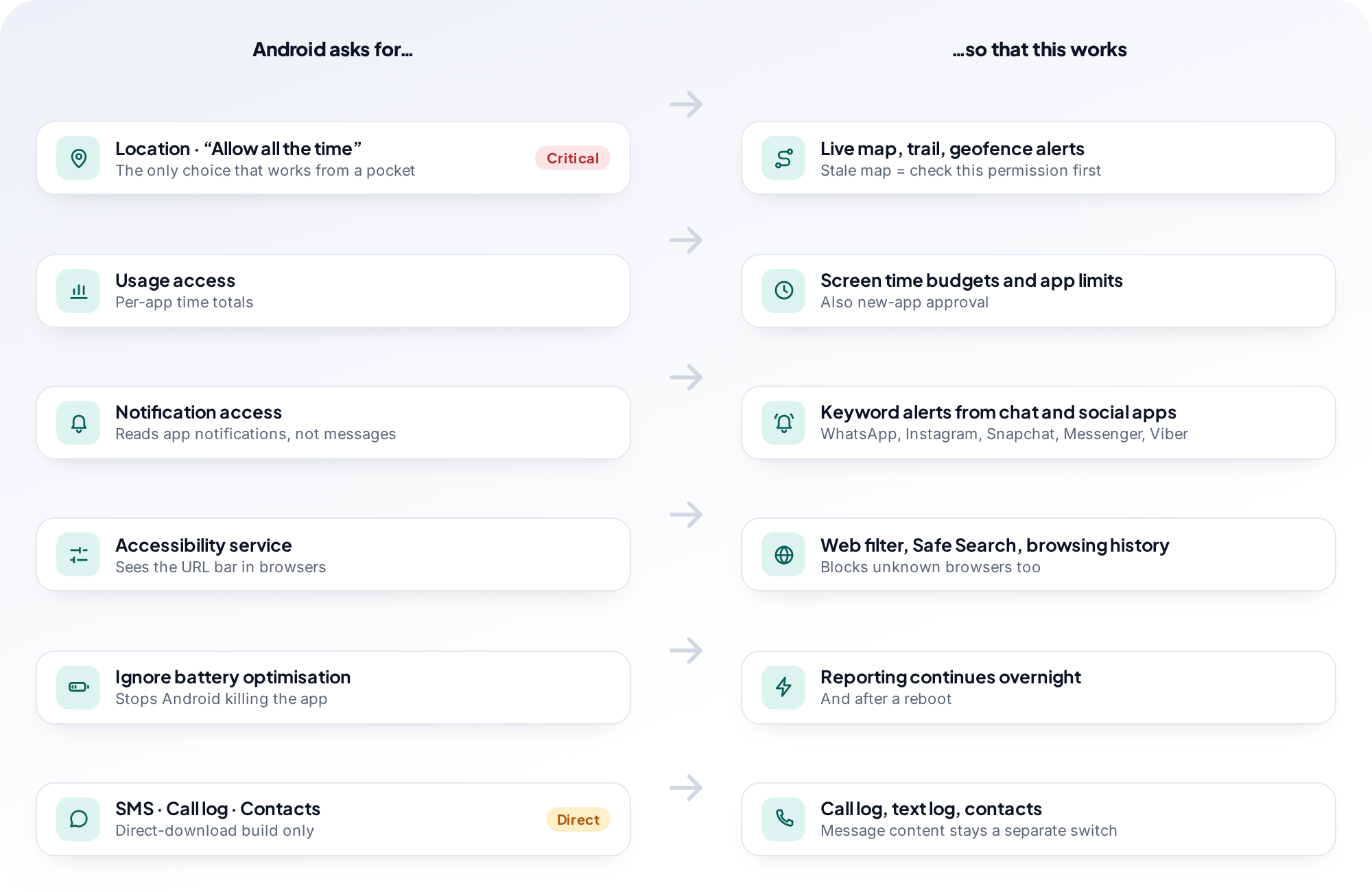
Every permission, what it powers, and where to find it if it slips.
The app asks for six things. Each one maps to a feature you can see in your panel and your child can see on the phone. It does not ask for SMS, call log, contacts, camera, microphone or storage. If a feature ever stops, the permission behind it is the first place to look.
Location
Choose “Allow all the time”Powers the map, the location history and geofence alerts. Also used by the Wi-Fi tracker, because Android treats network names as location data.
Settings → Apps → the app → Permissions → Location → Allow all the timeUsage access
Counts how long each app is in the foreground. Powers screen time totals, per-app limits and the app blocker. It does not see inside apps.
Settings → Apps → Special app access → Usage access → the app → AllowNotification access
Reads the notifications other apps post. This is where social media counts, unknown-sender alerts and keyword alerts come from. It cannot read inside an encrypted chat.
Settings → Apps → Special app access → Notification access → the app → AllowAccessibility service
Sees the address bar in the browsers you allow, so the web filter can block categories, force Safe Search and log sites. Also stops unknown browsers opening. It does not read what is typed elsewhere.
Settings → Accessibility → Installed apps → the app → OnIgnore battery optimisation
Stops Android killing the app when the screen has been off for a while. Without it, some phones go quiet overnight. Typical cost is a few percent of battery a day.
Settings → Apps → the app → Battery → UnrestrictedDevice admin
Lets the app tell your panel if it is uninstalled, so you find out the same day. It does not prevent uninstalling, and it does not lock or wipe the phone.
Settings → Security → Device admin apps → the app → OnNever requested: SMS, call log, contacts, camera, microphone, storage
If the app ever asks for one of these, it is not this app. Each of them would let software on the phone collect something the child could not see happening, and we removed every feature that needed one.
Settings → Apps → the app → Permissions shows them as “Not allowed” and the app never prompts for themMenu names vary slightly between Android versions and manufacturers. Samsung, for example, puts battery settings under “Battery and device care”. The app's own checklist opens the right screen for the phone it is running on.
Choose “Allow all the time”, or the map stops when the app is closed.
When Android asks about location, it offers three answers, and the difference between two of them is everything. “While using the app” looks granted, and it is, but it only collects while the app is open on screen. Close it, put the phone in a pocket, and reporting stops: the map freezes, the trail ends, and geofence alerts never fire. “Allow all the time” is the only option that keeps location working in the background.
On newer Android versions the system does not always offer “Allow all the time” in the first dialog. It offers “While using the app”, and the app then sends you to the settings page to upgrade it. The checklist on the phone handles this, but if you are doing it by hand, look for the third option on the location permission screen.
If the map ever goes stale later, this setting is the first thing to check. System updates, battery-saver modes and a stray tap in a permissions dialog all flip it back from time to time. Your panel's Device health page tells you when it happens.
More on how location works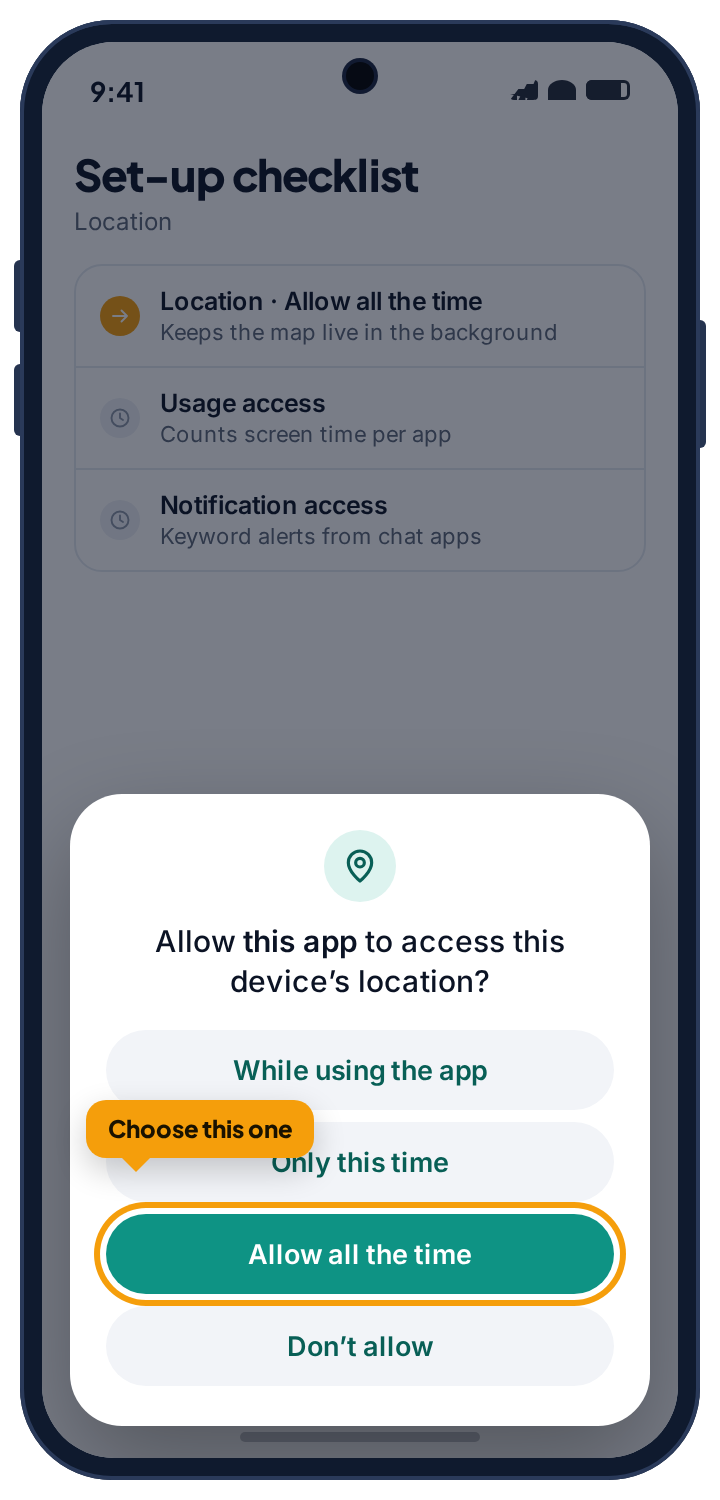
The same app, installed directly, for the few phones that need it.
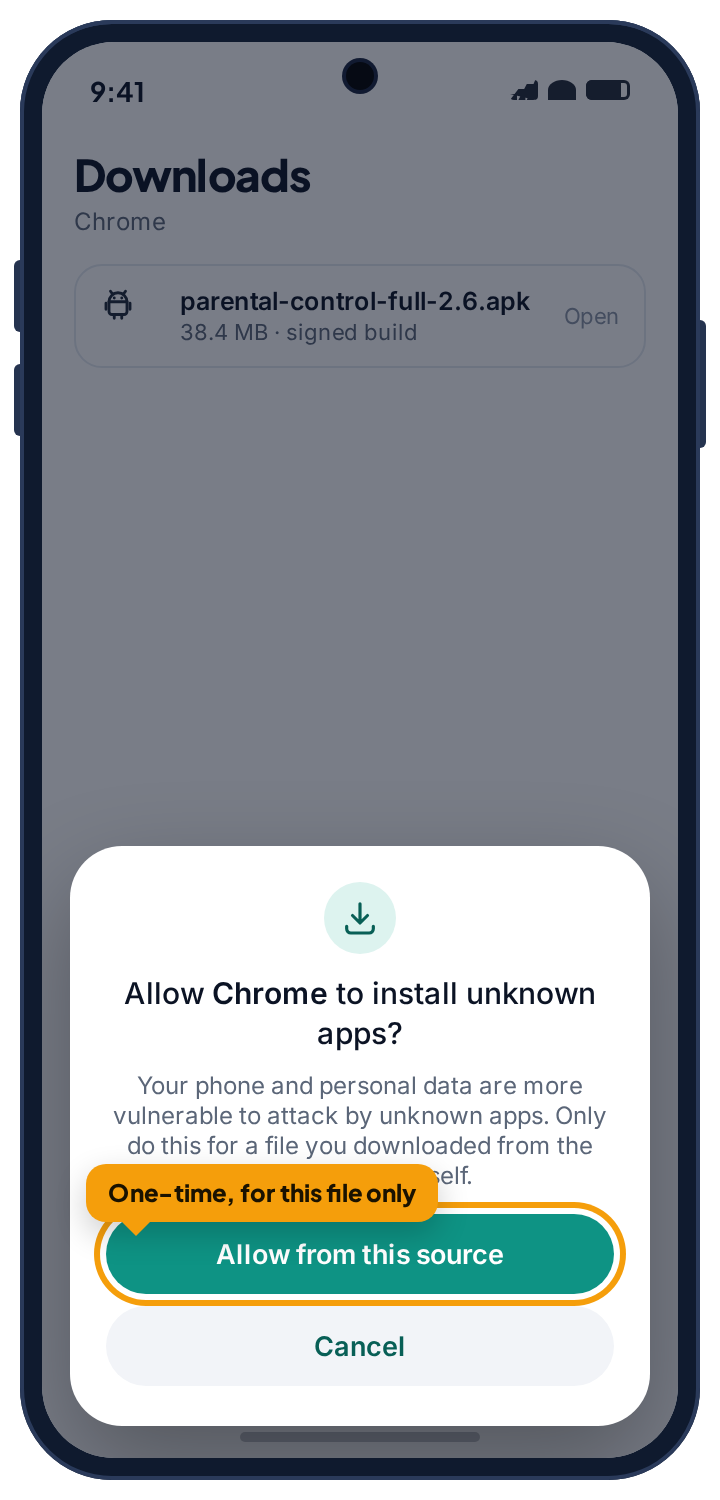
Some imported handsets and some phones set up without a Google account cannot open the Play Store. For those, the identical app can be downloaded from this site. It is the same build, with the same features and the same permissions; there is no “full” or “extended” version, and nothing is unlocked by installing it this way.
Only ever download it from this site, never from a third-party store or a forum post. When you open the file, Android asks whether to allow your browser to install unknown apps. Allow it for this one file, install, and switch the permission back off afterwards if you like; the app updates itself from then on and does not need the prompt again.
- The build is signed. The app on the phone shows the version it is running, and the panel shows the same number.
- If the phone has Google Play, use Google Play. It is the normal route and the one the setup steps assume.
Android calls this “Install unknown apps” on most phones and “Install from unknown sources” on some older ones. Both mean the same thing: allow this browser to install this file.
Set it up together. The app is designed to be found.
Most of this page is mechanics. This part is the one that actually decides whether the app works for your family. TheTruthSpy is meant to be seen: it sits on their home screen, a plain-language page lists what is shared and what is off, and a tap lets them ask for more time. It never records what they type, and it never switches on the camera or microphone without a notice on the phone.
That only helps if your child knows the app is there and knows what it does, and the setup is the natural moment to tell them. Go through the permissions together. Read the “What's shared” screen with them. Tell them what you will look at and what you will not. A ten-minute conversation on the first day saves months of suspicion later, and it turns a monitoring tool into a house rule that can be renegotiated as they grow up.
- Running out of time starts a request, not a row. It arrives in your panel and waits for a yes or a no.
- Every collected item is named on their screen, alongside the ones that are switched off.
- They can see that you looked. Their phone shows that a parent opened the panel today.
- Nothing is silent. The app has no camera, microphone, message or call-log access, so there is nothing it could collect without the phone showing it.
The first week: what to switch on, and in what order.
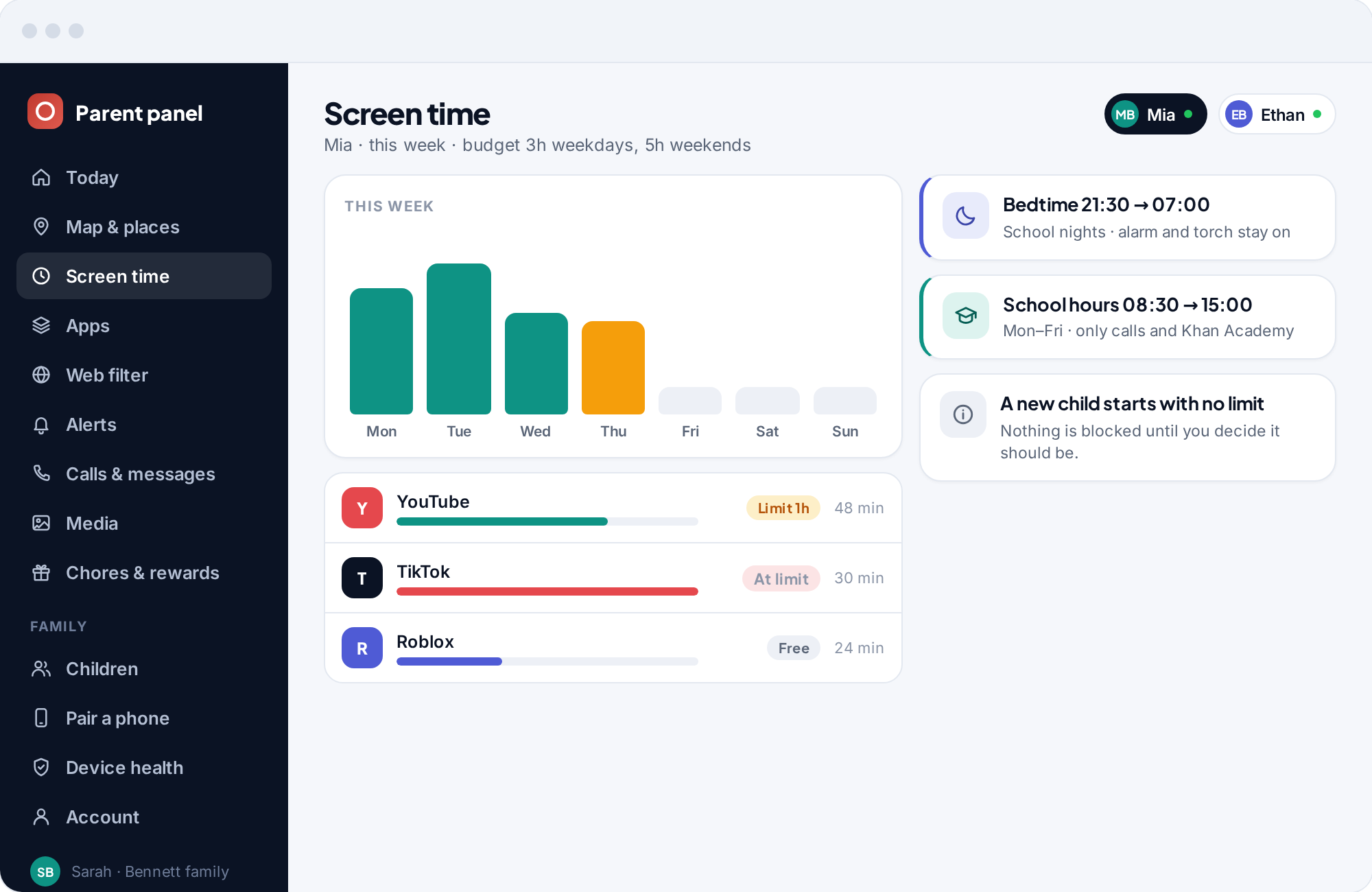
A newly paired child starts with no limits at all, which means the first week is yours to shape. Here is the order we suggest, one change at a time, so you can see what each one does before adding the next.
Let the panel fill up.
Open the map, check that the phone is reporting, and leave every limit off. By the evening you will have a day of screen time totals and a trail on the map, and both will be more useful than any guess about how much time is “too much”. Save home and school as places while you are there; geofence alerts are the one feature worth switching on immediately.
Switch on the categories you would block on any device.
Adult content, gambling and violence, with Safe Search forced on. These are the rules you would apply to a family laptop, so there is little to negotiate. Check the blocked log after a day to make sure a homework site is not caught by mistake, and allow-list it if it is.
Start with the schedule, not the total.
A bedtime is the limit children accept most readily, because it matches a rule that already exists. Set it first. Then look at the totals from days one to four and set a weekday budget slightly below the average, so that the request button gets used a few times in the first week and everyone learns how it works.
Add the keyword list and switch on new-app approval.
Start from the suggested keyword list and add the words that matter in your house. Turn on approval for new installs. By the end of the week you will know which of the eight features your family actually needs, and it will be fewer than you expected.
The six problems that account for almost every support message.
Nearly all of them are a permission or a setting on the phone, not a fault in the app. Your panel's Device health page names the setting; this list explains what to do about it.
The map is stale, or shows the wrong place.
Location dropped from “Allow all the time” to “While using the app”, usually after a system update or a battery-saver prompt.
Fix: On the phone, Settings → Apps → the app → Permissions → Location → Allow all the time. Then check that Battery is set to Unrestricted.
The phone stops reporting overnight.
Battery optimisation is killing the app after the screen has been off for a while. Some manufacturers add their own “sleeping apps” list on top of Android's.
Fix: Set the app's battery mode to Unrestricted, and on Samsung, Xiaomi or Huawei phones remove it from any “sleeping” or “auto-launch” restriction list as well.
Screen time shows zero, or the app blocker does nothing.
Usage access was never granted, or was reset. Without it, the app cannot see which app is in the foreground.
Fix: Settings → Apps → Special app access → Usage access → the app → Allow. Totals resume from that moment.
No social alerts, even for a keyword you know was sent.
Notification access is off, or the messaging app has notifications muted or previews hidden on the lock screen, which means there is nothing to read.
Fix: Grant notification access, then check the messaging app's own notification settings allow previews. A muted chat produces no notifications and therefore no alerts.
The web filter is not blocking anything.
The accessibility service was switched off. Android turns it off automatically when the app is updated on some phones, and asks you to re-enable it.
Fix: Settings → Accessibility → Installed apps → the app → On. The blocked log will show entries again within a minute.
The pairing code is rejected.
It expired (codes last ten minutes), it was already used, or it was typed with a zero for the letter O. Codes never contain 0, O, 1 or I for exactly this reason, so a lookalike character is the usual cause.
Fix: Generate a fresh code in your panel and type it again. Nothing from the first attempt is lost.
If none of these matches what you are seeing, the contact page reaches a person, and the FAQ covers the longer tail.
Open the read-only parental control demo.
A made-up family with a full week of realistic data. Every screen opens, nothing can be changed, and none of it is real. It is the quickest way to know whether TheTruthSpy fits how your family runs, before you touch your child's phone.
Open the demoSetup questions, answered.
Does TheTruthSpy work on iPhone?
Not for the child's phone; the app is Android only. Your own parent panel runs in any browser on any device, so you can check in from an iPhone even though the monitored phone must be Android. If your child has an iPhone, Apple's Screen Time is the right tool and one of our guides explains it properly.
Do I need to install anything on my own phone?
No. The parent side is a website. You only install the app on the child's phone. That keeps your side light and means you can sign in from a laptop, a work computer or your own phone, whatever it runs.
Is there a version with more features than the Google Play one?
No. There is one app. Earlier versions had a second build with call and text logs and other tools; it was withdrawn in 2026 and nothing like it is offered. The direct download on this site is the identical app for phones that cannot use Google Play.
Is it safe to install an app from outside the Play Store?
Only if the phone has no Play Store, and only from this site, never from a third-party site. Android will ask you to allow installs from your browser for this one file; you can switch that permission off again afterwards. The build is signed, and the app on the phone shows the version it is running.
Can I set it up without my child present?
Technically yes, since the permissions are granted on the phone and the phone is what you need. We suggest you do not. The app is visible from the first minute, so your child will see it anyway, and the setup is the natural moment to explain what it does and what you will look at.
How long does setup really take?
About ten minutes end to end: two or three to make an account and add a child, five or so on the child's phone to install, pair and grant permissions together, and a minute to confirm the first report in Device health.
What if my child removes the app or a permission later?
The phone stops reporting for whatever was removed, and your panel shows it: a stale last-heard-from time, or a permission listed as missing. TheTruthSpy does not hide from uninstallation or force permissions back on. It tells you, so you can talk about it.
Can I move a child to a new phone?
Yes. Generate a new pairing code for the same child and type it into the app on the new phone. Their settings, places and history come with them. Unpair the old phone from your panel when you are done and it stops reporting immediately.
Do I have to do anything for updates?
No. Installed from Google Play, it updates like any other app. Installed directly, it updates itself and does not need the “install unknown apps” prompt again. Your panel shows the version each phone is running.
Does the app slow the phone down or use much data?
It is small, and its background work is mostly a location report every few minutes and a short sync of totals. Data use is typically a few megabytes a day. Battery use is usually a few percent a day, and the panel shows each phone's battery level so you can judge for yourself.
Download the free parental control app tonight.
Create your free account, pair their Android phone with a six-character code, and by bedtime the map, the screen time limits and the alerts are running.
Android · Free to set up · Visible on your child's phone