The Complete Guide to Detecting Spyware on Phones and Computers

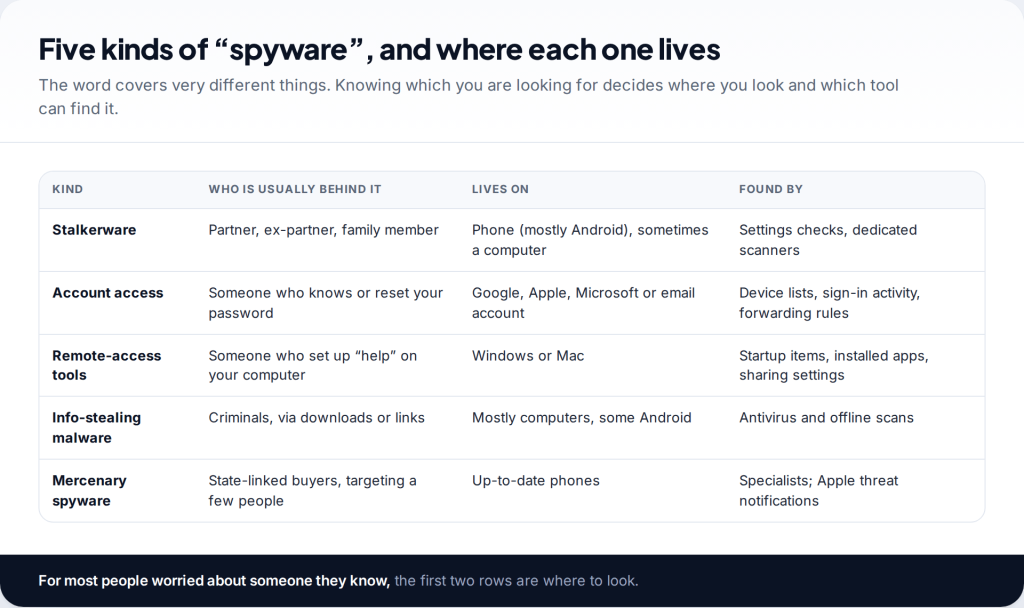
To detect spyware, check the places monitoring has to leave a trace: the permission and admin lists on phones, startup items and privacy settings on computers, and — on every device — the accounts that sync your data elsewhere. Then run a scan to back that up. Scanners alone miss too much, and account access never shows up in one.
- Know what you’re looking for. Stalkerware, account access, remote-access tools and malware each hide in different places.
- Look, don’t touch, at first. If someone you know may be behind it, removing it can alert them and destroys evidence.
- Android and iPhone need different checks. Android: permissions and admin apps. iPhone: Apple Account, profiles and jailbreak signs.
- Computers have their own tells. Startup items, privacy permissions and remote-access settings on Windows and Mac.
- Accounts are the blind spot. Forwarding rules and signed-in devices need no spyware at all.
What “spyware” can mean — and why it changes where you look
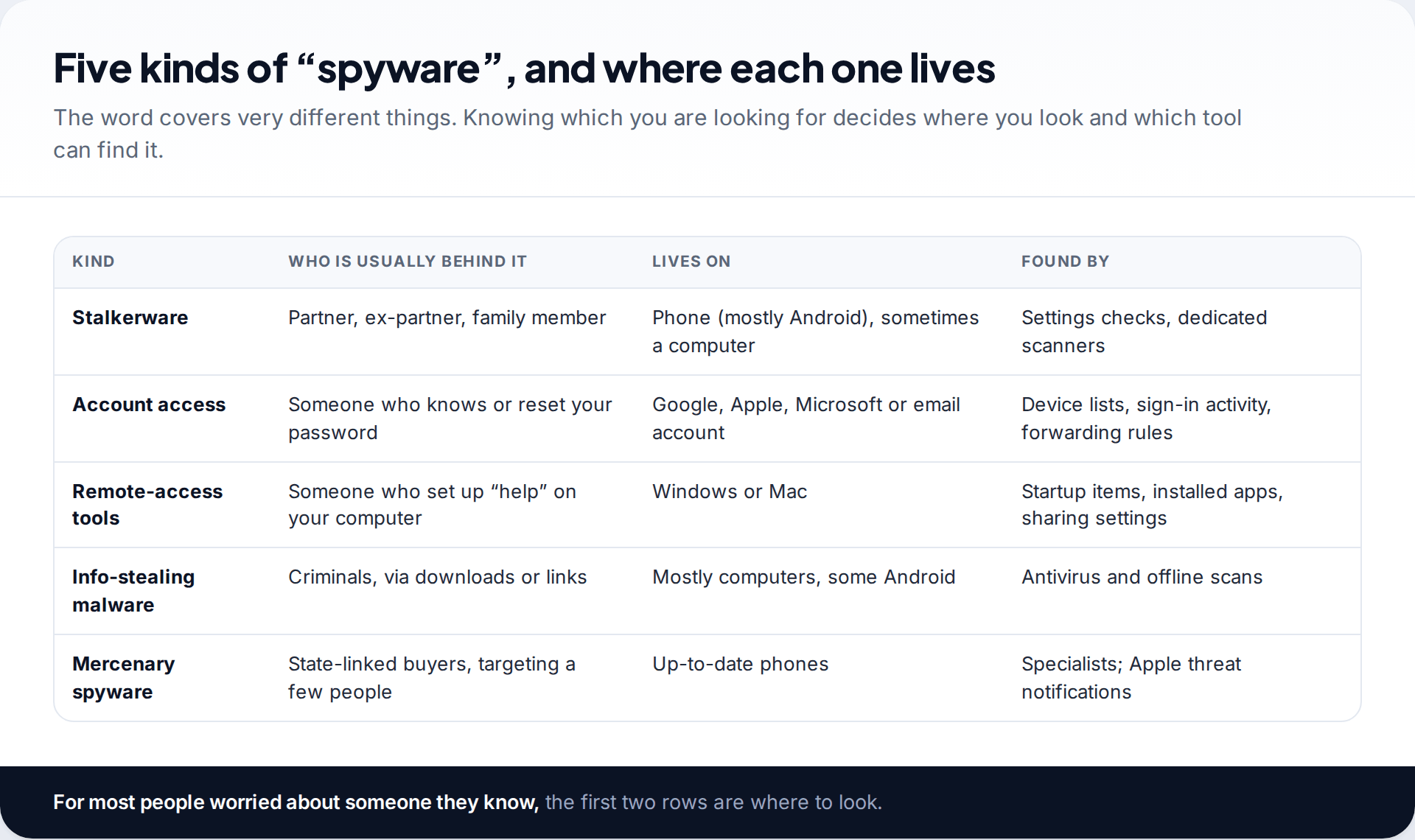
People use “spyware” for several different problems. Stalkerware is commercial monitoring software that someone installs on the device of a person they know — usually a phone, sometimes a computer. Account access isn’t software at all: someone who knows or reset your password reads your email, photos and location from their own device. Remote-access tools are legitimate programs for controlling a computer from elsewhere, sometimes installed under the pretext of “helping”. Info-stealing malware comes from criminals through downloads and links. And mercenary spyware is expensive, targeted software used against a small number of journalists, activists and officials.
The first three are the everyday concerns, and they are what this guide focuses on. Each leaves traces in different places, which is why a single scan so often gives a false sense of security.
Before you start: check safely
If you think a partner, ex-partner or family member is monitoring you, their reaction is a bigger risk than the software. Monitoring tools often report activity on the device, including searches about spyware. Do your research from a device they have never used, keep checks read-only at first, and speak to a domestic-abuse support service before removing anything. Removal can alert the person who installed it.
As you go, write down what you find — the name, where it appeared, what it could do, and when it was installed — and photograph screens with a second device rather than taking screenshots. That record helps whether you later remove the software, hand the device to a specialist or report what happened.
Signs worth taking seriously on any device
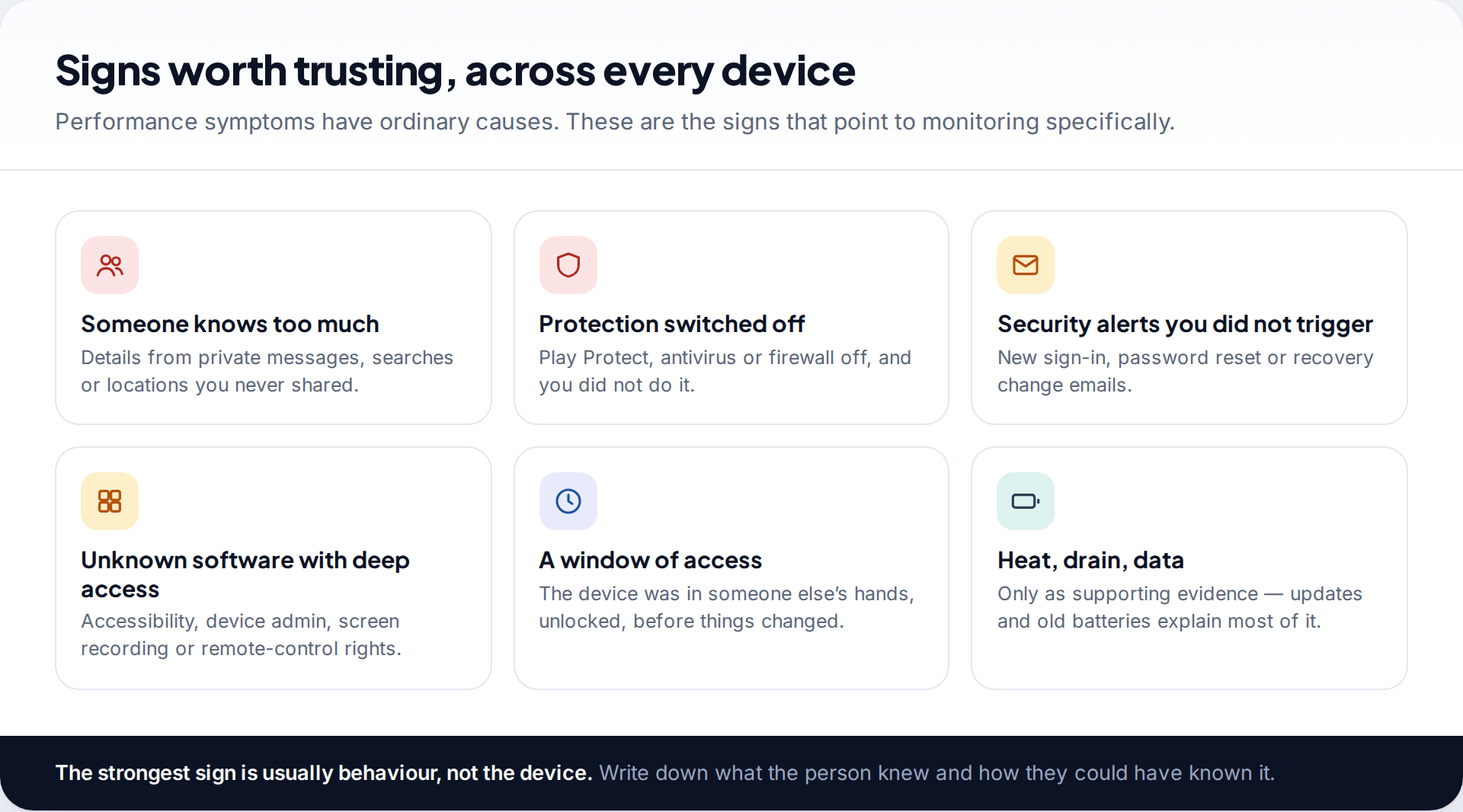
Most online lists lead with battery drain, overheating and slow performance. On their own those signs mean very little; updates, old batteries and busy apps cause them all the time. The signs that point to monitoring are more specific: someone knowing what you wrote in private messages or where you went; security software switched off without your doing; security alerts about sign-ins or password changes you didn’t make; and software you don’t recognise holding deep access such as accessibility, device admin, screen recording or remote control. Timing matters too. Changes that started after someone had your unlocked device are the pattern to note.
How to detect spyware on phones
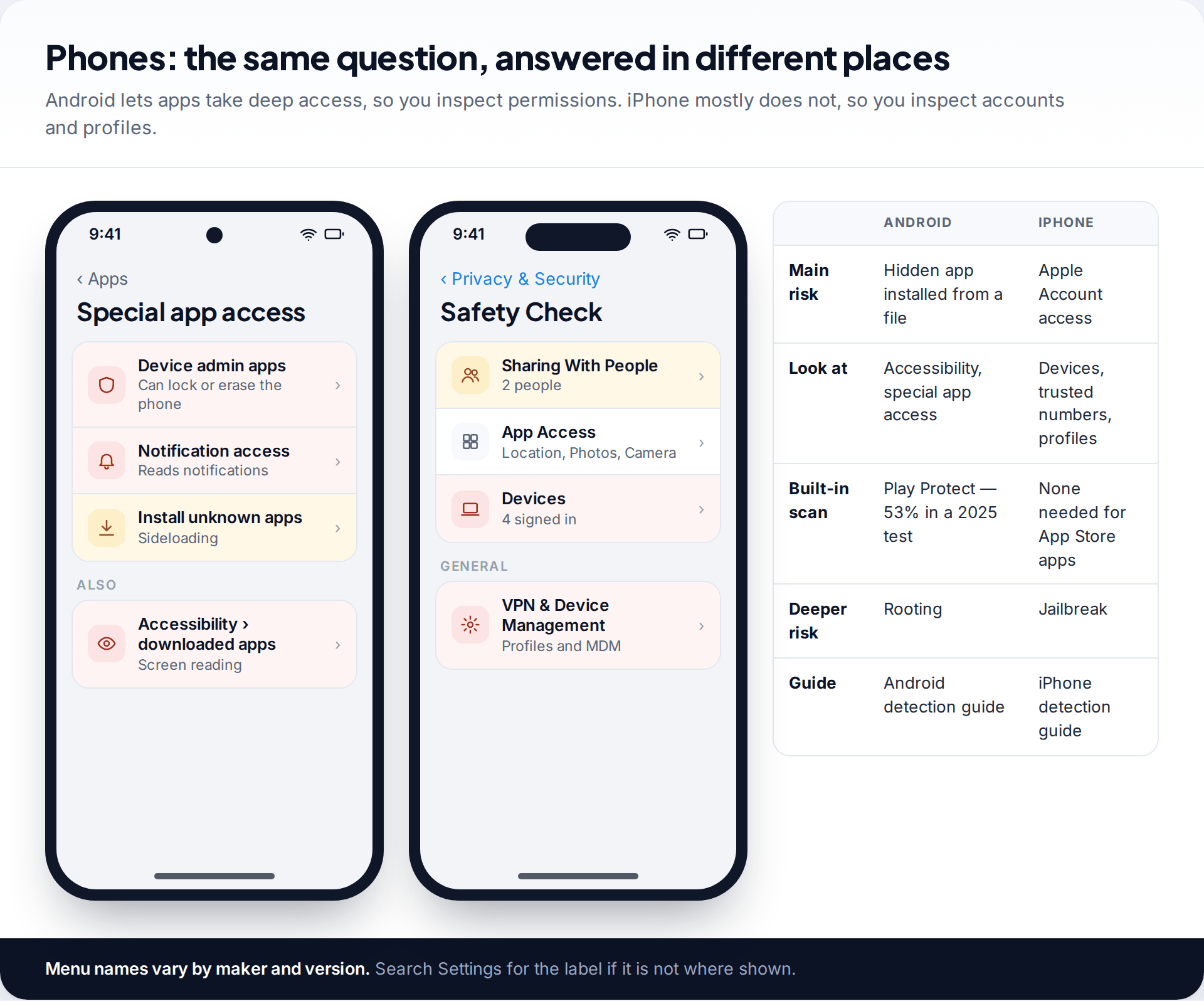
Android lets apps take deep access if someone grants it, and nearly all stalkerware is installed from a file rather than from Google Play. So the check is about permissions: look in Settings › Accessibility for services you didn’t add, and in Settings › Apps › Special app access for unknown apps holding device admin, notification access or usage access. Check that Play Protect is still on — some stalkerware tells the installer to disable it — but don’t treat its all-clear as final: in AV-Comparatives’ 2025 stalkerware test, run with the EFF, Play Protect detected 53% of the samples, while several dedicated security apps detected 94% or more. Our full method, including safe mode and the privacy dashboard, is in detecting stalkerware on Android.
iPhone doesn’t let App Store apps read each other’s data, so hidden stalkerware needs a jailbreak. Monitoring usually comes through the Apple Account instead, or through a management profile. Check the devices signed in under your name in Settings, the trusted phone numbers under Sign-In & Security, Settings › General › VPN & Device Management for profiles, and Safety Check under Privacy & Security for sharing. Look in the App Library for package-manager apps that suggest a jailbreak. The details are in checking an iPhone for stalkerware.
How to check a Windows PC for spyware
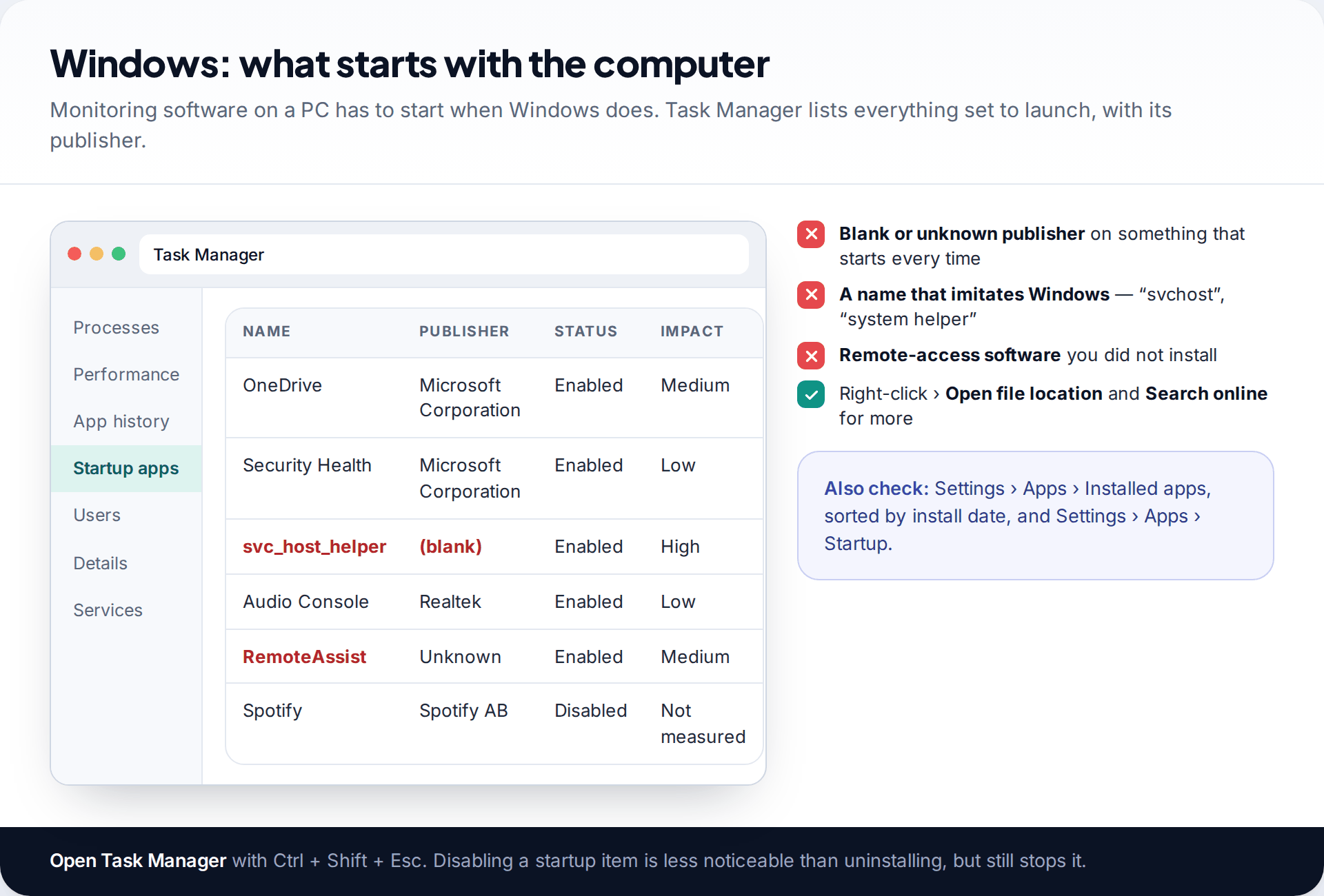
Monitoring software on a computer needs to run every time the computer starts, so begin with what starts. Press Ctrl + Shift + Esc to open Task Manager and choose Startup apps. Each entry shows a publisher; a blank or unfamiliar publisher, a name imitating a Windows component, or remote-access software you didn’t install are the ones to research. Right-click an item to open its file location or search online. Then open Settings › Apps › Installed apps, sort by install date, and look at anything that arrived when someone else had use of the computer.
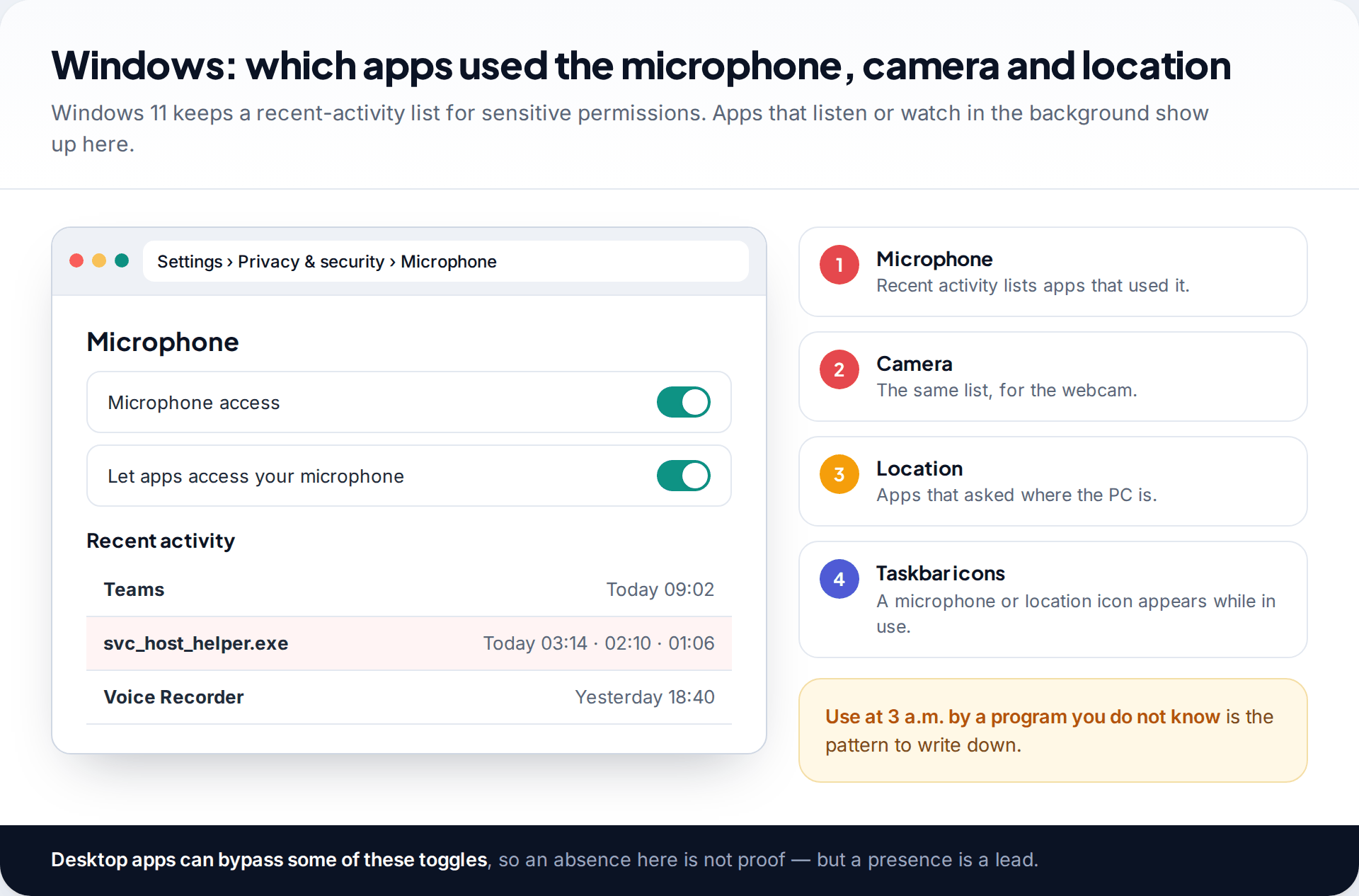
Next, check Settings › Privacy & security. The Microphone, Camera and Location pages each show recent activity by app, and an icon appears on the taskbar while they are in use. Regular use by an unknown program at night is worth recording. Also look at remote access: Settings › System › Remote Desktop should be off unless you use it, and any remote-support program in the installed list should be one you chose. Check your browsers too — extensions you didn’t add, and profiles synced to an account you don’t control.
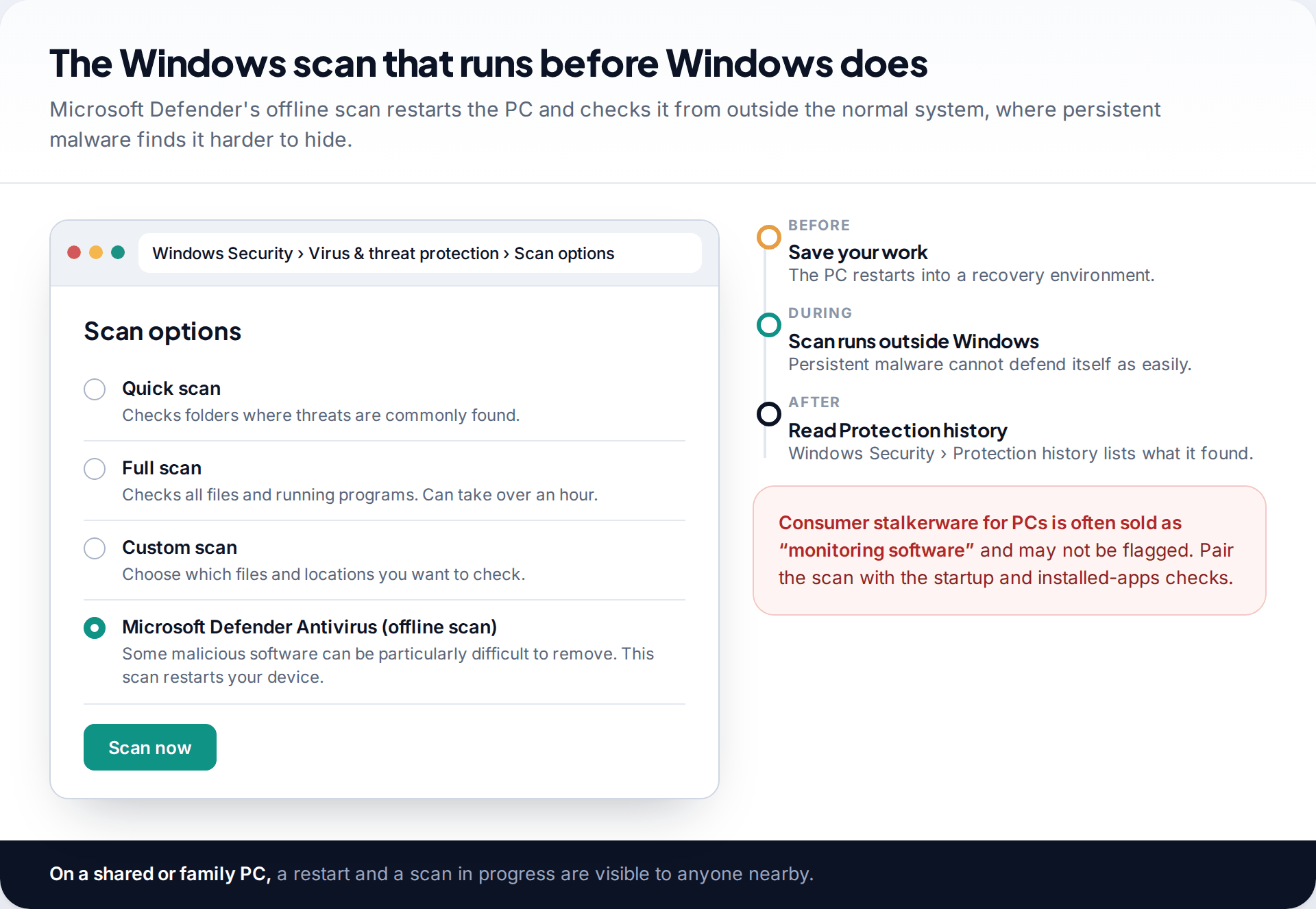
Finally, scan. Windows Security’s Microsoft Defender Antivirus (offline scan), under Virus & threat protection › Scan options, restarts the PC and scans from outside the running system. Microsoft recommends it when you suspect malware that is hard to remove. Be realistic about the result: consumer monitoring software is often marketed as legitimate, and an antivirus may not flag it. The startup and permission checks are what catch that.
How to check a Mac for spyware
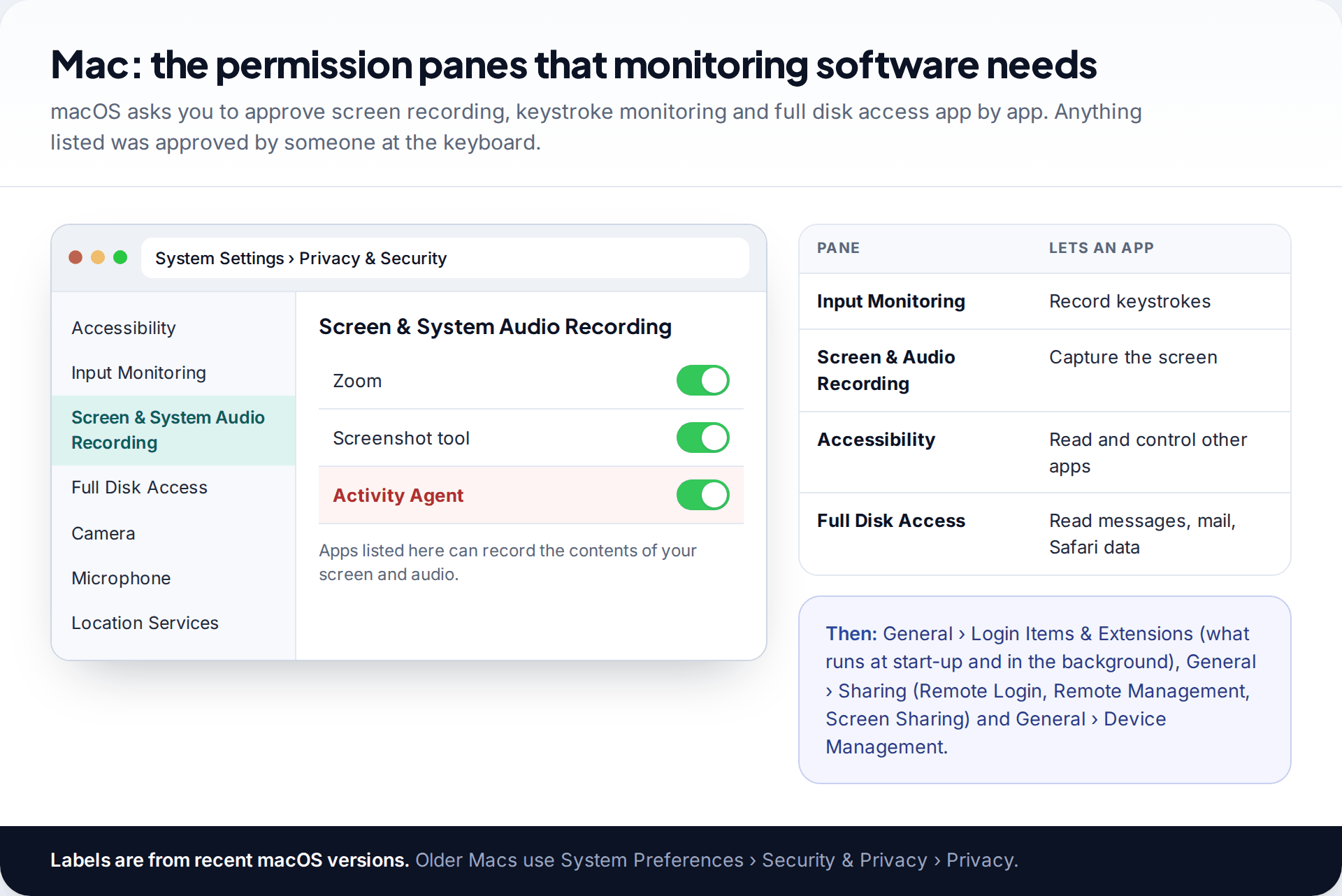
macOS makes apps ask for permission, one by one, before they can record the screen, log keystrokes or read your files. That makes the permission lists the best place to look. Open System Settings › Privacy & Security and go through Accessibility, Input Monitoring, Screen & System Audio Recording and Full Disk Access. Video-call and screenshot apps legitimately appear in some of them. An unfamiliar “agent” or “helper” in several of them is the monitoring pattern.
Then check General › Login Items & Extensions for what opens at login and what is allowed to run in the background, General › Sharing for Remote Login, Remote Management and Screen Sharing, and General › Device Management for any profile you didn’t install. Older macOS versions keep the same controls under System Preferences › Security & Privacy and Profiles.
Check your accounts, whatever device you use
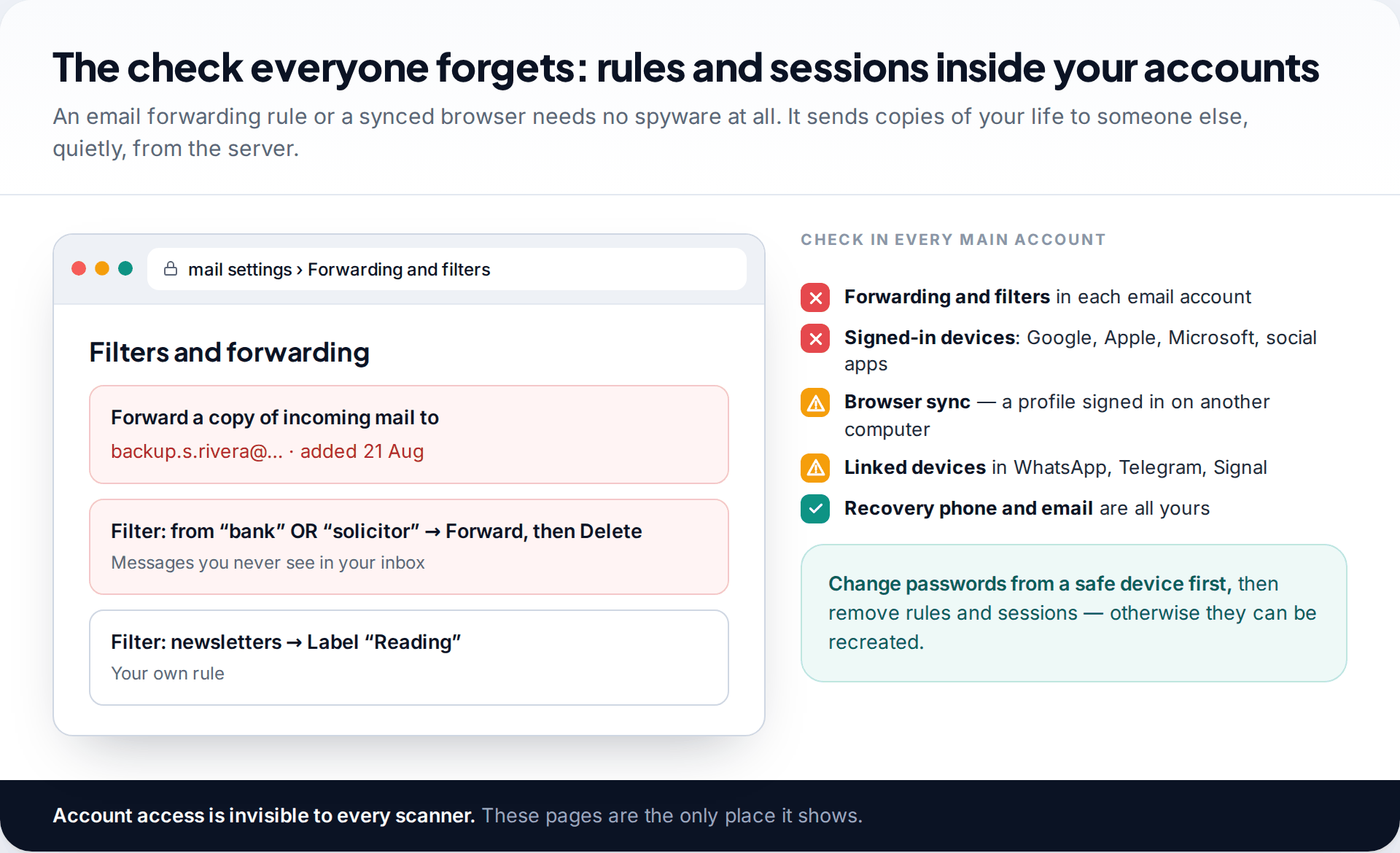
Account access is the route most often missed, because nothing appears on any device. In each email account, open the settings for forwarding and filters: a forwarding address or a rule that forwards and then deletes certain messages is a serious finding. Check the signed-in devices on your Google, Apple and Microsoft accounts and in social apps; the linked devices in messaging apps such as WhatsApp, Telegram and Signal; and whether your browser is synced to a profile someone else uses.
When you’re ready to act, change the password from a safe device first, turn on two-factor authentication with your own number, and only then remove unknown sessions, rules and recovery details. In the reverse order, they can simply be recreated.
Start from what they know
If you don’t know which device to check first, work backwards from what the other person seems to know. The kind of information points to the route, and the route points to the device or account worth checking first.
| They seem to know… | Most likely routes | Check first |
|---|---|---|
| Your texts and chat messages | Stalkerware on the phone; a linked device in the messaging app; iCloud or Google backups | Phone permissions, linked devices, Apple or Google Account devices |
| Your emails | Email password known; forwarding rule; mail app signed in elsewhere | Forwarding and filters, signed-in sessions |
| Where you are, live | Location sharing, Find My or Google Maps; a Bluetooth tracker; stalkerware | Sharing settings, tracker alerts, then the phone |
| Your photos | Shared albums or partner sharing; cloud account access | Photo sharing settings, account devices |
| What you did on the computer | Monitoring software; remote access; synced browser history | Startup items, privacy permissions, browser sync |
More than one row may apply. People who monitor a partner often use several routes at once, which is why closing one and stopping there so often fails.
Beyond phones and computers
Some monitoring never touches a phone or a computer. Bluetooth item trackers can be slipped into a bag or car; iPhone warns when an unfamiliar AirTag or compatible tracker seems to be travelling with you, and Android phones have unknown-tracker alerts as well. Connected cars often come with an app that shows the car’s location to whoever holds the account. Smart-home cameras, doorbells and speakers can be viewed by anyone with access to their app. If a shared account controls any of these, check who else is signed in, and change the password when it is safe to do so.
Which tools find what
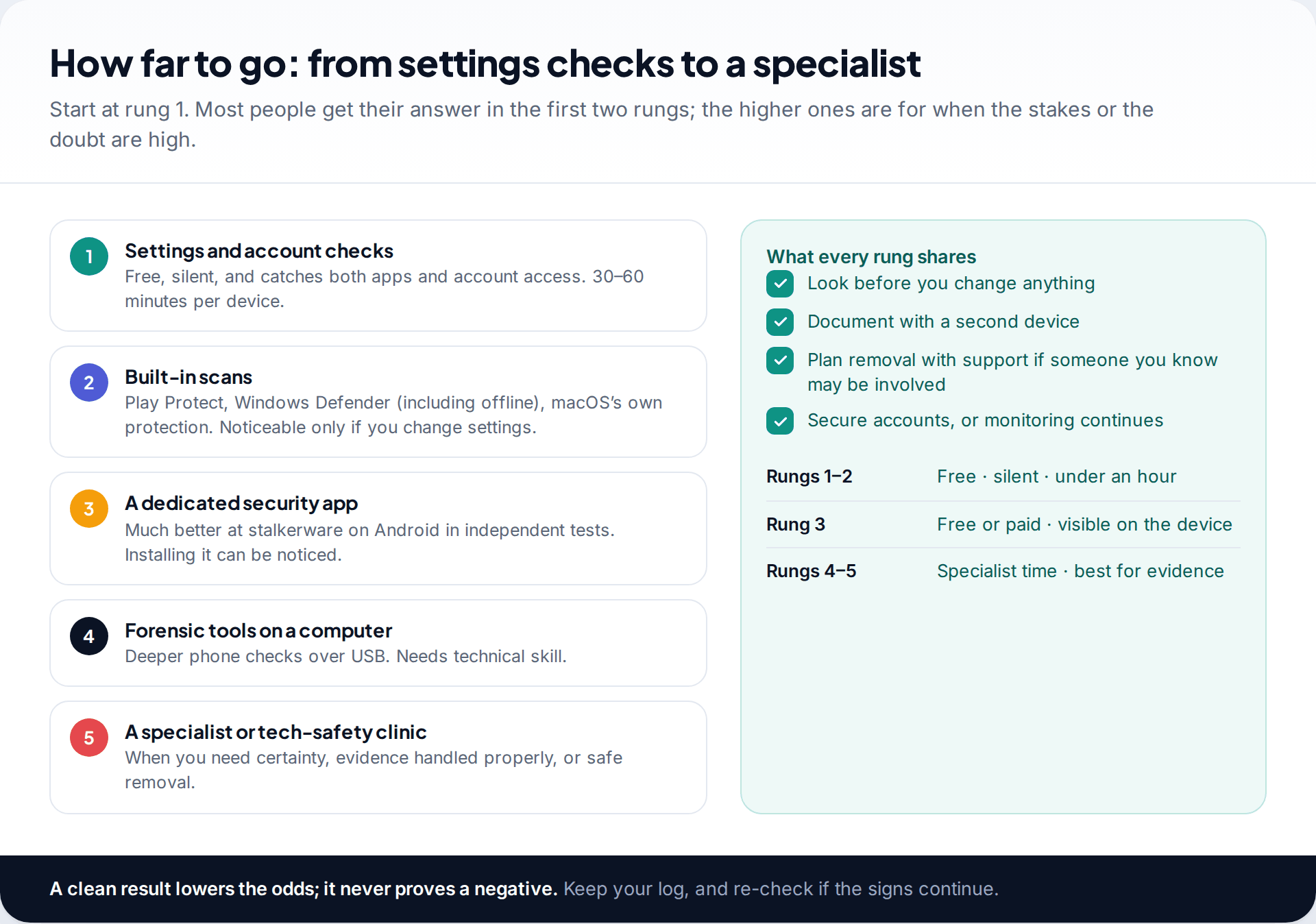
| Method | Good at | Can’t do |
|---|---|---|
| Settings and account checks | Stalkerware permissions, profiles, remote access, account sessions | See software hidden by a rooted or jailbroken system |
| Built-in scans (Play Protect, Defender) | Common malware, with no setup | Reliably catch stalkerware; Play Protect found about half in 2025 |
| Dedicated security apps | Much higher stalkerware detection on Android in independent tests | Inspect other apps on iPhone; find account access |
| Forensic tools and specialists | Deeper checks, properly handled evidence | Guarantee a result; they take time and skill |
Scanners also flag legitimate, visible monitoring tools, such as parental-control and family-location apps, including ours. That is by design: a scanner can’t know whether you agreed to it.
If you find something
Resist the urge to delete it straight away. Photograph what you found with another device, add it to your log, and — if someone you know may be responsible — talk to a domestic-abuse support service about timing before you remove it, reset the device or change passwords. Removal, a factory reset and a new device all end monitoring through that device, but none of them fixes account access; do the account steps at the same time. If no one you know is involved and it looks like ordinary malware, you can move quickly: scan, remove, reset if needed, and change passwords.
How this page was put together
We checked menu paths in September 2026 against Google’s Android and Play Protect help, Apple’s Personal Safety User Guide and Mac User Guide, and Microsoft’s Windows Security documentation, including its offline scan page. Detection figures come from AV-Comparatives’ Stalkerware Test 2025, published with the EFF. Settings move between versions, so search for a label if it isn’t where we describe it.
We didn’t install spyware on test devices for this guide; the app names shown are invented. Our editorial standards page explains how we research and correct guides.
Common questions
How can I tell if spyware is on my phone?
On Android, look for unknown apps in Accessibility and Special app access, check Play Protect is on, and run a dedicated scanner. On iPhone, check your Apple Account devices and trusted numbers, profiles under VPN & Device Management, Safety Check and signs of a jailbreak.
Can antivirus detect spyware?
Often, but not always. Dedicated security apps detected most stalkerware in 2025 testing, while Android’s built-in Play Protect detected about half. No scanner detects someone using your account password.
Can someone spy on my computer without installing anything?
Yes, through your accounts: an email forwarding rule, a synced browser profile or a signed-in cloud account shows them your data from their own device.
Can spyware be installed remotely?
Everyday stalkerware almost always needs physical access to an unlocked device or your passwords. Remote, no-click installation is associated with expensive mercenary spyware aimed at a small number of targets.
Does a factory reset remove spyware?
It removes software on the device if you don’t restore a backup that brings it back. It doesn’t remove account access, so change your passwords and check devices signed in to your accounts.
Is my work laptop spying on me?
Employers often manage and monitor their own devices, and this may be lawful and stated in a policy. Check the policy or ask IT what is collected, and keep personal activity off work equipment.
Looking for a tool to go with this? TheTruthSpy is a free parental control app for Android that stays visible on the child's phone. If it fits your family, see what the app does.
Related guides
How to Check If Your Email Was in a Data Breach
Check if your email was in a data breach for free, then act on what leaked: passwords, card details or…
How to Start Using a Password Manager
Switch to a password manager without stress: built-in or standalone, protecting the main password, and a first-hour plan for the…
How to Tell If Your Phone Has a Virus or Malware
Most 'virus' signs have ordinary causes. How to check an iPhone or Android phone for real malware, remove it, secure…
Parental controls your child can see
Location, screen time limits, a web filter and alerts from notifications — free, and visible on your child's phone. Pair a phone in about ten minutes.
Android · Free to set up · Visible on your child's phone