Backing Up Telegram Chats: Export, Cloud Sync and Saved Messages

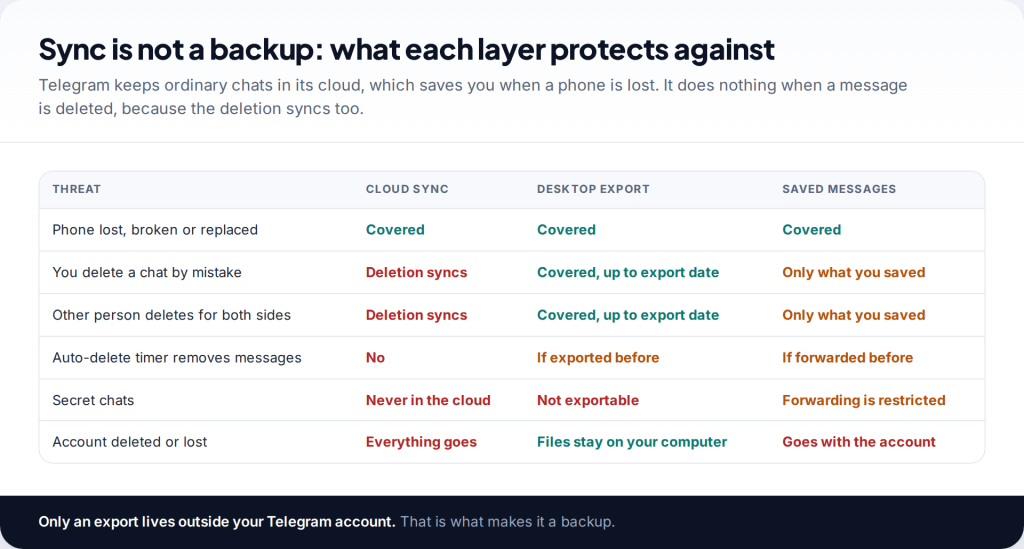
To back up Telegram chats properly, export them with Telegram Desktop, the computer app for Windows, macOS and Linux. Telegram’s cloud sync keeps your chats when you change phones, but it isn’t a backup: deletions sync to every device, and secret chats are never stored in the cloud at all. Add the habit of forwarding important items to Saved Messages, and protect the account itself, and you’re covered for most ways people lose messages.
Does Telegram back up your chats automatically?
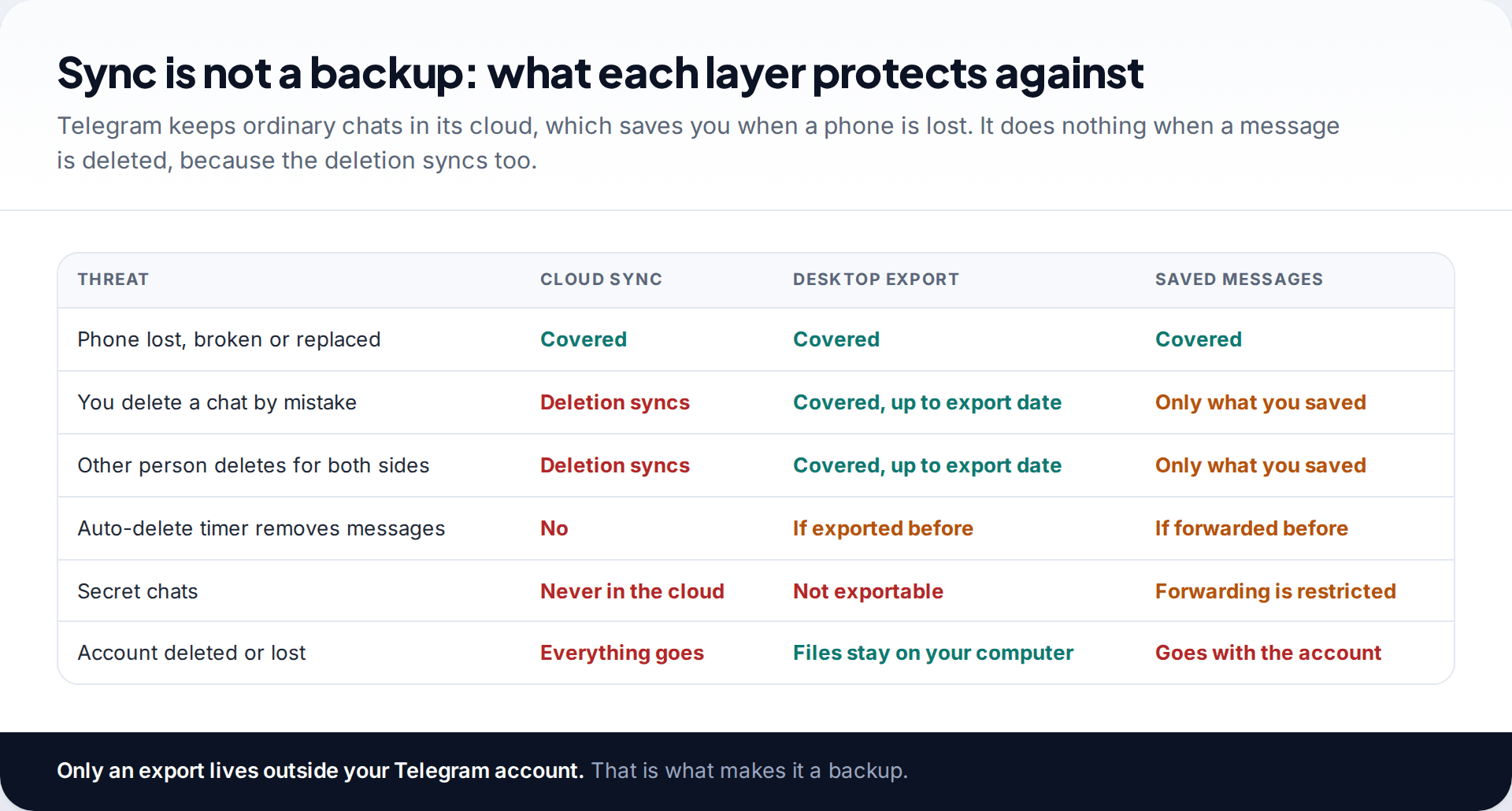
Partly. Telegram describes itself as a cloud-based messenger. Your ordinary chats, groups and channels are stored on its servers and appear on every device you sign in to. Lose your phone, sign in on a new one, and your chats are there. That’s why Telegram has no “backup to Google Drive” or “backup to iCloud” setting like WhatsApp does.
But sync and backup are different things. A backup is a copy you can go back to when something goes wrong. Telegram’s cloud always mirrors the current state of your chats, so it can’t help in the situations people most often search about:
- Deleting a chat by mistake. After a five-second undo, it’s gone everywhere.
- The other person deleting messages for both sides. Telegram allows this for any message in a private chat, and your copy goes too.
- Auto-delete timers removing messages after a set time.
- Secret chats, which Telegram says are device-specific and never part of the cloud.
- Losing the account, through inactivity or deletion, which takes every cloud chat with it.
If you’ve already lost messages, our guide to recovering deleted Telegram messages covers the few exceptions. The rest of this page is about never needing it.
How to back up Telegram chats with a Desktop export
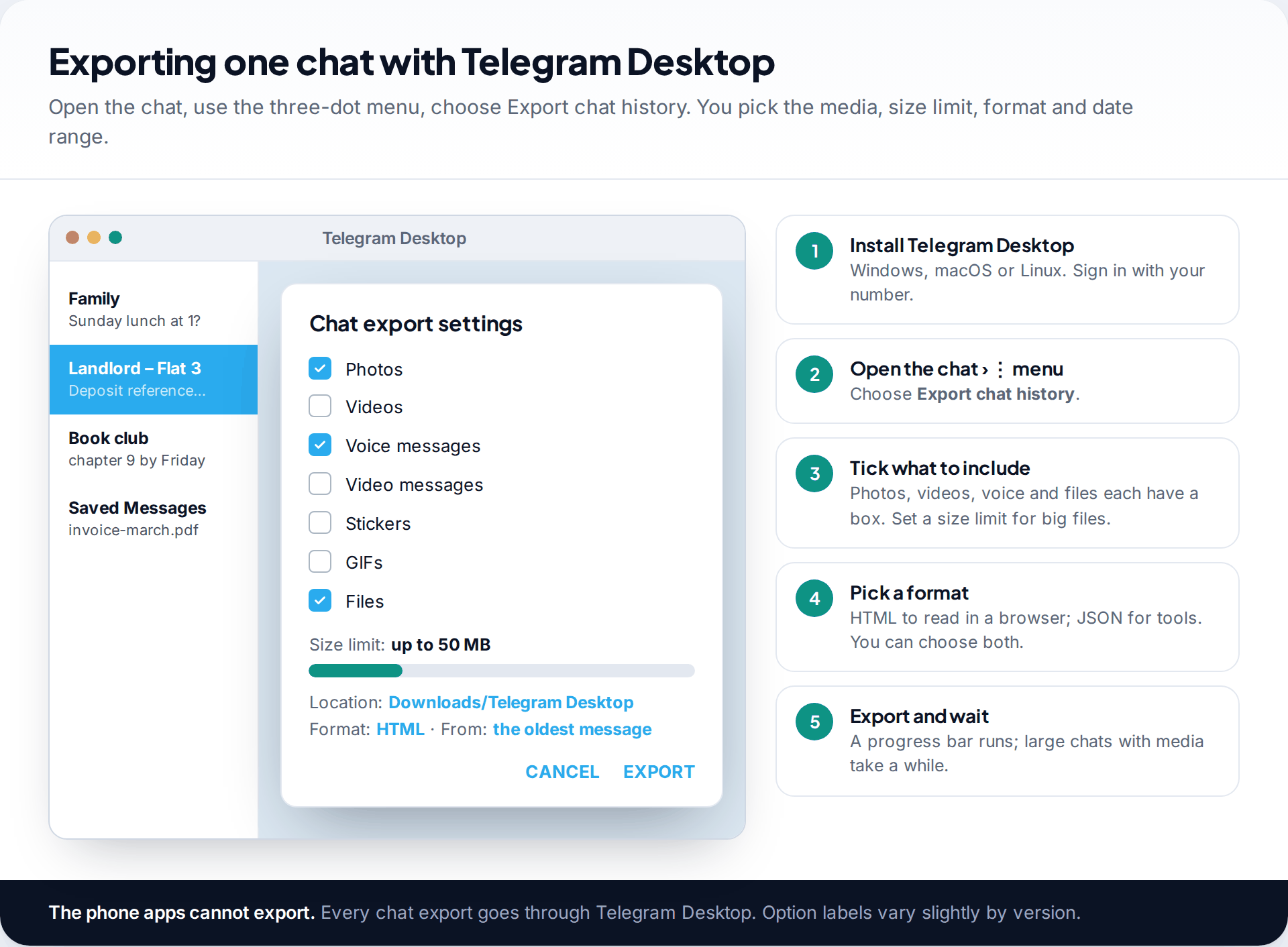
The export tool is the only way to get a copy of your chats that lives outside your Telegram account. It exists only in Telegram Desktop. The iPhone and Android apps can’t export. Install Telegram Desktop from telegram.org and sign in with your phone number. Your cloud chats appear automatically.
To export one chat:
- Open the chat and click the three-dot menu at the top right.
- Choose Export chat history.
- Tick the types of media to include: photos, videos, voice messages, video messages, stickers, GIFs and files. Use the size limit to skip very large files.
- Choose a format. HTML is easiest to read in a browser. JSON suits tools and scripts. Choose both if you’re unsure.
- Optionally set a date range, then click Export.
Telegram’s own announcement of the feature describes exactly this: all or some of your chats, with the media they contain, as JSON or formatted HTML, accessible offline. Individual chats can be exported separately, which keeps each archive small.
Exporting your whole account at once
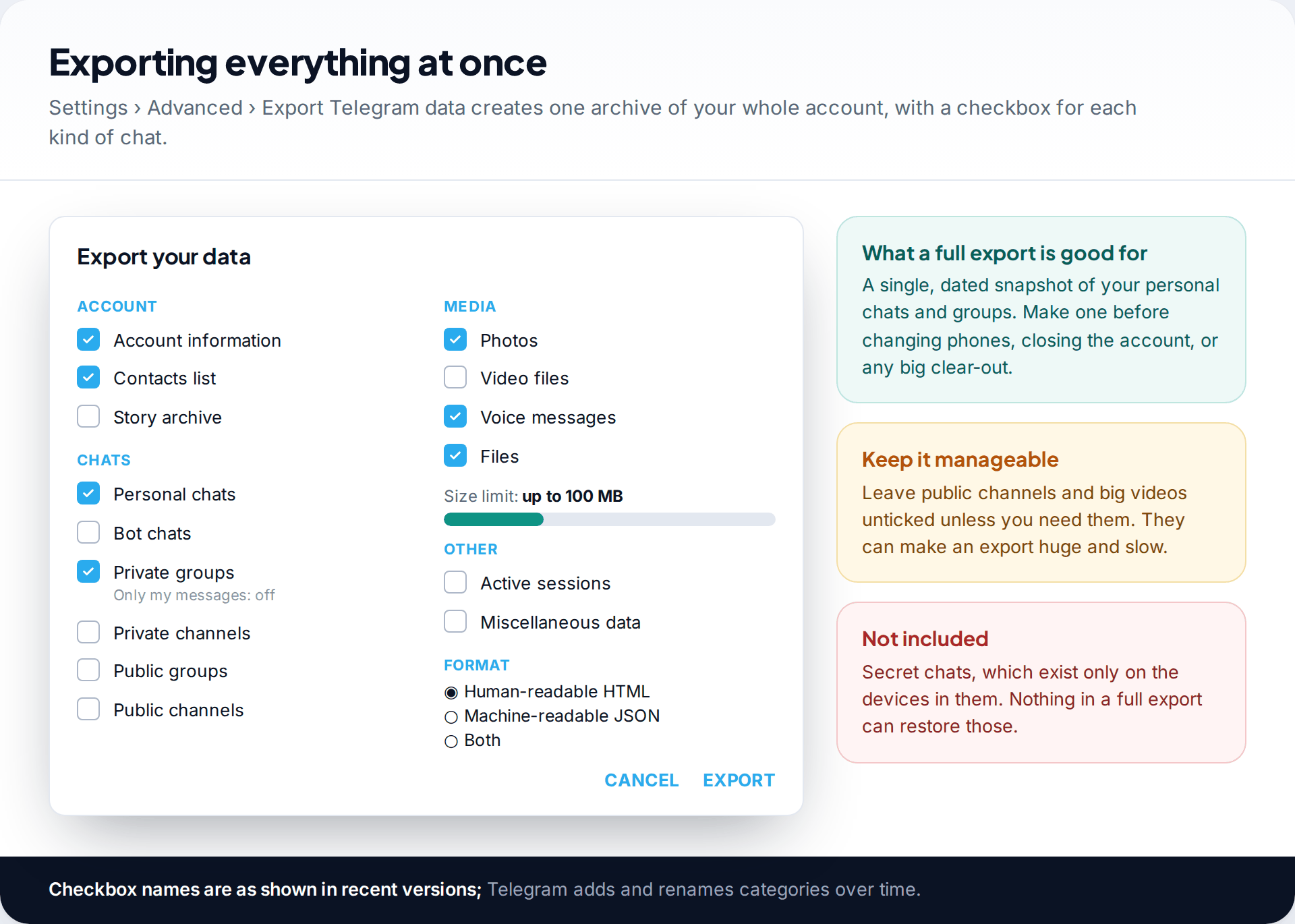
For a single snapshot of everything, open Settings › Advanced › Export Telegram data in Telegram Desktop. Some versions have shown it directly under Settings. The dialog lists categories: account information, contacts, personal chats, bot chats, private and public groups, private and public channels. Then come media types, a size limit and the output format.
A sensible first full export ticks personal chats and private groups, includes photos, voice messages and files, and leaves video and public channels off. Those two are what make exports balloon in size and time. You can always run a second export later for a specific channel or video-heavy chat.
Secret chats are not included in any export. They exist only on the two devices in the conversation. If one of those devices is lost, logged out or replaced, the secret chat is gone. No setting changes that.
Why the export says “wait 24 hours”
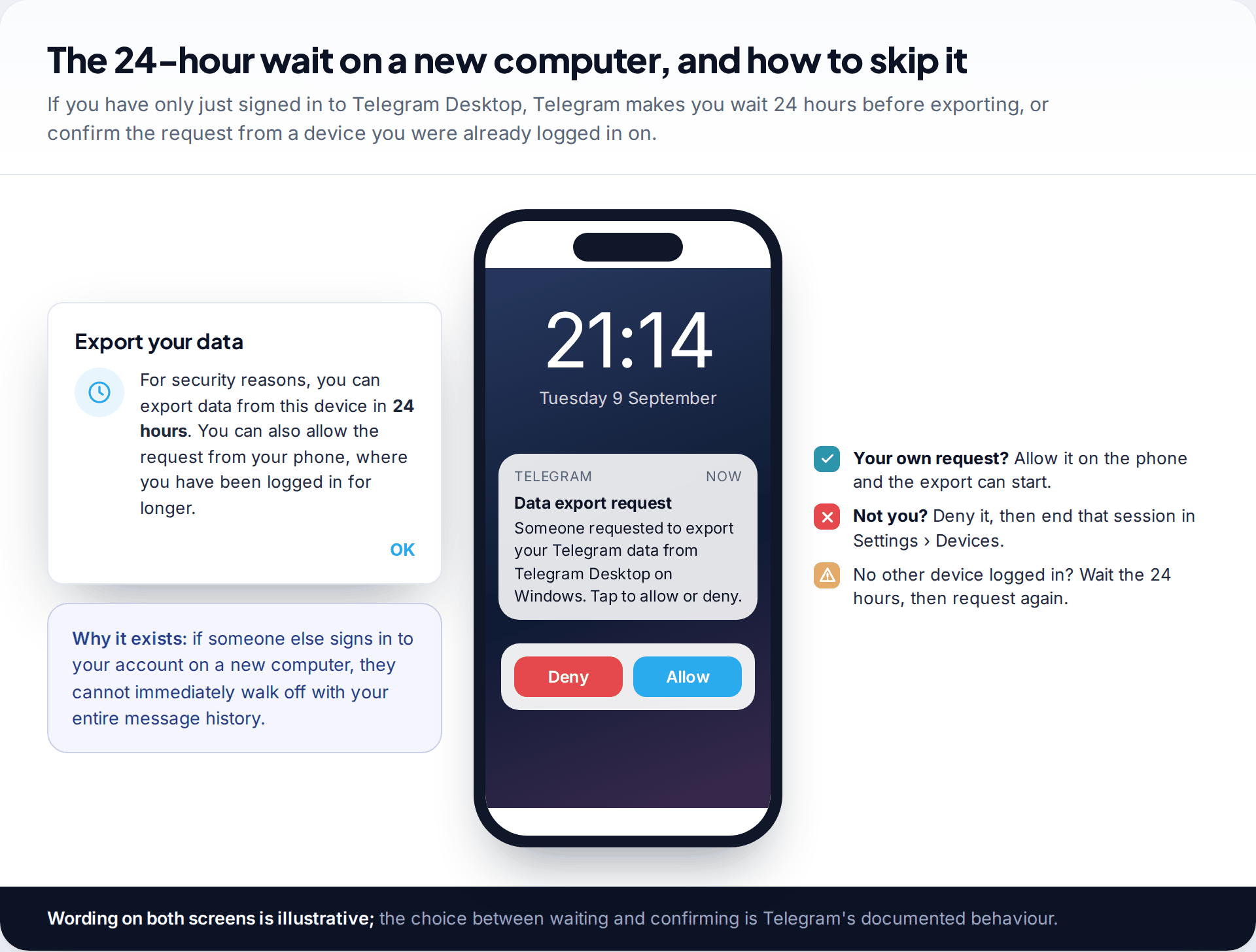
Many people hit this on their first try. If you’ve only just signed in to Telegram Desktop, Telegram won’t start an export straight away. You either wait 24 hours or confirm the request from another device where you were already logged in, usually your phone. It’s a safety measure. Someone who signs in to your account on a new computer can’t immediately download your entire history.
If the request was yours, allow it on your phone and the export begins. If you didn’t make it, deny it and go to Settings › Devices to end any session you don’t recognise. Then check your Two-Step Verification (below).
What you get, and where to keep it
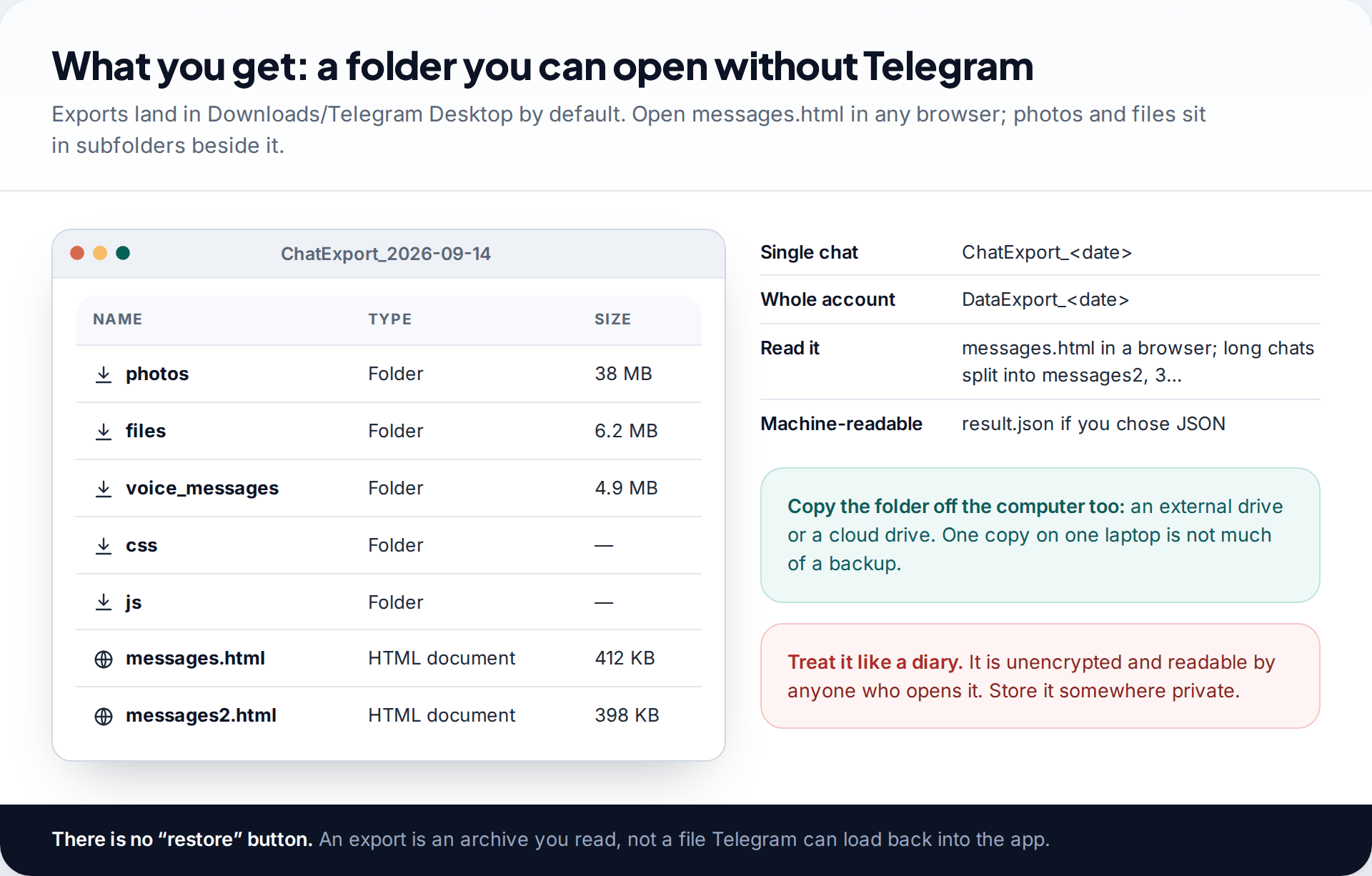
By default, exports go to a Telegram Desktop folder inside your Downloads. A single chat appears as ChatExport_ followed by the date. A full export is DataExport_ followed by the date. Inside, messages.html opens in any browser and shows the conversation much as it looked in the app. Long chats are split across messages2.html, messages3.html and so on. Media sits in subfolders.
Two practical points. First, Telegram doesn’t offer a way to load an export back into the app. It’s an archive you read and search, not a restore file. Second, the export is unencrypted. Anyone who opens the folder can read it, so store it as carefully as you would a diary. Keep one copy on the computer and another on an external drive or a cloud drive you trust.
Saved Messages: the everyday safety net
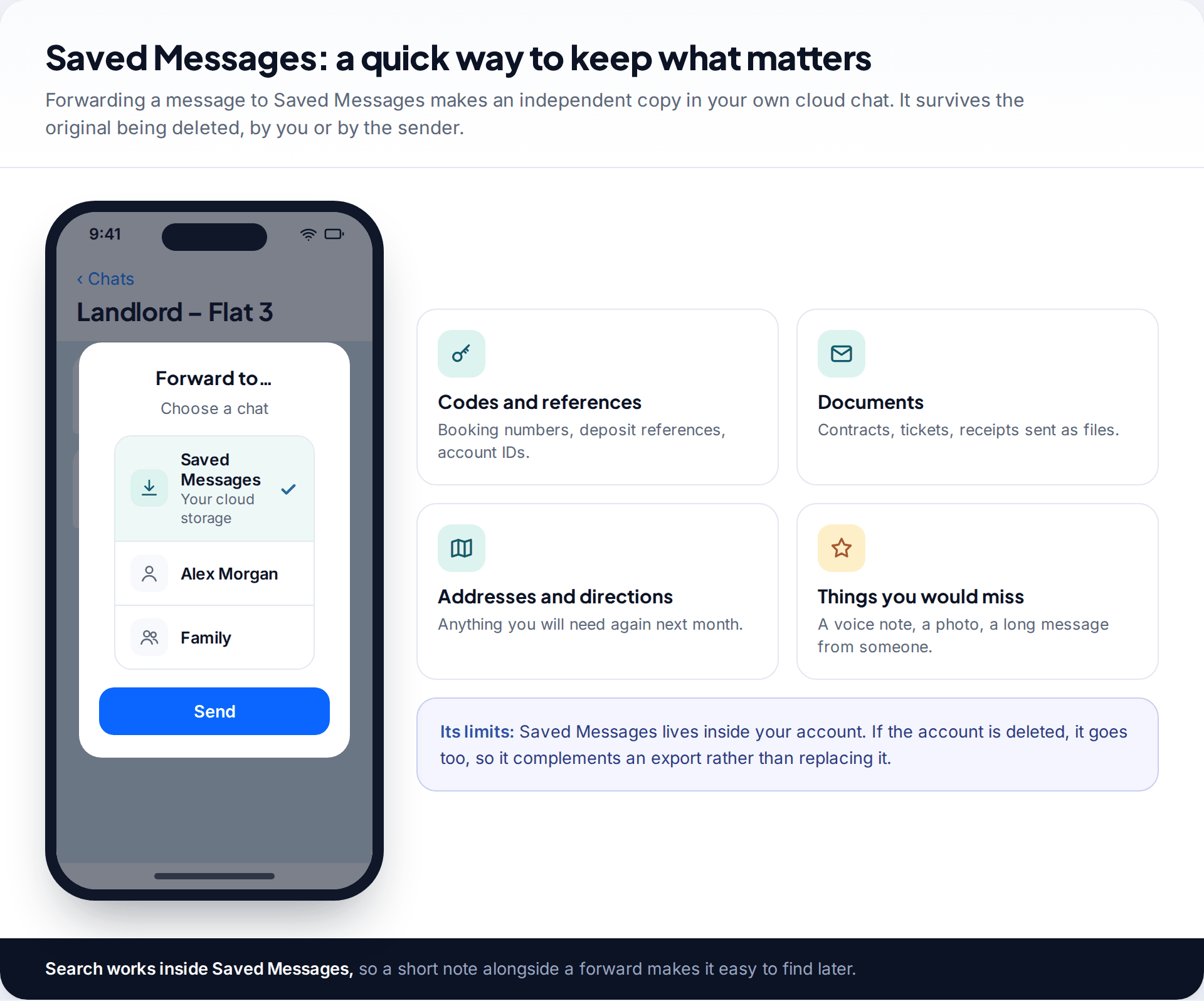
Exports are periodic. Saved Messages is instant. It’s a private chat with yourself, stored in Telegram’s cloud and visible on all your devices. When you forward a message there, Telegram creates a new message. If the sender later deletes the original for both sides, or you clear the chat, your forwarded copy stays.
Use it for anything you’d hate to lose between exports: booking and deposit references, documents sent as files, addresses, or a voice note from someone you love. Search works inside Saved Messages, so adding a word or two alongside the forward makes things easy to find later.
Know its limit, though. Saved Messages is part of your account. If the account goes, so does Saved Messages. That’s why it complements an export rather than replacing it.
Photos and files: save them out of the cache
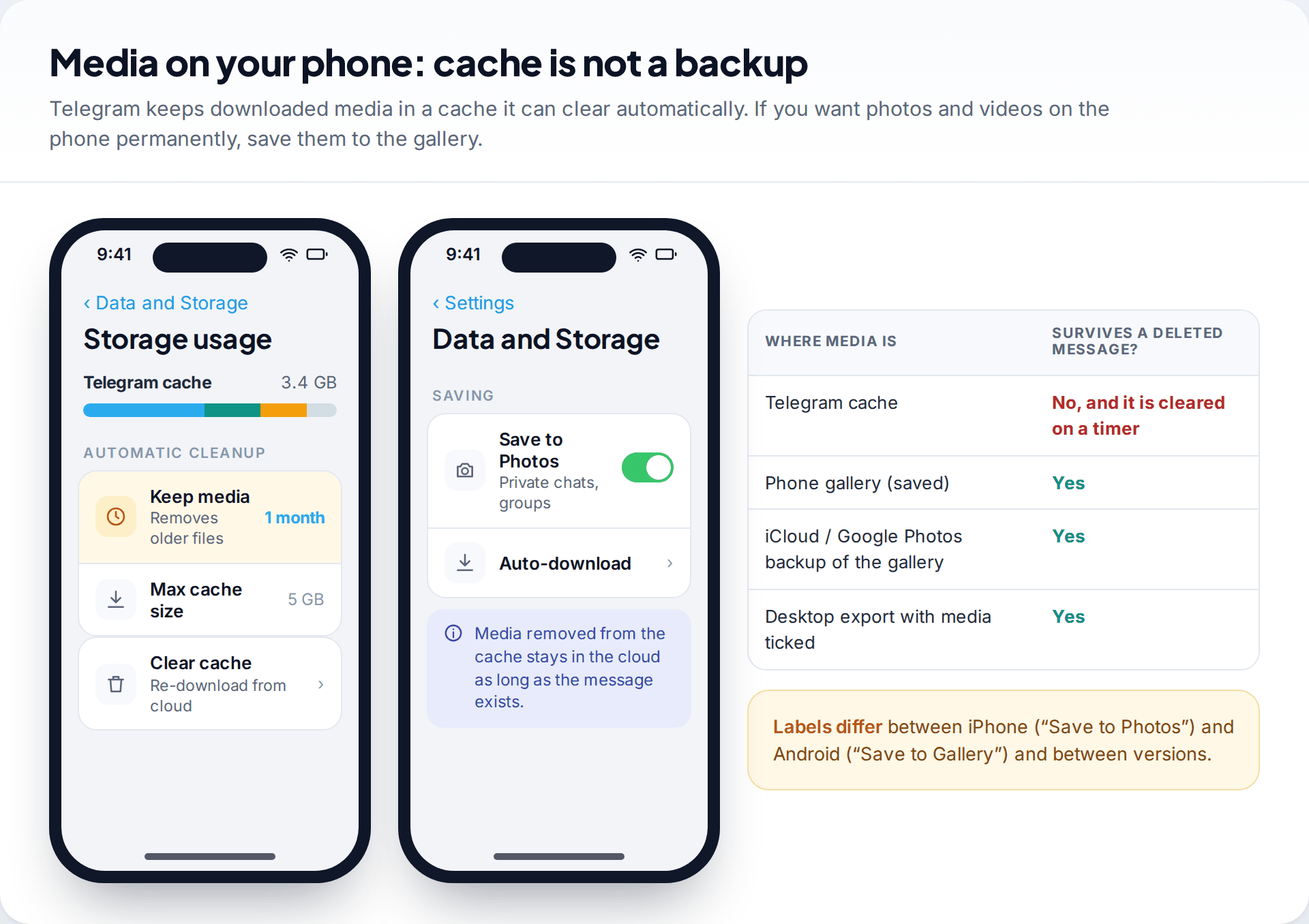
Media you’ve opened in Telegram is stored in a cache on your phone, and Telegram can clear it automatically after a period you choose (the Keep media setting under Data and Storage › Storage usage). That’s fine while the message still exists, because the file can be downloaded again from the cloud. If the message is deleted, a file removed from the cache has nowhere to come back from.
To keep media permanently on the phone, turn on Save to Photos (iPhone) or Save to Gallery (Android) for the chat types you care about. Your phone’s own photo backup then protects those files too. Labels vary between versions, so search Telegram’s settings if you can’t find them.
Protect the account, not just the chats
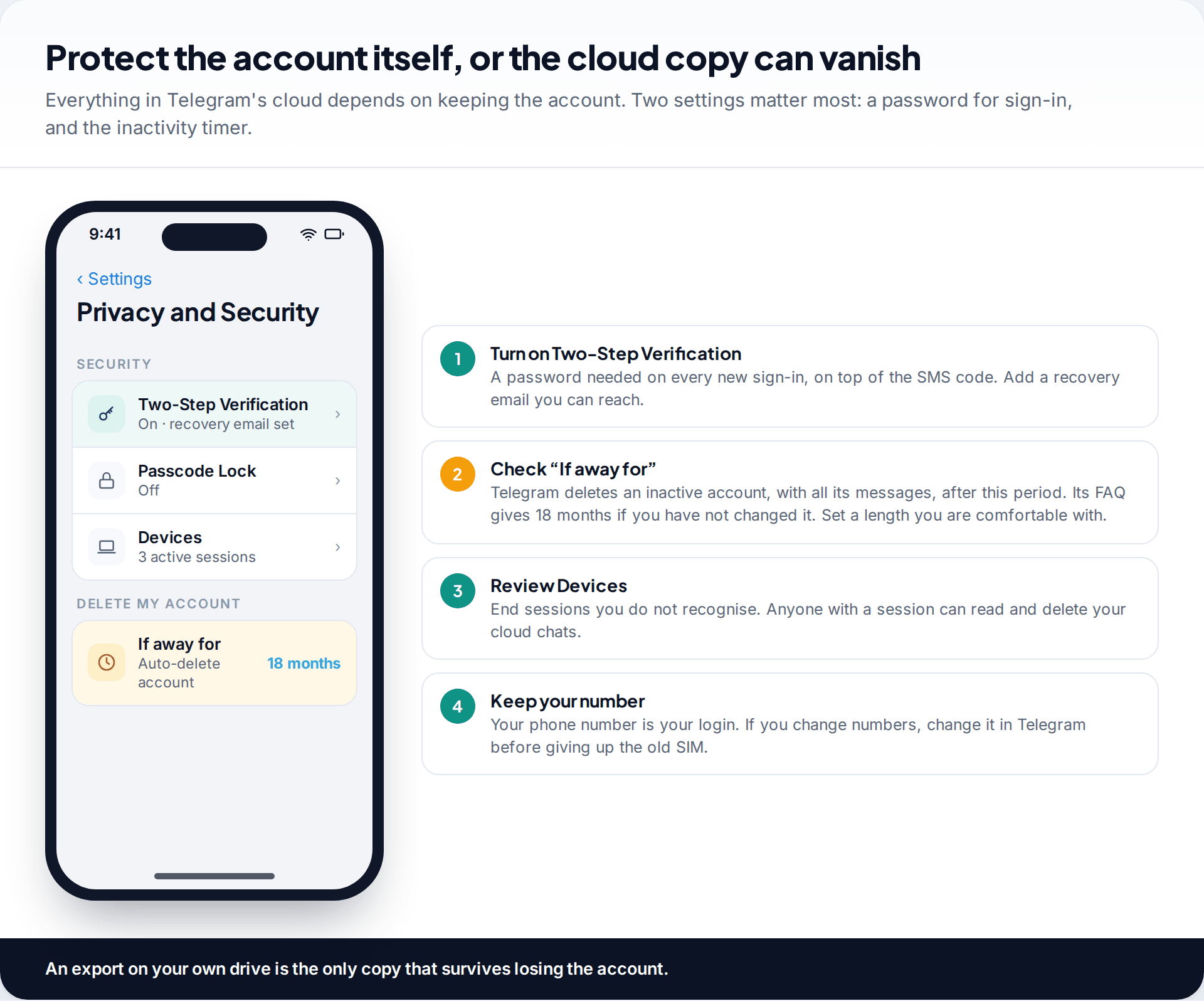
Every chat in Telegram’s cloud depends on you keeping the account. Three settings under Privacy and Security deserve five minutes:
- Two-Step Verification. It adds a password on top of the SMS code whenever you sign in on a new device. Choose a strong one (our passphrase method helps) and add a recovery email you can actually reach.
- Delete my account “If away for”. Telegram’s FAQ says that if you don’t come online for 18 months, your account is deleted with all its messages, and that you can change the period. Check what yours is set to, especially if you use Telegram rarely.
- Devices. Anyone with an active session can read and delete your cloud chats. End sessions you don’t recognise.
If you change phone number, update it inside Telegram before giving up the old SIM. Your number is how you sign in.
Before a new phone, a new number or a clear-out
These are the moments when chats actually get lost, usually because something is done in the wrong order. Work through this list first:
- Run a full export on Telegram Desktop and open messages.html to check it worked before you change anything else.
- Deal with secret chats. They won’t follow you to a new phone. If anything in them matters, agree with the other person how to keep it before you log out.
- Check Two-Step Verification and that you know the password. You’ll need it when you sign in on the new device.
- Changing number? Use Telegram’s own change-number option while you still have the old SIM, so the account moves with you instead of being stranded.
- Sign in on the new phone before wiping the old one. Confirm your chats have synced, then log out of the old device from Settings › Devices.
Groups and channels you run
If you’re an admin, the group or channel is often the most valuable thing you’d lose. It depends on the account that owns it, and on every admin who can delete messages. Telegram Desktop’s export works for groups and channels you belong to, so export the ones you manage on the same schedule as your personal chats. Before handing over ownership or leaving, make one last export. Keep the admin list short, too. Anyone with delete rights can remove history that no sync will bring back.
A routine you’ll actually keep
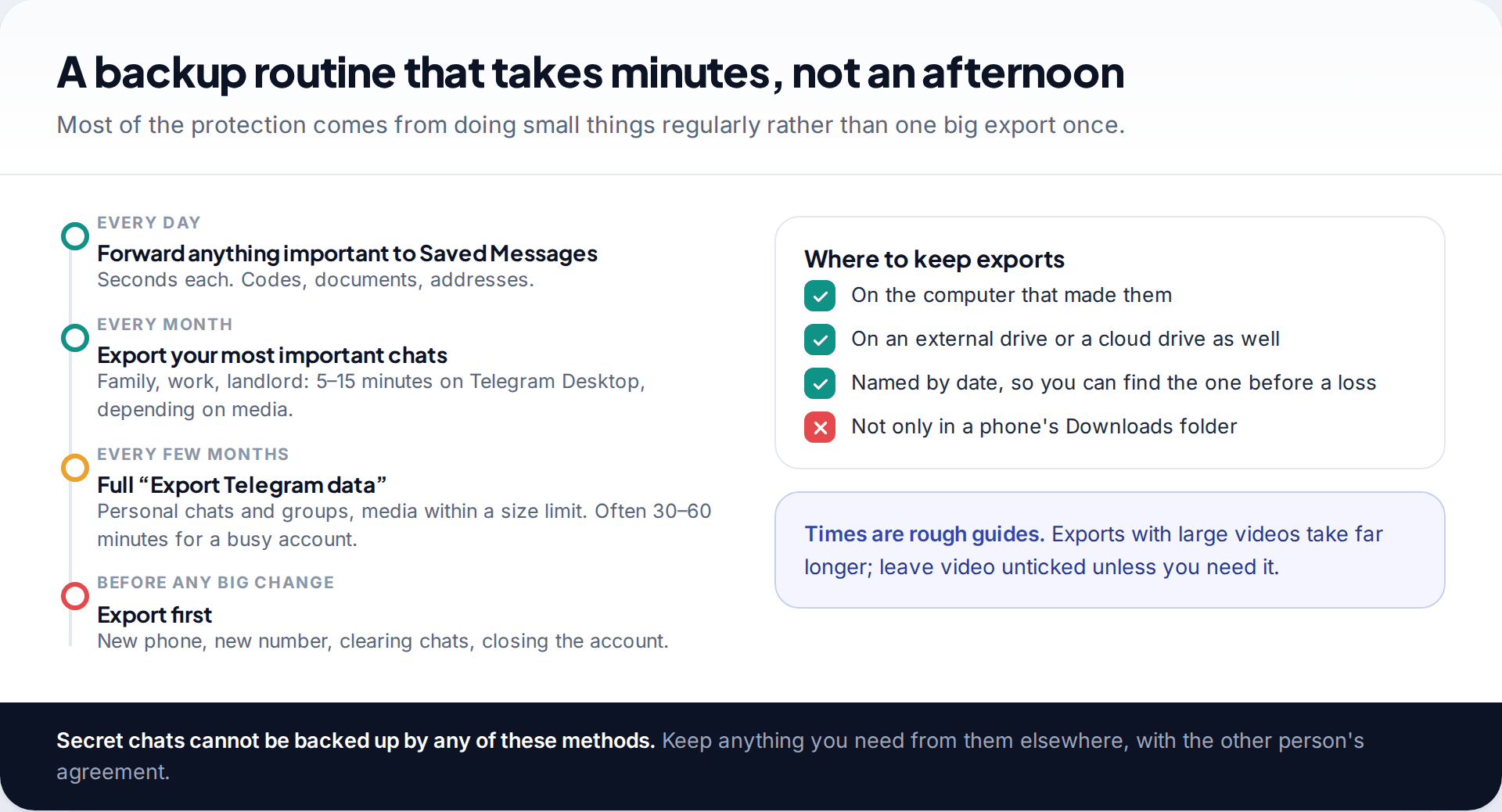
You don’t need to export everything every week. Forward the important things to Saved Messages as they arrive. Once a month, export the handful of chats you’d be upset to lose. Every few months, and always before a new phone, a new number or a clear-out, run a full export and copy it off the computer. The first full export takes the longest. After that, each routine export is a few minutes of clicking and waiting.
What none of this can do is back up secret chats. If something in a secret chat matters, agree with the other person how to keep it elsewhere.
How this page was put together
Telegram’s cloud model, secret chats, message deletion and the inactivity rule come from Telegram’s FAQ. The export feature comes from Telegram’s own announcement, and the 24-hour security wait comes from Telegram’s published export notes. All were checked in September 2026. Dialog labels in the images follow recent Telegram Desktop versions but change between releases. The routine times are rough guides, not measurements.
We aren’t affiliated with Telegram and don’t recommend third-party backup tools that ask for your login. Our editorial standards describe how we source and correct guides.
Common questions
Does Telegram have a backup like WhatsApp?
No. Telegram stores ordinary chats in its cloud and syncs them across devices, so there’s no separate backup to Google Drive or iCloud. For a copy you can go back to, export chats with Telegram Desktop.
Can I export Telegram chats from my phone?
No. The export tool is only in Telegram Desktop for Windows, macOS and Linux. Sign in there with your phone number and your cloud chats appear, ready to export.
Can I restore a Telegram export back into the app?
Telegram doesn’t offer a way to import its own export back into your chats. The export is a readable archive in HTML or JSON.
Are secret chats backed up?
No. Secret chats exist only on the devices in the conversation. They don’t sync, aren’t in the cloud and can’t be exported.
Will I lose my chats if I get a new phone?
Not your ordinary chats. Sign in with the same number and they sync from the cloud. Secret chats from the old phone don’t transfer.
How often should I back up Telegram chats?
Forward important items to Saved Messages as they arrive, export key chats monthly, and run a full export every few months and before any phone or number change.
Why can’t I export straight away on a new computer?
For security, Telegram makes a newly signed-in device wait 24 hours before exporting, unless you confirm the request from a device you were already logged in on.
Looking for a tool to go with this? TheTruthSpy is a free parental control app for Android that stays visible on the child's phone. If it fits your family, see the Social media alerts feature.
Related guides
Why Is My Phone Overheating? Causes and Fixes
Warm, hot or dangerous? Why phones heat up when charging, gaming or in the sun, how to cool one safely,…

How to Transfer Photos From Your Phone to a Computer
The best way to copy photos from iPhone or Android to Windows or Mac, what happens to HEIC files, dates…

How to Back Up WhatsApp Chats
Set up WhatsApp backups on Android and iPhone, keep an encryption key safe, check the backup exists, and fix the…
Parental controls your child can see
Location, screen time limits, a web filter and alerts from notifications — free, and visible on your child's phone. Pair a phone in about ten minutes.
Android · Free to set up · Visible on your child's phone