Vault Apps and Hidden Apps on a Child’s Phone: How to Spot Them

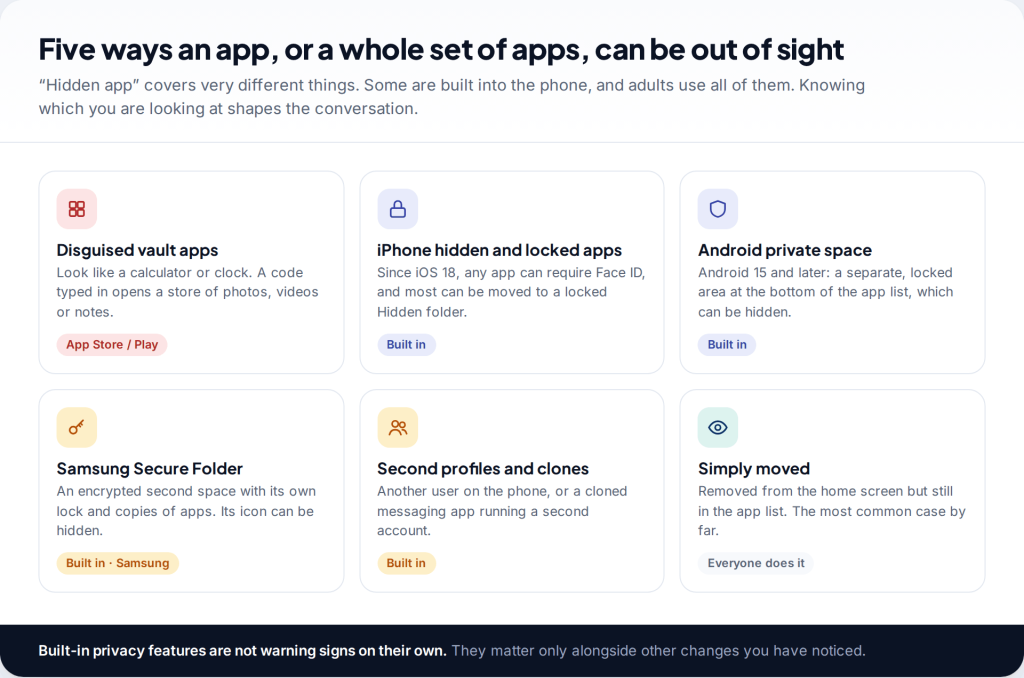
Before you look for hidden apps on your child’s phone, know what you are likely to find. To find hidden vault apps on a child’s phone, check the full app list in Settings, the download history, storage by size and which apps can reach photos. Then look at the phone’s built-in private areas: the iPhone Hidden folder, Android’s private space, Samsung’s Secure Folder and extra user profiles. Most of what turns up is ordinary privacy, and how you handle it matters more than finding it.
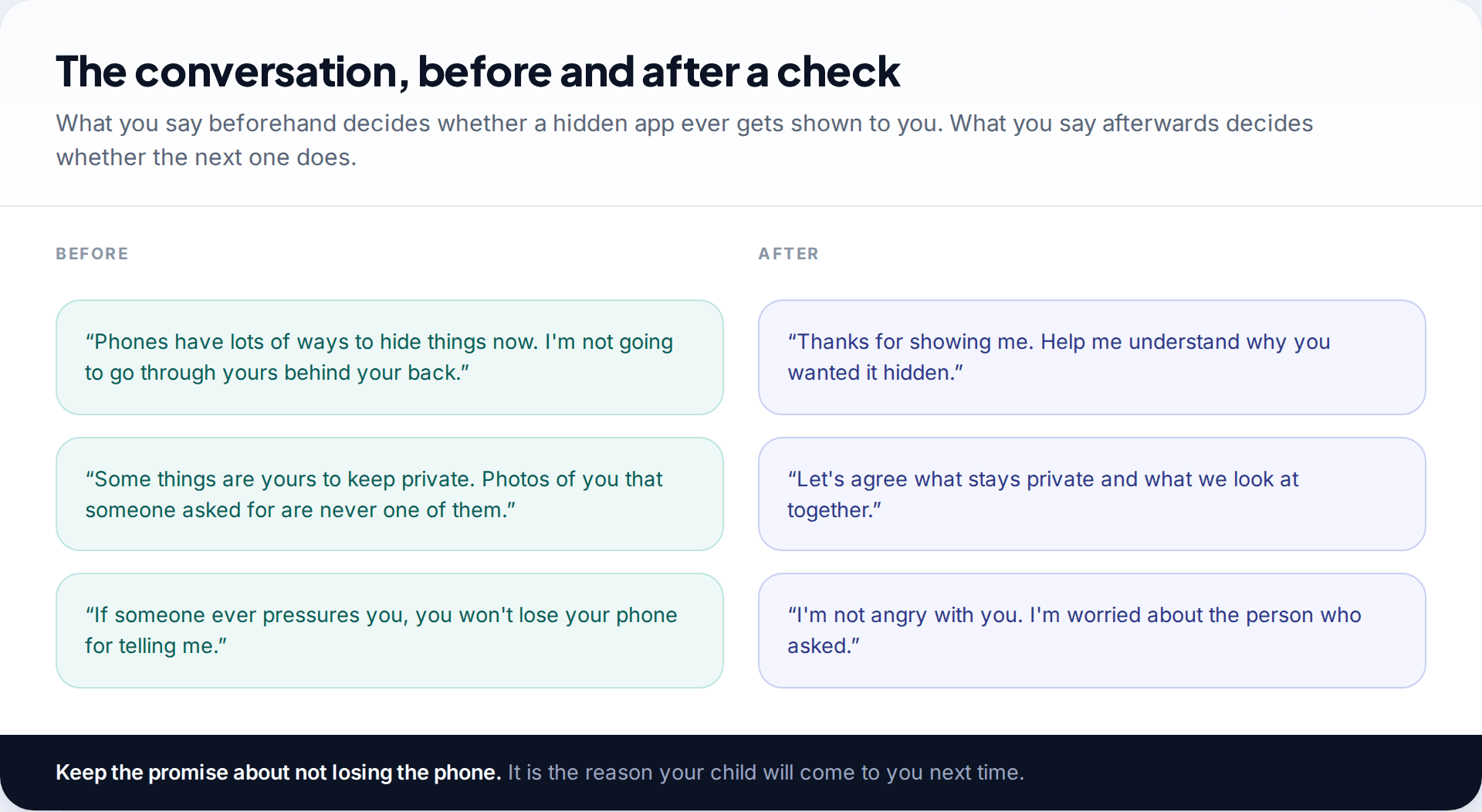
Do this openly. Searching a phone while your child is out and then confronting them tends to push the next vault somewhere you won’t find it. An agreed check with them present is slower, and it works better.
What “hidden” and “vault” apps actually are
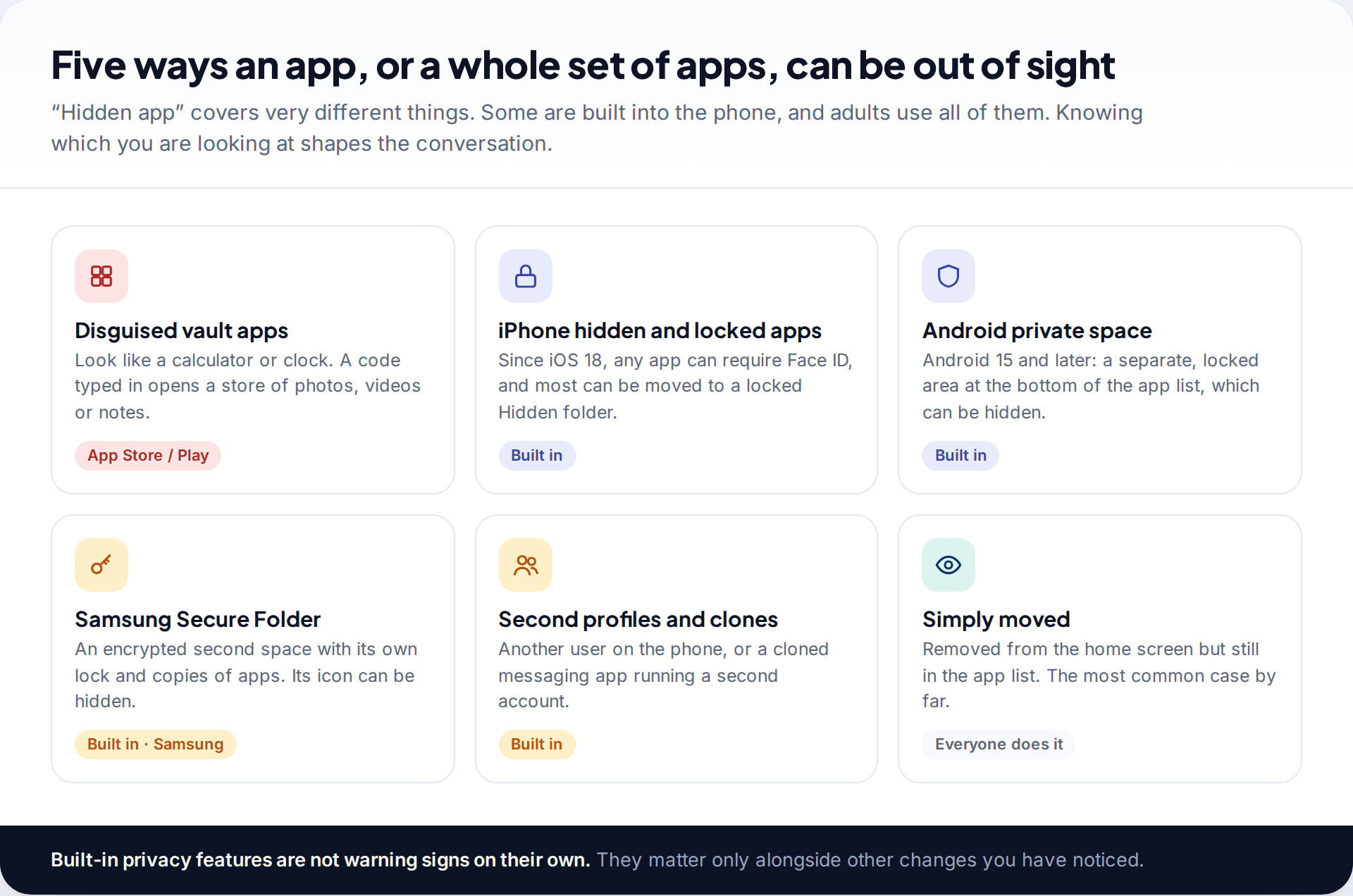
A vault app is an ordinary download from the App Store or Google Play that stores photos, videos, notes or other apps behind a code. Many are disguised: the icon and first screen look like a calculator or a clock, and typing a code such as 1234= opens the vault. Some offer a decoy code that opens a second, harmless set of photos.
Phones now include hiding features of their own. Since iOS 18, iPhones can lock any app behind Face ID and hide most apps in a locked folder. Android 15 added private space, a separate locked area for apps. Samsung phones have had Secure Folder for years. Any Android phone can have a second user profile, and messaging apps can be cloned to run a second account. Adults use all of these, often for good reasons.
The most common “hidden” app is also the least dramatic: an app removed from the home screen but still sitting in the full app list.
Finding hidden apps on an iPhone
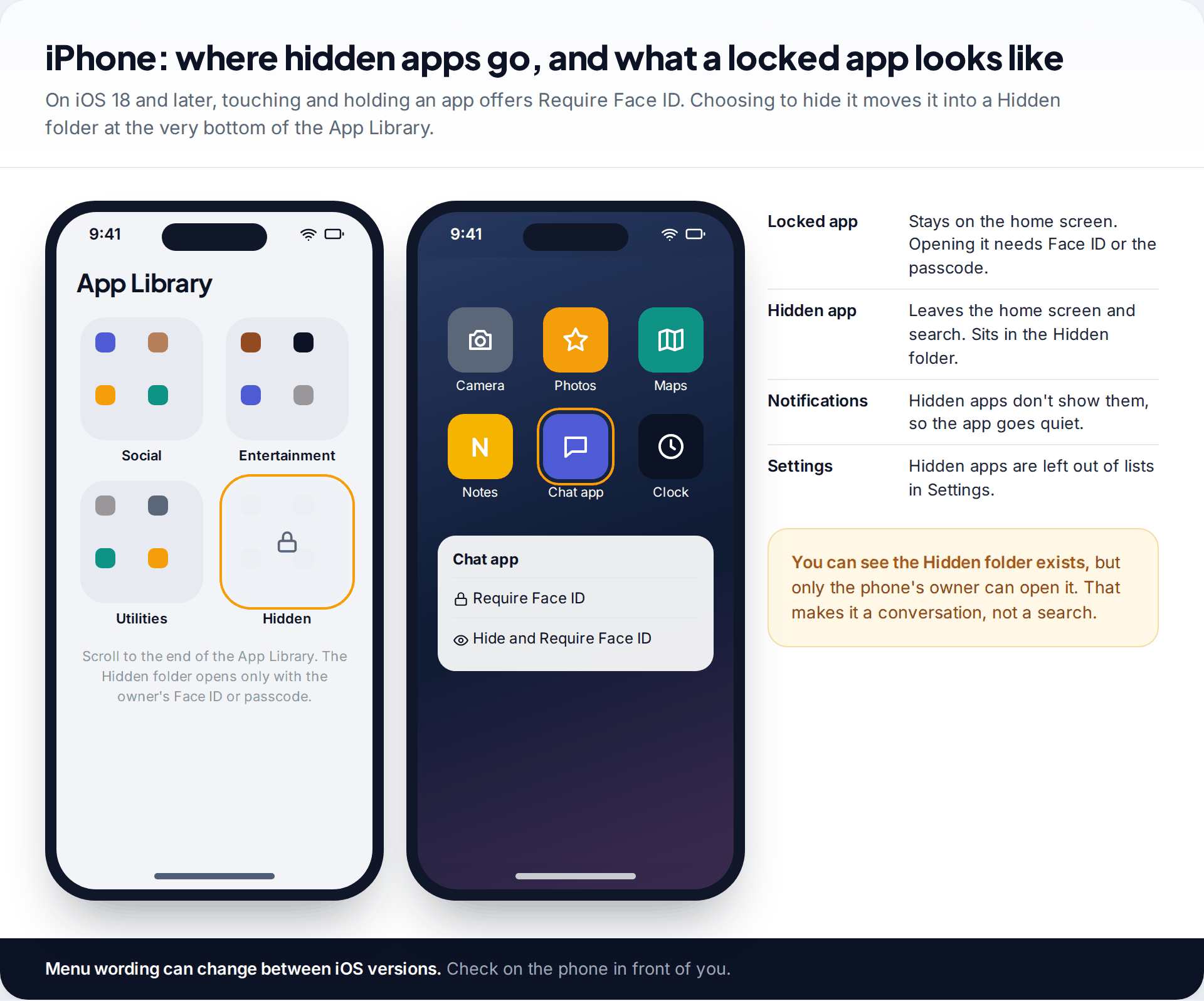
On iOS 18 and later, touching and holding an app gives a Require Face ID option. From there the app can simply be locked, so it stays on the home screen but needs Face ID or the passcode to open. Or it can be hidden. A hidden app leaves the home screen and search, stops showing notifications, and moves into a Hidden folder at the very end of the App Library. Hidden apps are also left out of lists in the Settings app.
So on an iPhone, the check is simple but limited. Scroll to the bottom of the App Library and see whether there is a Hidden folder. You can see that it exists, but only the phone’s owner can open it with their Face ID or passcode. That means asking.
Two other places help. The App Store’s purchase history lists apps downloaded with the Apple Account, including ones no longer on the home screen, though purchases can themselves be hidden. The Photos access list, under Settings › Privacy & Security › Photos, shows every app that can read the photo library. A calculator on that list needs an explanation.
Finding hidden apps on Android and Samsung phones
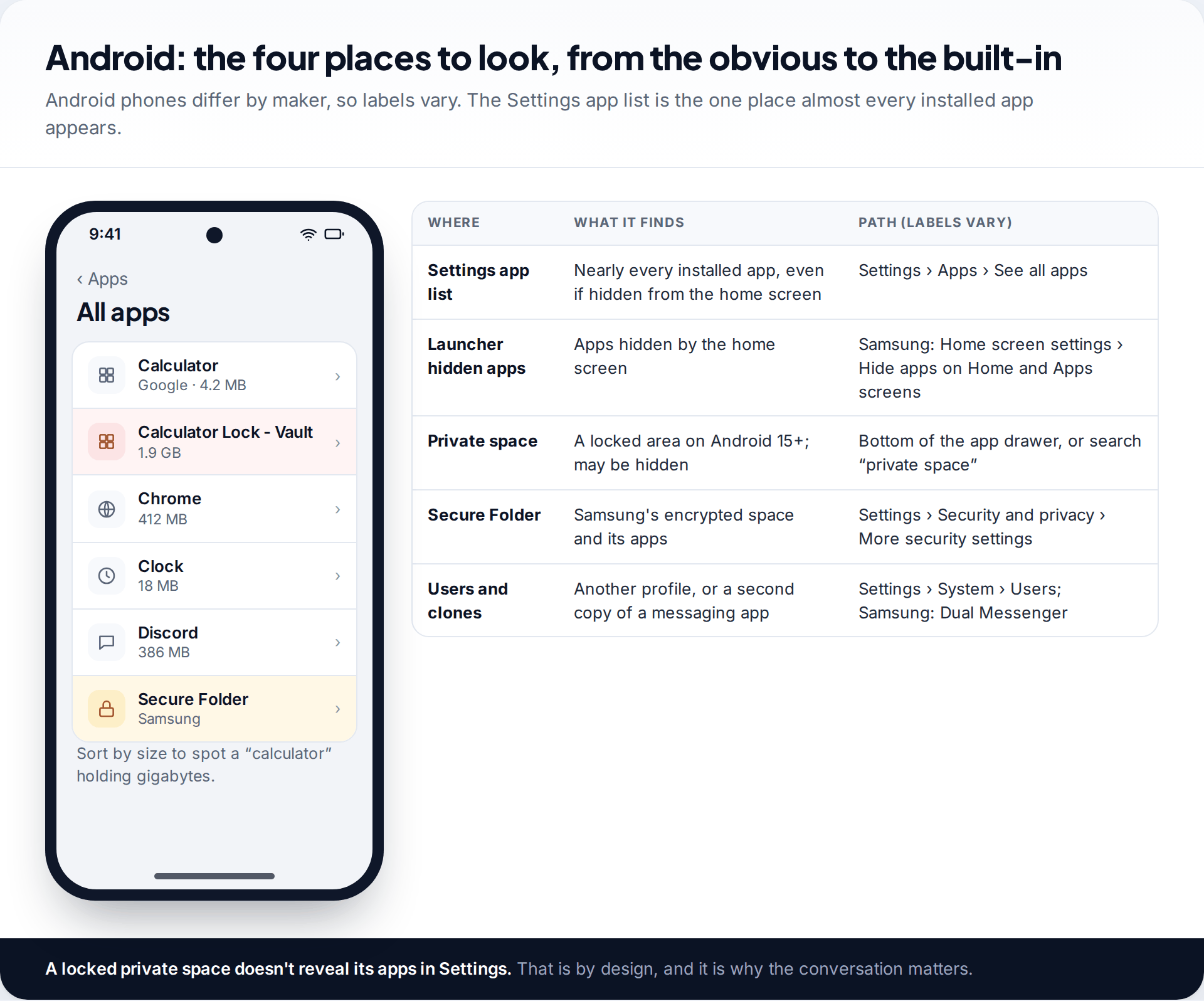
Android varies by manufacturer, but the order of checks is the same.
- The Settings app list. Settings › Apps › See all apps shows nearly every installed app, including ones hidden from the home screen by the launcher. Sorting by size is useful: a calculator using several gigabytes is not just a calculator.
- Launcher hidden apps. Samsung’s home screen can hide apps. In Home screen settings, look for “Hide apps on Home and Apps screens”. Other launchers have similar options with different names.
- Private space. On Android 15 and later, a private space sits at the bottom of the app drawer behind its own lock. It can be hidden when locked, in which case searching “private space” in the app drawer brings up the unlock prompt. When locked, its apps are kept out of Settings, recent apps and notifications. That’s the point of it.
- Secure Folder, users and clones. On Samsung phones, Secure Folder is under Settings › Security and privacy › More security settings, and its icon can be hidden. Samsung’s Dual Messenger, under Advanced features, runs a second copy of a messaging app. Any Android phone can also have extra users, listed under Settings › System.
How to spot a calculator vault
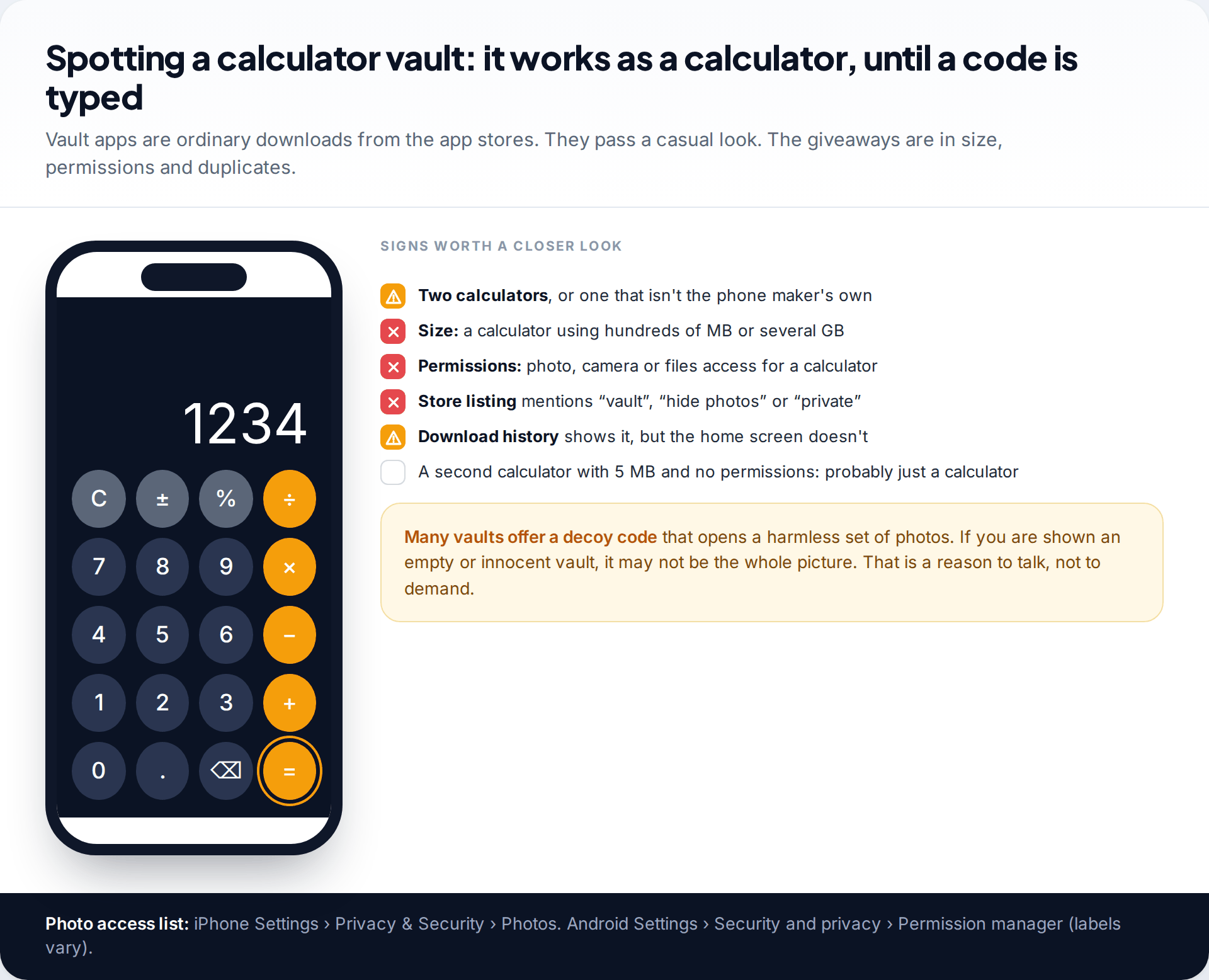
Vault apps are designed to survive a quick look, so check what the app does rather than how it looks. Signs worth a closer look:
- Two calculator apps, or one that isn’t made by the phone’s manufacturer.
- Size. A real calculator takes a few megabytes. A vault full of photos can take gigabytes.
- Permissions. A calculator has no reason to access photos, the camera or files.
- The store listing. Open it from the download history. Words such as “vault”, “hide photos” or “private” settle the question.
Some of these apps also send the vault’s contents to their own cloud storage, which means deleting the app doesn’t necessarily delete the pictures. That matters if the vault turns out to hold images someone pressured your child into taking.
How to find hidden vault apps on a child’s phone, step by step
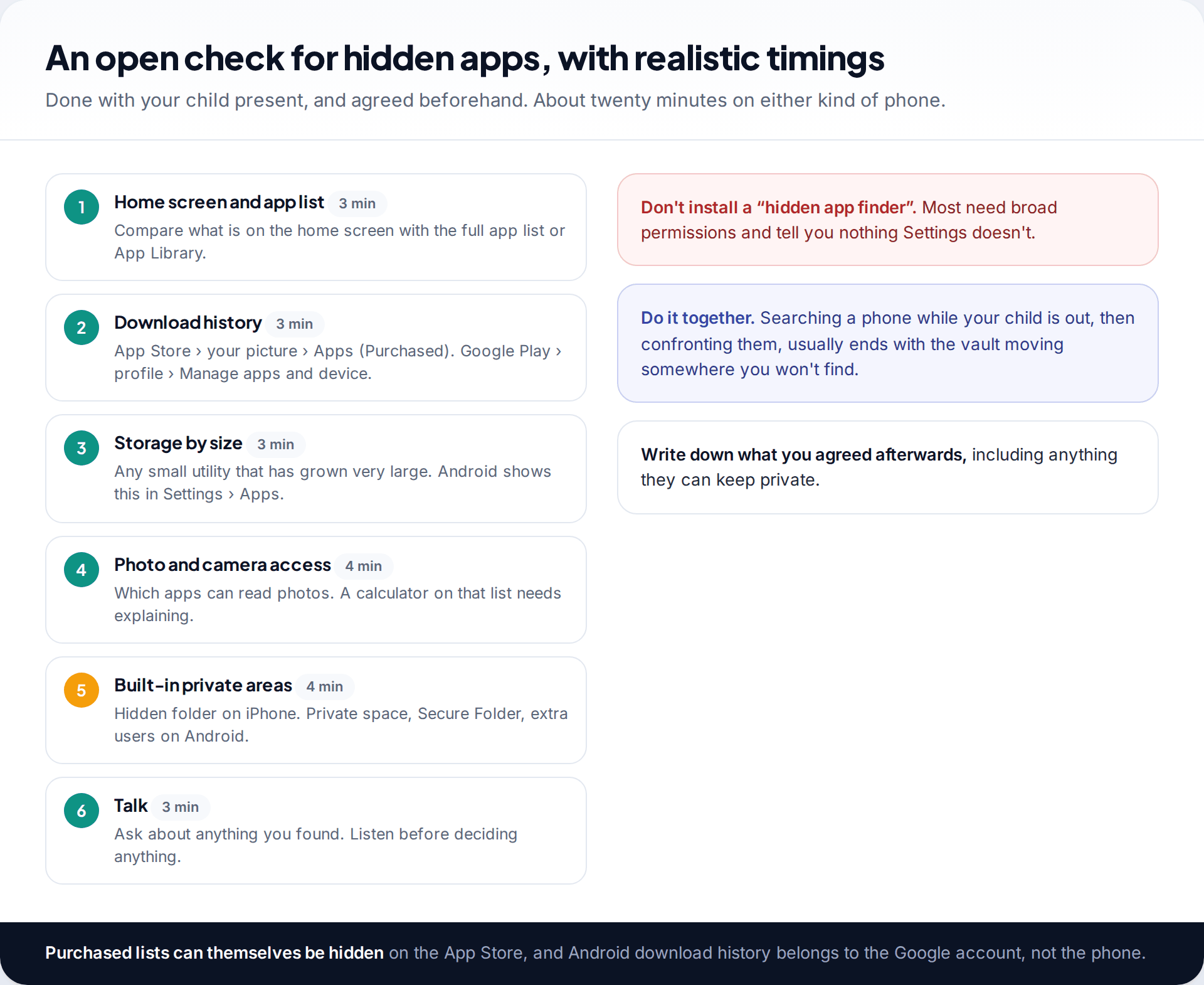
Tell your child in advance that you’ll do this together, and why. Then work through the phone in this order: home screen against the full app list, download history, storage by size, photo and camera access, and the built-in private areas. Finish by talking about anything you found.
Skip “hidden app detector” apps. Most ask for wide permissions and show nothing the Settings app doesn’t. A few are adware. And don’t expect the check to be complete. A locked private space, a hidden iPhone folder or an app on a friend’s phone are beyond what any parent can see without the child’s help.
Scale the check to your child’s age. For a 10 or 11-year-old with a first phone, a full check now and then is reasonable. For a 15-year-old, a locked folder or private space is closer to a diary in a drawer, and checking it routinely does more harm to trust than good. At that age, save checks for when you have a specific reason, and tell them what the reason is.
Stopping the next one: approvals rather than searches
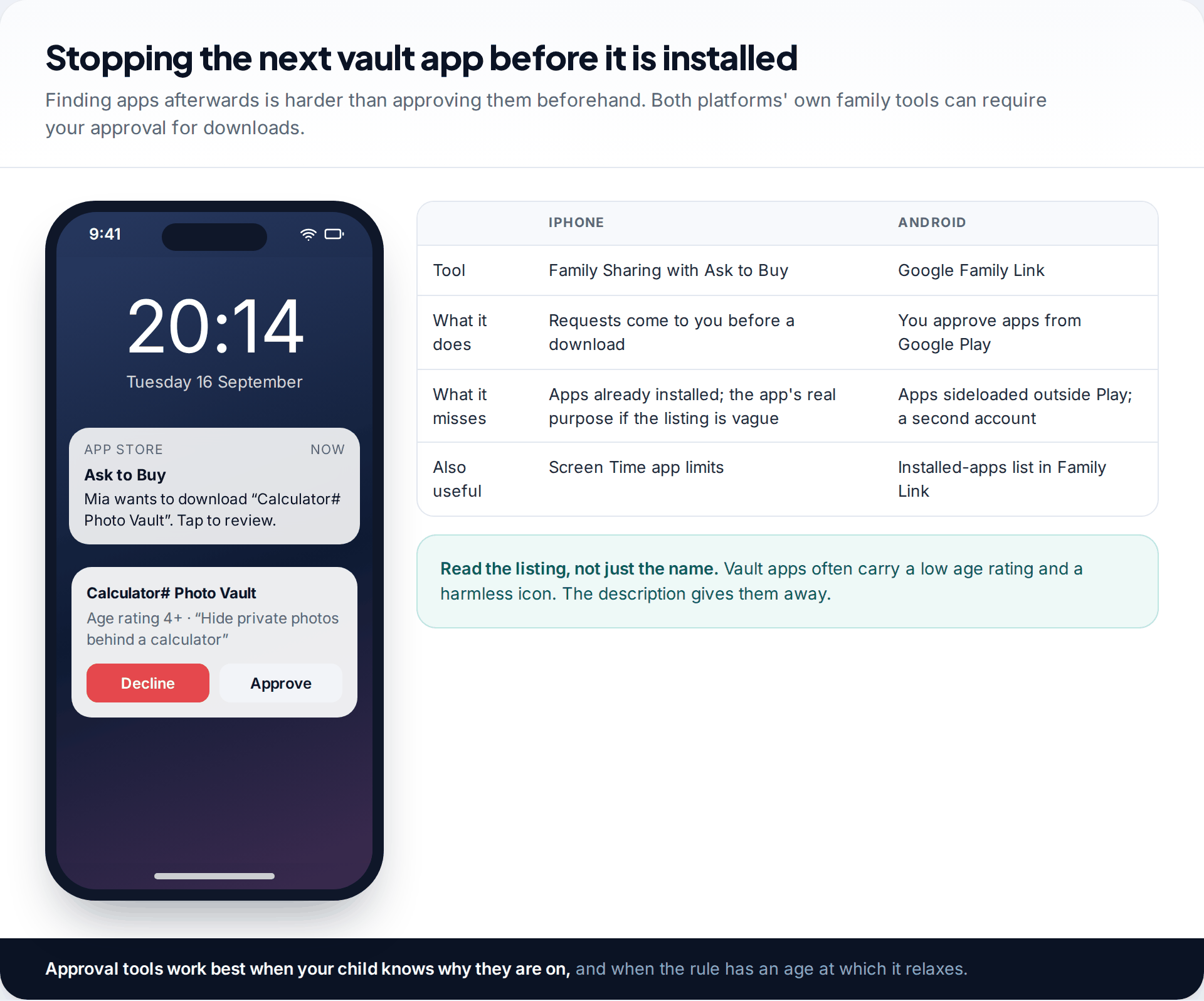
It is much easier to see a vault app when your child asks to install it than to find it afterwards. On iPhone, Family Sharing’s Ask to Buy sends download requests to a parent. On Android, Google Family Link lets you approve apps from Google Play and see what is installed. Read the store listing when a request comes in. Vault apps often carry a low age rating and a harmless icon, but the description gives them away.
Neither tool catches everything. Apps installed before approvals were on, apps installed outside Google Play and second accounts all slip past. If you’re setting these tools up for the first time, our beginner’s guide to parental controls covers each platform.
If you find one: what to do next
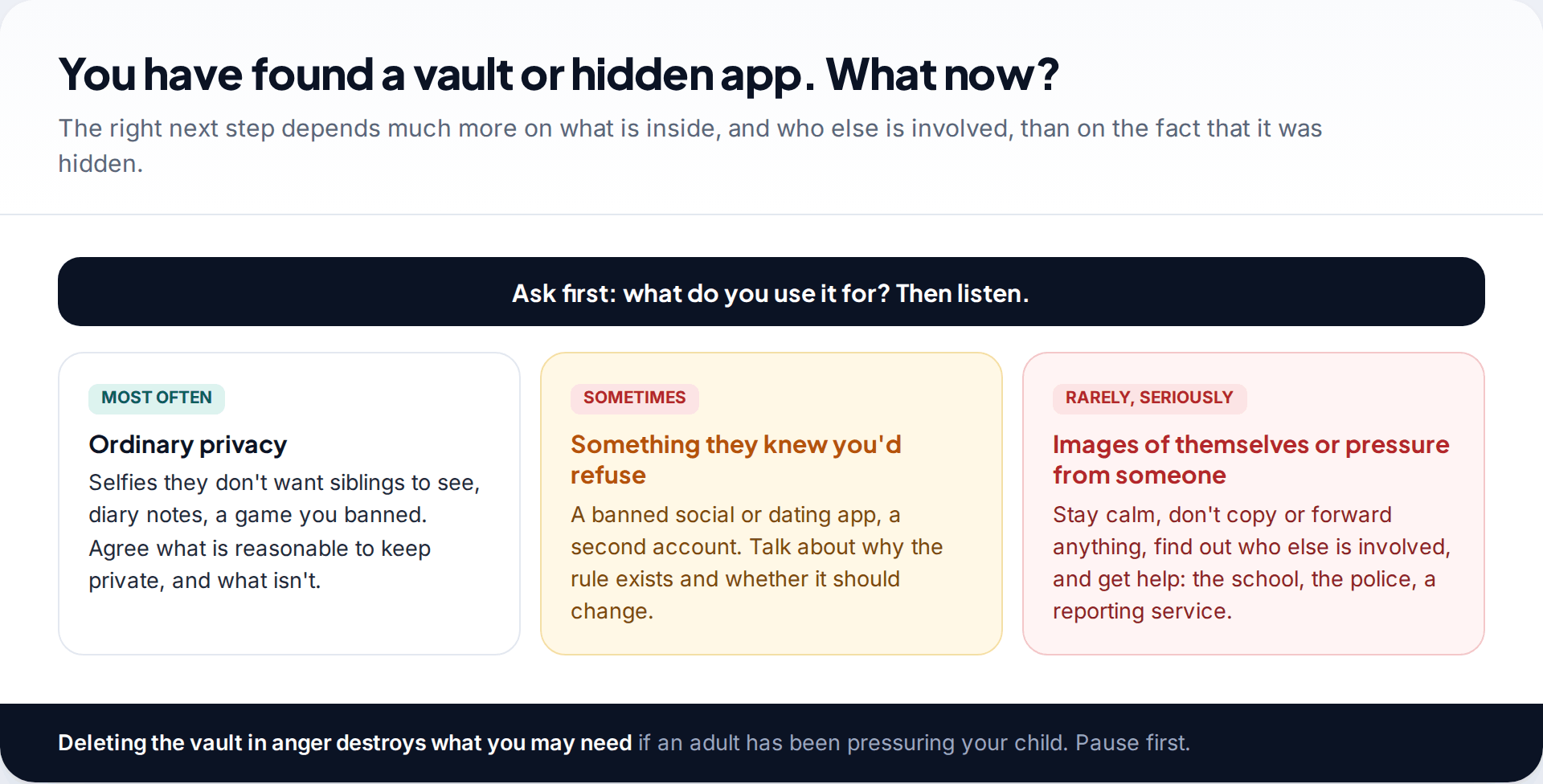
Start with a question, not a verdict: “What do you use it for?” Most of the time the answer is ordinary. Selfies a younger sibling shouldn’t see. A diary. A game you said no to. Agree what is reasonable to keep private, and what you need to be able to see.
Sometimes a vault holds an app or account your child knew you’d refuse, such as a social app below its minimum age or a second account. That calls for a talk about the rule, and whether it should change as they get older.
Rarely, it holds images of your child that someone asked for, or messages from an adult putting pressure on them. Stay calm. Don’t copy, forward or save the images anywhere, even to report them, because that can itself be an offence. Don’t delete the vault either, as the police may need it. Contact the police if an adult is involved, and tell the school’s safeguarding lead. Many countries have a reporting service that helps under-18s get sexual images of themselves taken down.
A second calculator on a 13-year-old’s Android
During an agreed check, you find “Calculator Lock” using 1.4 GB, with access to photos. Your son goes red and says it’s “just stuff”. You say you’re not going to make him open it tonight, and ask whether anyone asked him to put anything in it. He says no. It’s photos of him and his friends messing about that he didn’t want his sister to find.
What no parent can see
| Hidden place | Can a parent confirm it exists? | Can a parent see inside without the child? |
|---|---|---|
| App removed from home screen | Yes | Yes, it’s a normal app |
| Calculator or other vault app | Yes, in the app list | No, it needs the code |
| iPhone Hidden folder | Yes, in the App Library | No, the owner’s Face ID or passcode |
| Android private space | Not if hidden | No |
| Samsung Secure Folder | Usually, via Settings | No |
| Another phone or a friend’s device | No | No |
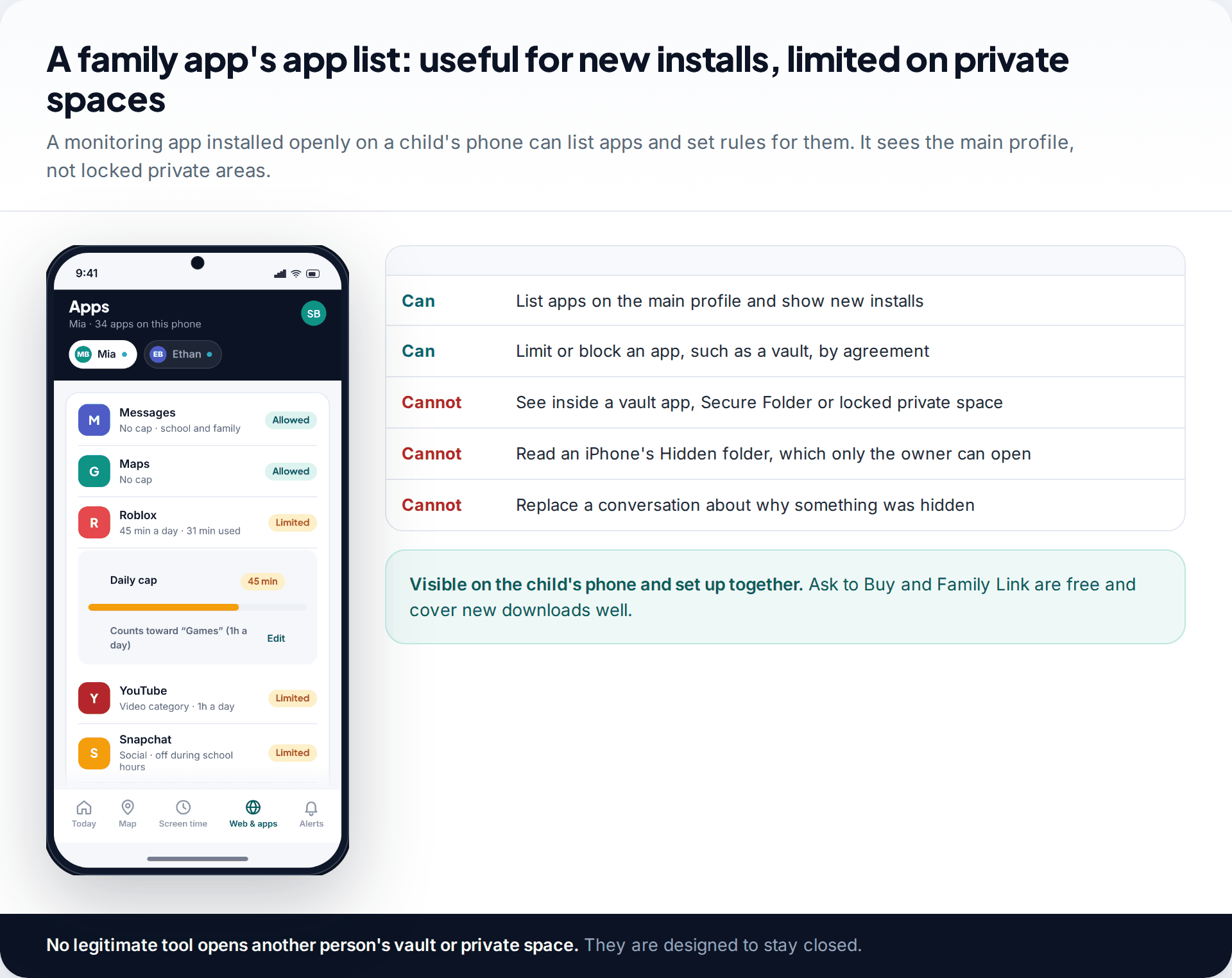
Some families use a monitoring app for app rules across the phone. Ours is installed with the child’s knowledge and stays visible on the phone. It lists apps on the main profile, shows new installs and can limit or block an app by agreement. It can’t see inside a vault, a Secure Folder, a private space or an iPhone’s Hidden folder, because nothing legitimate can. For new downloads, Ask to Buy and Family Link, both free, do most of the work.
How this page was put together
We checked hiding features against Apple’s iOS 18 documentation, Android’s private space documentation for Android 15 and later, and Samsung’s Secure Folder support page, in September 2026. Launcher labels differ between manufacturers and software versions, so we give the mechanism alongside each path.
We did not test individual vault apps, and we don’t name or rate them. Behaviour such as decoy codes and cloud upload varies from app to app. Our editorial standards explain how we check and correct guides.
Common questions
How do I find hidden apps on my child’s iPhone?
Scroll to the bottom of the App Library and look for a Hidden folder, then check the App Store purchase history and which apps can access Photos. Only the phone’s owner can open the Hidden folder.
What does a calculator vault app look like?
Like a working calculator. It opens a hidden store of photos or files when a code is entered. Look for a second calculator, a large app size, or photo permissions.
Can I see what is inside a vault app?
Not without the code, and some vaults have a decoy code. Ask your child to show you, and explain why.
What is private space on Android?
A locked, separate area for apps on Android 15 and later. It appears at the bottom of the app drawer and can be hidden completely. When locked, its apps don’t show in Settings or notifications.
Is it normal for teenagers to hide apps?
Wanting privacy is normal, especially from siblings. A hidden app matters when it comes with other changes, such as secrecy, a new older contact or distress.
Should I delete a vault app I find?
Not straight away. Talk first. If it may contain images someone pressured your child into taking, deleting it can destroy evidence the police need, and some vaults keep copies online anyway.
Looking for a tool to go with this? TheTruthSpy is a free parental control app for Android that stays visible on the child's phone. If it fits your family, see the App blocker feature.
Related guides
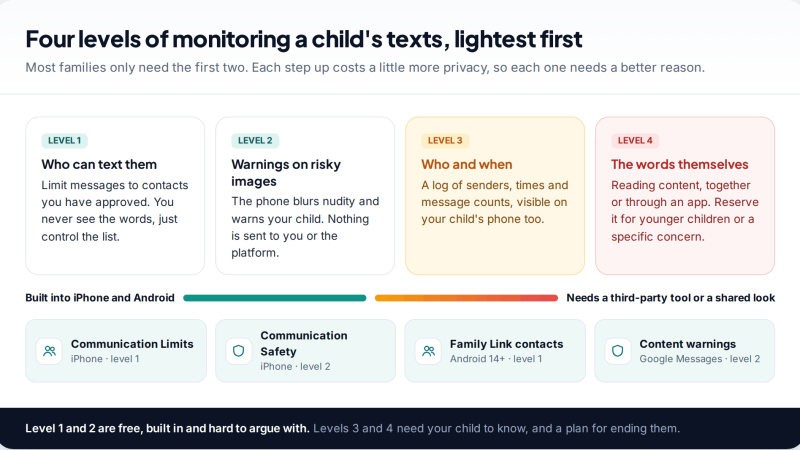
Monitoring Your Child’s Text Messages Safely: Options by Age
What parents can really see of a child's texts on iPhone and Android: Communication Limits, Communication Safety, Family Link contacts…
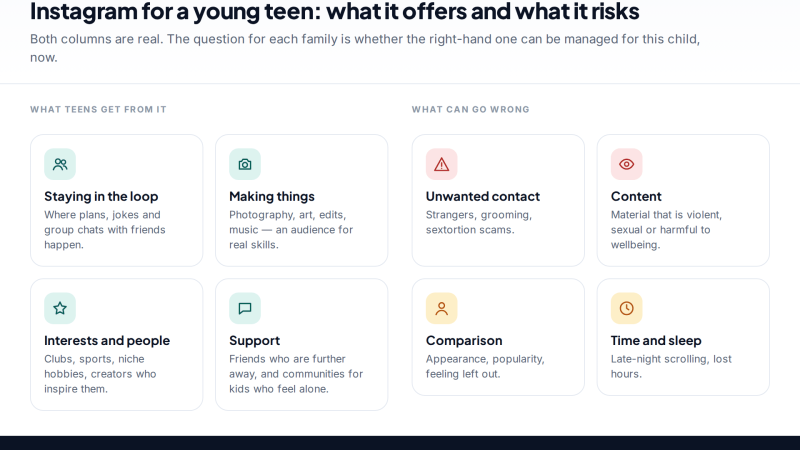
Is Instagram Safe for My Child? A Parent’s Guide
Is Instagram safe for kids? Not under 13, and not automatically after. Teen Accounts now remove many risks by default;…
Facebook for Teens: Supervision Tools and Safe Monitoring Habits
How to monitor your child's Facebook openly: what Teen Accounts switch on automatically, what Family Center supervision shows (and never…
Parental controls your child can see
Location, screen time limits, a web filter and alerts from notifications — free, and visible on your child's phone. Pair a phone in about ten minutes.
Android · Free to set up · Visible on your child's phone