Snapchat Family Center and Beyond: Monitoring a Child’s Snapchat Safely

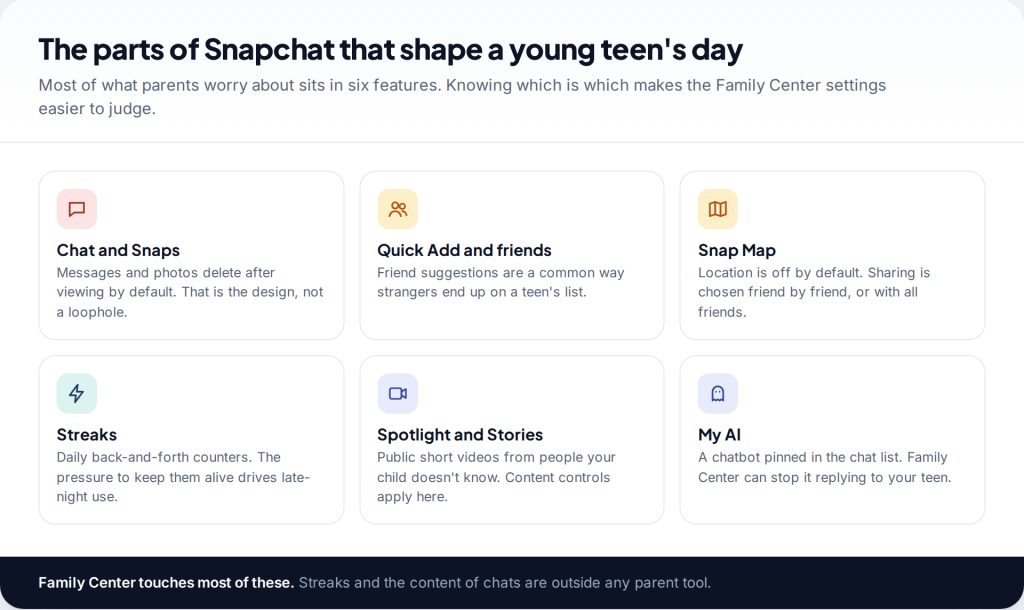
The safest way to monitor your child’s Snapchat is Snapchat’s own Family Center. You link your account to your teen’s, they accept, and you can see their friend list, who they have chatted with in the last seven days, how long they spend in the app, and, if they agree, their location. You cannot see the messages. That limit is deliberate, and it shapes everything else in this guide.
Who this is for. Parents of children aged 13 to 17 who already use Snapchat, or are about to. Snapchat’s terms require users to be at least 13. If your child is younger and has an account, the conversation about that comes before any settings.
What your teen is actually doing on Snapchat
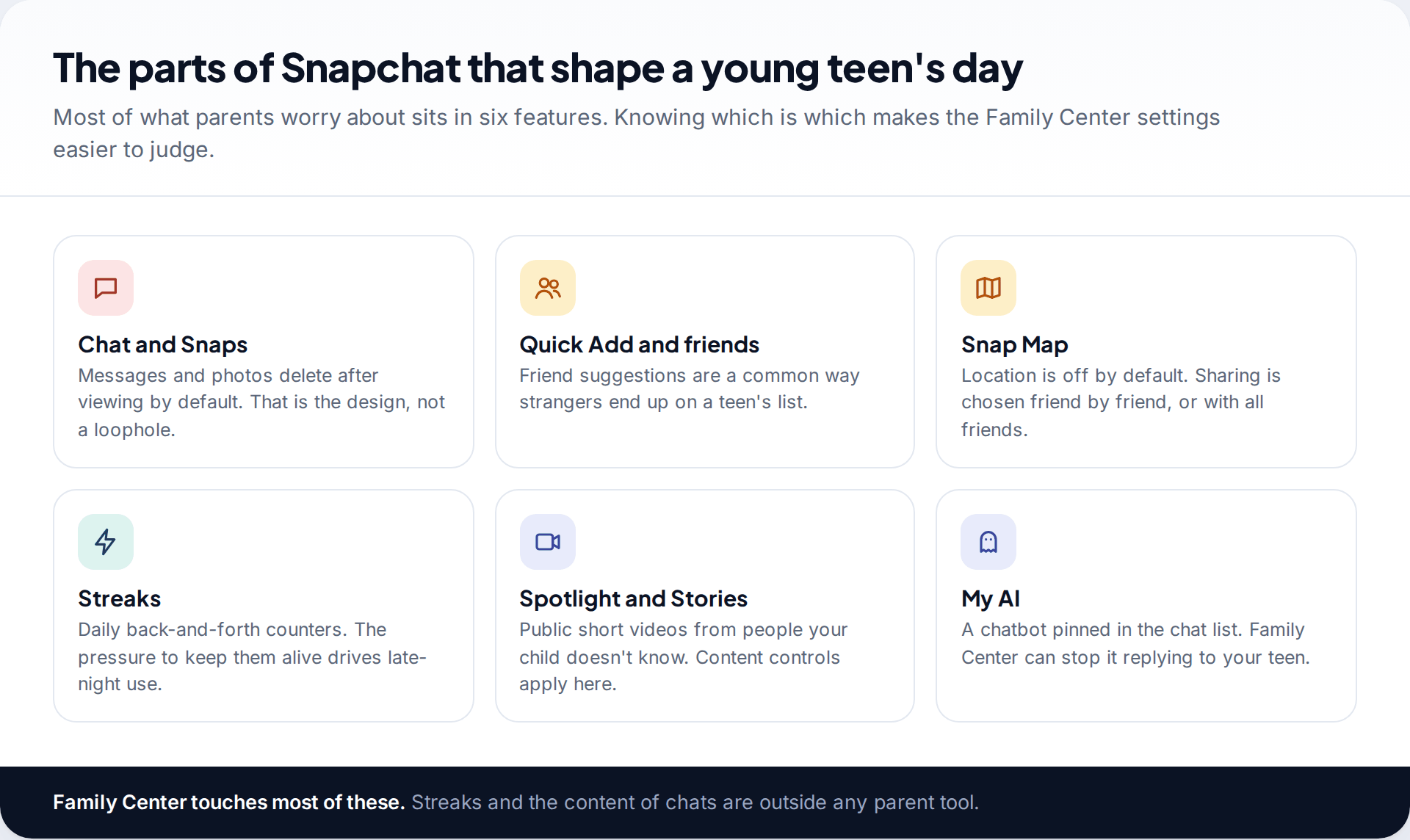
Snapchat is a messaging app first. For most teens it replaces texting: they send photos with a line of text on them, chat in small groups, and keep “streaks” going with close friends. The public parts, Spotlight and Stories, are closer to a video feed.
Three design choices matter to a parent. Chats and Snaps delete after they are viewed unless someone saves them. Friends can find each other through Quick Add suggestions. And Snap Map can show your child’s location to friends if they switch it on. None of these is hidden or unusual. They are simply how the app works, and Family Center is built around them rather than against them.
How to monitor your child’s Snapchat with Family Center
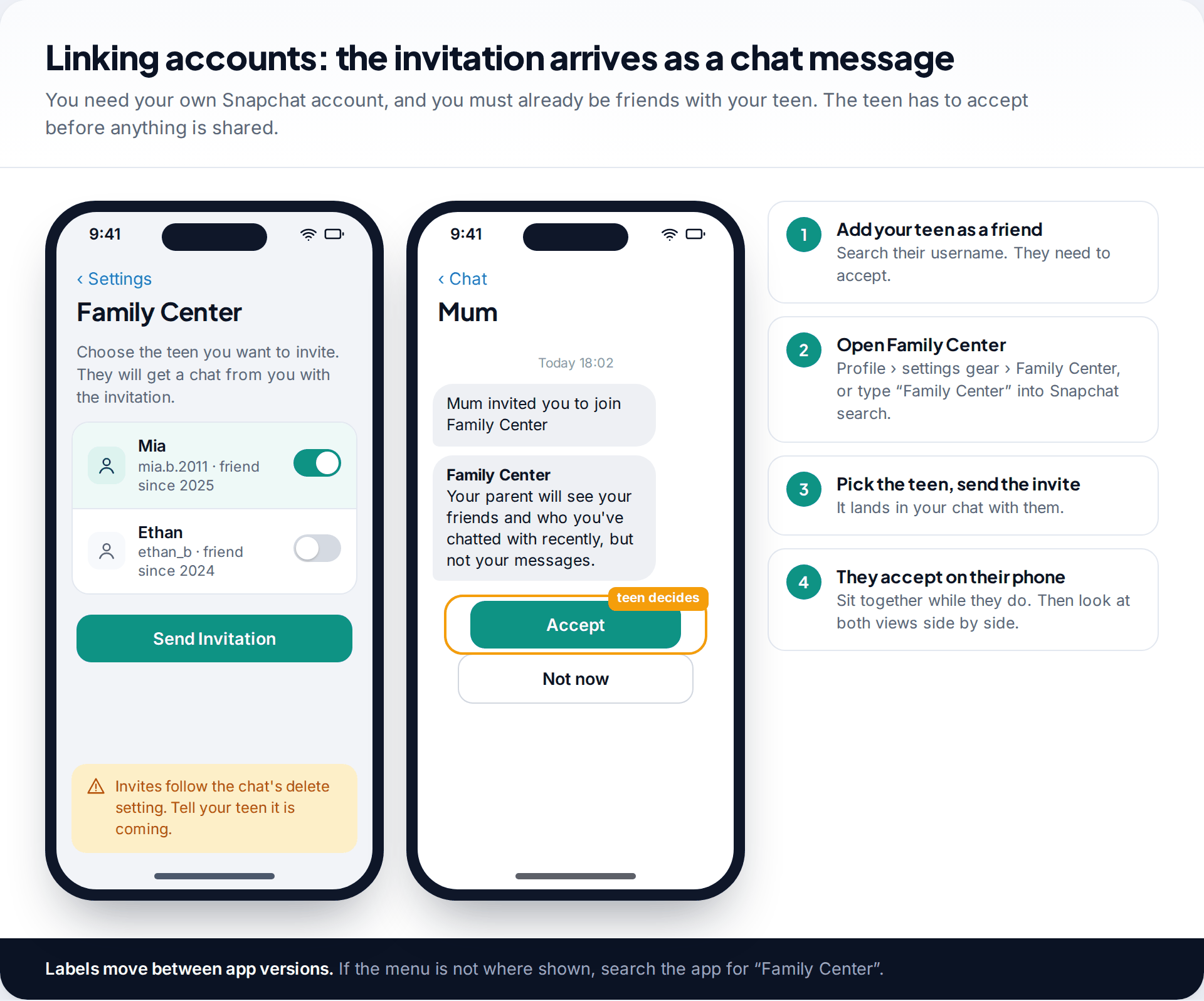
Setup takes about five minutes if you do it in the same room. You need your own Snapchat account on your own phone.
- Add your teen as a friend. Search their username and wait for them to accept. Family Center will only offer teens who are already your friends.
- Open Family Center. Tap your profile, then the settings gear, then Family Center. Typing “Family Center” into the Snapchat search bar also works.
- Choose your teen and tap Send Invitation. The invite appears in your chat with them.
- Your teen accepts. Snapchat notes that invitations follow the chat’s normal deletion rules, so an invite viewed and ignored can vanish. Do this together rather than sending it cold.
Once linked, sit down with both phones and compare what each of you sees. Teens are usually more comfortable once they notice there is no chat content on your screen. It also stops the parent view being a mystery that they fill in with guesses.
What the parent view shows, and how to read it
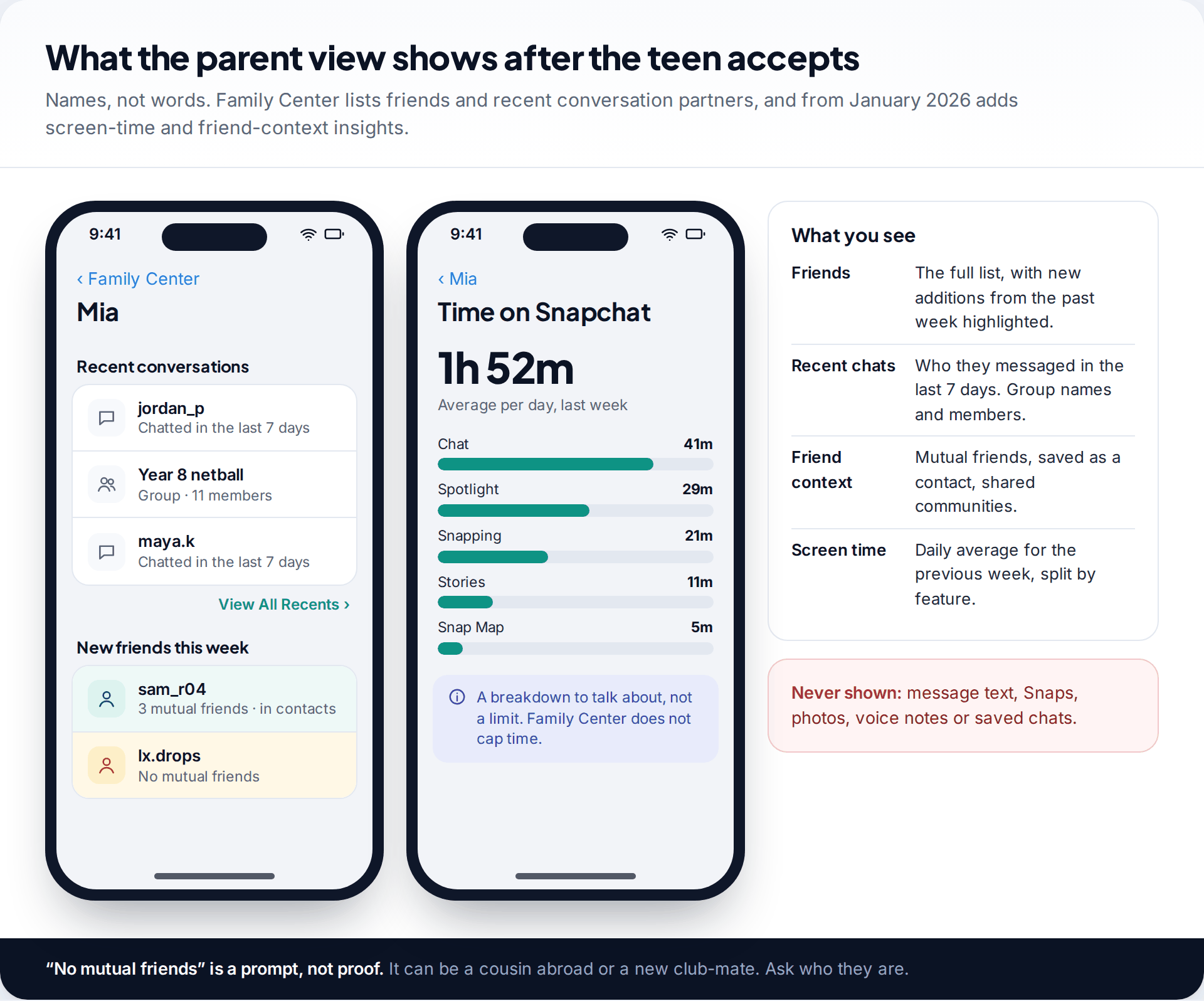
The parent view has four parts worth knowing.
Friends. The full list, with new friends from the past week at the top. In January 2026 Snap added what it calls trust signals next to new friends: whether they share mutual friends, whether your teen has them saved as a phone contact, and whether they belong to the same communities. A new friend with ten mutual friends from school is very different from one with none.
Recent conversations. The five most recent, with a “View All Recents” option covering the last seven days. Group chats show their members. You see names, never what was said.
Screen time. Also new in 2026: the average time per day over the previous week, split into chat, snapping, camera, Snap Map, Spotlight and Stories. It is a report, not a limit. A teen averaging two hours mostly in chat is having a different week from one spending the same time scrolling Spotlight after midnight.
Settings. You can see your teen’s privacy settings, such as who can contact them and who can see their Story. You can’t change them from your phone.
Read the view for changes rather than individual entries. One unfamiliar name is normal for a teenager. The same unfamiliar name at the top of recent chats every day, with no mutual friends, is worth a question.
Settings to change together on the first evening
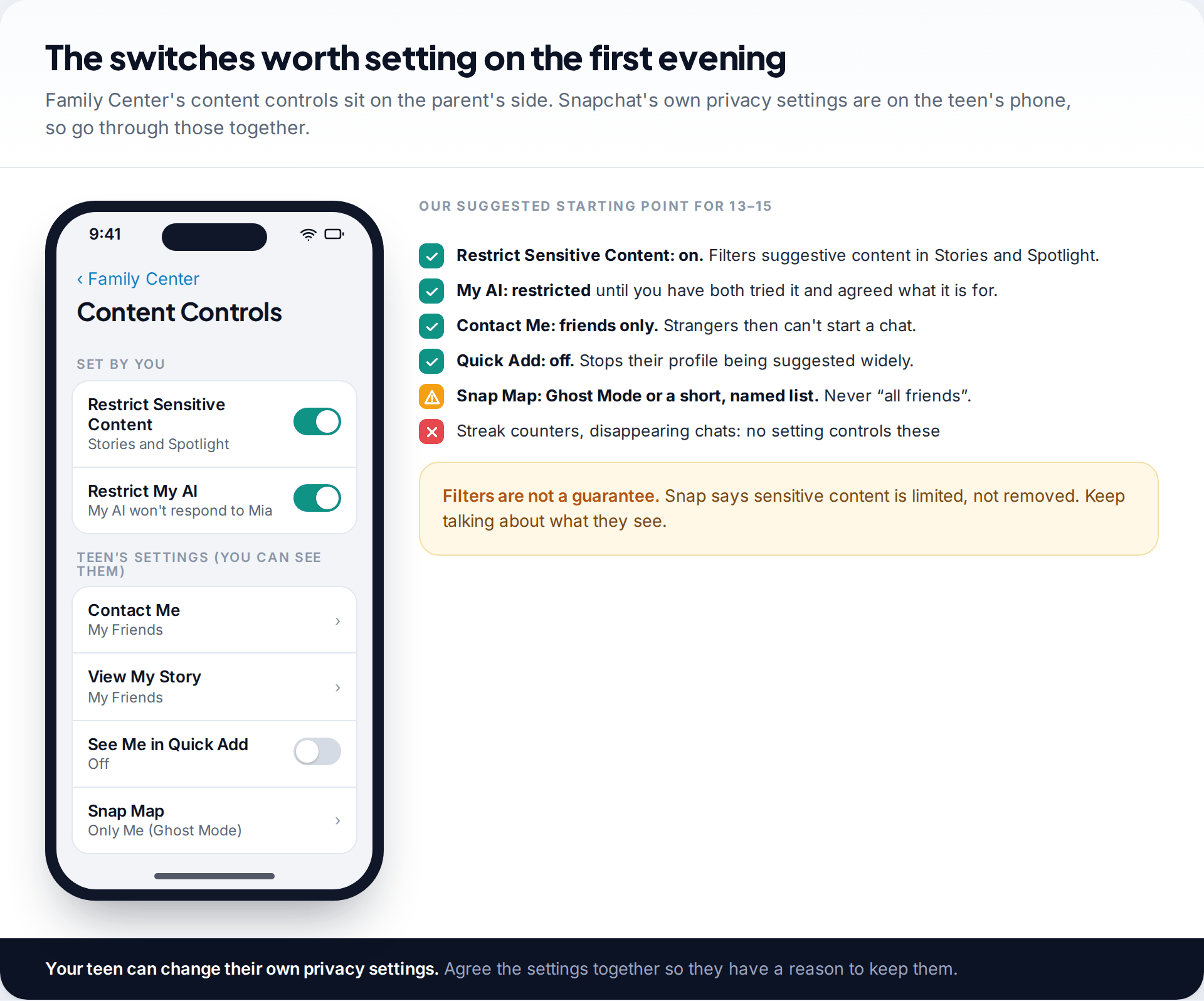
Family Center gives parents two content controls. Restrict Sensitive Content limits suggestive or sensitive material in the Stories and Spotlight tabs. Restrict My AI stops Snapchat’s chatbot from responding to your teen. Both are worth turning on for a young teen. You can relax them later.
The settings with the biggest effect on safety, though, are the teen’s own. Snapchat already applies stricter defaults to users under 18, but it is worth checking them on their phone:
- Contact Me: My Friends. People who aren’t friends can’t start a chat.
- See Me in Quick Add: off. Their profile stops being suggested to strangers with a mutual friend or two.
- View My Story: My Friends. Not public.
- Snap Map: Ghost Mode, or a short list of named friends. Sharing with all friends is the setting to avoid.
Explain the reason for each one. A teen who understands why Quick Add brings strangers into their list is more likely to leave it off than one who was just told to.
Location through Family Center
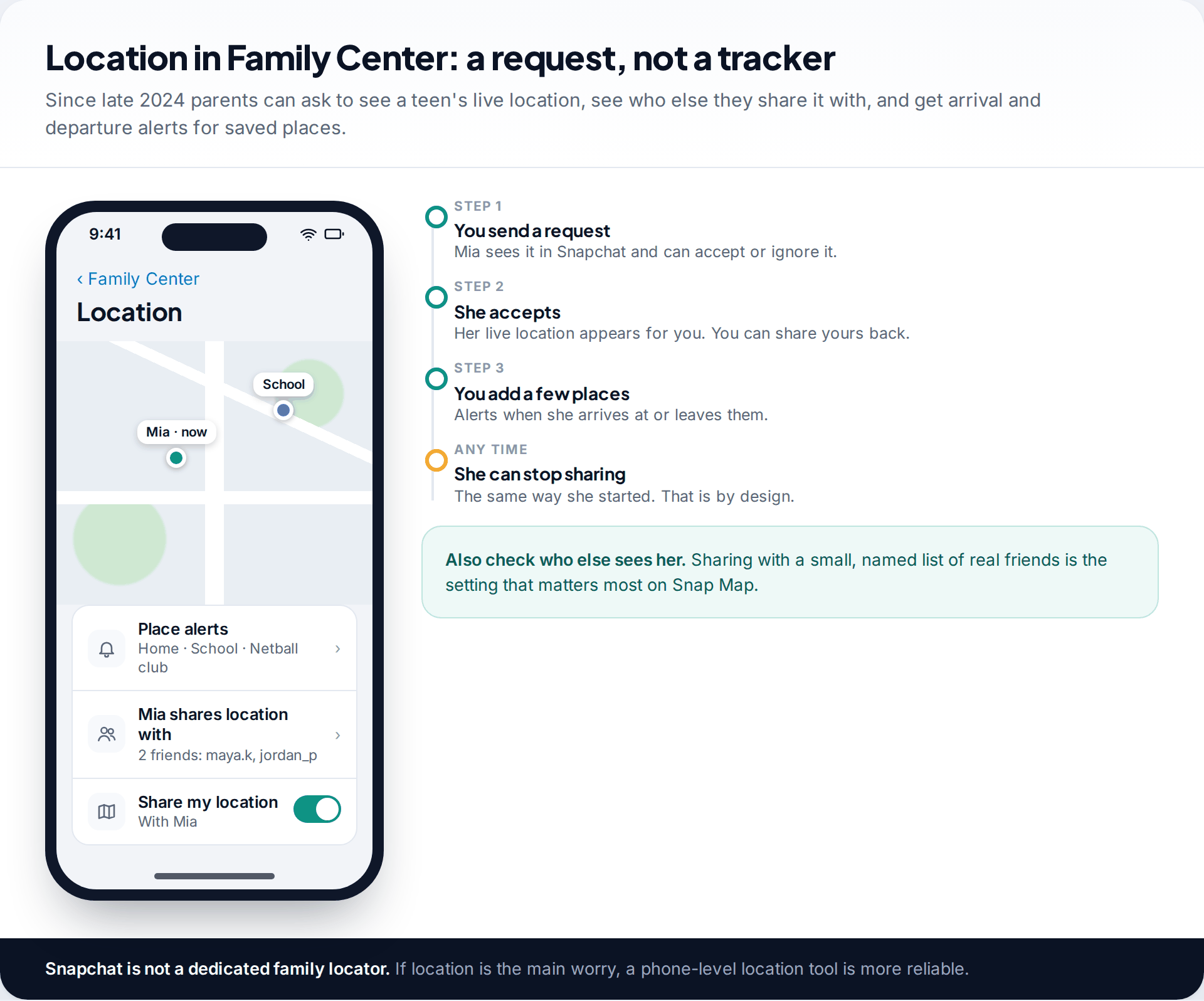
Snap added location features to Family Center in late 2024. You can send your teen a request to share their live location with you, and share yours back. You can set alerts for when they arrive at or leave saved places, such as home or school. You can also see which friends your teen shares their location with.
That last one may be the most useful. Snap Map is safest when your teen shares with a handful of real friends or nobody. If the list shows dozens of names, sit down and trim it together.
All of this depends on your teen accepting and keeping it switched on. If knowing where your child is matters more than what they do on Snapchat, a phone-level location app does that job better.
What Family Center cannot do
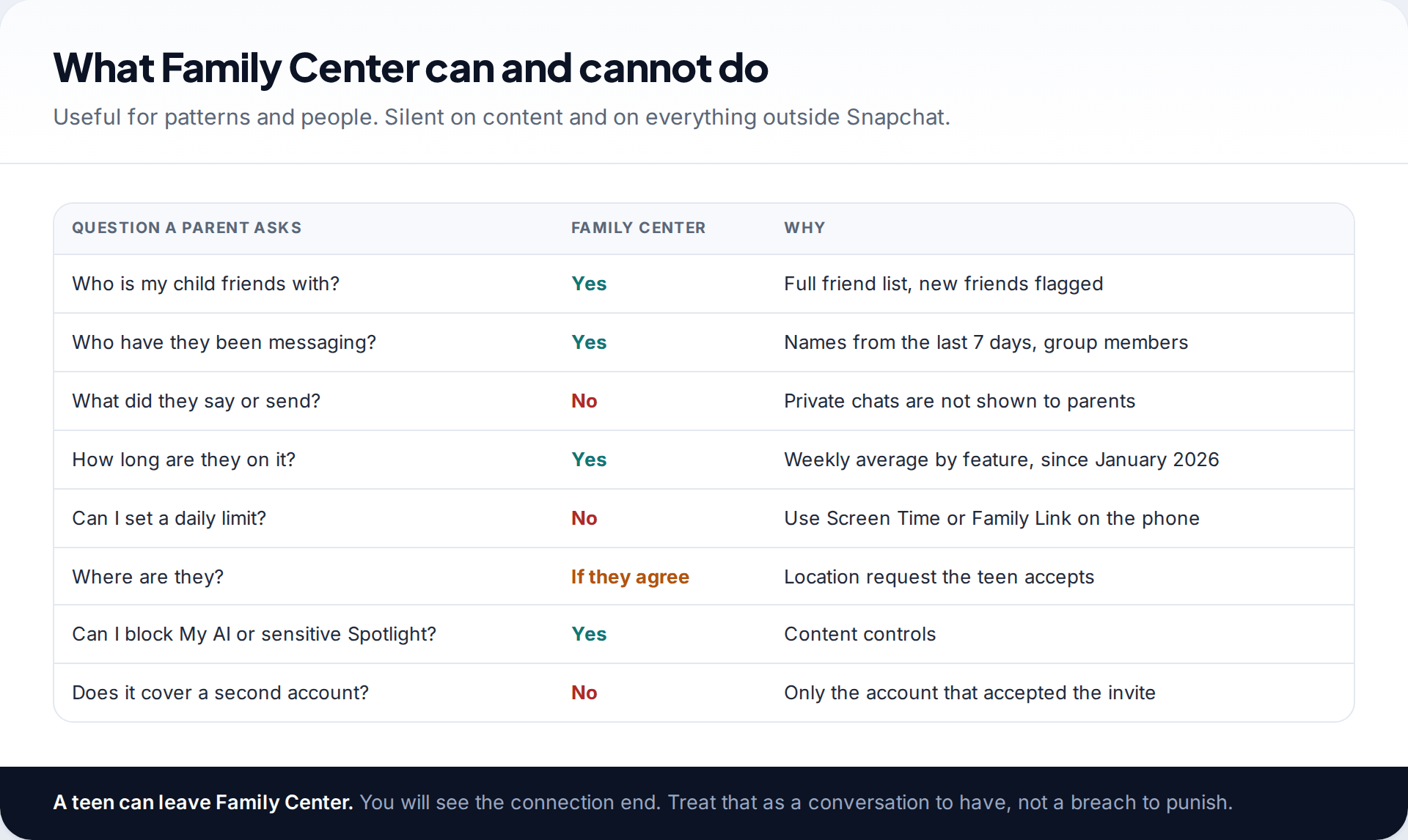
It is easy to assume a parental tool shows more than it does. Family Center does not show messages, Snaps, photos or saved chats. It can’t set a daily time limit or a bedtime. It only covers the one account that accepted the invitation, so a second account is invisible to it. And it can’t see activity in other apps your teen moves a conversation to.
Your teen can also leave Family Center. If that happens, don’t treat it as a betrayal. Ask what made them want to leave. Often the answer is something you can fix, like checking too often or asking about every name.
For time limits, use the phone’s own controls: Screen Time on iPhone or Family Link on Android can cap Snapchat or switch it off during school and at night.
A weekly check that keeps working as they get older
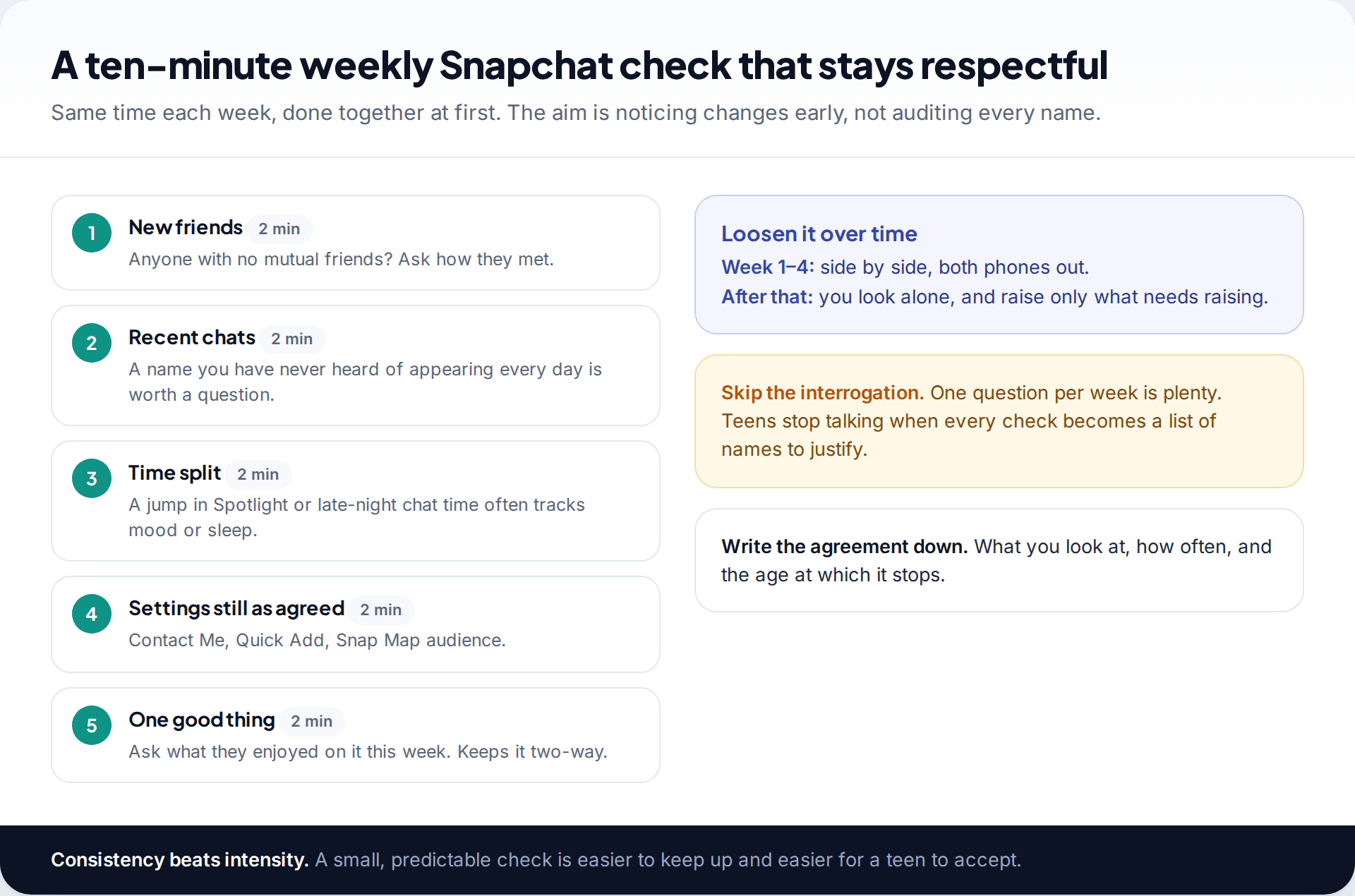
The value of Family Center comes from looking at it regularly and briefly. Set a time each week, look at new friends, recent conversations, the time split and whether the settings are still as agreed. Then ask one question, not five.
A new name keeps coming up
Over two weeks, “lx.drops” appears in your 14-year-old’s recent chats every day. Family Center shows no mutual friends and says the account isn’t in her phone contacts. You ask over dinner who it is. She says it’s someone from a gaming Discord who “seems nice” and has asked for her Instagram too.
Plan to loosen the routine as your child shows good judgement. A check every week at 13 might be once a month at 15 and nothing at 16. Saying so at the start makes the arrangement easier to accept.
When something worries you
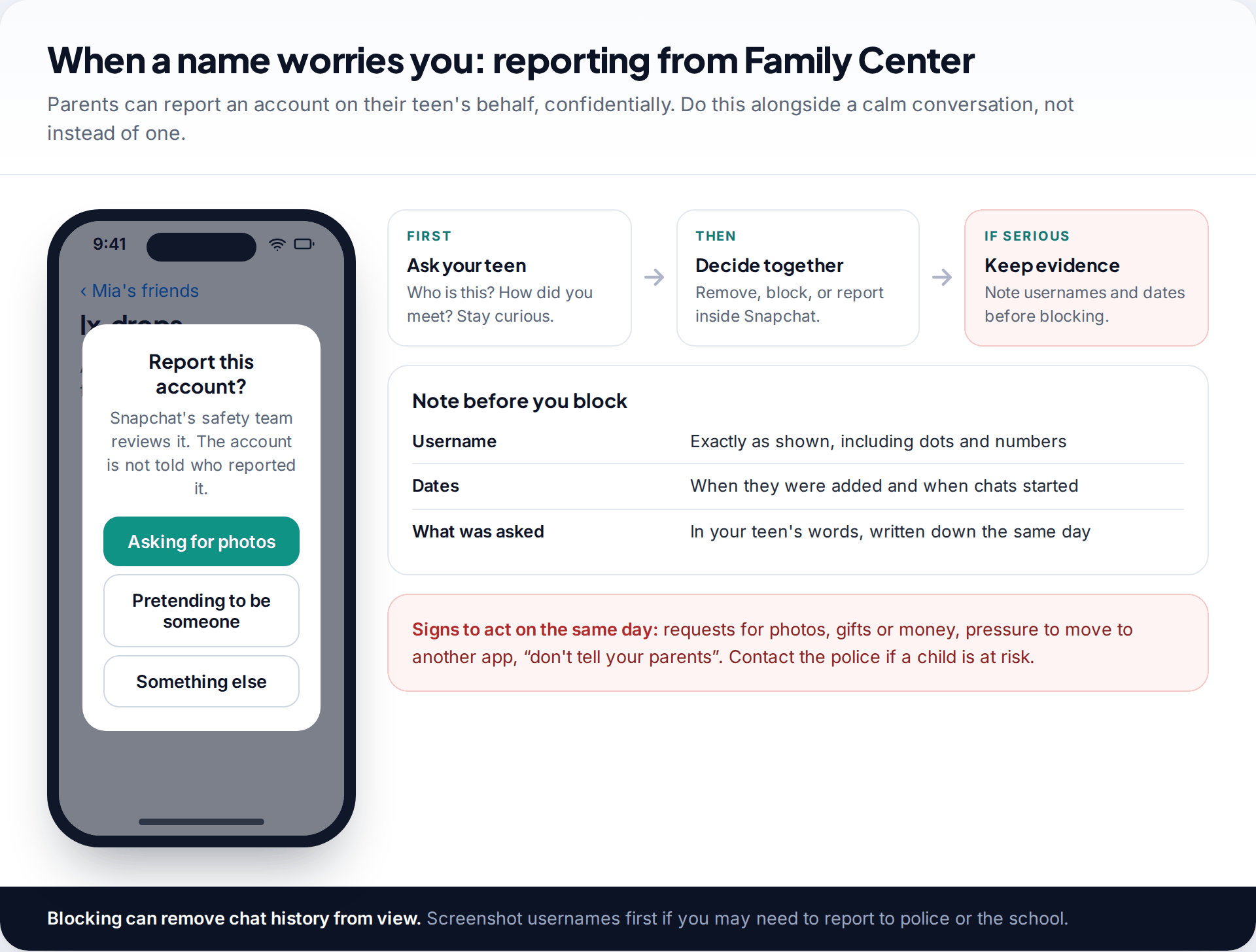
Family Center lets you report an account to Snapchat’s safety team on your teen’s behalf, or help them report it themselves. Reports are confidential.
Some signs need action the same day: an adult asking for photos, offers of gifts or money, pressure to move to a different app, or requests to keep the conversation secret. Before blocking, note the username and dates, because blocking can remove the conversation from your teen’s view. If you think a child is at risk, contact the police. Most schools also have a safeguarding lead who can help.
Keep the tone calm. A teen who is shouted at for being targeted learns to hide the next message, not to avoid the next stranger.
Beyond Family Center: phone-level tools
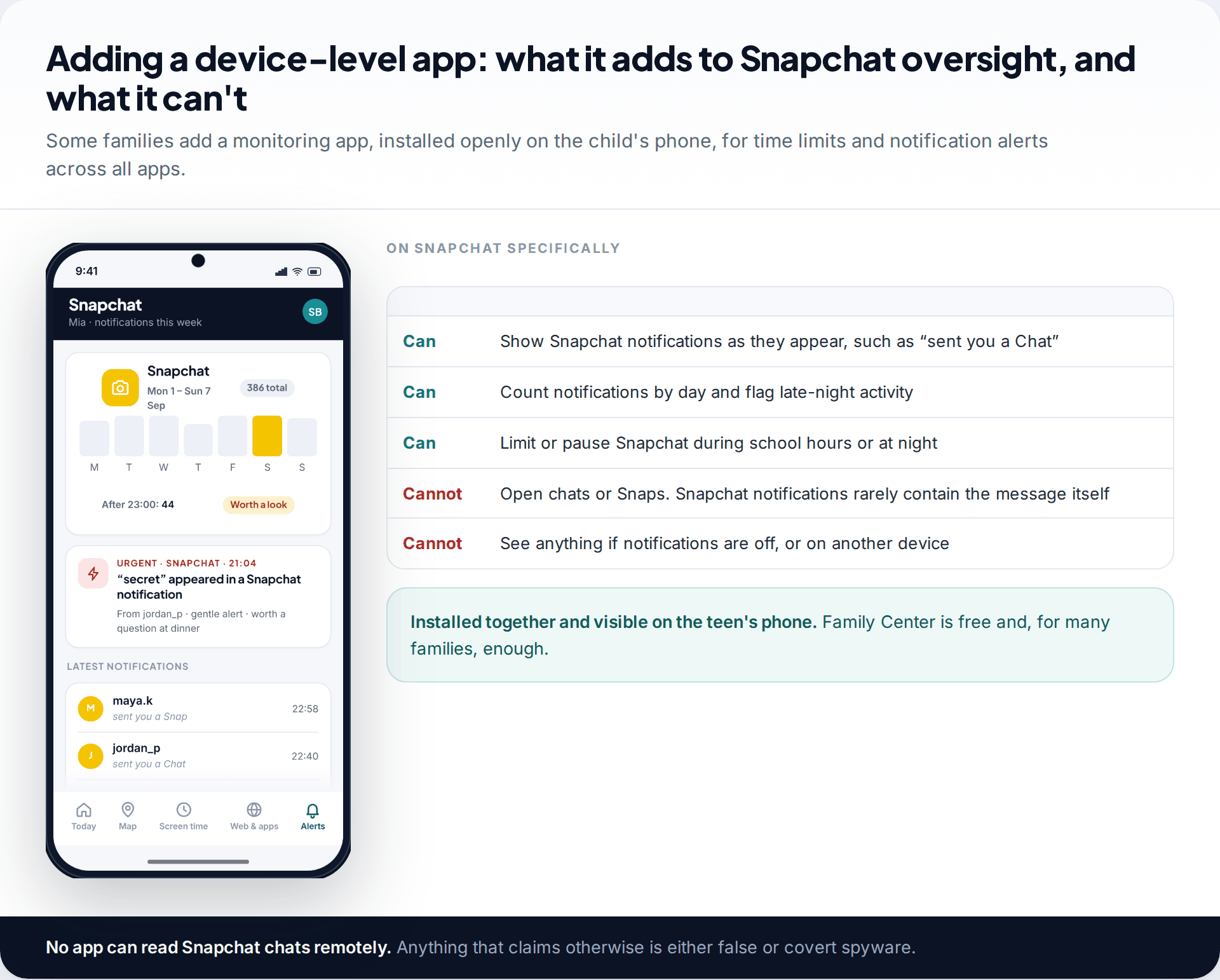
Snapchat’s tools only see Snapchat. For limits across all apps, most families start with the phone’s own controls, which are free. Some add a monitoring app for things neither offers, such as alerts across several apps in one place.
Ours is installed on the teen’s phone with their knowledge and shows on that phone that it is running. For Snapchat it can list notifications as they arrive, count activity by day, flag late-night use and limit the app during school hours. It can’t open chats or Snaps, and because Snapchat notifications usually say only “sent you a Chat”, it rarely sees any words at all. You can read how it handles Snapchat in more detail. If Family Center and a weekly check are working, you may not need it.
If what you really want is to see messages, read our guide to seeing your child’s Snapchat chats openly. It explains why the content is usually gone, and what families do instead.
How this page was put together
We checked Family Center’s features against Snapchat’s Support pages and parents’ site, and Snap’s newsroom announcements on location sharing (November 2024) and screen-time and friend insights (January 2026), in September 2026. Menu labels change between app versions, so where a path differs on your phone, search the app for the feature’s name.
We did not test Family Center on a set of devices, and we have not included statistics we could not source. Our approach to accuracy and corrections is set out in our editorial standards.
Common questions
Can I see my child’s Snapchat messages through Family Center?
No. Family Center shows who your teen has chatted with in the last seven days and their friend list, but never the content of messages or Snaps.
Does my teen know I’m using Family Center?
Yes. They have to accept your invitation before anything is shared, and they can leave at any time.
Can Family Center limit how long my child uses Snapchat?
No. Since January 2026 it shows average daily time split by feature, but it can’t set limits. Use Screen Time on iPhone or Family Link on Android for that.
How do I turn off My AI for my child?
In Family Center, use the content controls to restrict My AI. It will then stop responding to your teen.
What age is Snapchat for?
Snapchat’s terms require users to be at least 13. Family Center is designed for teens aged 13 to 17.
Can I track my child’s location with Snapchat?
Only if they accept a location request from you in Family Center. You can also set arrival and departure alerts for saved places, and see who else they share location with.
What if my child has a second Snapchat account?
Family Center only covers the account that accepted your invitation. A second account is not visible to it, which is one reason an open conversation works better than rules alone.
Looking for a tool to go with this? TheTruthSpy is a free parental control app for Android that stays visible on the child's phone. If it fits your family, see the Social media alerts feature.
Related guides
Monitoring Your Child’s Text Messages Safely: Options by Age
What parents can really see of a child's texts on iPhone and Android: Communication Limits, Communication Safety, Family Link contacts…
Is Instagram Safe for My Child? A Parent’s Guide
Is Instagram safe for kids? Not under 13, and not automatically after. Teen Accounts now remove many risks by default;…
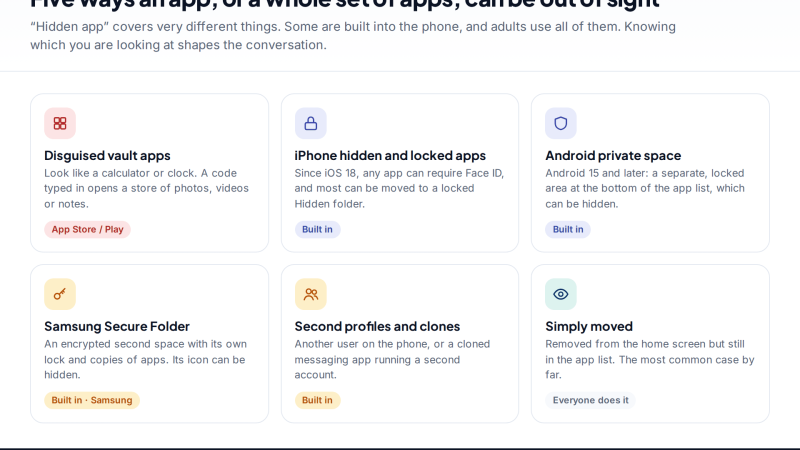
Vault Apps and Hidden Apps on a Child’s Phone: How to Spot Them
How to find hidden or vault apps on your child's phone: calculator vaults, iPhone hidden and locked apps, Android private…
Parental controls your child can see
Location, screen time limits, a web filter and alerts from notifications — free, and visible on your child's phone. Pair a phone in about ten minutes.
Android · Free to set up · Visible on your child's phone