Location Sharing for Couples: How to Set It Up Together
 By TheTruthSpy Editor · Founder and editorPublished September 18, 2026Updated September 21, 202610 min read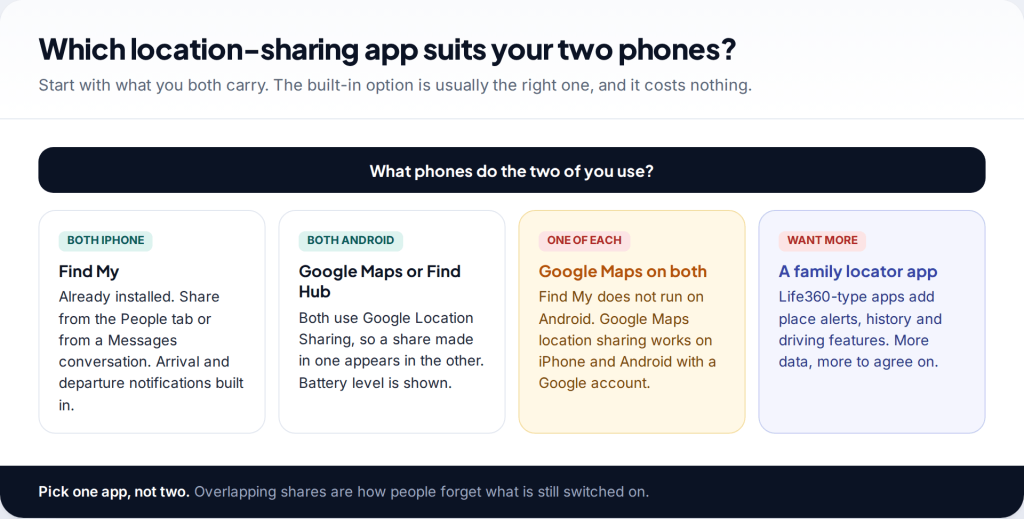
Location sharing for couples works best when you set it up together, in one sitting, with both phones in hand. Two iPhones use Find My. Two Android phones use Google Maps or Find Hub, which share the same setting. A mixed couple usually settles on Google Maps, which runs on both. Choose a time limit, test it outdoors, and put a review date in the calendar.
Choosing an app that works on both your phones
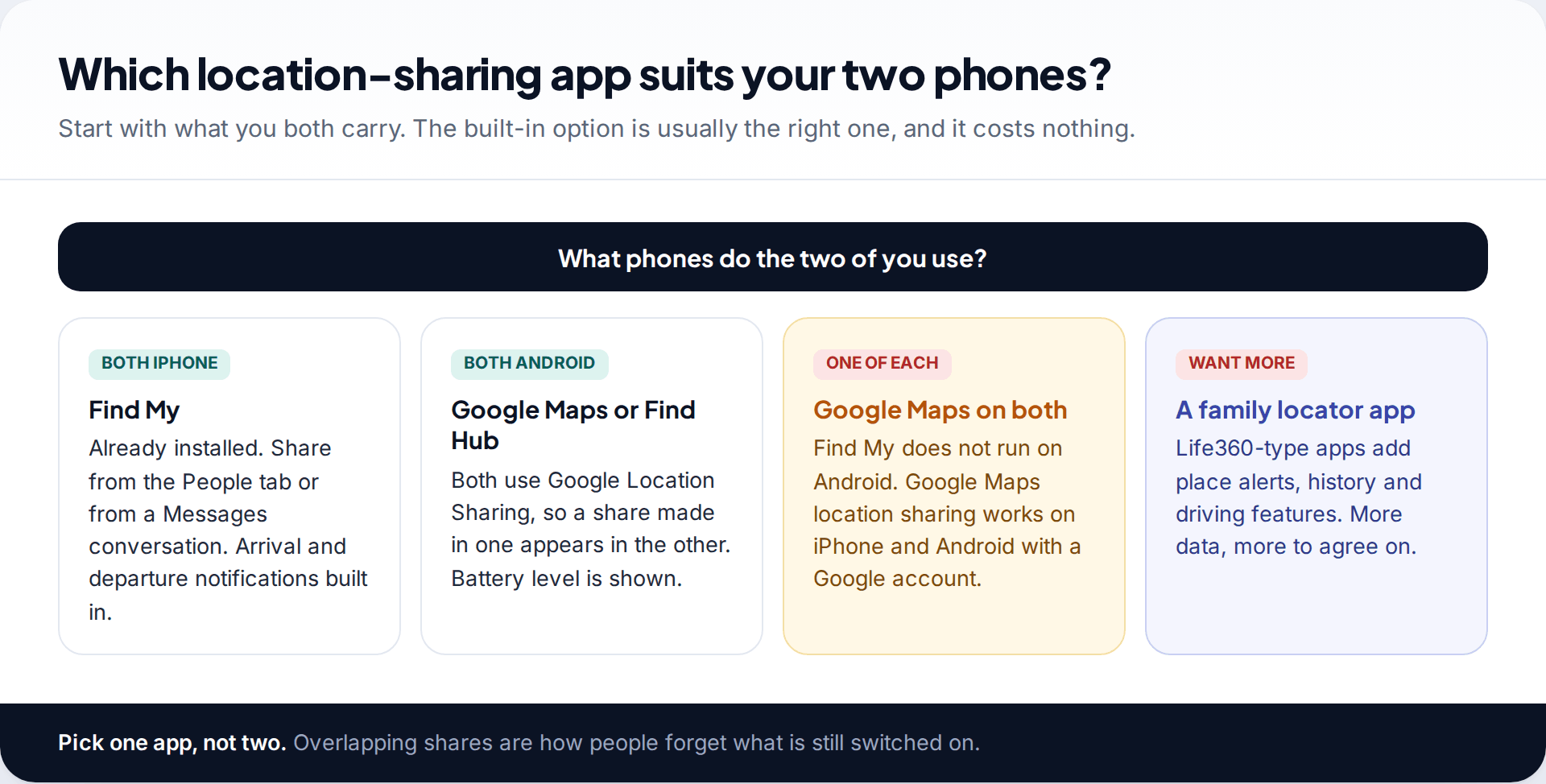
The most common mistake is installing a third-party app when the phones already have a good option built in. Built-in tools come from the company that makes the phone or its operating system, so there is no extra account, no subscription and no new company holding your movements.
- Two iPhones: Find My is already on both. It shares from the People tab or from a Messages conversation.
- Two Android phones: Google Maps and Find Hub (Google’s renamed Find My Device) both use Google Location Sharing, so a share started in one shows up in the other.
- One iPhone, one Android: Find My does not run on Android, so use Google Maps on both. It needs a Google account on the iPhone side, which most people already have through Gmail or YouTube.
- You want place alerts, history or driving reports: a family locator such as Life360 works across both platforms. It keeps more data than the built-in tools, so agree on that before you both install it.
Setting up location sharing for couples in one sitting
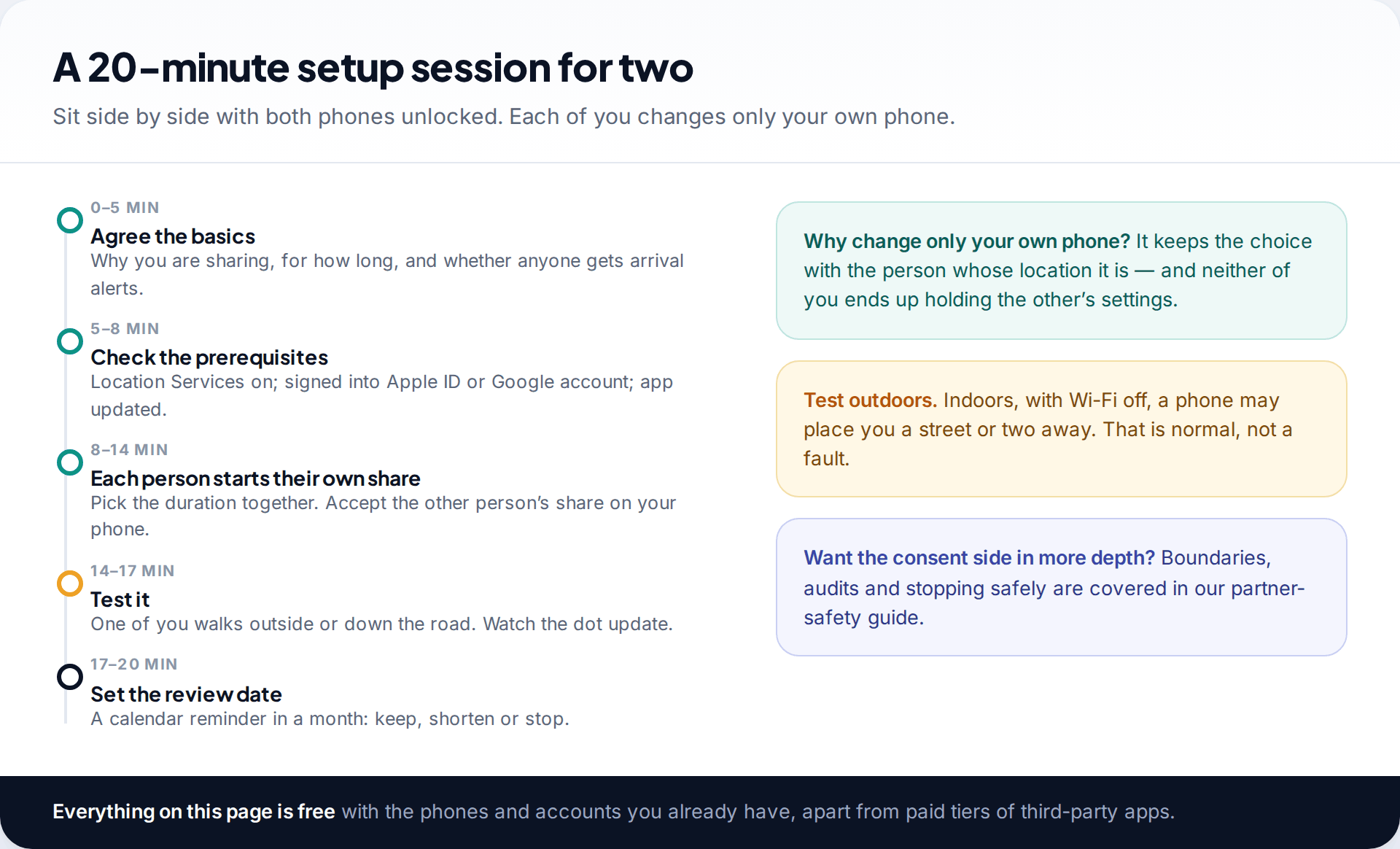
Doing it together, at the same time, avoids the awkwardness of one person setting up the other’s phone. It also means you both see the same screens and the same choices.
Spend the first few minutes on the basics: what the sharing is for, how long it should run, and whether either of you wants notifications when the other arrives somewhere. Those decisions shape every setting that follows. If you want to think the consent side through properly first, including how to stop safely later, our guide to sharing your location with a partner safely covers it.
Before anyone taps Share, check the prerequisites on both phones: Location Services switched on, the app updated, and each of you signed into your own Apple ID or Google account. Then each person starts a share from their own phone and accepts the other’s. Finish with a test outdoors, where GPS works best, and a calendar reminder to review the arrangement in a month.
Two iPhones: Find My, step by step
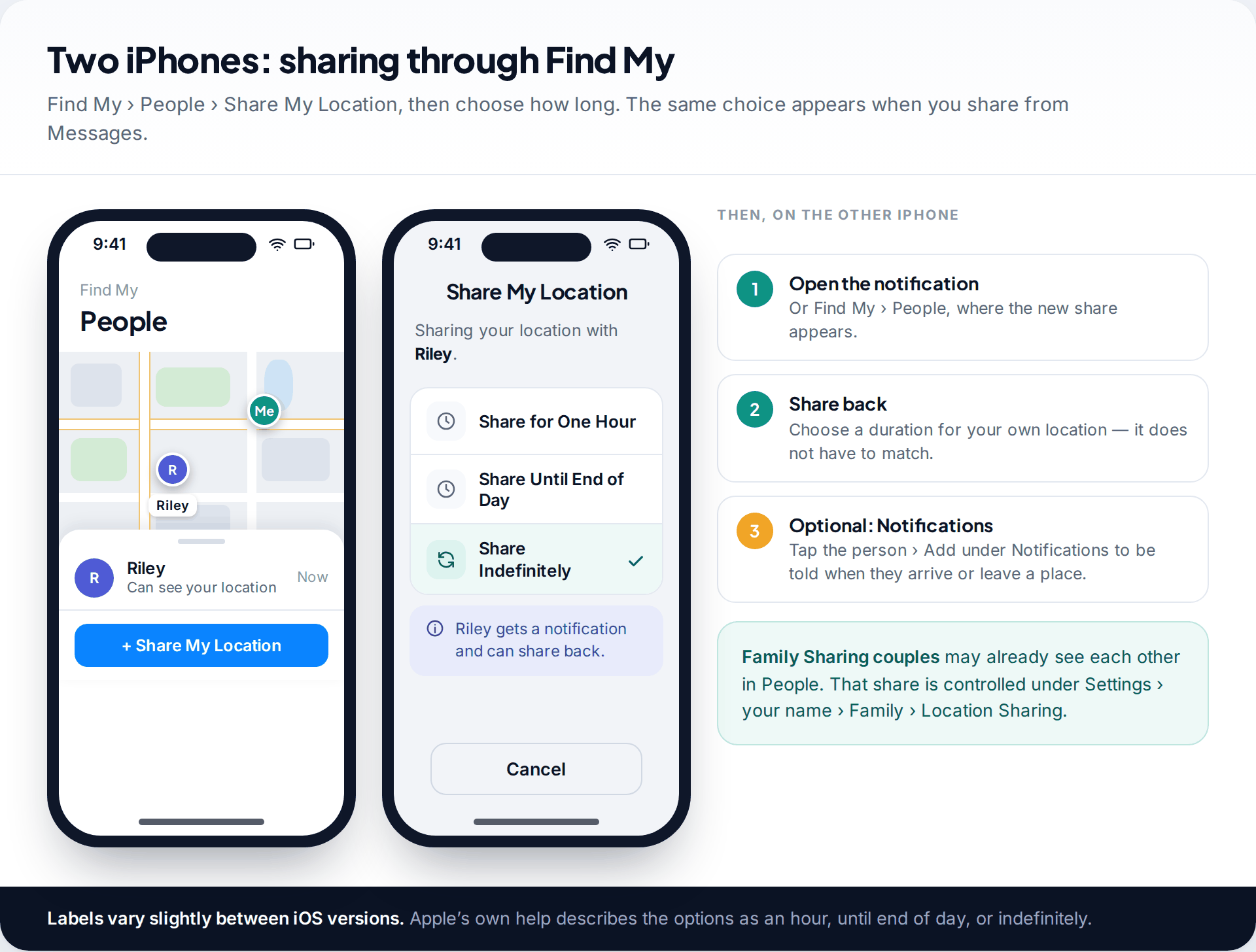
- Open Find My and tap People. If you are both in the same Family Sharing group, you may already see each other there.
- Tap the add button and choose Share My Location. Pick your partner from your contacts and tap Send.
- Choose a duration. Apple offers an hour, until the end of the day, or indefinitely.
- On your partner’s iPhone, open the notification or Find My, and share back if they want to.
- Optional notifications. Tap your partner’s name in People, then add a notification under Notifications to be told when they arrive at or leave a place. Agree on these first, because the other person is told when a notification is set up about them.
You can do the same from Messages: in your conversation, tap the plus button and share your live location, or tap their name at the top and choose Share My Location. Stopping works from either place.
Two Android phones: Google Maps or Find Hub
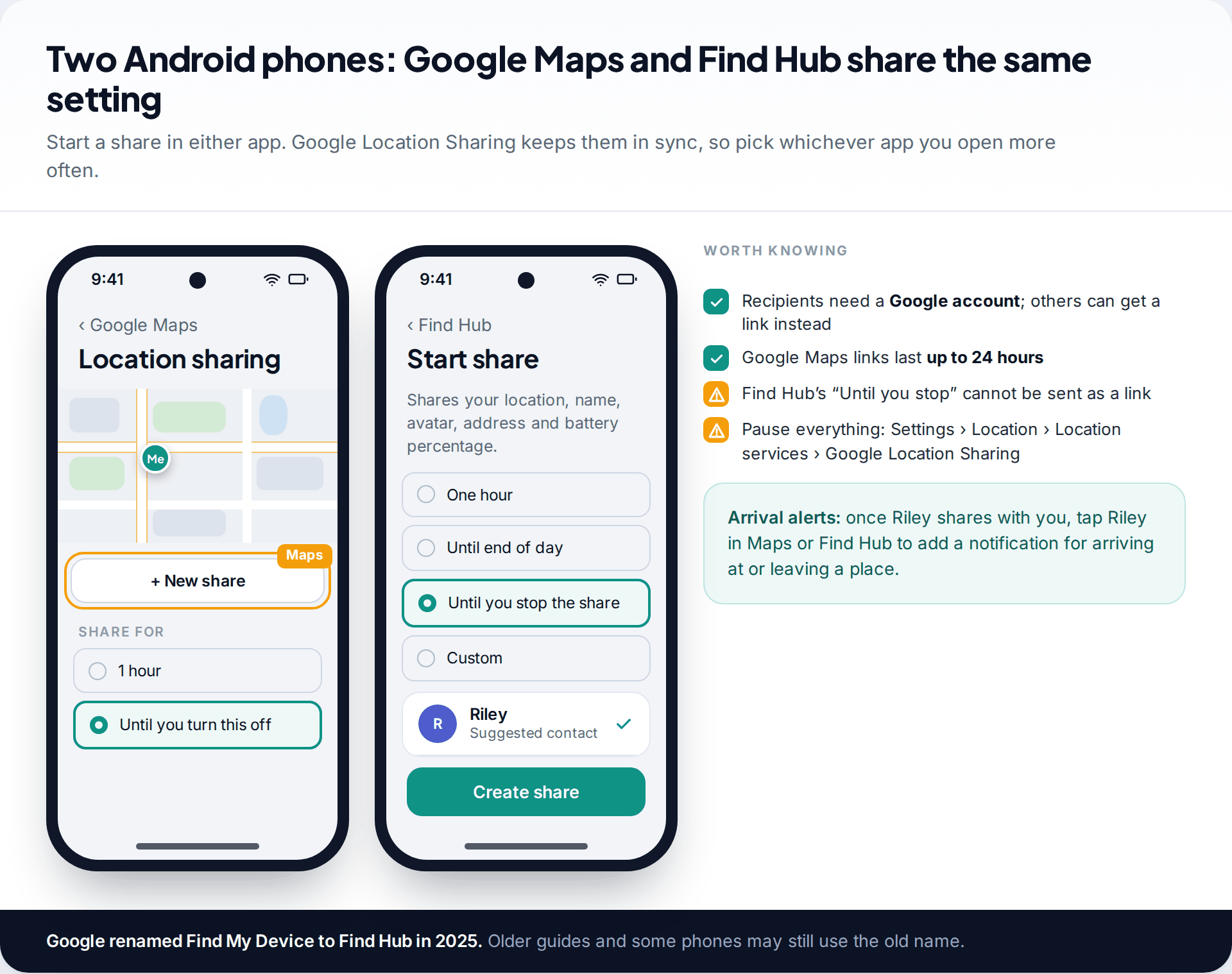
In Google Maps: tap your profile picture, then Location sharing › New share. Choose how long, pick your partner and tap Share. Your partner needs a Google account. Google’s help lists what they will see: your name and photo, your device’s recent location, its battery level and whether it is charging.
In Find Hub: tap Start share. Google’s help describes the options as one hour, until end of day, until you stop the share, or a custom duration. It shares your location, name, avatar, address and battery percentage. Pick your partner from the suggested list and tap Create share.
Either way, your partner then shares back from their own phone. To get a heads-up when they reach home, tap their name in Maps or Find Hub and add an arrival or leave notification. There is also a master switch: Settings › Location › Location services › Google Location Sharing shows everyone you share with and lets you pause all sharing from that phone.
One iPhone, one Android: the mixed-couple setup
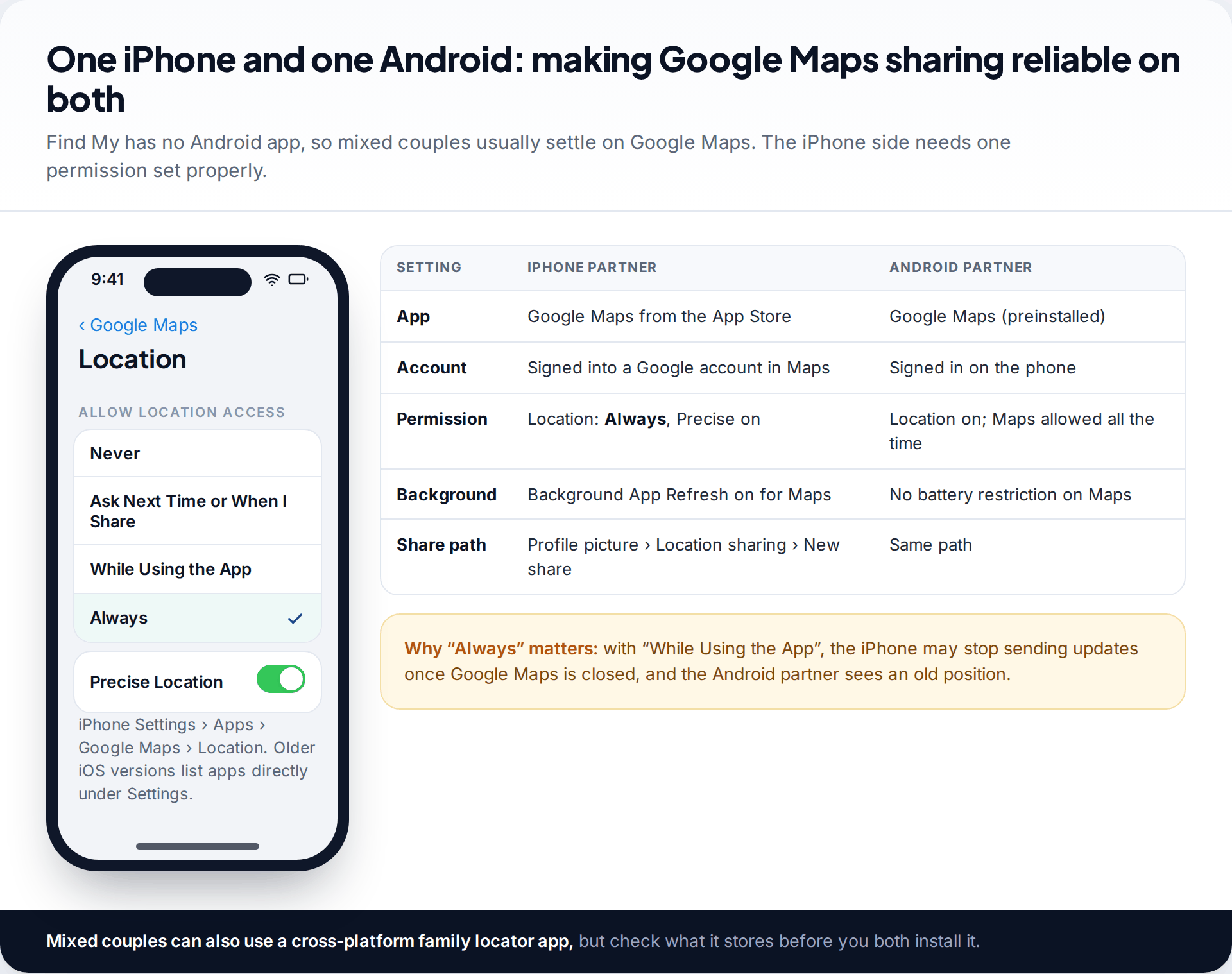
Google Maps location sharing works on both platforms, which makes it the natural choice for a mixed couple. The share path is identical: profile picture › Location sharing › New share.
The weak point is usually the iPhone’s location permission. If Google Maps is only allowed to use location “While Using the App”, the iPhone may stop sending updates once Maps is closed, and the Android partner sees a position that is hours old. On the iPhone, open Settings, find Google Maps (under Apps on recent iOS versions), tap Location and choose Always, with Precise Location on. Leave Background App Refresh on for Maps as well.
On the Android side, check that battery optimisation is not restricting Google Maps. Some manufacturers’ power-saving tools are aggressive about apps running in the background.
Temporary or indefinite sharing: choosing the length
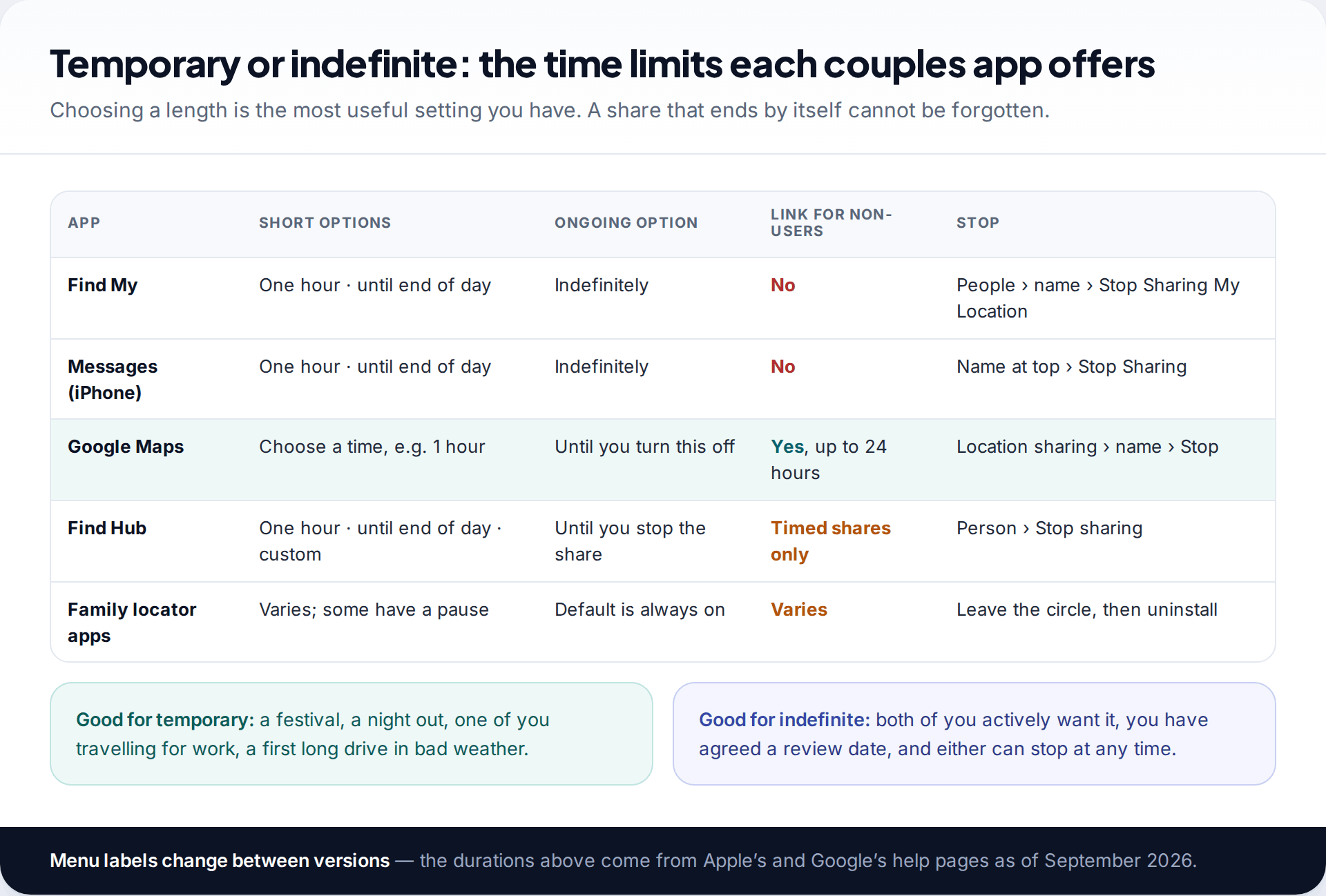
Duration is the setting couples think about least and the one that matters most. A timed share expires on its own, so nobody has to remember to switch it off and nobody has to explain why they did.
Temporary sharing suits specific occasions: a festival where you might lose each other, a late train, a solo hike, a work trip. Ongoing sharing suits couples who both actively want it day to day. If you choose ongoing, pair it with a review date. It gives you both an easy moment to ask whether it is still useful, without it sounding like an accusation.
If one partner wants to share with someone who does not use Google, such as a friend meeting you at an airport, Google Maps can create a link that works for up to 24 hours. Find Hub’s “until you stop” option is not available as a link.
Check-ins as a lighter alternative
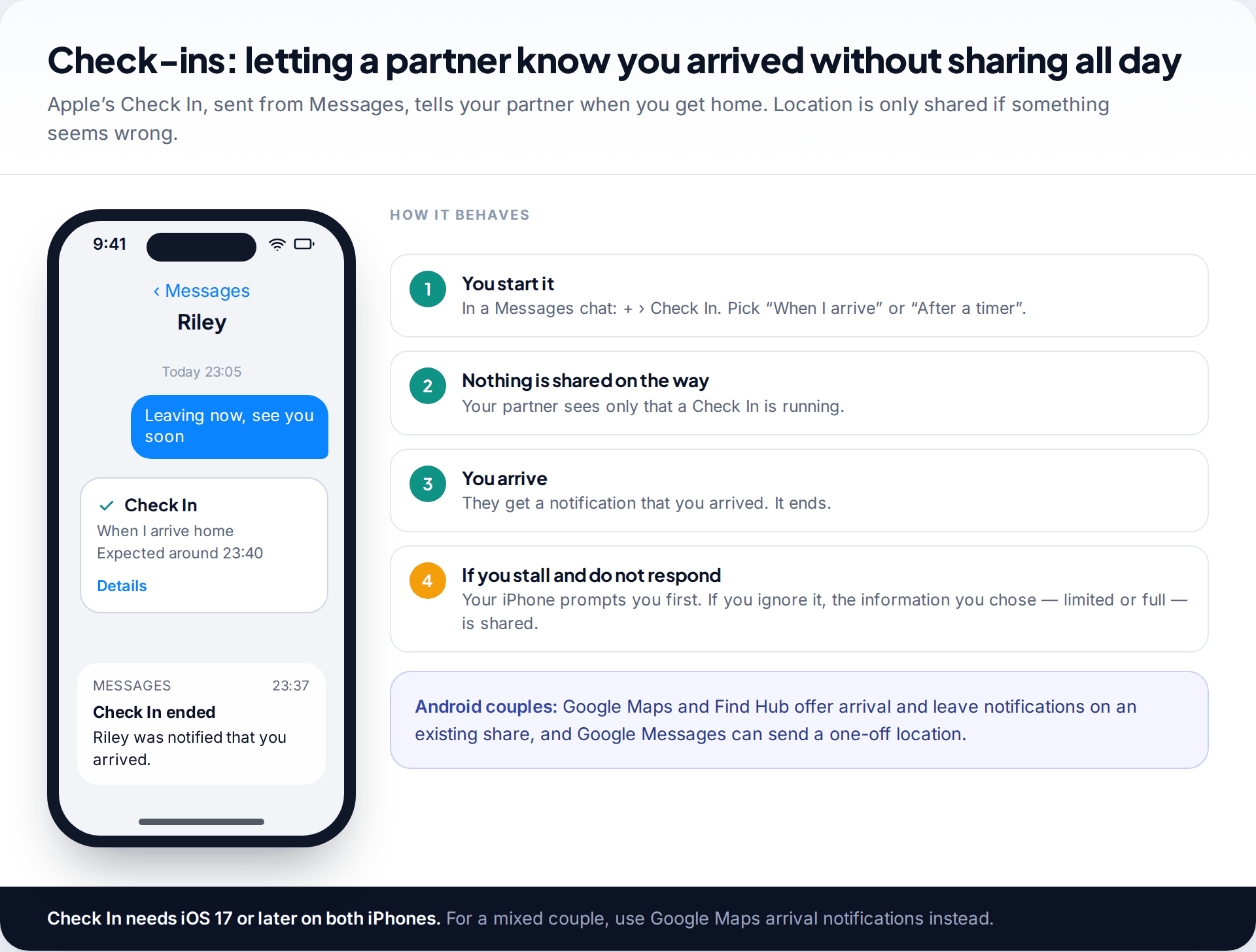
Many couples only want to know one thing: did you get home? For that, a live map is more than you need.
On iPhone, Check In in Messages covers it. Start one in your conversation, choose “when I arrive” or “after a timer”, and your partner gets a notification when you reach the destination. Nothing is shared on the way. If your journey stops making progress, your iPhone prompts you. Only if you do not respond does it share the information you chose when setting it up. The limited option includes your location, battery level and signal; the full option adds details such as your route. Both of you need iOS 17 or later.
On Android, and for mixed couples, arrival notifications on a Google Maps or Find Hub share do a similar job. You can also send a single location pin from Google Messages without any ongoing share.
Battery, accuracy and when the dot looks wrong
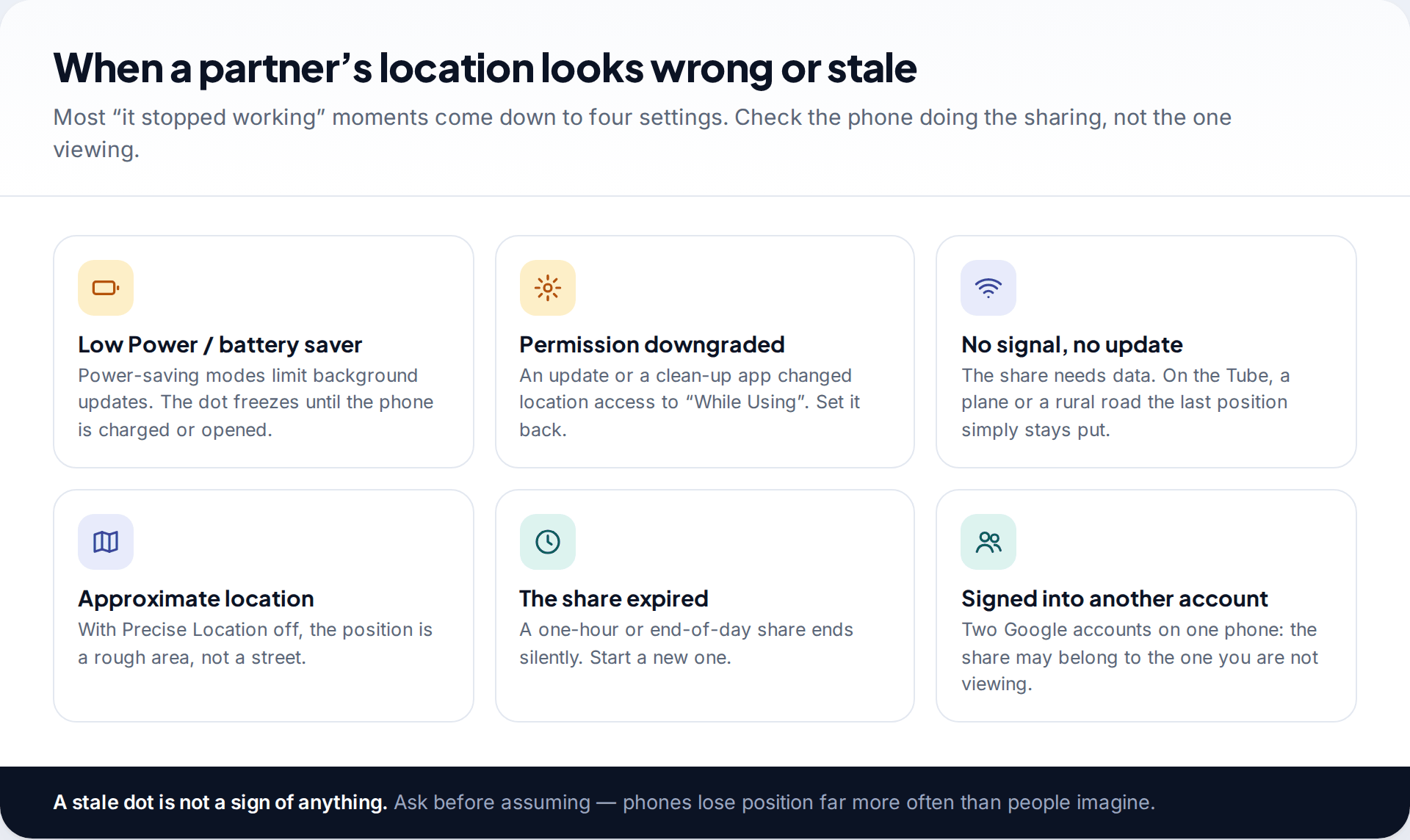
Location sharing uses a little more battery than normal, because the phone reports its position in the background. On current phones the difference is usually modest. Low Power Mode and battery savers cut background activity, so a partner’s dot may freeze until they charge or open their phone.
Accuracy varies too. Outdoors with a clear view of the sky, GPS is typically good to a few metres. Indoors, in dense city centres or underground, phones fall back on Wi-Fi and mobile masts and can be out by a street or more. Our guide to how accurate phone location tracking is explains why. The practical point for couples is simple: a strange position or a stale update is almost always the phone, not the person.
My partner’s location says “No location found”
Their phone is off, out of signal, or location is switched off.
Fix: wait for it to reconnect, then check Location Services and the app’s permission on their phone.
The share disappeared on its own
A timed share expired, or the phone was signed out.
Fix: start a new share and pick a longer duration if you both want one.
Only one of us can see the other
Sharing is one share in each direction. One of you has not shared back.
Fix: the second partner starts a share from their own phone.
When a family locator app makes sense for a couple
Third-party locators such as Life360 run on both platforms and add features the built-in tools lack: place alerts for several locations, location history, crash detection and driving reports. Life360’s own site says history ranges from two days on its free plan to fifty days on its top tier. For a couple with a teenager already in a family “circle”, joining the same app can be simpler than running two systems.
For two adults on their own, those extras are worth weighing. History means either of you can replay the other’s day. Driving reports score how someone drives. Before installing, open the app’s settings together, decide which features stay on, and remember that deleting the app does not necessarily remove you from the circle; leave it first.
Night shifts, one iPhone, one Android
Priya works nights and drives home around 2am on an Android phone; Tom uses an iPhone and wants to know she is back without staying awake watching a map. They agree on Google Maps, because Find My does not run on Android. Priya shares with Tom “until you turn this off”, and Tom adds an arrival notification for home only. Tom shares back for one hour whenever he is out late. They set a reminder to review it when Priya’s rota changes.
How this page was put together
Steps, durations and labels were checked in September 2026 against Google’s help pages for Google Maps location sharing on Android and iPhone, Find Hub’s location-sharing help and Android’s own guide to sharing location, and Apple’s support pages for sharing location in Find My and Messages. Life360’s features come from its own site. Labels move between versions, so search your settings if a name differs.
We did not run battery or accuracy tests of our own. The figures above are general guidance, not measurements. Read more about how we check and update our guides.
Common questions
Can an iPhone and an Android phone share locations?
Yes. Use Google Maps on both. Find My does not have an Android app, but Google Maps location sharing works across the two platforms with a Google account.
Does my partner know if I check their location?
Not in Find My or Google Maps; viewing a shared location does not notify the person. Setting up an arrival or leave notification about them is different, and Apple tells the person when one is created.
Is location sharing between couples bad for trust?
It depends on how it is used. Couples who share for convenience and rarely look at it usually find it neutral or helpful. Where it is used to question or check up, it tends to erode trust.
Does sharing my location drain the battery?
A little, because the phone reports its position in the background. For most people the difference is small. Low Power Mode or battery saver will reduce updates.
Can we share for just one evening?
Yes. Find My offers “until end of day”, and Google Maps and Find Hub let you choose a time limit. The share ends automatically.
Do we need Life360 or a paid app?
Not for basic sharing. Find My and Google Maps cover live location, arrival notifications and time limits free. Paid apps add history, driving reports and extra alerts.
Looking for a tool to go with this? TheTruthSpy is a free parental control app for Android that stays visible on the child's phone. If it fits your family, see the Location & geofencing feature.
Related guides
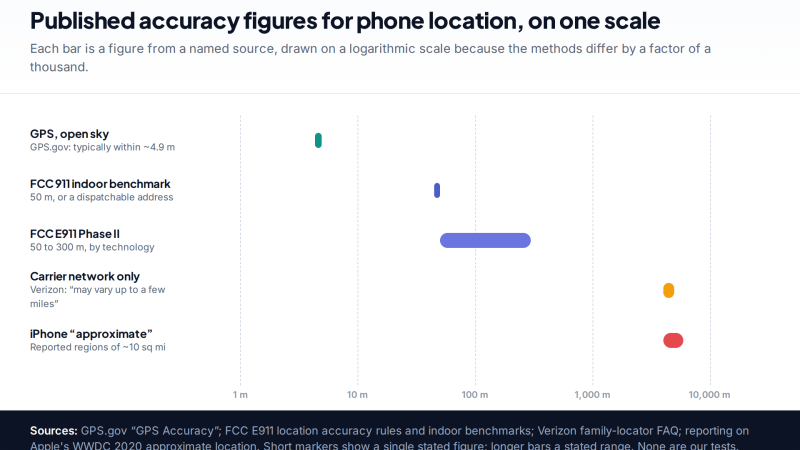
How Accurate Is Phone Location Tracking? GPS, Wi-Fi and Cell Compared
Phone location accuracy runs from a few metres with GPS under open sky to miles when only the mobile network…
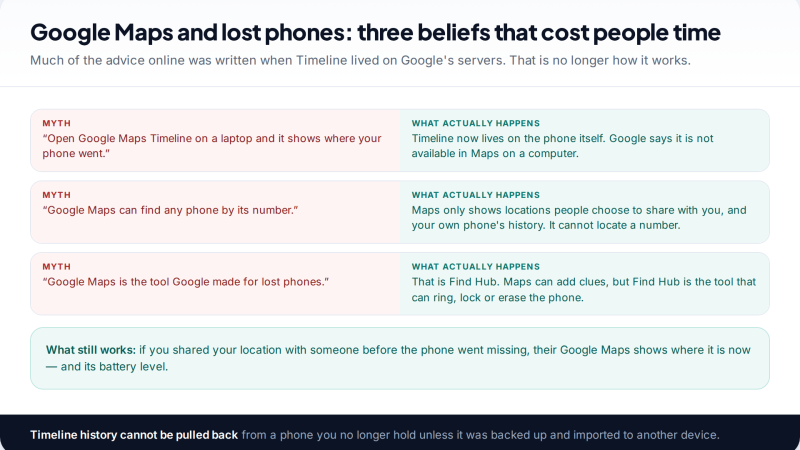
Using Google Maps Timeline to Find a Lost Phone
Can Google Maps find a lost phone? Only in two cases: someone you share your location with can see it,…
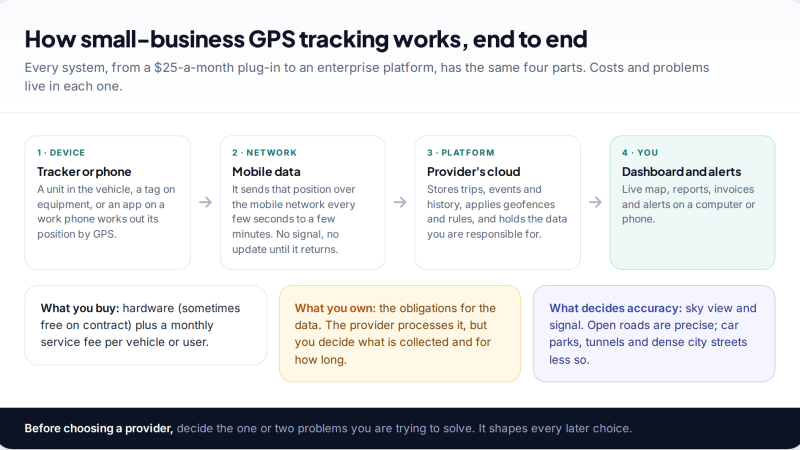
GPS Tracking for Small Business: A Starter Guide
A plain starter guide to GPS tracking for a small business: vehicle trackers versus phone apps, what a small fleet…
Parental controls your child can see
Location, screen time limits, a web filter and alerts from notifications — free, and visible on your child's phone. Pair a phone in about ten minutes.
Android · Free to set up · Visible on your child's phone