Forgot Your Google Password? Recovery Steps That Google Accepts

To reset a forgotten Google password, go to accounts.google.com/signin/recovery, or tap “Forgot password?” on the sign-in screen. Use a phone or computer you normally sign in on, from home or work. Answer every challenge Google offers, and tap “Try another way” only when one is truly out of reach. With a working recovery phone or email, it takes a few minutes.
Most people get back in on the first attempt. The ones who don’t usually made the attempt from a new device, in an unusual place, while skipping questions. Google’s own help pages point to exactly those factors. This guide covers what each screen asks and how to give Google what it needs. It also covers what to do when the answer is “couldn’t verify”.
Before you reset a forgotten Google password
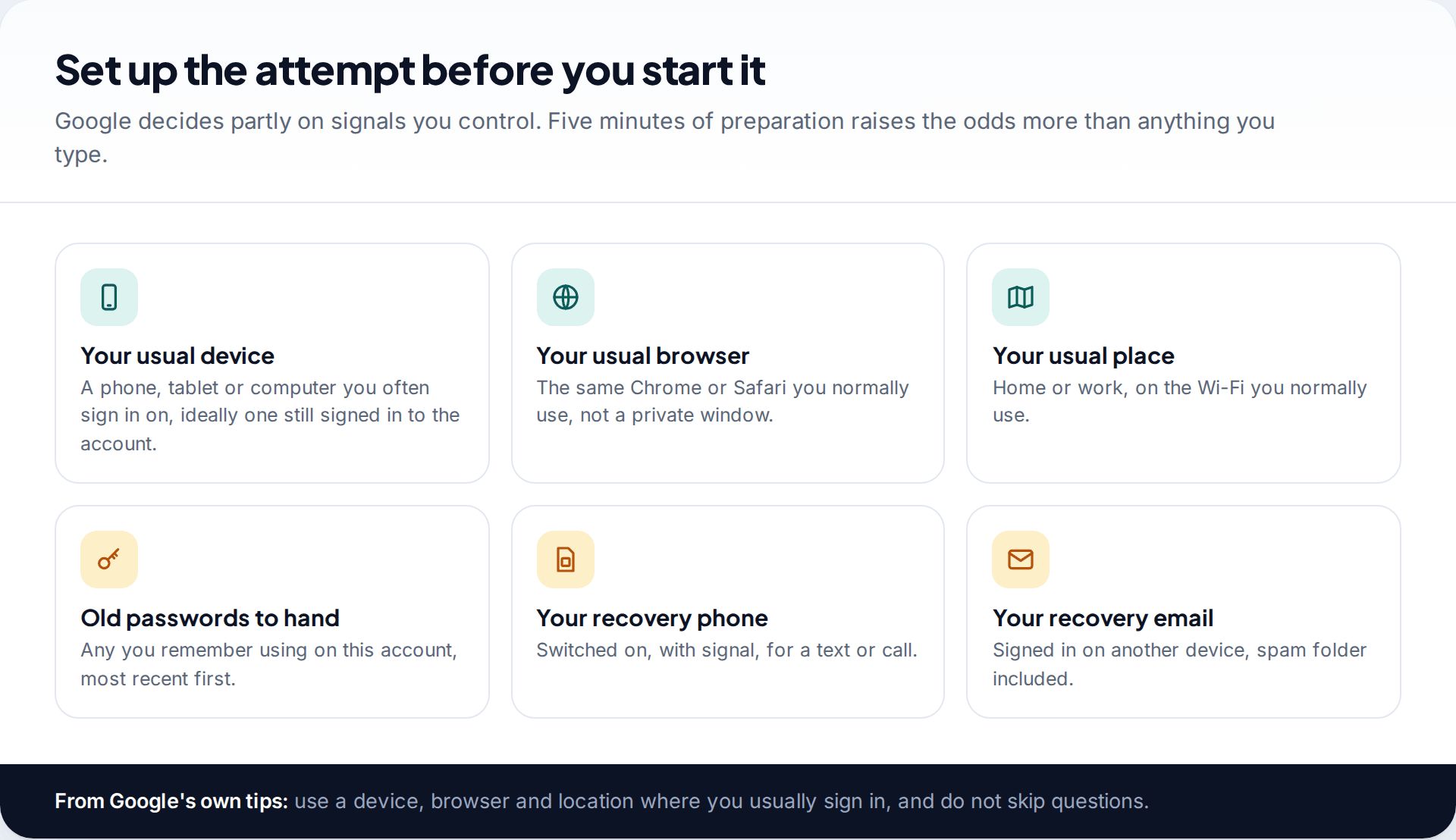
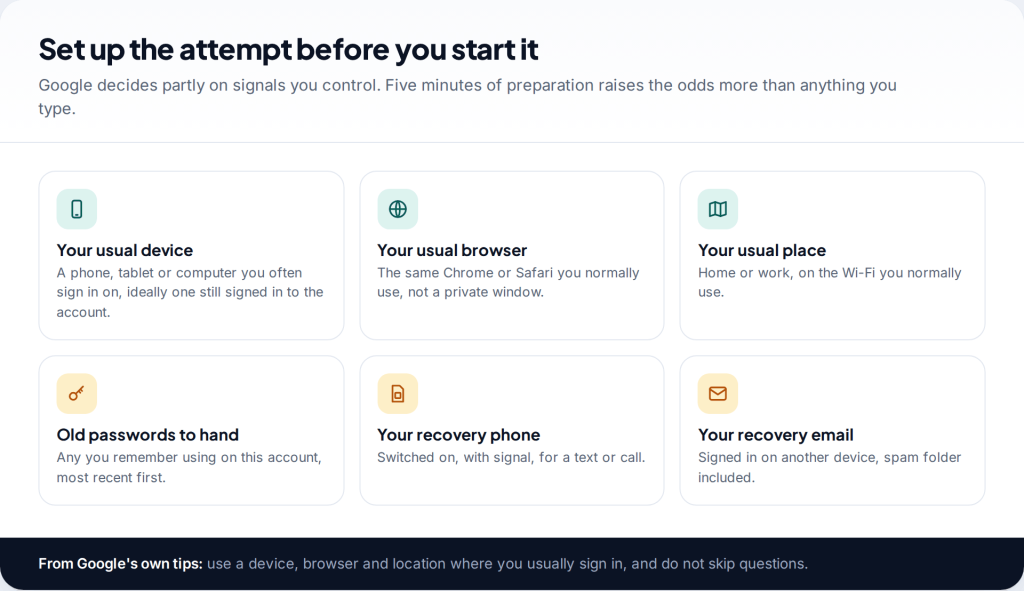
Google doesn’t only judge your answers. It also looks at the circumstances of the attempt. Its recovery tips are specific. Use a computer, phone or tablet you frequently sign in with. Use the same browser you usually do. Be in a location where you usually sign in, such as home or work. An attempt from a friend’s laptop in a café gives Google far less reason to believe you, even if every answer is right.
Before you start, gather the rest. Have your recovery phone switched on with signal, and your recovery email open on another device. Jot down every password you can remember using on this account, most recent first. If there’s any device that might still be signed in, such as an old Android phone in a drawer or a tablet, charge it and switch it on.
Which route will you get?
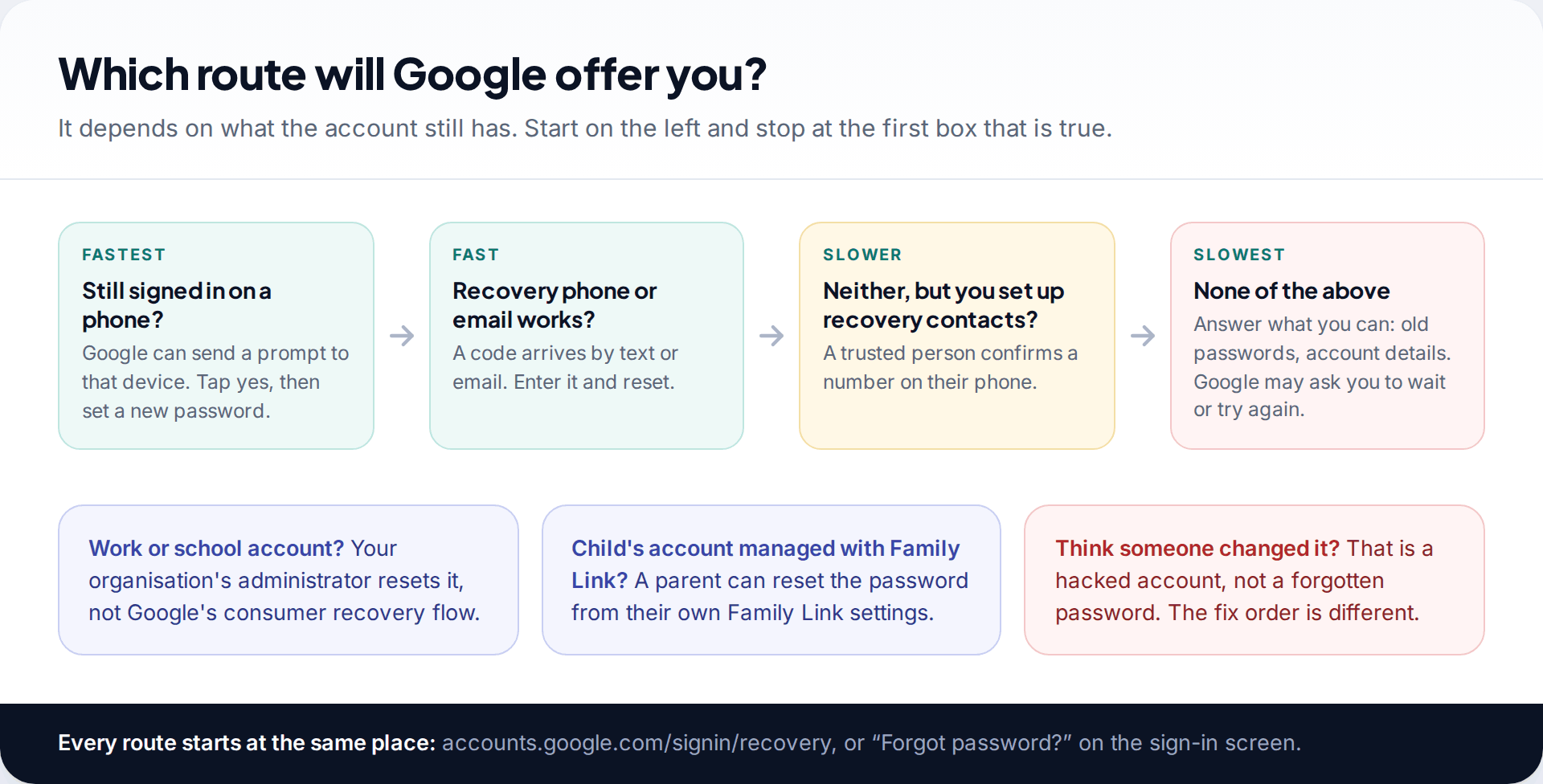
Google chooses the challenges based on what’s attached to your account. If a phone is still signed in, it may simply ask you to confirm there. If your recovery phone or email still works, a code is enough. If you set up recovery contacts, a trusted person can vouch for you. With none of these, Google relies on old passwords and the circumstances of the attempt, and it may ask you to try again later.
Three situations sit outside this flow. A work or school account is reset by your organisation’s administrator, so contact your IT team. A child’s account supervised through Family Link can have its password reset by a parent from the parent’s device. And if you believe someone else changed your password, you aren’t dealing with a forgotten password at all. The fix order is different, and our guide to recovering a hacked Gmail, Outlook or Yahoo account covers it.
The reset, step by step
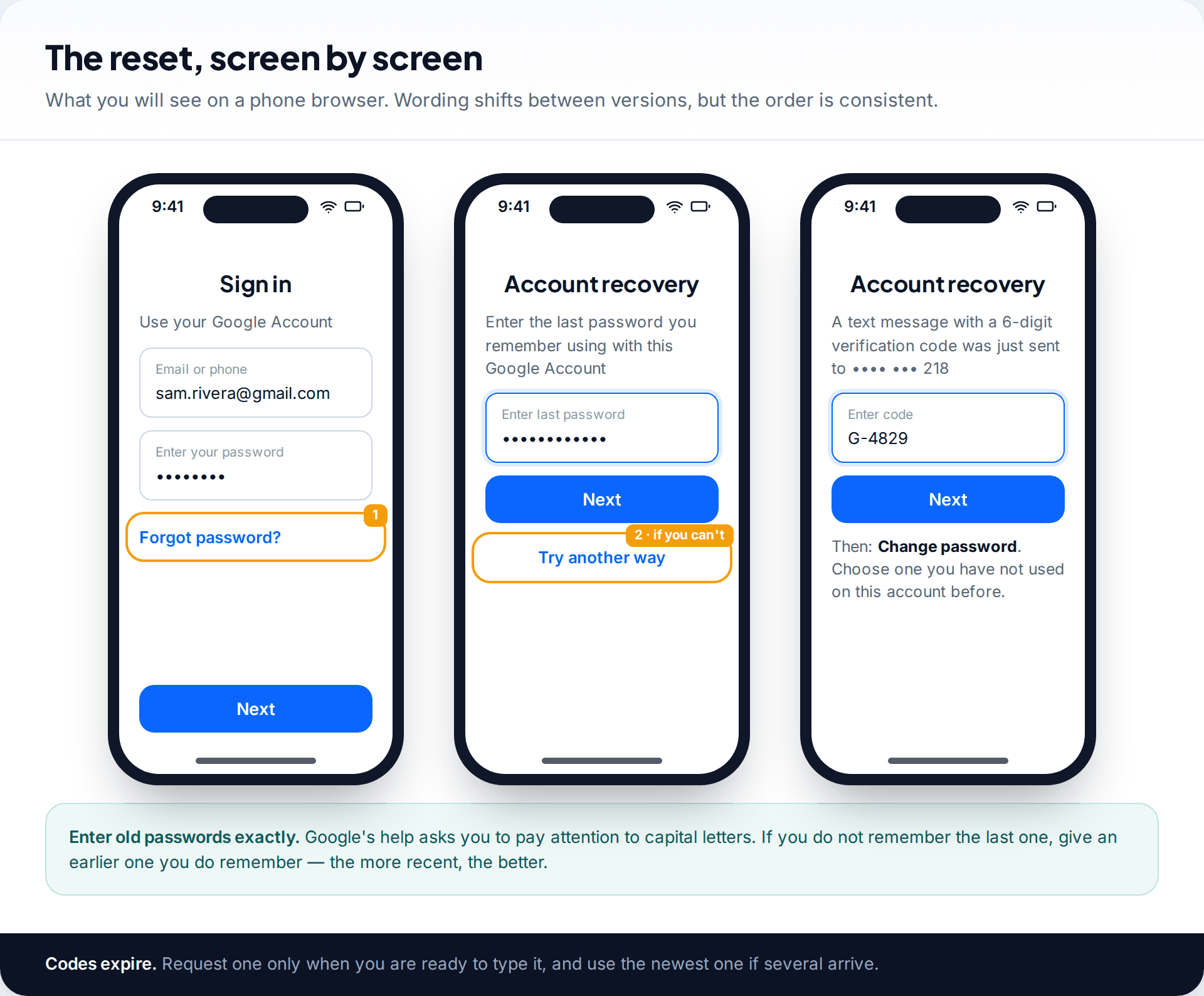
- Open the sign-in page and enter your Gmail address or phone number, then tap Forgot password? Or go straight to accounts.google.com/signin/recovery.
- Answer the first challenge. Often it’s “Enter the last password you remember”. Type it exactly, capitals included. If you don’t remember the last one, Google’s advice is to enter an earlier one you do remember. The more recent, the better.
- Tap “Try another way” only if you can’t answer. Google moves on to a different challenge, such as a code by text, a code by email, or a prompt on a device.
- Enter the code that arrives. If several arrive, use the newest one.
- Set a new password that you haven’t used on this account before. Google asks for one that is new to the account.
That’s the whole flow when a recovery method works. After the change, Google signs you out almost everywhere. The exceptions are the device you verified on, some devices with third-party apps you’ve authorised, and some linked smart home devices. Expect to sign back in on your phone, tablet and other browsers with the new password.
The challenges Google may use
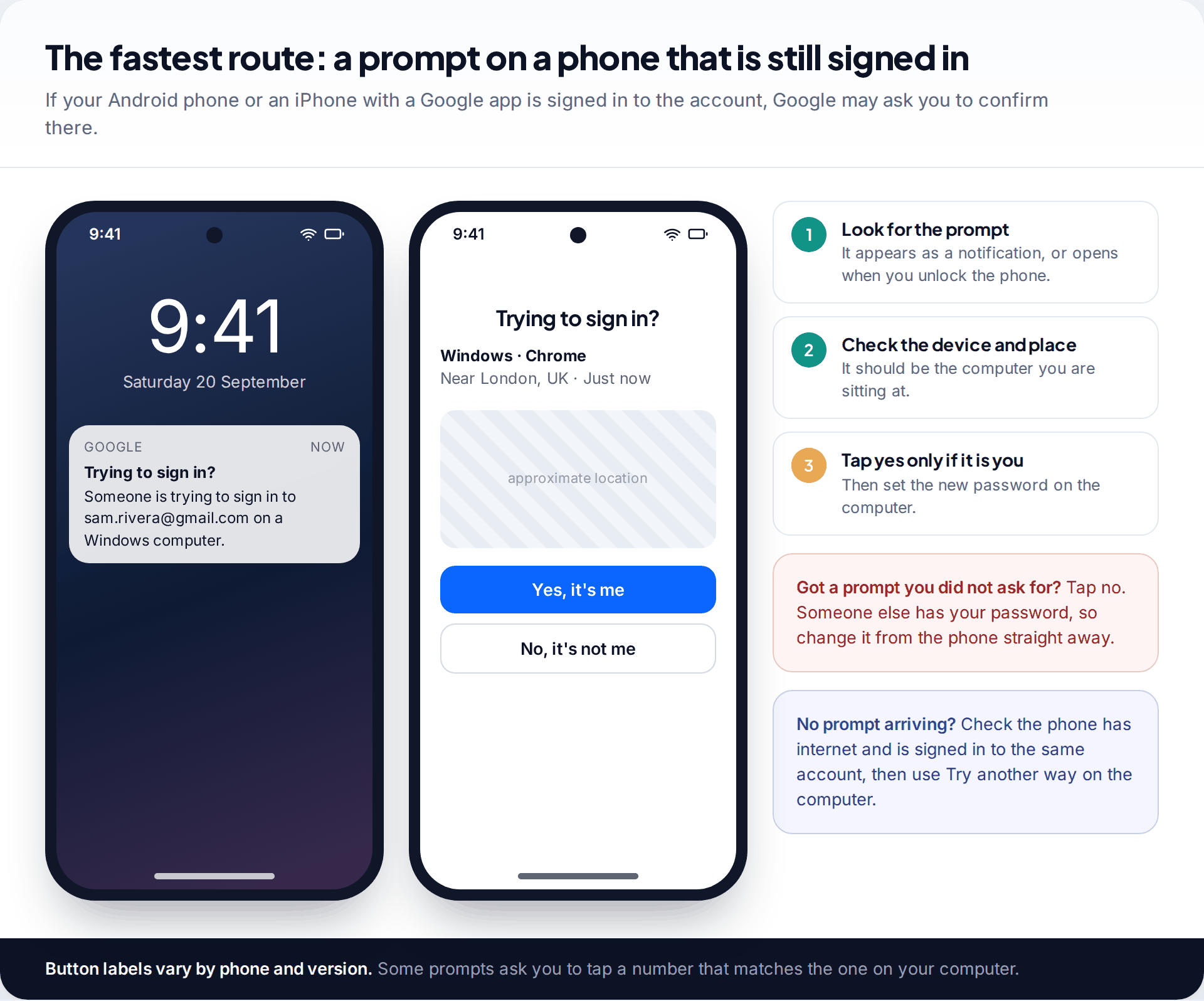
The fastest challenge is a prompt on a device that is already signed in. That might be your Android phone, or a phone or tablet with a Google app signed in to the account. It shows where the sign-in attempt is coming from. Tap the yes option if that’s you at your computer. If a prompt ever appears when you aren’t signing in, tap no and change your password from that phone, because someone else has it.
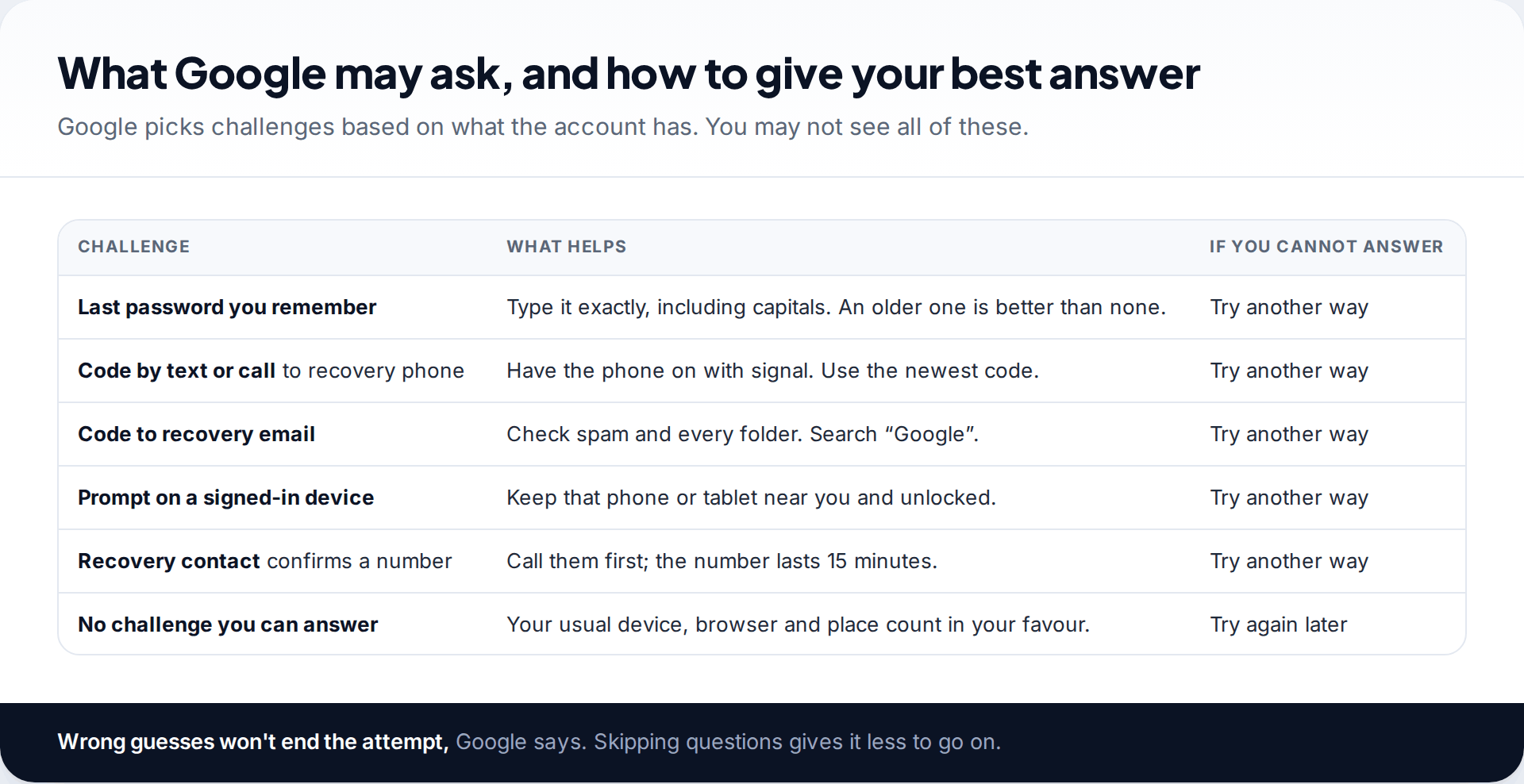
Google’s tips page is clear on one point that surprises people: don’t skip questions. If you aren’t sure, take your best guess. Wrong guesses don’t kick you out of the process, but skipping leaves Google less to go on. For email questions, give an address you have actually added to the account. For codes, make sure the phone has signal and check the spam folder of the recovery email.
No access to your recovery phone or email
This is the hardest case: a changed number, a lost phone, a recovery email you no longer use. Keep tapping “Try another way” and answer what you can. Your best assets are an old password, a device that is still signed in, and making the attempt from your usual device and place.
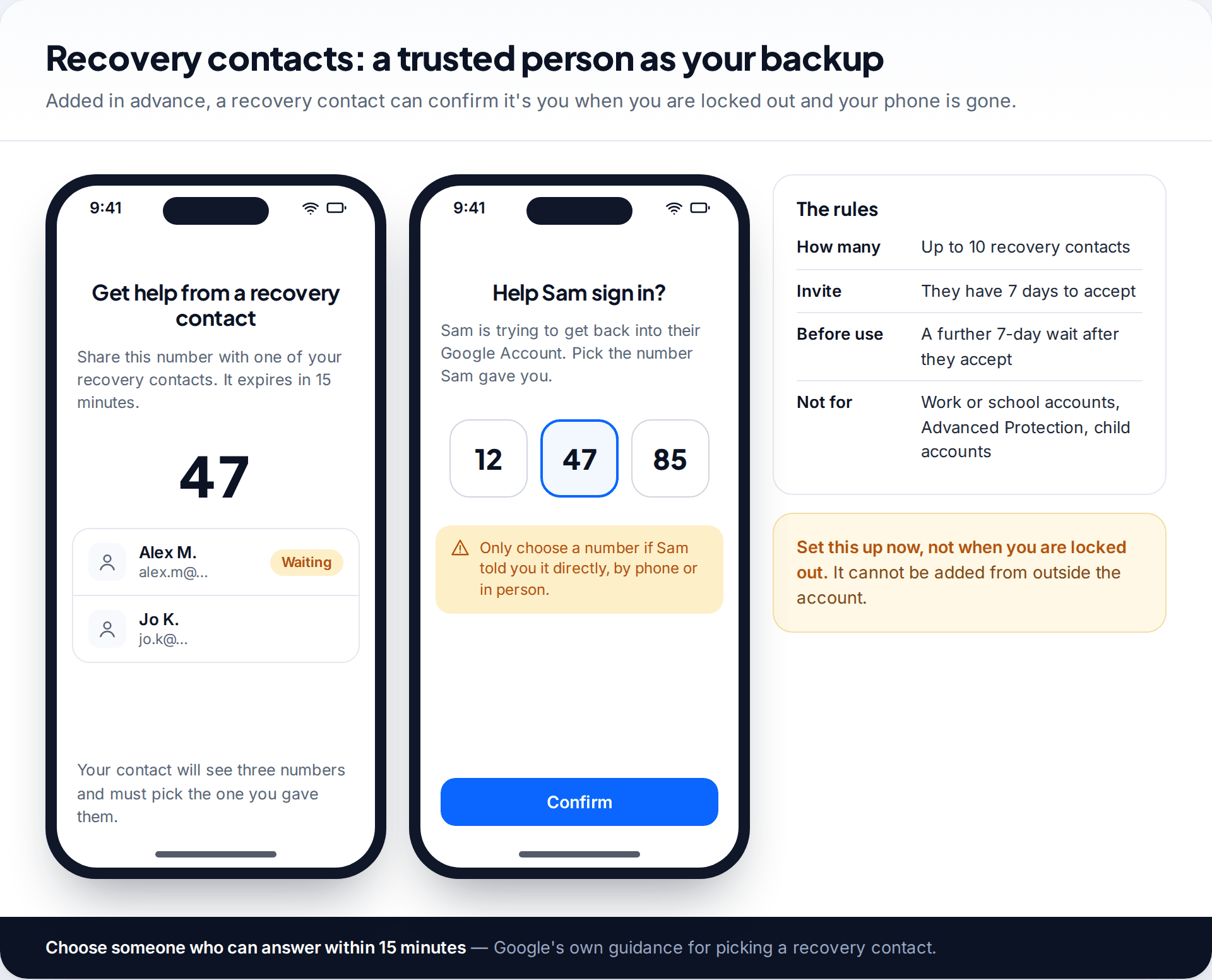
If you set up recovery contacts beforehand, this is where they help. Google introduced the feature in 2025. When you’re locked out, Google shows you a number that expires in 15 minutes. You give it to your contact by phone or in person. They see three numbers on their device and pick the one that matches. You can have up to 10 recovery contacts. They have 7 days to accept an invitation, and there’s a further 7-day wait before they can be used. Work and school accounts, accounts in Google’s Advanced Protection Program and child accounts can’t use them.
If the problem is only that your phone number changed, it’s worth one call before anything else. Ask your mobile provider whether your old number can be moved to a new SIM. Whether that’s possible depends on the provider, and on whether the number has already been given to someone else. Getting the number back restores the text-message challenge, which is often the simplest one to pass.
Recovery contacts only help if you set them up in advance. They can’t be added from outside the account. If you’re reading this while locked out, set them up as soon as you’re back in.
If Google couldn’t verify it’s you
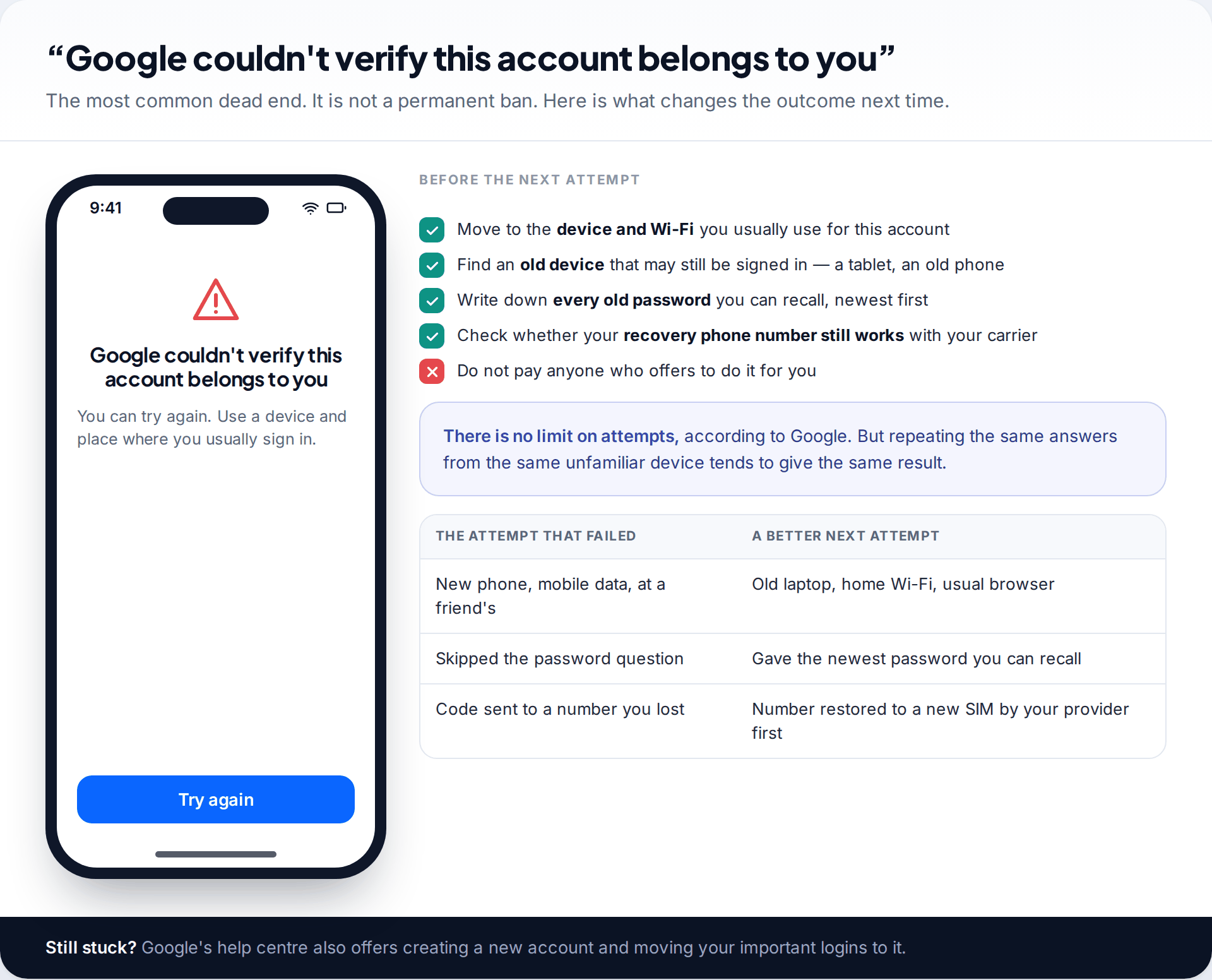
The message “Google couldn’t verify this account belongs to you” means that, on this attempt, Google didn’t have enough to be confident. Its help pages say you can try again, and that there’s no limit on the number of recovery attempts. What helps is changing something before you do.
You tried from a new phone or a borrowed computer
Unfamiliar devices count against you.
Fix: try again from a device you have signed in on before, even an old one, on your home or work Wi-Fi.
You skipped the password question
Skipping gives Google nothing. A wrong guess still tells it something.
Fix: give the most recent password you can recall, even if you think it’s out of date.
Your old phone number is gone
Codes to a number you no longer have can’t reach you.
Fix: ask your mobile provider whether the number can be restored to a new SIM. If it can, the text challenge works again.
Nothing works after several tries
Some accounts simply don’t have enough attached for Google to verify the owner.
Fix: Google’s help centre suggests creating a new account. Move your important logins to it and add recovery details on day one.
Once you’re back in: make the next reset easy
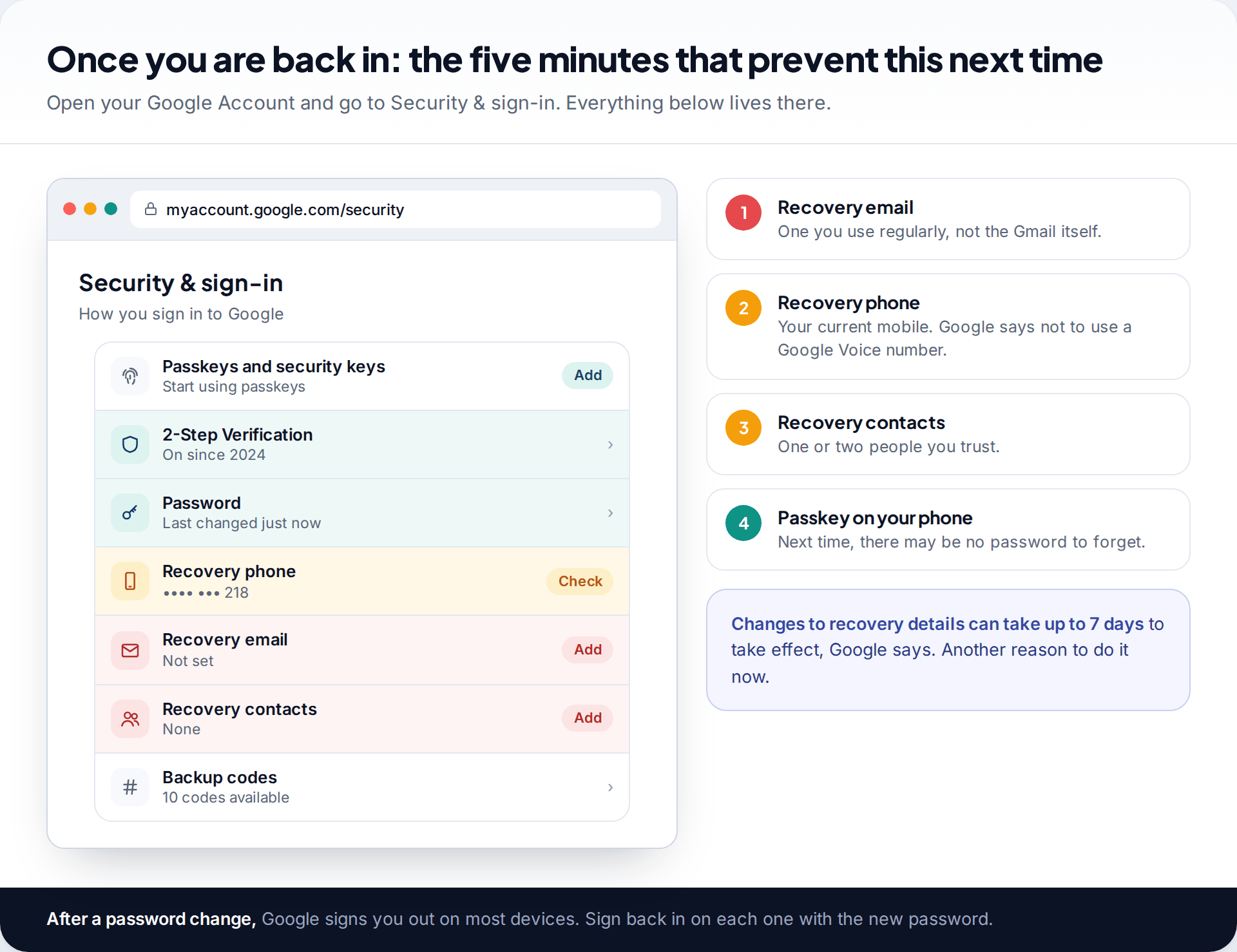
The time to prepare for the next lockout is right now, while you’re signed in. Open your Google Account, go to Security & sign-in, and check each item under “How you sign in to Google”:
- Recovery email: one you use regularly, but not the Gmail address itself.
- Recovery phone: your current mobile number. Google specifically says not to use a Google Voice number, because it can lock you out.
- Recovery contacts: one or two people you trust and can reach quickly.
- Backup codes: if you use 2-Step Verification, print them or write them down and keep them away from your phone.
- A passkey: it lets you sign in with your phone’s own lock instead of a password you might forget.
Google notes that when you add or change recovery details, it can take up to 7 days for the change to take effect, which is another reason to do it before you need it. If you’d like a new password you won’t forget next time, our guide to memorable passphrases shows a method that is both strong and easy to recall.
Don’t call a “Google recovery” number
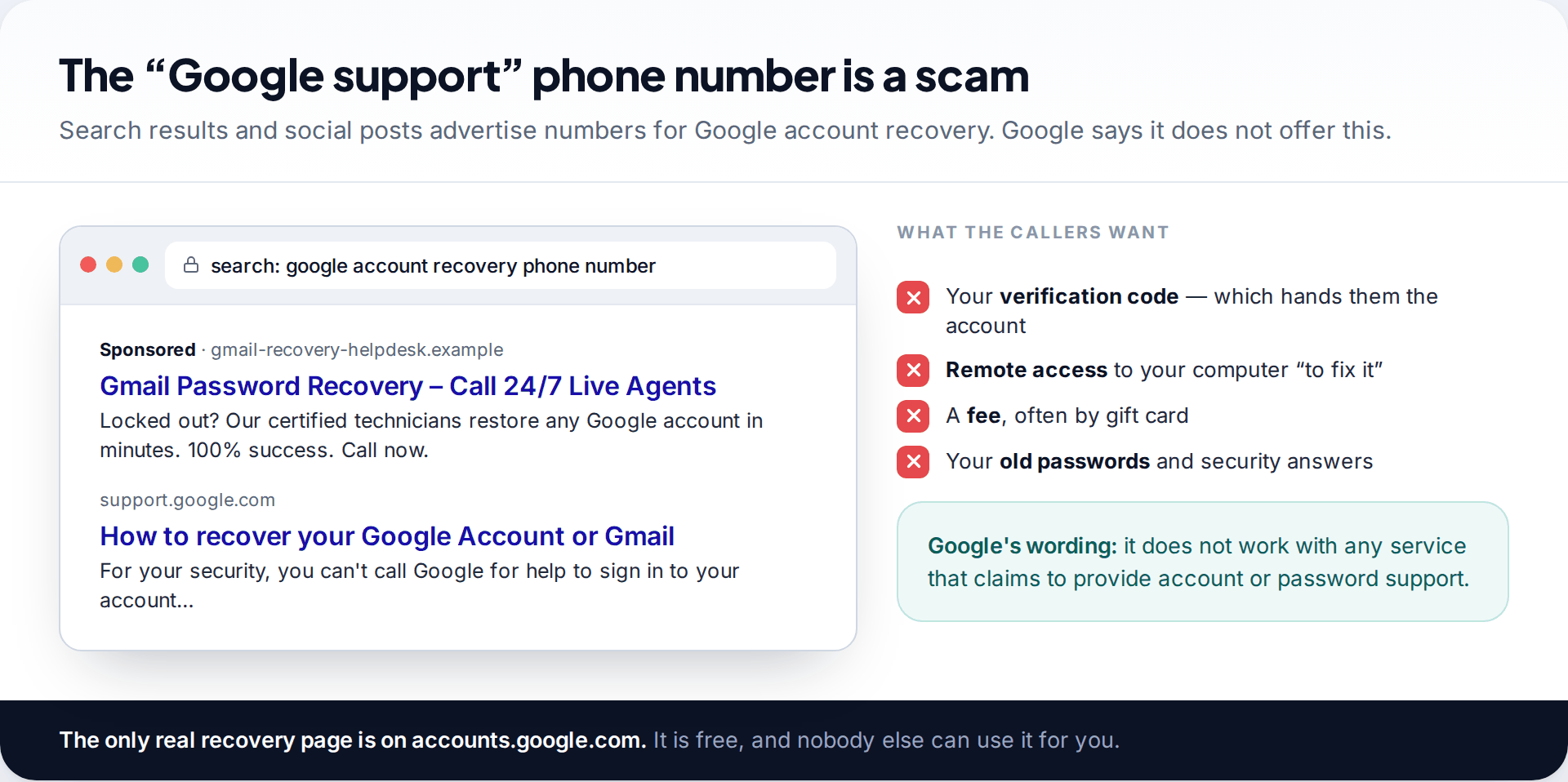
Search “Google account recovery phone number” and you’ll find numbers, ads and “certified technicians”. Google’s help centre says plainly that you can’t call Google for help signing in to your account, and that it doesn’t work with any service claiming to provide account or password support. Anyone on the end of those numbers wants a verification code, remote access to your computer, a fee, or all three. The recovery page on accounts.google.com is free, and it’s the only one that works.
How this page was put together
The steps, tips and limits here were checked in September 2026 against Google Account Help pages: how to recover your account, tips for completing recovery steps, changing or resetting a password, setting up recovery options, and recovery contacts. Quoted messages and figures, such as the 15-minute number, the 7-day waits and the no-limit rule on attempts, come from those pages. Google redesigns these screens regularly, so treat the mockups as a guide to the sequence, not pixel-exact copies.
We didn’t lock out real accounts to test this, and we don’t recommend any paid recovery service. Read how our guides are researched and kept up to date.
Common questions
How do I reset my Google password without a phone number?
Start at accounts.google.com/signin/recovery and use “Try another way” to reach other challenges: a code to your recovery email, a prompt on a signed-in device, an old password, or a recovery contact. Use your usual device and location to improve the odds.
How long does Google account recovery take?
Minutes, when a code or a device prompt works. When Google can’t verify you, it may ask you to try again later. It doesn’t publish a fixed waiting time.
Can I call Google to reset my password?
No. Google says you can’t call it for sign-in help, and it doesn’t work with any company offering account recovery. Phone numbers advertised for this are scams.
Why does Google keep saying it couldn’t verify me?
Usually because the attempt comes from an unfamiliar device or place, or questions were skipped. Try again from a device you’ve used on the account before, at home or work, and answer every question with your best guess.
Will resetting my password sign me out of my phone?
Mostly, yes. Google signs you out everywhere except the device you used to verify, and some linked apps and smart home devices. Sign back in on each device with the new password.
What if I’ve forgotten my Gmail address too?
Google has a separate “Forgot email?” option on the sign-in screen. To find the address, you need the recovery phone number or recovery email linked to the account, plus the full name on it. Once you have the address, the password reset works as described above.
Can I reuse an old password?
Google asks for a password you haven’t used on the account before. Choose something new, and make sure it isn’t one you use on any other site.
Looking for a tool to go with this? TheTruthSpy is a free parental control app for Android that stays visible on the child's phone. If it fits your family, see the Social media alerts feature.
Related guides
Why Is My Phone Overheating? Causes and Fixes
Warm, hot or dangerous? Why phones heat up when charging, gaming or in the sun, how to cool one safely,…
How to Transfer Photos From Your Phone to a Computer
The best way to copy photos from iPhone or Android to Windows or Mac, what happens to HEIC files, dates…
How to Back Up WhatsApp Chats
Set up WhatsApp backups on Android and iPhone, keep an encryption key safe, check the backup exists, and fix the…
Parental controls your child can see
Location, screen time limits, a web filter and alerts from notifications — free, and visible on your child's phone. Pair a phone in about ten minutes.
Android · Free to set up · Visible on your child's phone