How to Secure Your Instagram Account: A Setting-by-Setting Lockdown

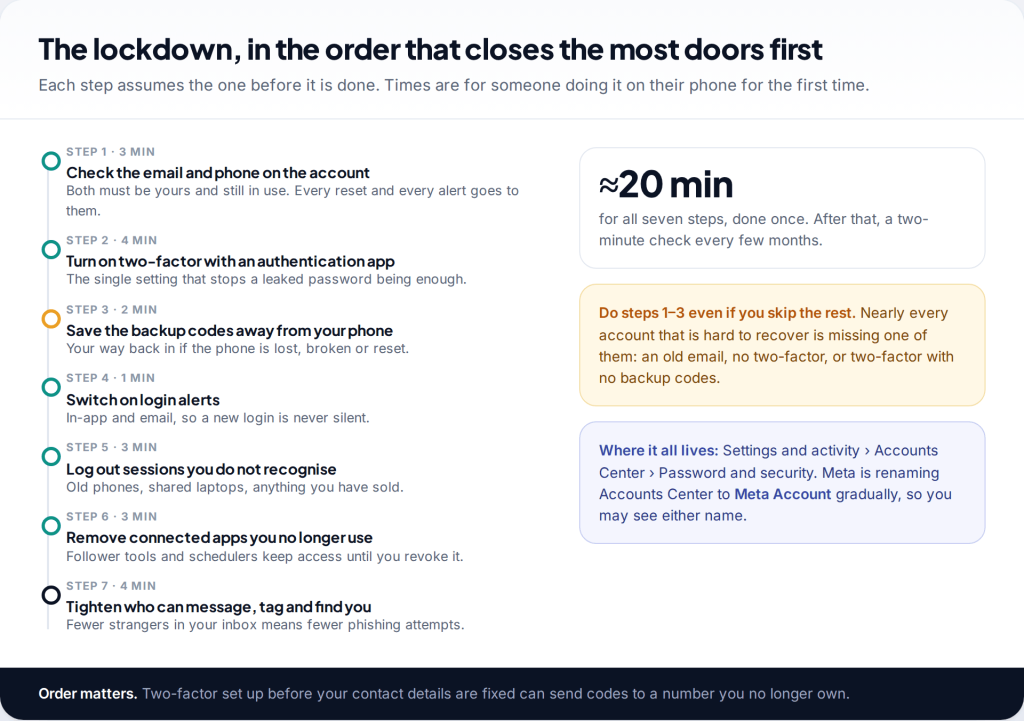
A long password does not keep an Instagram account safe on its own. Most stolen accounts are taken with a password that leaked somewhere else, or one typed into a convincing fake page. To secure an Instagram account properly, you need your own recovery details, two-factor authentication with saved backup codes, login alerts, and a regular clear-out of old sessions and apps.
Myth: “My account is private, so it’s secure.” Privacy controls who sees your posts. Security controls who can log in. A private account with no two-factor is as easy to take over as a public one, and it can then be used to message every follower you approved.
Where the settings are, and the order to change them
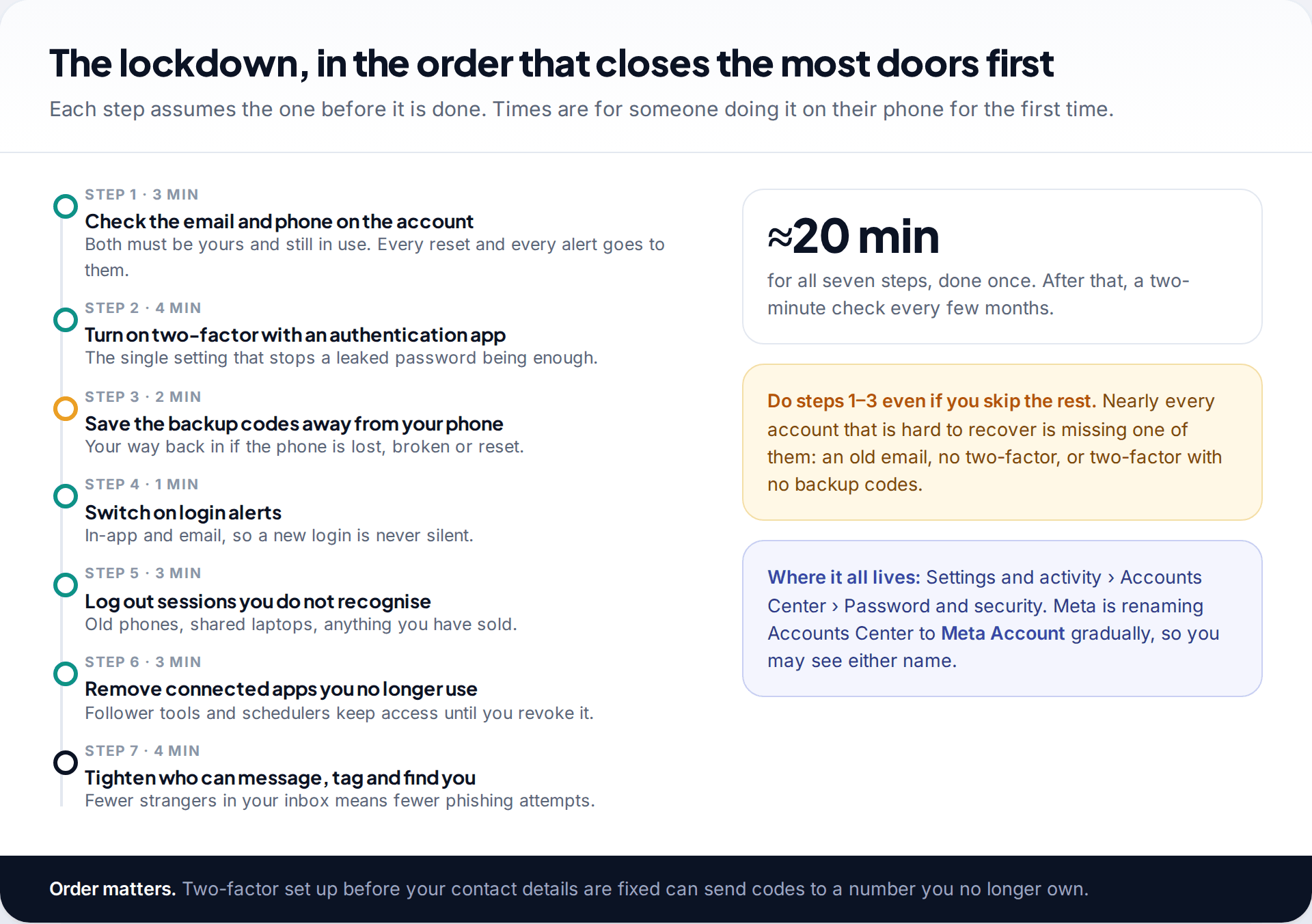
Instagram’s security settings no longer live mainly on Instagram’s own settings page. Most of them sit in Accounts Center, the Meta panel shared with Facebook and Threads. On the current app the route is your profile › the menu (☰) › Settings and activity › Accounts Center › Password and security. Meta announced in April 2026 that Accounts Center will become Meta Account gradually over the following year, so you may see either name. The screens behind it are much the same.
The order below is deliberate. Fix the contact details before you turn on two-factor, or your codes may go to a number you no longer use. Save backup codes before anything else goes wrong. Review sessions and apps once alerts are on, so any new problem gets flagged.
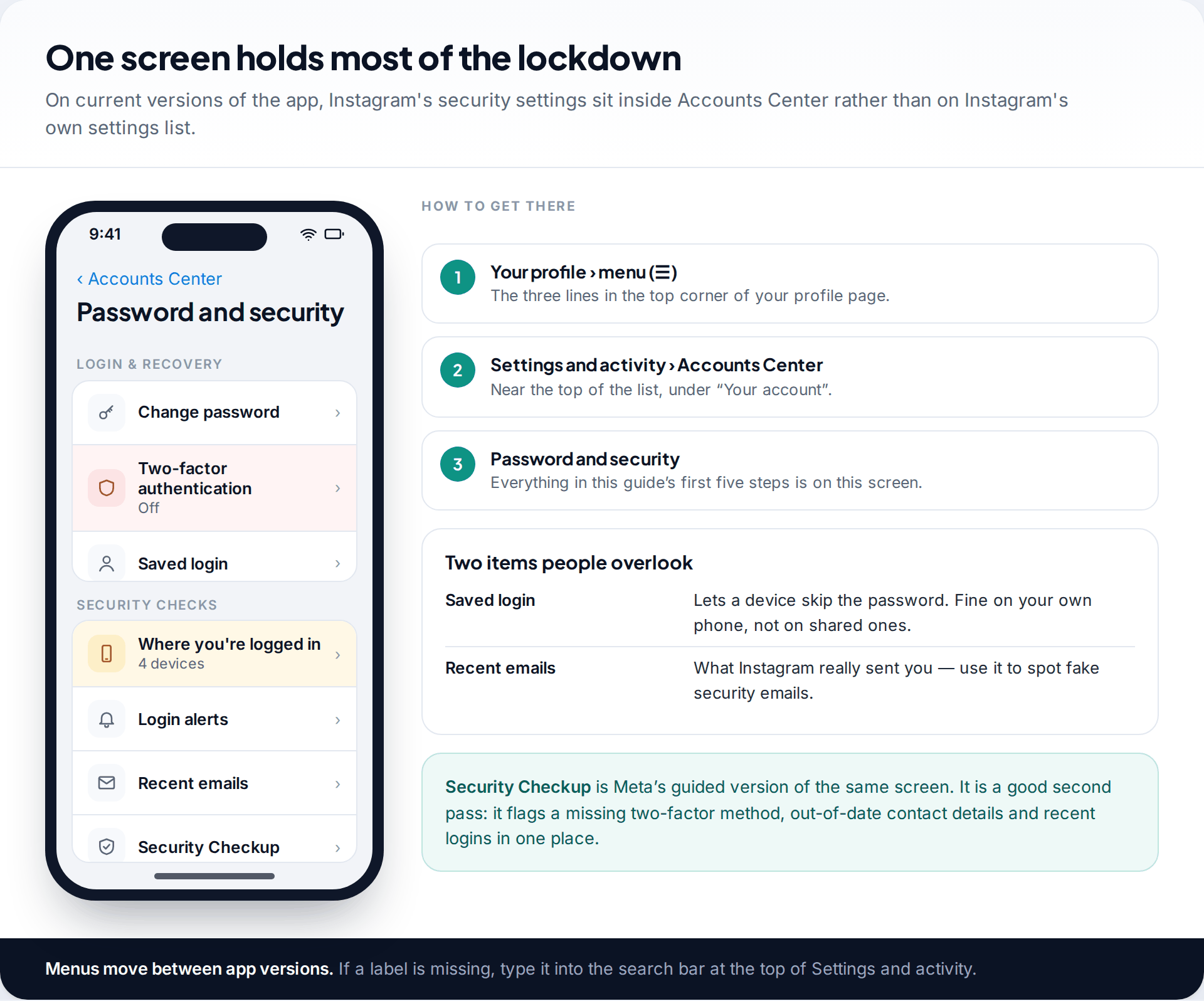
Labels move between app versions and differ slightly between iPhone, Android and the web. If a setting is not where this guide says, type its name into the search bar at the top of Settings and activity. That search is quicker than working through the menus.
Step 1: make sure the recovery details are really yours
This comes first because every other protection depends on it. Password resets, login alerts and the security emails Instagram sends when something changes all go to the email address and phone number on the account. If one of those is an address you abandoned years ago, anyone who takes that address over can reset your Instagram from it.
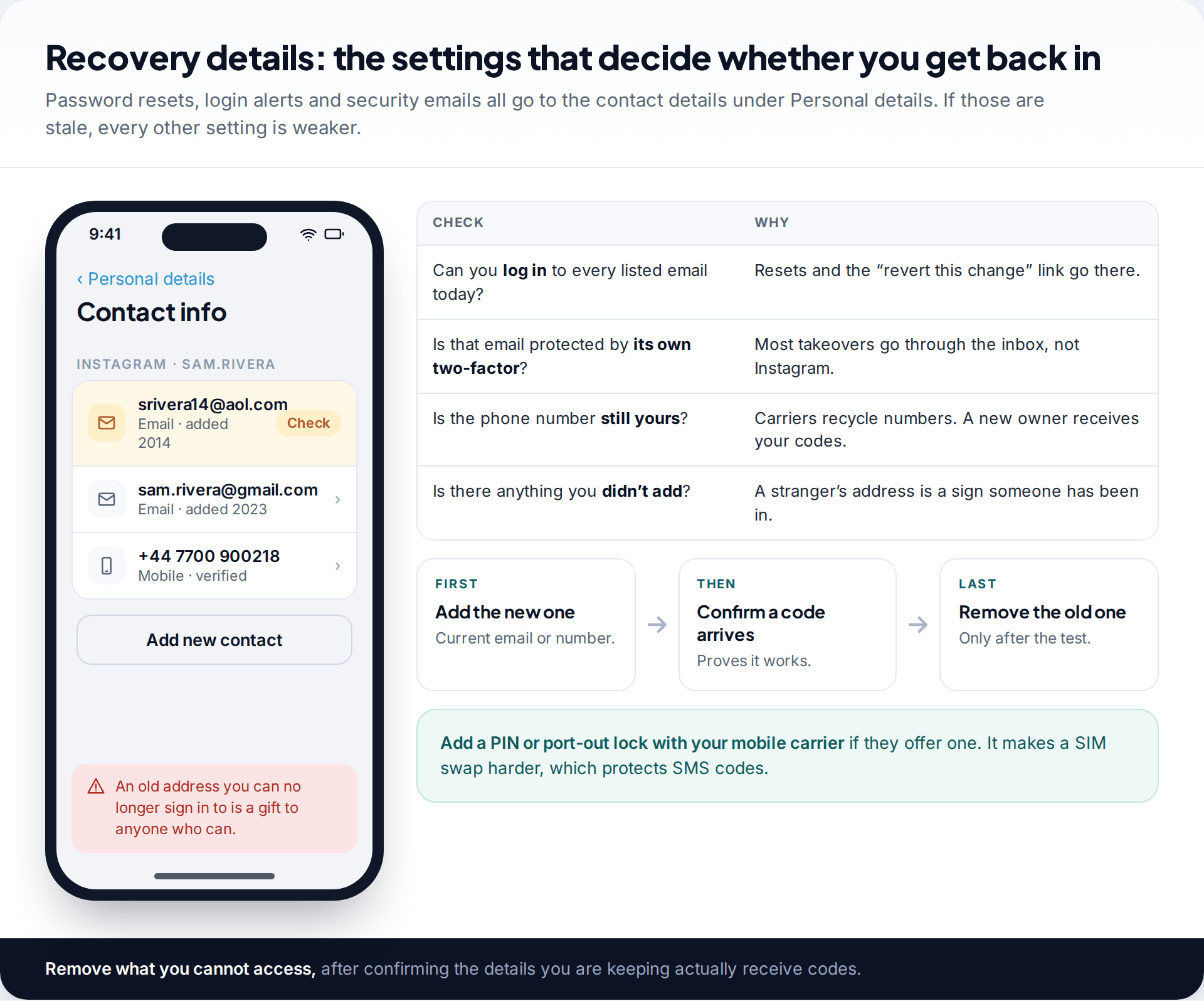
Open Accounts Center › Personal details › Contact info and go through each entry. For every email address, ask whether you could log in to it today and whether it has its own two-factor turned on. For the phone number, ask whether it is still yours. Mobile carriers reassign numbers that have been disconnected, and the new owner receives any codes sent to them.
Add the current details before you remove old ones, and confirm that a code actually arrives. If your mobile carrier offers an account PIN or a lock on moving your number to another carrier, turn it on. It makes a SIM swap harder, and a SIM swap is how SMS codes get stolen.
Step 2: turn on two-factor authentication, preferably with an app
Two-factor authentication means a password alone is not enough to log in from a new device. Instagram also asks for a code or confirmation from something you have. It is the single change that does most to secure an Instagram account, because it defeats the most common attack outright: a password reused from a site that was breached.
In Password and security, tap Two-factor authentication, choose the Instagram account, and pick a method. Instagram currently offers three: an authentication app, WhatsApp and text message (SMS).
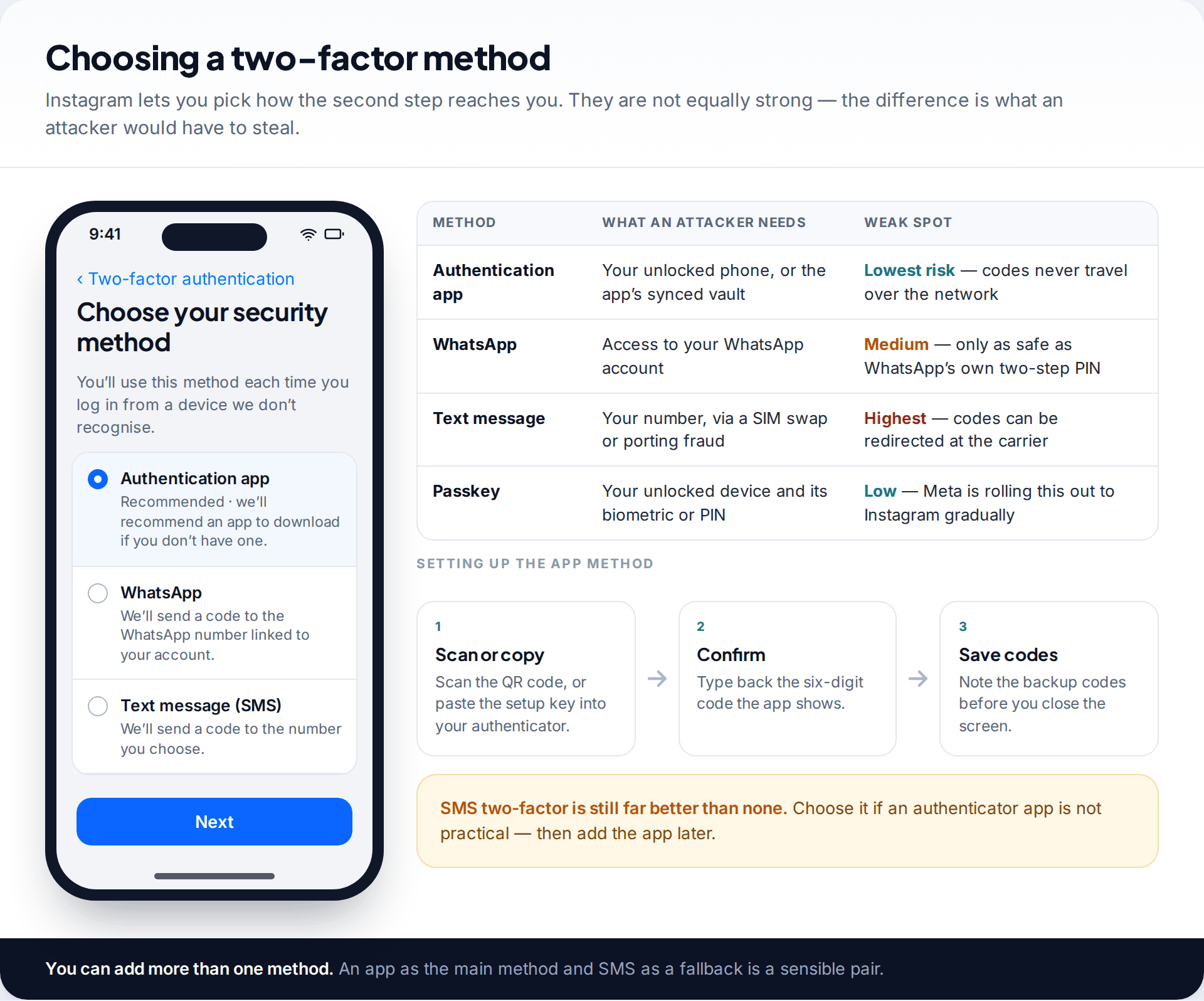
An authentication app (Google Authenticator, Microsoft Authenticator, a password manager with a code generator, and others) is the strongest of the three. Codes are generated on your device and never travel over the phone network. Setting it up means scanning a QR code or copying a setup key into the app, then typing back the six-digit code it shows. SMS is the weakest, because a criminal who persuades your carrier to move your number receives your codes. It is still much better than having no second step.
Meta also announced in April 2026 that passkeys, which let you sign in with your phone’s face, fingerprint or PIN unlock, now work on Instagram as well as Facebook and Messenger. The rollout is gradual. If you see a Passkeys option under Password and security, it is worth adding. It does not replace backup codes.
Step 3: save your backup codes somewhere that isn’t your phone
This is the step most people skip, and it is the one they miss most later. Backup codes are a set of one-time codes Instagram generates when two-factor is on. Each gets you past the code prompt once, without the authenticator app or your number. If your phone is lost, stolen, reset or replaced, they are the difference between logging in and going through the identity checks a hacked account goes through.
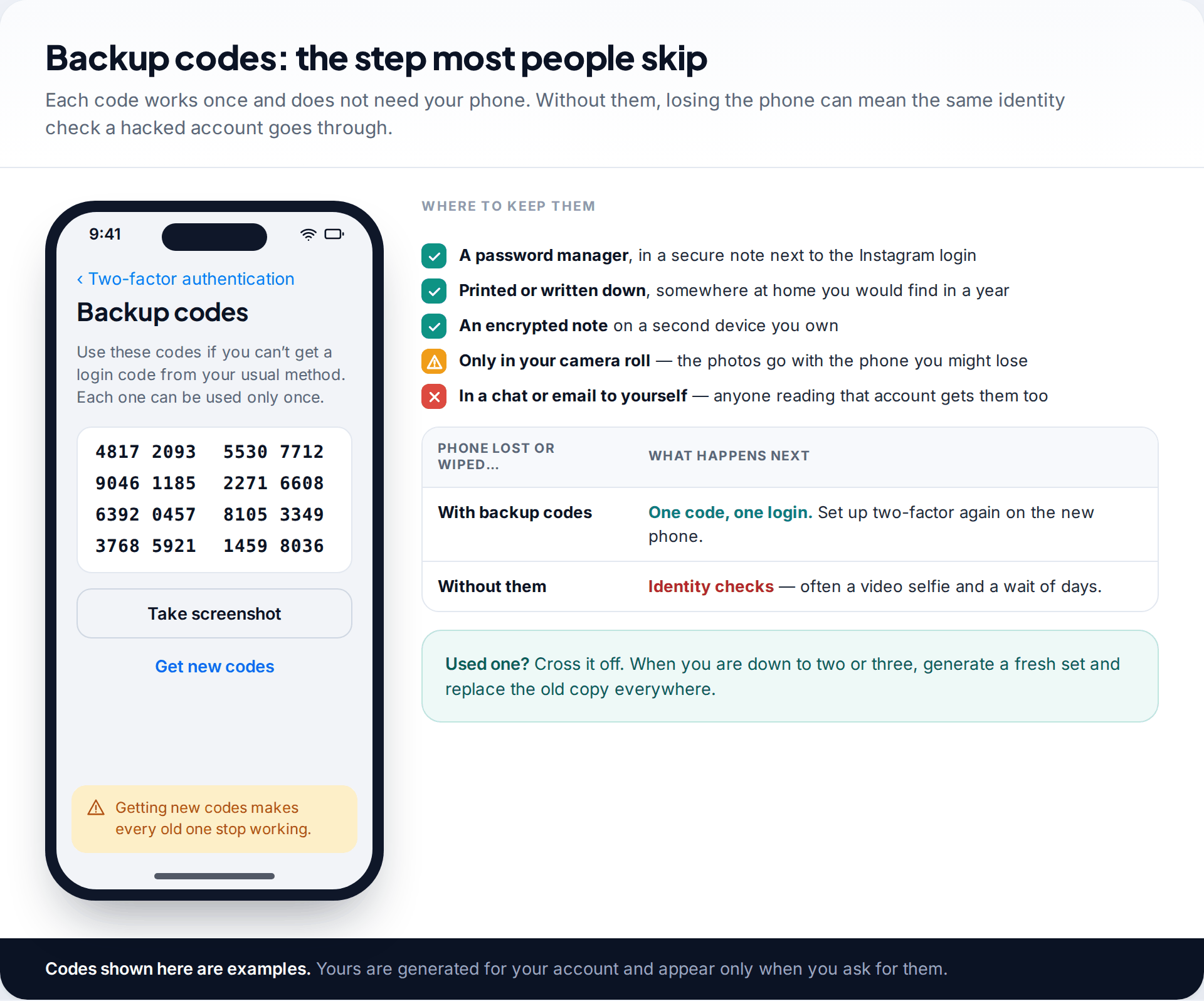
You’ll find them under Two-factor authentication › Additional methods › Backup codes; the exact label varies. Store them in a password manager or print them. A screenshot kept only on the same phone is nearly useless, because it disappears with the device you lost. Generating a new set cancels the old ones, so replace every copy when you do.
If you switch phones: move your authenticator app to the new phone before you wipe the old one. Many apps now back up to the cloud or offer a transfer option, but not all do it by default. Without the app or backup codes, a wiped phone can lock you out of your own account.
Step 4: switch on login alerts
Two-factor stops most intruders. Login alerts tell you about anyone who gets close. With them on, a login from a device or place Instagram does not recognise triggers a notification and, if you choose, an email. That gives you a chance to act while the session is still new.
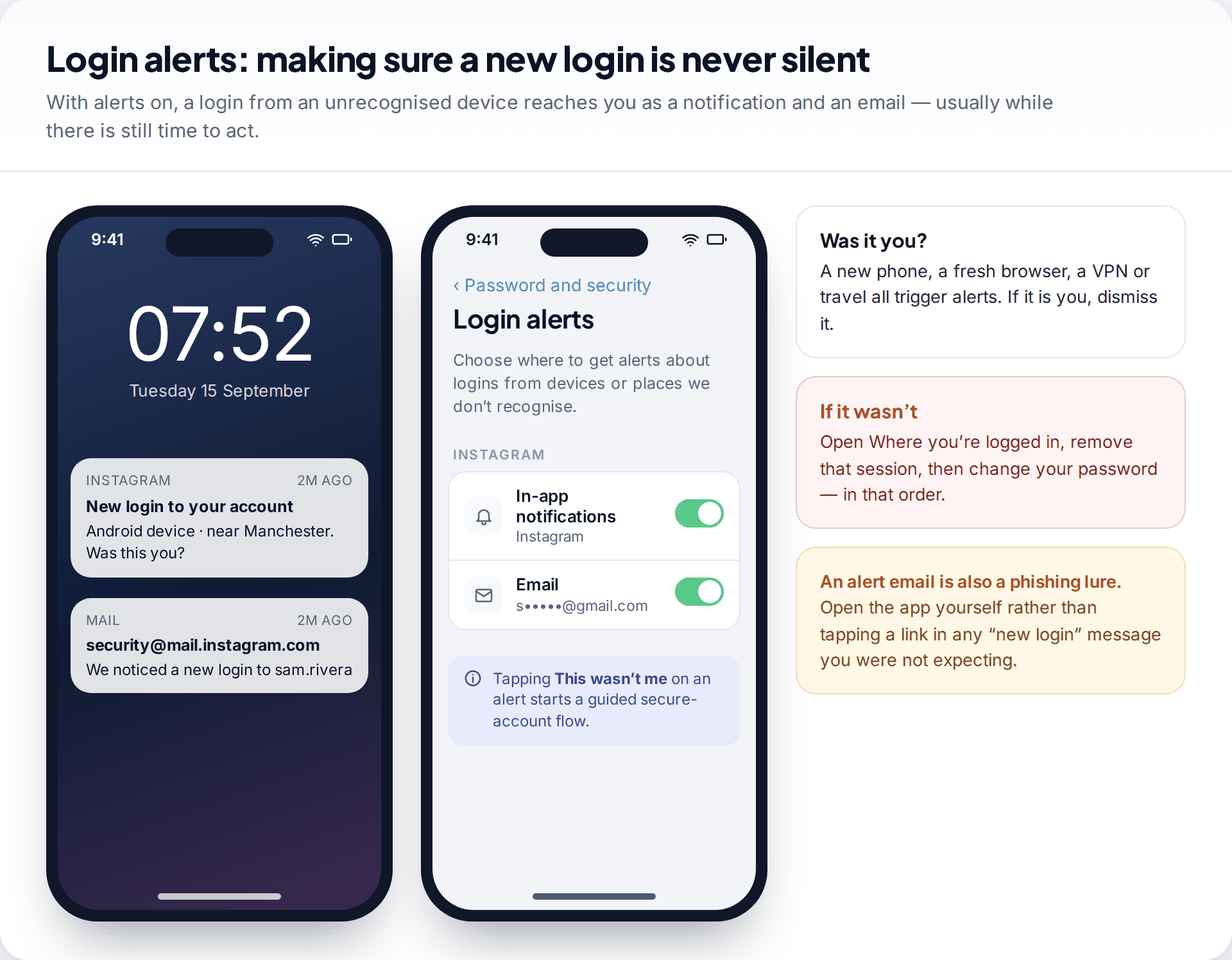
Open Password and security › Login alerts and enable both in-app notifications and email. Expect some false alarms. A new phone, a fresh browser, a VPN or a holiday abroad can all look unfamiliar. If an alert is not you, remove the session first under Where you’re logged in, then change your password. The order matters: changing the password alone does not reliably end a session that is already open.
A related screen, Recent emails, lists the security and login messages Instagram actually sent you. It is the quickest way to check whether a “new login” or “password reset” email in your inbox is genuine. Real ones come from addresses ending in @mail.instagram.com.
Step 5: clear out old sessions, saved logins and connected apps
Where you’re logged in lists every phone, tablet and browser currently signed in. Old sessions build up over the years: a phone traded in, a friend’s laptop, a work computer you have since left. Log out anything you do not physically have in front of you. It costs nothing, because you can sign in again on the devices you keep.
Saved login lets a device remember your account so you are not asked for the password. That’s convenient on your own phone and risky on a shared tablet or family computer. Turn it off anywhere other people pick the device up.
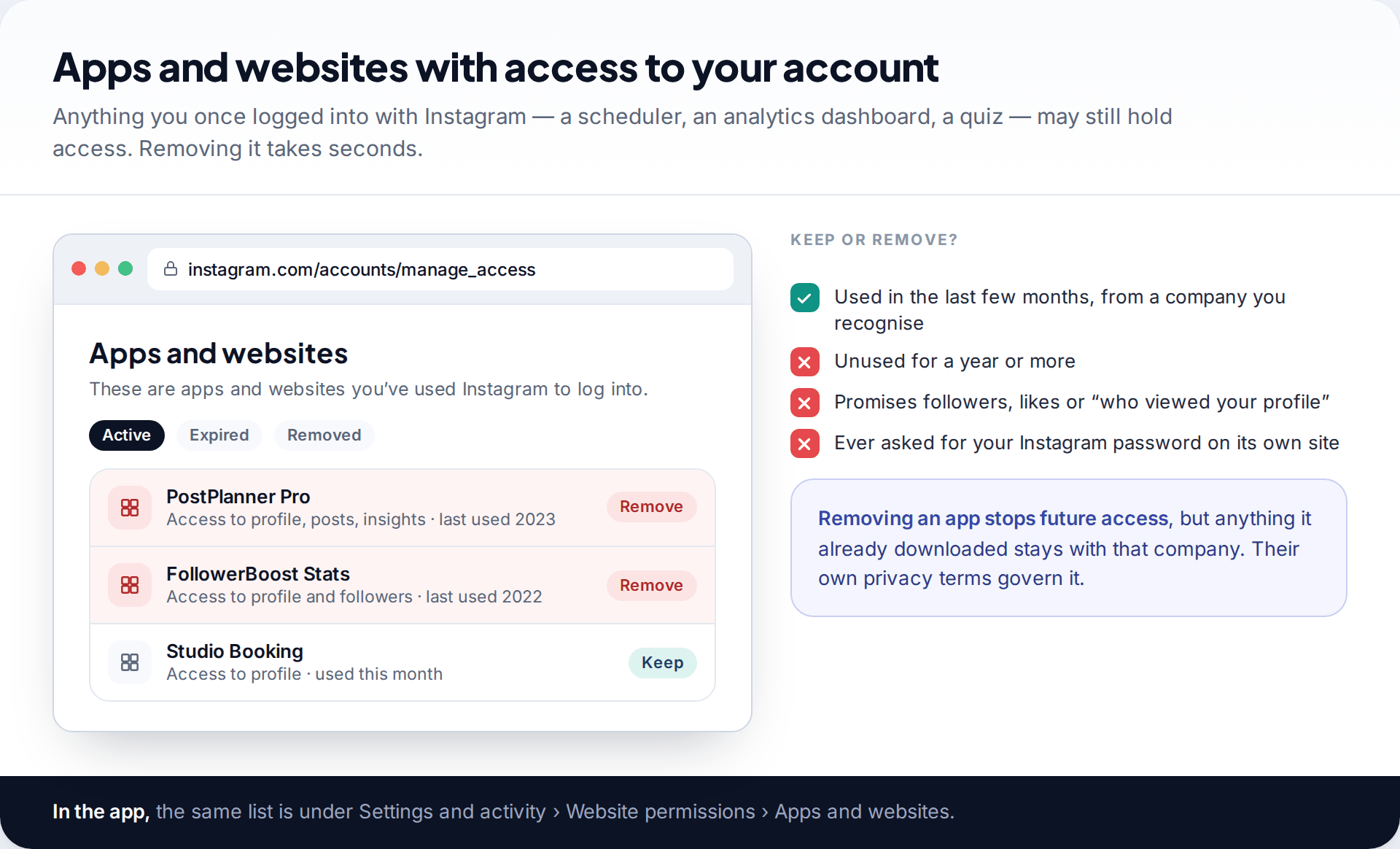
Then check Apps and websites, found under Settings and activity › Website permissions in the app, or in your account settings on the web. It lists third-party services you have logged in to with Instagram, and each may still have access to your profile or posts. Remove anything you have not used recently and anything that promised followers, likes or a list of who viewed your profile. Those services break Instagram’s rules, and some have been used to take accounts over.
Step 6: privacy settings that make you a smaller target
Attackers need a way to reach you, usually a direct message, a comment or a tag with a link. The fewer strangers who can do that, the fewer phishing attempts you will ever have to judge. These settings are in Settings and activity, under the sections on who can see your content and how others can interact with you.
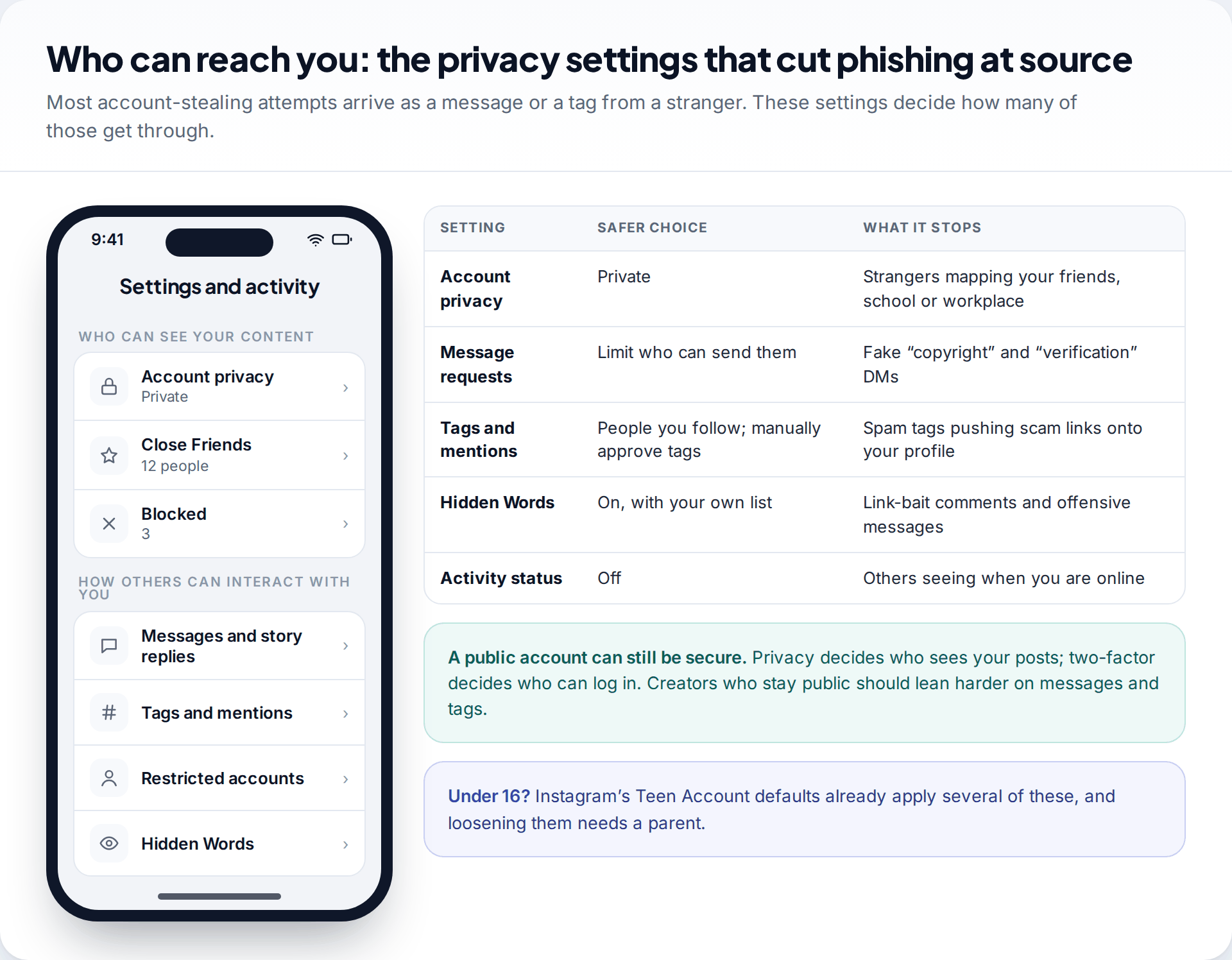
| If you are… | Priorities | Can reasonably leave open |
|---|---|---|
| A personal account | Private account, message requests limited, tags from people you follow only | Comments from followers |
| A creator or business | Hidden Words with a custom list, manual tag approval, message request filtering | Public profile, which your reach depends on |
| A teenager | Instagram applies Teen Account defaults, including a private account and limits on who can message | Little. Changes to several defaults need a parent if the teen is under 16 |
None of these settings stops a determined attacker who already has your password. They reduce the volume of fake “copyright violation”, “verification badge” and “you’ve won” messages that account theft usually starts with.
What these settings cannot protect you from
A secure Instagram account can still be lost. Knowing the gaps tells you what to watch for.
- Handing over a code yourself. Two-factor fails if you type the code into a fake page, or send it to a “friend” who says it arrived by mistake. The friend’s account has usually been taken already.
- A compromised email account. If someone controls your inbox, they can often reset Instagram from it. Secure the email with its own unique password and two-factor.
- An unlocked phone in someone else’s hands. Anyone holding your unlocked phone has your open Instagram session. A screen lock is part of Instagram security.
- Content already shared. Nothing here removes screenshots, reposts or data that a third-party app has already downloaded.
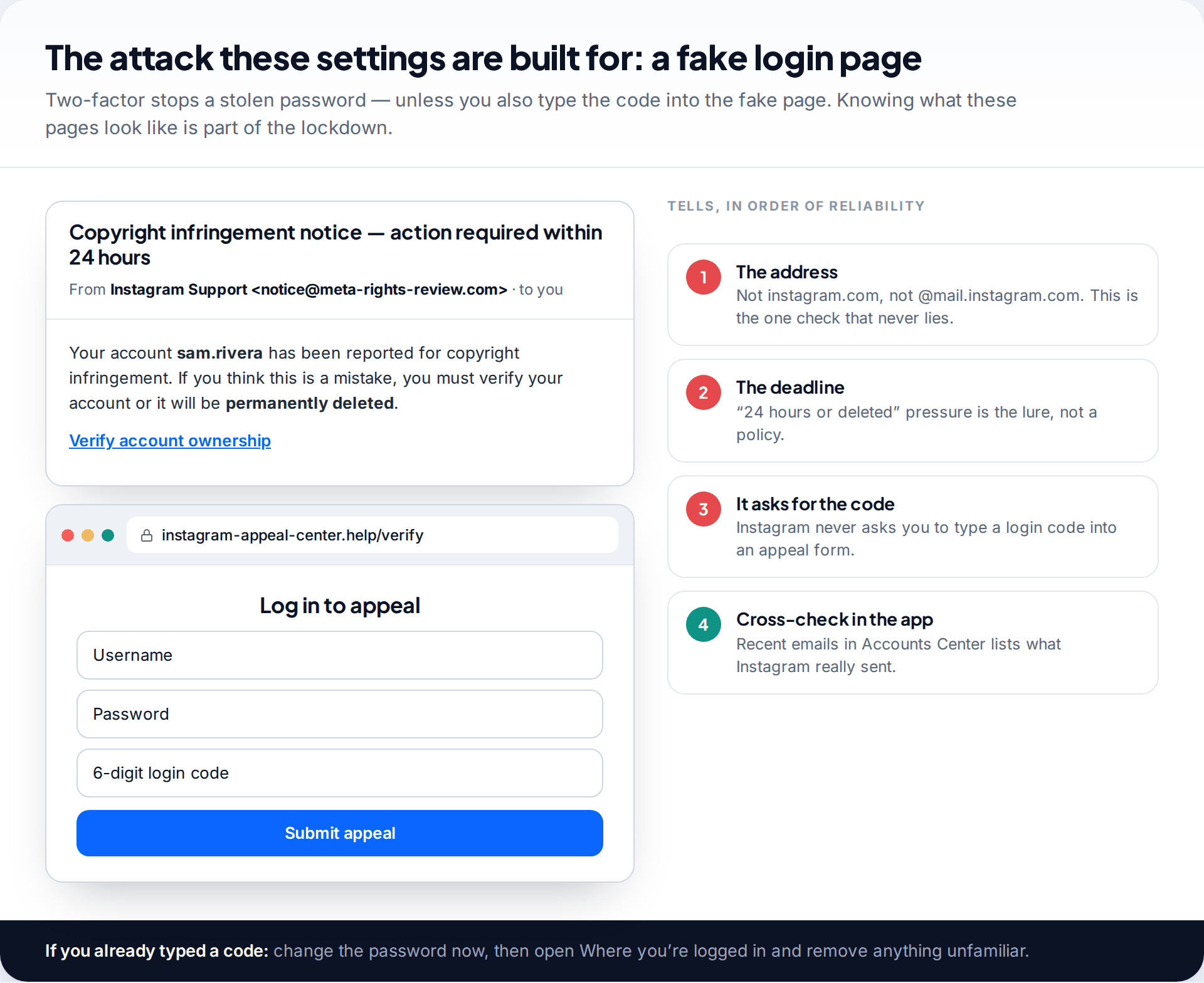
Phishing is worth singling out because it is built to get around everything above. The page asks for your password and the six-digit code, then uses both within seconds. The warning signs are the sender’s address or URL, a deadline threatening deletion, and any form that wants a login code. If you have already entered one, change your password straight away, then remove unfamiliar sessions. If you are already locked out, our guide to getting a hacked Instagram account back covers each recovery route.
A two-minute check to repeat every few months
What to look at, and what should worry you
Open Password and security and run Security Checkup. Then look at three things: Where you’re logged in (every device should be one you own), Personal details (both contacts still yours), and Apps and websites (nothing new you don’t recognise). Check that you can still find your backup codes. If any of these has changed without you doing it, treat it as a warning sign, not a glitch.
If you reuse the same password on other sites, fix that too. A unique password on each site means one breach cannot spread to your other accounts. If remembering them is the problem, our guide to building passwords you can remember sets out a passphrase method.
How this page was put together
Menu paths and option names were checked in September 2026 against Instagram and Meta help pages on two-factor authentication, login alerts and recent security emails, and against Meta’s April 2026 announcement about Meta Account and passkeys. Instagram tests different layouts on different accounts, so the screens above are representative mockups, not screenshots. Your version may label or order things slightly differently.
We did not test any authenticator app or password manager for this guide and recommend none in particular. You can read the standards we follow for research and corrections.
Common questions
What is the most important setting to secure an Instagram account?
Two-factor authentication, set up with an authentication app, with the backup codes saved somewhere other than your phone. It stops a stolen or reused password from being enough on its own.
Can someone hack my Instagram if I have two-factor authentication?
It is much harder, but possible if you give them the code. That happens through a fake login page or a message asking you to forward it. With SMS codes it can also happen through a SIM swap at your carrier. An authentication app and a sceptical attitude to any request for a code close both gaps.
How do I see who is logged into my Instagram?
Go to Accounts Center › Password and security › Where you’re logged in. Each entry shows a device type, an approximate location and when it was last active. Log out anything you do not recognise, then change your password.
Does making my account private make it more secure?
It protects your posts and followers list from strangers, and it cuts the number of scam messages you receive. It does nothing to stop someone logging in with your password. Treat privacy and security as two separate jobs.
What happens if I lose my phone with the authenticator app on it?
Use one of your backup codes to log in, then set up two-factor again on the new phone. Without backup codes or another logged-in device, you will have to go through Instagram’s identity confirmation, which is slower.
Does Instagram ever ask for my password or login code by message?
No. Security notices come by email from addresses ending in @mail.instagram.com, and they appear under Recent emails in the app. Instagram does not send them as direct messages. Any message asking for a code, or threatening deletion within hours, should be ignored and reported.
Looking for a tool to go with this? TheTruthSpy is a free parental control app for Android that stays visible on the child's phone. If it fits your family, see the Social media alerts feature.
Related guides
How to Check If Your Email Was in a Data Breach
Check if your email was in a data breach for free, then act on what leaked: passwords, card details or…
How to Start Using a Password Manager
Switch to a password manager without stress: built-in or standalone, protecting the main password, and a first-hour plan for the…
How to Tell If Your Phone Has a Virus or Malware
Most 'virus' signs have ordinary causes. How to check an iPhone or Android phone for real malware, remove it, secure…
Parental controls your child can see
Location, screen time limits, a web filter and alerts from notifications — free, and visible on your child's phone. Pair a phone in about ten minutes.
Android · Free to set up · Visible on your child's phone