Tracking Your Son’s Phone Openly: A Setup He Agrees To

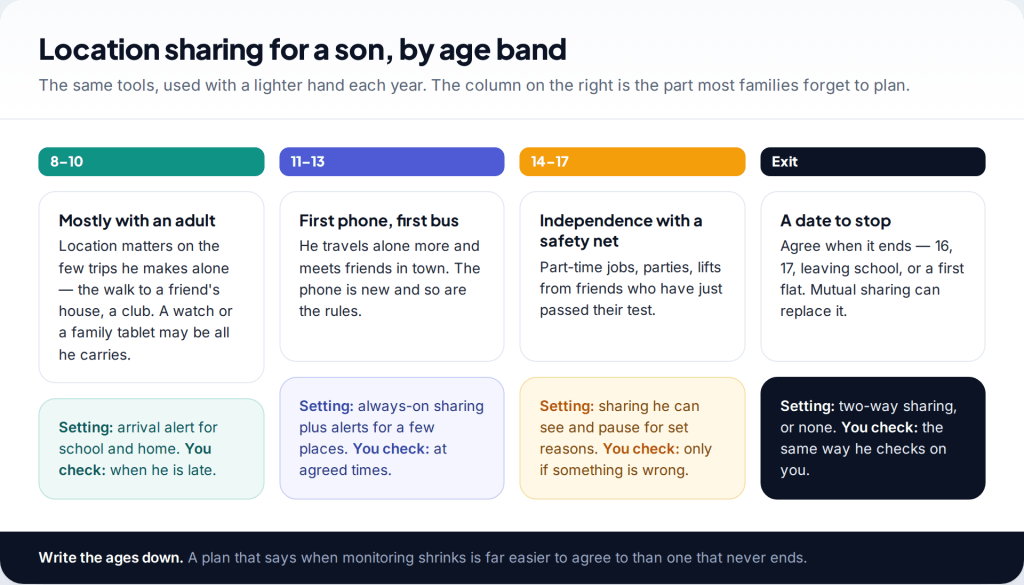
If you want to track your son’s phone, the version that lasts is the one he knows about, can see on his own screen and has agreed to. On an iPhone that means Find My through Family Sharing. On Android it means Family Link or Google Maps location sharing. What changes with age is not the tool but how often you look, what triggers an alert, and when the arrangement ends.
This guide works through it in the order families actually face it: what the right setting looks like at 8–10, 11–13 and 14–17, how to raise it without starting a row, which built-in tool fits your phones, how to use it without turning it into surveillance, and how to step back.
Why open tracking works better than hidden tracking
Parents who track a son covertly usually do it because they expect him to object. But a hidden setup has two weaknesses. Teenagers notice odd battery drain, unfamiliar apps and settings they didn’t change. When they find out, and most do, the argument stops being about safety and turns into one about trust, which is much harder to repair. Hidden tracking also can’t do the thing you most need, which is get him to come to you when something goes wrong.
Open tracking changes what the map means. If he knows you only look when he’s overdue, the map becomes part of the family’s safety plan and stops being a sign of suspicion. A well-known strand of research on adolescents, starting with Håkan Stattin and Margaret Kerr’s work on parental monitoring, found that most of what parents know about a teenager’s life comes from what the teenager chooses to tell them. A setup he agreed to protects that.
How to track your son’s phone at each age
Ages 8–10: short, specific trips
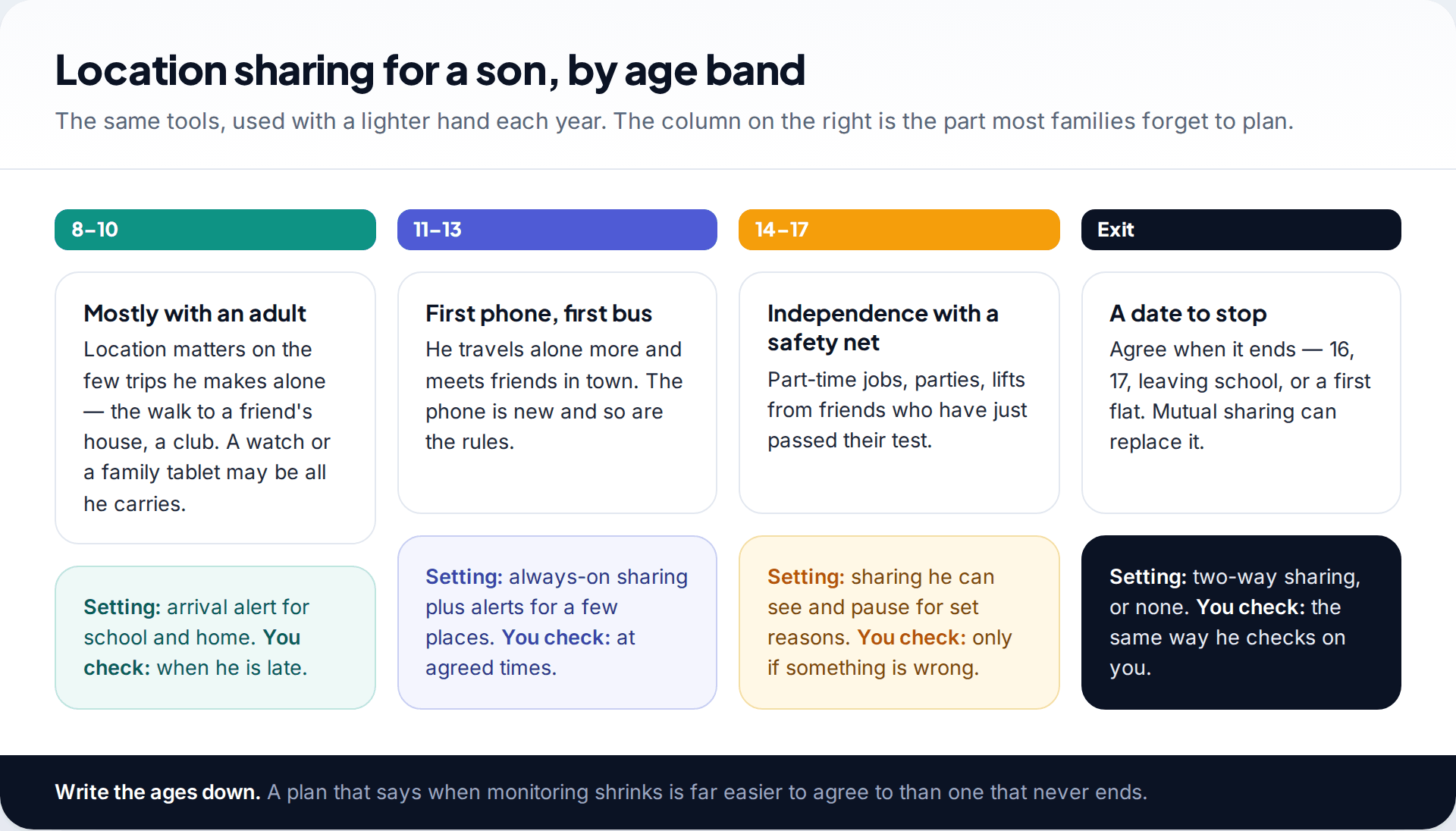
Most boys this age are rarely somewhere without an adult, and many don’t have a phone yet. If he does carry one, or a kids’ watch, the useful settings are small: an alert when he arrives at school or a friend’s house, and nothing else. Explain it plainly: “When you get to Sam’s, my phone will tell me, so I don’t need to ring.” At this age he’ll usually take it for granted, and that’s fine, as long as it isn’t hidden from him.
Ages 11–13: the first phone and the first bus
This is when location sharing does the most good. He’s travelling alone, often on new routes, and neither of you knows yet how the other will behave when a plan changes. Always-on sharing with arrive and leave alerts for a few places — home, school, a club — covers most worries. Agree the times you’ll check, such as “if you’re not home 20 minutes after school ends”. Write the agreement down, because at 13 he’ll remember it better than you do.
Ages 14–17: independence with a safety net
From around 14, the balance shifts. He’ll be out later, in places you haven’t been, and a map that you check often starts to feel like being followed. Keep sharing on, but cut the alerts back to the ones that matter, allow agreed pauses, and look only when ordinary contact has failed. Many families also make sharing two-way at this point: he can see where you are too, which makes it feel like a family habit rather than a leash.
The conversation to have before you turn anything on
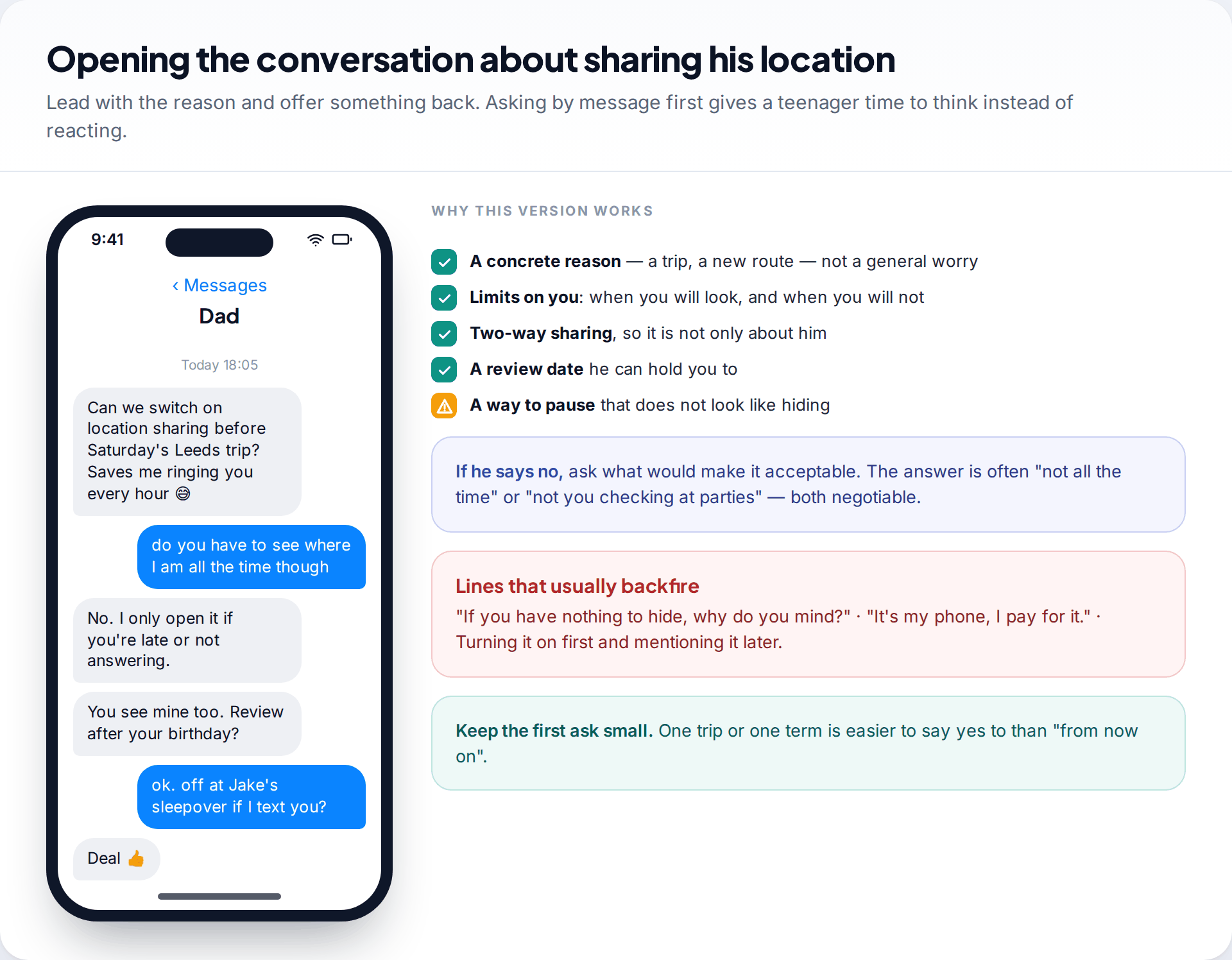
How you ask shapes how he’ll treat the setting. “I want to track your phone” invites a no. “I’d like location sharing on for the Leeds trip so I’m not ringing you every hour” gives him a reason and a benefit. Some teenagers prefer to have the conversation by message first, where they can think before answering.
Cover five things. Say why, with a specific reason rather than general worry. Say when you’ll look and, just as important, when you won’t. Offer something back: your location, fewer check-in calls, a later curfew. Agree how he can pause it for a sleepover or party without it looking like he’s hiding something. And set a review date, such as his next birthday or the end of term.
He says no
A 14-year-old refuses outright: “You’ll just stalk me.” Rather than insisting, his mother asks what would make it acceptable. His answer is that he doesn’t want her checking while he’s at friends’ houses. They agree sharing stays on, but she only opens the map if he misses the agreed time home or doesn’t reply to two messages, and she tells him if she has looked.
Choosing the right tool for your son’s phone
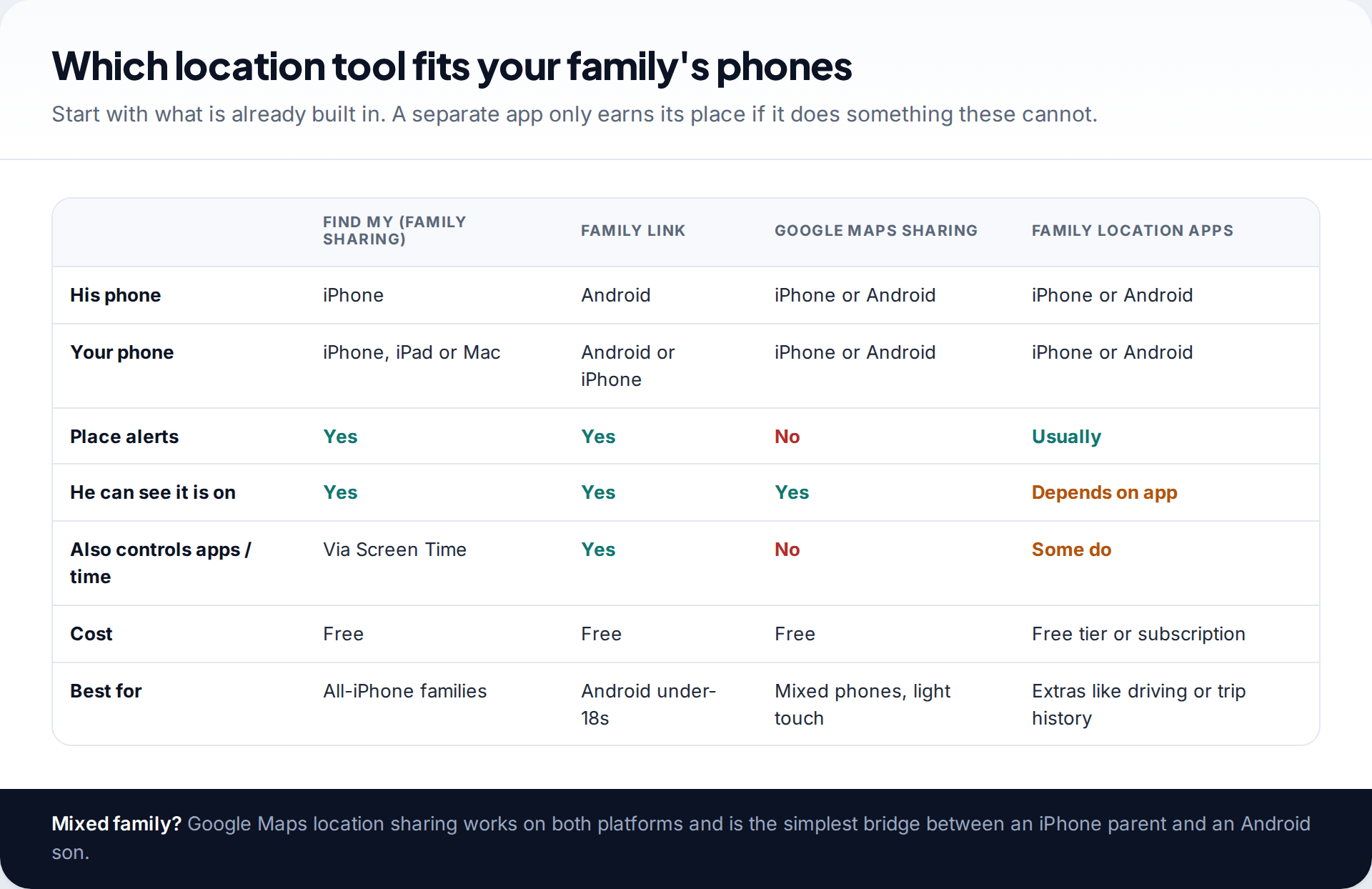
Start with what your phones already have. All of these are free and all show your son that sharing is on.
If he has an iPhone: Find My
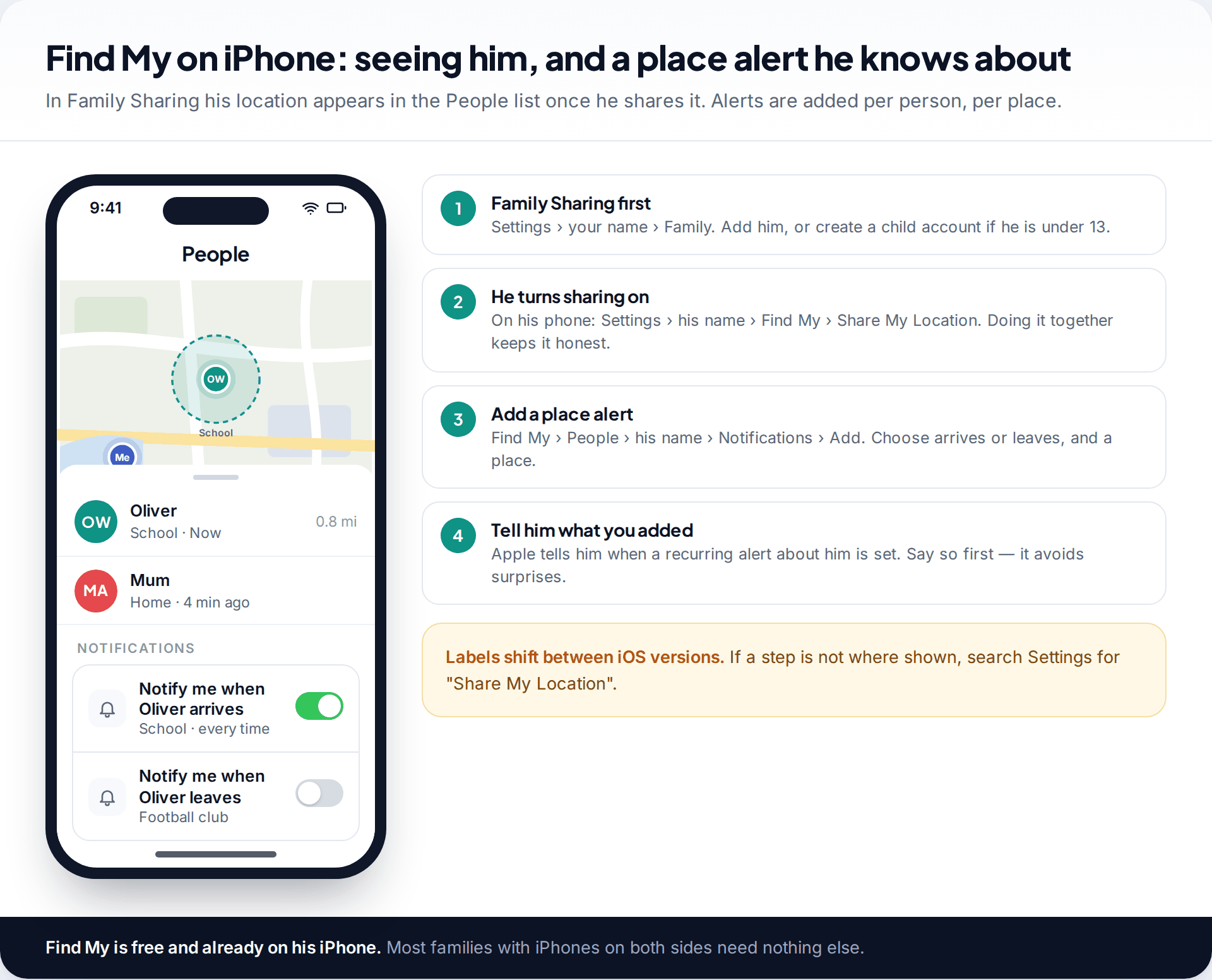
Set up Family Sharing, add him (or create a child account if he’s under 13), and turn on Share My Location from his phone while you’re both there. His location then appears in the People tab of Find My on your iPhone, iPad or Mac. From his entry you can add notifications for when he arrives at or leaves a place. Apple lets the person know when a recurring alert about them is set up, so tell him first. Screen Time’s Content & Privacy Restrictions can also stop location settings being changed. Whether you use that is something to agree with him, not spring on him.
If he has an Android phone: Family Link
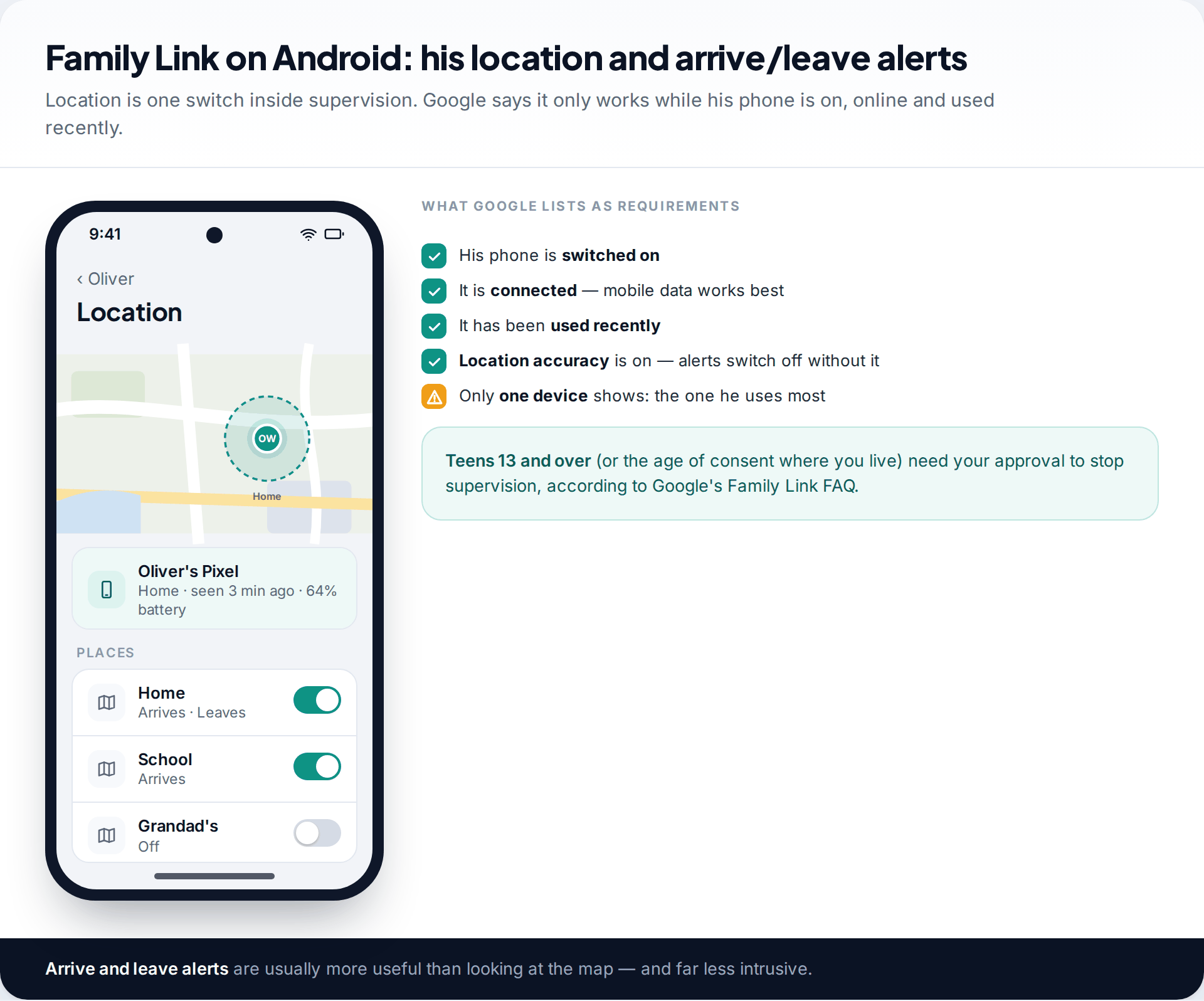
Google’s Family Link supervises a child’s Google Account on Android. Location is one setting inside it. Once it’s on, you see his phone on a map and can set alerts for when he arrives at or leaves saved places. The parent app runs on Android and on iPhone. Google’s help pages list the conditions. His phone has to be switched on, connected to the internet and used recently, and location accuracy has to be on or place notifications stop. Family Link also shows only one device at a time, the one he uses most.
Mixed phones, or a lighter touch: Google Maps
Google Maps location sharing works on both iPhone and Android and doesn’t need supervision at all. He shares his location with you from the Maps app, chooses how long for, and can see the share running. It has no place alerts, which makes it a good fit for older teenagers who want sharing but not monitoring. For a fuller walkthrough of the settings on each platform, see our guide to setting up real-time location for a child’s phone.
Setting it up so he can see what you see
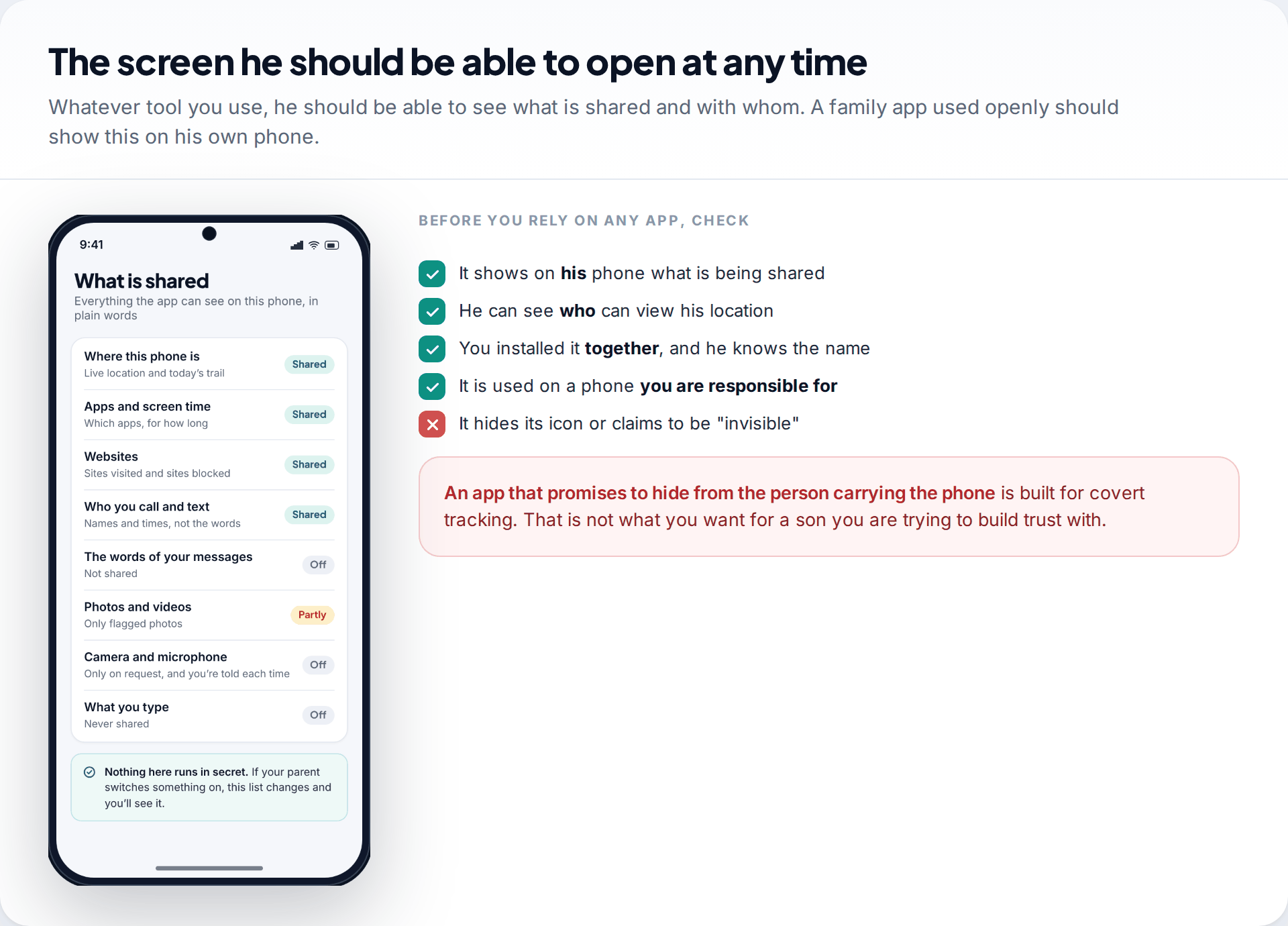
Whatever tool you pick, do the setup on his phone with him there. Let him read each permission screen, show him where the setting lives, and show him where he can see who has access. On an iPhone that’s the Find My People list. On Android it’s the Family Link notice and the Google account’s location sharing page. If he knows where to look, he’ll trust what it says.
Some families want more than location: screen-time limits, app approvals, or a record of trips. If that’s you, our app does location with place alerts and a trip history on a phone you’ve set up together. It shows your son a plain-language list of everything that’s shared, and it can’t be hidden from him. It can’t give a position when his phone is off or offline, and it’s no more accurate than the phone’s own GPS. You can see how it handles family location. For many families, though, the free built-in tools are enough.
Using it well: check-ins, not surveillance
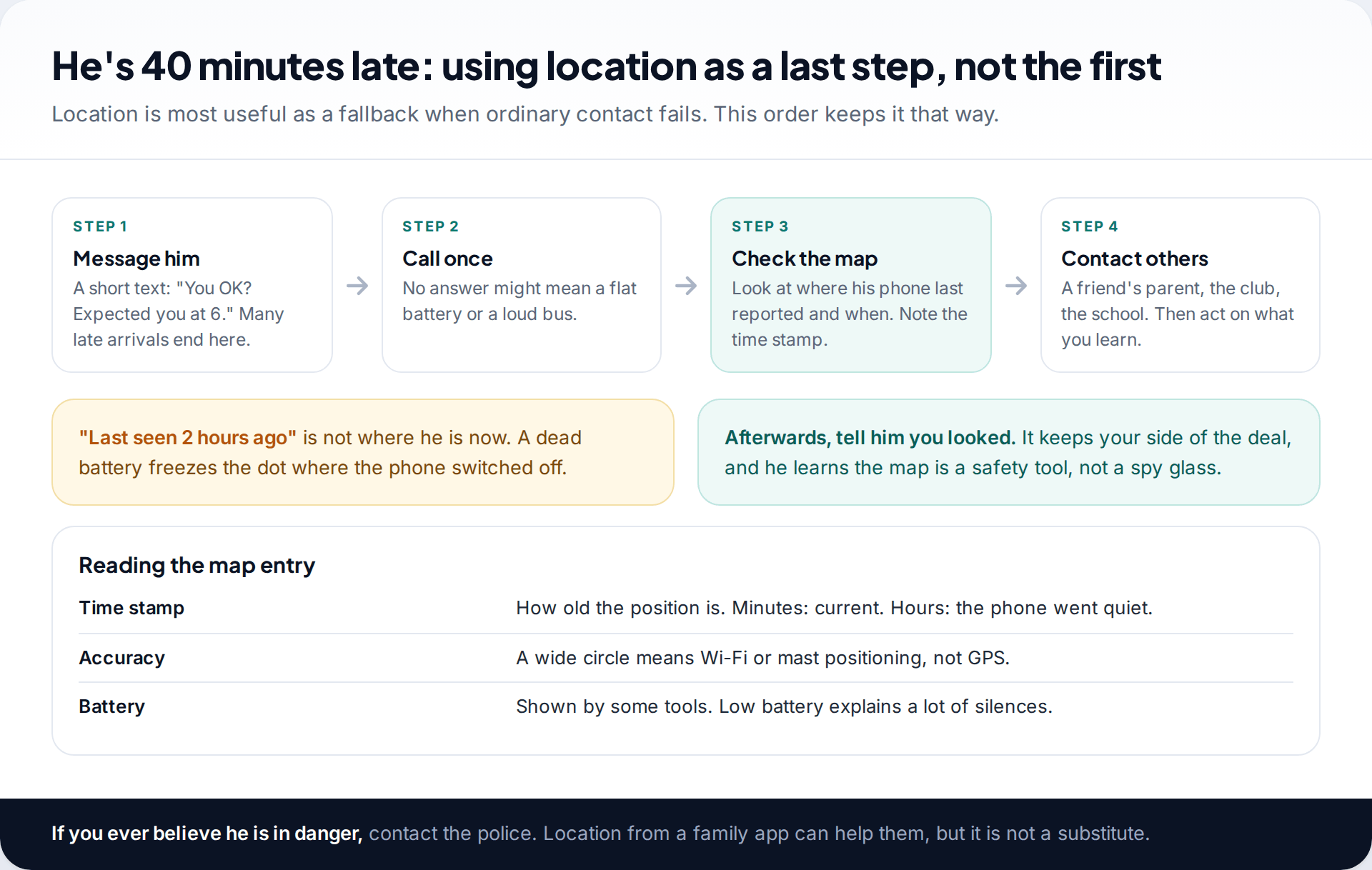
How you behave in the first few weeks decides whether the arrangement lasts. If you open the map every hour, he’ll feel watched, whatever you agreed. If you open it only when you said you would, he’ll stop noticing it’s there.
- Let alerts do the watching. An arrival alert for school means you never need to open the map on a normal day.
- Message before you look. Most “where is he?” moments are answered by a text.
- Read the time stamp. “Last seen 2 hours ago” means the phone stopped reporting two hours ago. It doesn’t mean he’s still there.
- Tell him when you’ve looked. It keeps your side of the agreement visible.
- Don’t use location as evidence in unrelated arguments. If “you said you were at Sam’s” comes up over something minor, expect sharing to be “accidentally” switched off.
What tracking a phone cannot tell you
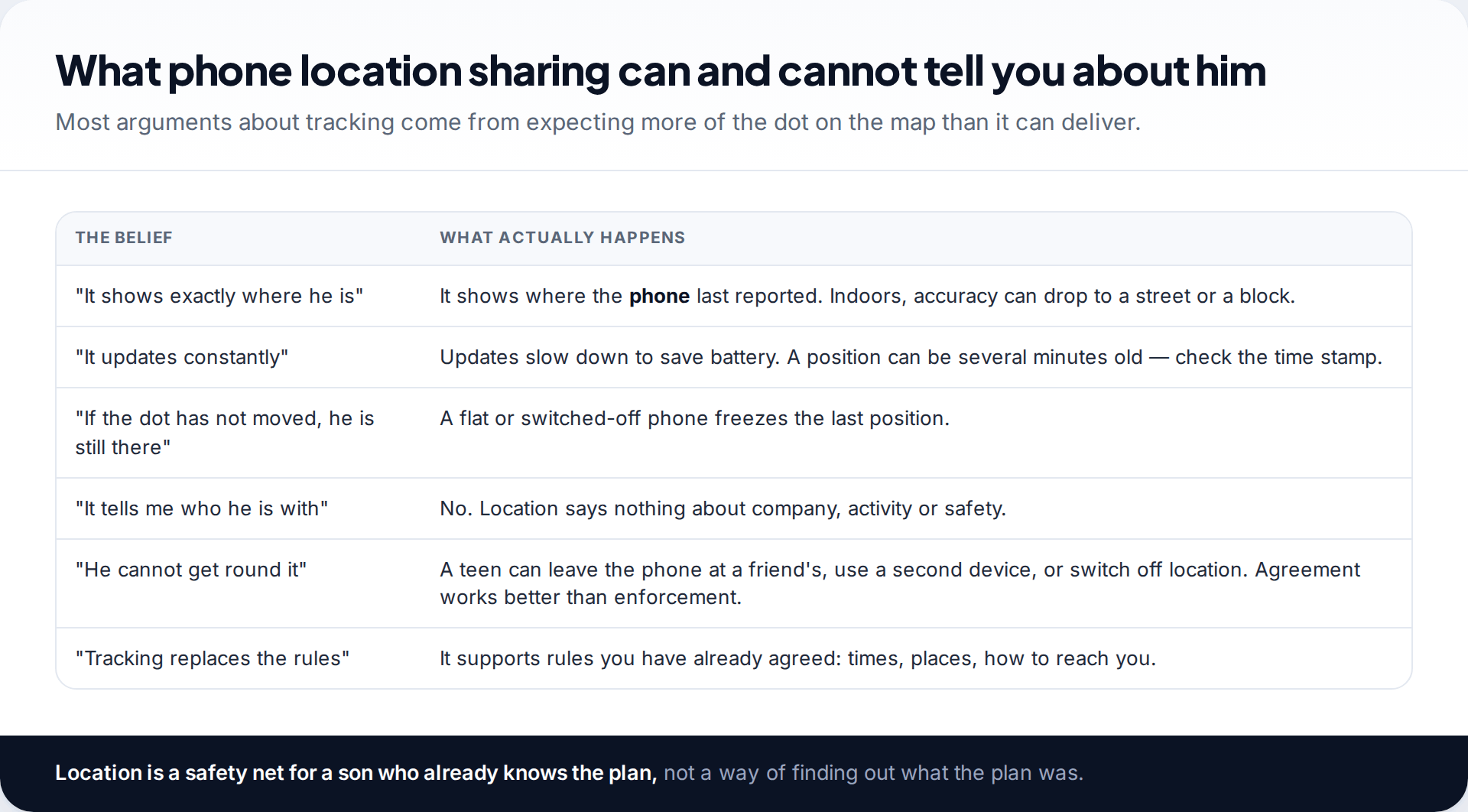
Location sharing reports where a phone is, give or take. Indoors, in a basement or in a dense city centre, that can be a street or a block rather than a building. Positions can be minutes old because phones update less often to save battery. A phone that is off or out of battery keeps showing its last position. And a teenager who wants to be somewhere else can leave the phone at a friend’s house.
That is why the agreement matters more than the app. A son who knows the plan, and knows he can call you from a party without getting into trouble, is safer than one whose phone you can locate but who won’t pick up.
Only track a phone you’re responsible for. Tracking another adult’s phone without their consent — including a son who is now 18 — is unlawful in many countries. Once he’s an adult, location sharing should be his choice.
When to scale back
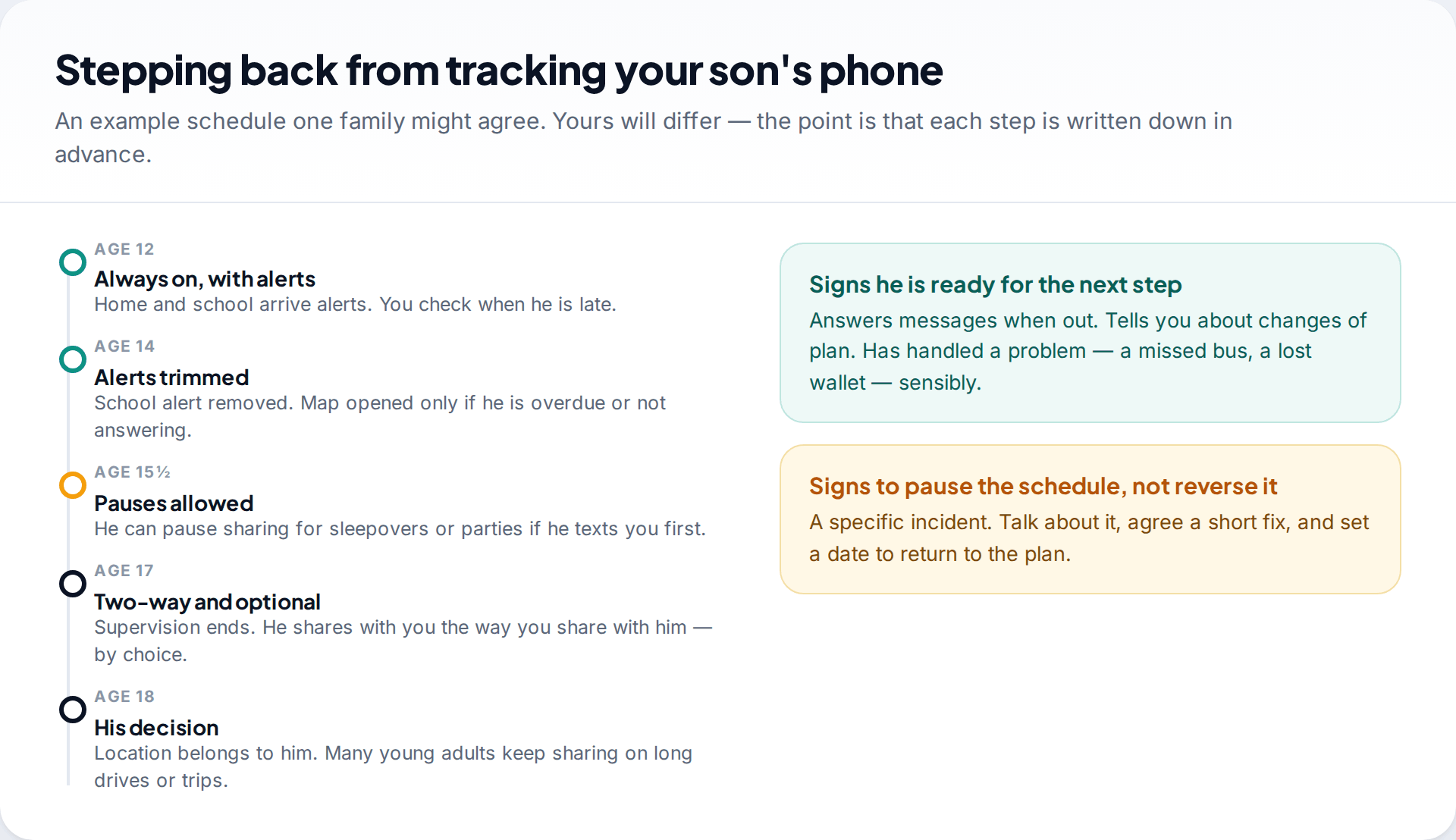
Plan the ending at the start. Tie each step to an age or a milestone, such as starting secondary school, a first job or learning to drive, and to behaviour you can both recognise. He answers messages when he’s out. He tells you when plans change. He has handled a small crisis sensibly. When those are true, take the next step, even if it makes you a little uneasy.
If something goes wrong, pause the schedule rather than rewinding it. Talk about the specific incident, agree a short fix, such as alerts back on for a month, and set a date to return to the plan. Going back to full tracking for good tells him the agreement was never real.
How this page was put together
We checked the Family Link requirements and supervision rules against Google’s Family Link help pages and FAQ in September 2026. The Find My steps reflect Apple’s Family Sharing and Find My documentation at the same date. Apple and Google rename settings between versions, so if a label differs on your son’s phone, search the Settings app for “location sharing”.
We didn’t test these tools on particular devices for this article. The ages and schedules above are examples to adapt, not rules from any authority. Read more about how our guides are researched and updated.
Common questions
Can I track my son’s phone for free?
Yes. Find My on iPhone, Family Link on Android and Google Maps location sharing are all free. Paid family apps add extras such as trip history or driving reports, but the core map and place alerts cost nothing.
Can I track my son’s Android phone from my iPhone?
Yes. The Family Link parent app runs on iPhone and shows an Android child’s location. Google Maps location sharing also works across the two. Find My can’t locate an Android phone.
Will my son know I’m tracking his phone?
With the built-in tools, yes. Find My lists who he shares with, Family Link shows supervision on his device, and Google Maps shows an active share. That visibility is part of what makes the arrangement work.
What age should I stop tracking my son?
There’s no fixed age. Many families move to optional, two-way sharing somewhere between 16 and 18. What matters is agreeing the point in advance and linking earlier steps to behaviour he can control.
Can he turn location sharing off?
Usually, yes, although Family Link and Screen Time can restrict it. Rather than locking it down, agree when a pause is acceptable and what he does first, such as texting you. A teen who can’t pause honestly will find a dishonest way.
Why does his location show somewhere he isn’t?
Common reasons are weak GPS indoors, a stale position from a phone that has gone offline, or location accuracy settings being off. Check the time stamp before drawing conclusions.
Looking for a tool to go with this? TheTruthSpy is a free parental control app for Android that stays visible on the child's phone. If it fits your family, see the Location & geofencing feature.
Related guides
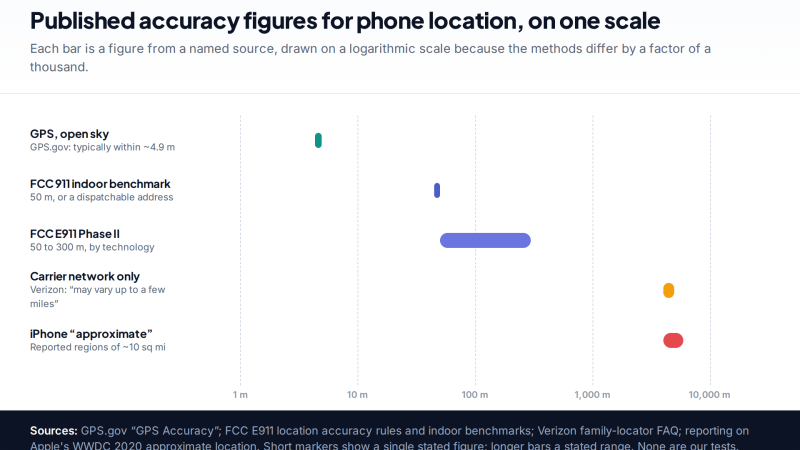
How Accurate Is Phone Location Tracking? GPS, Wi-Fi and Cell Compared
Phone location accuracy runs from a few metres with GPS under open sky to miles when only the mobile network…
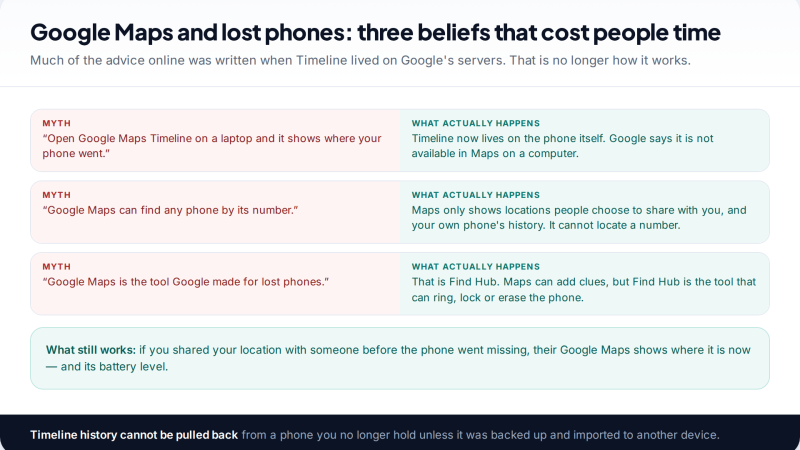
Using Google Maps Timeline to Find a Lost Phone
Can Google Maps find a lost phone? Only in two cases: someone you share your location with can see it,…
GPS Tracking for Small Business: A Starter Guide
A plain starter guide to GPS tracking for a small business: vehicle trackers versus phone apps, what a small fleet…
Parental controls your child can see
Location, screen time limits, a web filter and alerts from notifications — free, and visible on your child's phone. Pair a phone in about ten minutes.
Android · Free to set up · Visible on your child's phone