
Recording a phone call can be incredibly valuable—whether you’re a journalist capturing interviews, a business professional documenting agreements, a student saving important discussions, or simply someone who wants to keep meaningful conversations for later. While the process may seem confusing due to different device capabilities and legal restrictions, the good news is that there are several reliable ways to record calls on any smartphone.
This comprehensive guide walks you through the most effective methods, the legal considerations, and the tools you can use to ensure clear, high‑quality recordings every time.
1. Use Your Phone’s Built‑In Call Recording Feature
Many Android smartphones come with a native call recording function that allows you to record incoming and outgoing calls without installing any third‑party apps.
Supported Brands
Most Android manufacturers include this feature, such as:
- Samsung
- Xiaomi
- Oppo
- Vivo
- Motorola
- LG
- Infinix
- Realme
- Huawei
- ASUS
Not Supported
- Google Pixel (no built‑in call recording)
- OnePlus (no built‑in call recording)
- iPhone (only available on iPhone 15 Pro series with iOS 18)
How to Record Using Built‑In Recorder
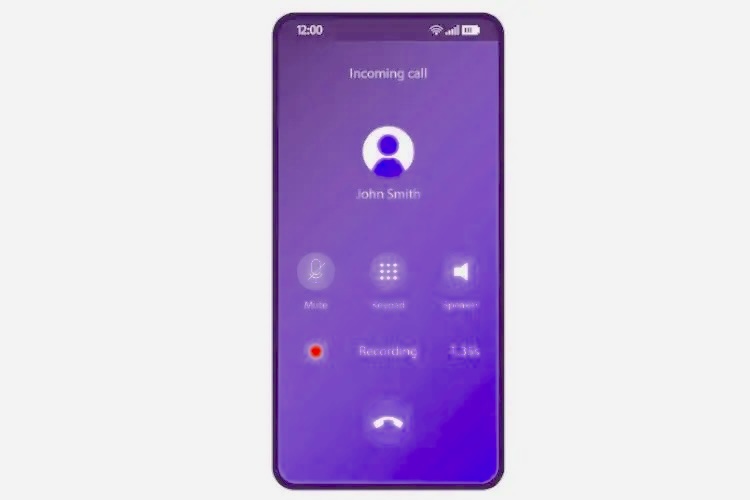
- During a call, look for the Record button on your call screen.
- Tap Record to begin capturing the conversation.
- Tap Stop Recording when finished.
- Your recording will be saved in the Phone app → Recents → Call Details.
You can also enable automatic call recording for unknown numbers or selected contacts under Settings → Call Recording.
2. Use a Second Phone’s Voice Recorder
If your main phone doesn’t support call recording, using another device is a simple and effective workaround.
Most phones include a built‑in audio recorder such as:
- Voice Recorder
- Sound Recorder
- Voice Memos (iPhone)
How to Record Using a Second Device
- Open the recorder app on the second phone and tap Record.
- Place it near your main phone’s speaker.
- Put your main phone on speaker mode and start the call.
- When finished, stop the recording and save the file.
- You can share the audio via email, AirDrop, or messaging apps.
This method is ideal for quick recordings and requires no additional apps or setup.
3. Record Calls Using Google Voice (Free)
If you live in the United States, Google Voice offers a free and reliable way to record incoming calls on both Android and iPhone.
👉 Learn more about Google Voice on the official page: https://support.google.com/voice
How to Record Calls with Google Voice
- Open the Google Voice app.
- Tap the Menu → Settings.
- Enable Incoming Call Options.
- When you receive a call, press 4 on the dial pad to start recording.
- Press 4 again to stop.
- Access recordings under the Calls tab in your Google Voice account.
Note: Google Voice automatically notifies all participants that the call is being recorded, ensuring legal compliance.
4. Use External Call Recording Devices
If you need professional‑grade audio quality, dedicated recording devices are the best option.
Zoom H5 Handy Recorder
A powerful recorder that connects directly to your phone for crystal‑clear audio.
- Records both sides of the conversation
- Ideal for journalists and podcasters
- Price: $270–$300
Bluetooth Recording Headsets
Devices like the RecorderGear PR200 allow hands‑free call recording.
- One‑button recording
- Portable and convenient
- Price: Around $109
External Microphones/Voice Recorders
You can also use:
- Lavalier microphones
- Shotgun microphones
- Portable recorders (Sony PCM‑M10, Olympus models)
Price range: $20–$50
These devices work best when your phone is on speaker mode.
5. Use Third‑Party Call Recording Apps
If your phone doesn’t support built‑in recording, apps can help—though reliability varies by device and OS.
Recommended App: Cube Call Recorder (Cube ACR)
Cube ACR is one of the most popular call recording apps for Android.
Key Features
- Records phone calls and VoIP calls (WhatsApp, Skype, Messenger, etc.)
- High‑quality audio
- Automatic or manual recording
- Exclude specific contacts
- Free version available; premium starts at $11.99 / 6 months
👉 Learn more about VoIP call recording legality: https://www.fcc.gov/general/recording-telephone-conversations
Best Practices for Recording Phone Calls
To ensure your recordings are legal, ethical, and high‑quality, follow these guidelines:
✔ Understand Legal Requirements
Call recording laws vary by country and state. Some regions require one‑party consent, while others require all parties to agree.
✔ Always Inform the Other Party
Even if not legally required, it’s best to notify participants before recording. This builds trust and avoids misunderstandings.
✔ Test Your Setup First
Before recording an important call:
- Test audio quality
- Ensure your microphone works
- Check storage space
- Use a quiet environment
- Confirm your app saves recordings properly
✔ Organize Your Recordings
To avoid losing important files:
- Use clear file names (date, topic, contact name)
- Create folders for different categories
- Back up recordings to cloud storage
- Protect sensitive files with passwords or encryption
Recording Your Child’s Surroundings for Safety

Some parental control apps allow parents to monitor their child’s phone activity for safety reasons. Apps like TheTruthSpy offer features such as:
- Listening to surrounding audio
- Recording phone calls
- Monitoring device activity
These tools should always be used responsibly and ethically.
Frequently Asked Questions (FAQs)
1. Is it legal to record a phone call?
It depends on your location. Some regions require only one person to consent, while others require everyone on the call to agree.
2. Can I record calls on iPhone without an app?
Only iPhone 15 Pro models running iOS 18 support native call recording. Older models require third‑party apps or external devices.
3. Why can’t I find the call recording option on my Android phone?
Some countries restrict call recording due to privacy laws, so manufacturers disable the feature in certain regions.
4. Do call recording apps work on WhatsApp or Messenger?
Most apps cannot record VoIP calls due to system restrictions, but Cube ACR supports many VoIP platforms on compatible devices.
5. Where are my call recordings stored?
Recordings are usually saved in the Phone app, File Manager, or the app’s internal storage folder.