
When your Android phone suddenly stops receiving text messages from an iPhone, it can be confusing and frustrating—especially when you’re expecting important messages. This problem is more common than you might think, and it usually happens because Android and iPhone use different messaging systems. The good news? You can fix it.
This guide walks you through the most effective solutions to restore message delivery between Android and iPhone, explains why the issue happens, and offers alternative ways to stay connected.
Why Your Android Isn’t Receiving Texts from iPhone
Before jumping into the fixes, it helps to understand the root causes. The most common reasons include:
- Weak or unstable network connection
- The iPhone sender’s messages stuck in iMessage
- Your number still registered with iMessage after switching from iPhone
- Blocked contacts
- Carrier issues
- RCS/iMessage compatibility problems
Now, let’s go through the solutions step by step.
1. Check Your Network Signal and Connection
A weak or unstable signal can prevent your Android from receiving SMS messages. When your phone struggles to connect to nearby cell towers, messages may be delayed or fail entirely.
What to do:
- Make sure Airplane Mode is turned off.
- Toggle Airplane Mode on and off to refresh your network.
- Move to an area with better signal strength.
- Restart your phone to re-establish network connection.
2. Make Sure the iPhone Number Isn’t Blocked
If you accidentally blocked the sender’s number, you won’t receive any messages from them.
How to check on Android:
- Open the Phone app.
- Go to Settings → Blocked numbers.
- Look for the iPhone number and unblock it if necessary.
Once unblocked, messages should start coming through again.
3. Ensure Your Phone Bill Is Paid
Carriers may suspend messaging services if your bill is overdue. When this happens, you may still use WiFi, but SMS and calls will stop working.
What to do:
- Log in to your carrier account.
- Check your billing status.
- Clear any outstanding payments.
Your SMS service should resume shortly after payment.
4. Ask the iPhone User to Enable “Send as SMS”
If the iPhone user has iMessage enabled but no internet connection, their messages may fail to convert to SMS—meaning your Android won’t receive them.
Steps on the iPhone:
- Go to Settings → Messages.
- Turn on Send as SMS.
This ensures messages are delivered as regular text messages when iMessage isn’t available.
5. Turn Off iMessage If You Recently Switched to Android
If you used an iPhone before and didn’t deactivate iMessage, your number may still be linked to Apple’s system. As a result, messages from iPhone users may continue going to iMessage instead of your Android.
Option A: Turn off iMessage on your old iPhone
- Open Settings.
- Tap Messages.
- Turn off iMessage.
Option B: Deregister online (if you no longer have the iPhone) Visit Apple’s official iMessage deregistration page and remove your number.
6. Enable RCS Messaging on iOS 18 (If Available)
With iOS 18, Apple finally supports RCS messaging, which improves compatibility with Android devices.
On iPhone (iOS 18):
- Go to Settings.
- Tap Messages.
- Enable RCS Messaging.
This helps messages travel more smoothly between Android and iPhone.
7. Contact Your Carrier for Support
If none of the above works, the issue may be on your carrier’s end. Network outages, SIM issues, or account restrictions can block SMS delivery.
Your carrier can:
- Check for network problems
- Reset your SMS service
- Reprovision your SIM
- Fix account-related issues
Alternative Ways to Receive Messages from iPhone
1. Switch to an iPhone
If messaging reliability is critical and you frequently communicate with iPhone users, switching to an iPhone eliminates compatibility issues entirely.
2. Use Cross‑Platform Messaging Apps
Apps like WhatsApp, Messenger, Telegram, and Viber work seamlessly across Android and iPhone. They use the internet instead of SMS, so you won’t face carrier or iMessage-related problems.
If you’re communicating with family, apps like TheTruthSpy also offer private group chats and one‑on‑one messaging.
Understanding Android RCS vs. Apple iMessage
Android and iPhone use different messaging technologies, which is why issues sometimes occur.
RCS (Android)
- Sends messages over WiFi or mobile data
- Supports high‑quality media
- Shows typing indicators and read receipts
- Considered the modern upgrade to SMS
iMessage (Apple)
- Exclusive to Apple devices
- End‑to‑end encrypted
- Supports effects, media, and reactions
- Falls back to SMS when messaging Android
With iOS 18 adding RCS support, communication between both platforms is improving—but not perfect yet.
FAQs
Why can’t my iPhone send messages to an Android?
If iMessage is enabled and the iPhone has no internet, messages may fail instead of converting to SMS. Enabling Send as SMS usually fixes this.
Will I lose my messages if I switch from iPhone to Android?
Yes, iMessage history does not automatically transfer to Android. You should manually back up important conversations before switching.
How do I transfer messages from iPhone to Android?
You can use:
- Third‑party transfer apps
- Google Drive backup (for supported devices)
- Manufacturer tools like Samsung Smart Switch
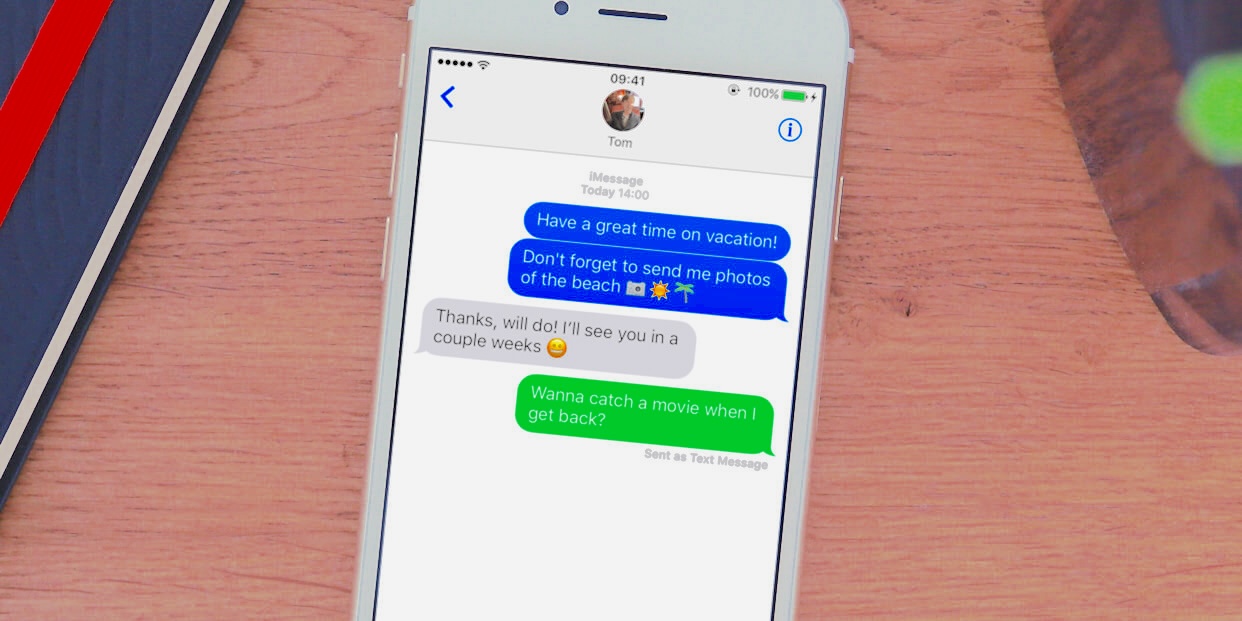
Why do messages appear green when texting Android users?
Green messages indicate SMS or MMS, not iMessage. This is normal when texting Android devices.
Conclusion
Android not receiving texts from iPhone is a common issue, but it’s usually easy to fix once you understand the cause. Whether it’s a network problem, iMessage settings, or carrier restrictions, the solutions above should help restore your messaging flow. And if SMS continues to be unreliable, switching to cross‑platform messaging apps is a simple and effective alternative.