
Have you ever been reading an article, following a recipe, or watching a video on your iPhone—only for the screen to suddenly turn off? This can be frustrating, especially when you’re actively using your device. Thankfully, Apple allows you to control how long your iPhone screen stays on before it locks automatically.
The screen timeout feature (also known as Auto‑Lock) determines how long your display remains active when there’s no interaction. Adjusting this setting can improve usability, enhance security, and help manage battery life more effectively. In this guide, you’ll learn everything you need to know about changing screen timeout on an iPhone, along with common issues and practical solutions.
What Is Screen Timeout on iPhone?
Screen timeout is a built‑in iOS feature that automatically turns off your iPhone’s display after a period of inactivity. By default, most iPhones lock after 30 seconds to conserve battery and protect your data.
Modern iPhones also use attention‑aware features, meaning the screen may stay on while you’re looking at it and turn off once you look away. However, if the default timing doesn’t suit your usage, Apple lets you customize it through the Auto‑Lock settings.
How to Change Screen Timeout on iPhone
Adjusting the screen timeout is quick and doesn’t require any third‑party apps.
Steps to Change Screen Timeout:
- Open Settings on your iPhone
- Tap Display & Brightness
- Select Auto‑Lock
- Choose your preferred duration:
- 30 seconds
- 1 minute
- 2 minutes
- 3 minutes
- 4 minutes
- 5 minutes
- Never
If Auto‑Lock appears unavailable, disable Low Power Mode from Settings → Battery, then return to Display & Brightness.
How to Keep Your iPhone Screen from Turning Off
There are situations where you may want your screen to stay on continuously—such as during presentations, navigation, or reading long documents.
To prevent the screen from locking:
- Go to Settings → Display & Brightness → Auto‑Lock
- Select Never
Your display will now remain on until you manually lock the device. Keep in mind that this setting can significantly increase battery usage.
Why Can’t I Change Auto‑Lock on My iPhone?
If the Auto‑Lock option is grayed out or unresponsive, one of the following reasons is usually responsible:
- Low Power Mode is enabled (Auto‑Lock is restricted in this mode)
- Outdated iOS version
- Temporary system glitch
Fixes:
- Disable Low Power Mode
- Update iOS via Settings → General → Software Update
- Restart your iPhone
Does Screen Timeout Affect Battery Life?
Yes, screen timeout has a direct impact on battery performance. The display is one of the most power‑hungry components of an iPhone. Longer timeout durations mean the screen stays active longer, consuming more energy.
Shorter Auto‑Lock times help:
- Reduce battery drain
- Preserve long‑term battery health
- Improve overall device efficiency
Apple also recommends balanced screen settings for optimal performance. You can learn more from Apple’s official guide.
Why Should You Change Screen Lock Time?
Adjusting screen lock time is about finding the right balance between convenience, security, and battery efficiency.
Longer timeout is useful when:
- Reading articles or documents
- Following recipes or tutorials
- Using navigation apps
Shorter timeout is better when:
- You’re in public places
- Security is a priority
- You want to conserve battery
Choosing the right setting depends on how and where you use your iPhone.
Parental Control & Screen Time Management
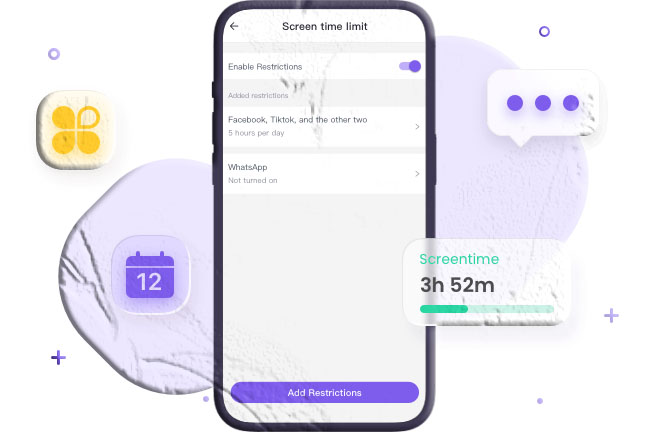
Parents who want better control over screen usage can explore advanced monitoring tools. Apps like TheTruthSpy offer features such as:
- App usage scheduling
- Screen time limits
- Website blocking
- Social media monitoring
Common Questions About iPhone Screen Timeout
How do I change screen timeout on iPhone 13 or iPhone 11?
The steps are identical across models:
- Settings → Display & Brightness → Auto‑Lock → Select duration
How can I make my iPhone screen stay on longer?
Increase the Auto‑Lock duration or select Never from Auto‑Lock settings.
Why does my iPhone screen stay on all the time?
Auto‑Lock may be set to Never, or attention‑aware features are keeping the display active.
Can I customize the lock screen clock style?
Yes. Long‑press the Lock Screen → Customize → Tap the clock to change font, color, and style.
Is it safe to use “Never” for Auto‑Lock?
It’s safe but not recommended for daily use due to battery drain and security risks.