
How to Record a Phone Call on Android (Full Guide)
Recording phone calls on Android can be incredibly useful — whether you’re saving important details, documenting agreements, keeping personal reminders, or supporting customer service workflows. Android devices offer a flexible environment for call recording, with options ranging from built‑in tools to third‑party apps and external devices.
However, before you hit the record button, it’s essential to understand the legal requirements, the technical limitations, and the ethical considerations involved. This guide walks you through every safe and legitimate method to record calls on Android.
You’ll learn:
- Whether call recording is legal in your region
- How to use Android’s built‑in Phone app
- How to record calls using screen recording
- How to use Google Voice
- How to record calls with external devices
- How to record calls using another phone
- Popular call‑recording apps
- How to find your recordings
- How parental‑friendly tools like TheTruthSpy can help families
- FAQs and best practices
Let’s begin with the most important part: the law.
Is It Illegal to Record a Phone Call?
Call recording laws vary widely depending on your country, state, or region. Understanding these laws is essential before recording any conversation.
1. One‑Party Consent Regions
In many places, only one person on the call needs to know about the recording. This means you can record the call as long as you are part of the conversation.
2. Two‑Party (All‑Party) Consent Regions
Some regions require everyone on the call to be informed and agree to the recording.
In the United States, states that require two‑party consent include:
- California
- Delaware
- Washington
- Florida
- Illinois
- Maryland
- Massachusetts
- And several others
3. Why This Matters
Recording a call without proper consent in a two‑party consent region can lead to:
- Legal penalties
- Civil liability
- Privacy violations
4. Always Check Local Laws
Before recording any call, research the regulations in your area to ensure compliance.
How to Record a Phone Call on Android
Android offers multiple ways to record calls, depending on your device model, region, and installed apps. Below are the safest and most effective methods.
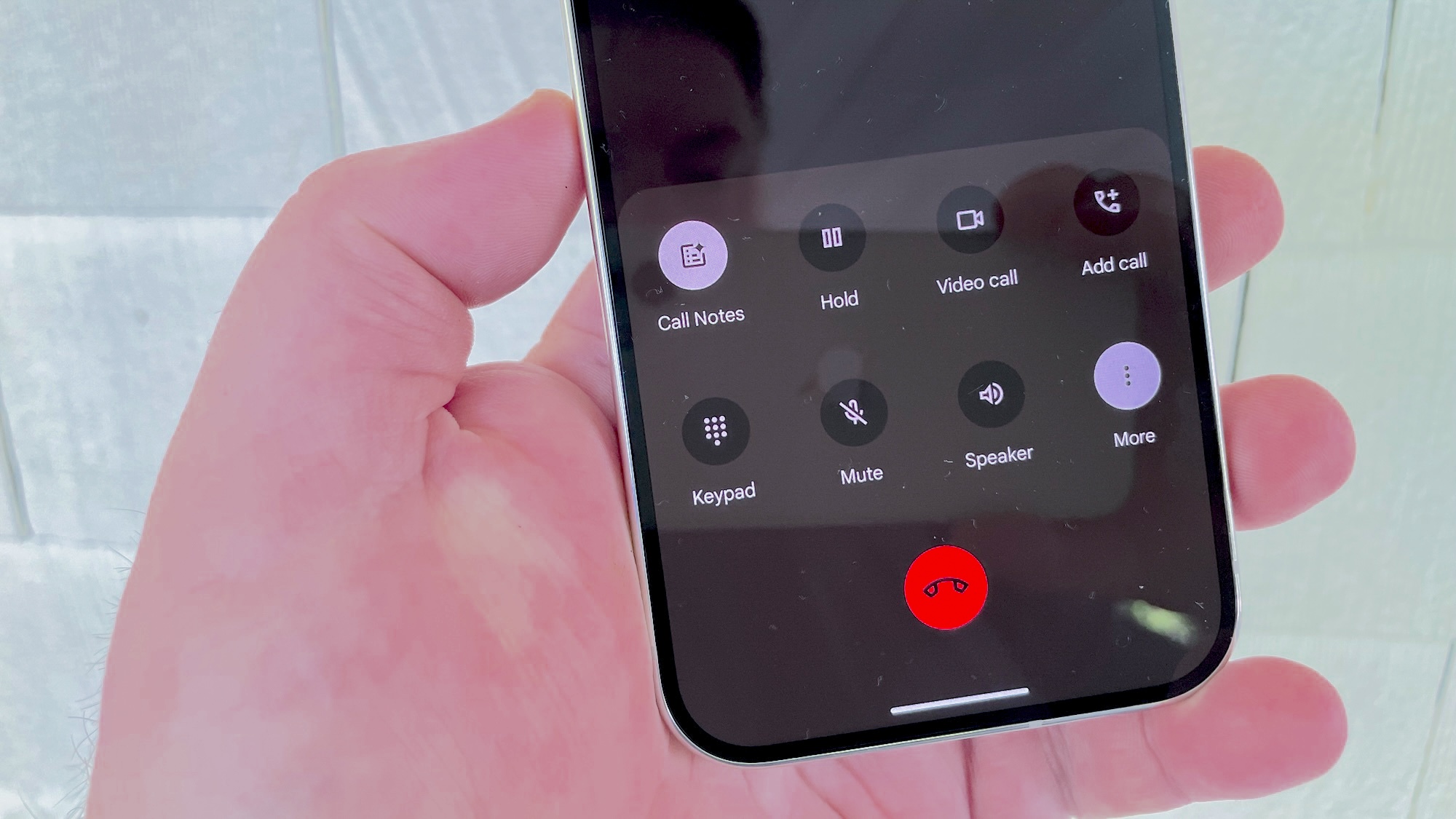
Method 1: Use the Built‑In Phone App (If Available)
Many modern Android devices include a native call recording feature in the Phone app. This is the easiest and most reliable method — but availability varies by:
- Device manufacturer
- Android version
- Country or region
- Local call‑recording laws
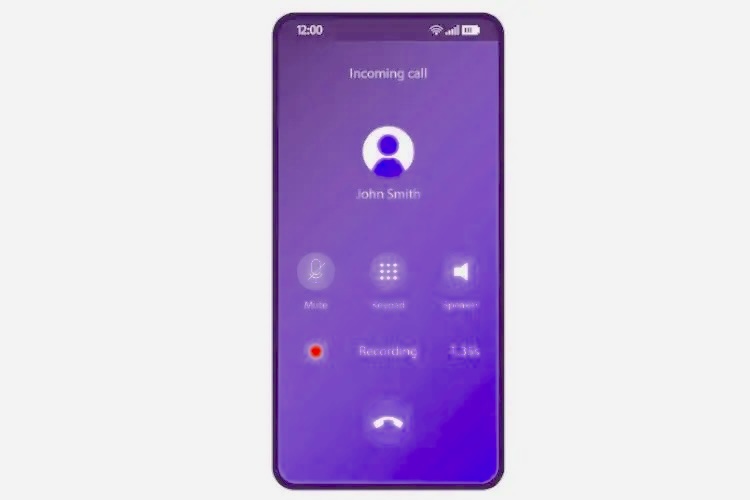
How to Enable Call Recording
- Open the Phone app
- Tap the three‑dot menu (top‑right corner)
- Select Settings
- Look for Call Recording or Record Calls
- Enable the feature
Automatic Recording Options
Depending on your device, you may see:
- Always record calls from unknown numbers
- Always record calls from selected contacts
- Record all calls automatically
How to Access Your Recordings
- Open the Phone app
- Go to the Recents tab
- Select the recorded call
- Tap Play to listen
Recordings are usually stored in:
- Internal storage
- A dedicated “Recordings” folder
- The Phone app’s call history
Limitations
- Not available on all devices
- Restricted in some regions
- May notify both parties depending on local laws
Still, this is the most convenient method when supported.
Method 2: Use the Screen Recording Feature
Many newer Android devices include a built‑in screen recorder that can capture:
- On‑screen activity
- Microphone audio
- System audio (varies by device)
This method can record call audio when microphone recording is enabled.
How to Use Screen Recording
- Swipe down to open Quick Settings
- Look for Screen Record
- If not visible, tap Edit to add it
- Tap Screen Record
- Enable Record Audio
- Choose Microphone as the audio source
- Start the recording
- Make or receive your call
- Stop the recording when finished
Where the Recording Is Saved
Recordings are typically stored in:
- Gallery → Screen Recordings
- Files → Movies → ScreenRecord
Limitations
- May record background noise
- May not capture the other person clearly
- Some devices block call audio for privacy reasons
Still, this is a useful workaround when call recording is restricted.
Method 3: Use Google Voice (Free Option)
Google Voice provides a free phone number and supports call recording — but only for incoming calls.
How to Enable Call Recording in Google Voice
- Open Google Voice
- Go to Settings
- Enable Incoming call options
How to Record a Call
- During the call, press 4 on your dial pad
- Google Voice announces that the call is being recorded
- Press 4 again to stop recording
Where Recordings Are Saved
Recordings appear in your Google Voice inbox and can be played or downloaded.
Limitations
- Only records incoming calls
- Announces recording to all parties
- Requires a Google Voice number
This is a great free option for users who don’t mind the announcement.
Method 4: Record Calls Using an External Device
If your Android device does not support built‑in call recording — or if regional restrictions block the feature — using an external recording device is a reliable and legally safer alternative.
External devices include:
- Digital voice recorders
- External microphones
- Bluetooth recording devices
These tools capture audio from your phone’s speaker without modifying your device or installing apps.
How to Record Calls Using an External Device
- Purchase a digital recorder or external microphone
- Connect the microphone to your phone’s headphone jack or Bluetooth
- Place the microphone close to your phone’s speaker
- Start the recording on the external device
- Make or receive your call
- Stop the recording when finished
Why This Method Works
- No app installation required
- Works on all Android devices
- No risk of app restrictions or blocked features
Limitations
- Audio quality depends on microphone placement
- Background noise may be captured
- Requires manual setup
Still, this is one of the most dependable methods when software‑based recording is unavailable.
Method 5: Record Calls Using Another Phone
This is the simplest method — and it works on any Android device.
All you need is:
- Another smartphone
- A tablet
- A laptop with a voice recorder
How to Record Using Another Device
- Start your call on your Android phone
- Place the second device near your phone’s speaker
- Open a voice recording app (built‑in or downloaded)
- Tap Record
- Ensure both sides of the conversation are audible
- Save the recording after the call
Why This Method Is Useful
- No installation required
- No compatibility issues
- Works even when call recording is blocked
Limitations
- Lower audio quality
- Background noise may interfere
- Requires two devices
Despite its simplicity, this method is widely used for personal note‑taking and reminders.
Method 6: Use Call Recording Apps for Android
Android supports a wide range of call‑recording apps. These apps offer features such as:
- Automatic call recording
- Cloud backup
- PIN protection
- VoIP call recording
- Searchable call logs
Below are three of the most reliable options.
1. Automatic Call Recorder Pro
Automatic Call Recorder Pro is a popular app known for its flexibility and ease of use.
Key Features
- Automatically records incoming and outgoing calls
- Saves recordings in MP3 and other formats
- Password protection
- Cloud backup support
- Playback through speaker or earpiece
- Email sharing
Why Users Like It
It offers a simple interface and customizable recording rules.
2. Cube ACR
Cube ACR is one of the most advanced call‑recording apps available. It supports not only regular phone calls but also VoIP calls, including:
- Viber
- Skype
- Telegram
- Signal (limited)
Key Features
- Automatic call recording
- VoIP call support
- Cloud backup
- PIN lock
- Smart recording filters
Free vs. Premium
- Free version includes basic recording
- Premium unlocks cloud storage, advanced filters, and more
3. ACR Phone
ACR Phone is a feature‑rich call‑recording app with a focus on privacy and organization.
Key Features
- Automatic call recording
- Spam blocking
- Call announcements
- Cloud backup (Google Drive, Dropbox)
- Call notes
- Searchable recordings
Why It Stands Out
Its privacy controls and organizational tools make it ideal for users who record calls frequently.
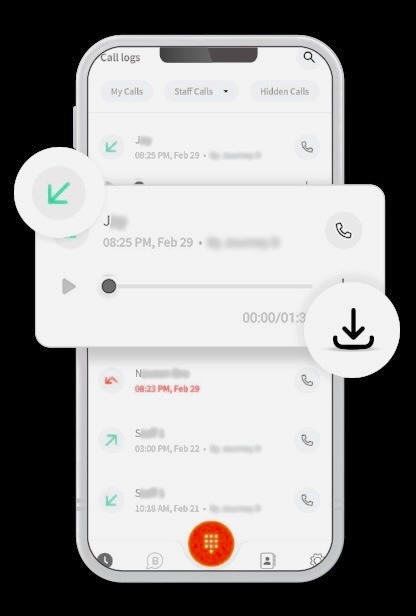
Where Are Call Recordings Stored on Android?
The location of your recordings depends on:
- Your device model
- The recording method
- The app you used
Typical Storage Locations
- Internal Storage → Recordings
- Internal Storage → Music
- Phone App → Recents → Recorded Calls
- Files App → Search “recording”
- App‑specific folders (e.g., Cube ACR, ACR Phone)
How to Find Your Recordings
- Open the File Manager
- Browse folders like:
- Recordings
- Music
- CallRecordings
- Use the search bar to look for:
- “recording”
- “call”
- “mp3”
- Tap any file to play it
If you used a third‑party app, recordings may be stored in the app’s dedicated folder.
How to Record Live Surroundings on Your Child’s Android Phone
Some parents want tools that help them stay aware of their children’s safety — especially when kids are away from home. In these cases, parental‑control apps can provide features that support digital wellbeing and situational awareness.
One such tool is TheTruthSpy Parental Control, which includes features designed for parental supervision with consent.
What TheTruthSpy Offers (Ethical Use Only)
- Location tracking
- App usage monitoring
- Screen time management
- Real‑time alerts
- One‑Way Audio (ambient sound monitoring)
Important Ethical Note
TheTruthSpy must be used:
- With the child’s knowledge
- On devices you own or manage
- For safety and parental guidance
- Never for spying on adults or third parties
How to Use TheTruthSpy Parental Control
- Download TheTruthSpy Parental Control from Google Play or the App Store
- Install TheTruthSpy Kids on your child’s device
- Complete the setup process
- Open the parental app and select One‑Way Audio
- Listen to ambient sounds only for safety‑related purposes
This feature helps parents stay aware of their child’s environment when necessary.
Final Verdict: What’s the Best Way to Record Calls on Android?
Android gives users a wide range of options for recording phone calls, but the “best” method depends on your device, region, and purpose.
Here’s a quick breakdown:
Best Overall Method (When Available)
✔ Built‑in Phone App Recording
- Most reliable
- Best audio quality
- Easy to use
- Integrated with call history
Best Free Method
✔ Google Voice
- Free
- Simple
- Cloud‑stored recordings
- Works across devices (Incoming calls only)
Best Method When Built‑In Recording Is Blocked
✔ Screen Recorder
- Works on most modern Android devices
- Captures microphone audio
Best Method for High‑Quality Audio
✔ External Recorder or Microphone
- Clear audio
- Works on any device
- No app restrictions
Best Method for Parents Monitoring Their Child’s Safety
✔ TheTruthSpy Parental Control (Ethical Use Only)
- Supports digital wellbeing
- Offers location tracking, alerts, and ambient sound monitoring
- Designed for parental supervision with consent
Best Method for VoIP Calls
✔ Cube ACR
- Supports WhatsApp, Viber, Skype, Telegram, and more
Each method has strengths and limitations, but together they provide a complete toolkit for safe, legal, and effective call recording on Android.
Best Practices for Recording Calls Legally & Safely
Recording calls can be incredibly useful — but only when done responsibly. Here are essential guidelines to follow.
1. Always Follow Local Consent Laws
Before recording:
- Check whether your region requires one‑party or two‑party consent
- Inform the other person if required
- When in doubt, always disclose
This protects you legally and ethically.
2. Use Recording for Legitimate Purposes
Examples of appropriate use:
- Personal reminders
- Business agreements
- Customer service training
- Protecting yourself from scams
- Parental supervision with consent
Avoid using call recordings for:
- Surveillance
- Harassment
- Privacy violations
3. Store Recordings Securely
Call recordings may contain sensitive information. Protect them by:
- Using password‑protected folders
- Encrypting your device
- Avoiding cloud uploads unless necessary
4. Delete Unnecessary Recordings
Keeping old recordings increases privacy risks. Delete files you no longer need.
5. Use Parental‑Control Tools Responsibly
Apps like TheTruthSpy should only be used:
- With your child’s knowledge
- On devices you own or manage
- For safety and wellbeing
Never use parental‑control tools to monitor adults or third parties.
FAQs About Recording Phone Calls on Android
1. Can you record a phone call while you’re on the phone?
Yes. You can record a call using:
- The built‑in Phone app (if supported)
- Google Voice
- Screen recording
- Third‑party apps
- External devices
- Another phone
Availability depends on your device and region.
2. How do I record a phone call on Samsung?
Most Samsung Galaxy devices include built‑in call recording.
Steps:
- Open the Phone app
- Start or receive a call
- Tap the three‑dot menu
- Select Record call
- Confirm recording
To stop recording, repeat the steps and tap Stop recording.
3. How do I record a live call on Android?
Options include:
- Built‑in Phone app
- Google Voice (incoming calls)
- Screen recorder
- Third‑party apps like Cube ACR
- External devices
4. How do I record conversations on Android?
For general conversations (not phone calls):
- Use the built‑in Voice Recorder app
- Use third‑party apps like Cube ACR
- Use an external microphone
Always follow consent laws.
5. How do I automatically record calls on Android?
If supported:
- Open Phone app
- Go to Settings
- Tap Call Recording
- Enable Automatic Recording
You can choose:
- All calls
- Unknown numbers
- Selected contacts
6. How do I record a call on Android without an app?
You can use:
- Built‑in Phone app
- Screen recorder
- External recorder
- Another phone
These methods do not require installing additional apps.
7. Why can’t I find the call recording option on my phone?
Possible reasons:
- Your region restricts call recording
- Your device manufacturer disabled the feature
- You’re using Google Dialer, which blocks recording in some areas
- Your carrier restricts call recording
In these cases, try:
- Screen recording
- External devices
- Google Voice
- Third‑party apps
8. Is it legal to record calls without telling the other person?
It depends on your region.
- One‑party consent: You can record if you are part of the call
- Two‑party consent: Everyone must be informed
Always check local laws.
9. Where are call recordings stored on Android?
Common locations:
- Internal Storage → Recordings
- Internal Storage → Music
- Phone App → Recents → Recorded Calls
- Files App → Search “recording”
Third‑party apps store recordings in their own folders.
10. Can TheTruthSpy record calls secretly?
No. TheTruthSpy should only be used:
- For parental supervision
- With the child’s knowledge
- On devices you own or manage
It is not designed for covert surveillance.
Conclusion
Recording phone calls on Android can be incredibly helpful for personal organization, business communication, and family safety. With Android’s flexible ecosystem, you have multiple ways to record calls — from built‑in tools to third‑party apps, external devices, and parental‑friendly solutions.
Here’s what you should remember:
- Always follow local consent laws
- Use built‑in call recording when available
- Try screen recording or Google Voice as alternatives
- Use external devices for universal compatibility
- Explore apps like Automatic Call Recorder Pro, Cube ACR, and ACR Phone
- Store recordings securely
- Use parental‑control tools like TheTruthSpy only with consent
- Delete recordings you no longer need
With the right approach, you can safely and effectively record calls on your Android device — without compromising privacy or violating regulations.