
Losing a phone is stressful enough — but losing a phone that’s powered off can feel like a dead end. Whether the battery ran out, the device was switched off intentionally, or it simply disappeared during a busy day, many people wonder if there’s still a way to track it.
The short answer is yes, you can often find a phone even if it’s turned off, but only under certain conditions. Modern devices store and share location data in ways that allow you to view the last known position before the phone went offline. Some newer models, such as Google Pixel 8 and Pixel 8 Pro, even support limited offline tracking thanks to specialized hardware.
This guide walks you through five safe, non‑third‑party, policy‑compliant methods to locate a lost phone that’s powered off — using only built‑in tools from Google, Apple, and Samsung.
Can You Track a Phone That’s Turned Off?
A powered‑off phone stops sending real‑time GPS and network signals. That means:
- No live location updates
- No ringing or remote alerts
- No active communication with mobile networks
However, you can still view the last known location if the device had location services enabled before it shut down.
What’s Possible
- Viewing the last recorded location
- Checking location history (if enabled)
- Using offline‑finding features on supported devices
- Locking or erasing the phone remotely
What’s Not Possible
- Real‑time tracking of a fully powered‑off device (except limited Pixel 8/8 Pro functionality)
- Tracking a phone that never had location services enabled
- Tracking without the correct account login
With that in mind, here are the most reliable ways to locate a switched‑off phone.
1. Use Google’s Find My Device (Android)
Google’s Find My Device is the primary tool for locating lost Android phones. Even if the device is powered off, you can still see its last known location as long as:
- Find My Device was enabled
- Location services were turned on
- The phone was signed into a Google account
How to Check the Last Known Location
- Visit https://android.com/find
- Sign in using the Google account linked to the missing phone
- Select the device from the list
- View the last known location on the map
If the phone is offline, you’ll see a timestamp showing when it was last detected.
Additional Remote Actions
- Secure Device: Lock the phone remotely
- Erase Device: Wipe all data if recovery seems unlikely
These actions help protect personal information while you attempt to recover the device.
Note
If you sign in from a new device, Google may require two‑factor authentication. If you don’t have another trusted device, you can request a verification code via SMS or phone call.
2. Use Samsung’s Find My Mobile (Samsung Devices)
Samsung users have an additional layer of protection through Find My Mobile, which works alongside Google’s tracking system.
To use it, the lost phone must have had:
- A Samsung account logged in
- Find My Mobile enabled
- Location services turned on
How to Locate a Samsung Device
- Visit
https://smartthingsfind.samsung.com - Sign in with your Samsung account
- Select the missing device
- View its last known location
Offline Finding
Samsung’s Offline Finding feature allows nearby Samsung devices to help locate your phone even when it’s not connected to the internet. This only works if the feature was enabled beforehand.
3. Use Apple’s Find My (iPhone, iPad, Mac)
Apple’s Find My network is one of the most robust tracking systems available. If “Find My iPhone” and Location Services were enabled before the device went offline, you can still view its last known location.
You can use:
- Another Apple device signed into the same Apple ID
- The iCloud website
- The Find My app on someone else’s device
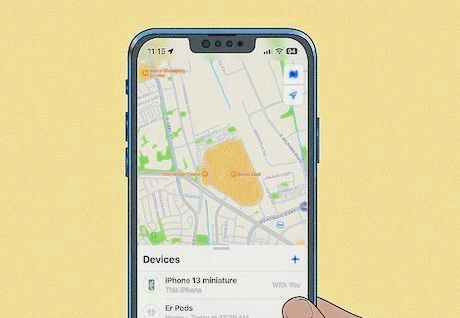
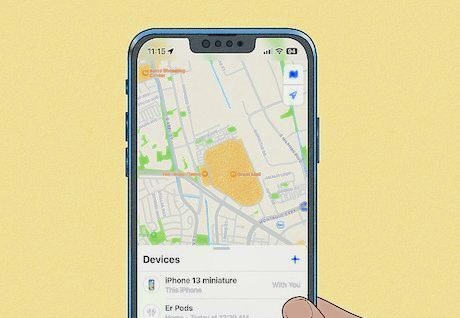
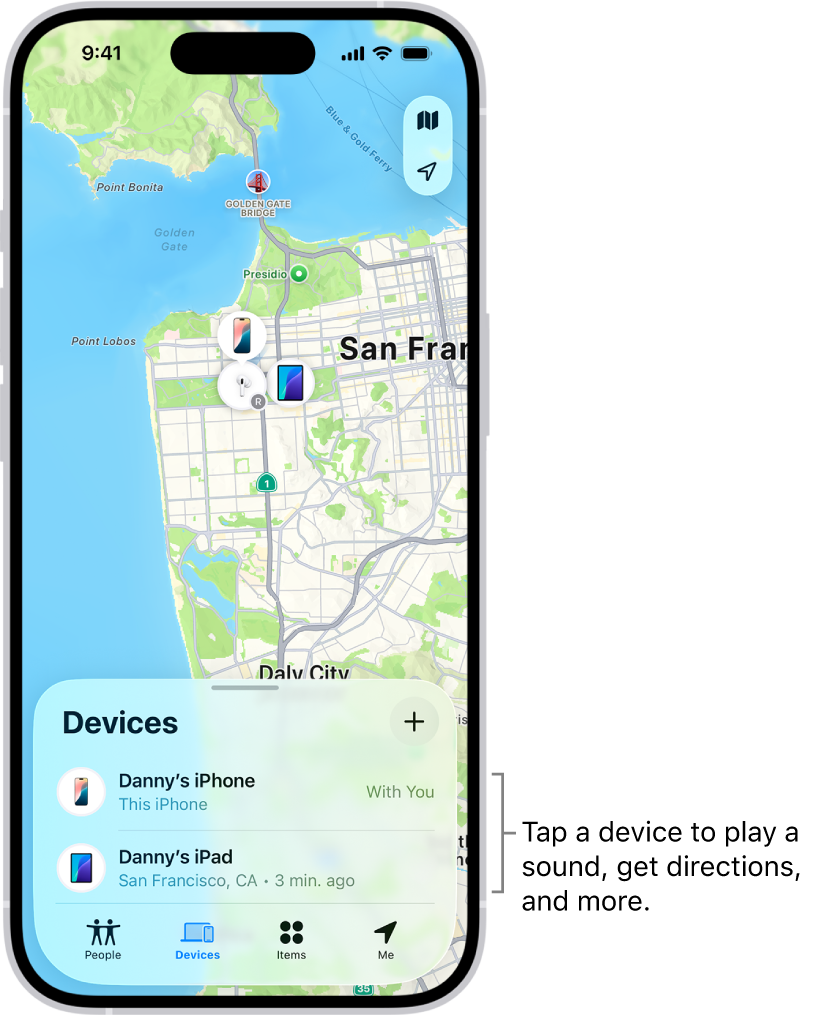
Using Find My on Another Apple Device
- Open the Find My app
- Select Devices
- Choose the missing iPhone
- View its last known location
Using iCloud.com
- Visit https://icloud.com/find
- Sign in with your Apple ID
- Select the missing device
- View the last known location
Using Find My on Someone Else’s Device
- Open the Find My app
- Sign out the device owner
- Sign in with your Apple ID
- Select your missing device
Offline Finding
Apple’s Find My network can locate offline devices using encrypted Bluetooth signals relayed by nearby Apple devices — a major advantage for iPhone users.
4. Check Google Maps Timeline (Android & iPhone)
If Location History was enabled, Google Maps Timeline can show where the device has been — including its last recorded location before it turned off.
How to View Location History
- Visit https://www.google.com/maps
- Sign in with your Google account
- Open the menu and select Your Timeline
- Choose Today
- Review the recorded locations
This method is especially helpful if the phone moved around before shutting down.
5. Contact Your Wireless Carrier (IMEI‑Based Assistance)
Every phone has a unique IMEI number, which carriers can use to identify the device on their network. While carriers cannot provide live tracking to consumers, they may:
- Confirm the last network connection
- Flag the device as lost or stolen
- Block unauthorized use
Carriers typically require legal authorization to share location data, but they can still assist with account‑related issues.
For accurate contact information, visit your carrier’s official website.
Can You Track a Phone Using Only the IMEI?
Not directly. Consumers cannot track a phone using IMEI alone. Only carriers and law‑enforcement agencies can access IMEI‑based location data, and only under specific legal circumstances.
If your phone is lost or stolen:
- Report the IMEI to your carrier
- Request that they block the device
- File a police report if necessary
This prevents misuse and protects your personal information.
What If None of These Methods Work?
If the phone was:
- Never connected to a Google, Samsung, or Apple account
- Offline for a long time
- Without location services enabled
- Reset or wiped
…then tracking becomes extremely difficult.
However, you can still:
- Secure your accounts
- Change passwords
- Remove the device from trusted‑device lists
- Notify your carrier
These steps help protect your data even if the device cannot be recovered.
Frequently Asked Questions
Can I track a phone that has no battery?
You can only see the last known location recorded before the battery died. Real‑time tracking is not possible.
Can someone track my phone if it’s turned off?
Only if you previously enabled a built‑in tracking service such as Find My Device, Find My Mobile, or Find My iPhone.
Do I need internet access to track a lost phone?
Your device needs internet access to update its location, but you can view the last known location from any internet‑connected device.
Can I track a phone without an account login?
No. You must sign in with the Google, Samsung, or Apple account linked to the missing device.
Does airplane mode prevent tracking?
Yes. Airplane mode disables network and GPS signals, but the last known location may still be available.
Conclusion
Finding a phone that’s turned off is challenging, but not impossible. Built‑in tools from Google, Samsung, and Apple allow you to view the last known location, secure the device remotely, and protect your personal information.
While real‑time tracking stops once the phone powers down, taking quick action increases your chances of recovery. For parents, enabling device‑tracking features ahead of time is one of the simplest ways to maintain peace of mind and support safe digital habits at home.