
Introduction
Samsung Galaxy smartphones are packed with powerful features, and one of the most practical is the ability to record phone calls. Whether you want to save important business conversations, keep evidence for legal purposes, or simply store memorable chats, Samsung makes it easier with its native call recording option. For users running Android 9 or later, this feature is available directly in the Phone app.
In this guide, we’ll explore:
- The legality of call recording.
- How to record calls automatically or manually using Samsung’s built‑in tools.
- Popular third‑party apps like Google Voice and Automatic Call Recorder.
- How to manage, share, and delete recordings.
Is It Legal to Record Phone Calls on Samsung?
The legality of recording calls depends on your country’s laws. Some regions require one‑party consent (only you need to know the call is recorded), while others require two‑party consent (both participants must agree).
- In May 2023, Google restricted third‑party apps from using the Accessibility API for call recording.
- Samsung, however, continues to provide a native call recording option that complies with Google’s policies.
- You must be running Android 9 or newer to access this feature.
How to Record a Phone Call on Samsung Using the Phone App

Automatic Recording
- Open the Phone app.
- Tap the three‑dot menu → Settings → Record Calls.
- Enable Record calls automatically.
- Choose whether to record All Calls, Unsaved Numbers, or Selected Numbers.
Manual Recording
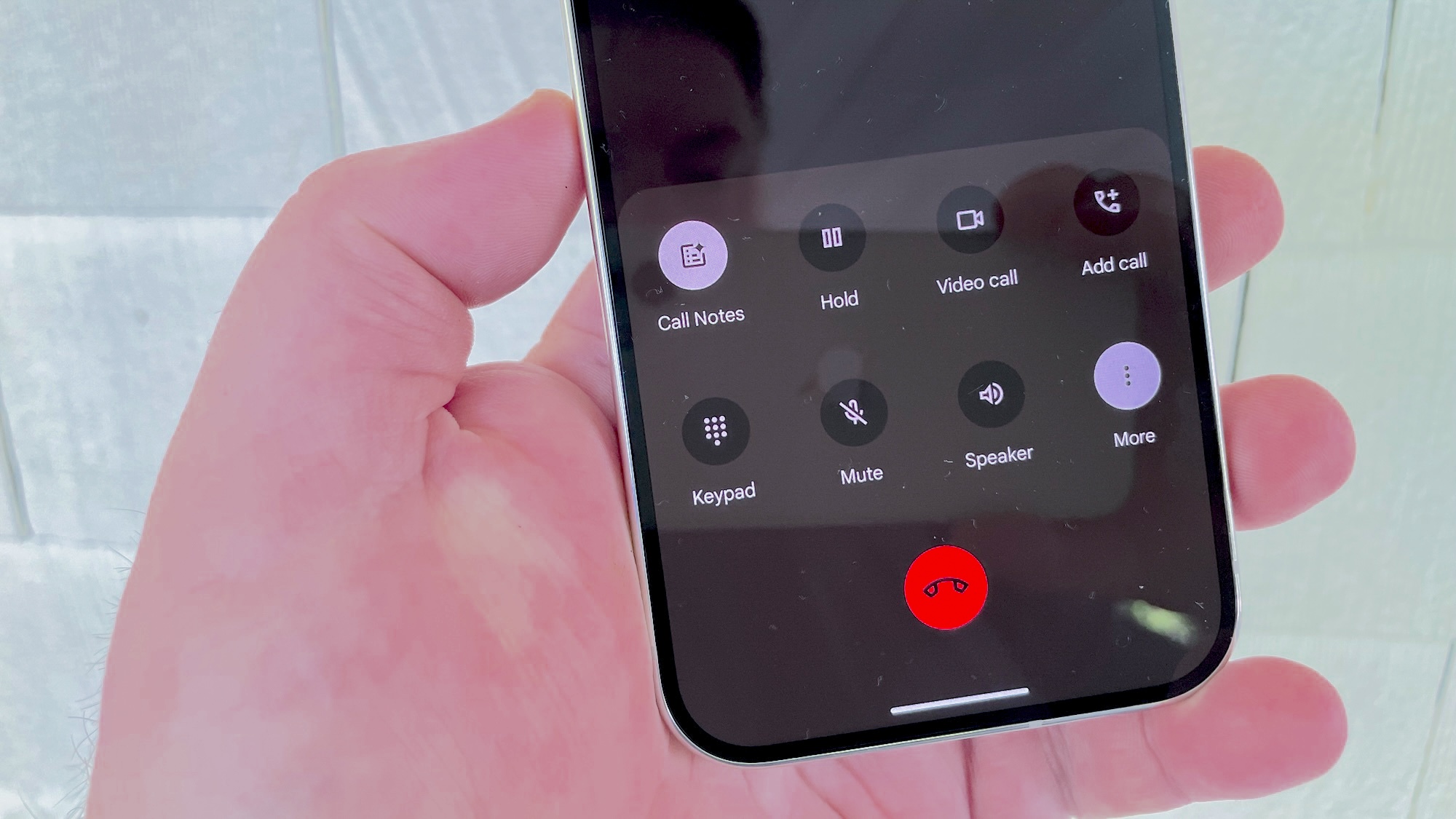
- Make or receive a call.
- Accept the Terms & Conditions if prompted.
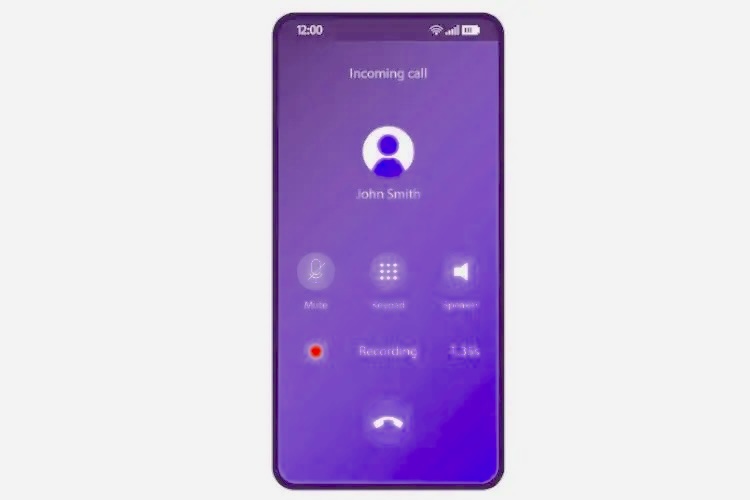
- Tap Record Call during the conversation.
- To stop, tap Stop Recording.
Recording Calls with Third‑Party Apps
1. TheTruthSpy Call Recorder
Designed for parental control, this app offers One‑Way Audio to capture both call audio and background sounds.
- Install the app on both devices.
- Connect them using a unique code.
- Enable microphone access and activate One‑Way Audio.
2. Google Voice
Google Voice allows free recording of incoming calls.
- Visit Google Voice.
- Go to Settings → Calls → Incoming Call Options.
- Press 4 during a call to start/stop recording.
- Access recordings via the Google Voice website.
3. Automatic Call Recorder
A widely used app for recording both incoming and outgoing calls.
- Install the app and grant permissions.
- Go to Settings → Recording Mode.
- Enable Automatic Recording.
Recording Specific Types of Calls
- Unknown Numbers: Settings → Call Recording → Always Record → Numbers not in contacts.
- Selected Contacts: Settings → Call Recording → Always Record → Selected Numbers → Add contacts.
- Individual Calls: Tap Record during the call screen.
How to Find and Share Call Recordings
- Open the Phone app.
- Tap the three‑dot menu → Settings → Record Calls → Recorded Calls.
- Long‑press a recording to share via email, messaging apps, or cloud storage.
Conclusion
Samsung Galaxy devices make call recording simple with built‑in features, while apps like Google Voice and Automatic Call Recorder provide additional flexibility. Whether for business, personal, or legal reasons, you can choose the method that best suits your needs. Always check local laws before recording calls to ensure compliance.
FAQs About Recording Phone Calls on Samsung
- Can I record calls without an app? Yes. Samsung’s native Phone app lets you record calls manually or automatically.
- How do I know if someone is recording my call? You may hear a beep or receive a notification. In Google Voice, callers are alerted when recording starts.
- Can all Samsung Galaxy phones record calls? Most modern Galaxy devices (Android 9+) support built‑in call recording.
- How do I delete a recorded call? Go to My Files → Internal Storage → Calls folder, then delete the file.
- Can I record audio outside of calls? Yes, use Samsung’s Voice Recorder app for high‑quality audio recordings.
- How do I enable automatic recording on Galaxy S22? Phone app → Three‑dot menu → Settings → Record Calls → Auto Record Calls → Toggle On.