
Introduction
Losing your iPhone can be stressful, especially if it’s powered off. Apple introduced the Find My network in iOS 15, claiming that supported iPhones (iPhone 11 and later) can still be traceable even when turned off. You may have noticed the message “iPhone Findable After Power Off” when shutting down your device.
But does this feature really help you locate a switched‑off iPhone? Let’s dive into real‑world testing, Apple’s official explanation, and what you can actually expect.
Quick Answer
- If your iPhone is completely powered off, you cannot track its live location.
- The Find My app will only show the last known location until the device is turned back on and connected to the internet.
- Apple’s claim about “findable after power off” relies on low‑power Bluetooth signals detectable by nearby Apple devices, but in practice, this feature is limited.
My Hands-On Test
I tested this with an iPhone 14:
- Before shutting down, the message “iPhone Findable After Power Off” appeared.
- Once powered off, the Find My app on my iPad (signed into the same Apple ID) only displayed the last known location.
- Even after 15 hours, the location did not update.
- The moment I powered the iPhone back on, Find My refreshed instantly with the current location.
This shows that while Apple promotes offline tracking, in reality, the phone must be powered on and online for accurate tracking.
Why Apple Says It Works When Off
Apple’s official documentation states that devices can be found even when powered off. Here’s how it works:
- The Find My network is a crowdsourced system of millions of Apple devices.
- Even when powered down, iPhones remain in a low‑power state with Bluetooth enabled.
- Nearby Apple devices can detect these signals and relay the location back to your account.
- The process is end‑to‑end encrypted, meaning only you can see the location.
However, this feature is not flawless. If no nearby Apple devices pick up the signal, your iPhone’s location will not update until it’s turned back on.
How to Locate a Powered-Off iPhone
Even though tracking is limited, here are steps you can take:
1. Check Last Known Location
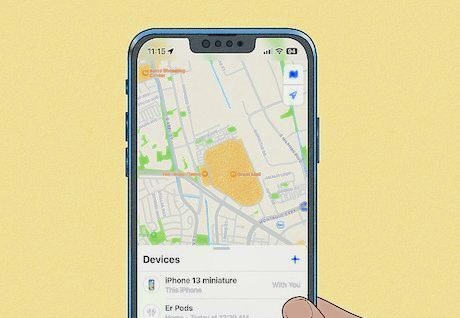
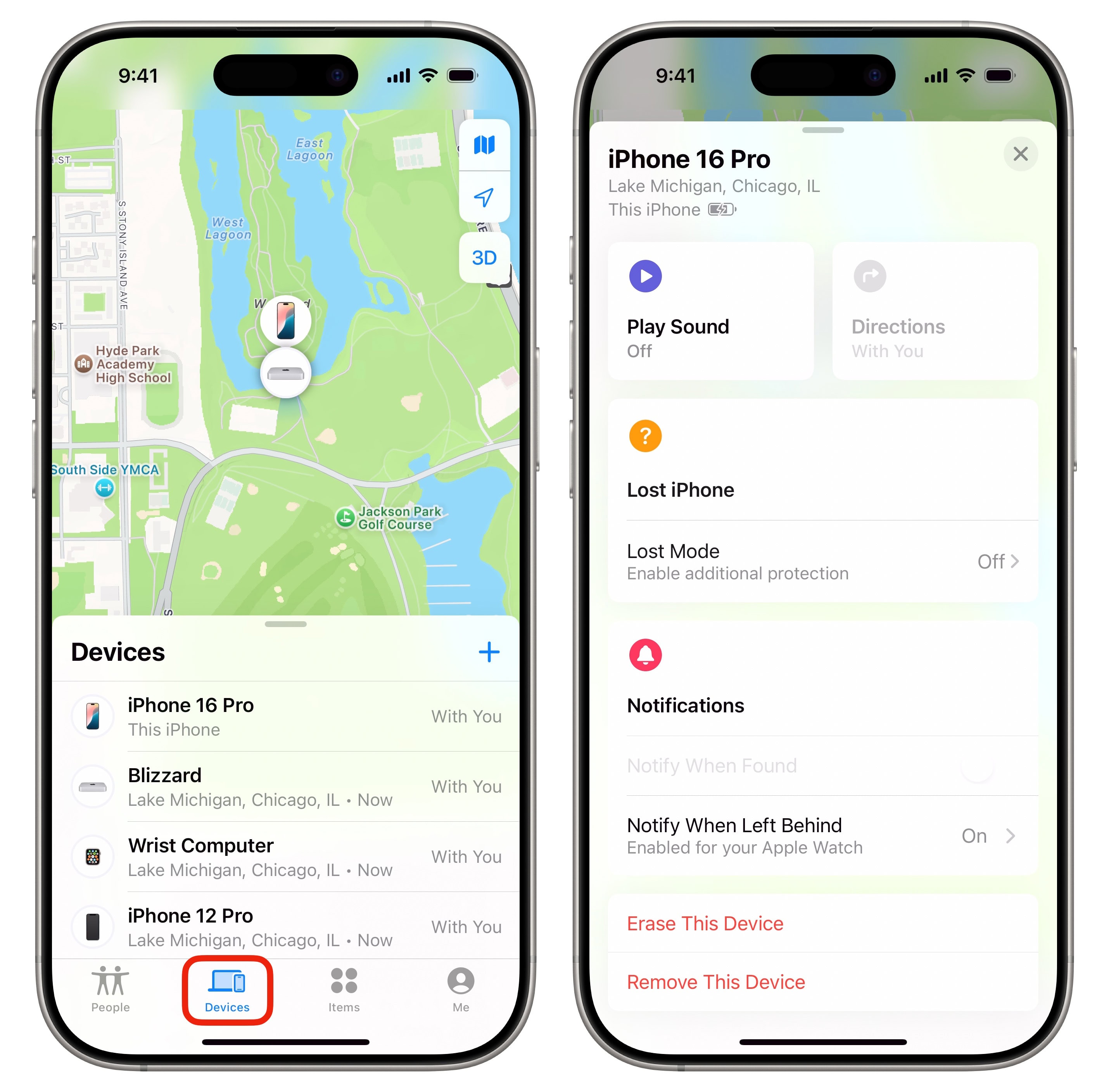
- Open the Find My app on another Apple device or visit iCloud.com/find.
- Select your iPhone from the list.
- Review its last known location on the map.
2. Mark iPhone as Lost
- In Find My, select your device.
- Tap Activate under “Mark As Lost.”
- Enter a phone number and message to display on the lock screen.
- This locks your iPhone remotely, preventing unauthorized access.
3. Erase Your Device Remotely
If recovery seems unlikely, you can erase all data:
- In Find My, select your iPhone.
- Tap Erase This Device to wipe personal information.
4. Contact Your Carrier
Notify your carrier to suspend service and possibly assist in tracking if the device reconnects to the network.
5. File a Police Report
Reporting the theft provides an official record and may help if the device is recovered later.
6. Publicly Announce the Loss
Posting on social media can discourage misuse and alert friends or community members who might help.
Beware of Fake Tracking Services
Many third‑party apps and websites claim they can track a powered‑off iPhone. These are scams. If Apple’s own Find My cannot do it, no external service can. Avoid wasting money or compromising your data.
FAQs
Q1: Can I track my iPhone if the battery is dead? No. A dead battery means no Bluetooth or network signals. You can only see the last known location.
Q2: Which iPhones support “Findable After Power Off”? iPhone 11 and later models running iOS 15 or newer.
Q3: Does Airplane Mode affect Find My? Yes. Airplane Mode disables wireless signals, so Find My cannot update the location until the phone reconnects.
Q4: Is the Find My network secure? Yes. Apple uses end‑to‑end encryption, meaning only you can view your device’s location.
Q5: Can thieves bypass Find My? Not easily. Lost Mode locks the device, and even after erasing, Activation Lock prevents reactivation without your Apple ID.
Final Words
While Apple’s Find My network is a powerful tool, its ability to track a powered‑off iPhone is limited. In practice, you’ll only see the last known location until the device is turned back on.
To maximize your chances of recovery:
- Regularly check Find My.
- Activate Lost Mode immediately.
- Erase data if necessary.
- Contact your carrier and report to authorities.
For more details, visit Apple’s official Find My guide.